Two-Factor Authentication (2FA), also known as two-step verification or an extra login security step, adds a second check to your login, in addition to your password. The first factor is your password. The second is a temporary code from an authenticator app on your phone or security device. Even if someone learns your password, they cannot reach the InOne panel without that second code.
This guide covers how 2FA works at Insider One, how to set it up, how to log in, how to recover access if you lose your device, how to generate new backup codes, and how an administrator resets 2FA for a user.
How 2FA works at Insider One
2FA is mandatory at Insider One and is on by default. You do not turn it on yourself. It applies at two levels: personal and account.
Personal-Level Two-Factor Authentication (2FA)
Personal-level 2FA protects your individual login. Set up your authenticator app on your first login and generate backup codes in case you cannot access the app later.
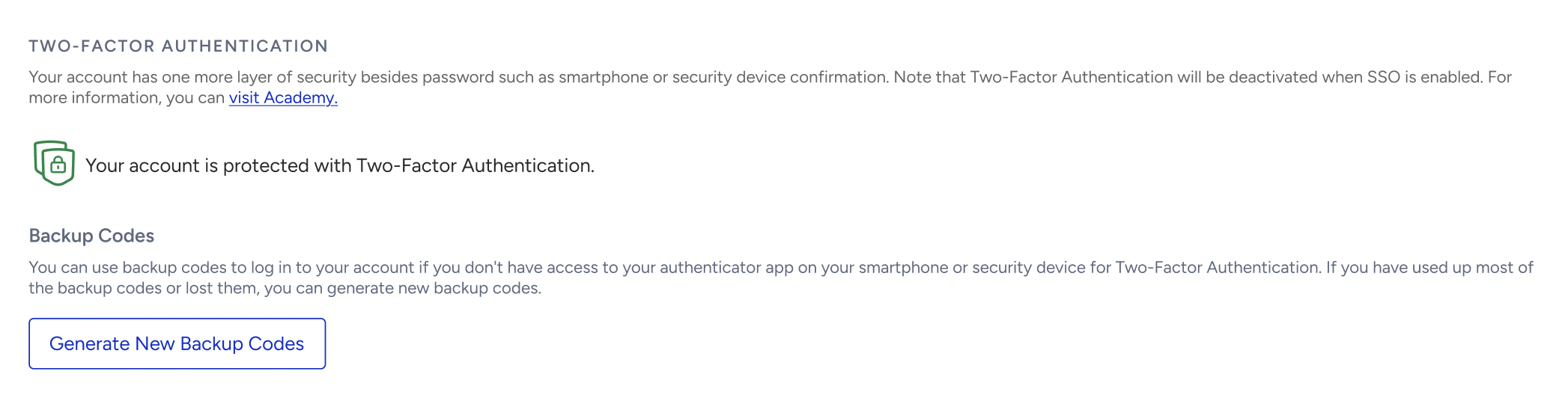
We recommend generating backup codes so you can still log in if you lose access to your authenticator app.
Account-Level Two-Factor Authentication (2FA)
Account-level 2FA applies across your account.

2FA is deactivated when Single Sign-On (SSO) is enabled, because SSO handles authentication at your identity provider.
Set up Two-Factor Authentication (2FA)
Because 2FA is mandatory, every user completes setup on their first login to the InOne panel. The setup screen appears automatically on that first login.
Install an authenticator app such as Google Authenticator or Twilio Authy from the Apple App Store or Google Play Store.
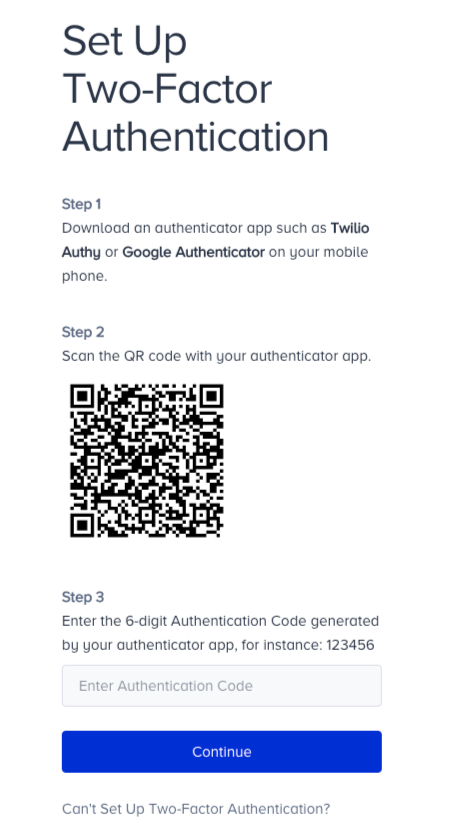
Scan the on-screen QR code with the app.
The app generates a temporary six-digit code.
Enter the code and click Continue to reach your backup codes.
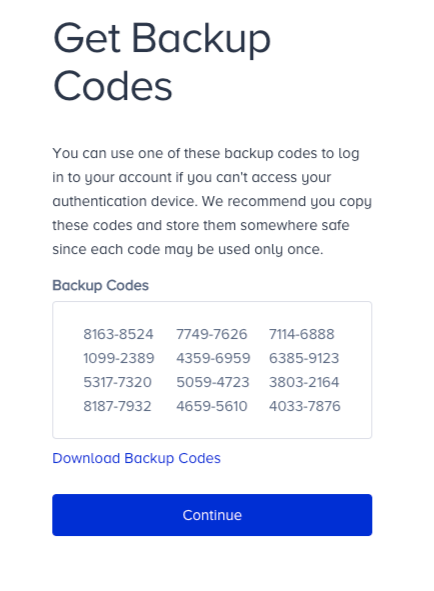
A backup code lets you log in when you cannot reach your authenticator app. Copy these codes and store them somewhere safe. Each code works only once.
After you copy or download the codes, click Continue, then Done to finish the setup and log in.
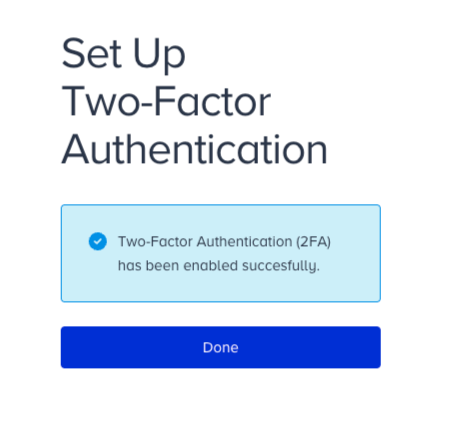
Log in with Two-Factor Authentication (2FA)
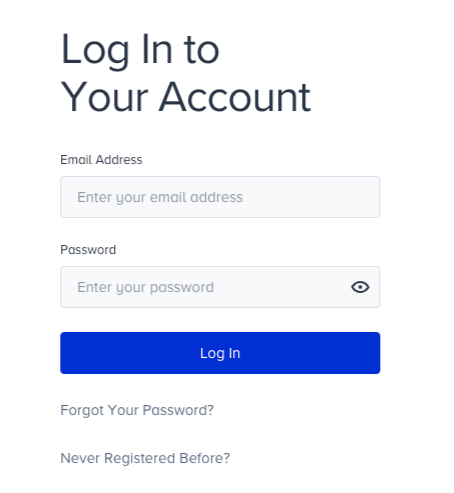
Enter your username and password.
Open your authenticator app, then enter the six-digit code it generates.
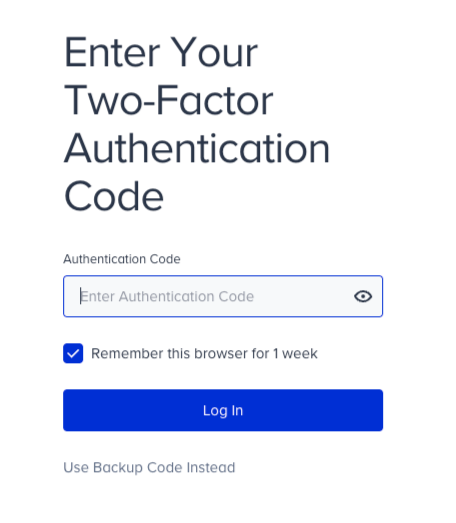
To skip the code on a trusted device, select Remember this browser for 1 week.
Remembering a browser applies only to that browser. If you log in from a different browser on the same device, you are asked for the authentication code again.
If you lose access to your authenticator app:
On the code screen, enter one of the backup codes you saved during setup. Each code works once.
If you have no backup codes left, ask an administrator on your account to reset your 2FA. You then set up 2FA again on your next login.
Generate new Backup Codes
You can replace your backup codes at any time, for example after using several of them.
Log in to the InOne panel.
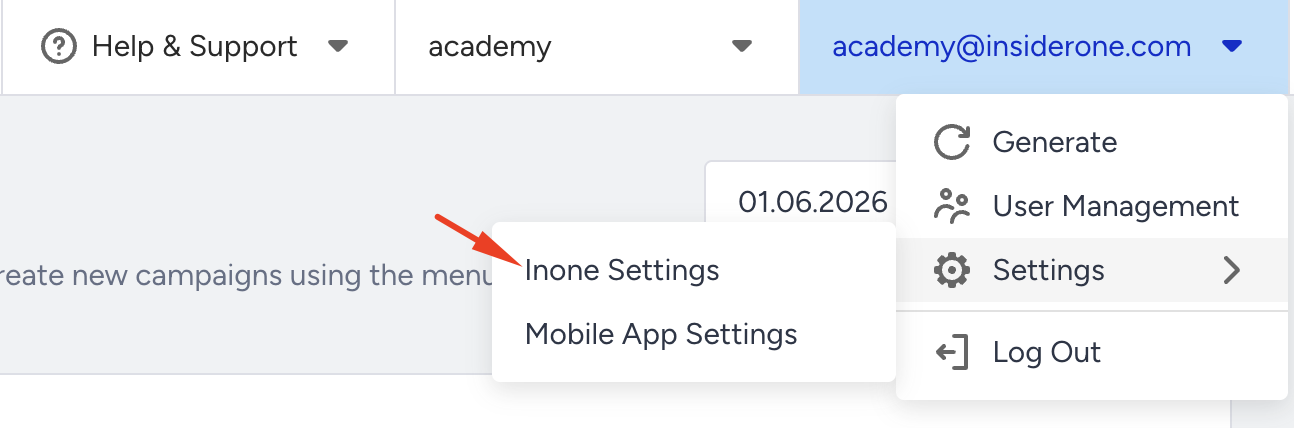
Navigate to Inone Settings > Personal Settings.
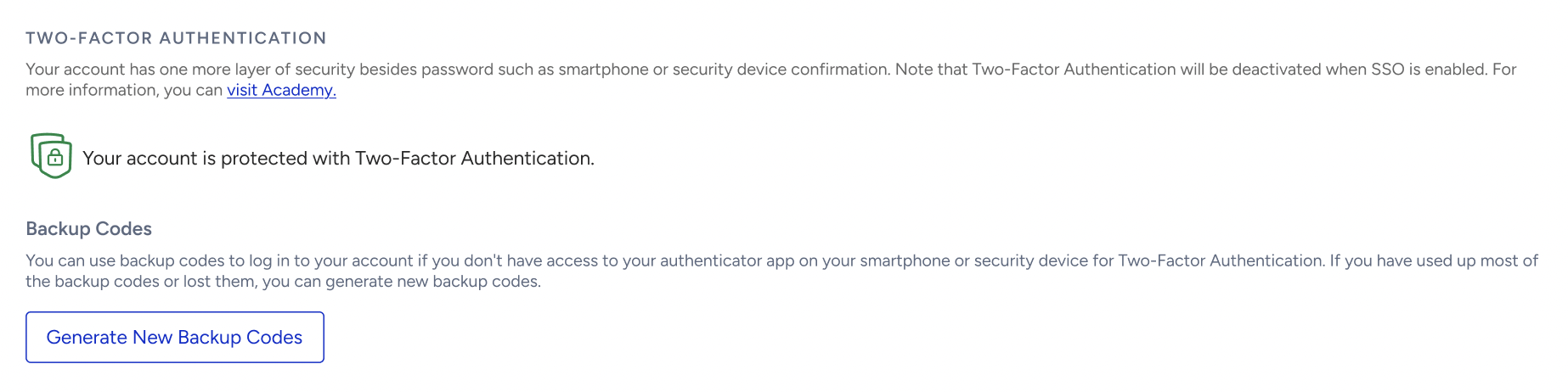
Scroll to Two-Factor Authentication.
Click Generate New Backup Codes.
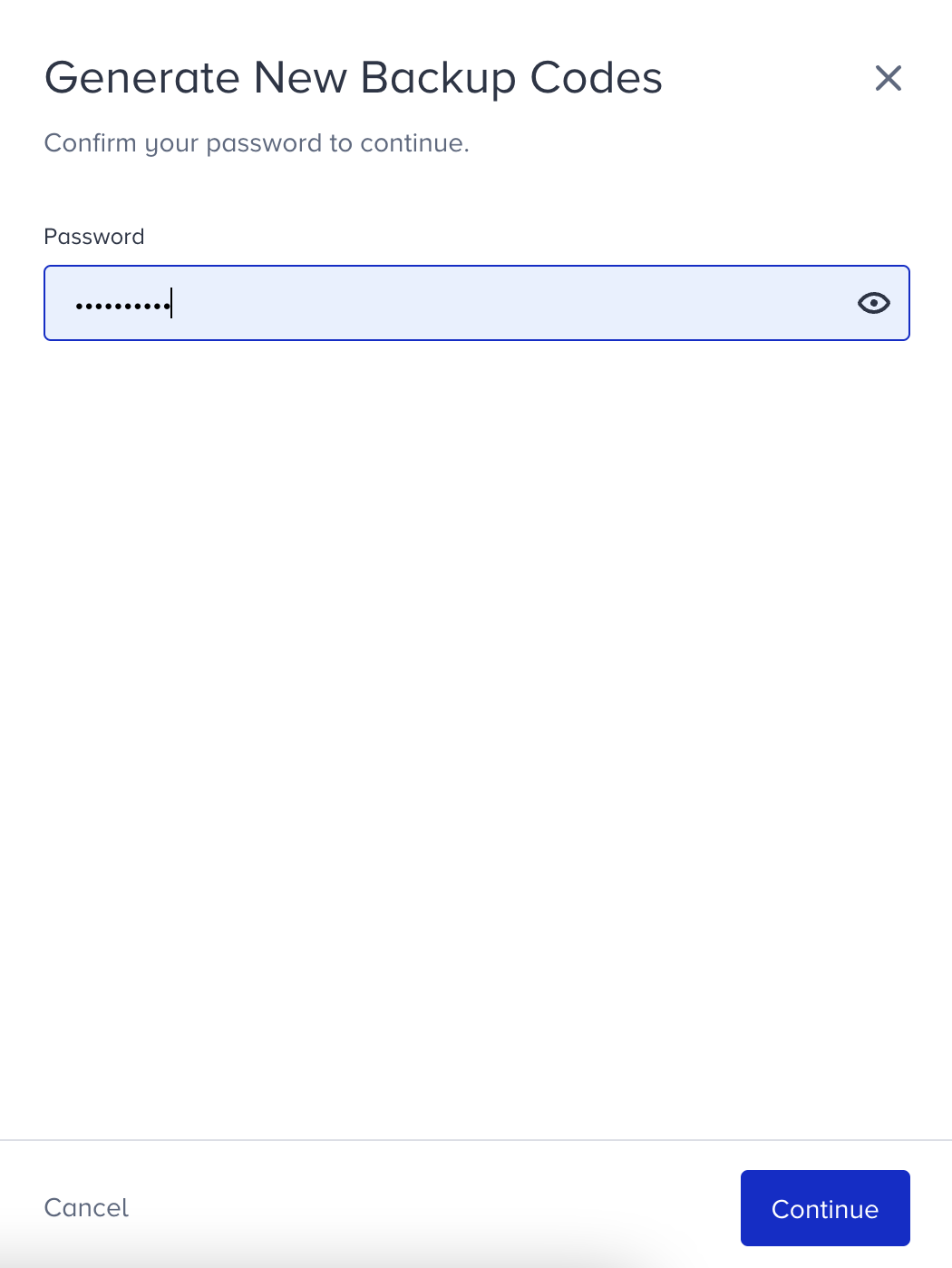
Enter your account password, then click Continue.
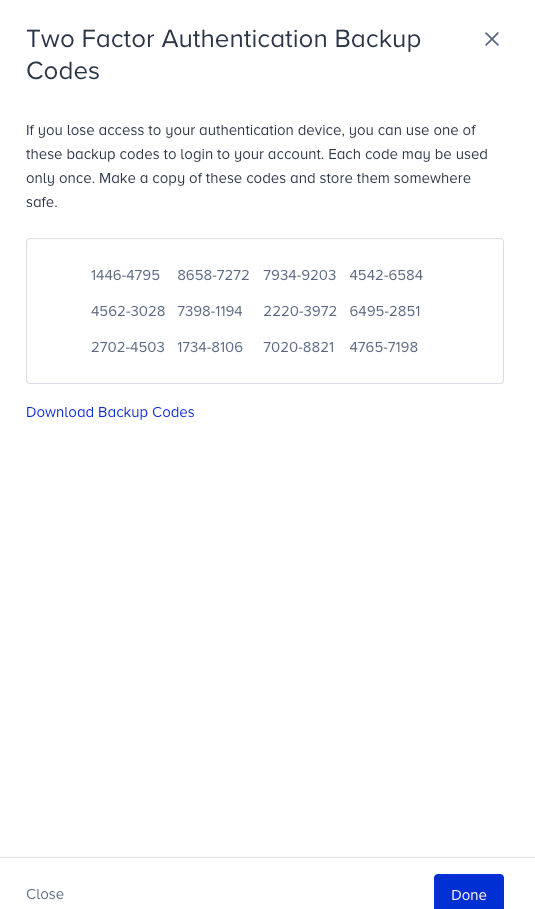
Copy or download the new codes and store them safely, then click Done.
Reset Two-Factor Authentication (2FA)
Administrators can perform a reset action only. Resetting 2FA is done from User Management. Use it when a user changes the device that holds their authenticator app, or when they are locked out and have no backup codes.
To reset the Two-Factor Authentication (2FA) setup:
Log in to the InOne panel.
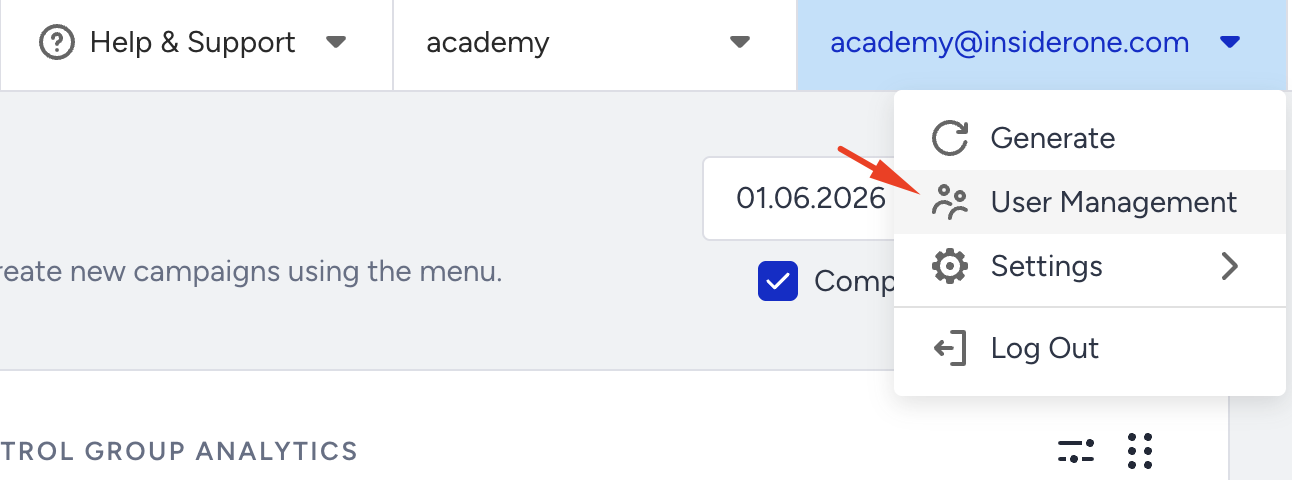
Open User Management from the menu under your email address in the top right corner.
Find the user, then open the menu on their row.
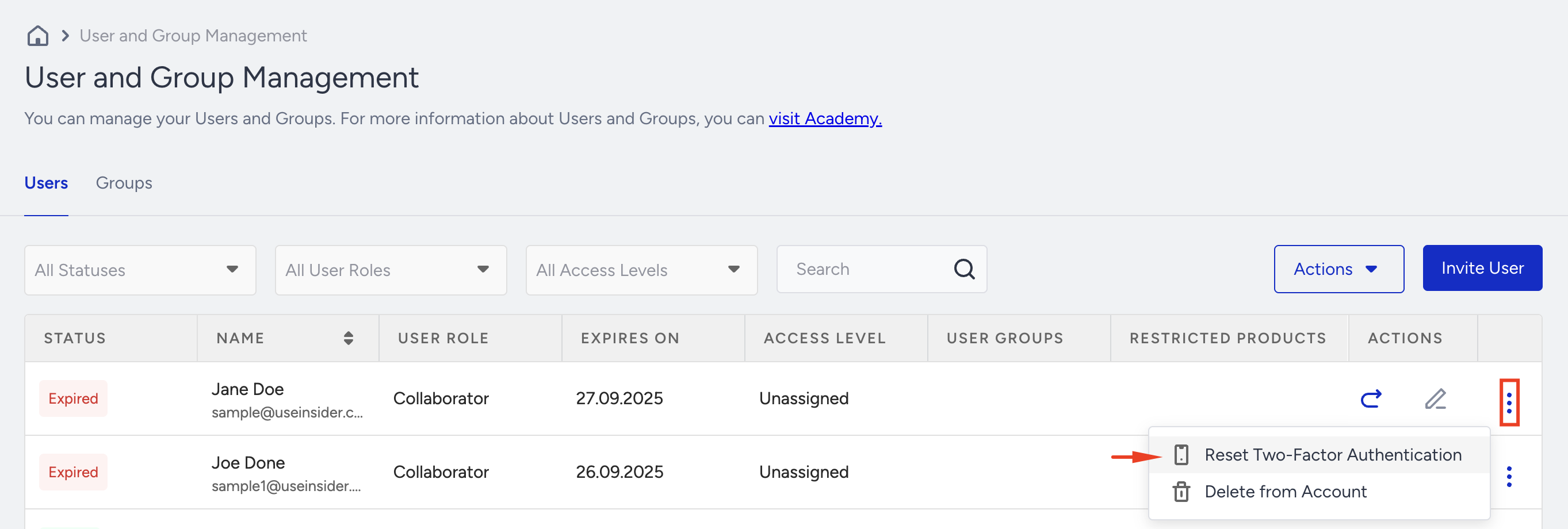
Select the Reset Two-Factor Authentication option from the menu.
Read the warning message and click Reset.
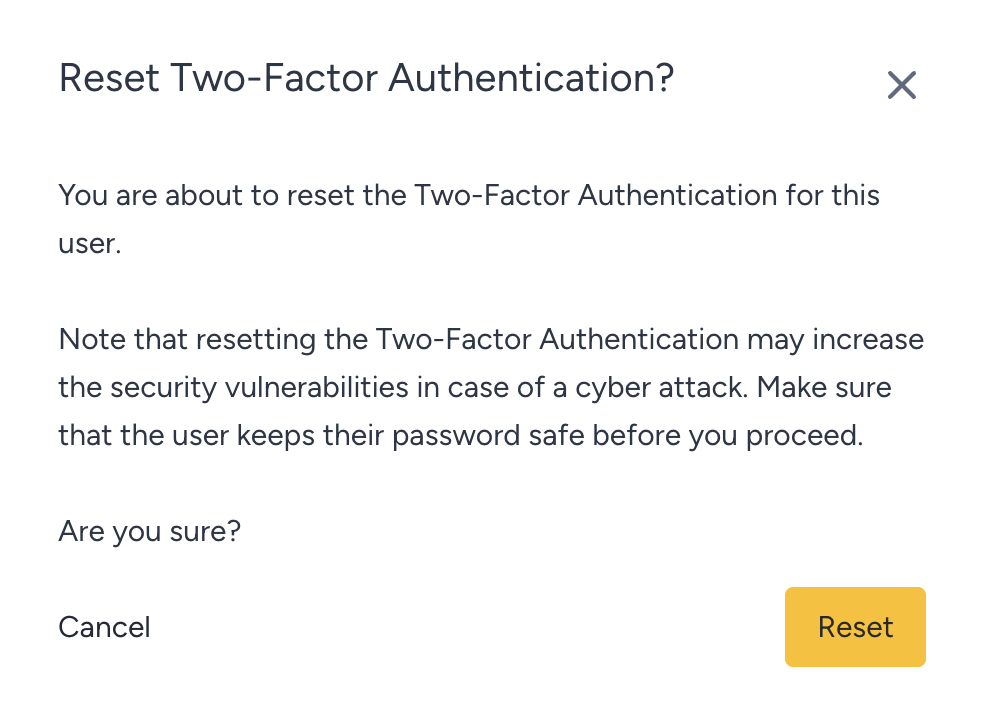
The user is sent to the 2FA setup screen on their next login.