Branding Settings lets you manage your brand profile, including your logo, icon, custom fonts, typography, and color theme.
Click your username > Settings > Inone Settings to navigate to this page.
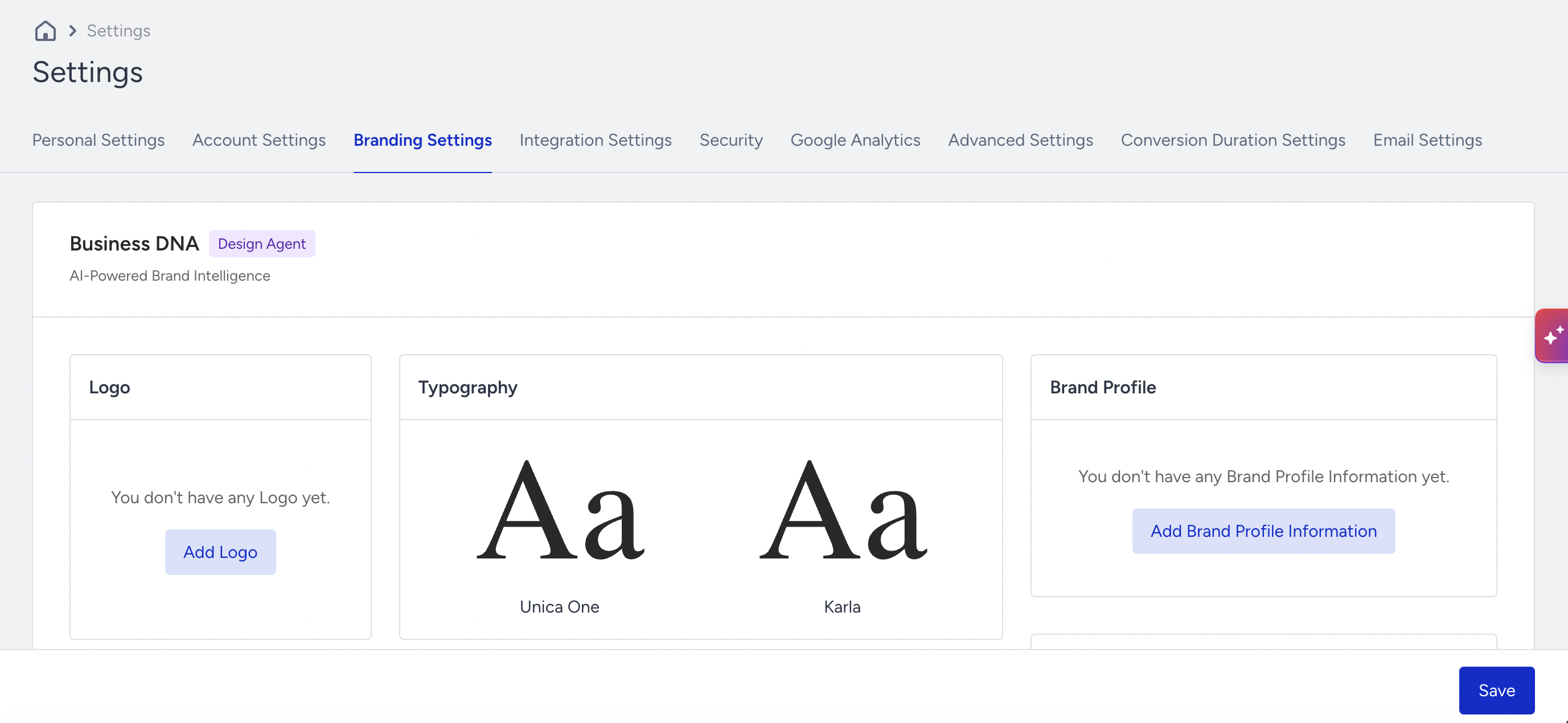
Business DNA
Business DNA is Insider One's understanding of your brand, captured as a single structured profile: your logo, typography, language, strategy, audience, tone, and visual style. Insider One builds it automatically by analyzing your website, then makes it available to every content-generating product, so anything Insider One creates for you looks and sounds like your brand.
Business DNA is currently available for Design Agent.
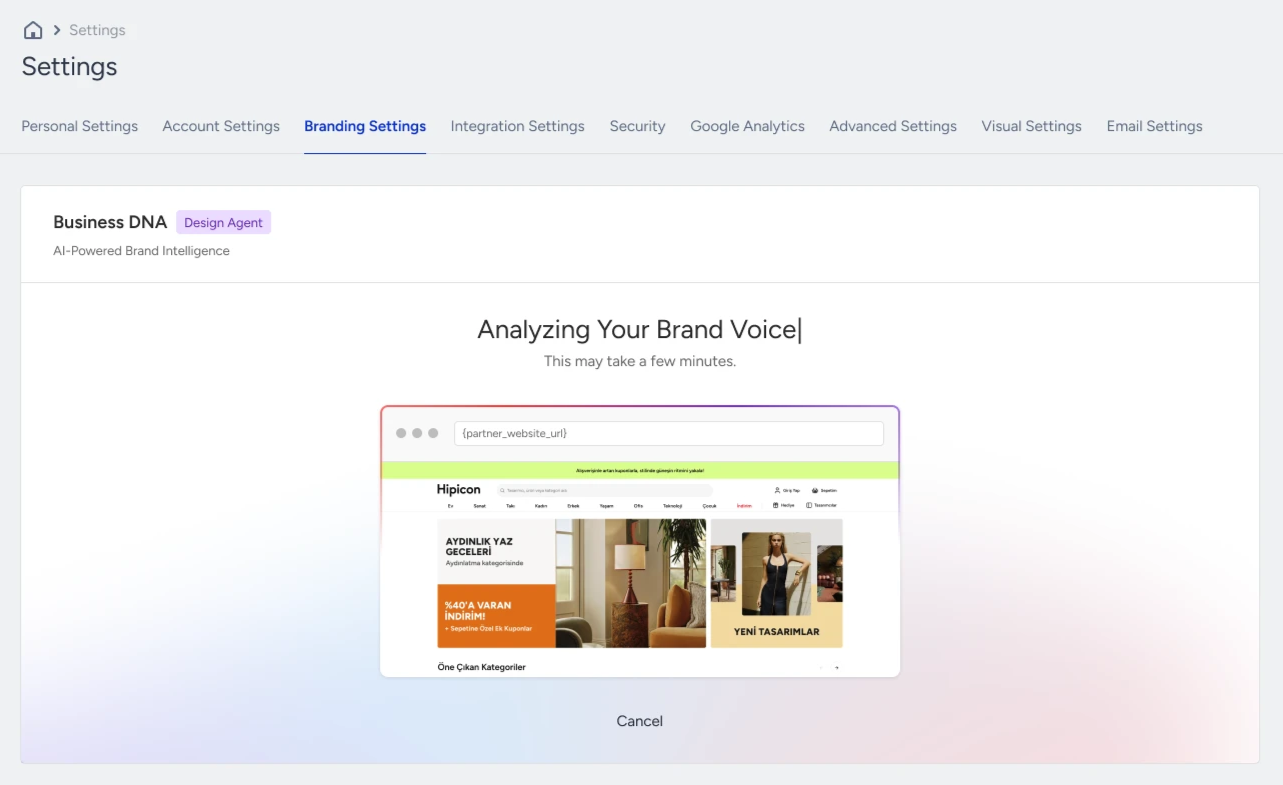
Business DNA captures the business behind your brand: what you sell, how you position yourself, who you sell to, how you speak, and how you look. It interprets the content on your website to build this fuller picture, so Design Agent for Web produces output that is far more ready to use and true to your brand.
Logo
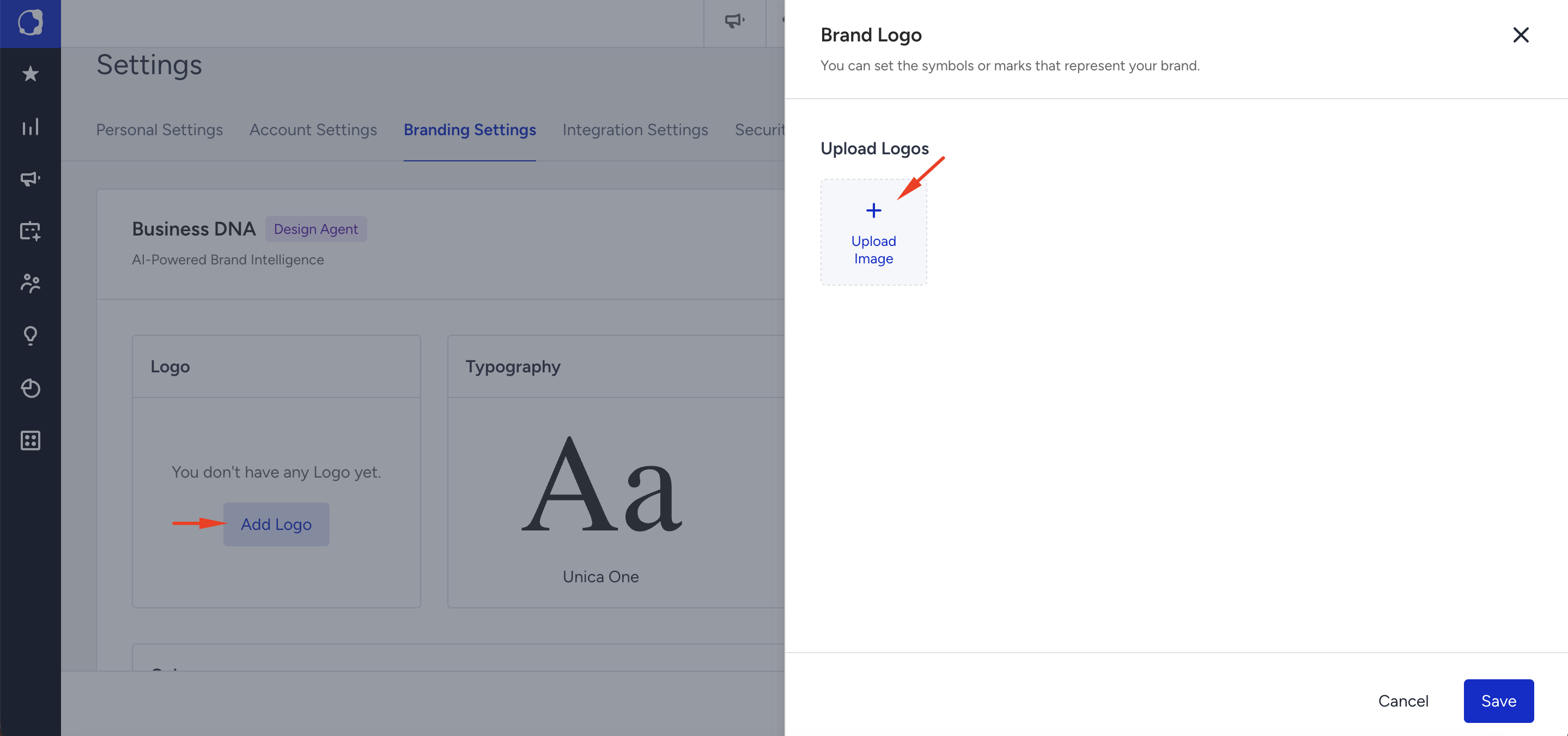
Logo is where you set the symbols or marks that represent your brand. Click Add Logo, then Upload Image to add your logo file. Once uploaded, Design Agent uses it in the brand assets it generates, so your logo appears where it belongs without you having to add it each time.
Typography
Typography sets the fonts used across your brand assets. You define a font for each role in your design, Title, Subtitle, Body, and Button, and set its size and fallback fonts. Business DNA suggests fonts it found on your website, and you can keep those or choose your own. These choices then apply to everything Design Agent generates, so your assets stay typographically consistent.
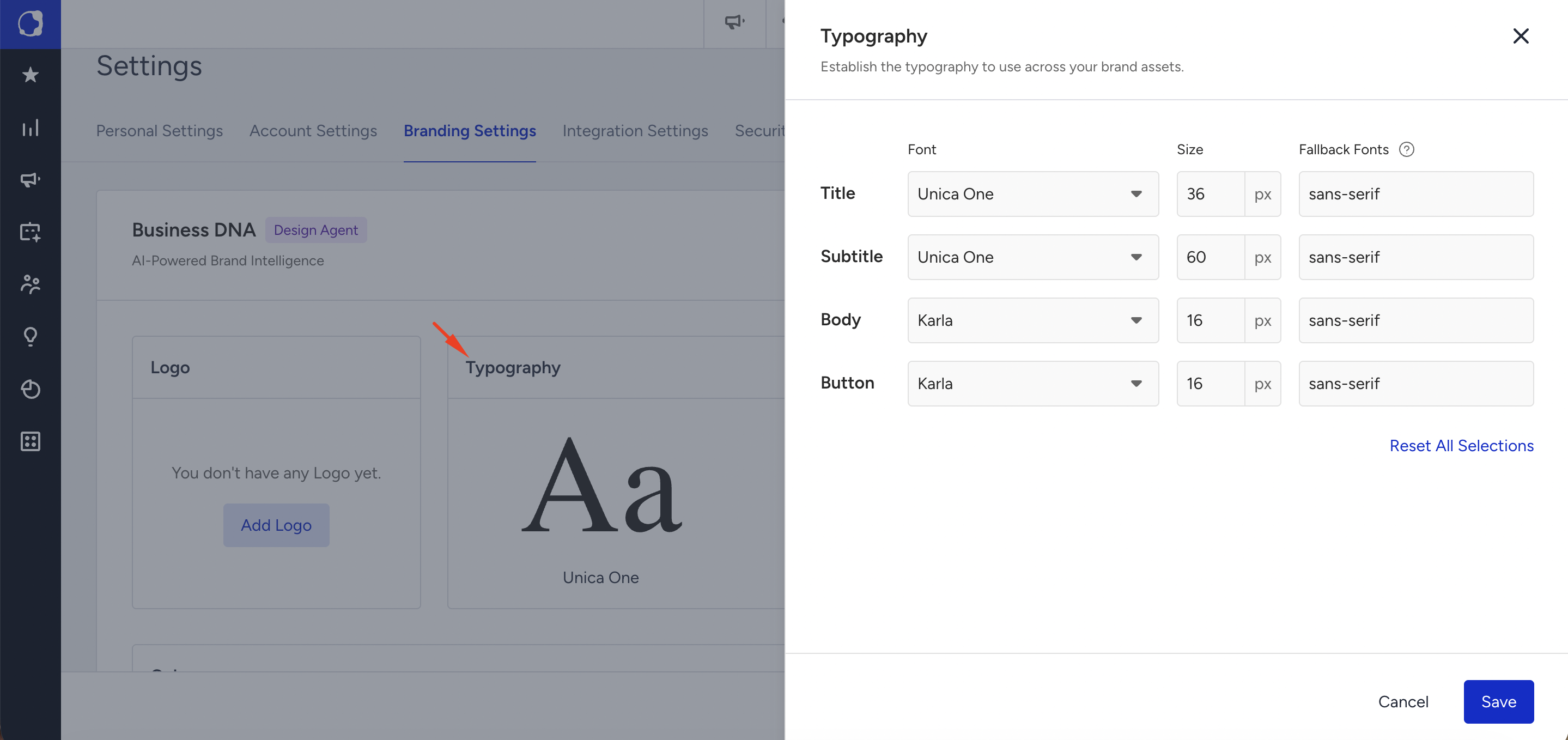
Click Typography to open the modal. Set the fonts and click Save.
If your users do not have the selected font in your campaign design, you can also set a fallback font.
Changing your Typography does not change the Website Fonts list in the campaign editor. To add a font to Website Fonts, use it on your website first, then trigger a re-crawl. Standard fonts such as Times New Roman are not listed under Website Fonts. You can select them from Default Fonts instead.
Brand Profile
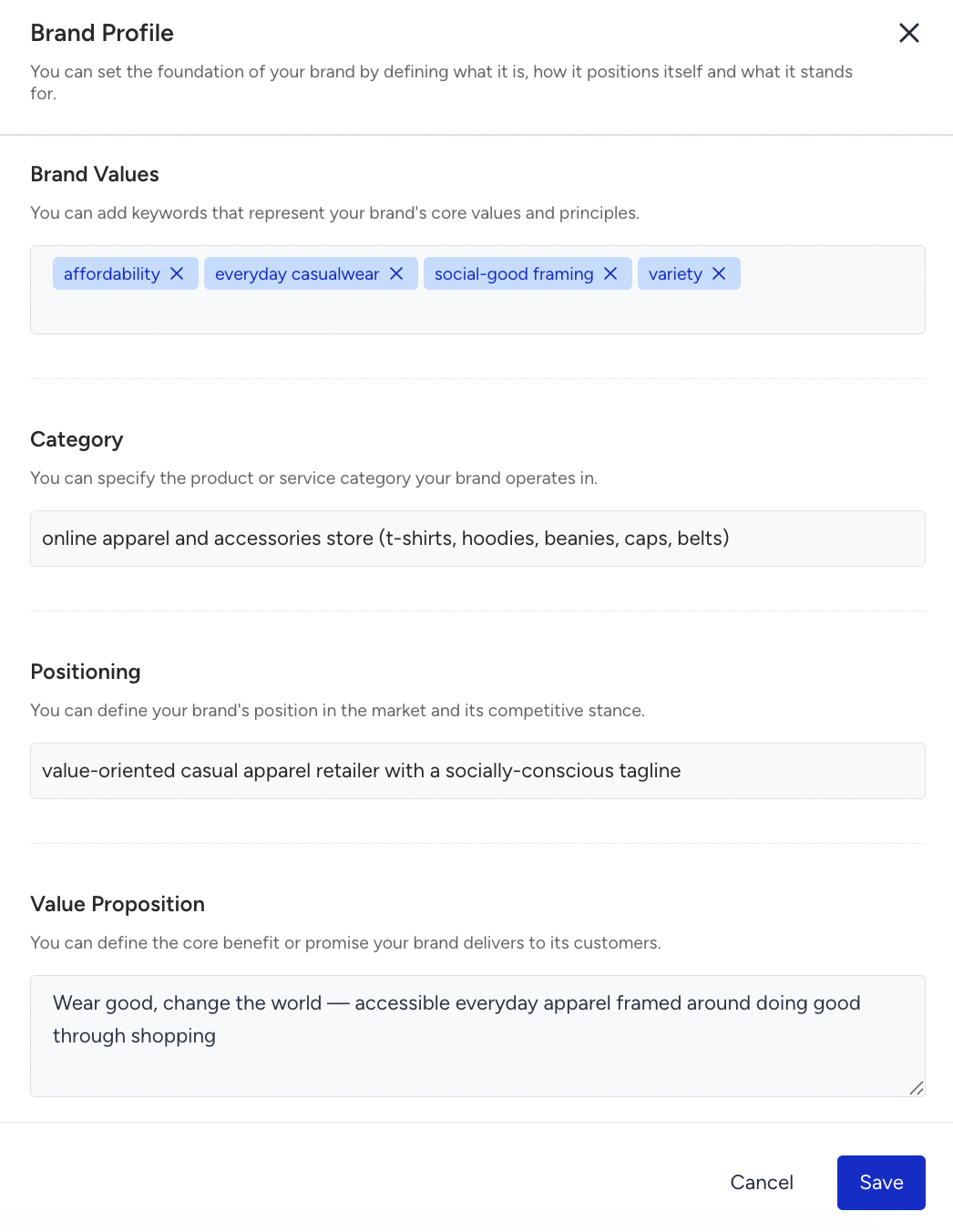
Brand Profile is where you set the foundation of your brand: what it is, how it positions itself, and what it stands for. You fill in four fields:
Brand Values: Keywords for your brand's core values and principles.
Category: The product or service category your brand operates in.
Positioning: Your brand's position in the market and its competitive stance.
Value Proposition: The core benefit or promise your brand delivers to its customers.
Design Agent uses this profile to keep the content it generates aligned with how your brand speaks and what it stands for. If you have not added a profile yet, click Add Brand Profile Information to create one.
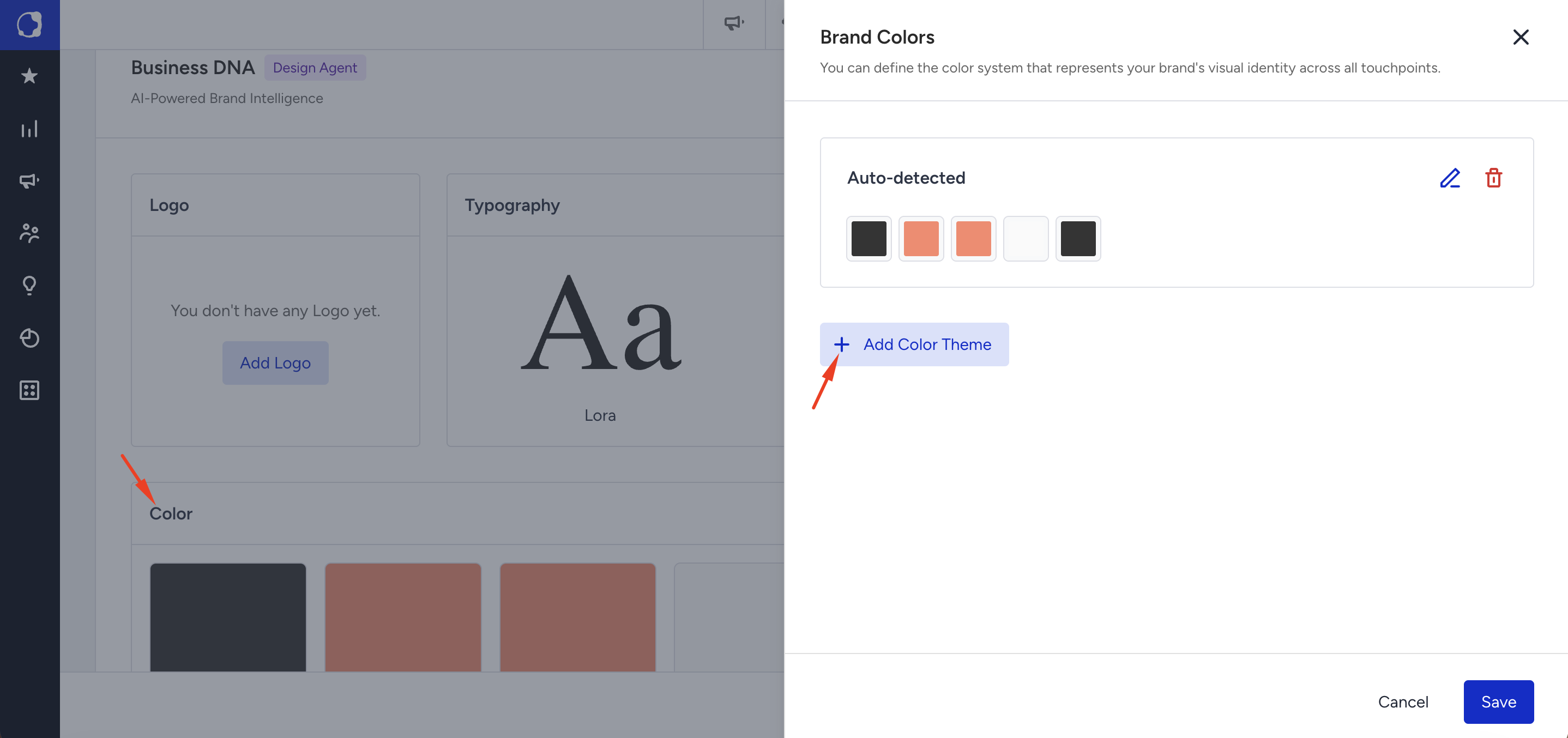
Color
Color is where you set the color theme used across your brand assets. Click Add Color Theme to define your palette. Design Agent then applies these colors to the content it generates, so your assets stay visually consistent with your brand.
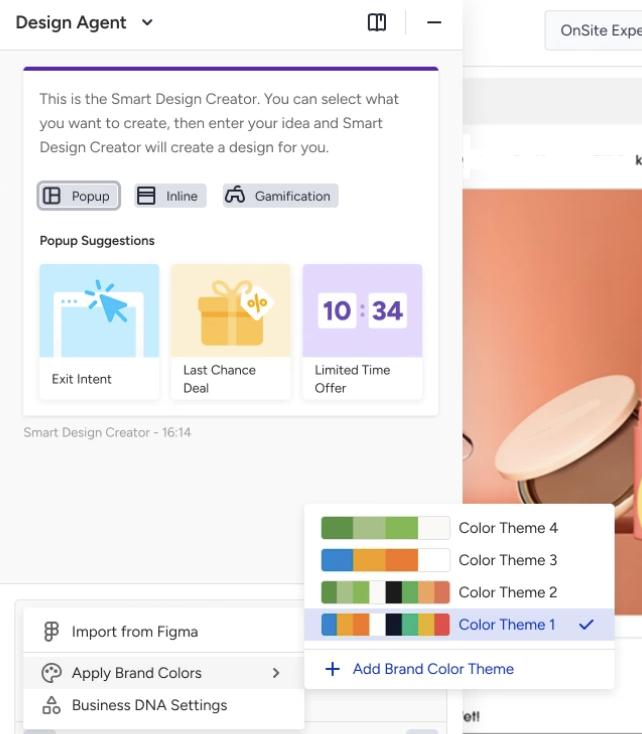
Brand Colors is selectable in the InOne panel. You pick whichever theme you want at generation time. It is a per-request choice, not a fixed part of the DNA.
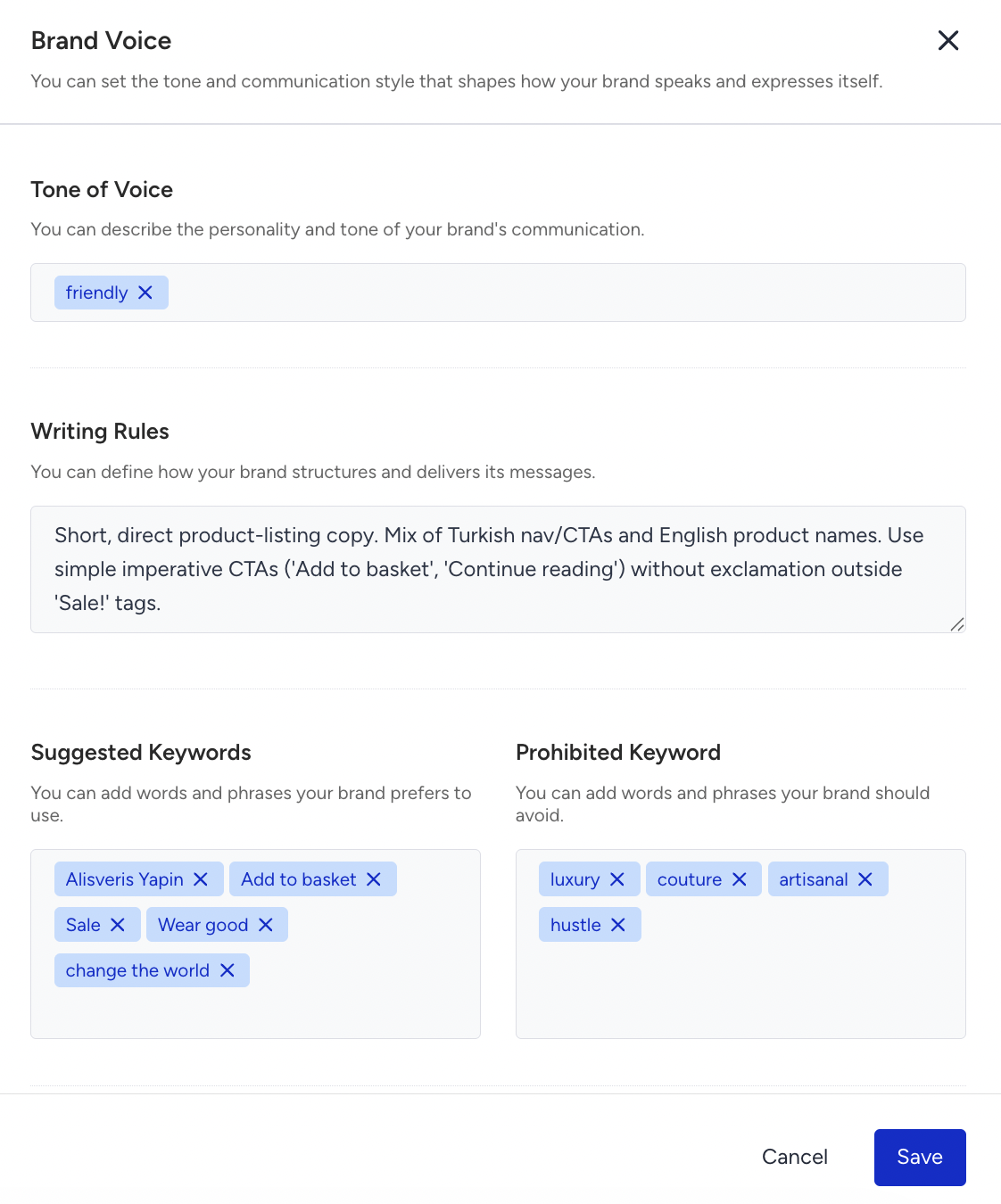
Brand Voice
Brand Voice is where you define how your brand speaks: its tone and the way it phrases things. Click Add Brand Voice Information to set it. Design Agent uses your voice to keep the wording of generated content consistent, so everything sounds like your brand.
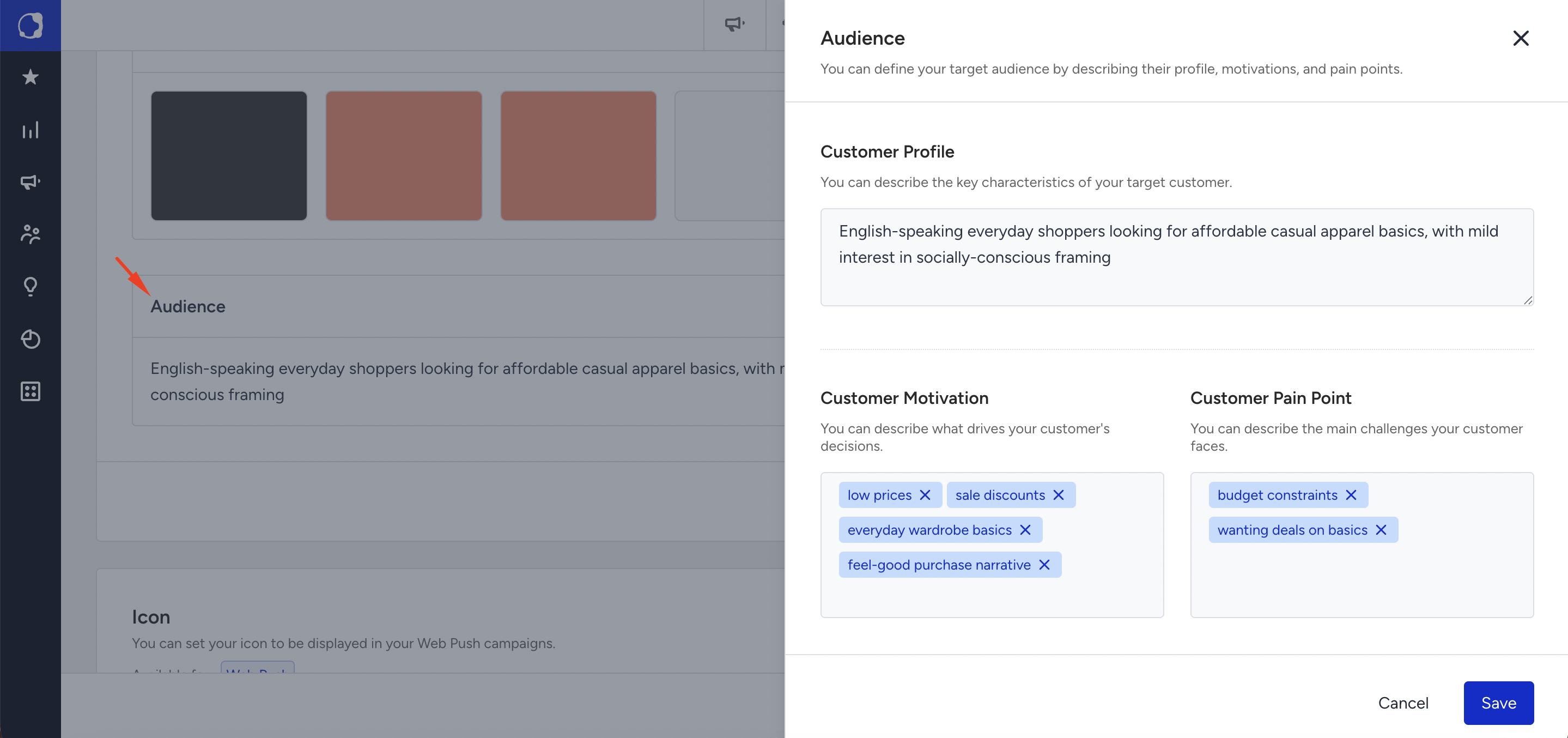
Audience
Audience is where you describe who your brand sells to. Click Add Audience Information to add your target audience. Design Agent uses this to shape content around the people you are trying to reach.
Visual Style
Visual Style is where you define the visual direction and design language that shape how your brand looks and feels. You set four fields:
Design Language: Keywords for your overall visual system and design approach, for example, "minimal" or "editorial."
Layout Pattern: Your preferred structure and arrangement of elements, such as Centered Focal, Product Grid, or Whitespace Heavy. You can select more than one.
Button Action Treatment: The visual style for your buttons: Filled, Outlined, or Minimal.
Corner Style: The corner style used across your visual elements: Sharp, Subtle, Rounded, or Pill.
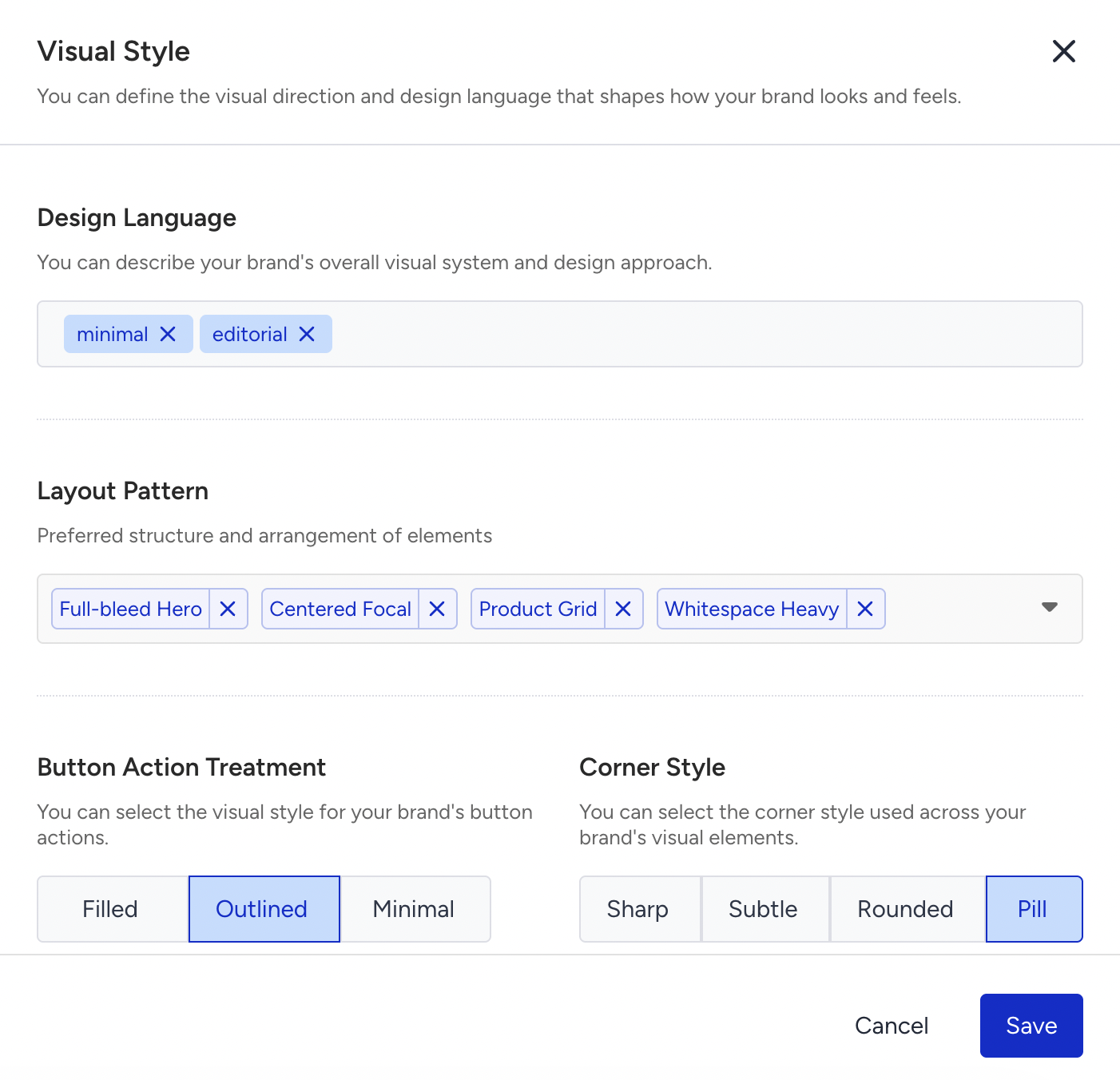
Design Agent applies these choices to the content it generates, so the styling stays aligned with your brand. In the Business DNA overview, Visual Style shows "Not enough context to preview" until enough brand information exists to render a preview.
You stay in control
Business DNA is a starting point, not a locked result. Insider One builds the first version from your website, and you can refine or rebuild it whenever you want.
Edit any field in the panel. Every section that Insider One generates can be edited directly in Branding Settings. Change any field to match your brand, and your edits take precedence over what was detected from your site.
Re-crawl on demand. When your website changes, you can trigger a fresh analysis that rebuilds your Business DNA from scratch. This is the right choice after a rebrand, when you want the whole profile regenerated from the new site rather than edited field by field.
Icon
You can set your icon to be displayed in your Web Push campaigns.
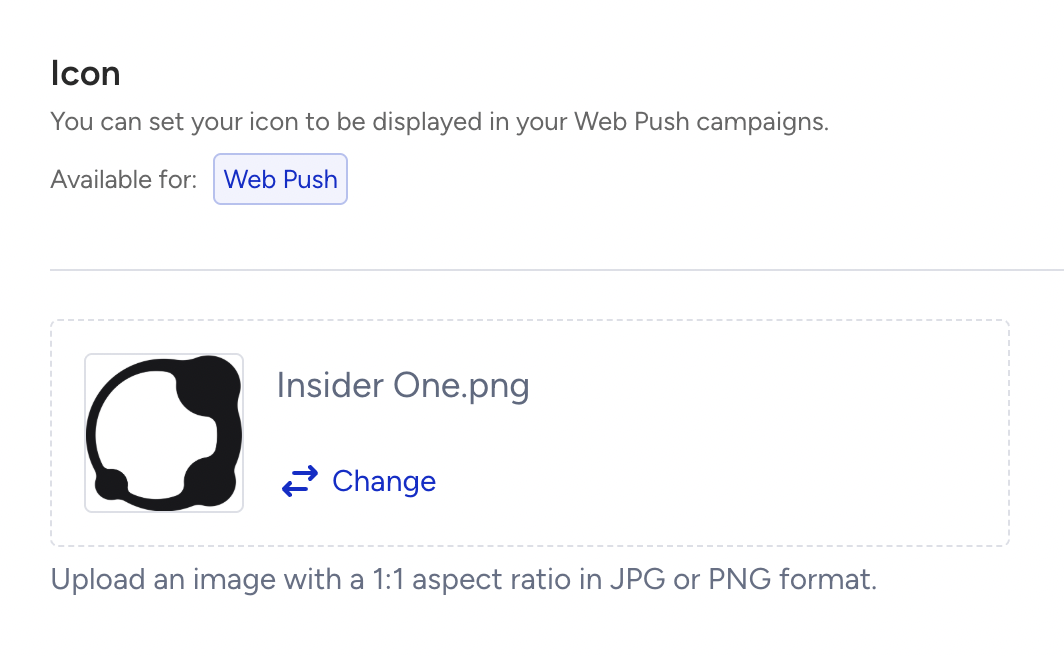
The default icon update only affects new campaigns; old active campaigns should be resaved.
Fonts
You can add custom fonts to your account to use in your campaigns.

Click the Upload Custom Fonts button to upload your custom font file to your panel. If necessary, you can rename and delete the fonts you have uploaded.

You can upload up to 10 (licensed) fonts in TTF, OTF, WOFF, or WOFF2 format, and no larger than 10 megabytes each. To use these in our Email Editor, note that the OTF format is not supported.
Click the Save button to use them in your campaigns.
Fallback Font
If your users do not have the selected custom font in your campaign design, you can also set a fallback font for the custom fonts you upload.
You must select a fallback font and a fallback font family, which will be applied instead of a custom font if it isn’t supported.
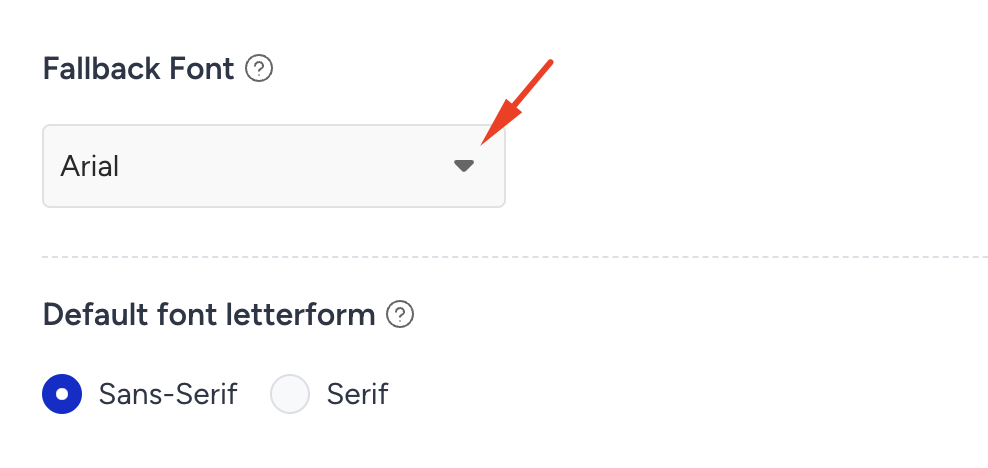
The fallback font is applied to any font (standard, non-standard, or custom) in the HTML editor and the Drag and Drop Editor.
You can select the letterform that will be used as a fallback for users who don’t have the fallback font you selected.