Google Analytics Settings allows you to manage the Google Analytics integrated into your site to capture insights.
Click your username > Settings > Inone Settings > Google Analytics to navigate to this page.
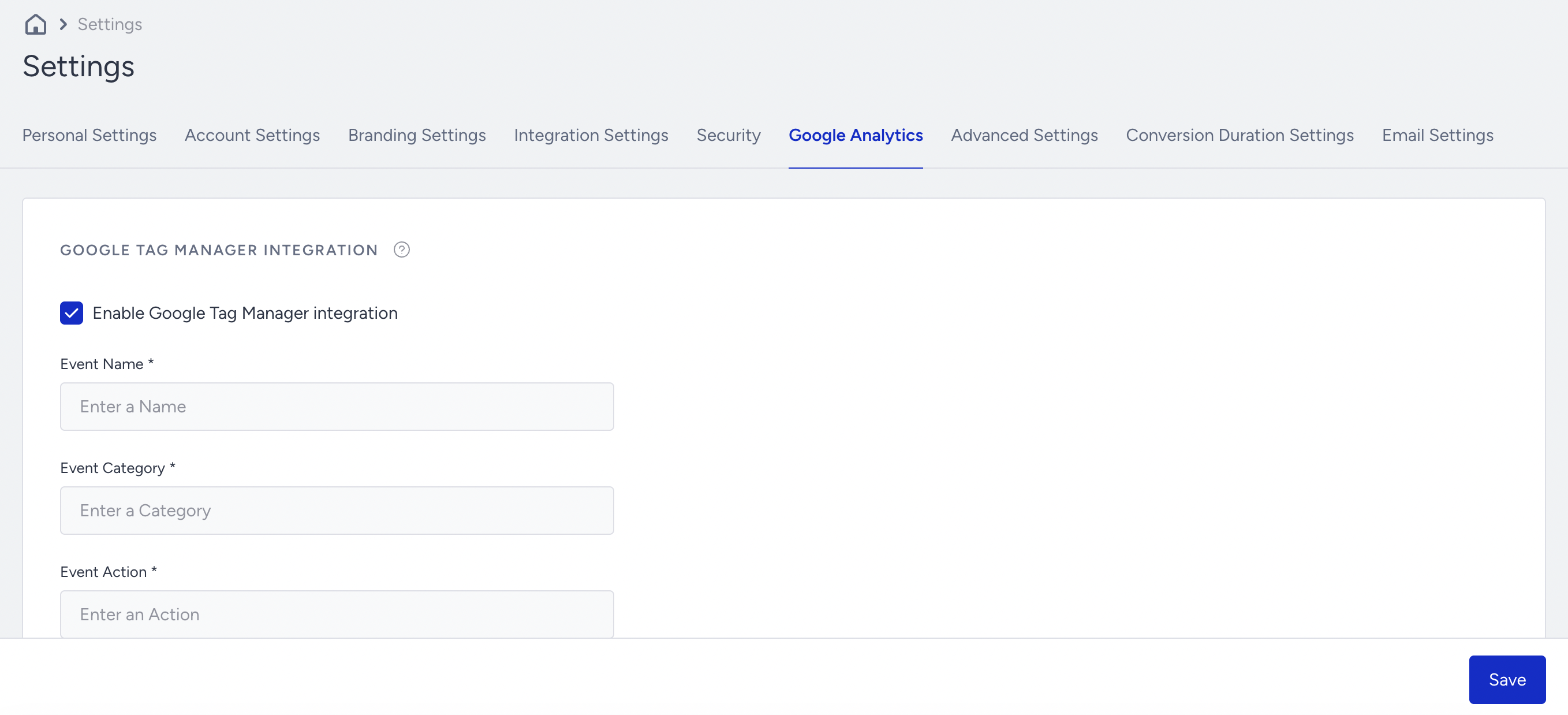
Google Tag Manager Integration
If you have completed Google Analytics Events with Google Tag Manager Integration, you need to add the macro names as they are defined in your Google Tag Manager event tracker, so the values match: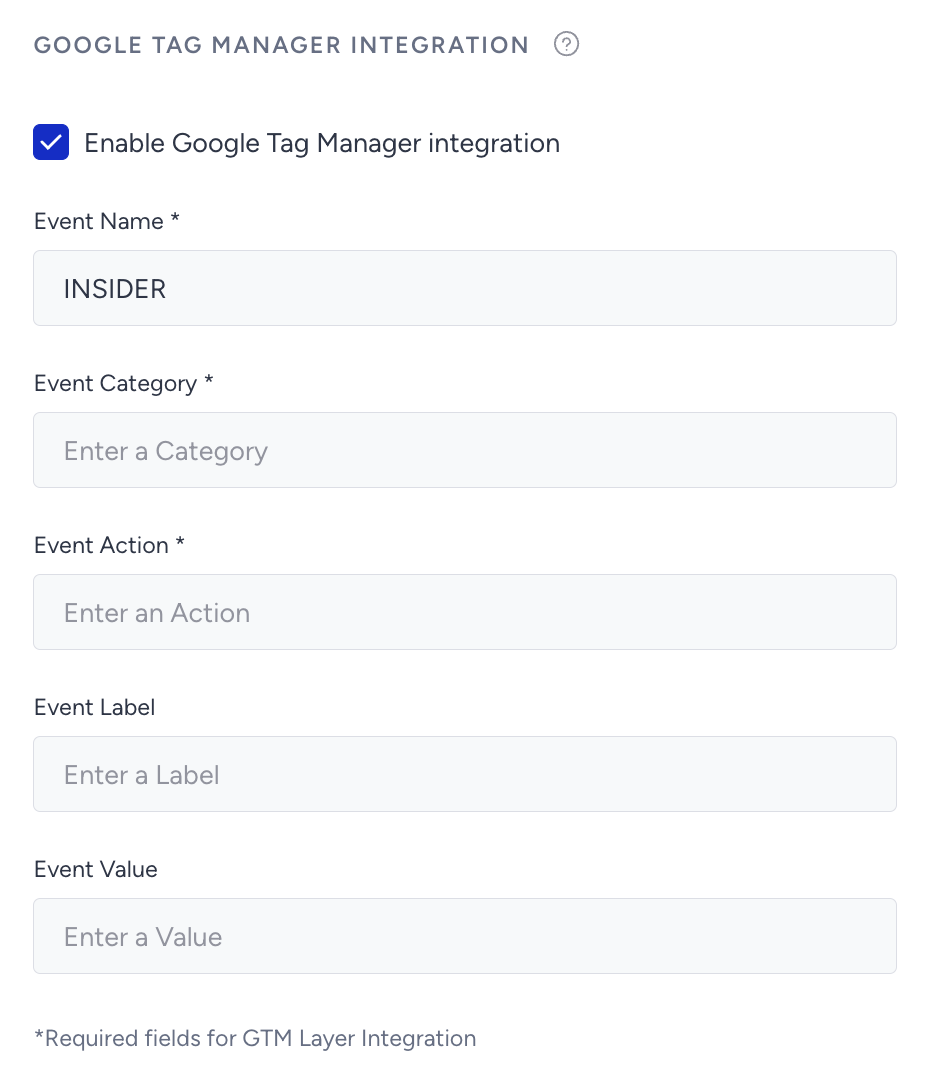
Names of the Google Analytics event variables in the InOne panel and the “variable names” entered here should precisely match.
Ensure the naming conventions align seamlessly between GA4 and the InOne panel to facilitate seamless data integration and reporting. Any discrepancies in event names might lead to misinterpretations or incomplete analytics insights.
Google Analytics Non-Interaction
Interaction is an important user action that directly affects the bounce rate.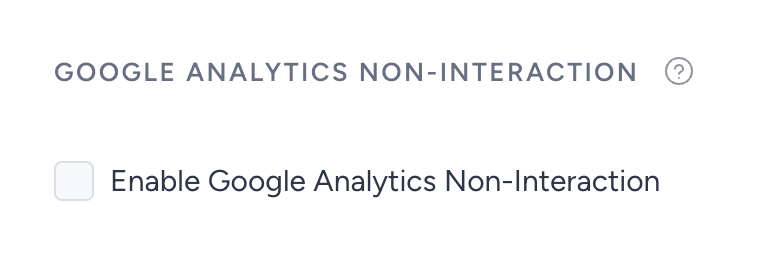
Google Analytics' Non-Interaction option lets you define how you want the bounce rate calculated and how it affects your website. Using this option, you can send non-interactive sessions in Google Analytics to Insider. Take, for example, a homepage with an embedded video as the first page of your website's sales flow. You might want to count this non-interactive page in your sales data, as it might affect it.
This option is enabled by default, and we recommend sending non-interactive sessions to evaluate all user interactions.
Purchase Confirmation Event
You can use the Purchase Confirmation event to see if your purchase events are sent to Google Analytics.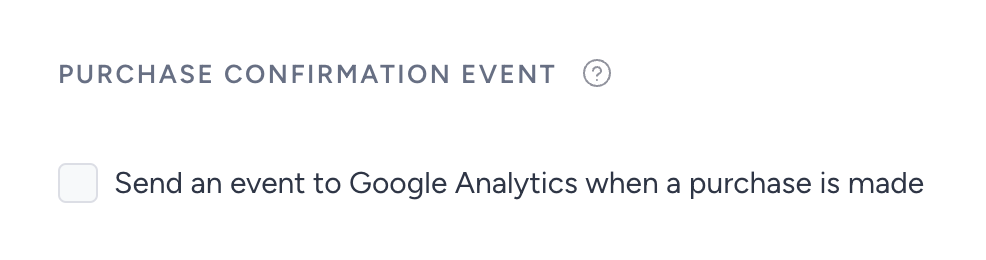
All you need to do is enable this option and make a test purchase. Read more about Insider Tag Integration.
Define Tracker Name
If you want to send your events to a specific tracker, you can define your custom tracker names using this option.
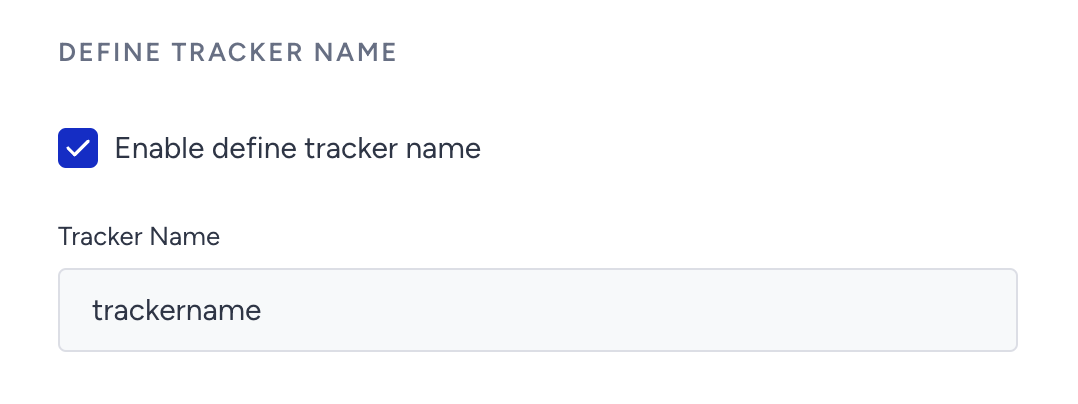
Once you enable the tracker, you can enter your tracker name and save this step.