Single Story is an InStory template available on Desktop, Mobile, and Tablet platforms.
Each thumbnail includes only one FullStory, making it a simplified version of the Multi-Story template. You cannot add additional stories to the same Story Group when using this template.
This format is ideal when you want to highlight a single piece of content or promotion per story.
To use the Single Story template,
1. Navigate to Campaigns > Optimization > InStory.
2. Click the Create button on the listing page. Name your campaign and choose the platform type. Click the Create button. 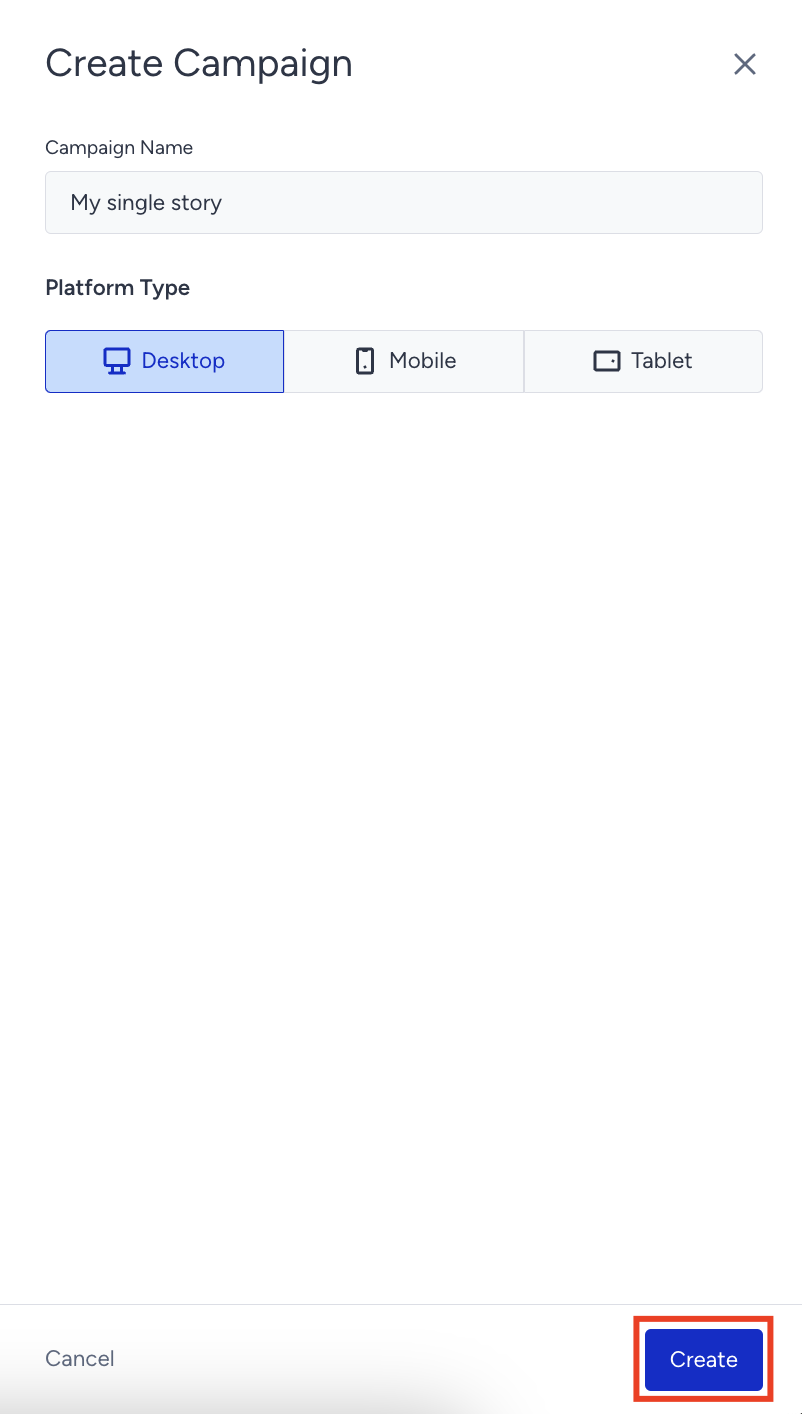
3. After you set the segments and rules for your campaign, click the Add a new variant option in the Design step. 
4. Hover over the Single Story option in the templates menu and click the Select button.
5. After selecting the template, you will be directed to the Action Builder. Since InStory is an inline template, you need to append it to a specific position on the page.
6. On the Design tab, you can customize the thumbnail image and text. To hide the text, you can disable the Optional Title toggle in the Settings menu. Single Story includes five stories by default, and you can add up to 20 new stories.
In the Settings menu, you can use the options below:
Auto-reorder: You can move the seen story to the end.
Optional Title: You can display/hide the titles under the stories.
Story Duration: You can set the duration of stories.
Thumbnail Size: You can change the thumbnail size.
Alignment: You can set the position of stories in the block.
You can customize your Single stories from the Story Setup option in the Settings menu. 
After clicking on the Story Setup menu, you can:
Change the Story Title.
Change Story Image.
Add a new Story.
Remove an existing Story.
Change FullStory Title.
Change FullStory Image.
Change the Button Type.
Change the Button Link.
Change the order of stories.

7. Once you finalize your design, click the Save button.
Refer to InStory Analytics to gain a deeper understanding of your campaign and accurately measure its performance.