Thumbnail Story is a type of InStory template available on Desktop, Mobile, and Tablet devices.
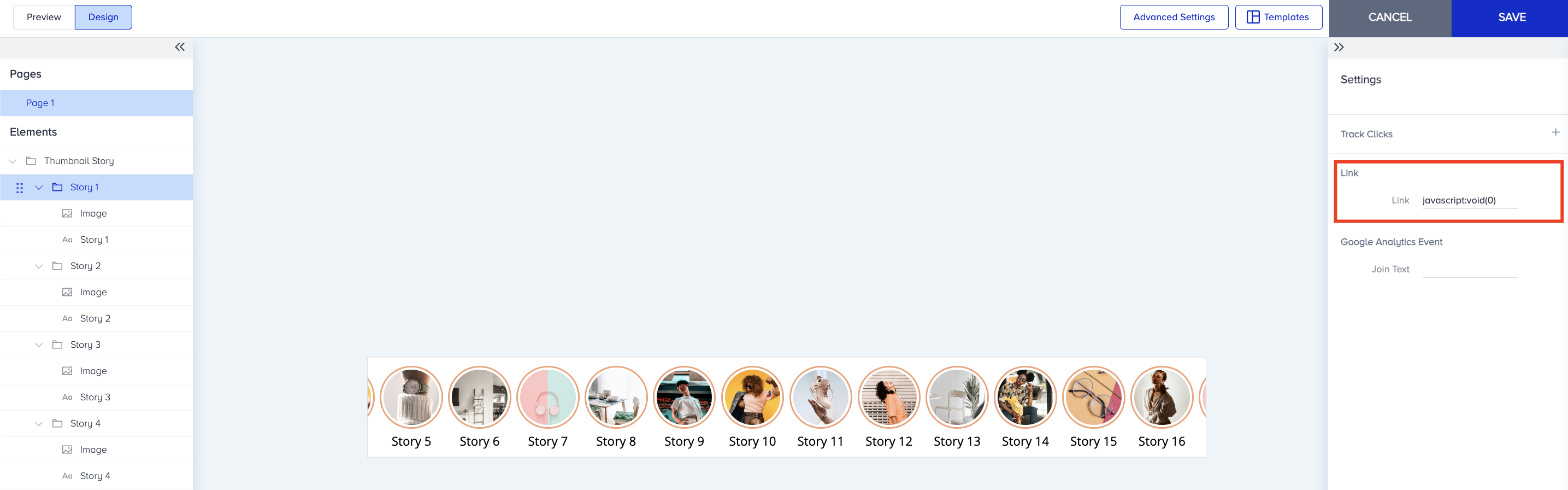
Unlike other InStory templates, it does not support FullStory mode. Instead, when users click a thumbnail, they are redirected to a specific link. This makes it ideal for use as a navigation menu, guiding users to product pages, categories, or other key areas of your site.
Follow the steps below to use the Thumbnail Story template:
Navigate to Campaigns > Optimization > InStory.
On the listing page, click the Create button. Name your campaign, choose the platform type, and click the Create button.

After setting the segments and rules for your campaign, click the Add a new variant option in the Design step.

Hover over the Thumbnail Story option on the right menu and click the Select button.

After selecting the template, you will be directed to the Action Builder. Since InStory is an inline template, you need to append it to a specific position on the page.
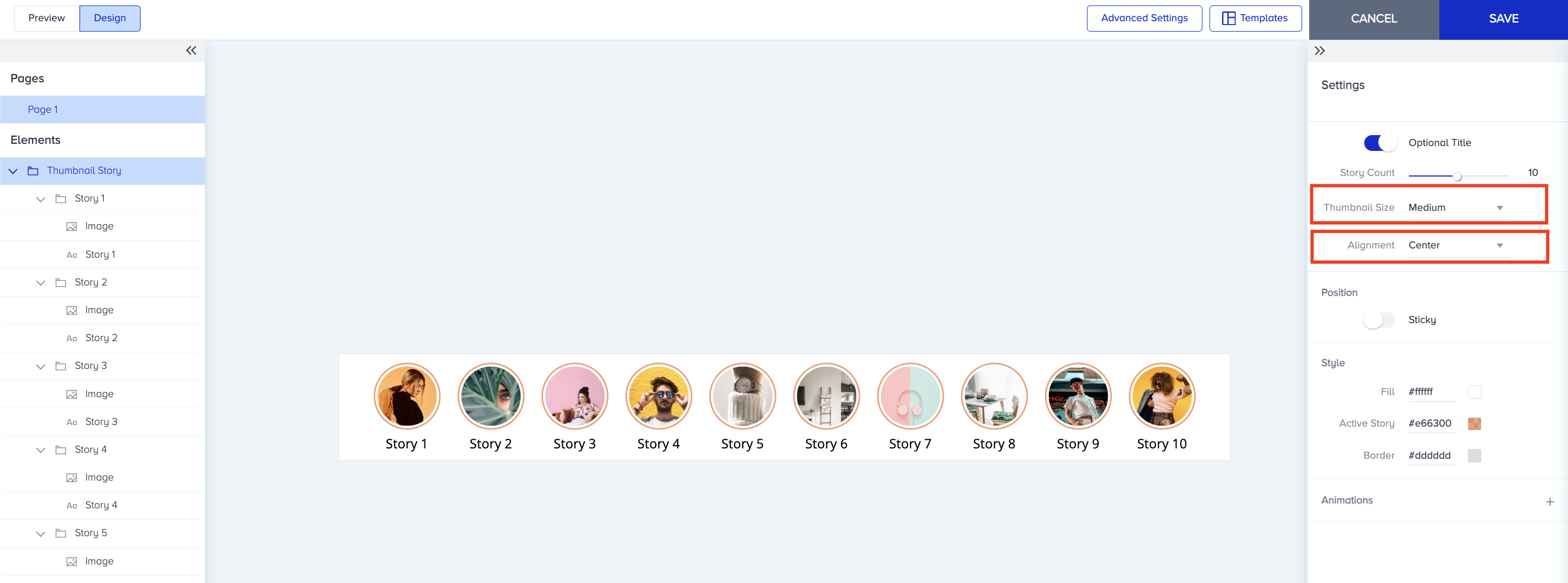
On the Design tab, you can customize the thumbnail image and text. To hide the text, you can disable the Optional Title toggle in the Settings menu.

You can also customize the Thumbnail Size and Alignment in the Settings menu.
To change the thumbnail image, double-click on the relevant thumbnail or click the Image option in the Settings menu. If you do not want to show any thumbnail image, remove the existing image and set a fill color.
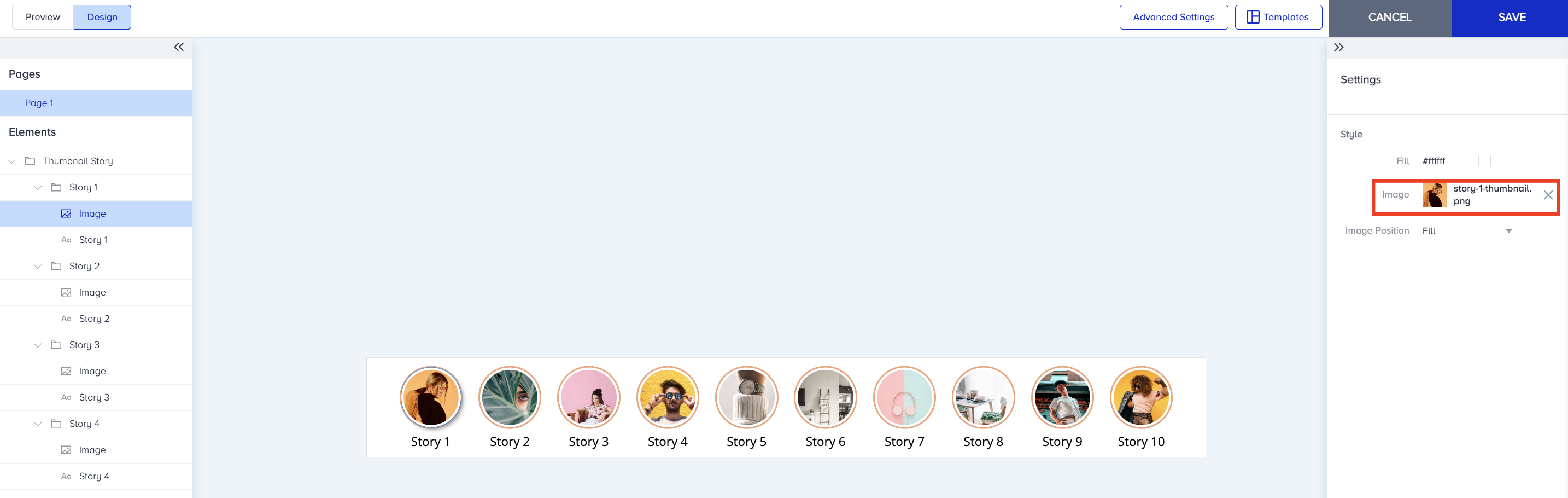
All of the thumbnails are listed as separate stories in the Design tab. It includes 10 stories by default; you can increase it to 20 stories in the same campaign. You can use the Story Count slider to increase or decrease the number of stories.

You can add links to each story in the Settings menu to redirect users to a specific page when they click on the story. Once you finalize your design, click the Save button.