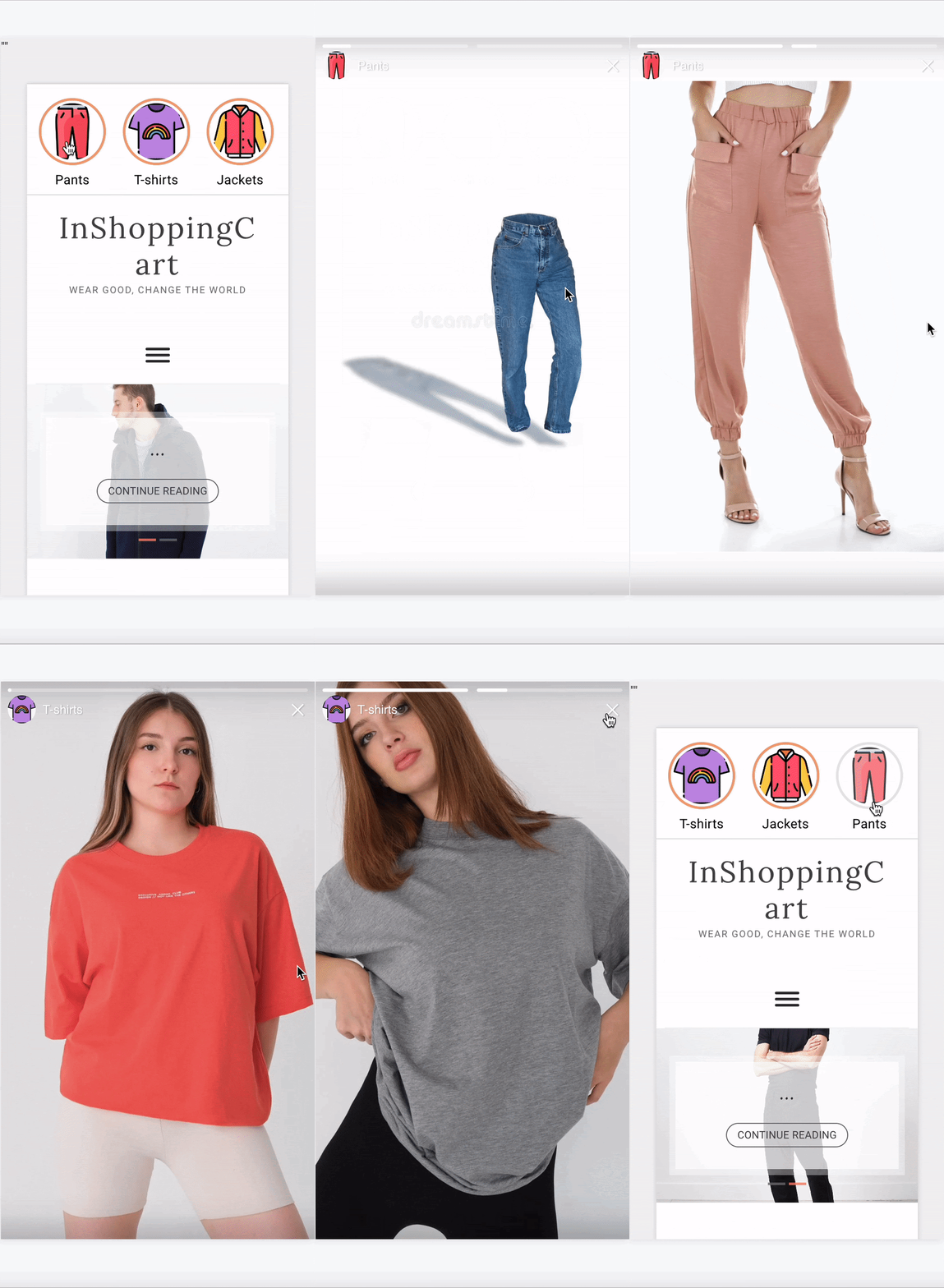
The Multi Story template allows you to organize your content into story groups, where each bubble represents a separate group. A Story Group can include up to five individual stories. This structure lets you categorize campaigns by topic and present multiple related stories within a single group.
It’s an ideal format for highlighting different products, offers, or features under a single theme, giving users a more engaging, organized viewing experience.
Customize Story Groups and Stories
Multi Story template includes five Story Groups by default, but if you want, you can increase this number to 20 or decrease it to one. To customize your Multi Story:
You can start by specifying the number of Story Groups or categories you want to display. If you need to change the default count of Story Groups, you can add new ones or remove them from the left menu.
Story Groups include a thumbnail image and a thumbnail text. You can customize these elements as you want. Click on the relevant element in the left menu and modify its settings in the right menu.
You can also change the order of your Story Groups by dragging them in the left menu.
Once the Story Groups are ready, you can continue with Stories.
Each Story Group includes Stories. The story is the full story version of the Multi Story template. Click on the relevant Story under the Story Groups menu on the left to upload your full story and add interactive or default elements. To change the order of your Stories, you can drag them to the left menu.
.gif)
Story Styles
You can go to the options listed under the Style menu to change the style of your Multi Story. 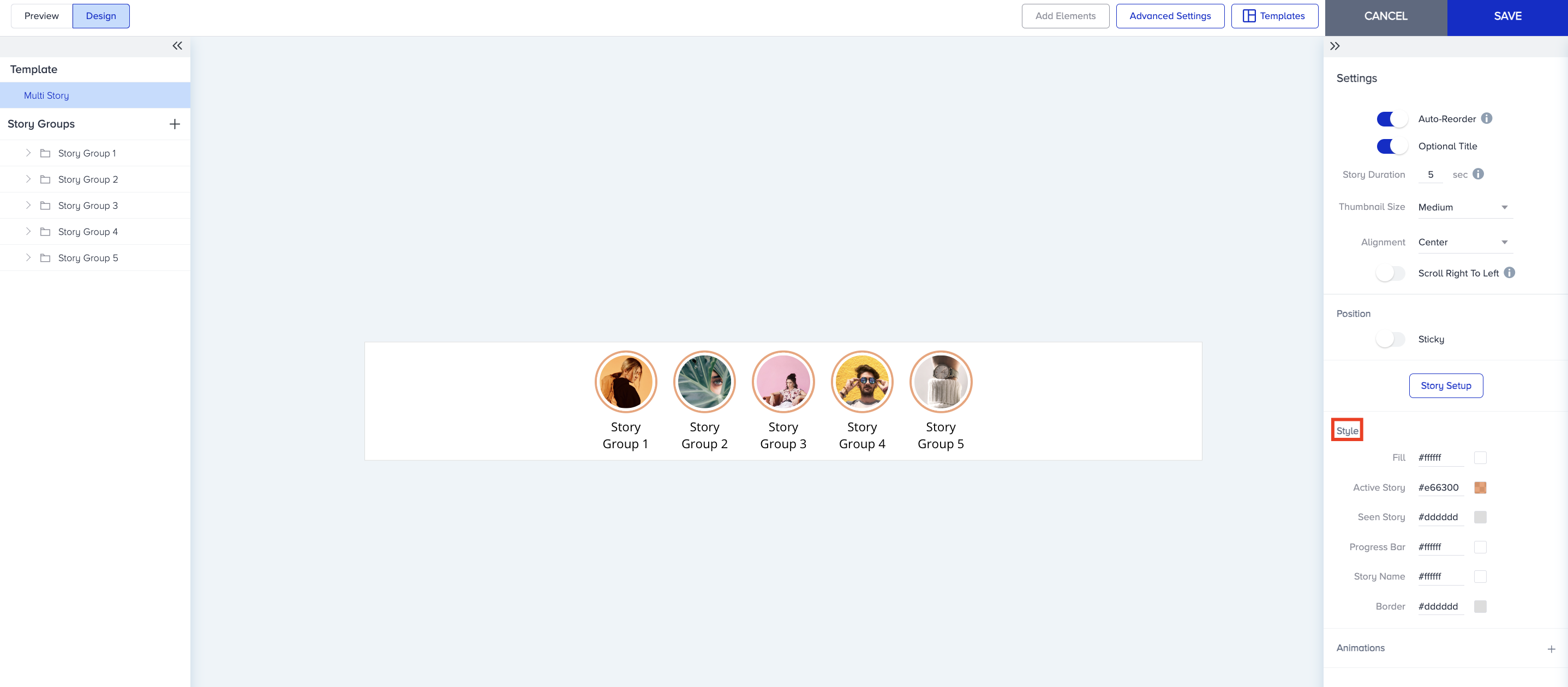
Fill color is the background color of the Story Groups bar.
Active Story color is attributed to active stories.
Seen Story is the color of the displayed story.
Progress Bar color is displayed on the progress bar in the full story.
Story Name color is the color of the story name.
Border is the color of the borders around the story bar.
Story Setup Menu
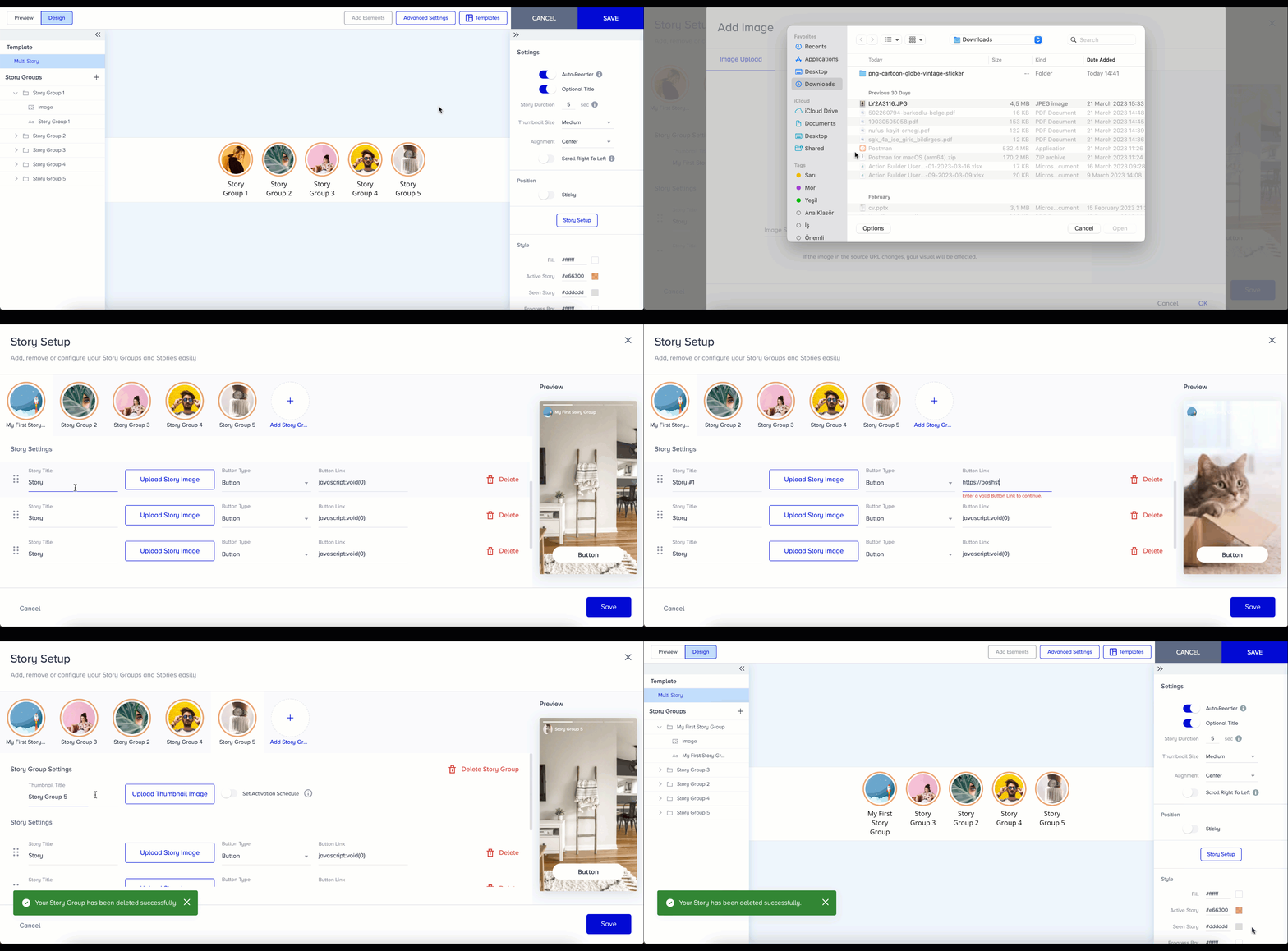
The Story Setup menu enables you to design campaigns with only one single pop-up in the fastest and easiest way. To go to the Story Setup menu, click the Story Setup button in the Settings menu on the right. You can change the titles, images, and orders of story groups and stories, add or delete new story groups and stories, and set activation schedules for story groups.
Scheduled and ongoing story groups are listed under the Draft Story Groups. If the story group is scheduled and the end date has passed, it is listed under 'Completed Story Groups' in the Story Setup menu.
After you click the Save button, all changes you make are applied to the Design tab and take effect immediately.
Scheduling
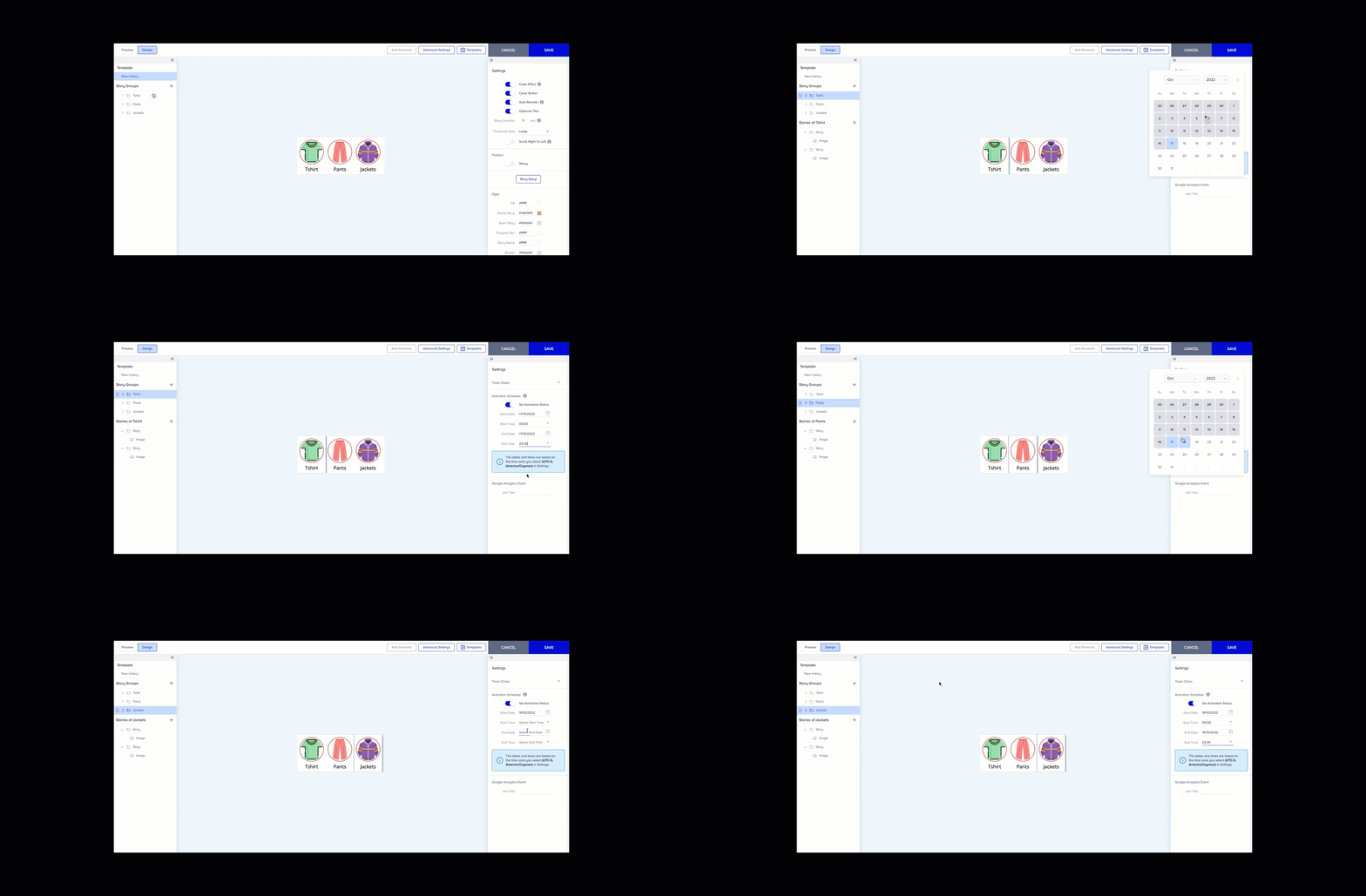
Another advantage of Multi Story templates is the Scheduling feature, which enables you to set different start and end dates for Story Groups. This means the Story Groups will have customized start and end dates during the campaign's active time range.
For example, you create an InStory campaign for the sale season. You decide to promote one category every day. The campaign is ready and the first Story Group will be about the general sale announcement that will last for one week. In other Story Groups, you want to promote categories in line with the day they are discounted. T-shirts will be discounted on Monday, pants on Tuesday, and jackets on Wednesday.
In this case, you will have four Story Groups; the first one is for the general announcement, the second one is for t-shirts, the third one is for pants, and the last one is for jackets. You can set customized start/end dates to make the Story Groups of the sale categories visible when the sale starts. It helps you to activate and deactivate time-dependent Story Groups without changing the campaign status.
Story Settings
You can configure your Multi Story with options under the Settings menu.

Auto-Reorder: It moves viewed stories to the end of the row.
Optional Title: You can make the thumbnail titles visible/invisible.
Story Duration: You can set a story duration to display your stories.
Thumbnail Size: You can change the size of the thumbnails of your stories.
Alignment: You can change the alignment of the stories. If you enable the option "Scroll Right to Left", your stories will flow automatically from right to left.