A WhatsApp channel connects one of your WhatsApp Business accounts to an AI Agent, so the agent replies to your customers in the app they already use every day. Create the channel in Insider One, set how conversations start and end, connect an AI Agent, and launch it.
In this article:
Before you start
Your plan needs to include WhatsApp. If it doesn't, contact Insider One team.
The Conversational API needs to be integrated in your account. If it isn't, contact Insider One team.
You need at least one integrated WhatsApp Business account. If the integration is not complete, the Create Channel drawer displays WhatsApp Integration Required with a Complete Integration link. To set up an account, see WhatsApp Channel Setup and Create your WhatsApp Business Account.
You need an AI Agent in Active status. To create one, navigate to InOne > Agent One > Agent One Audiences > AI Agents. For the full setup, see Create and Configure the Support Agent or Create and Configure the Shopping Agent.
Your customers' phone numbers need to be defined as an identifier in the Unified Customer Database (UCD).
You need the Administrator or Editor role to launch, pause, or delete a channel. Refer to User roles.
Open the Channels page
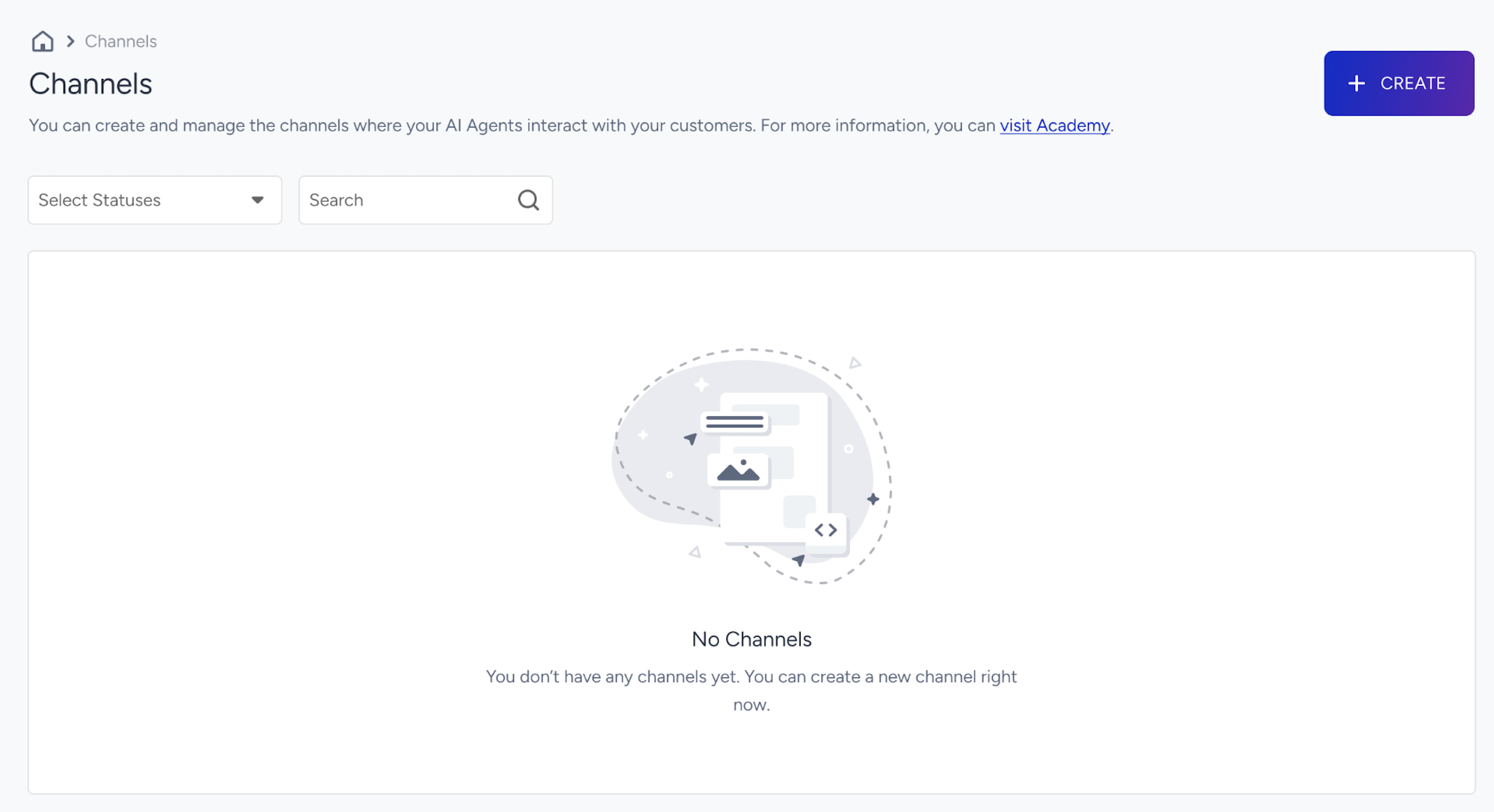
The Channels page lists every channel where your AI Agents interact with your customers.
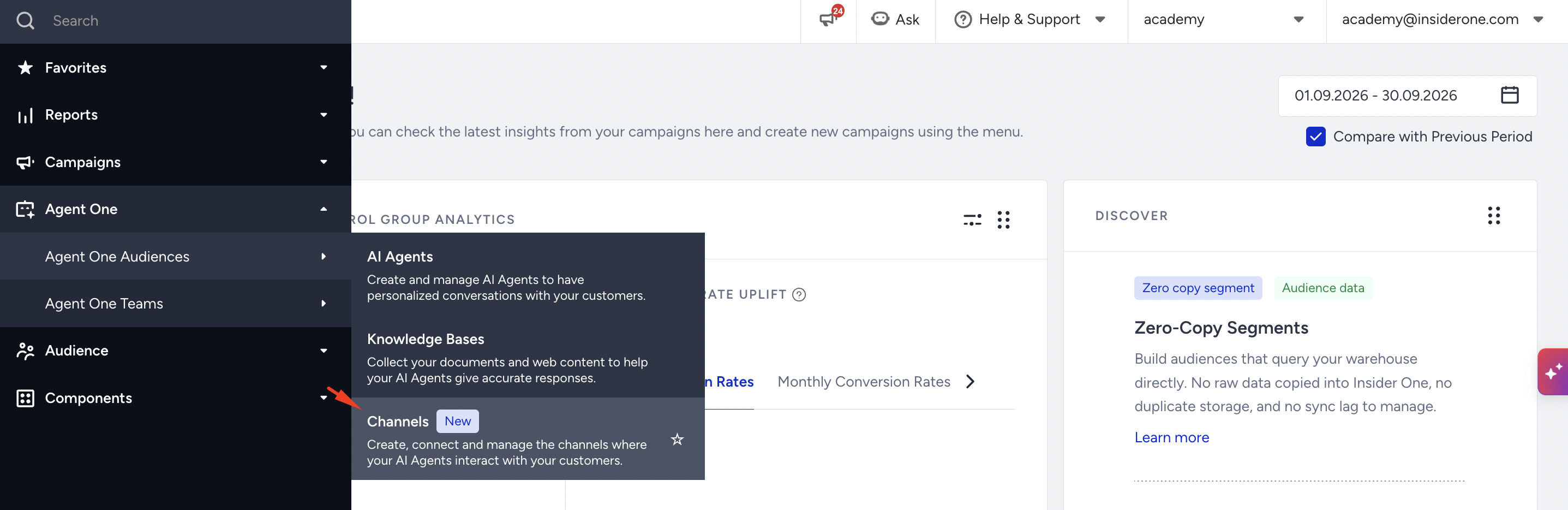
Navigate to InOne > Agent One > Agent One Audiences > Channels.
Review the list, or click Create to add your first channel.
Create a WhatsApp channel
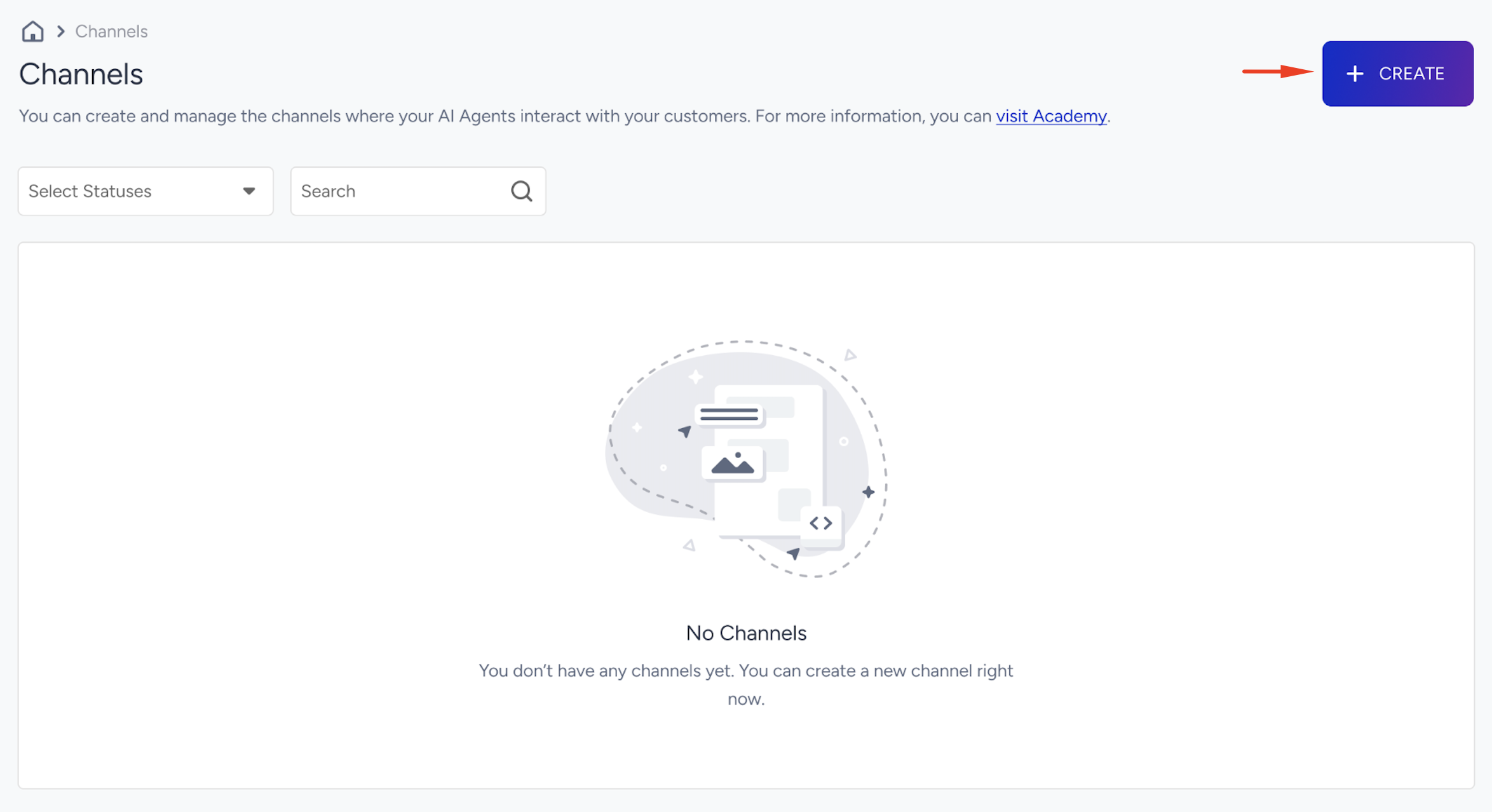
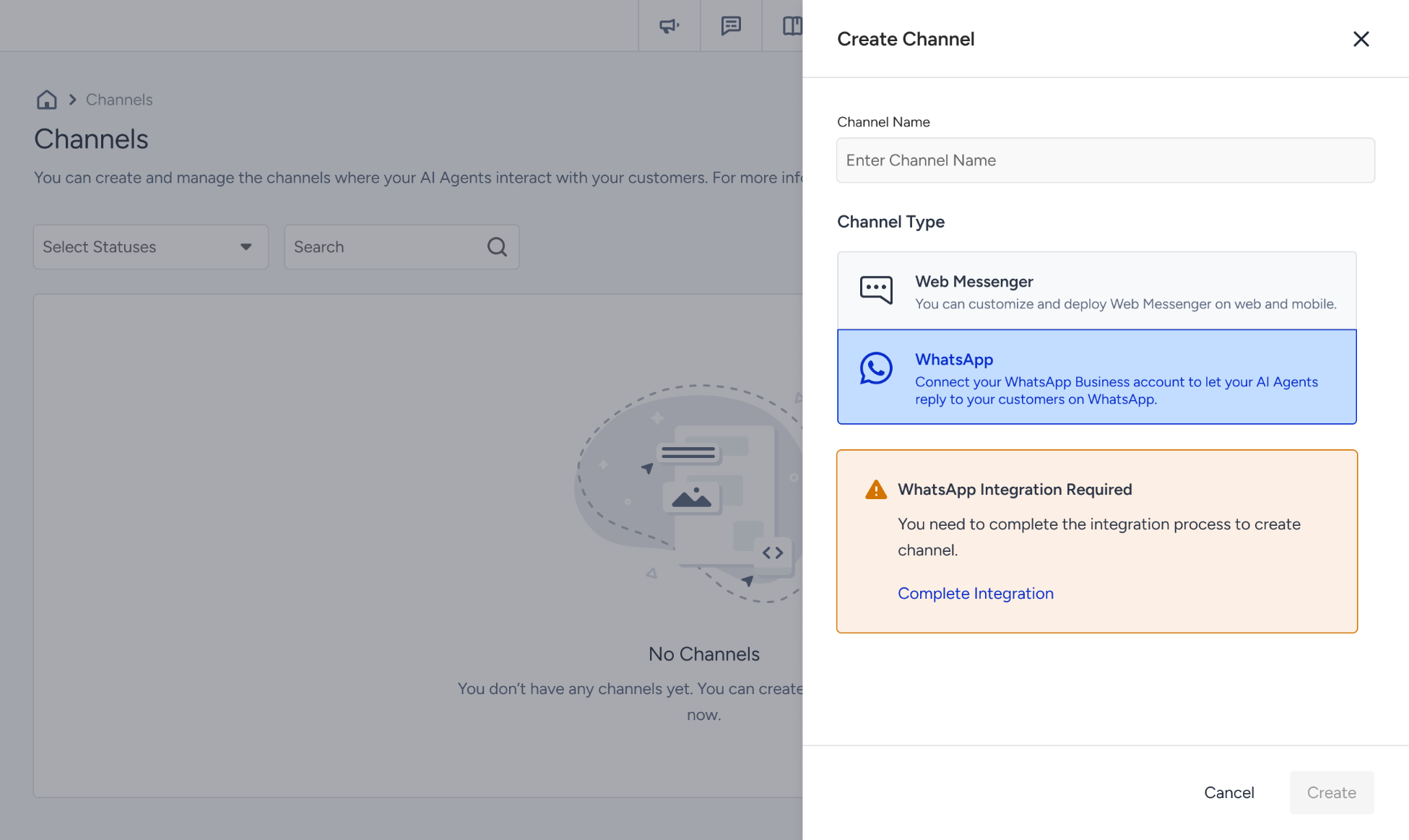
Click Create.
Enter a Channel Name. The name must be unique and can have up to 128 characters.
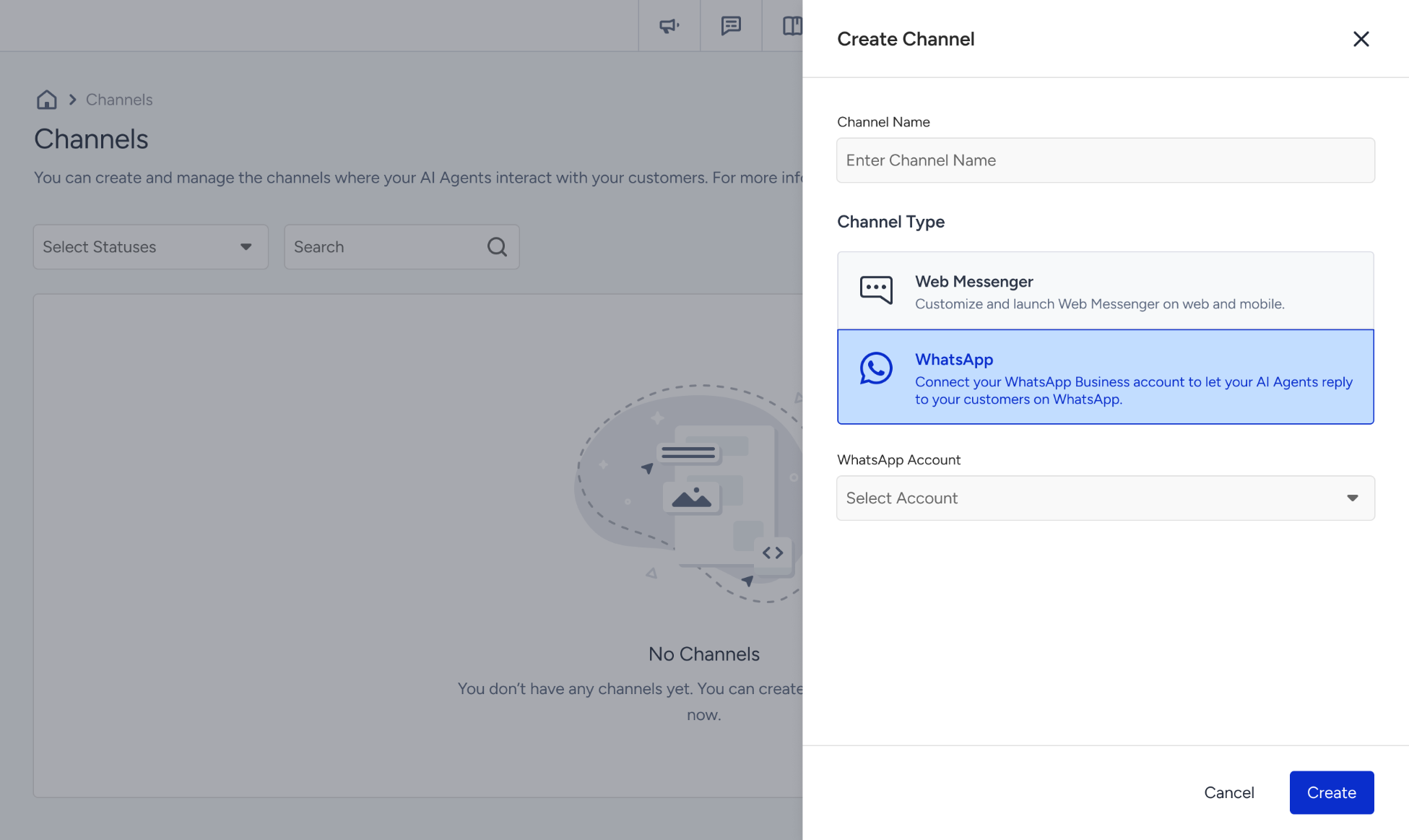
Under Channel Type, select WhatsApp.
Select a WhatsApp Account. Accounts that are already connected to another channel display the Connected tag and can't be selected. To manage your accounts, click Go to WhatsApp Account Settings.
Click Create.
The channel opens on the Conversation Start step with the Draft status. Setup has three steps: Conversation Start, Conversation End, and Launch. A WhatsApp preview sits next to every step, and you can select which message it shows. Click Save and Continue to move to the next step.
If you can't select WhatsApp or the account, use this table to find the fix:
If WhatsApp can't be selected | What to do |
|---|---|
WhatsApp is not included in your plan. | Contact Insider One team to include it in your plan. |
The Conversational API isn't integrated in your account. | Contact your Insider One team to integrate it. |
WhatsApp Integration Required is displayed and Create is disabled. | Click Complete Integration and finish the WhatsApp integration, then return to Channels. |
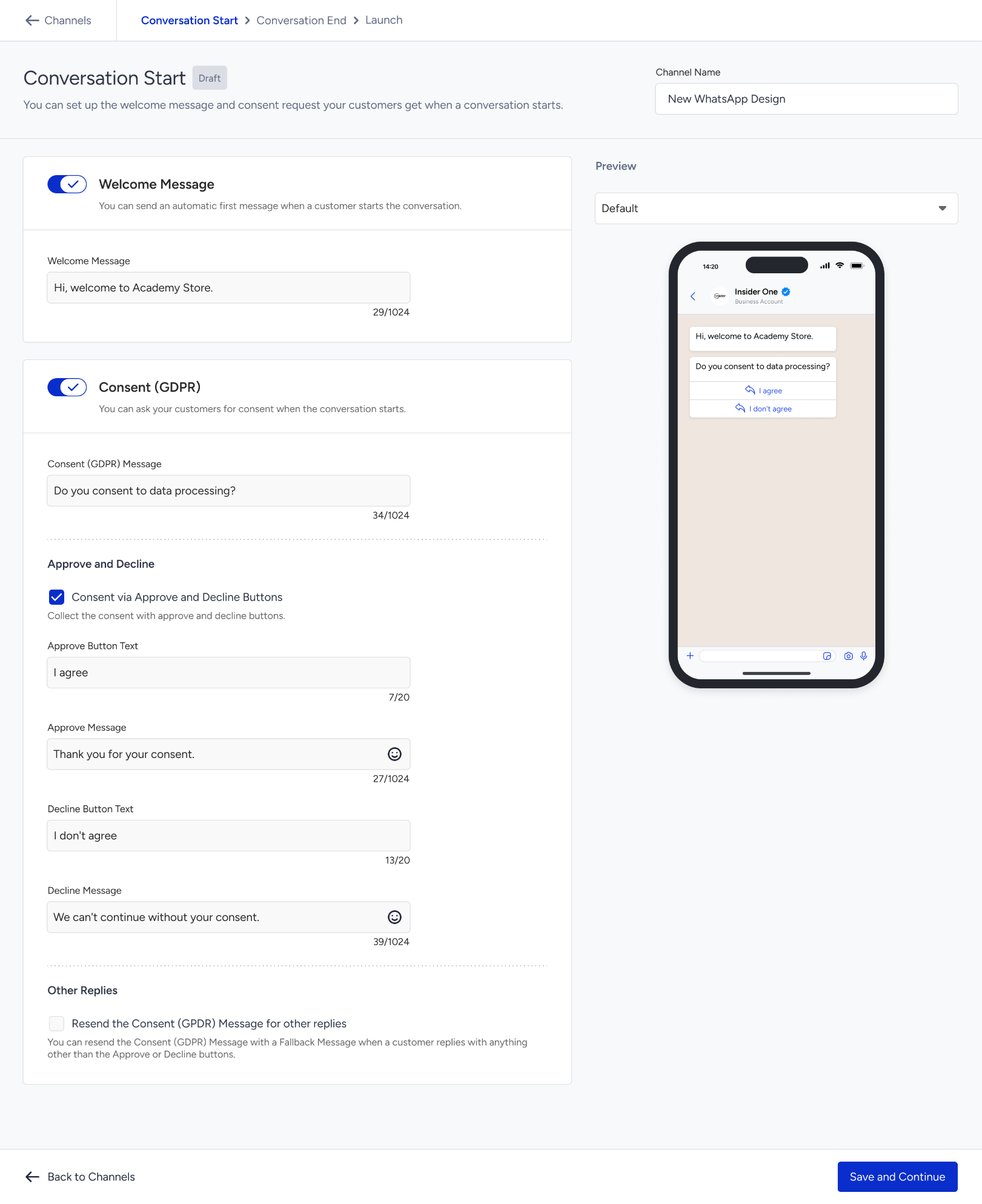
Conversation start
Set up the welcome message and consent request your customers receive when a conversation starts.
Welcome message
Turn on the toggle to send an automatic first message when a customer starts the conversation, then enter the Welcome Message (up to 1,024 characters).
Consent (GDPR)
Turn on the toggle to ask your customers for consent when the conversation starts.
Consent (GDPR) Message: The text sent to your customer (up to 1,024 characters).
Approve and Decline: Select Consent via Approve and Decline Buttons to collect the consent with buttons. Then enter the Approve Button Text, Approve Message, Decline Button Text, and Decline Message. Button texts can have up to 20 characters and messages up to 1,024.
Other Replies: Select the checkbox to resend the Consent (GDPR) Message with a fallback message when a customer replies with anything other than the approve or decline buttons.
Conversation end
Decide how a conversation wraps up: when it times out, what customers see if something goes wrong, and whether they can rate the experience.
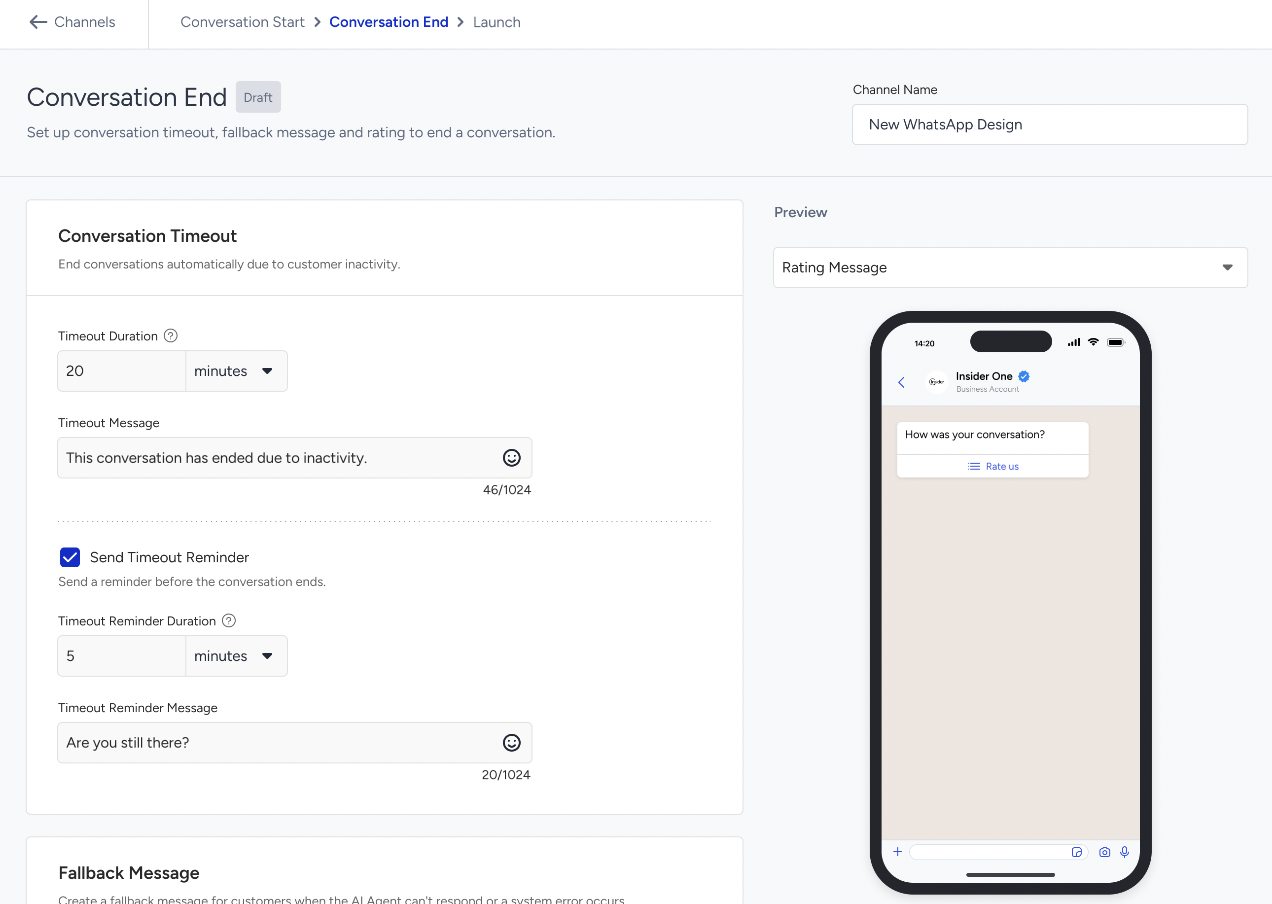
Conversation timeout
Timeout Duration: How long a conversation can stay inactive before it ends automatically. Enter a value and select minutes or hours.
Timeout Message: The message sent when the conversation ends (up to 1,024 characters).
Send Timeout Reminder: Select it to send a reminder before the conversation ends, then set the Timeout Reminder Duration and the Timeout Reminder Message (up to 1,024 characters).
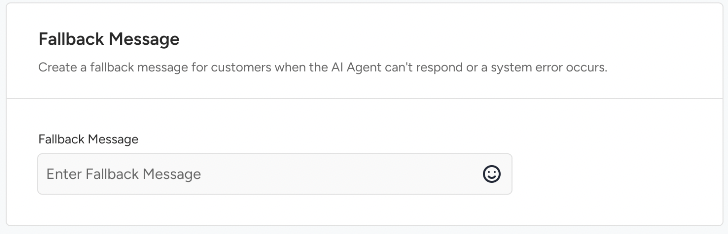
Fallback message
Enter the Fallback Message your customers receive when the AI Agent can't respond or a system error occurs.
Rating
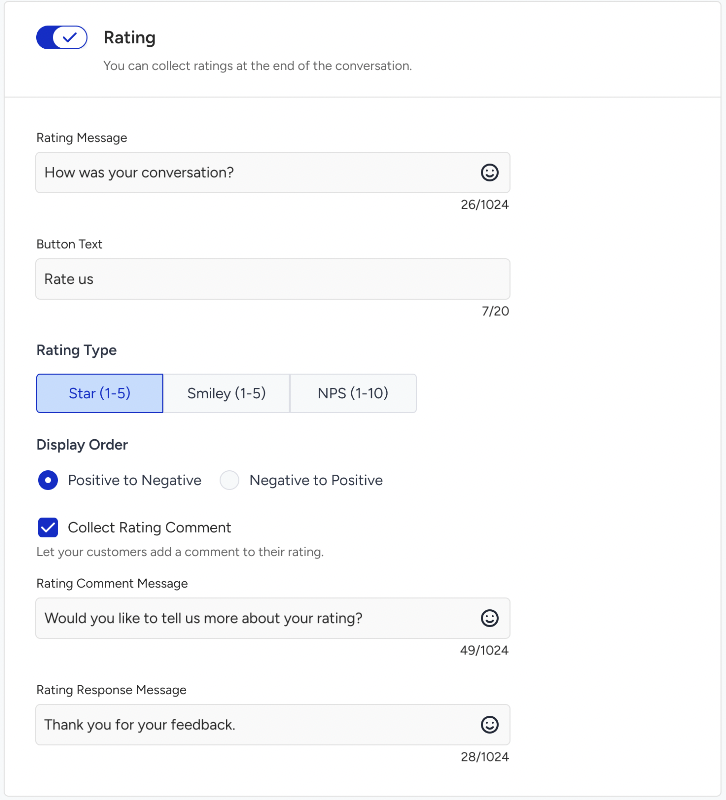
Turn on the toggle to collect ratings at the end of the conversation. Insider One sends the rating as a WhatsApp list message.
Field | Description |
|---|---|
Rating Message | The text of the rating message. Up to 1,024 characters. |
Button Text | The text of the button that opens the rating options. Up to 20 characters. |
Rating Type | Select Star (1–5), Smiley (1–5), or NPS (1–10). |
Display Order | Select Positive to Negative or Negative to Positive. |
Collect Rating Comment | Select it to let your customers add a comment to their rating, then enter the Rating Comment Message. |
Rating Response Message | The message sent after your customer submits the rating. |
Launch
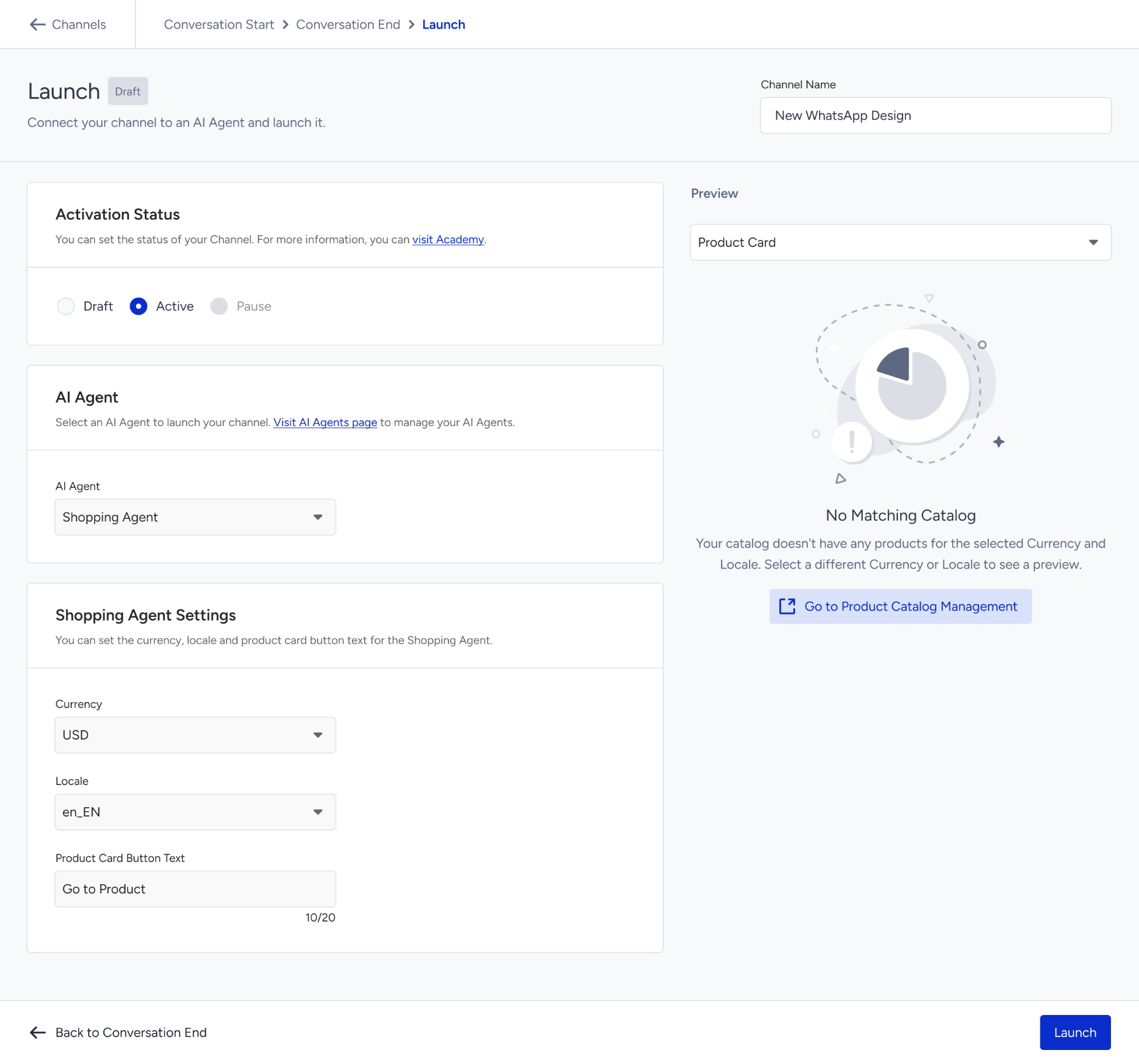
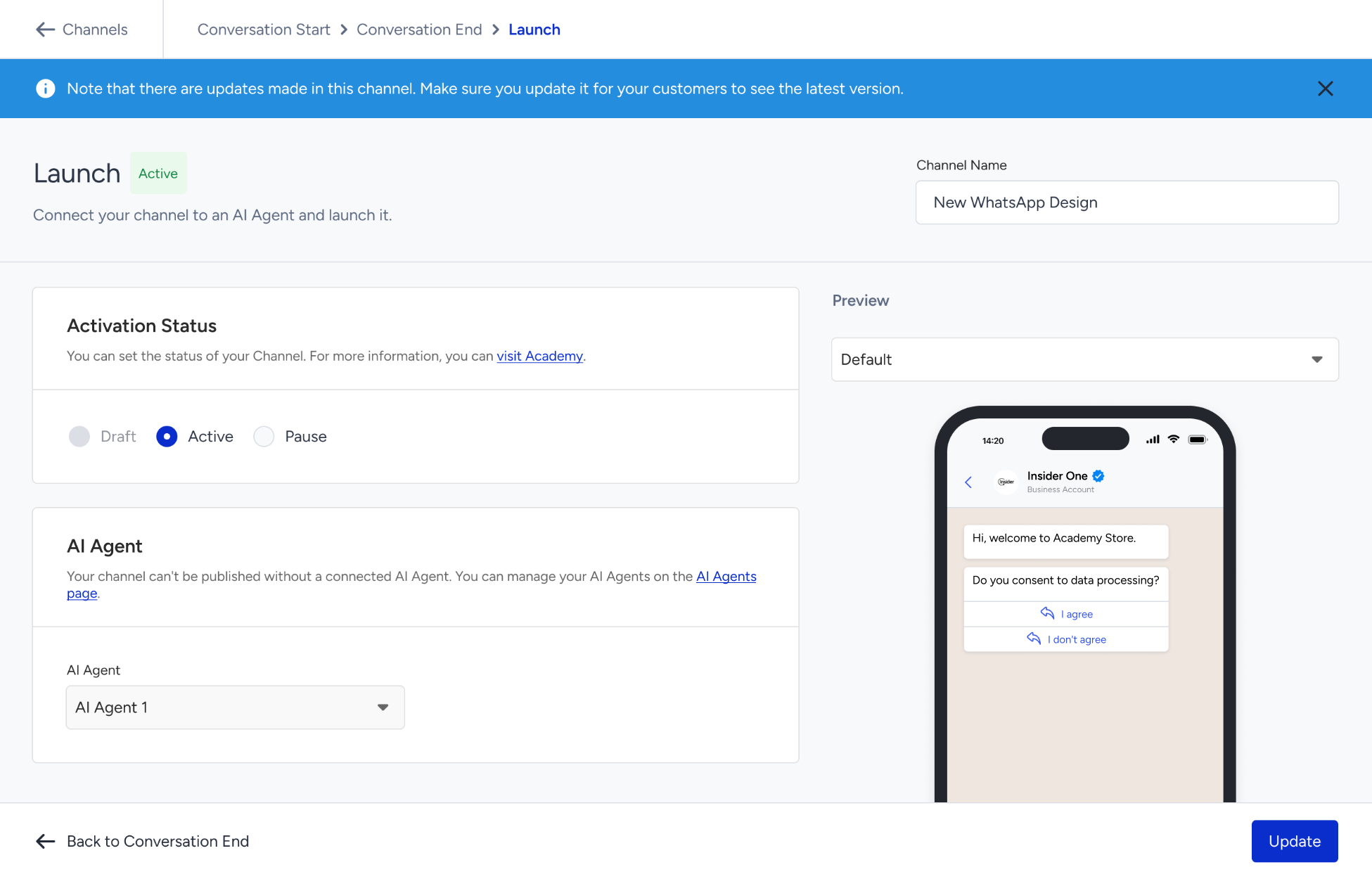
Connect your channel to an AI Agent and take it live.
If a required field in an earlier step is empty, the preview area tells you which step to complete, with a button that takes you there.
Activation status
Set the status of your channel: Draft, Active, or Pause. You can pause a channel only after you launch it.
AI Agent
Select the AI Agent that answers conversations on this channel. Agents in Draft status are displayed but can't be selected. You manage your agents on the AI Agents page.
Shopping Agent settings
When you select a Shopping Agent, set the Currency, the Locale, and the Product Card Button Text (up to 20 characters) for the product cards the agent sends. The preview shows a product card for the selected currency and locale. If your catalog has no products for the selection, the preview displays No Matching Catalog.
Launch your channel
Select Active under Activation Status and click Launch. To keep working on the channel later, select Draft and click Save as Draft.
Check the confirmation message. The channel status changes to Active.
Test your channel
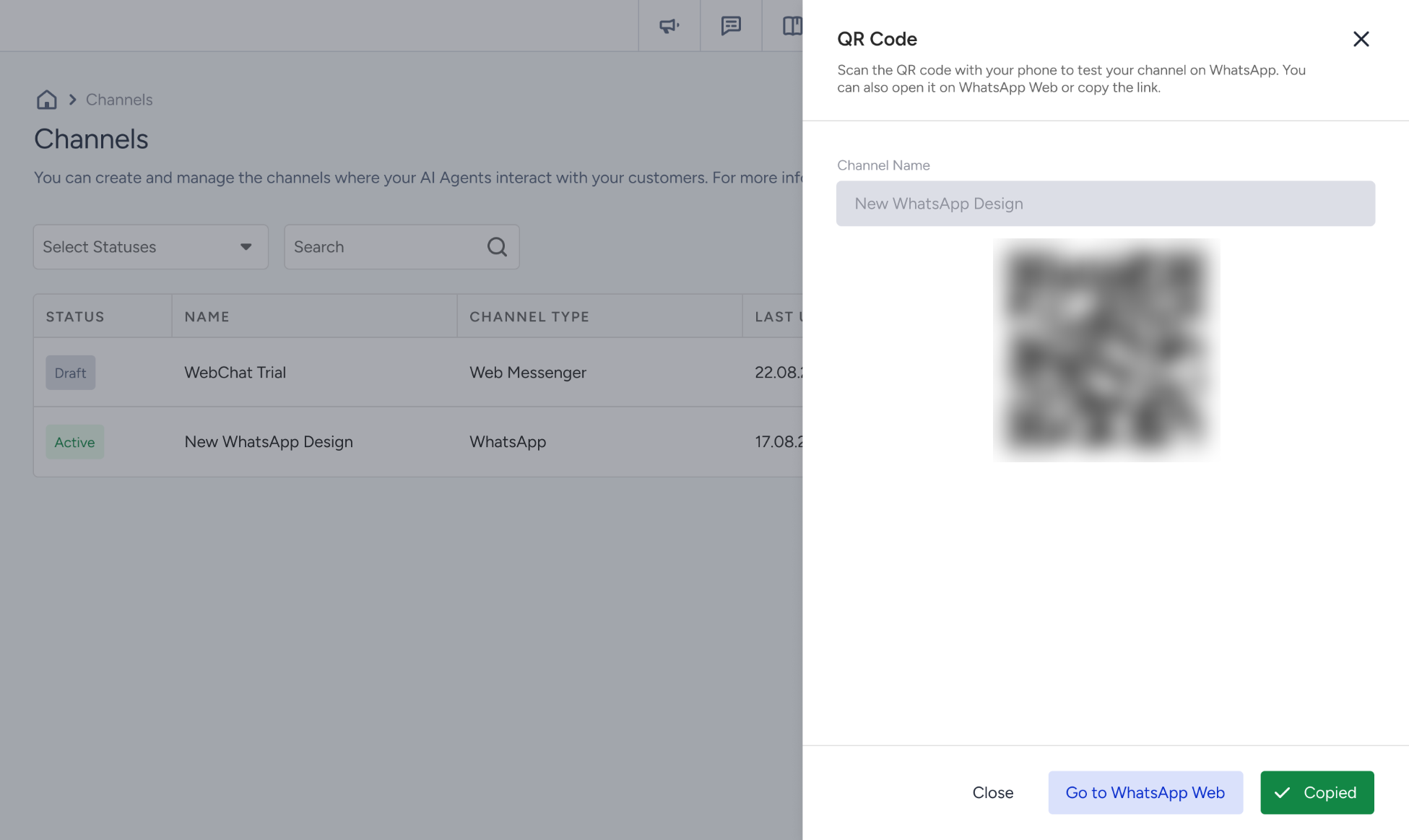
After you launch the channel, the QR Code pop-up is displayed. Try your AI Agent on WhatsApp before your customers do.
Scan the QR code with your phone to test your channel on WhatsApp.
Click Go to WhatsApp Web to open the conversation on WhatsApp Web.
Click Copy WhatsApp Link to copy the link.
You can open the pop-up again anytime from the See QR Code action on the Channels page.
Manage your channels
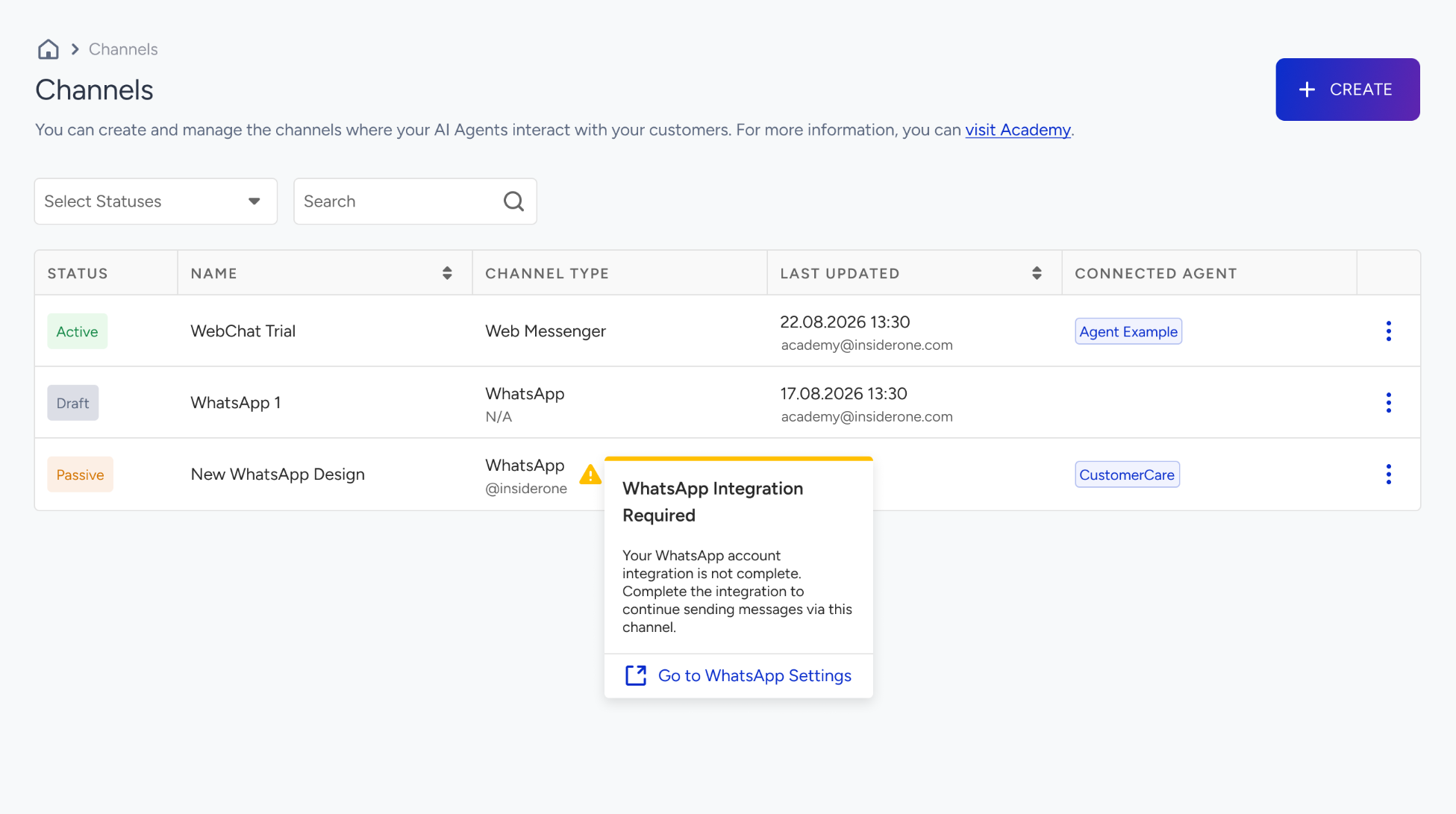
The Channels page lists your channels with their Status, Name, Channel Type, Last Updated (date and the user who made the update), and Connected Agent. For WhatsApp channels, the connected WhatsApp account is displayed under the channel type. Use Select Statuses and Search to narrow the list.
Status | What it means |
|---|---|
Draft | Created but not launched yet. |
Active | Launched. Your AI Agent replies to customers who message the connected WhatsApp account. |
Paused | Temporarily stopped. Settings are kept, and you can launch the channel again. |
Updates Pending | An Active channel with saved changes that are not applied yet. Refer to Update an Active channel. |
Use the actions menu on a channel row to manage it:
See QR Code (Active and Paused channels): Displays the QR code to test the channel.
Duplicate: Creates a copy of the channel in Draft status. You can edit the Duplicate Channel Name before you confirm.
Update Status as Paused or Update Status as Active: Takes you to the Launch step, where you pause or relaunch the channel.
Delete Channel: Deletes the channel permanently.
If a warning icon is displayed next to the WhatsApp account of a channel, the account's WhatsApp integration is not complete. Click Go to WhatsApp Settings and complete the integration to continue sending messages via this channel.
An AI Agent that is connected to a channel can't be deleted. Replace it in the channel first. The AI Agents page displays the channels each agent is connected to.
Update an Active channel
When you edit an Active channel, Insider One saves your changes but doesn't apply them yet. The channel displays the Updates Pending status on the Channels page and a note inside the channel.
Open the channel and make your changes.
In the Launch step, click Update and confirm in the Update Channel? pop-up.
Your changes apply to new conversations only. Open conversations continue with the previous settings until they end.
User roles
What you can do on the Channels page depends on your Insider One user role. The roles work the same way for Web Messenger and WhatsApp channels. For more on roles, see User Management.
Action | Administrator | Editor | Collaborator | Viewer |
|---|---|---|---|---|
View channels | Yes | Yes | Yes | Yes |
Edit a Draft channel | Yes | Yes | Yes | No |
Edit an Active channel | Yes | Yes | No | No |
Launch a channel | Yes | Yes | No | No |
Pause or relaunch a channel | Yes | Yes | No | No |
Delete a channel | Yes | Yes | No | No |
If your role doesn't allow an action, the channel opens in view-only mode or an error message is displayed. Contact your Account Administrator for access.
Limitations and good to know
One account, one channel: A WhatsApp account can be connected to only one channel.
AI Agent: A channel is connected to one AI Agent, and only Active agents can be selected. The same agent can be connected to more than one channel.
Setup steps: A WhatsApp channel has no Design step and no install script. The conversation takes place in WhatsApp, so WhatsApp sets the look of the chat.
Text limits: Messages can have up to 1,024 characters and button texts up to 20.
Updates: Changes to an Active channel apply only after you click Update, and only to new conversations.
Live agents: Handing a conversation over to a live agent is not available on WhatsApp channels.
Troubleshooting
Why can't I select WhatsApp as the channel type?
WhatsApp needs to be included in your plan, and the Conversational API needs to be integrated in your account. Hover over the WhatsApp card to see which one is missing, then contact Insider One team.
Why can't I select my WhatsApp account?
An account with the Connected tag is already connected to another channel. Delete that channel or select a different account.
Why is the Create button disabled?
If WhatsApp Integration Required is displayed, click Complete Integration and finish the WhatsApp integration first.
Why can't I launch my channel?
A channel needs a connected AI Agent in Active status and all required fields in Conversation Start and Conversation End filled in. You also need the Administrator or Editor role.
Why is the product card preview empty?
Your catalog has no products for the selected Currency and Locale. Select a different currency or locale, or check your product catalog.
Why don't my customers see my latest changes?
If the channel displays Updates Pending, click Update in the Launch step. Changes apply to new conversations.
Next steps
Your WhatsApp channel is ready for its first conversation. Scan the QR code, chat with your AI Agent, and fine-tune the welcome message and rating questions from there.