User Management lets you assign roles to team members, add teammates, manage logins, and control account access. These roles define what each member can do within your account.
In this article, you can find answers to the following questions:
To access these settings, navigate to User Management from the submenu located under your username in the top right corner.

The Users page showcases users and their statuses, indicating their accessibility to your account.
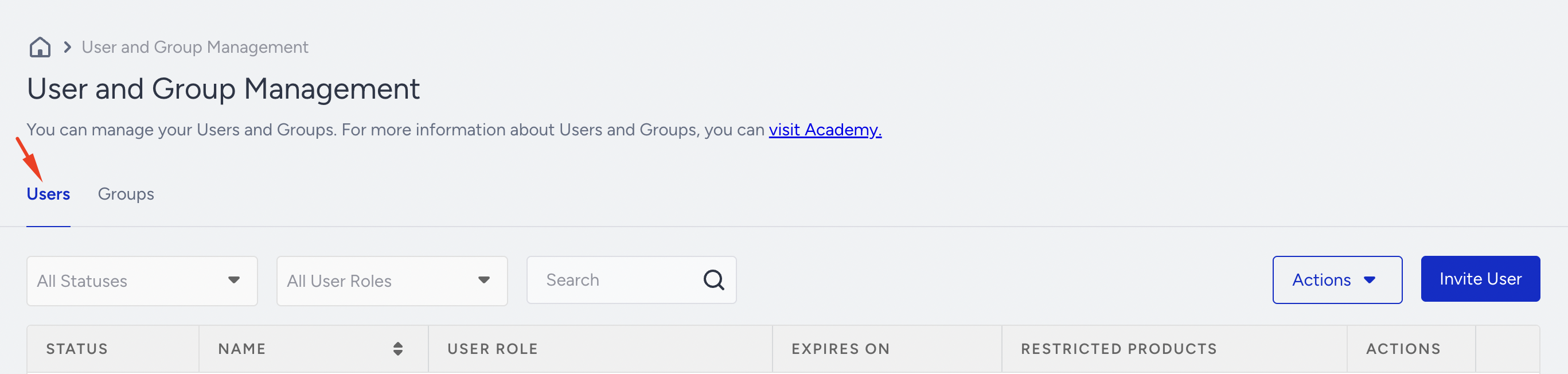
If the Group Management feature is not enabled for your account, you will not see group-related information or filtering on the User Management page.
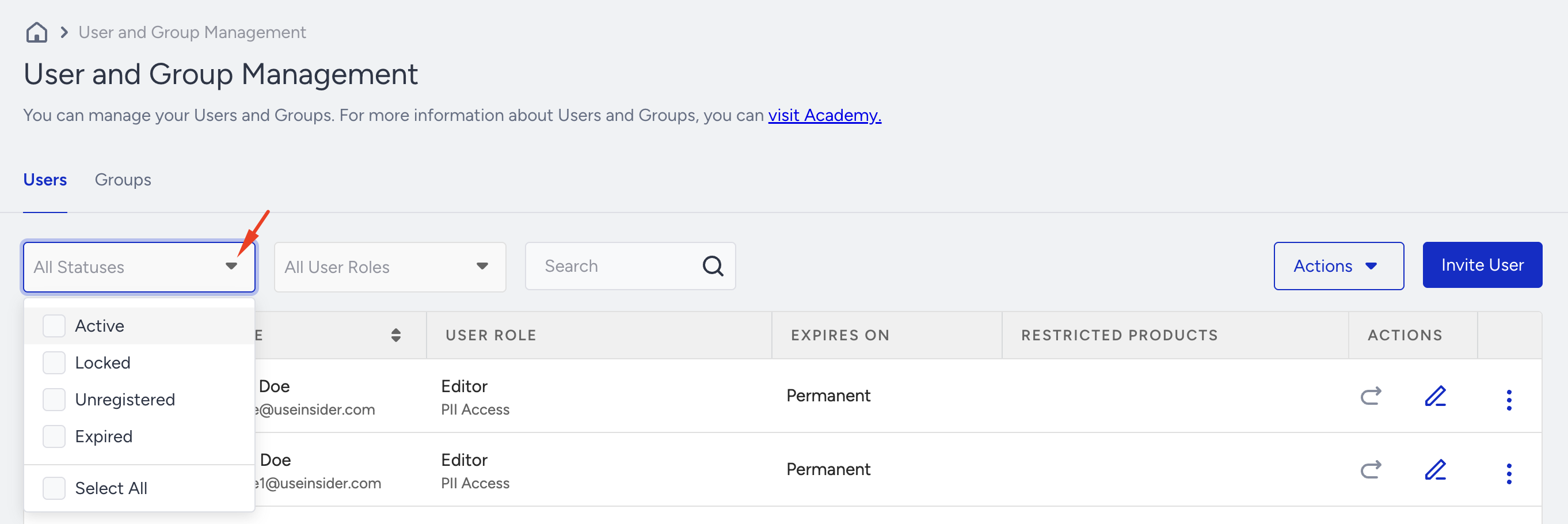
User Statuses
You can view user statuses on the left side of the Users page.
Active: Users completed their registration
Locked: Users entered the wrong password several times and got blocked
Unregistered: Users who received the invite email but did not complete the registration
Expired: Users whose access period has expired
You cannot assign the administrator role to a user with temporary access. Additionally, you can grant a user temporary access for up to 30 days.
Temporary access will expire based on your time zone. For example, if access is granted to a user until February 18th, it will expire at 23:59 on February 18th. When their access expires, users will receive an email notification.
User Roles
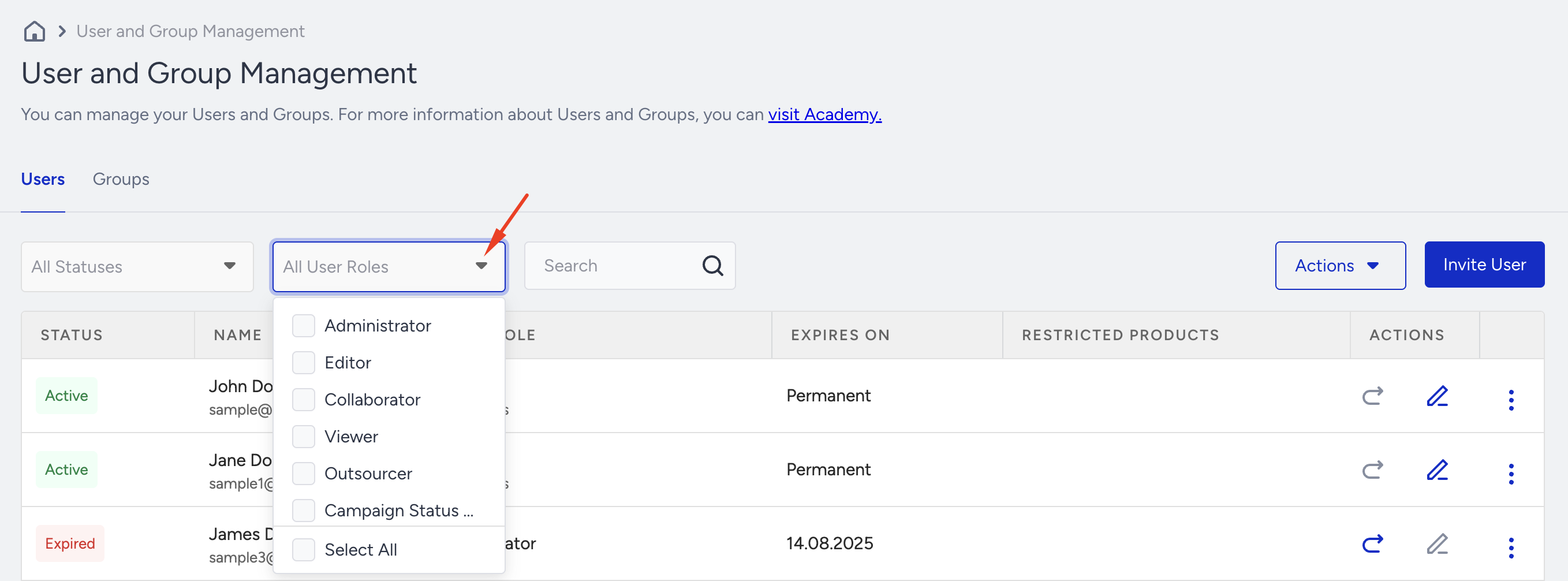
Each user has one of six roles. A user cannot hold two roles at the same time. To change what a user can do, change their role.
Role | Description |
|---|---|
Administrator | Authorized to access products, view, create, edit, and launch campaigns, update campaign status, add/remove users from the dashboard, change user roles, and change the system rules. They can also access the User Profiles and export data. |
Editor | Authorized to access products, view, create, edit, and launch campaigns, update campaign status, and change the system rules |
Collaborator | Authorized to access products, view campaigns, create only Test campaigns, edit only Passive, Draft, and Test campaigns, and stop or pause Active campaigns |
Viewer | Authorized to access products and view campaigns |
Outsourcer | Authorized to change system rules only |
Campaign Status Updater | Authorized to change campaign status only |
Administrators have full access to User Profiles, including viewing and exporting data. Besides Administrators, users with PII access can view User Profiles, but only those with Editor or Collaborator roles can export data.
This means you can allow a user to view PII information without the ability to export it by assigning them a role that includes PII access but does not include Editor or Collaborator permissions. For example, this setup is ideal for scenarios where a user needs to cross-check PII data but should not be able to download or export it, helping maintain confidentiality.
Access Level
You can view users based on the Access Level to which they are assigned.
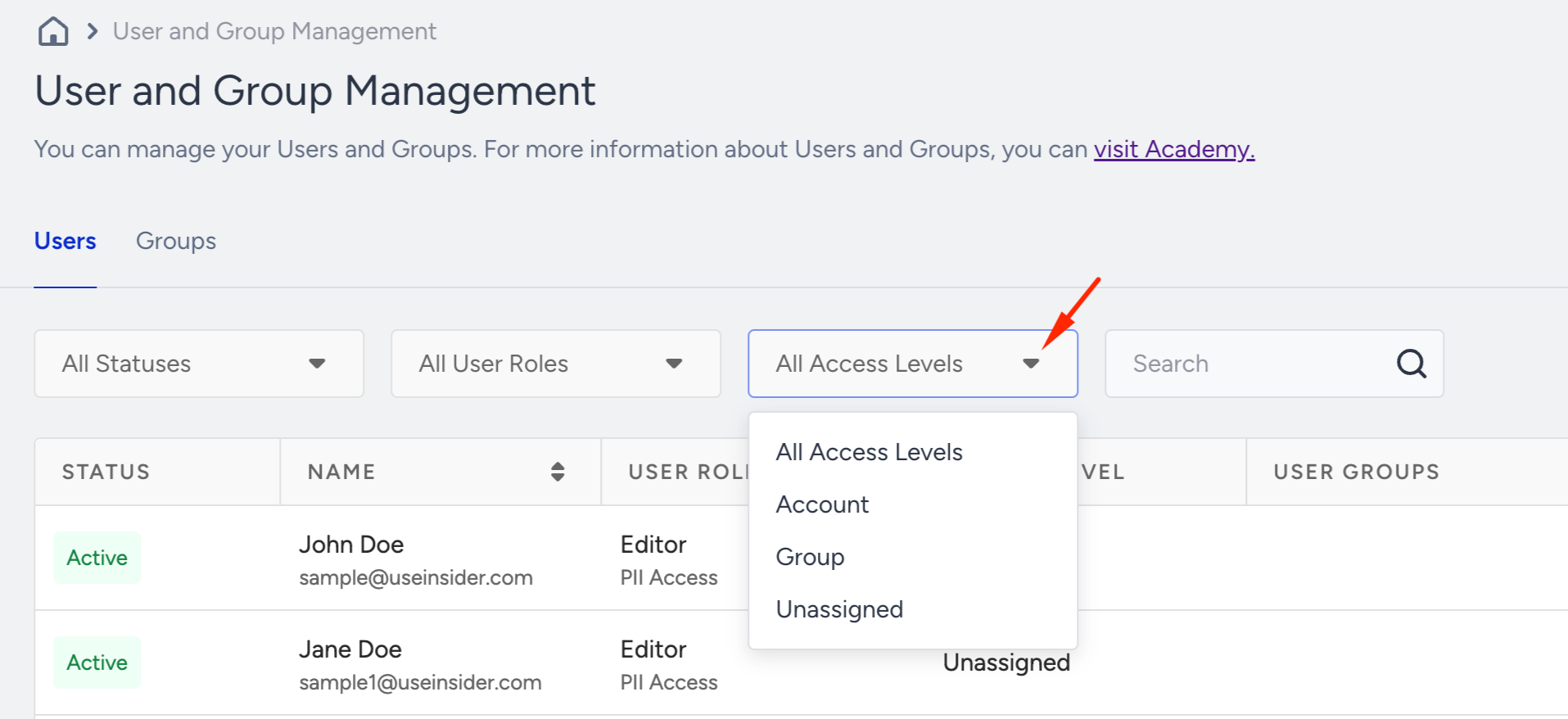
Account: Users with account administrator roles are listed.
Group: Users who are included in group(s) are listed.
Unassigned: Users not assigned to a group are listed.
User Operations
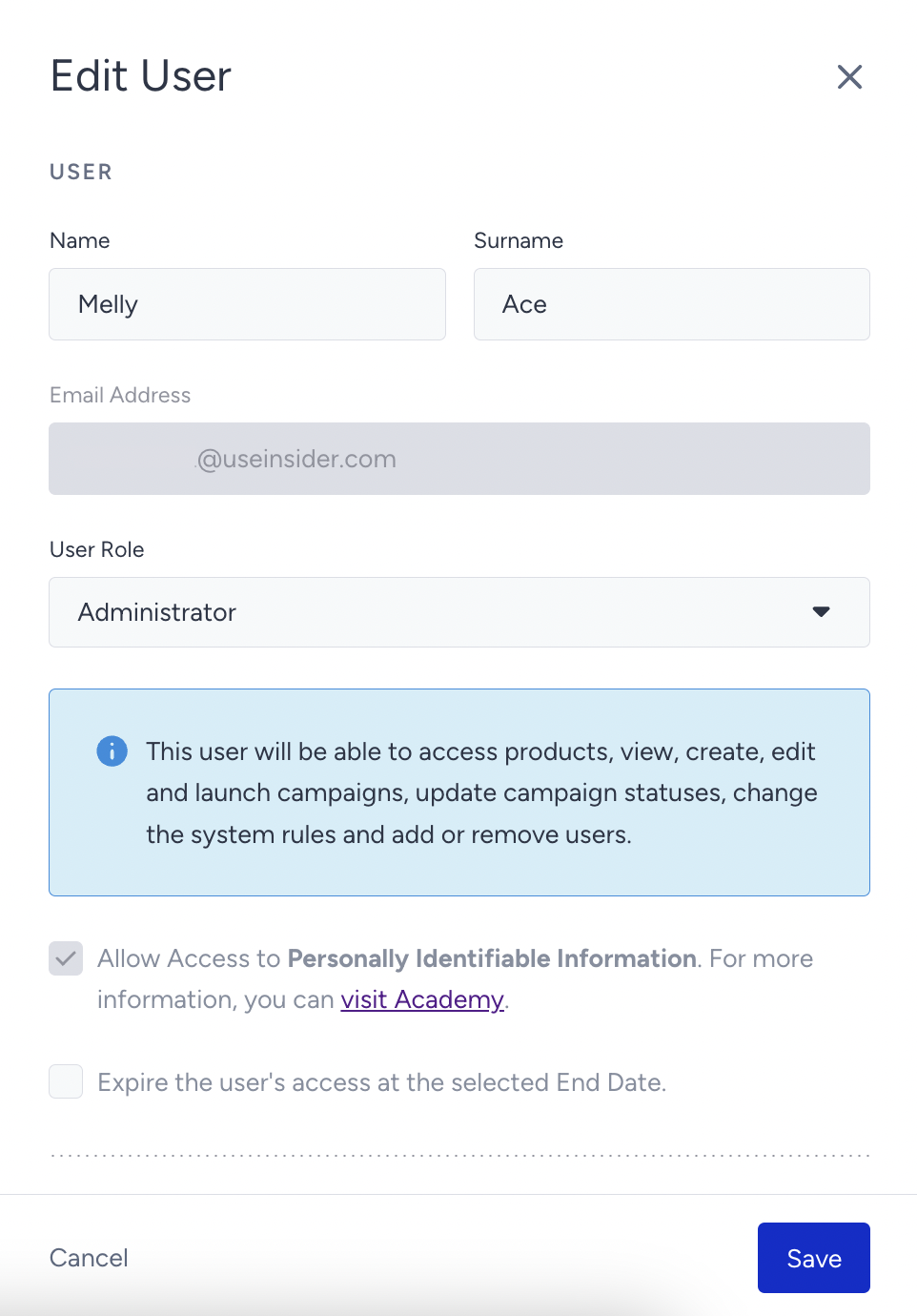
Click the Edit button next to their name to edit a user’s name and surname, change their user role, set limited products, limit their panel access period, enable/disable access for user profiles, add them to a user group, and assign them as a group administrator.
Limit product access
When you edit a user, you can use Limited Products to control which Insider One products they can access. Products restricted for the user are hidden or shown as unavailable in the left navigation menu. The products available to the account are not changed, and other users keep their existing access.
You cannot assign the administrator role to a user with temporary access. Additionally, you can grant a user temporary access for up to 30 days.
Temporary access will expire based on your time zones. For example, if access is granted to a user until February 18th, it will expire at 23:59 on February 18th. When their access expires, users will receive an email notification.
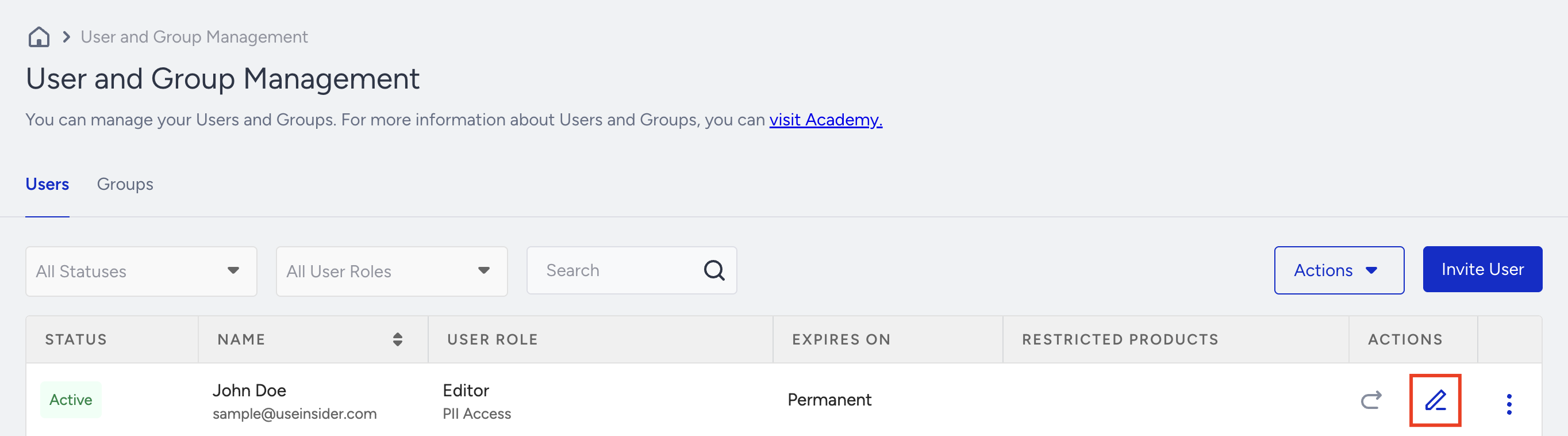
After you change the necessary fields, click Save.
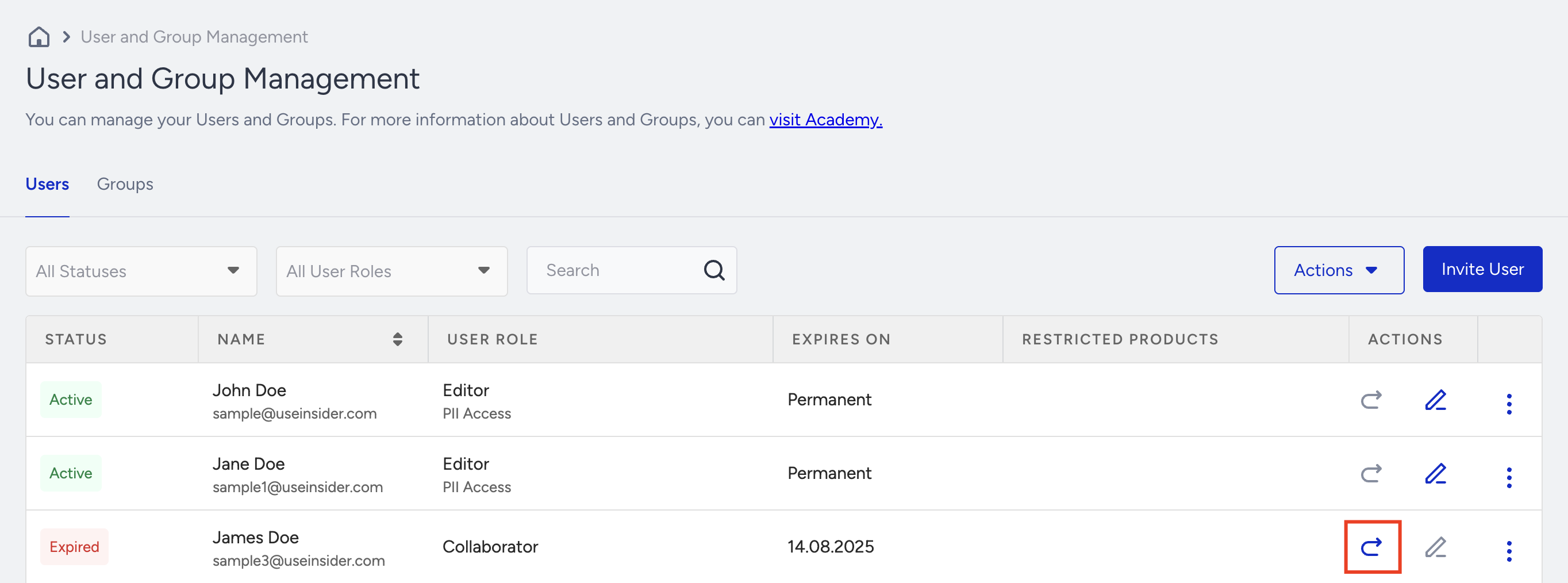
You can resend the invitation to a user by clicking the Resend button.
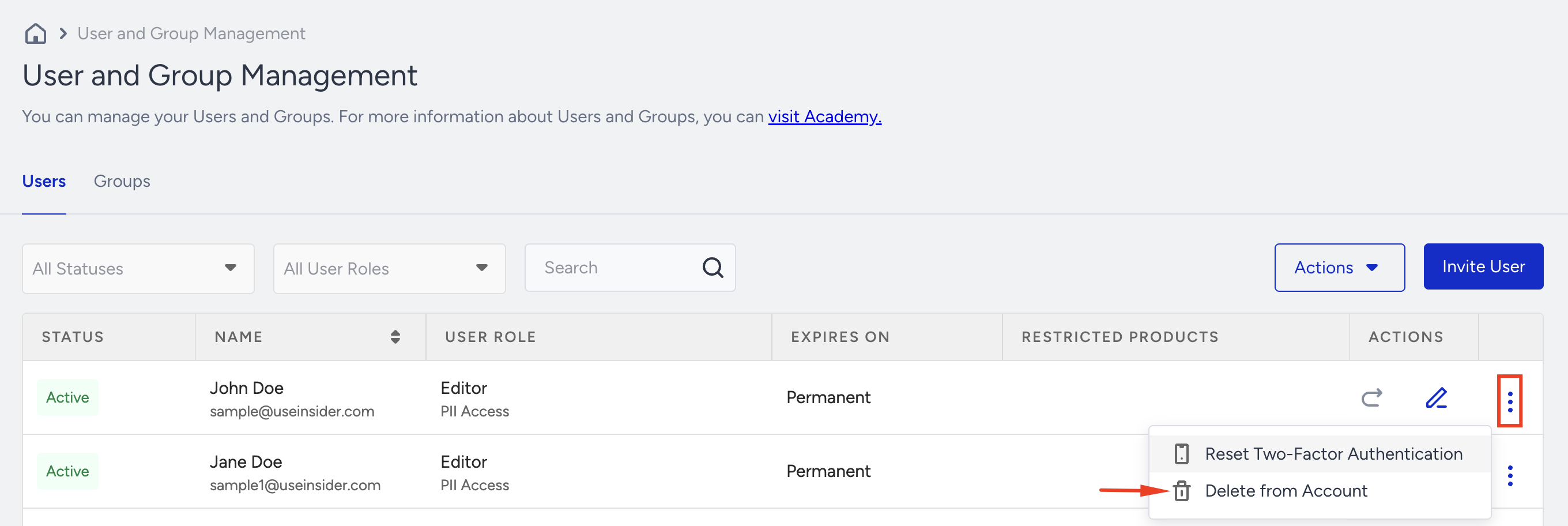
Click the Delete option under the three-dots menu to delete a user from your account.
Reset Two-factor Authentication (2FA)
If you have enabled Two-Factor Authentication (2FA), you can reset your users' 2FA settings from the three-dot menu.
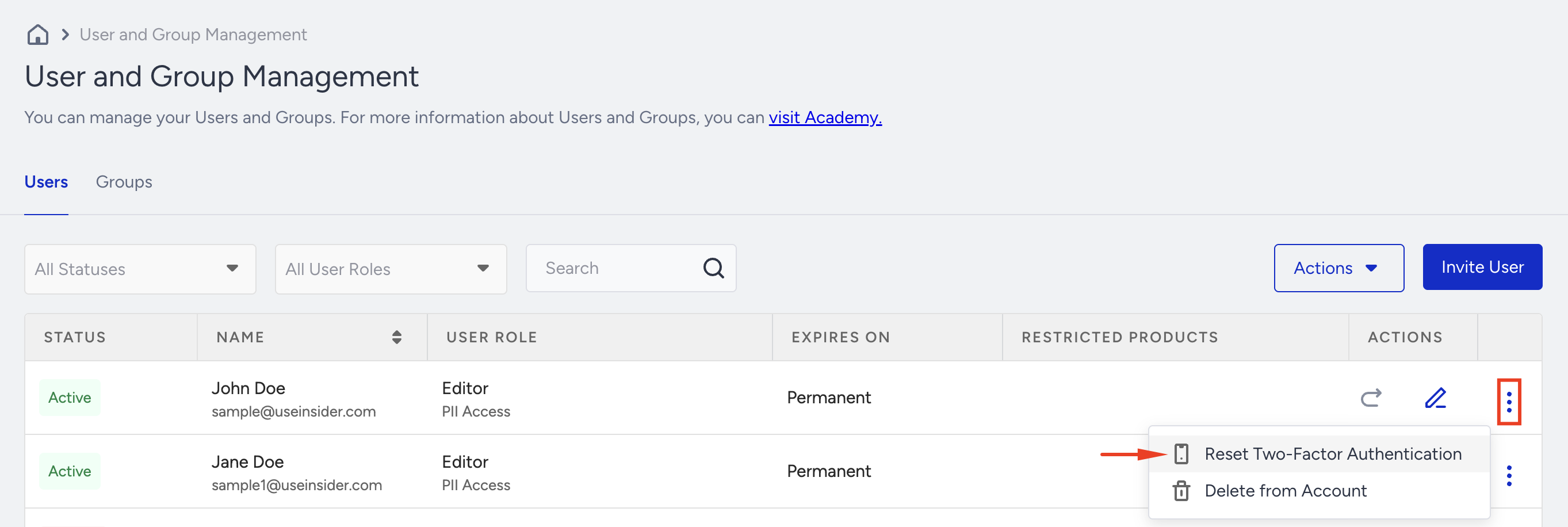
For example, users might change their mobile phone on which they have the Authentication app, delete the Authentication app, or fail to access their backup codes. However, you should consider that not having 2FA makes you vulnerable to cyberattacks; therefore, ensure the user's password is secure before you reset it. You will also receive a confirmation message to proceed. Click the Reset button. 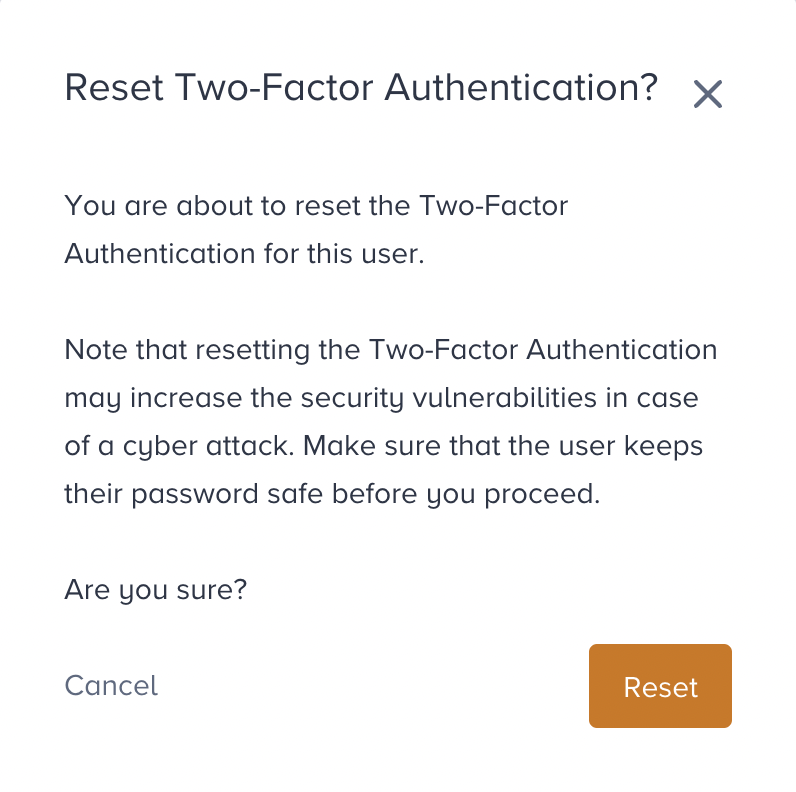
Export Users
Click the Export Reports option in the Actions menu to export a list of users with access to your account.
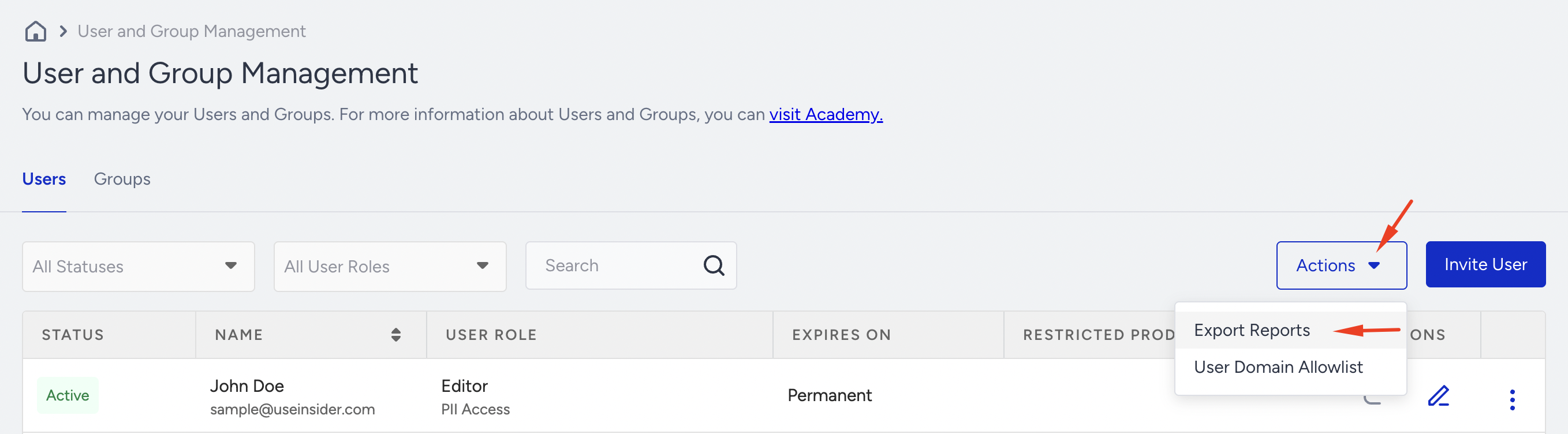
Once you click Export Reports, the user information list is downloaded automatically.
User Domain Whitelisting
Domain whitelisting adds an additional layer of security by allowing administrators to control which email domains are permitted to access the panel.
Click the User Domain Whitelisting option under the Actions menu to manage the domains from which new users can be added, or add new domains.
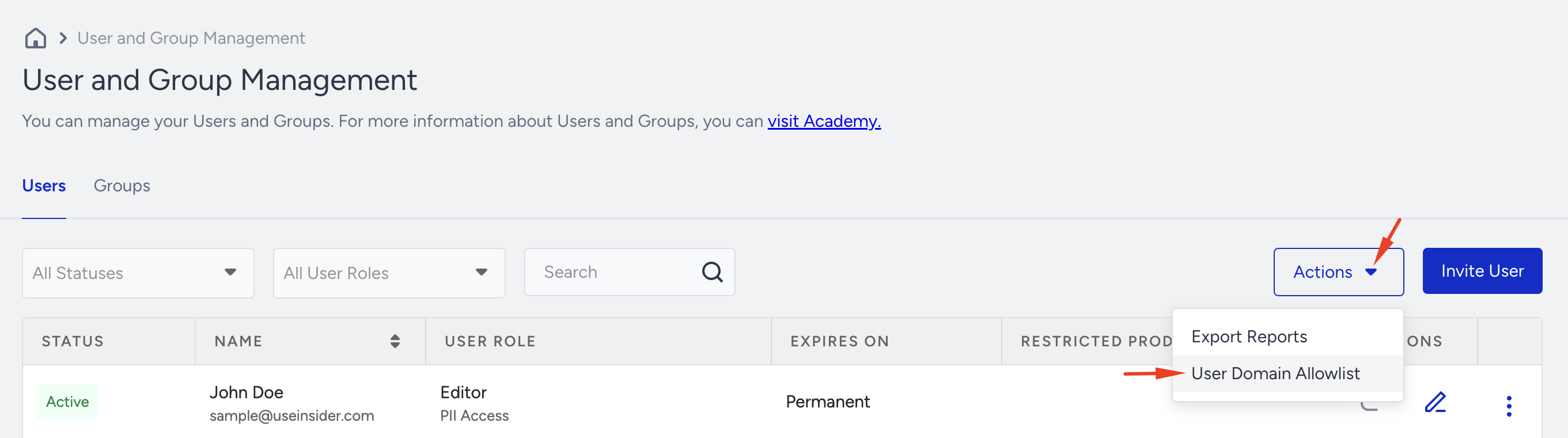
For further information, refer to the User Domain Whitelisting article.