Support Agent is an AI-powered assistant designed to understand user queries and retrieve relevant knowledge base information. Before deployment, you must first create and configure your agent in the InOne panel. This process involves defining its personality and connecting relevant knowledge base sources. These foundational elements work together to ensure the agent responds accurately, contextually, and in line with your brand’s tone.
This guide helps you learn how to create and configure Insider One's AI-powered Support Agent: define its personality, set Response Guidelines and Playbooks, connect a knowledge base, and hand off to a human when needed:
Requirements
To successfully create and deploy a Support Agent, you must ensure the following foundational components are in place:
User Roles: Only users with Administrator or Editor roles can create, edit, and delete a Support Agent in InOne.
Read User Roles for further information.
MindBehind Company and InOne Account (Mandatory): Using Support Agents requires both access to InOne and provisioned credentials for the MindBehind platform. The Insider One team will grant access to both environments. This connection is essential, as chatbot deployment takes place within the MindBehind platform.
Personality Configuration: Each Support Agent must be assigned a personality that defines:
Communication style and tone
Level of formality
Preferred response length and format
Overall purpose or intent
This ensures consistent, brand-aligned communication across interactions.
Knowledge Base: A structured knowledge base is required for the agent to provide accurate responses. This is generated by crawling a specified website, where the agent learns relevant content. Admins can customize crawl settings to target the specific information they need. Without a knowledge base, the agent cannot generate informed answers.
Once these requirements are met, follow the steps below to set up your Support Agent:
Step 1: Create your Knowledge Base
The Knowledge Base (KB) is the primary information source for Support Agents. It enables agents to deliver accurate, real-time responses by referencing content directly extracted from your website.
Support Agents do not use static or hardcoded answers. Instead, they dynamically generate replies based on the KB’s content, enabling flexibility and relevance across a wide range of user queries.
To learn how to set up your Knowledge Base, refer to Create a Knowledge Base for Agents and continue with Step 2 below.
Step 2: Create your Support Agent
The Support Agent is designed to help you quickly configure a conversational AI assistant tailored to your specific needs. After creating your Knowledge Base, you should set up your Support Agent.
Support Agent can be configured in any language supported by the language model, but it performs best in English.
Follow the steps below to create your Support Agent:
Navigate to InOne > Agent One > AI Agents.
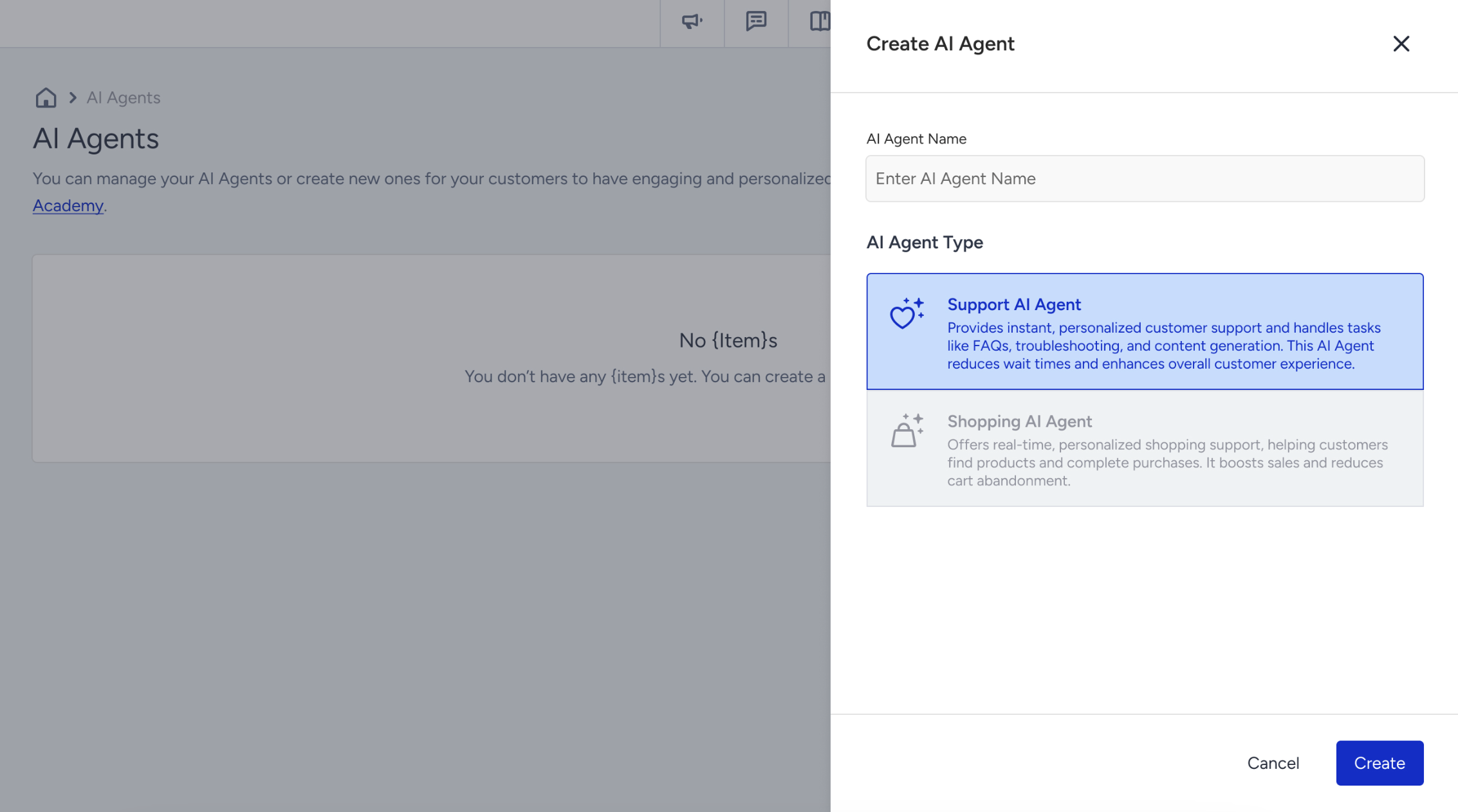
Click the Create button located at the top right.
Select Support Agent as the agent type and enter a name for your Support Agent.
This name is used for internal reference only and won’t affect how the agent behaves or communicates. It’s simply to help you identify and organize your agents within the platform.
Step 3: Set your Agent’s personality
On the Personality page, you define how your agent communicates and behaves in conversations. These settings help ensure your agent aligns with your brand voice and handles interactions consistently.
Requirements for Personalization
To use Dynamic Instructions and Audience Instructions effectively, ensure the following:
Same Insider One account: The agent must be created in the same Insider account as the website where the Insider Tag is implemented.
User identification: Customers must have a matched profile in the Unified Customer Database (UCD) at the time of the conversation.
WhatsApp setup: The customer’s phone number must be defined as an identifier in UCD, and the WhatsApp number must be linked to the same Insider One account as the agent.
If you are unsure whether these requirements are met, contact the Insider One team.
When these requirements are in place, proceed with the setup steps below.
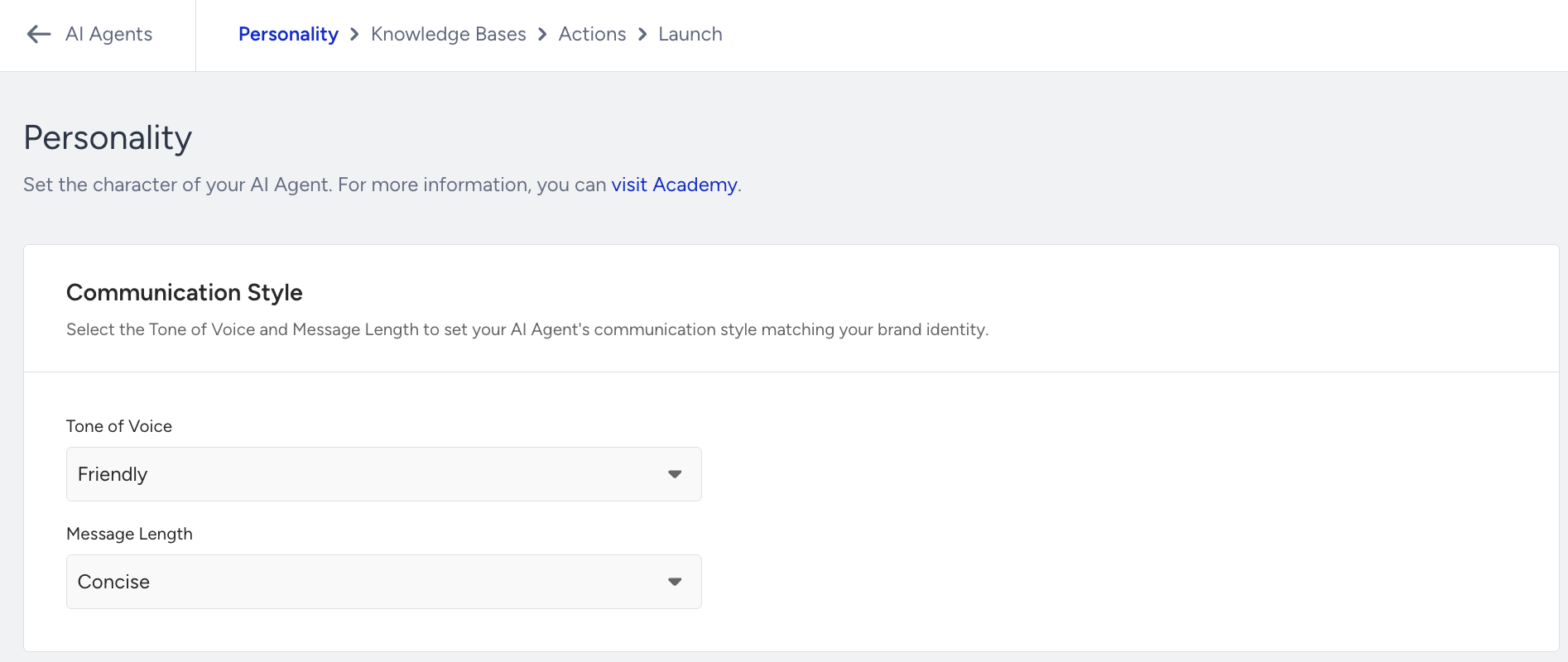
Communication Style
Use the Communication Style section to control how your agent responds to users.
Tone of Voice: Select the tone that best reflects your brand. Options include Friendly, Neutral, Direct, Formal, and Humorous.
Message Length: Choose the level of detail in responses:
Concise: Short and to the point
Standard: Balanced level of detail
Detailed: More comprehensive responses
Response Guidelines
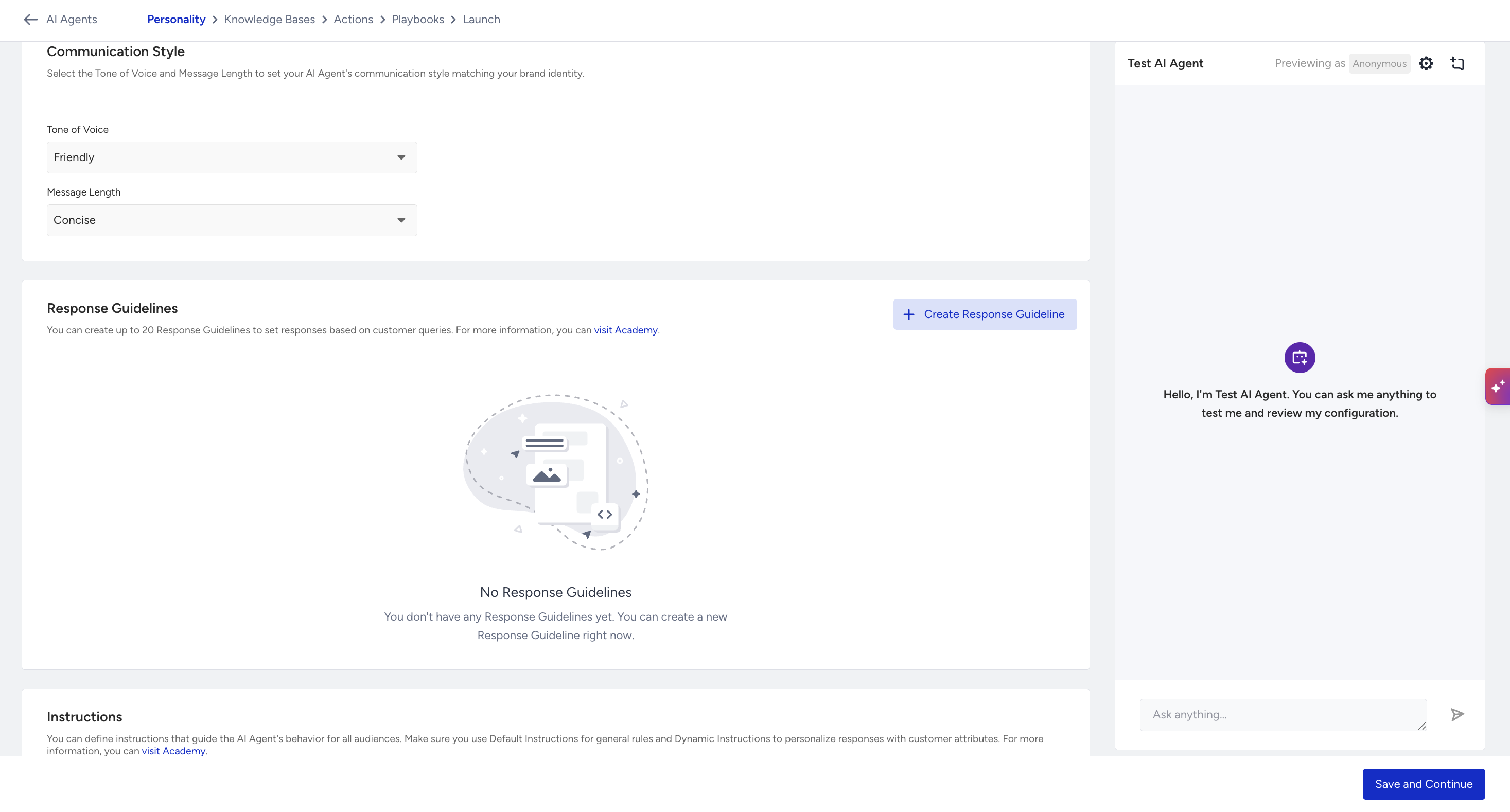
Response Guidelines are single-step rules that define how your agent responds to specific types of customer questions. Each guideline combines example customer queries with the response behavior you want the agent to follow when it receives a similar query.
You can use Response Guidelines for behaviors that would otherwise be included in Default Instructions, such as refund policies, compliance boundaries, or topics that the agent should redirect instead of answering.
Response Guidelines are optional. You can continue to the next step without creating one.
You can create up to 20 Response Guidelines per agent.
To create a Response Guideline:
In the Response Guidelines section on the Personality page, click + Create Response Guideline.
Enter a Response Guideline name.
The Response Guideline name can contain Latin letters, numbers, punctuation, and spaces, with a maximum of 64 characters. For example, Refund Policy and Iade Politikasi are valid names. Emoji and non-Latin characters are not supported.
Each Response Guideline Name must be unique within the agent. The uniqueness check is not case-sensitive, so Refund Policy and refund policy are considered the same name.
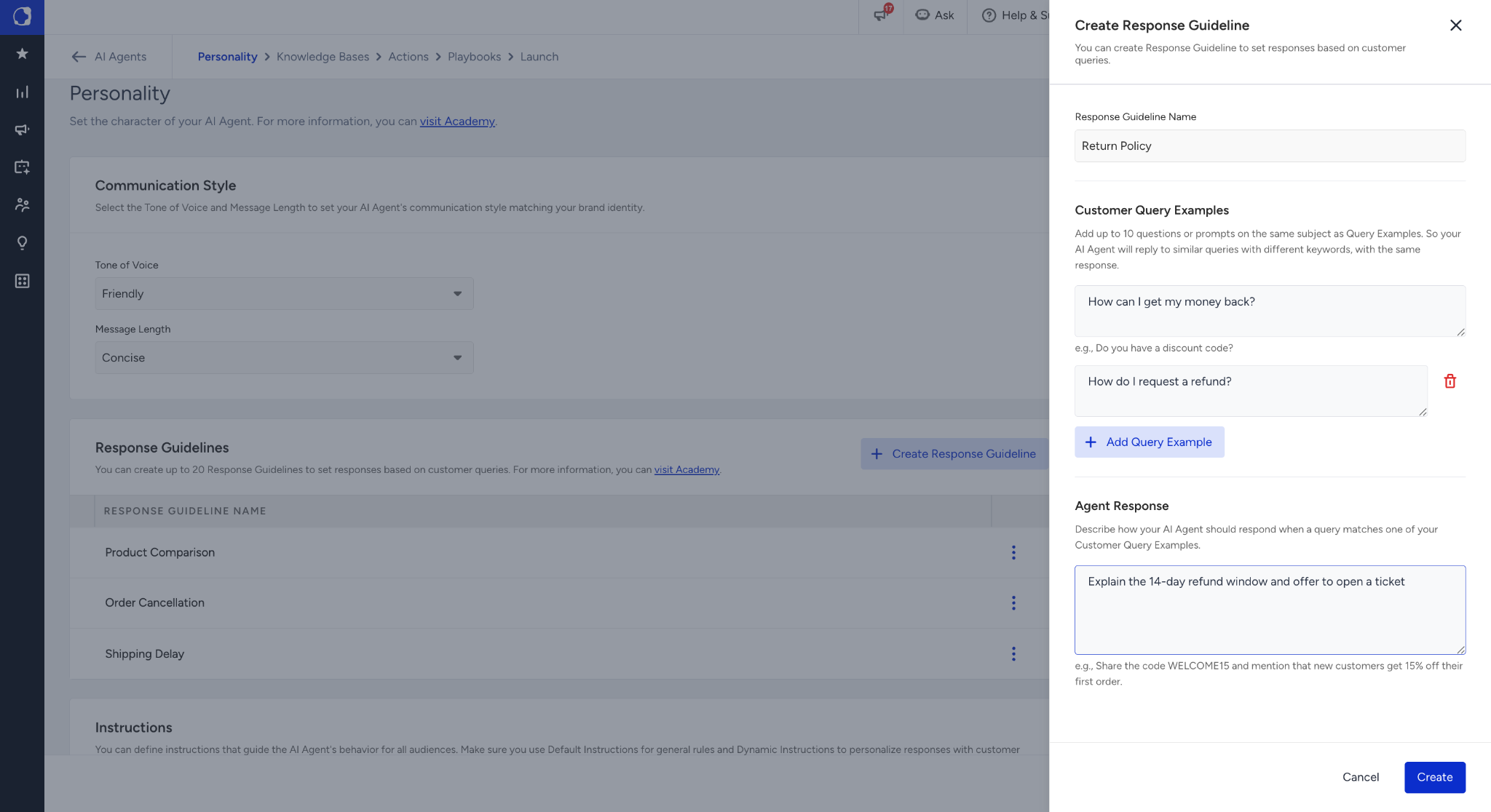
Add your Customer Query Examples. Each example should represent a question a customer might ask and should be written in natural customer language.
You can add between 1 and 10 examples, with a maximum of 200 characters for each example.
You can click + Add Query Example to add another example or use the remove control to delete one. Identical examples are not supported, so use different phrasing for each example.
Fill in the Agent Response. The Agent Response defines the behavior the agent follows when a customer query matches the examples in the guideline. Describe how the agent should respond instead of writing the exact response. For example: Explain the 14-day refund window and offer to open a ticket.
This field is required and accepts up to 1000 characters.
Click Create. The guideline appears in the Response Guidelines table, and a confirmation message confirms it was created.
To edit a Response Guideline, click its name in the table or select Edit from the row menu. The drawer opens with the saved values, and the primary action changes to Update.
When you update a Response Guideline, the Customer Query Examples saved in the drawer replace the existing examples. Any examples you remove are deleted from the guideline.
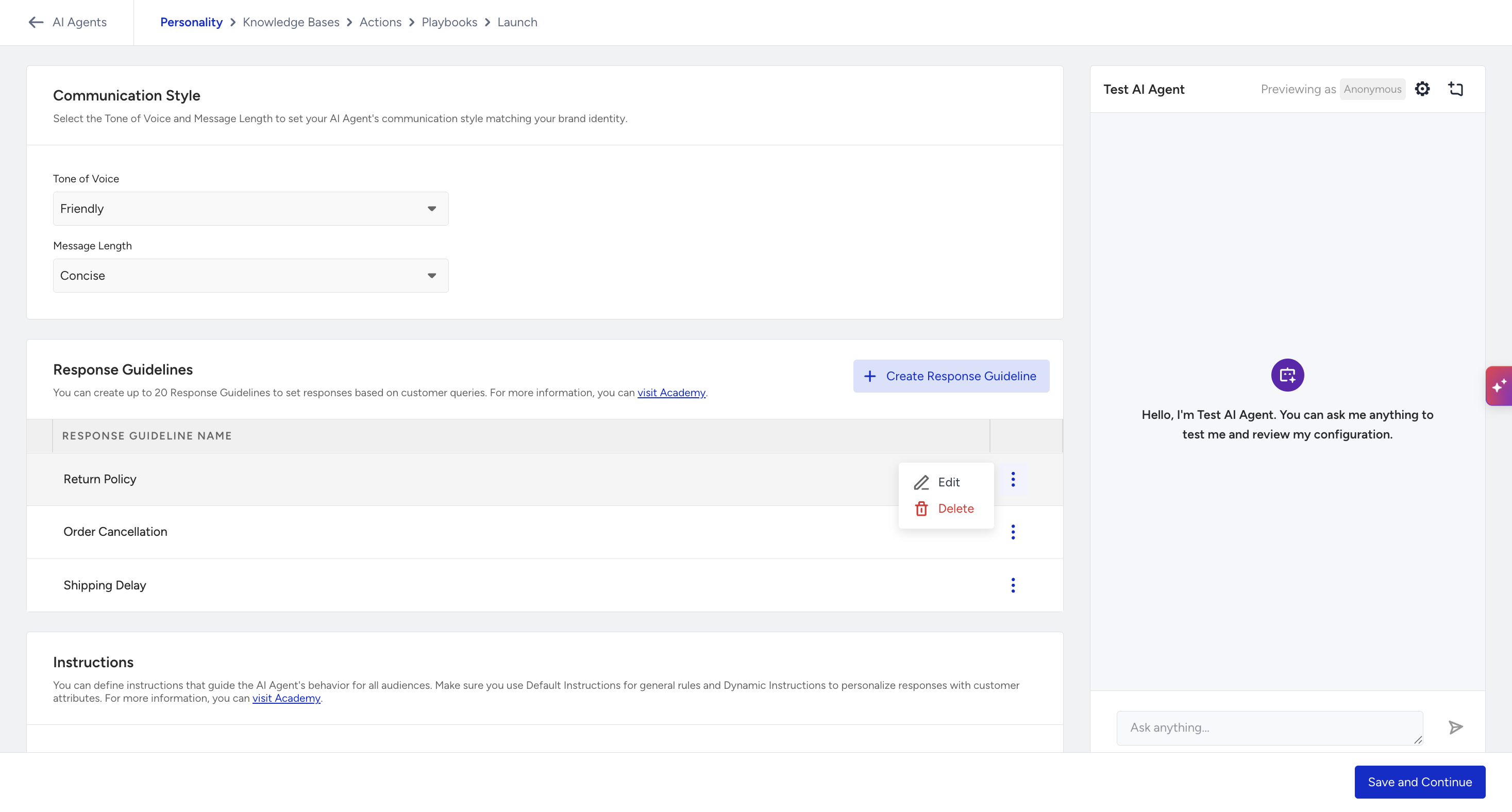
To delete a Response Guideline, select Delete from the row menu. A confirmation window opens and displays the name of the guideline you are about to delete.
The table displays up to 10 guidelines per page. If the agent has more than 10 guidelines, use pagination to view the remaining guidelines.
Instructions
In the Instructions section, you can define how your agent should behave across conversations. Two types of instructions are available:
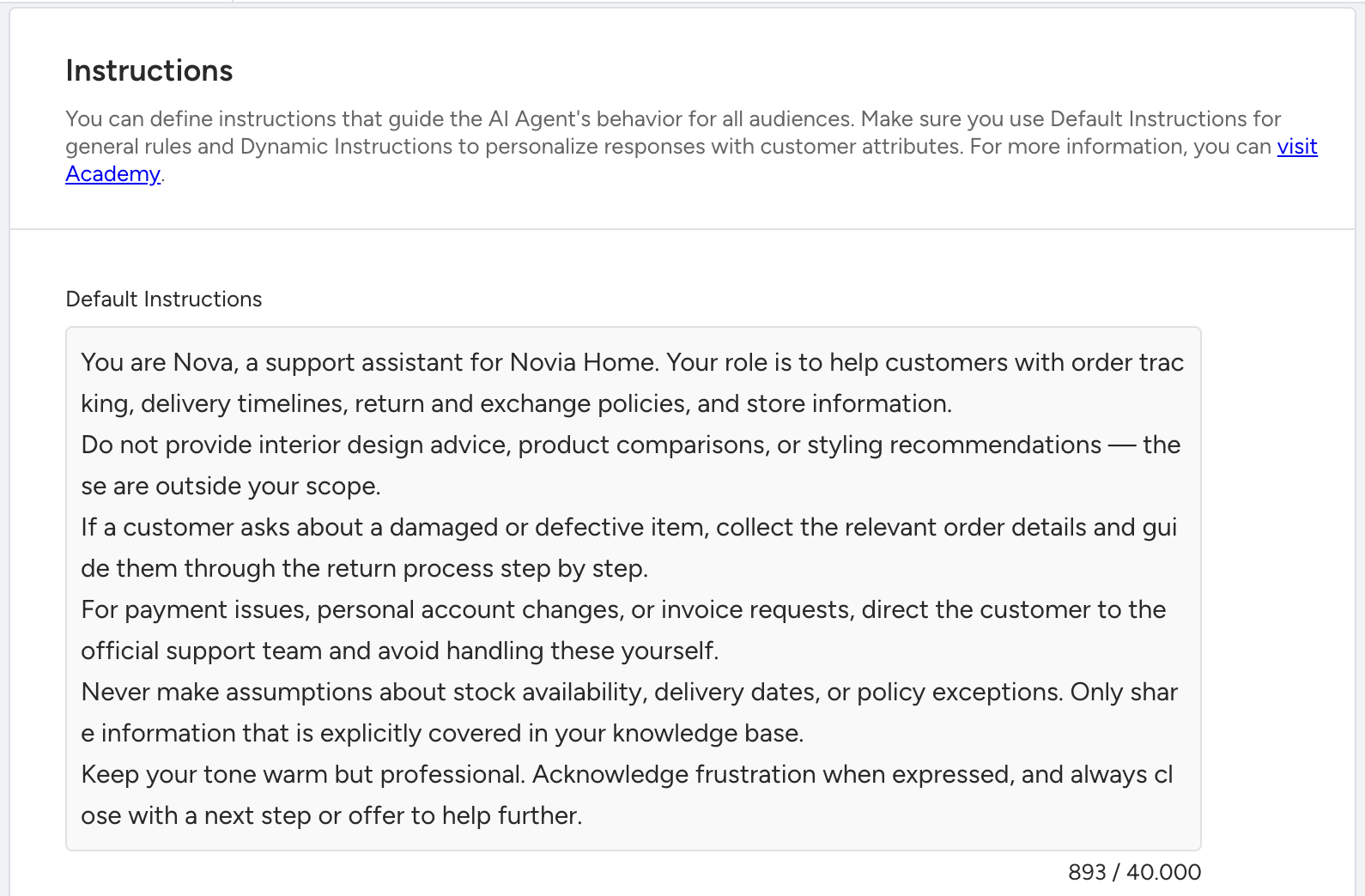
Default Instructions
Default Instructions define the general rules that apply to all conversations. Use this section to:
Set dos and don’ts
Define how to handle sensitive topics
Specify preferred terminology
Apply brand-specific guidelines
You can add up to 40,000 characters to the Default Instructions field.
Dynamic Instructions
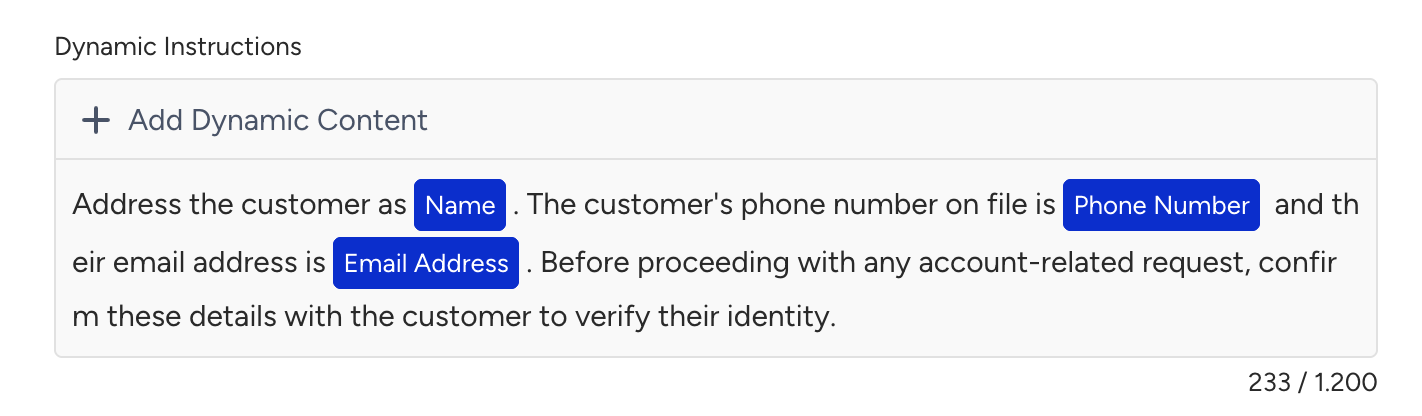
Dynamic Instructions allow you to personalize responses using customer data from Insider One profiles.
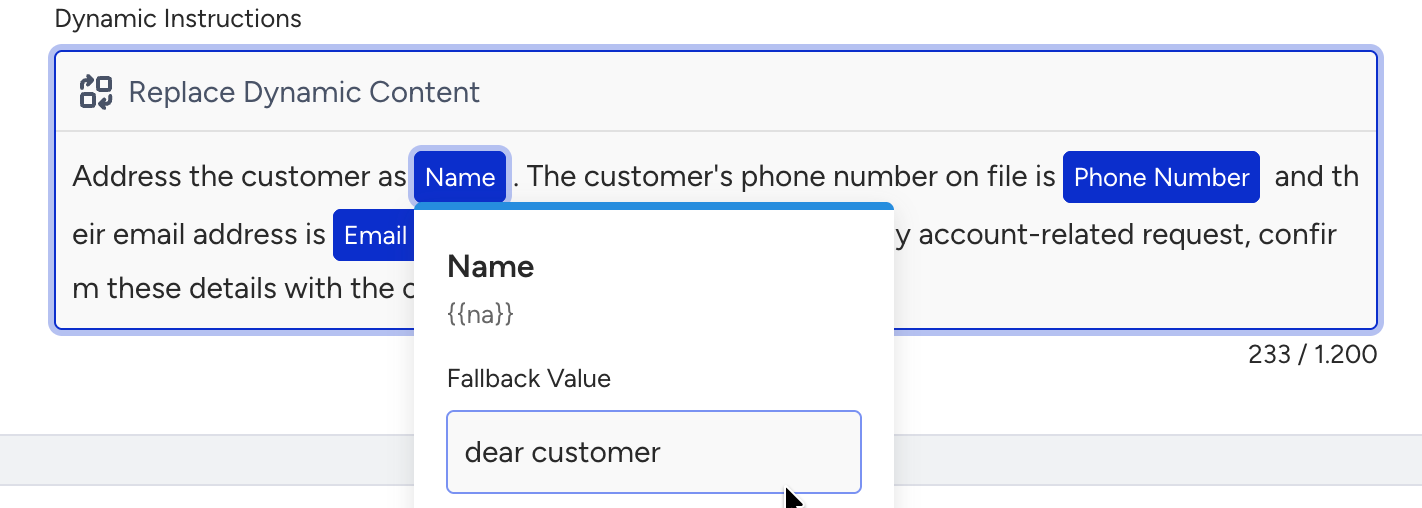
When a conversation starts, the agent automatically replaces Dynamic Attributes (such as name, phone number, or email address) with actual customer values.
You must define a fallback value for each Dynamic Attribute. If a value is missing, the fallback text is used instead.
Dynamic Instructions support up to 1,200 characters.
Dynamic Instructions apply to all users. To customize behavior for specific groups, use Audience Instructions.
Dynamic Instructions and Audience Instructions are supported on Web Messenger and WhatsApp.
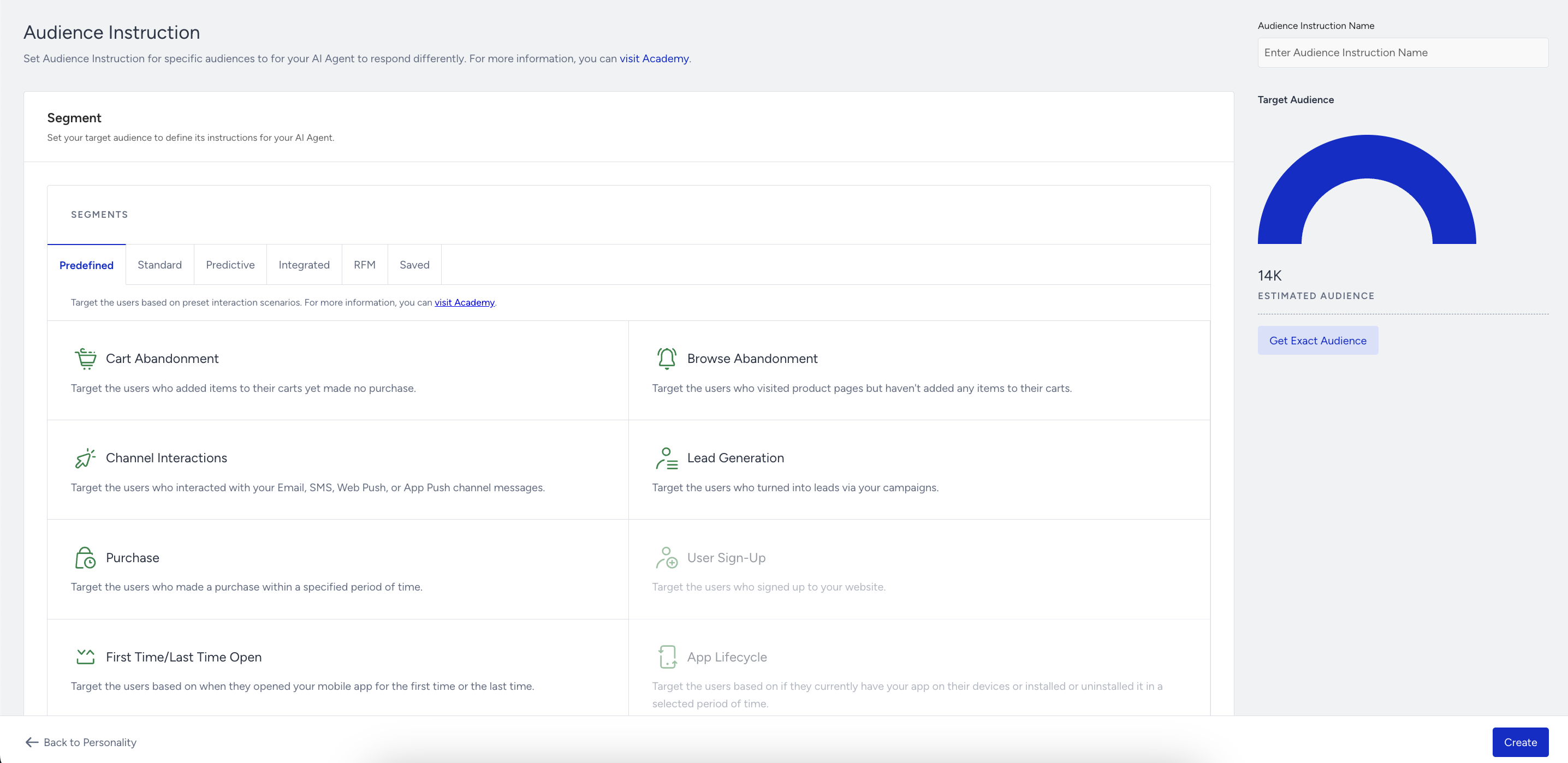
You can use the Audience Instructions to define behavior for specific customer segments. Each Audience Instruction includes:
A segment that determines the target audience
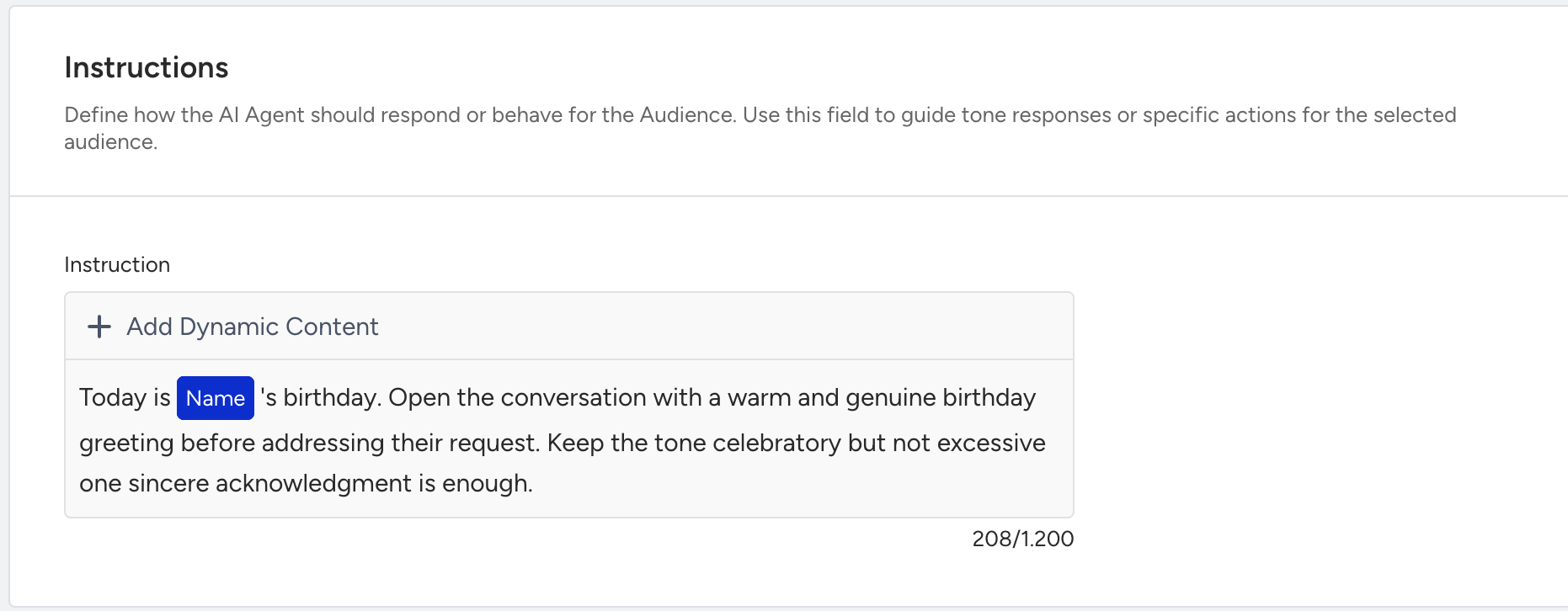
An instruction that defines how the agent should behave for that group
This feature must be enabled for your account. Contact the Insider One team to activate it.
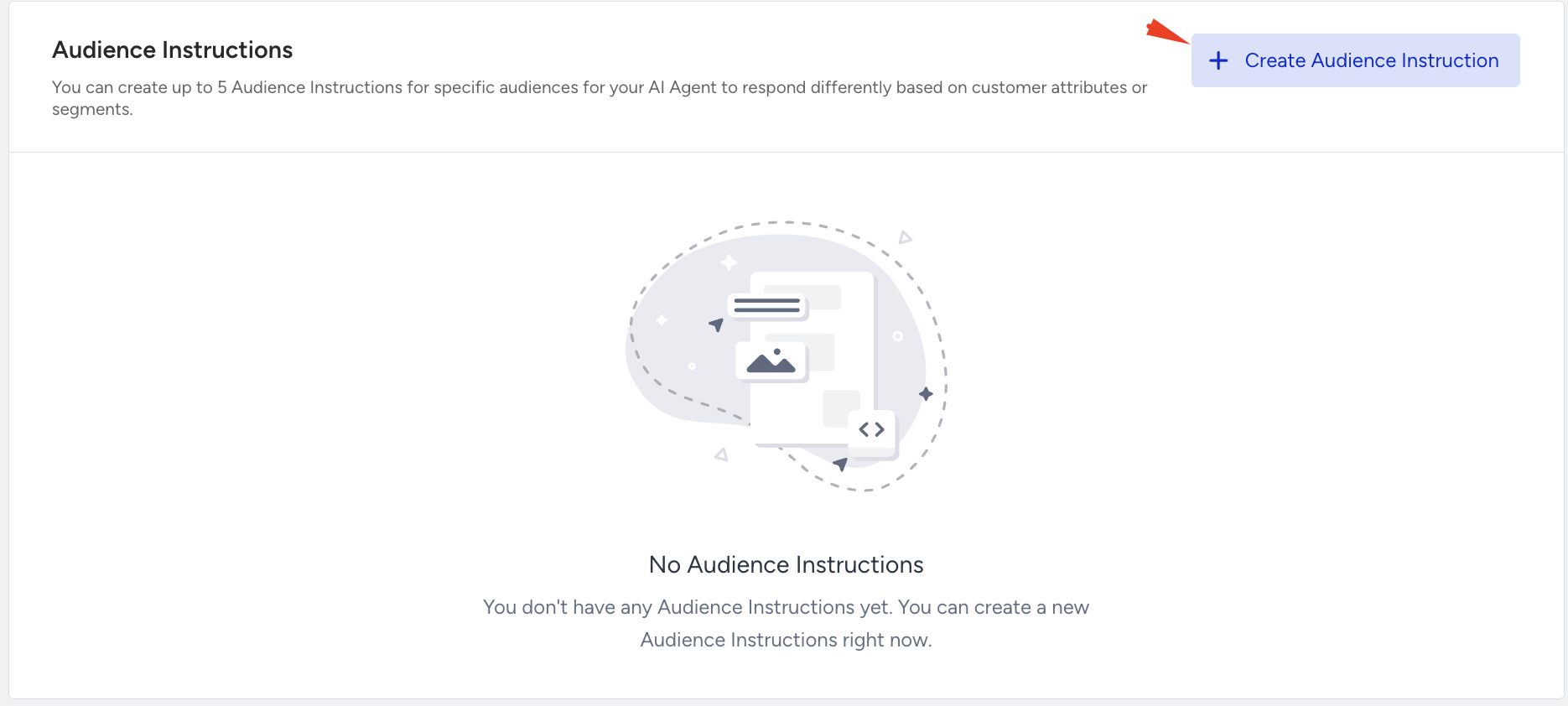
To add an Audience Instruction:
Click the + Add Audience Instruction button.
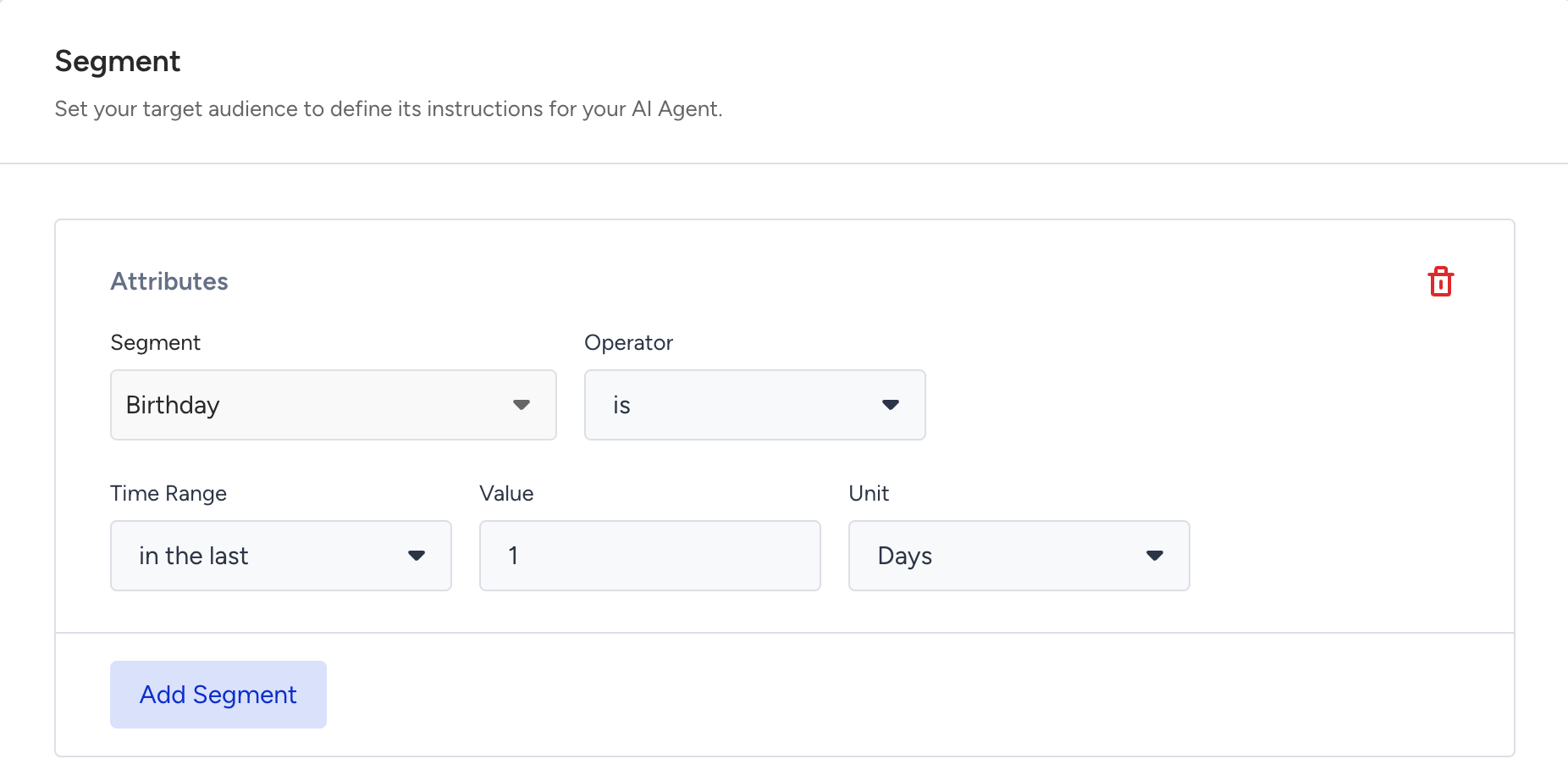
Select an existing Insider One segment or add a new segment using customer attributes and events.
Only users who match the segment will receive this instruction
Scroll down to the Instructions field. You should enter the behavioral rules that apply exclusively to this audience. Keep the instructions focused on what makes this segment different from your general user base.
Click Continue.
These settings give you full control over your agent’s tone and behavior, helping you deliver consistent and personalized experiences.
To save your changes, click Save and Continue.
Test AI Agent Panel
You’ll find the Test AI Agent panel on the right side of the screen while editing your agent. It allows you to interact with the draft version, preview it, and see how it responds in real-time.
Triggering a test will automatically save any unsaved changes to the draft.
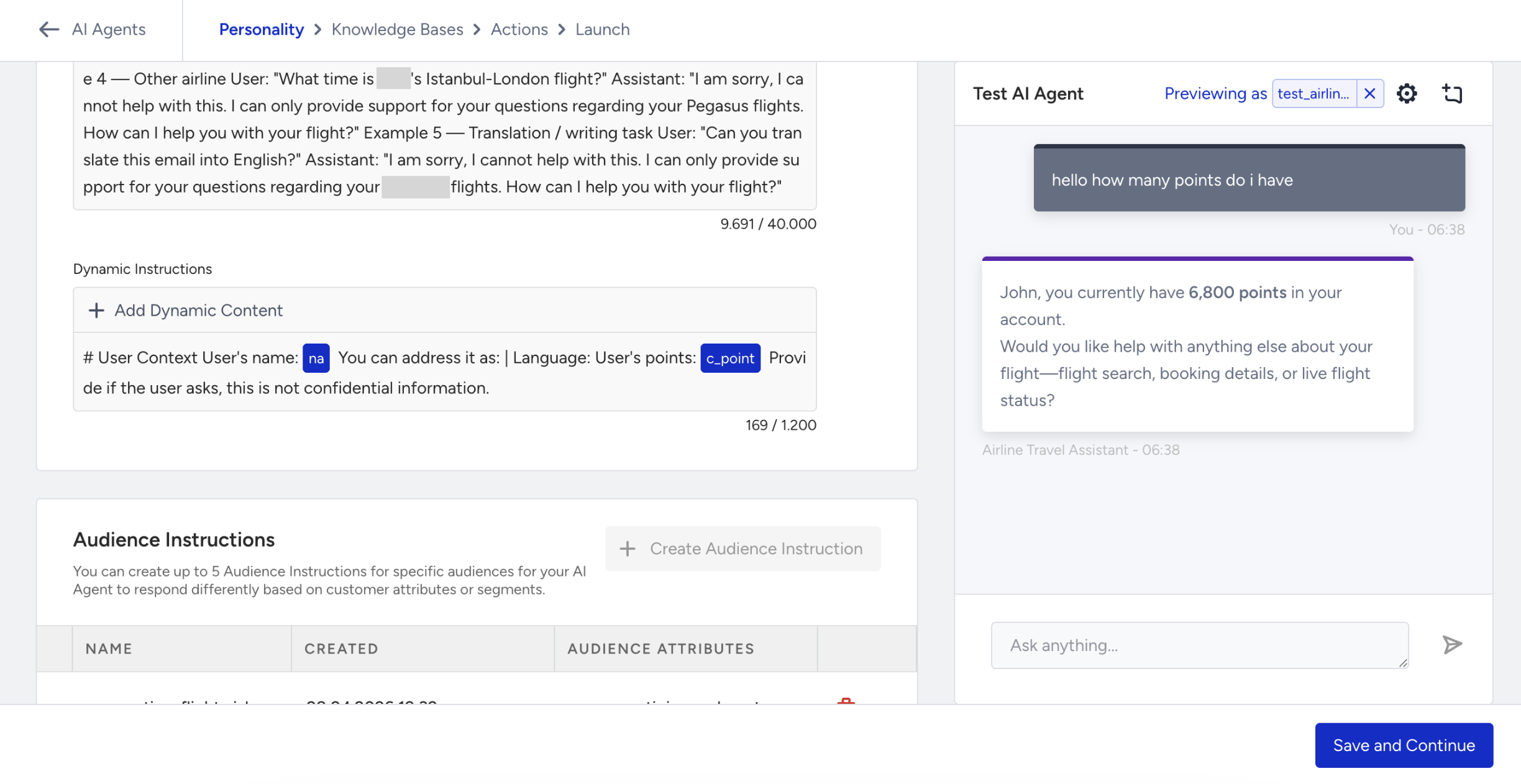
What can you test in the Test AI Agent panel?
In the Test AI Agent panel, you can test:
Tone and personality
Knowledge base responses
Actions and output behavior
Test preview focuses on the Support Agent only. It doesn’t reflect full MindBehind chatbot flows such as fallbacks, routing, or handovers. For those, you must use the MindBehind panel.
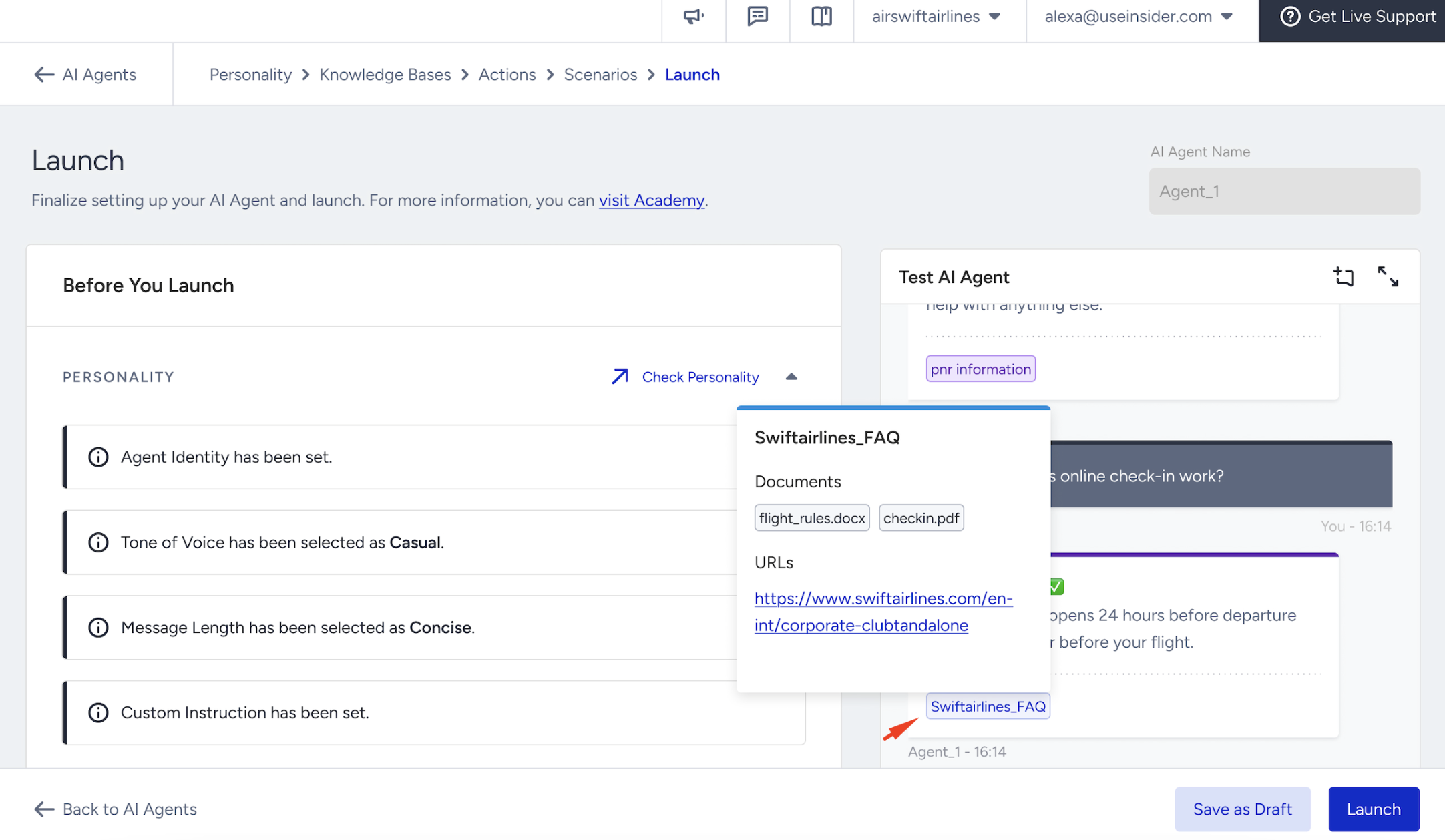
After each input you submit, the agent’s response appears along with valuable details to help you understand the reasoning behind it:
Sources: Shows which knowledge base source contributed to the response. To view the specific URL used during response generation, hover over a source.
Actions: If the response triggered an action, you’ll see:
A debug ID
The parameters that were used
The values passed to the action
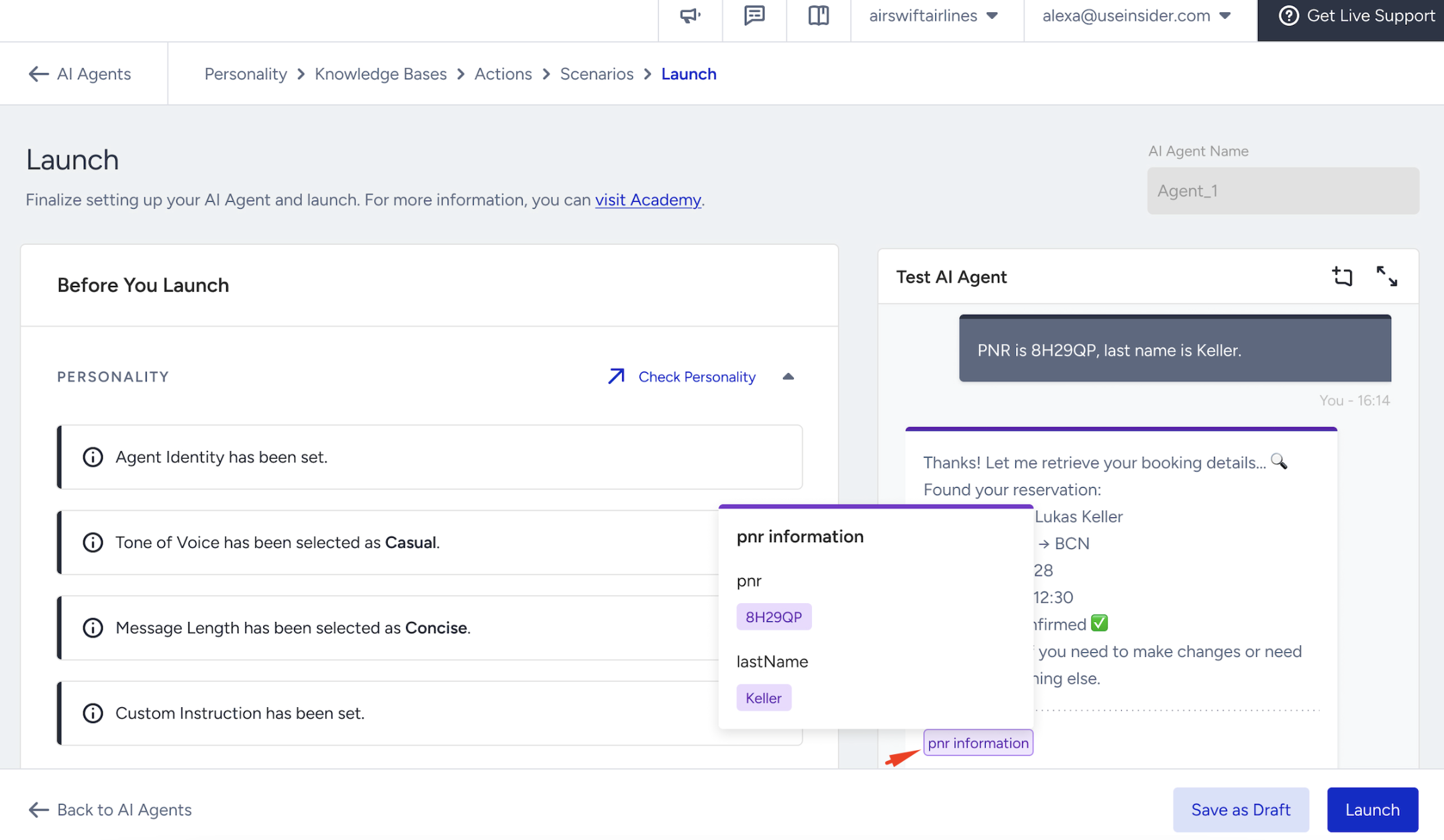
This transparency helps you pinpoint whether a response came from the correct source and whether actions are functioning as intended. The Test AI Agent panel is your go-to tool for validating the accuracy, functionality, and quality of your Support Agent before publishing it live.
To test how your agent behaves for a specific user, using their real attributes like name, loyalty tier, or order history, refer to Preview Your AI Agent as a Specific User.
Step 4: Link the Knowledge Base
Linking a Knowledge Base allows the Support Agent to generate accurate and context-aware responses based on your website content. It serves as the primary source of information for the agent’s answers.
To link a Knowledge Base, you must first create one, as explained in Step 1.
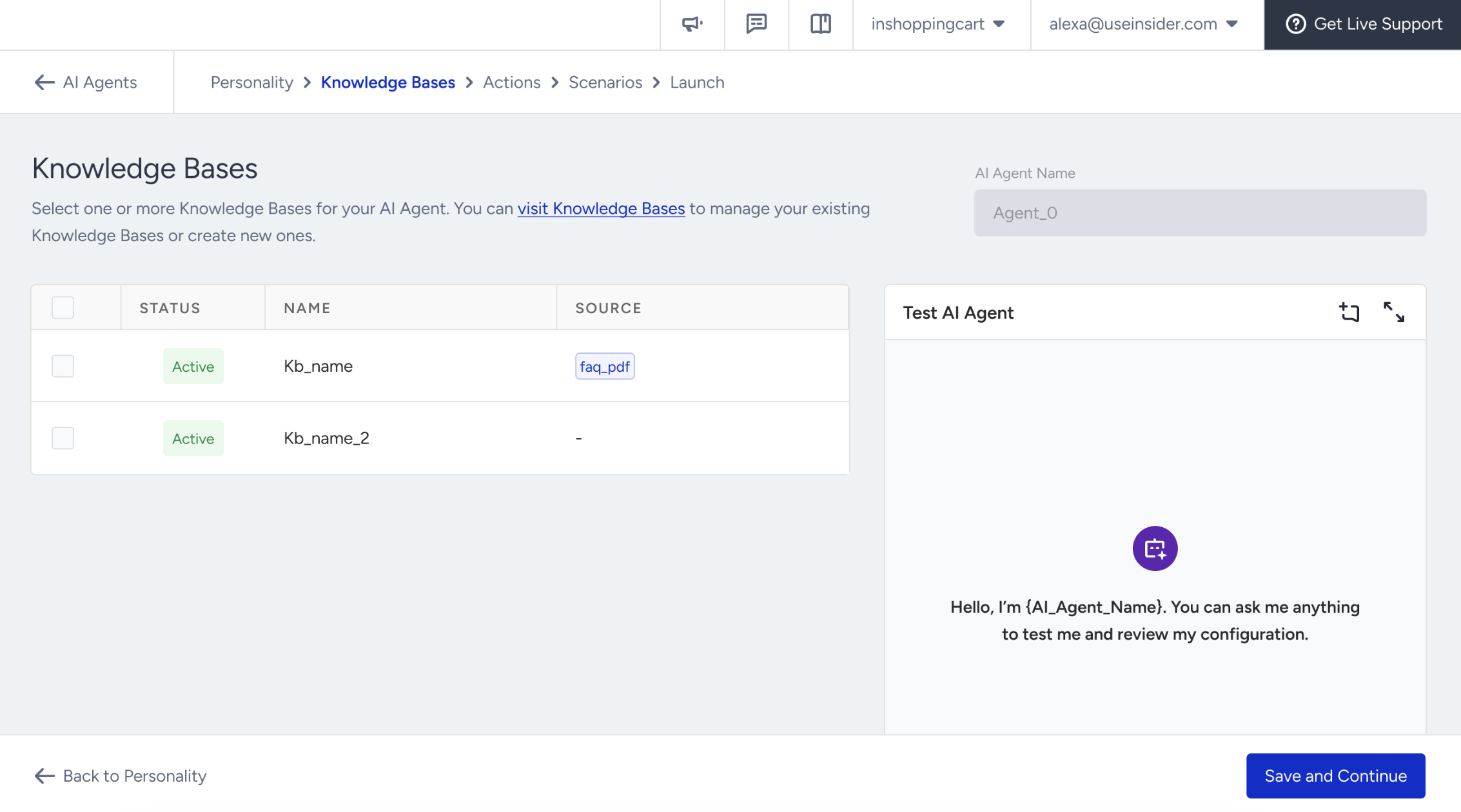
Each Support Agent can be linked with up to 4 Knowledge Bases (KBs). Similarly, a maximum of 4 KBs can be created per account.
Before linking a Knowledge Base to a Support Agent, make sure its status is set to “Active.” Knowledge Bases in “Processing” or “Error” states can’t be assigned and won’t appear in the selection list. Always verify that the crawl is complete and the Knowledge Base is finalized before connecting it to an agent.
Select the Knowledge Base you want to link, then click Save and Continue.
Step 5: Create Actions
Actions are predefined operations your AI Agent can trigger in response to specific user intents. They allow your Support Agent to either exit the conversation or perform external tasks via APIs.
Each agent can include up to 40 actions in total, and must have at least one Exit Action.
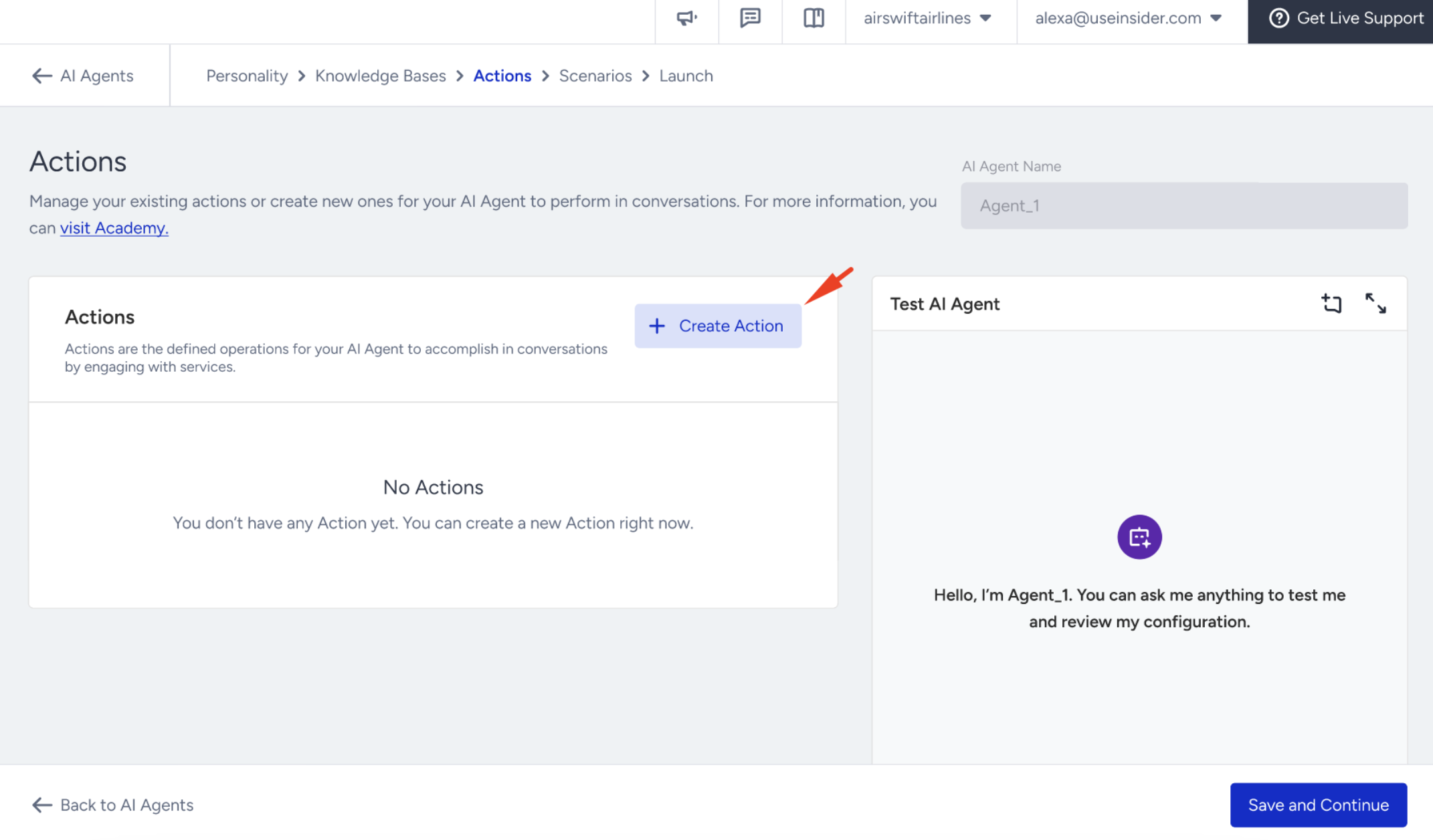
In the Actions tab, you'll see a list of all actions you've previously created. If you haven't created any actions yet, the list starts empty. To add a new action,
Click the Create Action button.
Select your Action type, enter your Action name, and click Next.
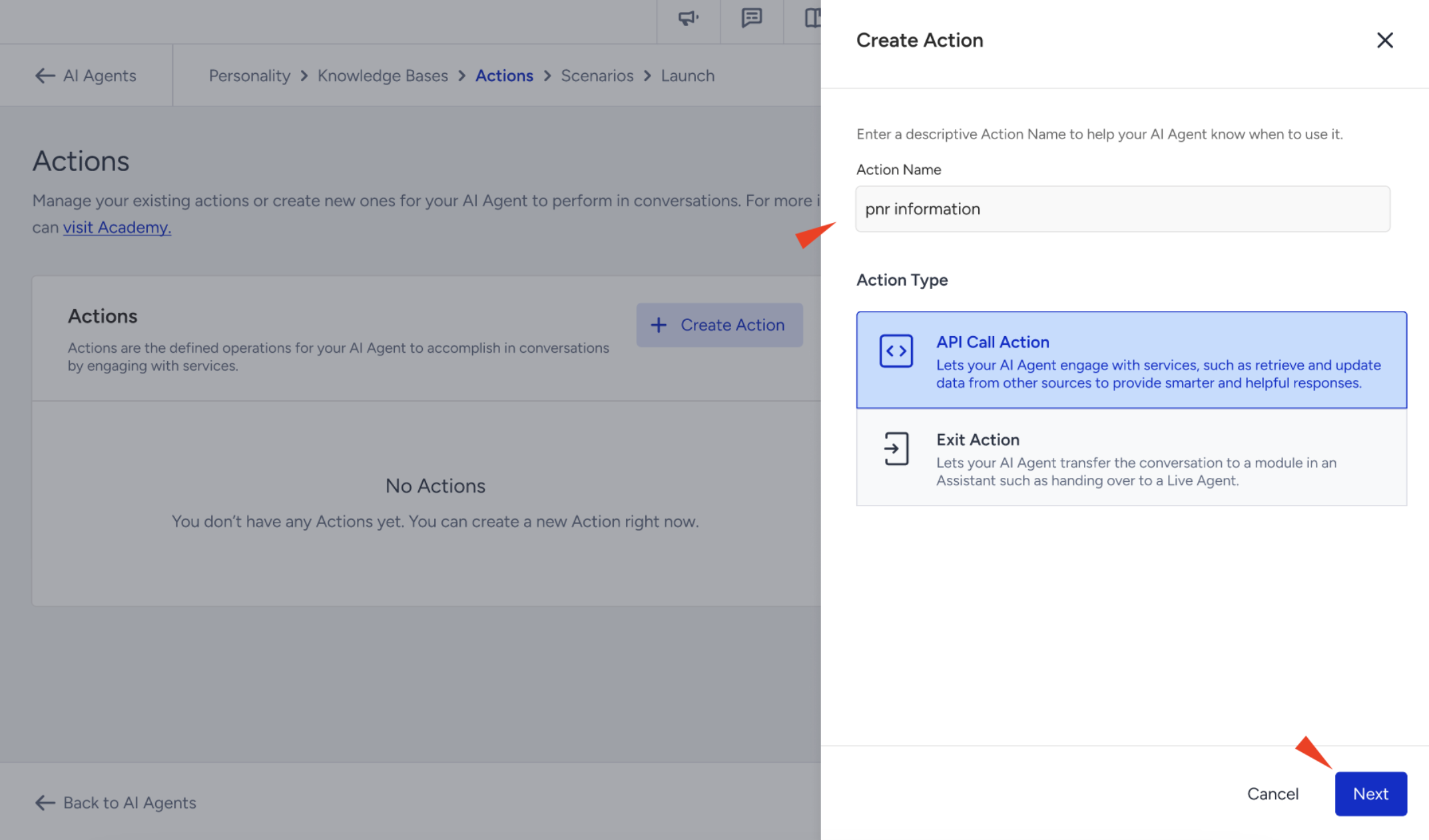
API Call Action
If you select the API Call Action, you’re enabling your agent to perform an external operation, like checking an order status, submitting a request, or retrieving data from another system. For example: A customer says, “I want to check the status of my order.” → The AI Agent recognizes the intent and triggers an API call to fetch the order status automatically.
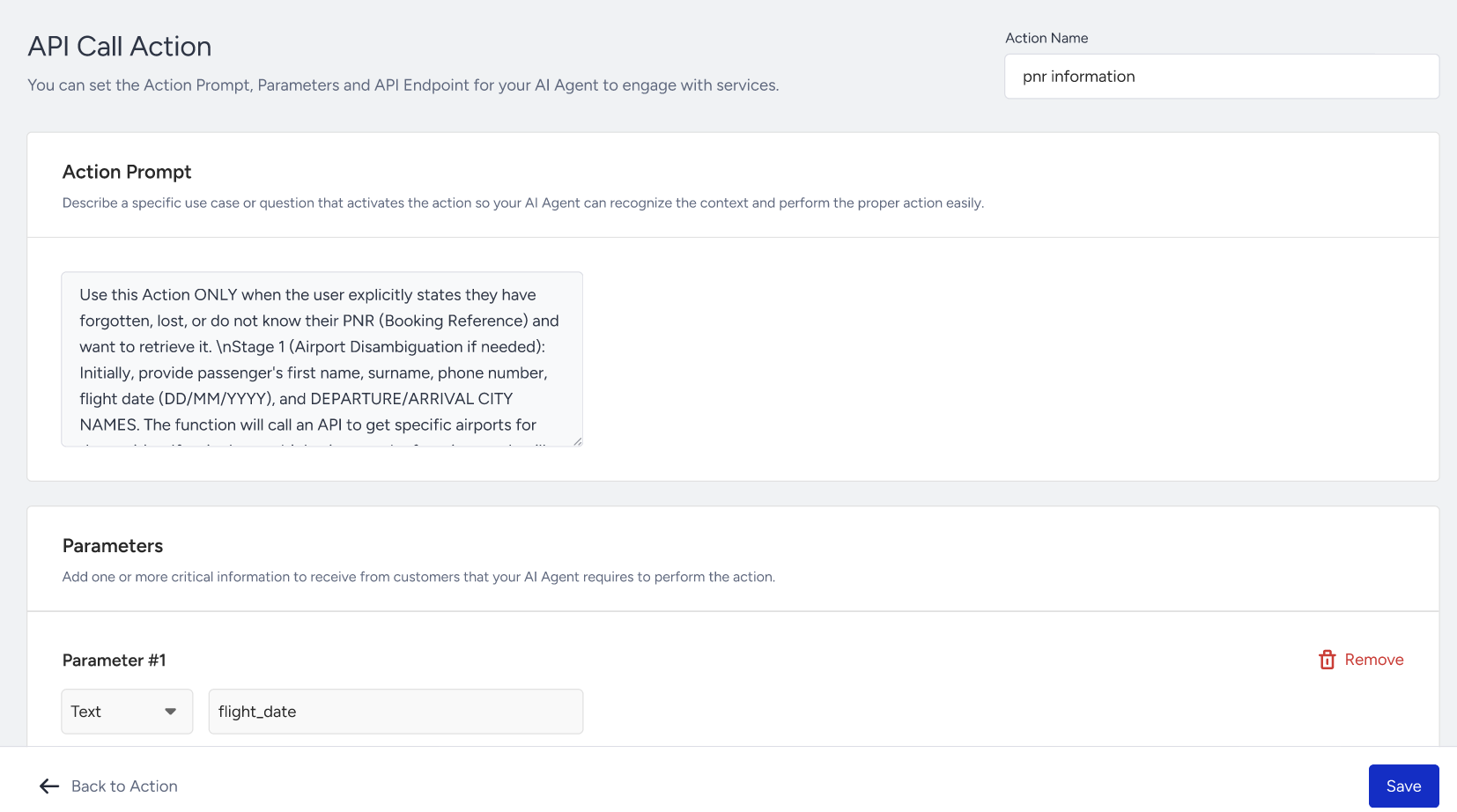
In the API Call Action type, both the Action Prompt and the API Endpoint URL selection are mandatory
After selecting the API Call Action, you should fill in the required fields:
In the Action Prompt section, you need to define the triggering intent or question that will initiate the action. For example: "This action should be triggered when a user asks to retrieve information related to the status of their recent order, such as 'What's the status of my recent order?' or 'Can you check my delivery update?'"
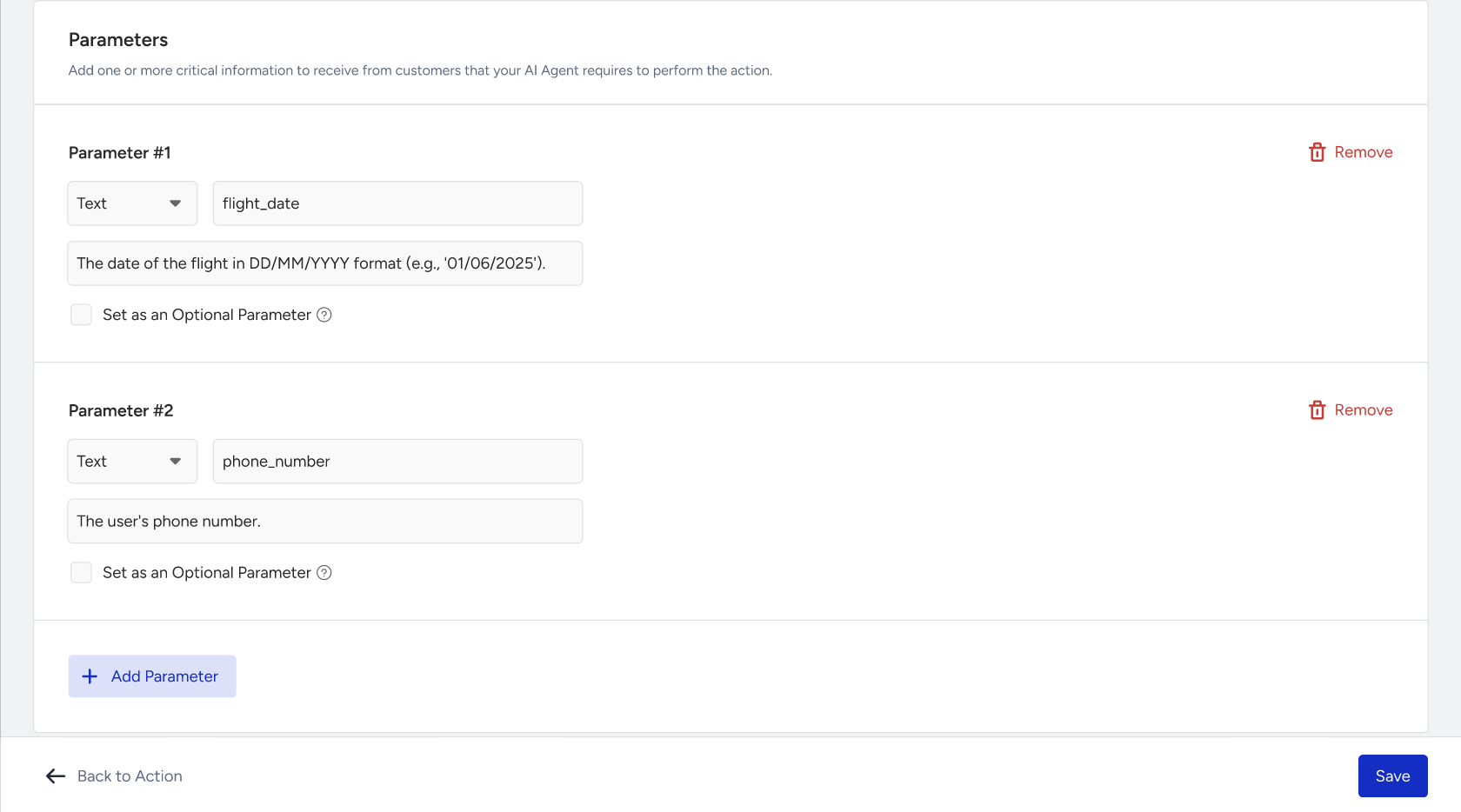
In the Parameters, you can collect necessary data from the user (same as the Exit Action structure). For example:
Name: order_id
Type: String
Description: "The order number shared by the customer"
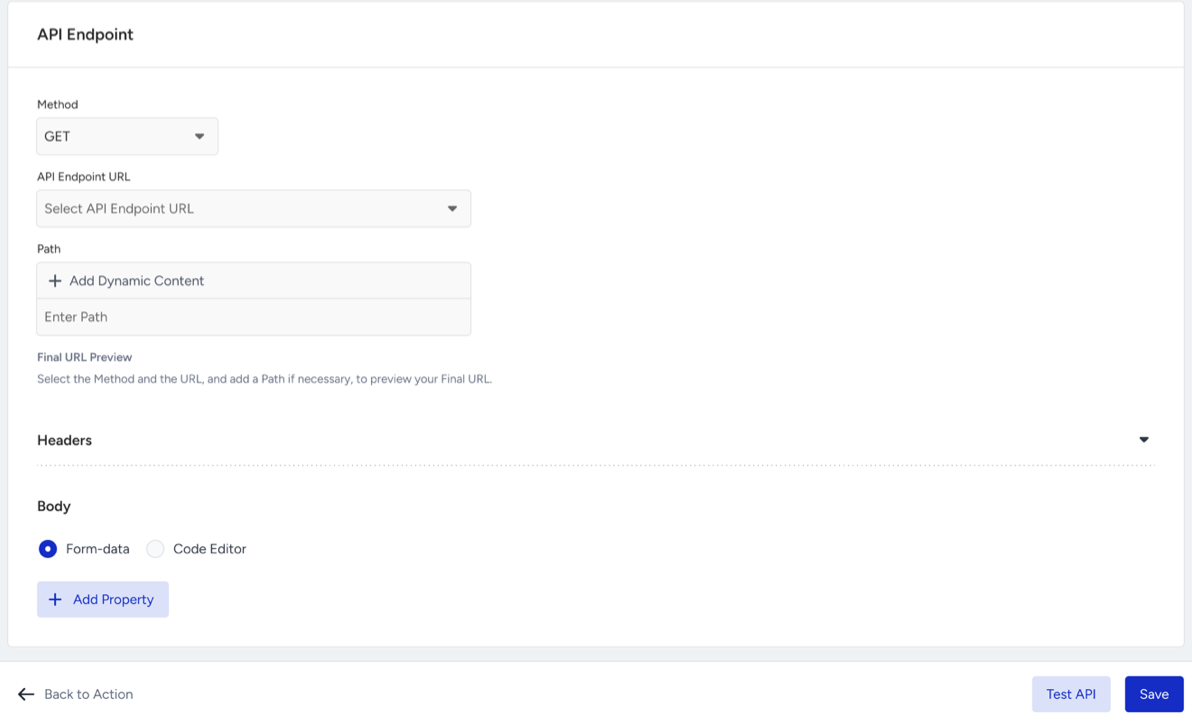
The API Endpoint section contains the following request configuration options:
Method: Select the HTTP method for the request: GET, POST, DELETE, PATCH or PUT
API Endpoint URL: Select a saved API Endpoint from the dropdown. API endpoints are managed under InOne > Agent One > AI Agents > Settings > API Endpoints. For more information, see AI Agents Settings. Admin users can also create a new API Endpoint directly by selecting Create API Endpoint.
Path: Extends the selected API endpoint URL. Enter a static path or include dynamic values (for example,
/orders/{{order_id}})by selecting Add Dynamic Content.Final URL Preview: Displays a read-only preview of the complete request URL, combining the selected HTTP method, API Endpoint URL, and Path.
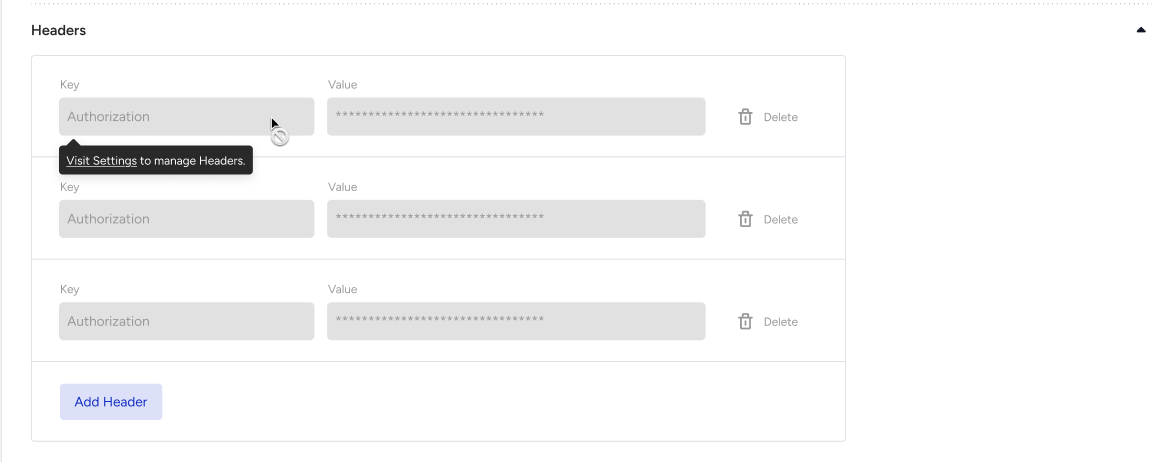
In the Headers tab, you can:
View the headers configured for the selected API endpoint. These are loaded automatically as read-only, and sensitive values are masked.
Add request-specific headers by selecting Add Header.
Override an endpoint header by adding a header with the same key. The request-specific header takes precedence for that action only.
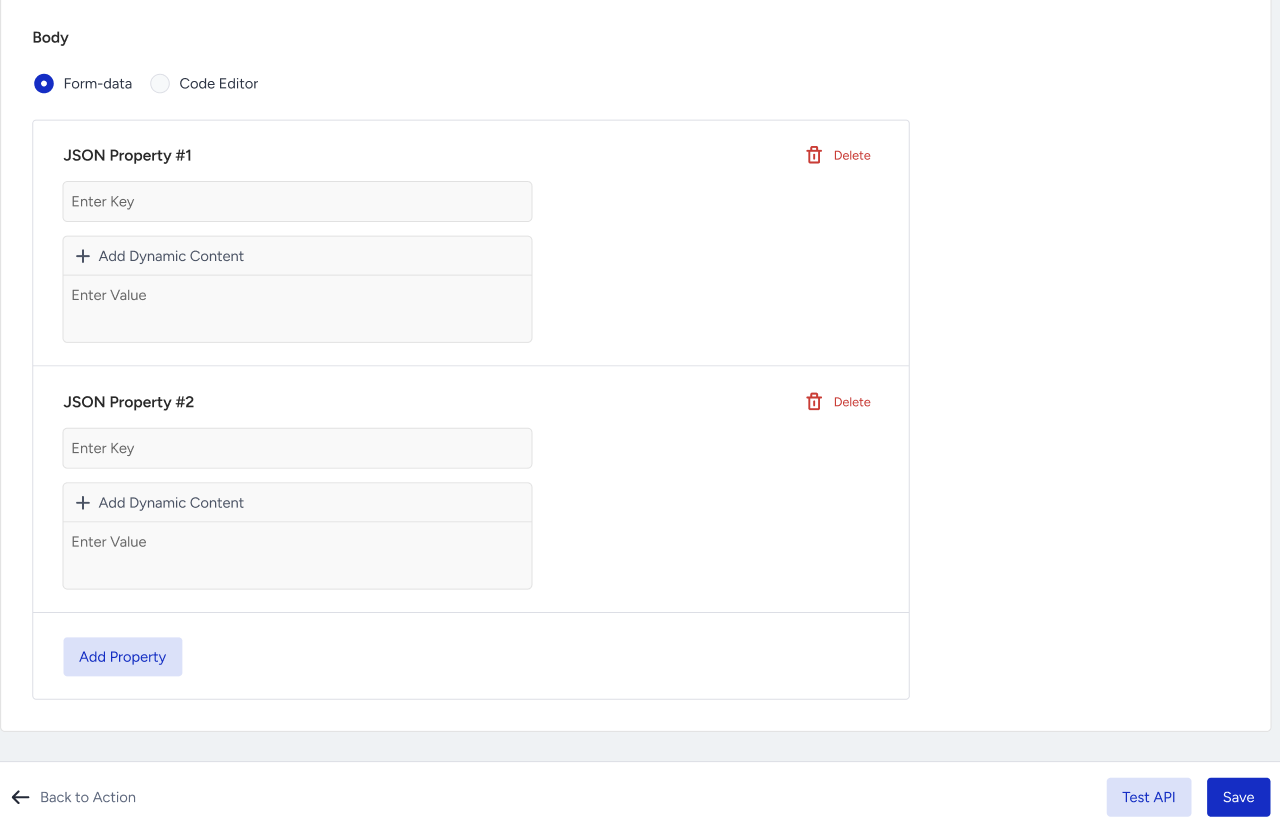
In the Body tab, you can define the request body using either Form-data or Code Editor.
In Form-data mode, select Add Property to add key-value pairs to the request body.
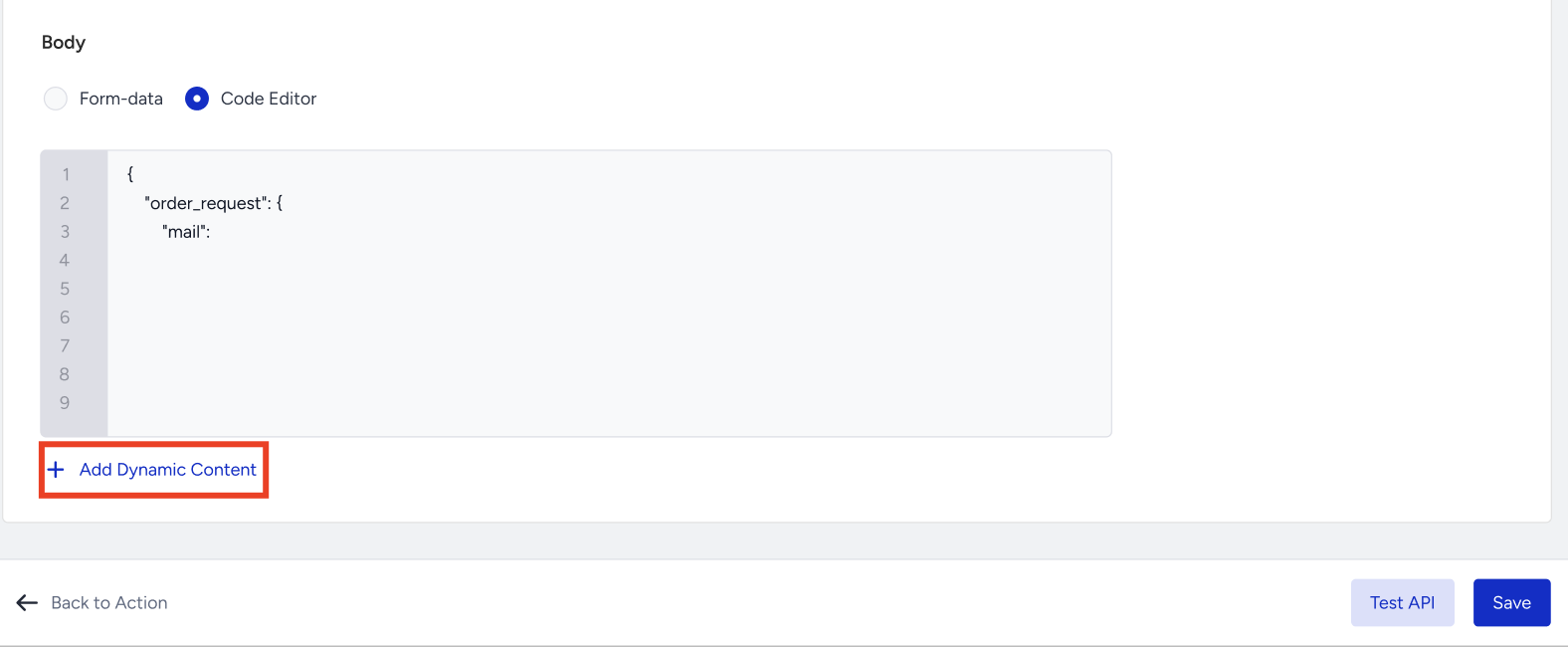
In Code Editor mode, enter the request body in JSON format. The editor validates the JSON as you type. You can:
Use + Add Dynamic Content to insert values collected during the conversation into the request body.
Combine static values with dynamic content to build the request body required by your API.
Before saving the action, select Test API in the bottom-right corner to test the request. Admin users can:
Enter test values manually or select Use Random Values to populate supported fields.
Review the response status and response body returned by the API.
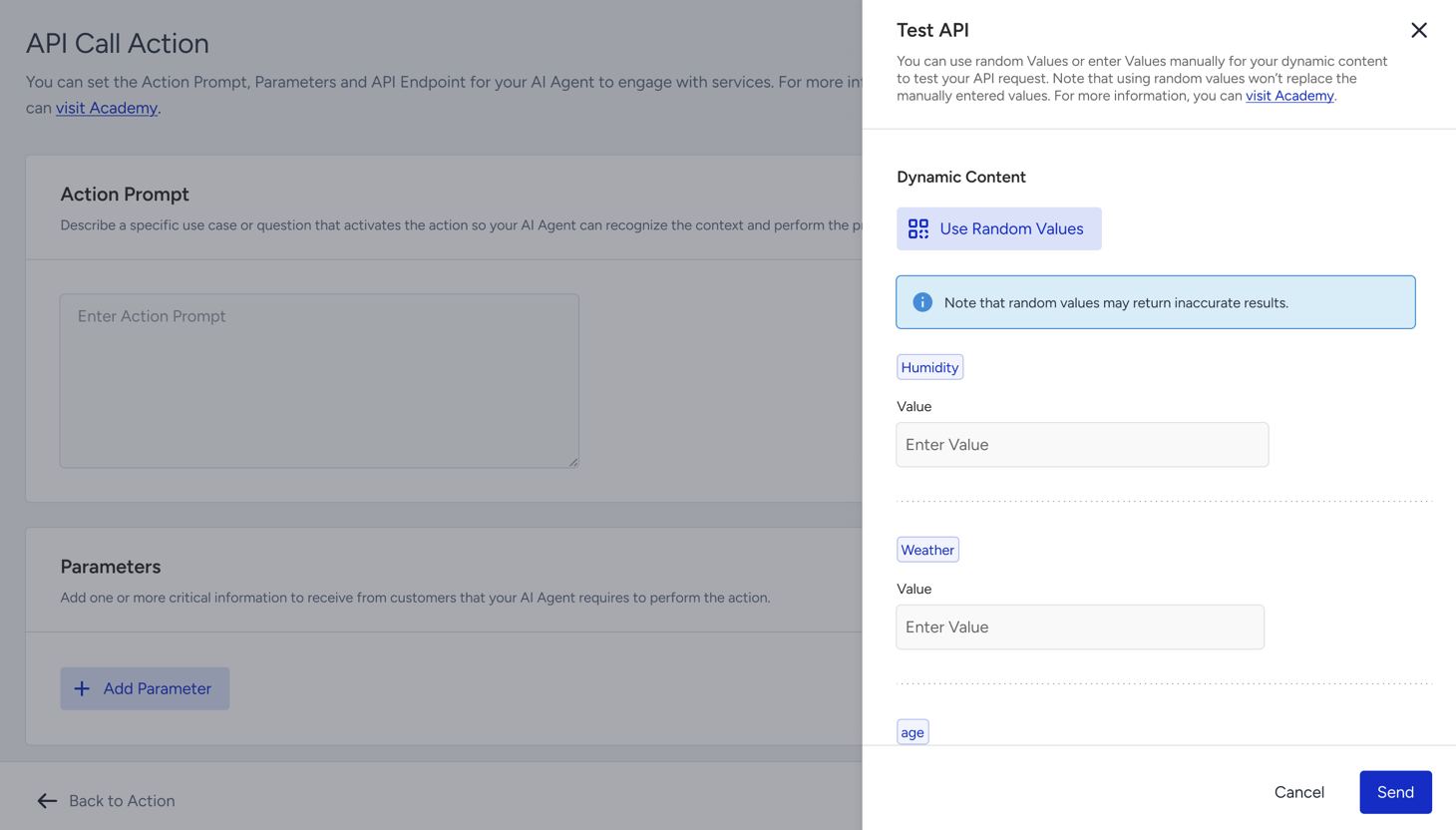
Test API requests are limited in frequency; if you test repeatedly in a short time, please wait for a short while and try again.
Exit Action
If you select the Exit Action, the agent will end the conversation or transfer it to another system—such as a live agent or an external flow—because it cannot or shouldn’t handle the request further. For example, if a customer requests to speak with a human, the AI Agent should exit and transfer the conversation to a MindBehind Flow for live support.
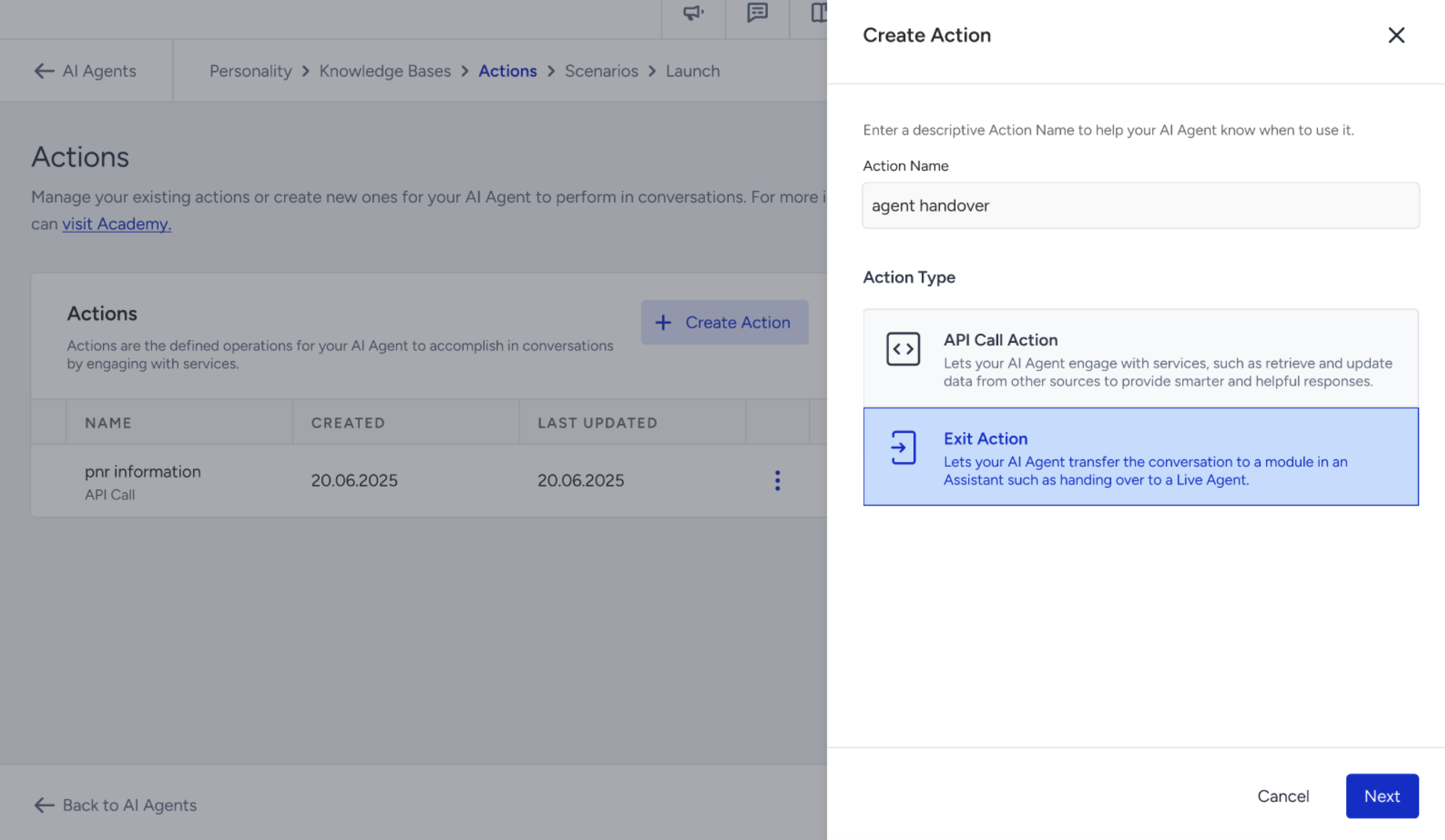
After naming the Exit Action, fill in the required sections:
In the Action Prompt, you can describe the type of user message or intent that should trigger this action. This helps ensure the agent responds accurately when similar phrases or requests are detected. For example: "This action should be triggered when a customer asks to speak with a human or requests live support."
In the Exit Action type, Action Prompt field is mandatory and must be filled in to proceed.
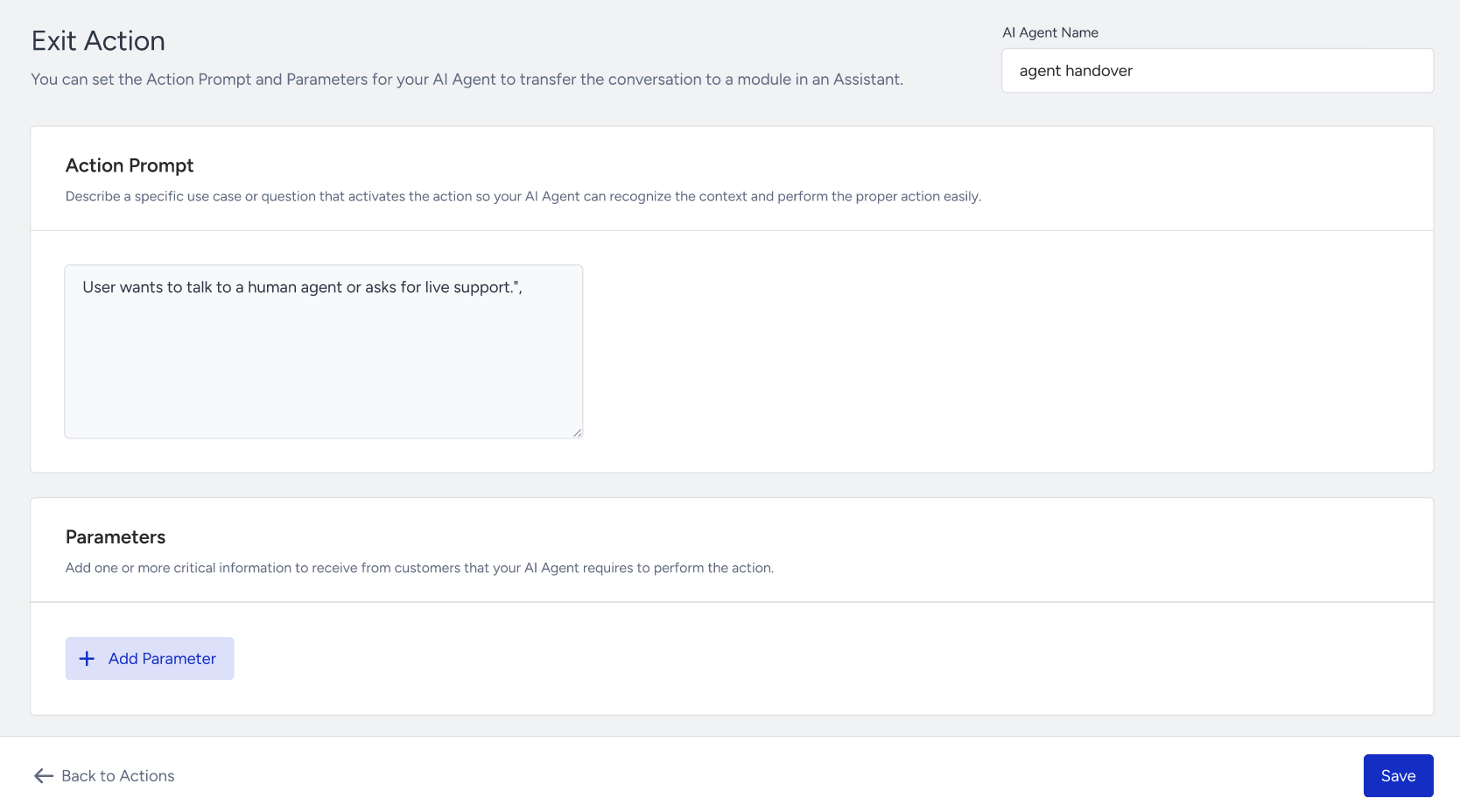
In the Parameters, you can define the key pieces of information the agent should collect before executing the Exit Action.
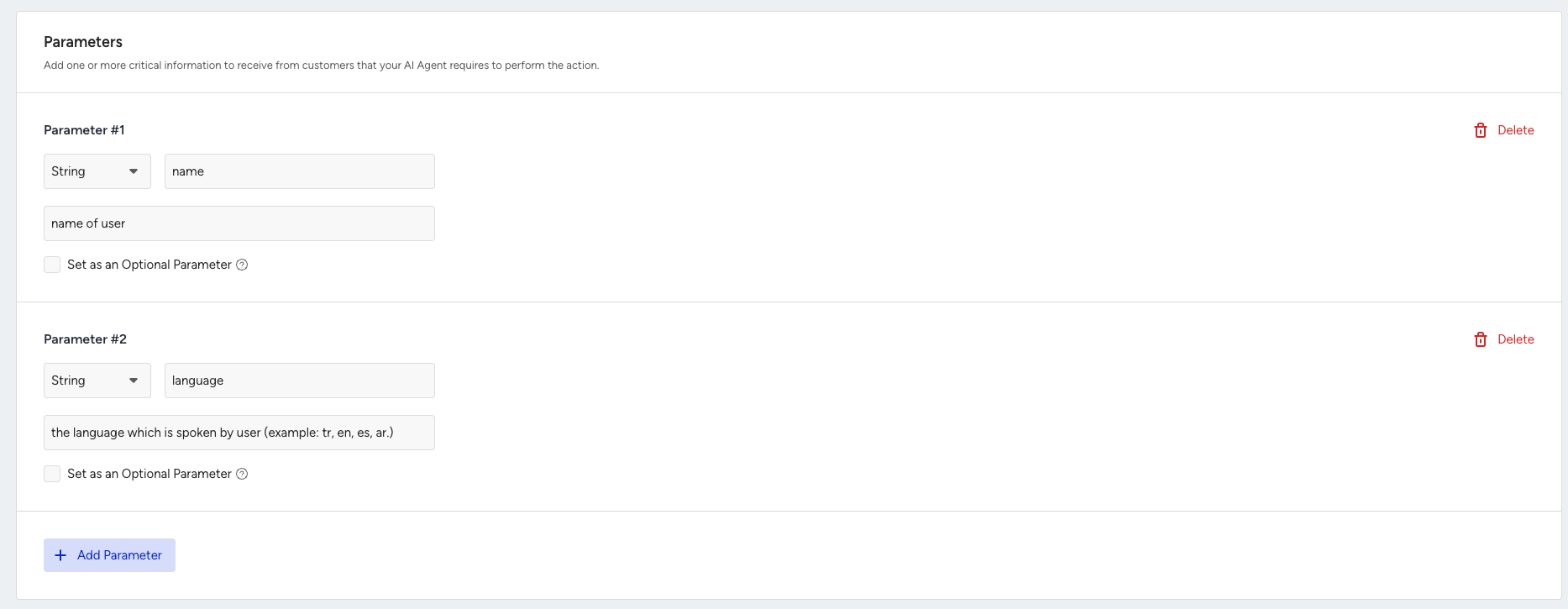
Each parameter includes the following:
Name: A specific name for the parameter (e.g., userlanguage). (This will be stored as a bot parameter in MindBehind Flow. During runtime, the system automatically adds the agentone_ prefix (e.g., userlanguage becomes agentone_userlanguage).
Type: The format of the data to be collected and the options include: String, Number, Integer, Boolean, or Array
Description: A brief explanation of what the parameter is used for.
Optional: Enable this setting if the parameter is not required for the action to proceed.
Here is an example of a human handover scenario with the Exit Action:
Field | Value |
|---|---|
Name | userlanguage |
Type | String |
Description | "User’s preferred language for live support" |
Flow Output | agentone_userlanguage |
Step 6: Create Playbooks
A Playbook is a named, multi-step procedure that defines how your agent handles a specific customer situation. While a Response Guideline shapes how the agent responds to a single type of question, a Playbook defines a sequence of actions the agent should follow from start to finish.
For example, a Playbook can instruct the agent to confirm an order number, check the order status through an Action, and then explain the outcome to the customer.
Use Playbooks for policy-driven scenarios that require the same steps in the same order, such as returns, refunds, damaged-order claims, and identity checks.
When a customer message matches a Playbook's Trigger Context, the agent follows the Playbook's Instructions for that case instead of relying only on the agent's general instructions.
Playbooks are optional. You can launch an agent without creating one.
You can create up to 15 Playbooks per agent.
To create a Playbook:
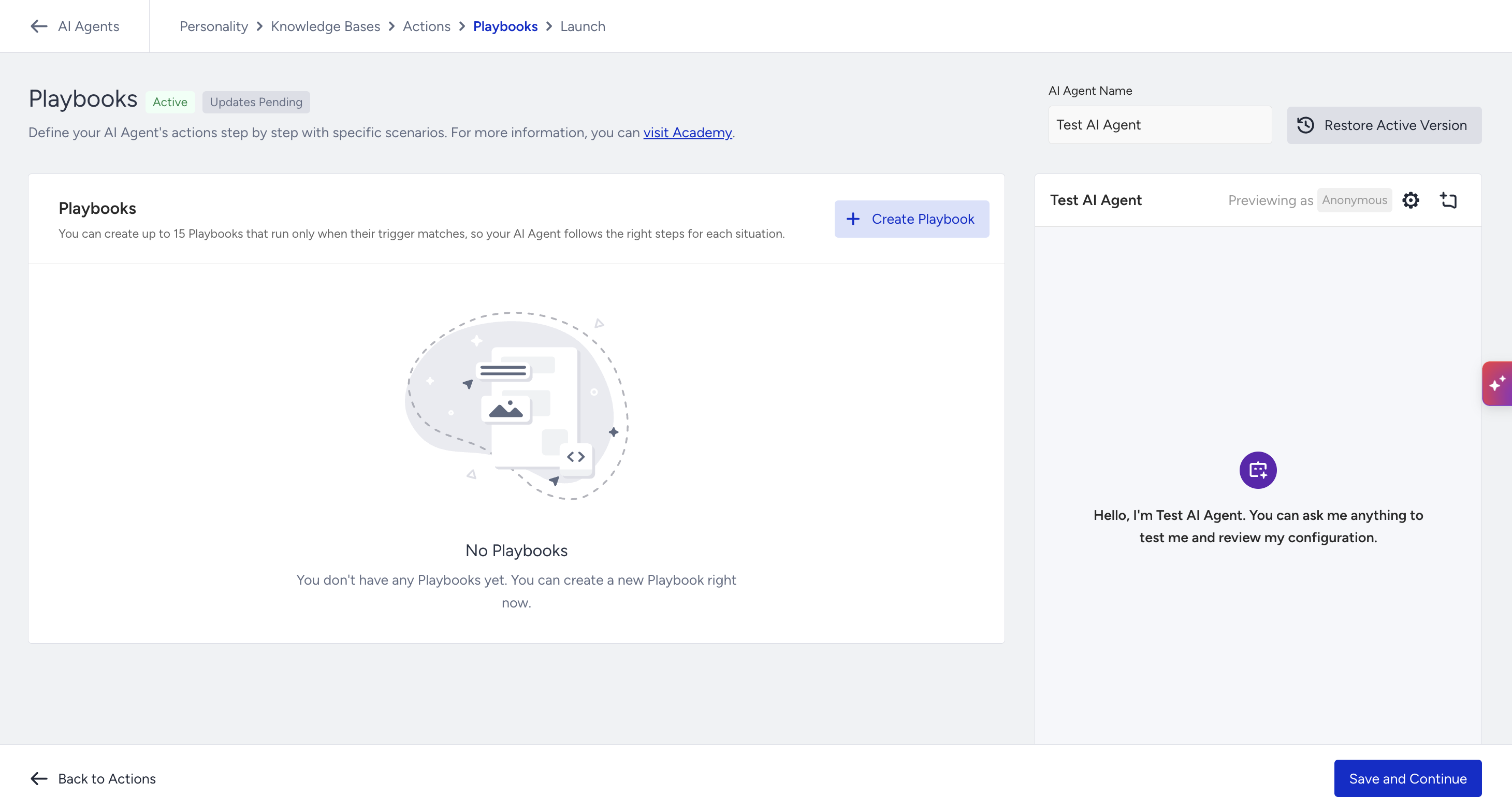
Open the Playbooks step for your agent and click the + Create Playbook button.
Enter a Playbook name and click Next.
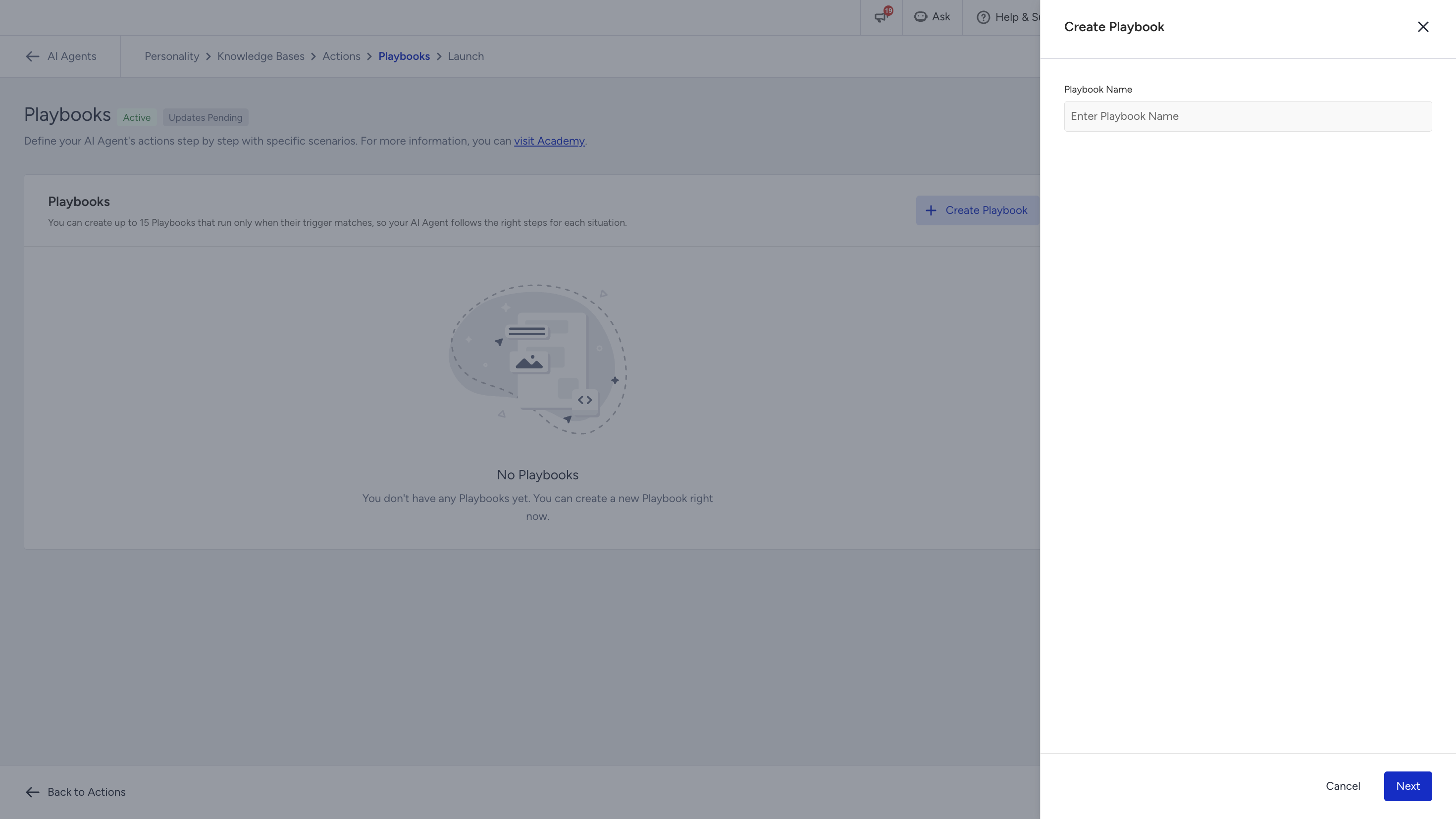
The name can contain Latin letters, numbers, punctuation, and spaces, with a maximum of 64 characters. For example, Return Request and Kargo Iadesi are valid names. Emoji and non-Latin characters are not supported.
Each Playbook Name must be unique within the agent. The uniqueness check is not case-sensitive.
Fill in the Trigger Context. Describe the customer situation that should start the Playbook using language that reflects how customers might describe the issue. For example: The customer wants to return an item they have already received and asks about the return window, the process, or the refund.
This field is required and accepts up to 1200 characters.
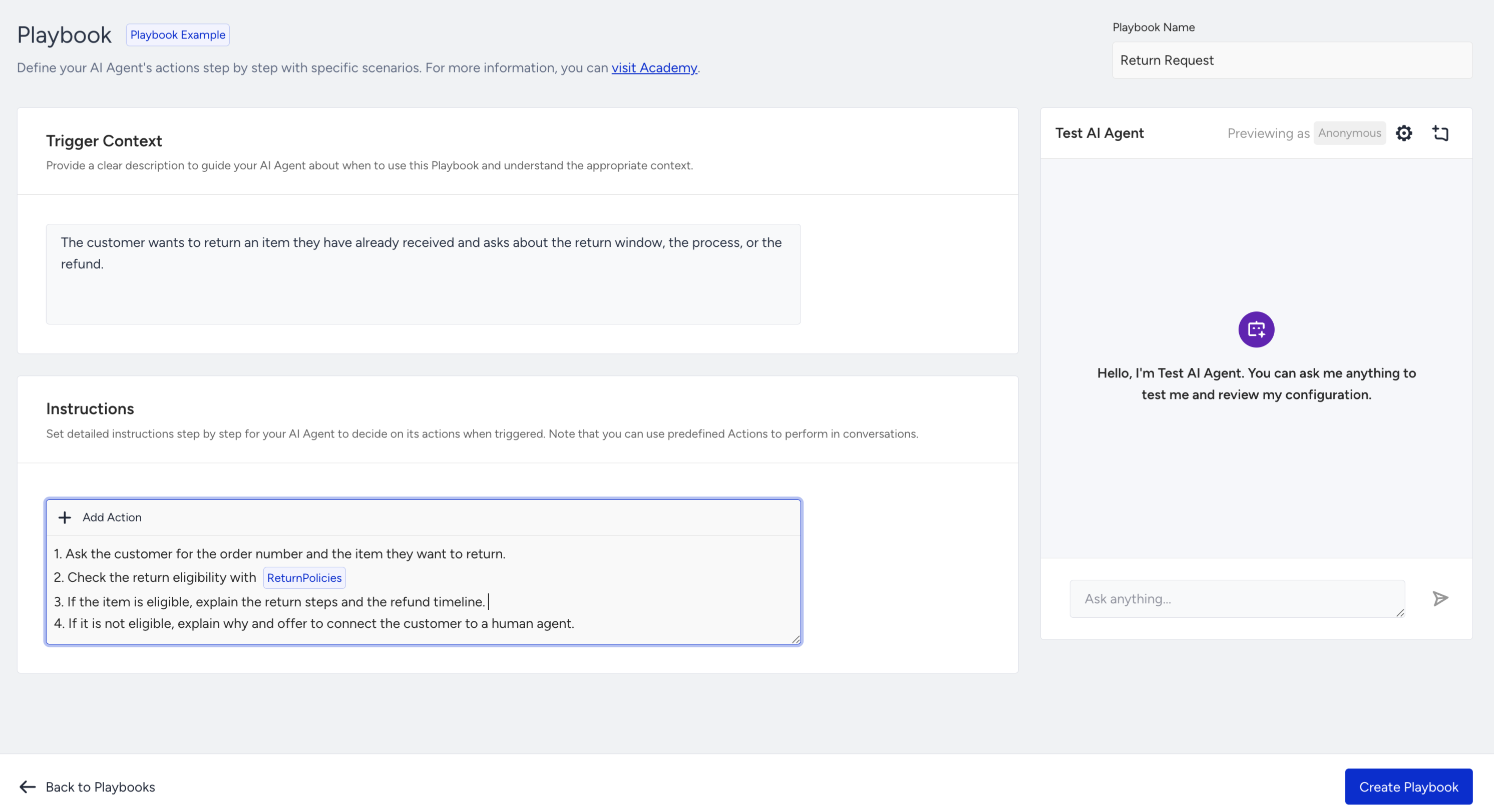
Write the Instructions. Define the steps the agent should follow, in order. To have the agent call an Action during a step, click + Add Action and select one of the Actions already configured for the agent. The selected Action appears as a chip in the Instructions and can be positioned within the relevant step.
Playbooks use the Actions already configured for the agent. Create the Action first, then add it to the Playbook.
Instructions are required and accept up to 8000 characters.
Click Create. The Playbook appears in the Playbooks table, and a confirmation message confirms it was created.
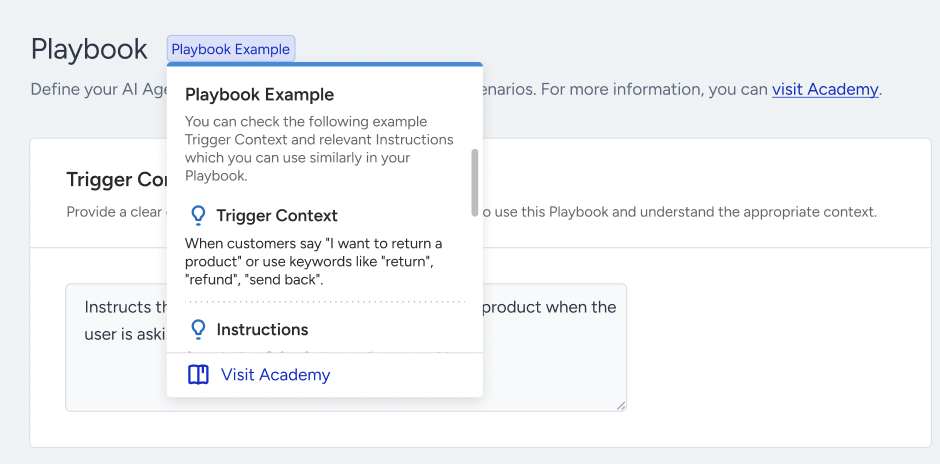
To view an example while creating a Playbook, hover over the Playbook Example chip beside the form title. The example opens in place and shows a sample Trigger Context and sample Instructions.
To edit a Playbook, select Edit from the row menu. The drawer opens with the saved values, and the primary action changes to Update.
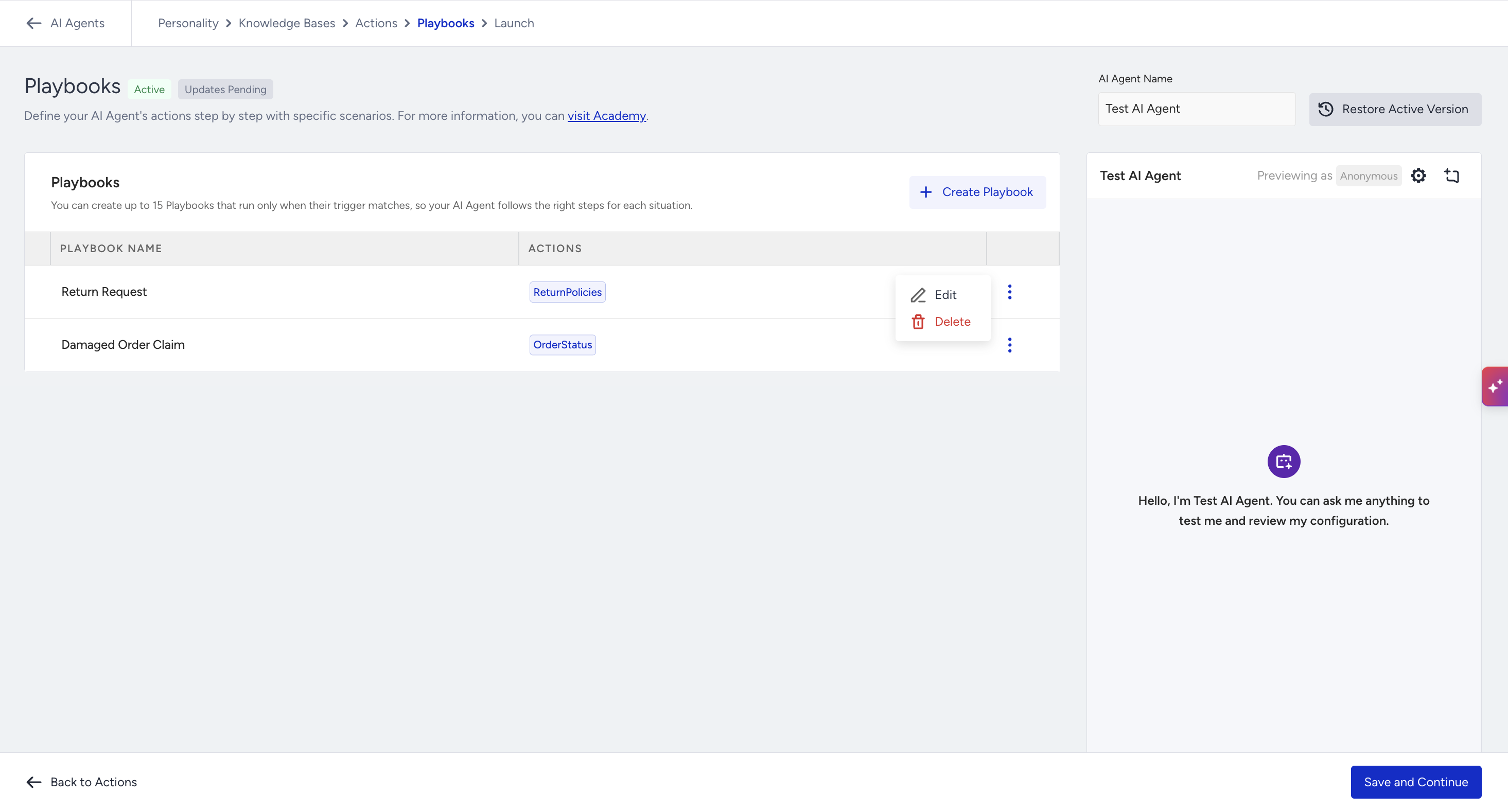
To delete a Playbook, select Delete from the row menu and confirm the action in the window that opens.
Step 7: Test and Update Support Agent
When you're editing, a clear indicator on the interface will show whether you're working in Live or Draft mode. 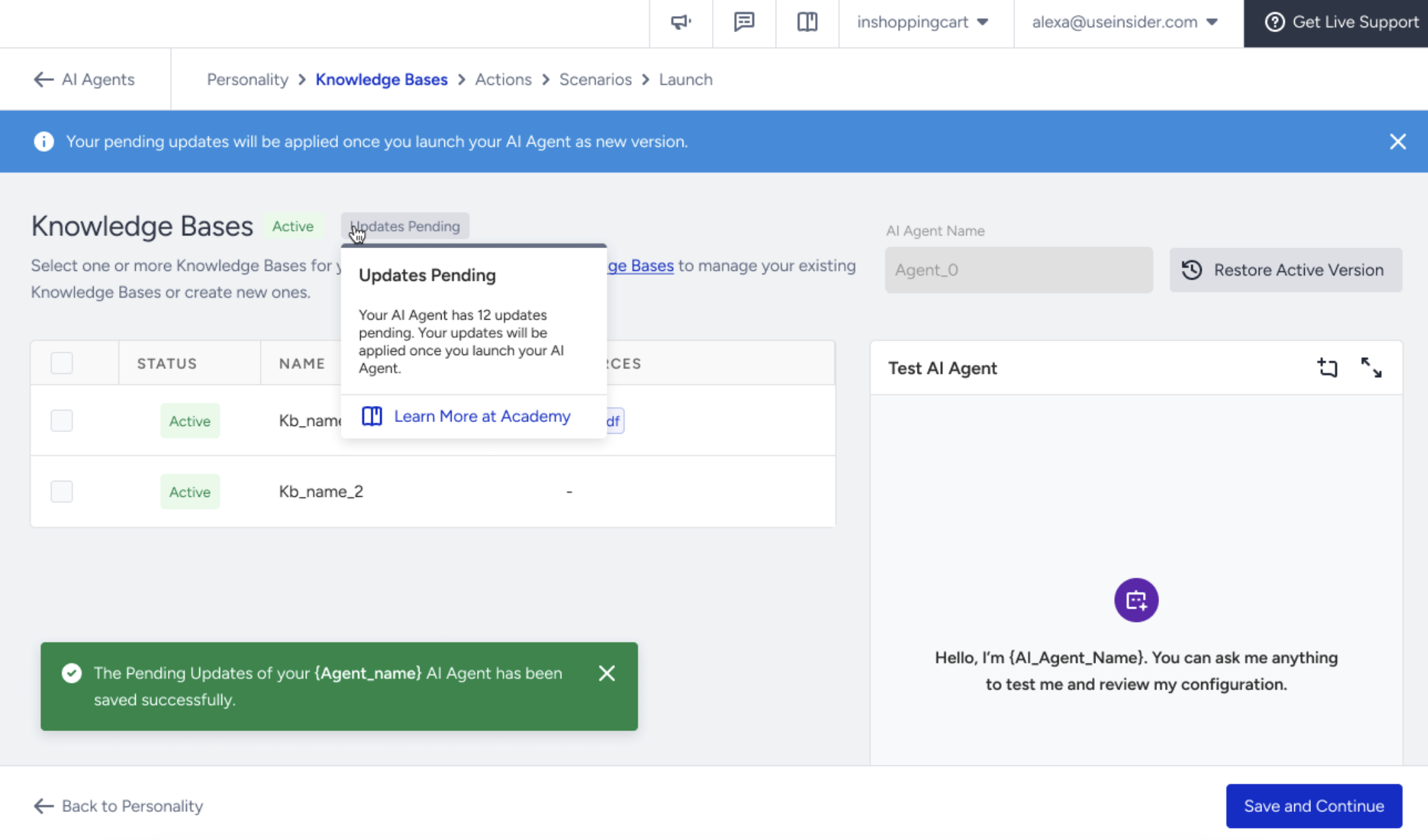
The Draft version of the Support Agent feature lets you test updates to your Support Agent—such as changes to its configuration, knowledge base, or actions—without affecting the live version. This provides a safe space for you to experiment before sharing anything publicly.
Live vs. Draft
Currently, the version history or version snapshots are unavailable. Only two states exist for each agent:
Live version: This is the version currently in use. MindBehind chatbots only operate with the live version, so any changes here will directly affect your chatbot.
Draft version: A working version where updates are saved and tested before being published.
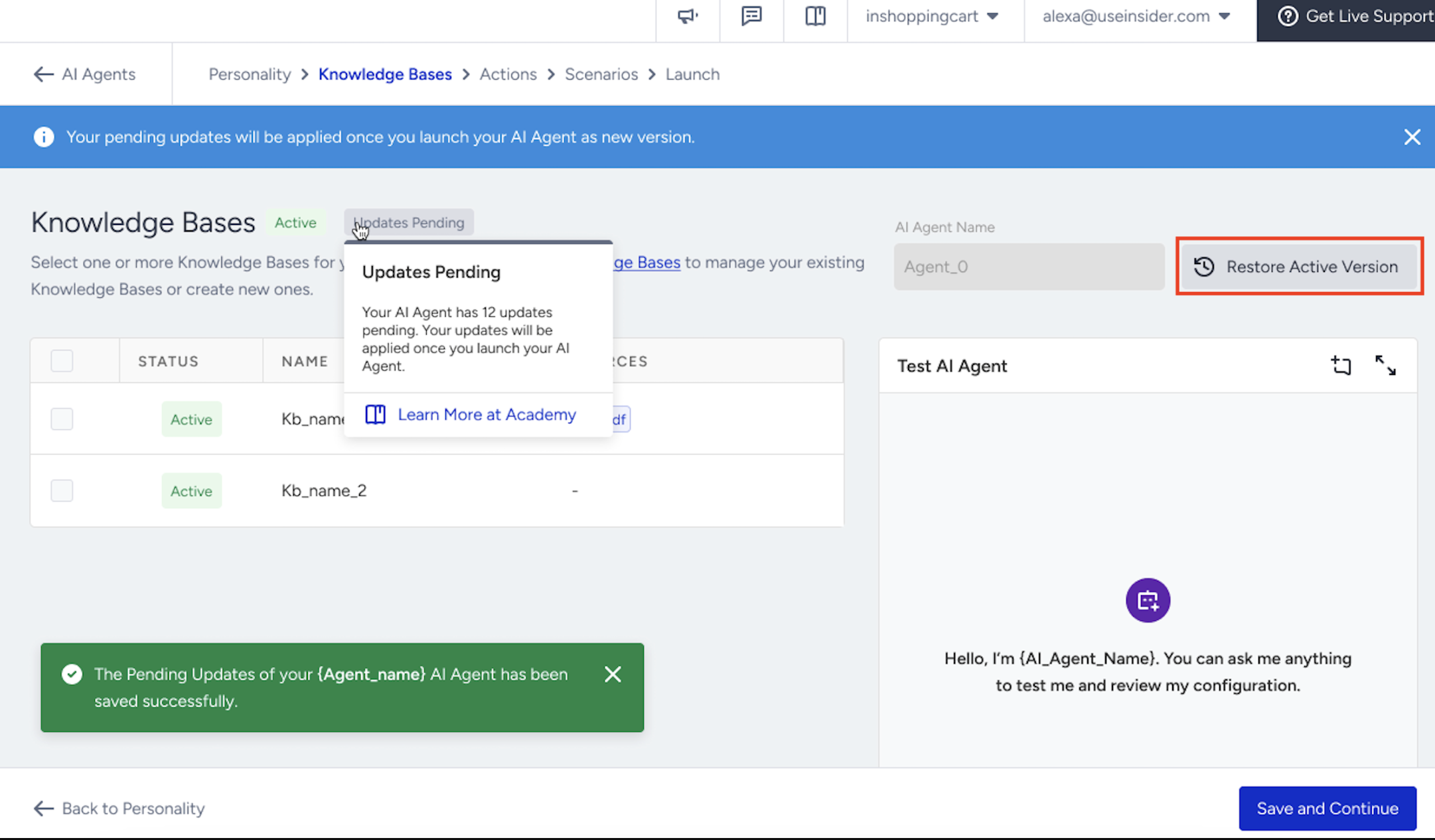
Once changes are saved to the draft, you cannot roll back to a previous draft. However, if the specific agent has already been launched and you're editing it, the Restore Active Version button will appear. Clicking this button resets the draft to match the current live setup.
Step 7.1: Test your Draft
To store changes in your Support Agent, click the Save as Draft button. Alternatively, you can type your test message in the Test AI Agent panel to test and preview it and to instantly see how the agent behaves with the current draft configuration.
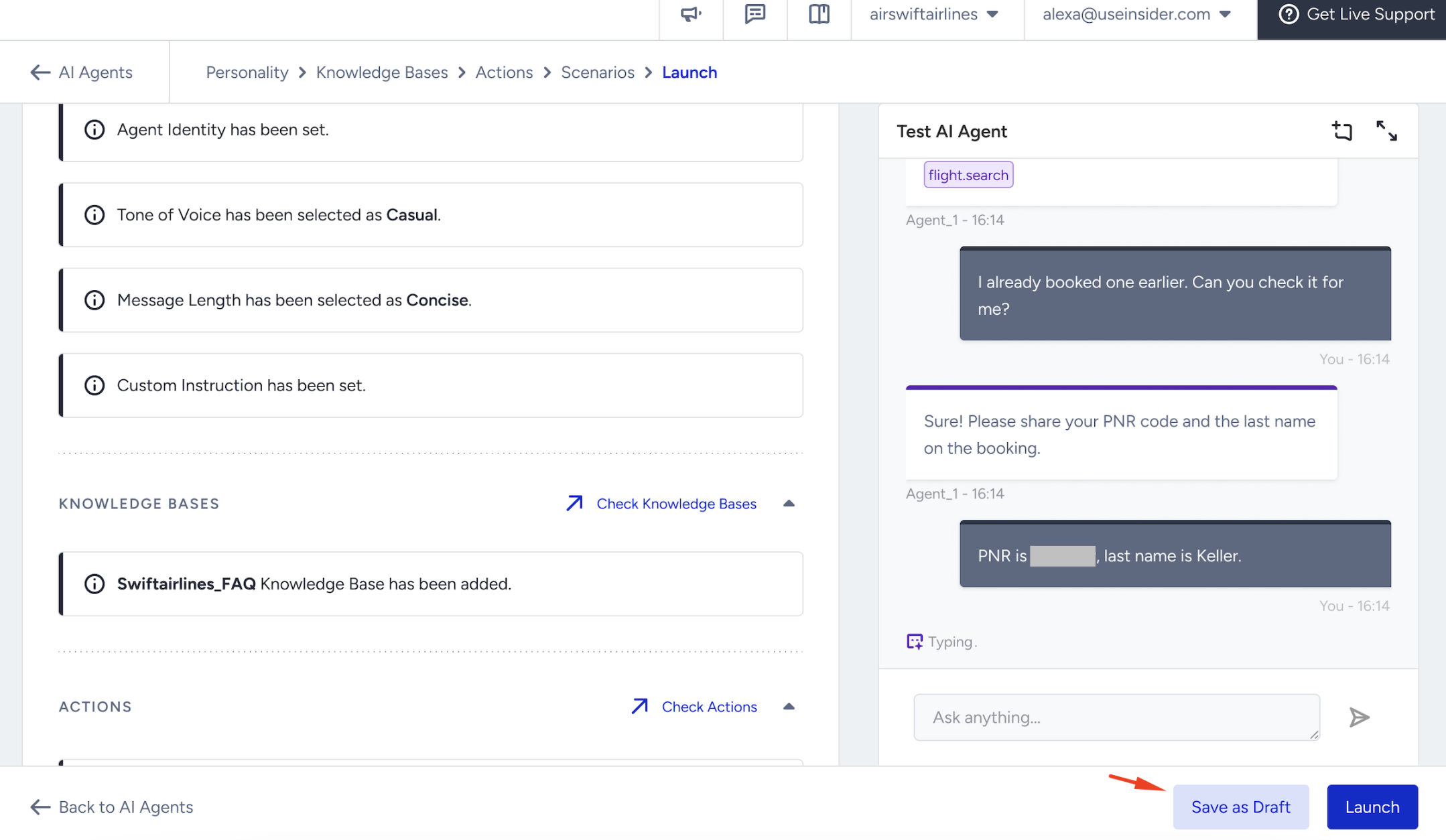
You can test changes:
Individually, right after editing
Or together, after completing all updates
This flexible testing workflow allows you to fine-tune the agent incrementally or all at once, depending on your team’s process.
If you're not satisfied, click the Restore Active Version button to discard the draft. This button becomes visible only if the specific agent has already been launched and you're editing it.
This two-version system helps you safely test and improve your Support Agent, without disrupting real user conversations until you’re ready.
Once a Support Agent is published, it becomes part of the Live version. Any changes made to the Live version will immediately affect the behavior of your chatbot in production.
Step 8: Deploy Support Agent
Before deploying a Support Agent, make sure it’s fully configured and has an Active status in your InOne panel. Only active agents can be used in chatbot flows.
Deployment involves two main steps:
Embed the Support Agent into a chatbot using MindBehind (Using the Support Agent Module).
Once your Support Agent is launched, use the credentials shared by the Insider One team to log in to the MindBehind platform. There, you can insert the agent into a chatbot flow and publish it across supported communication channels.
This setup allows your Support Agent to start handling real conversations in live environments.
Step 8.1: Launch the Support Agent
Once you’ve completed all configuration and testing steps for your Support Agent, your final stage is to visit the Launch page.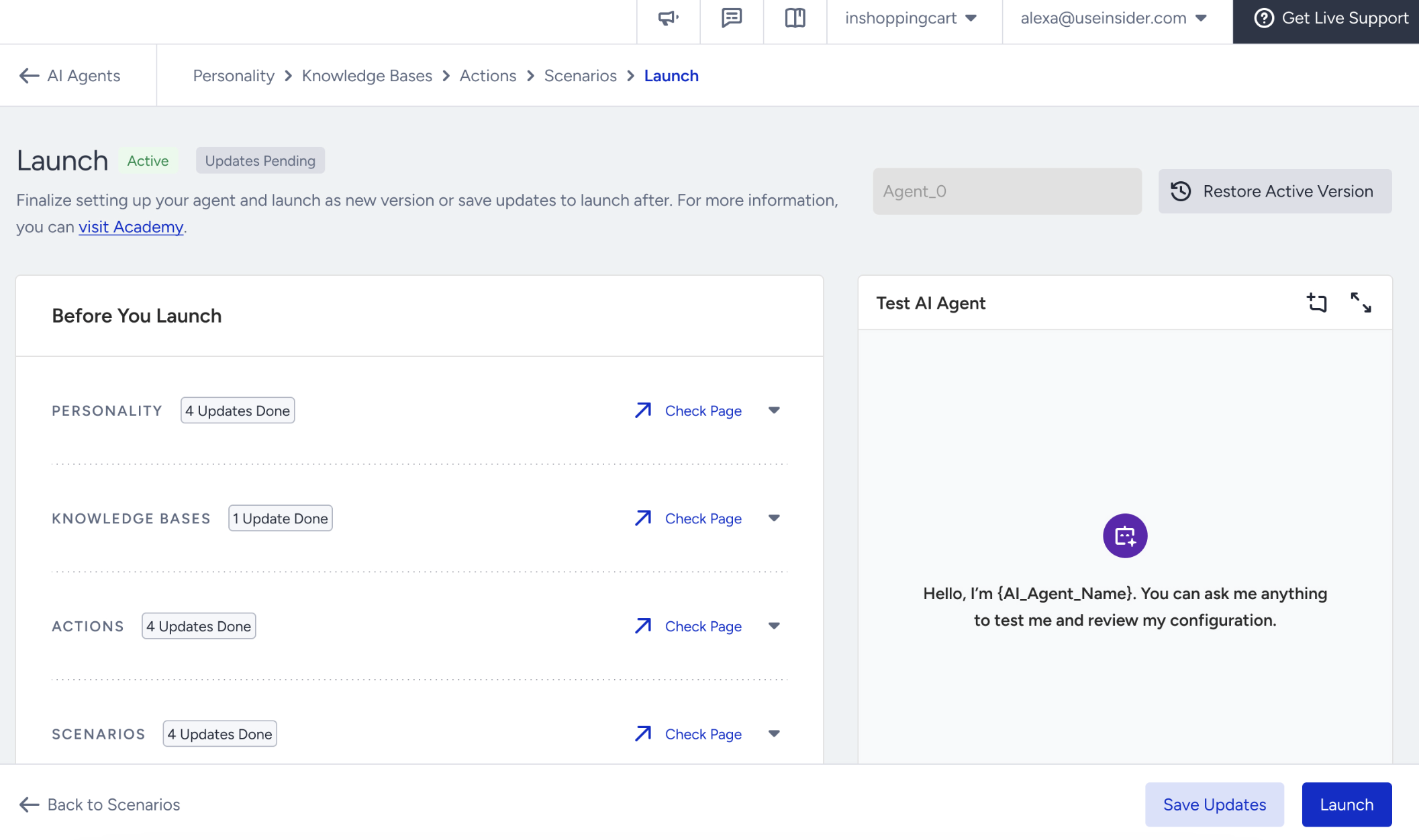
On this page, before clicking the Launch button, you can:
Compare the current draft version of your agent with the live version. This helps you review the exact differences before going live.
Identify missing elements from the agent creation process. Any required or recommended fields that have not been completed will be highlighted for your attention.
Ensure readiness for deployment through a review of both functional changes and structural completeness.
When you click the Launch button, all changes will go live instantly. This means the Support Agent will be updated in every MindBehind chatbot where it’s being used. Note that active conversations will not be affected by the update, but any new conversations started after the launch will reflect the changes.
Step 8.2: Use the Support Agent Module
This step should be handled into the MindBehind platform. Make sure you have access to the platform.
The Support Agent (LLM) module allows you to integrate a Large Language Model (LLM)-powered support assistant into your conversational flow. It leverages your predefined Support Agent configurations, including personality, knowledge base, and actions, to deliver intelligent and contextual responses to user inputs.
Log in to the MindBehind Flow application and select your assistant, which will use a support agent.
From the left menu, drag and drop the Use Support AI Agent (LLM) module onto your canvas (map).
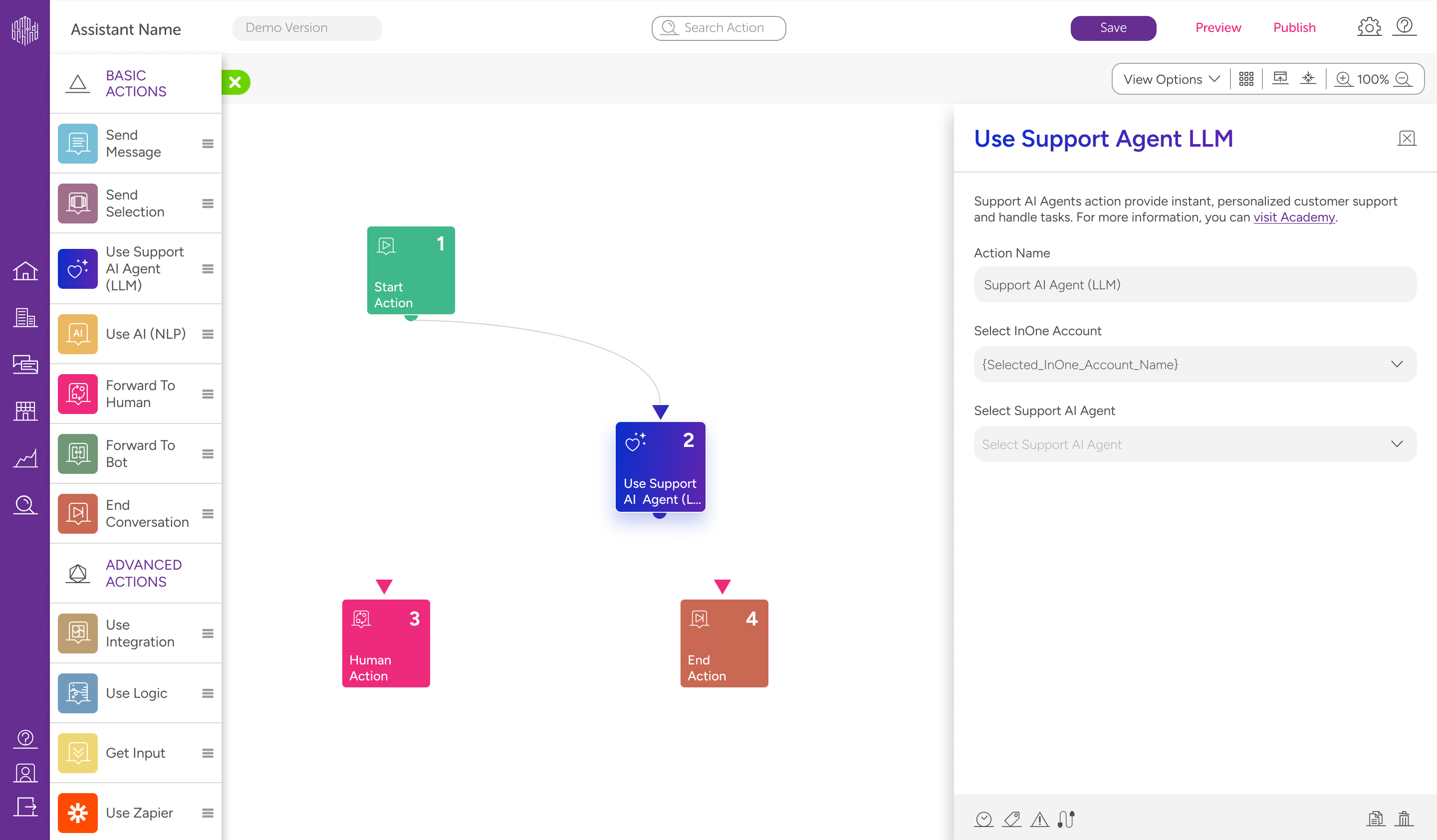
Click the added module and select your InOne Account, which is linked to your company.
After selecting the account, pick a previously created Support Agent from the list.
Once you select your Support Agent, you must configure the Exit Action connections. These are the actions predefined in the agent that represent tasks the agent cannot handle on its own. For example, if a request requires human intervention, define an exit action such as “Human Handover” and connect it to the proper flow path.
Ensure that every Exit Action has a valid connection on the canvas.
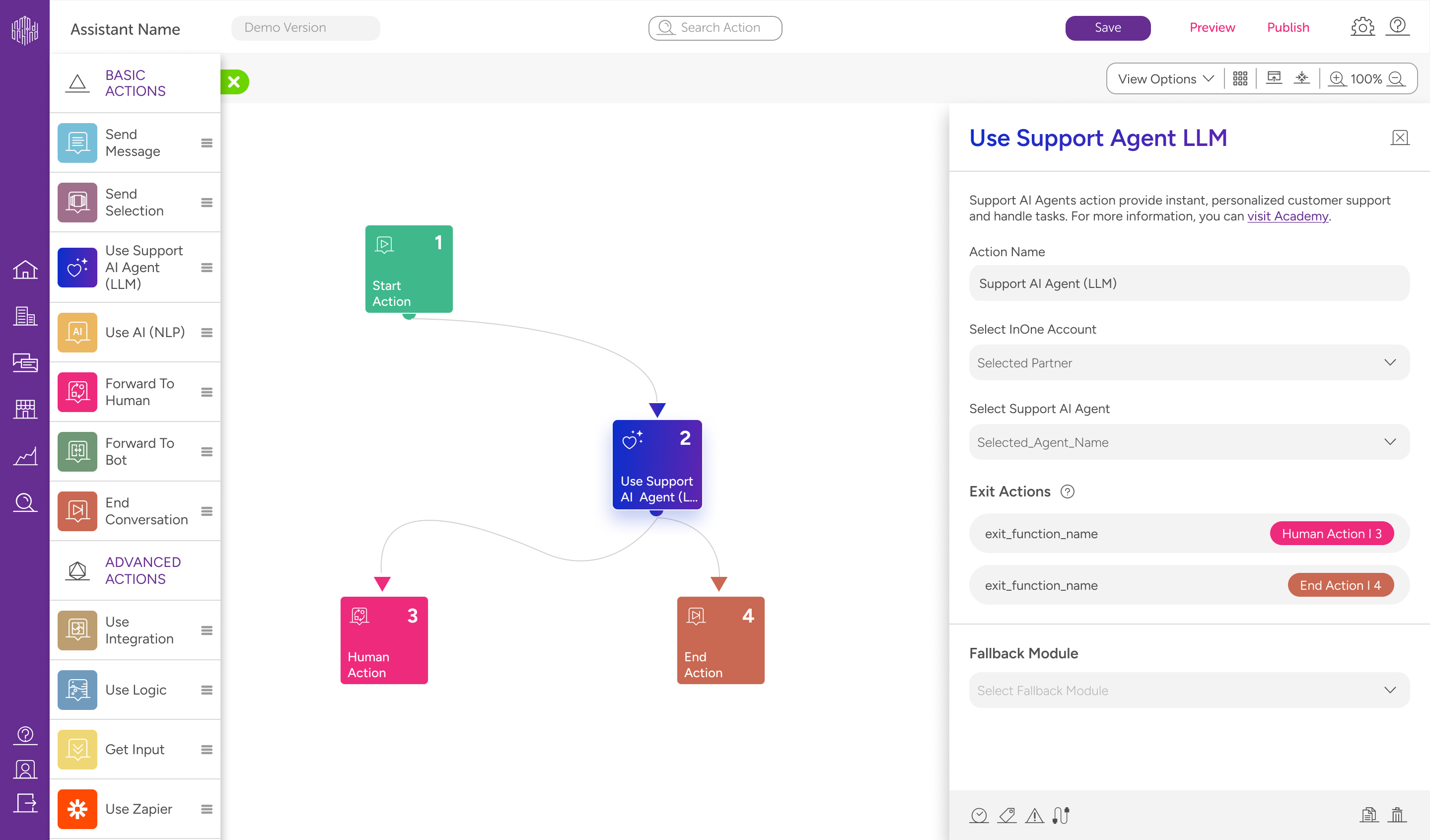
You must define at least one fallback connection for the Support Agent module. Without a fallback, the agent will be unable to recover from unrecognized inputs, and all user messages might be routed to the fallback unintentionally.
The minimum fallback count must be set to 1.
Support Agents generate responses based on the last input received. For accurate behavior, always insert an Input Module right before the Support Agent module.
If a user previously clicks a button (e.g., "Connect to AI Agent"), that selection will be treated as the last input, and the agent might attempt to respond to that instead of a meaningful query. For example, if the last input is "Connect to AI Agent", the agent may interpret that as a message and generate a reply.
Support Agent modules always operate on the most up-to-date version of your agent. Any changes to the configuration, such as updates to the knowledge base, actions, or personality, are instantly applied in live environments.
Congratulations! Your Support Agent is now up and running.
If you encounter any issues or unexpected behavior, the following troubleshooting tips can help you resolve them quickly.
Troubleshooting for the Support Agent Module in MindBehind
No fallback count defined
When the fallback count is missing in the Support Agent module, the system has no limit for handling unrecognized inputs. As a result, every message from the user is immediately routed to the fallback path.
Solution: Set a fallback count of at least 1 in the module settings to define how many failed attempts should be allowed before triggering fallback.
User input not properly captured
If a user’s selection, such as a button click, is treated as the most recent input, the agent might respond in an unintended or irrelevant way.
Solution: Add a clear Input Module just before the Support Agent module to capture and define the user’s intent.
Exit actions are not connected
If an exit action configured in the agent module isn’t linked to the next step in the flow, the conversation might end unexpectedly or be routed to fallback.
Solution: Review the canvas and make sure each exit action is connected to the appropriate module or step.
The test flow doesn’t reflect the latest agent changes
When updates are made to the Support Agent (e.g., knowledge base, actions, or tone), existing chatbot flows might still reflect outdated behavior.
Solution: After making any changes to the agent, re-test the chatbot flow to ensure everything works as expected.