Embedded Signup, also known as setting up WhatsApp Business or connecting a WABA to Insider One, is a guided single-flow process that covers all required steps for WhatsApp Business onboarding: connecting your WhatsApp Business Manager account, creating a WhatsApp Business Account (WABA), and verifying your phone number
You can find answers to these questions in this article:
Requirements for a WhatsApp Business account
All you need to start the WhatsApp Business Registration is the following:
Admin Access to your Facebook Business Page
Phone Number which is not being used anywhere and doesn’t have any WhatsApp account attached to it, and to have the capabilities to either receive phone calls or SMS to get your verification code.
If you have a WhatsApp account attached to your phone number, you can follow the migration flow and migrate your phone number.
Business Name, which will be the WhatsApp Profile Name
Timezone
Business Category
Business Description / Website Link, which can be changed later on.
Additional Requirements for WhatsApp Business Account (WABA) Setup
To ensure successful WABA creation and prevent interruptions in message delivery, Meta enforces the following requirements for business identity, naming, and verification. Incorrect or inconsistent information may lead to display name rejection or blocked message delivery.
WABA name & website must match the actual business: Meta requires the WABA display name and website URL to be fully aligned with the real business entity. If the business name and website do not correspond, Meta may block message delivery. OTP and message delivery might fail until the information is corrected.
For example: A business attempted to create a WABA using a website belonging to a different brand under the same company. Meta blocked OTP sending due to the mismatch. After the business created the WABA using the correct brand name and its own website, the setup was approved.Sub-brands require legal proof: If a business wants to include a sub-brand under an existing WABA:
Legal documents demonstrating the ownership or relationship must be provided.
Without proof, Meta might reject the display name or block message delivery.
Display name requirements: The WABA display name must have a verifiable connection to the business. Meta might request evidence such as:
Official website reference: The name, brand, or product must appear on the business’s official site.
External media coverage: Press releases, news articles, or verified social media accounts showing the connection.
Mutual acknowledgement: If the brand belongs to a partner, agency, or distributor, both parties must show the relationship.
Legal documentation: Ownership certificates, trademark records, or partnership agreements.
Meta enforces these policies to prevent:
Impersonation
Misleading or inaccurate branding
User confusion
Risky or incorrect business representations
Ensuring that the WABA name, website, and documentation match the actual business helps maintain trust and guarantees successful message delivery.
How to create a WhatsApp Business account
To start registration,
Navigate to InOne > Campaigns > Messaging > WhatsApp > Settings.
To proceed with Facebook, click the Integrate via Facebook option and log in with your Facebook account.
.png)
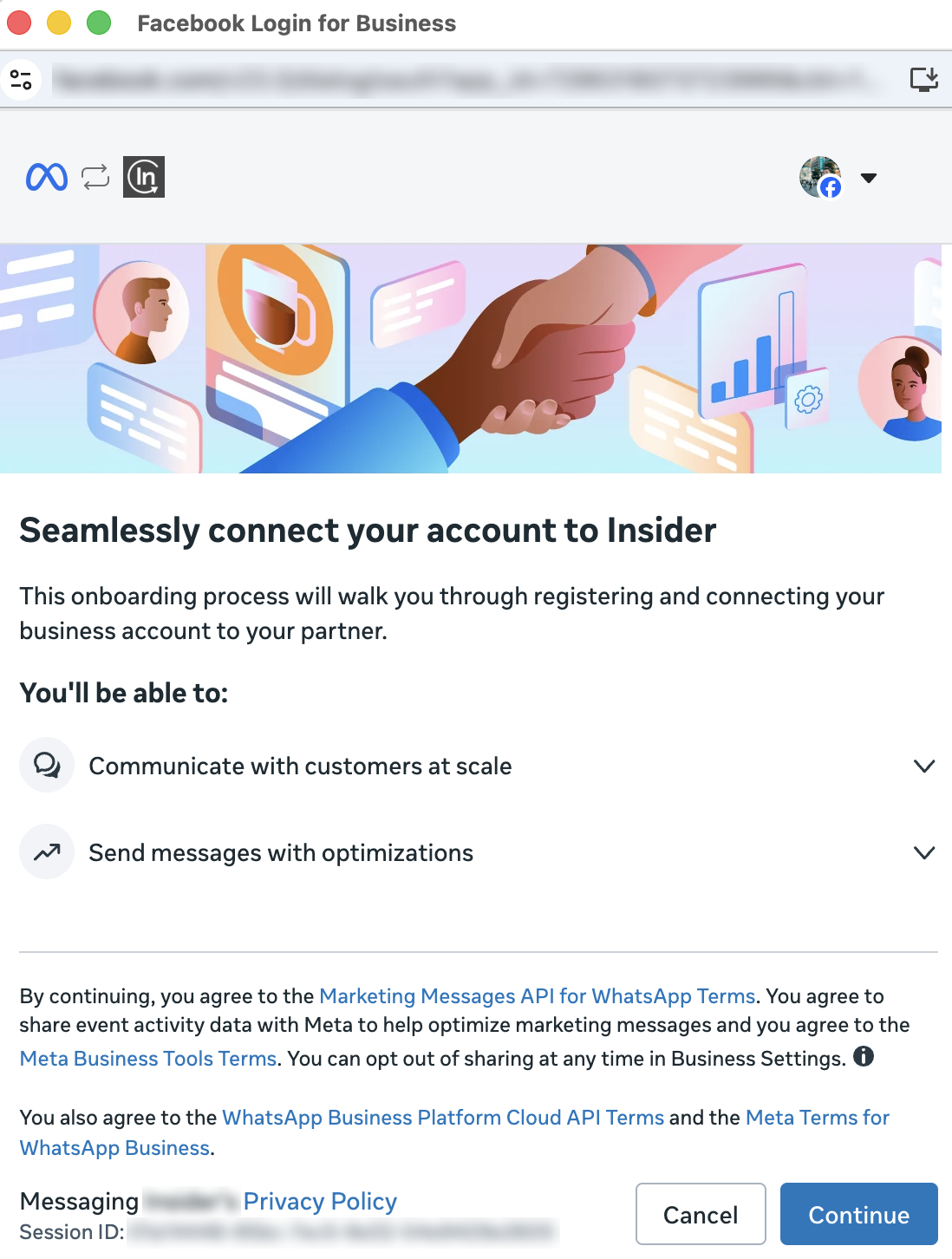
The Meta window opens with “Seamlessly connect your account to Insider One”. It lists what the connection enables and the Meta terms you accept by continuing. Click Continue.
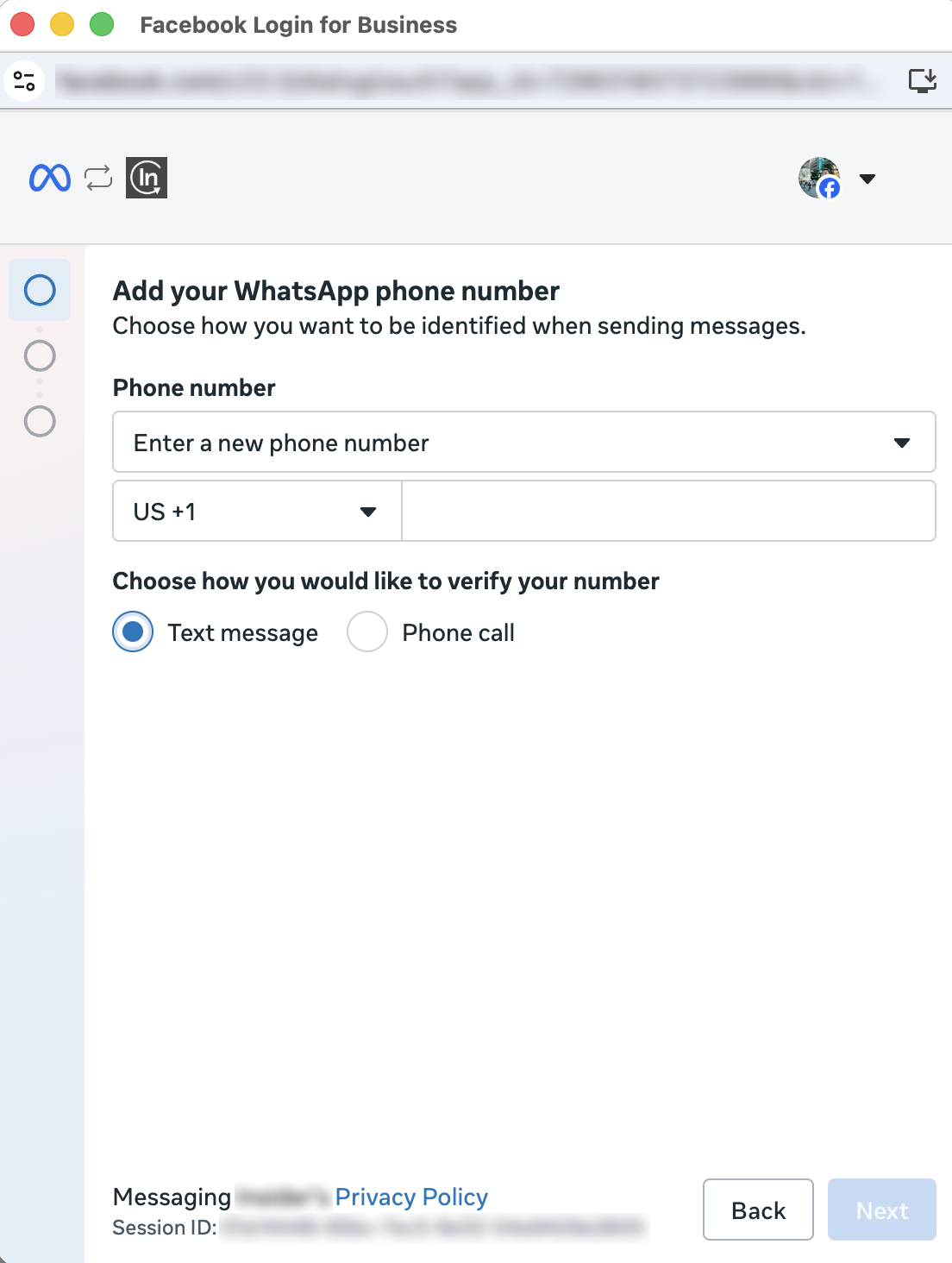
Add your WhatsApp phone number. Choose Enter a new phone number, select the country code, type the number, and choose how to verify it: Text message or Phone call.
Click Next. The number must not be registered on any WhatsApp account; if it is, you should follow the migration flow instead.
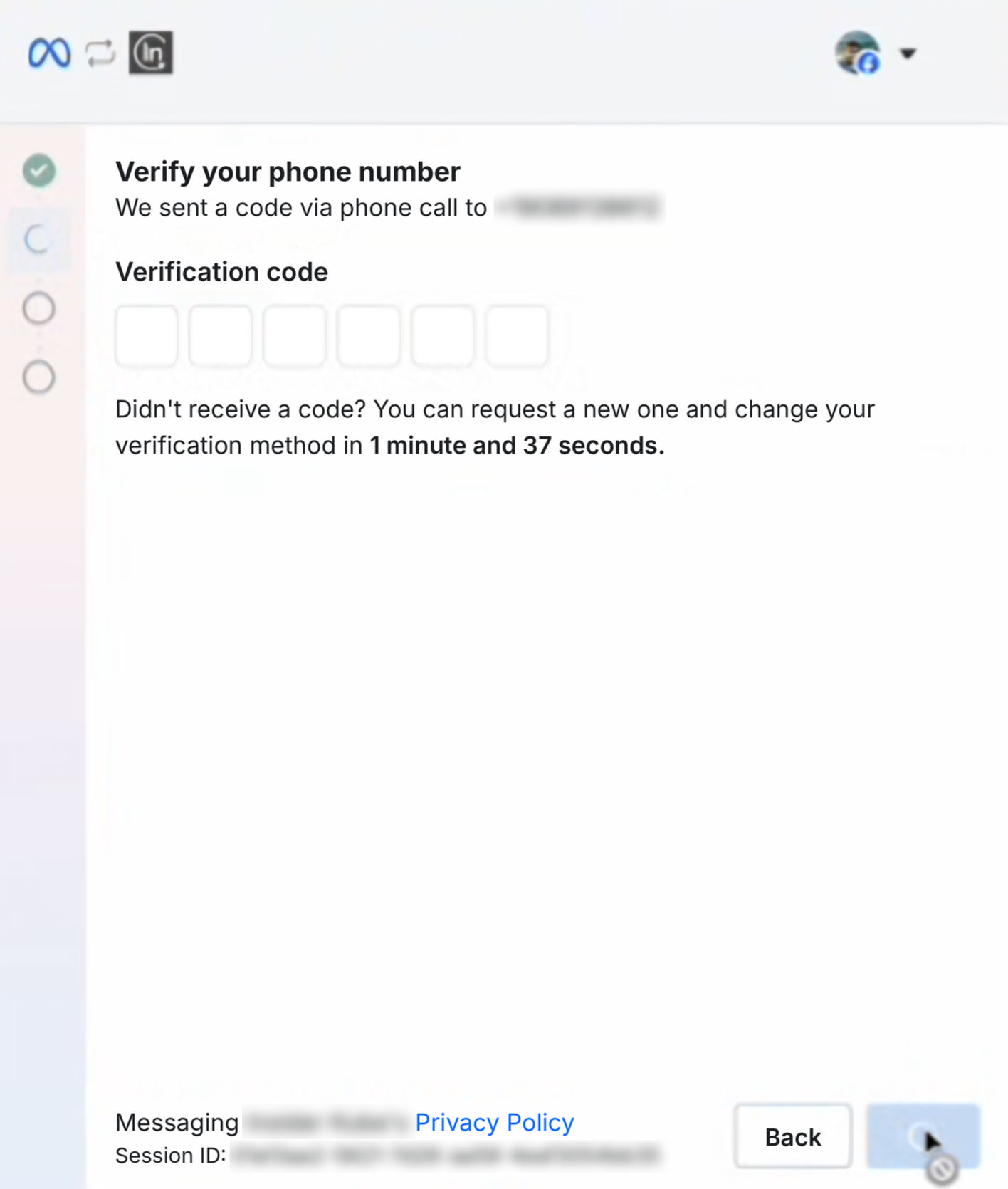
Verify your phone number. Enter the 6-digit code sent to the number and click Next. If you don’t receive the code, you can request a new one or change the verification method once the countdown ends.
To add a second phone number to the same panel, make sure you select the same WhatsApp Business Account (WABA) as your existing number. Refer to the Multi-Number Support on a Single Panel for WhatsApp for further information.
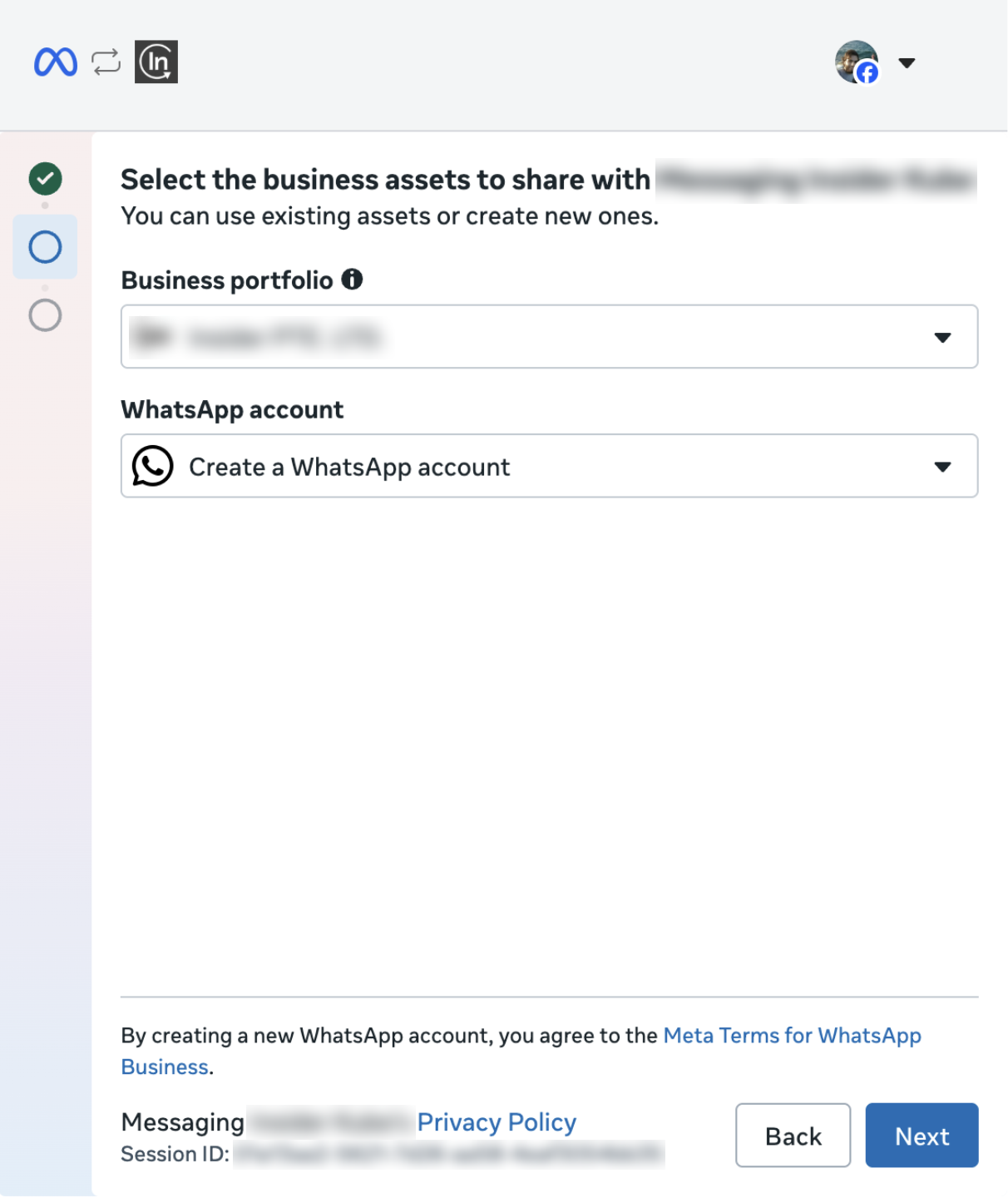
Select the business assets to share. Choose your Business portfolio and select an Create a WhatsApp account under WhatsApp account. Click Next.
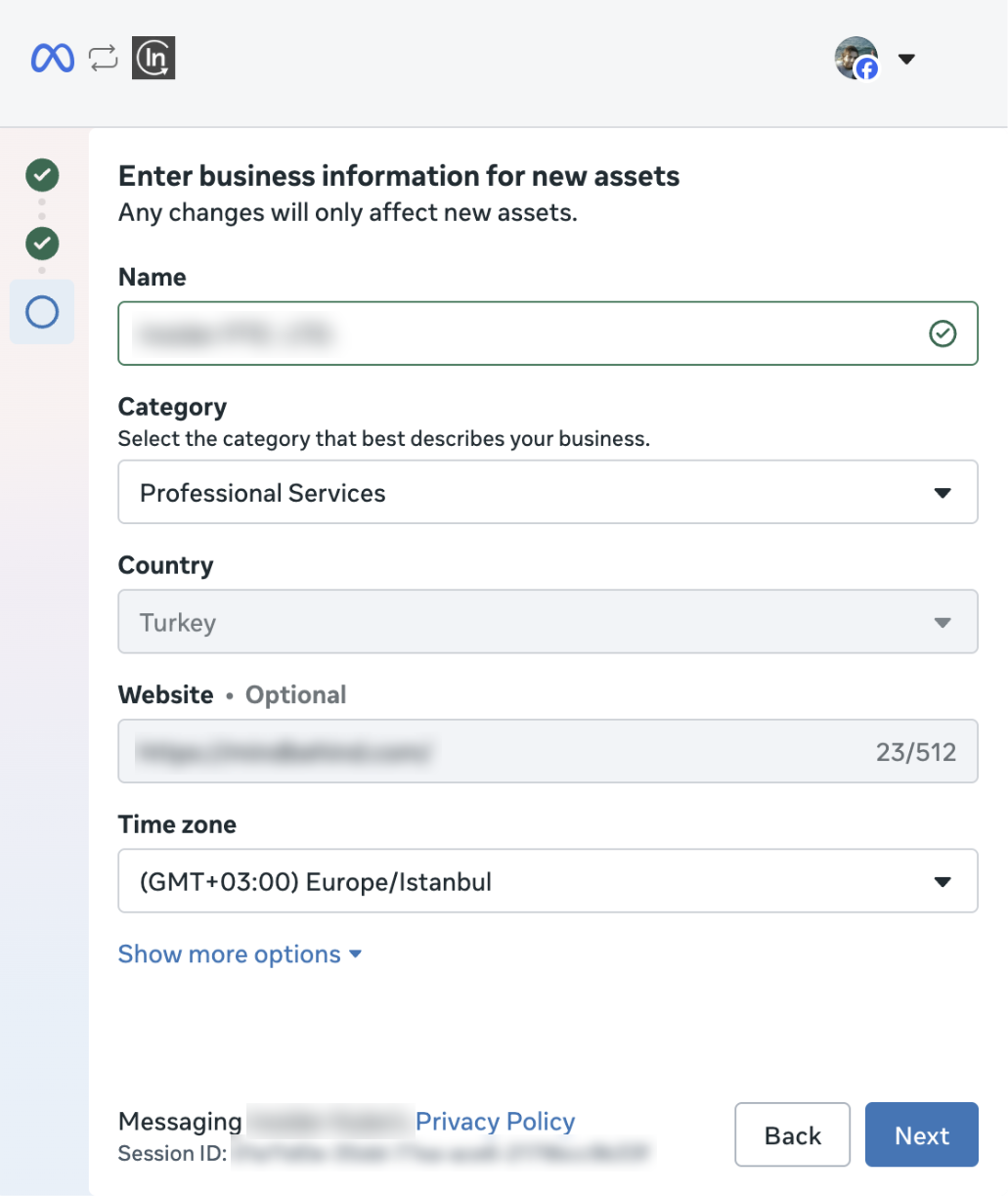
Enter business information for new assets. Fill in Name (this becomes your WhatsApp profile name), Category, Country, Website (optional) and Time zone. Click Next.
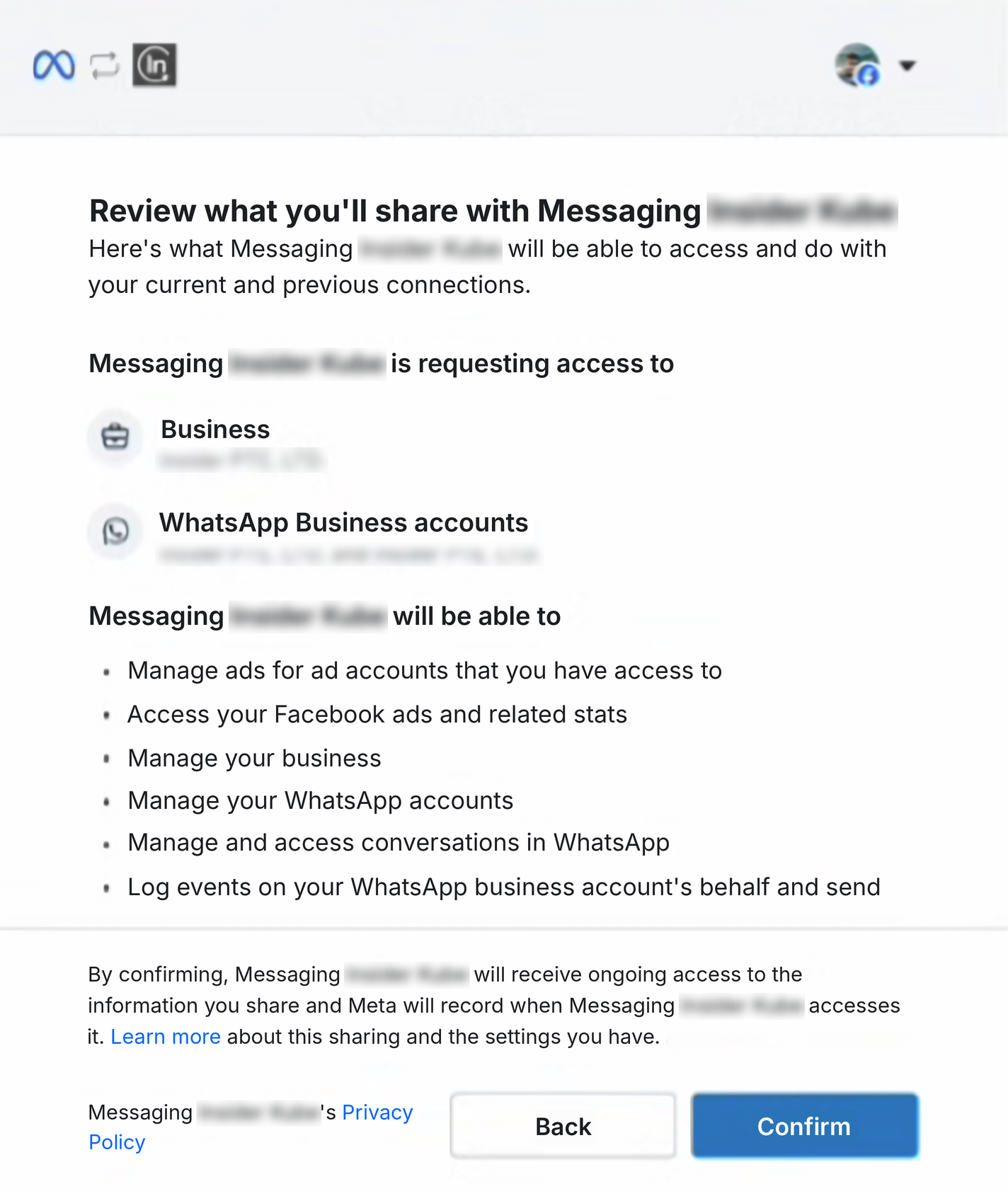
Review what you'll share. Check the business and WhatsApp Business accounts Insider One will access and click Confirm.
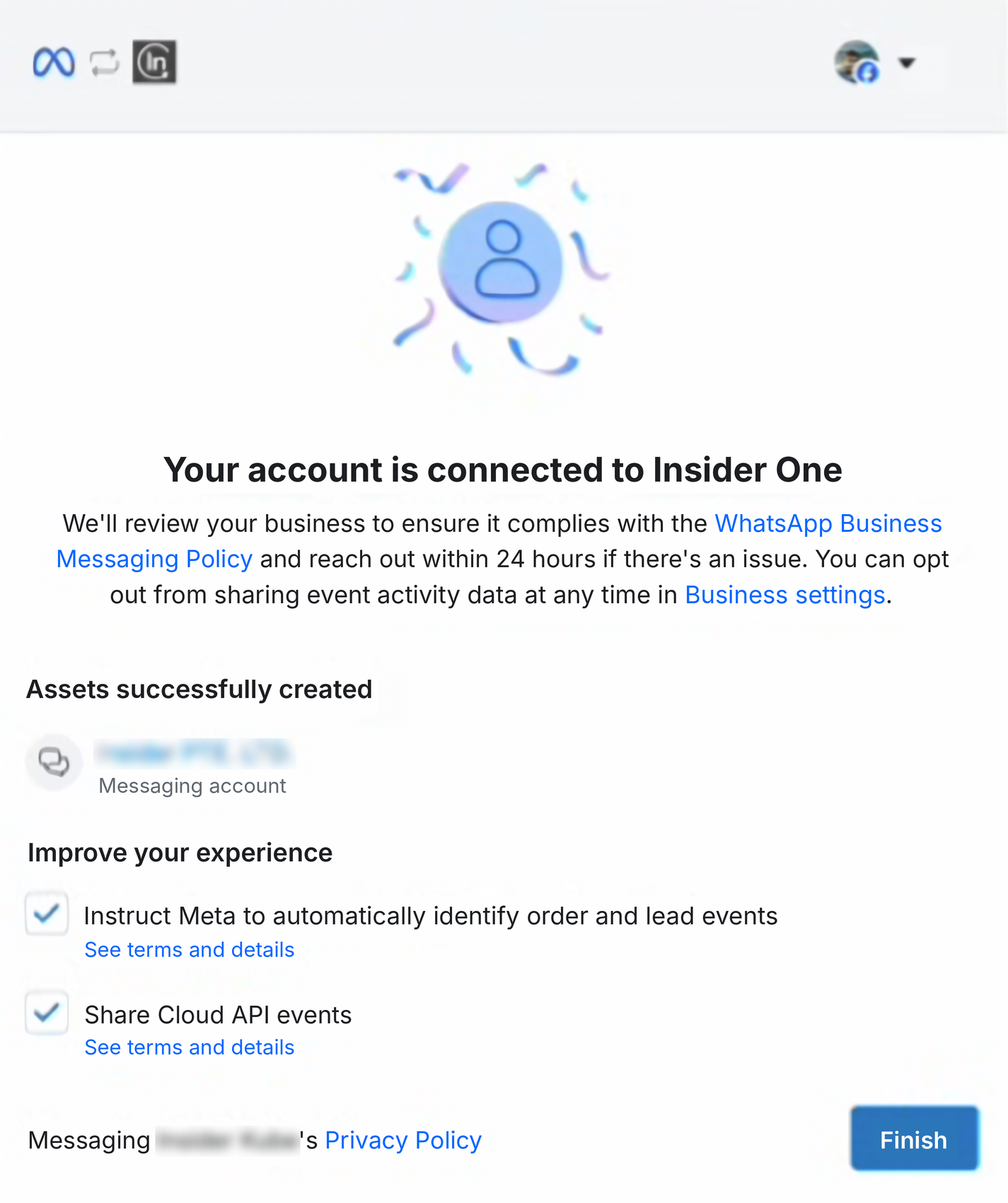
Your account is connected to Insider One. Meta reviews the business against the WhatsApp Business Messaging Policy and reaches out within 24 hours if there is an issue. The “Instruct Meta to automatically identify order and lead events” option is selected by default; you can opt out of sharing event activity data later in Business settings. Click Finish.
Once you complete the integration, you will be automatically redirected to InOne > WhatsApp Settings > Account Integration. You can now start messaging your customers on WhatsApp.
Meta is gradually rolling out a new screen order. If the business portfolio and WhatsApp account screens appear before the phone number screen, follow the same steps in the order displayed.
Insider One highly suggests that you have collected leads and received your users’ consent before sending them your campaign messages. In other words, you need to collect opt-in from them so they agree to receive messages over WhatsApp from your business and provide you with their mobile phone number. You can collect leads via different lead collection campaigns.
Another easy way to collect consent is text to opt-in. Text to opt-in is a way to collect subscribers by asking them to write a predefined keyword/sentence to your WhatsApp account. For example, you can define your opt-in keyword/sentence as “Subscribe.” When a user writes "Subscribe" on WhatsApp and sends it to you, they directly subscribe to your WhatsApp channel.
To learn about the blue tick, refer to the Official WhatsApp Business account.
Marketing Messages API (MM Lite)
MM Lite registration is completed as part of the Embedded Signup flow described above. No separate registration step is required in the panel. Once the connection is established, the MM API status appears next to your phone number under WhatsApp > Settings > Account Hub.