Web Messenger is a chat window on your website where your AI Agent talks to your customers. Create the channel in Insider One, match it to your brand, decide how conversations start and end, and install it with a script. Your customers get answers on the page they are already browsing.
In this article:
Before you start
You need an AI Agent in Active status. You connect the channel to an agent in the Launch step, and agents in Draft status can't be selected. To create one, navigate to InOne > Agent One > Agent One Audiences > AI Agents. For the full setup, see Create and Configure the Support Agent or Create and Configure the Shopping Agent.
You need someone who can add a script to your website. Web Messenger appears on your pages only after the install script is added.
You need the Administrator or Editor role to launch, pause, or delete a channel. Refer to User roles.
Open the Channels page
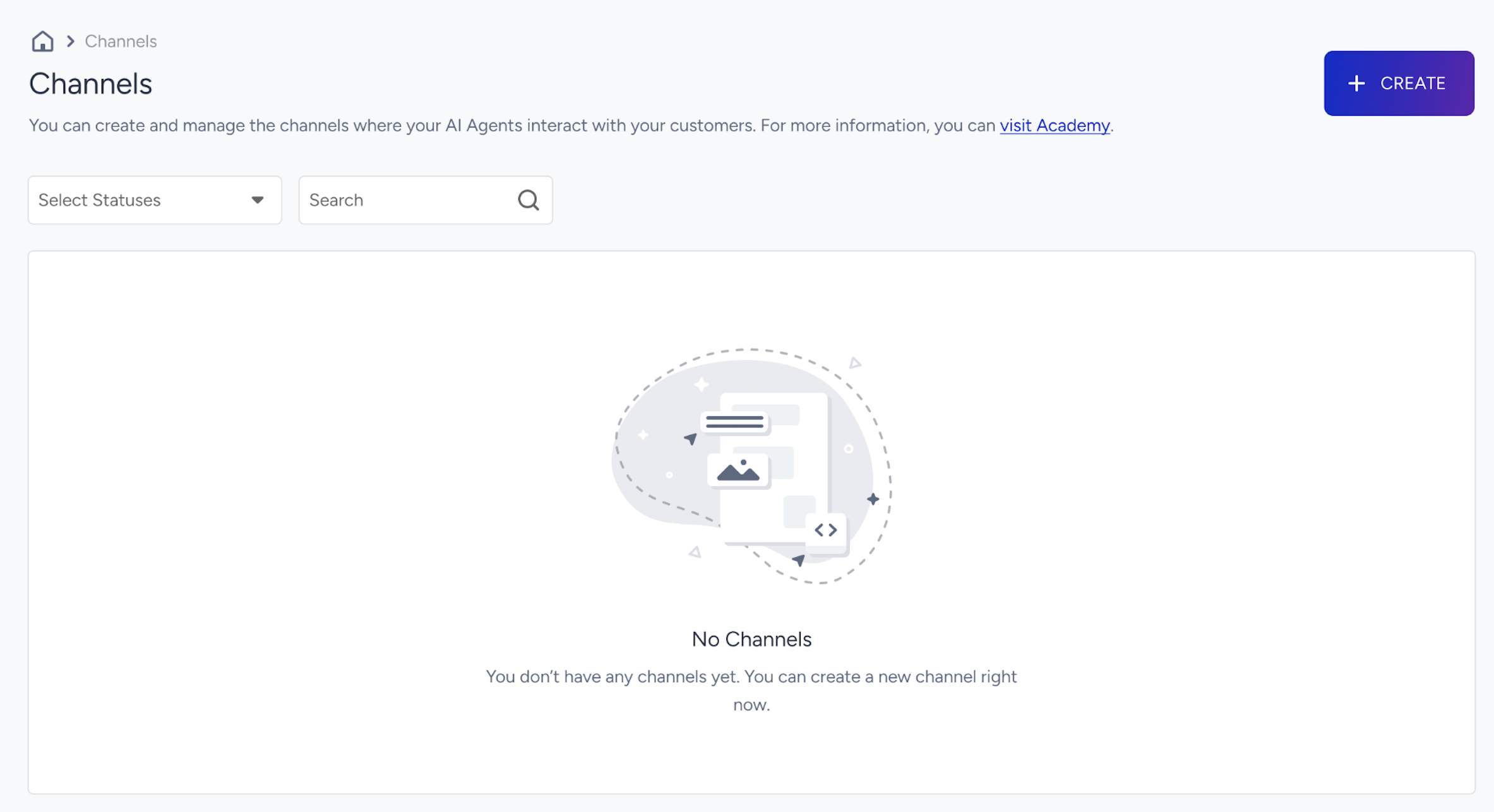
The Channels page lists every channel where your AI Agents interact with your customers. If you have no channels yet, the page displays No Channels.
Navigate to InOne > Agent One > Agent One Audiences > Channels.
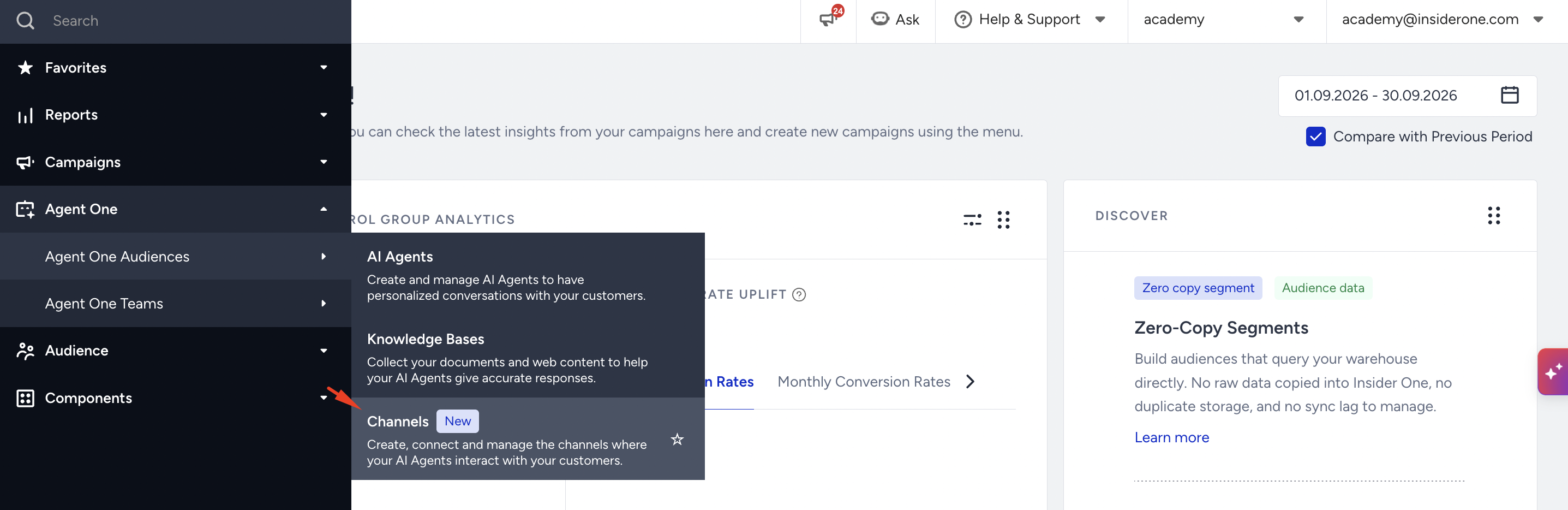
Review the list, or click Create to add your first channel.
Create a Web Messenger channel
Click Create.
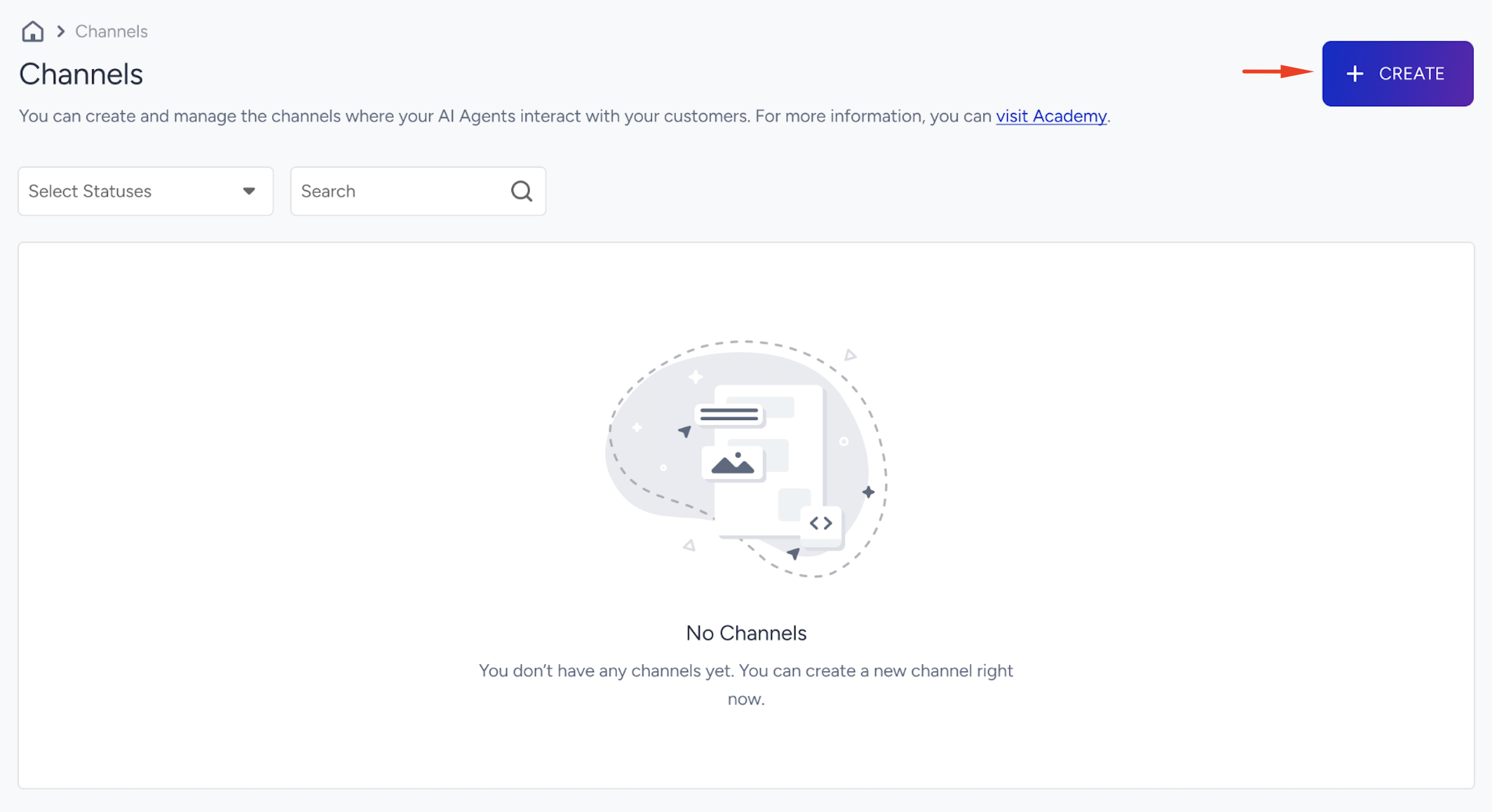
Enter a channel name. The name must be unique and can have up to 128 characters.
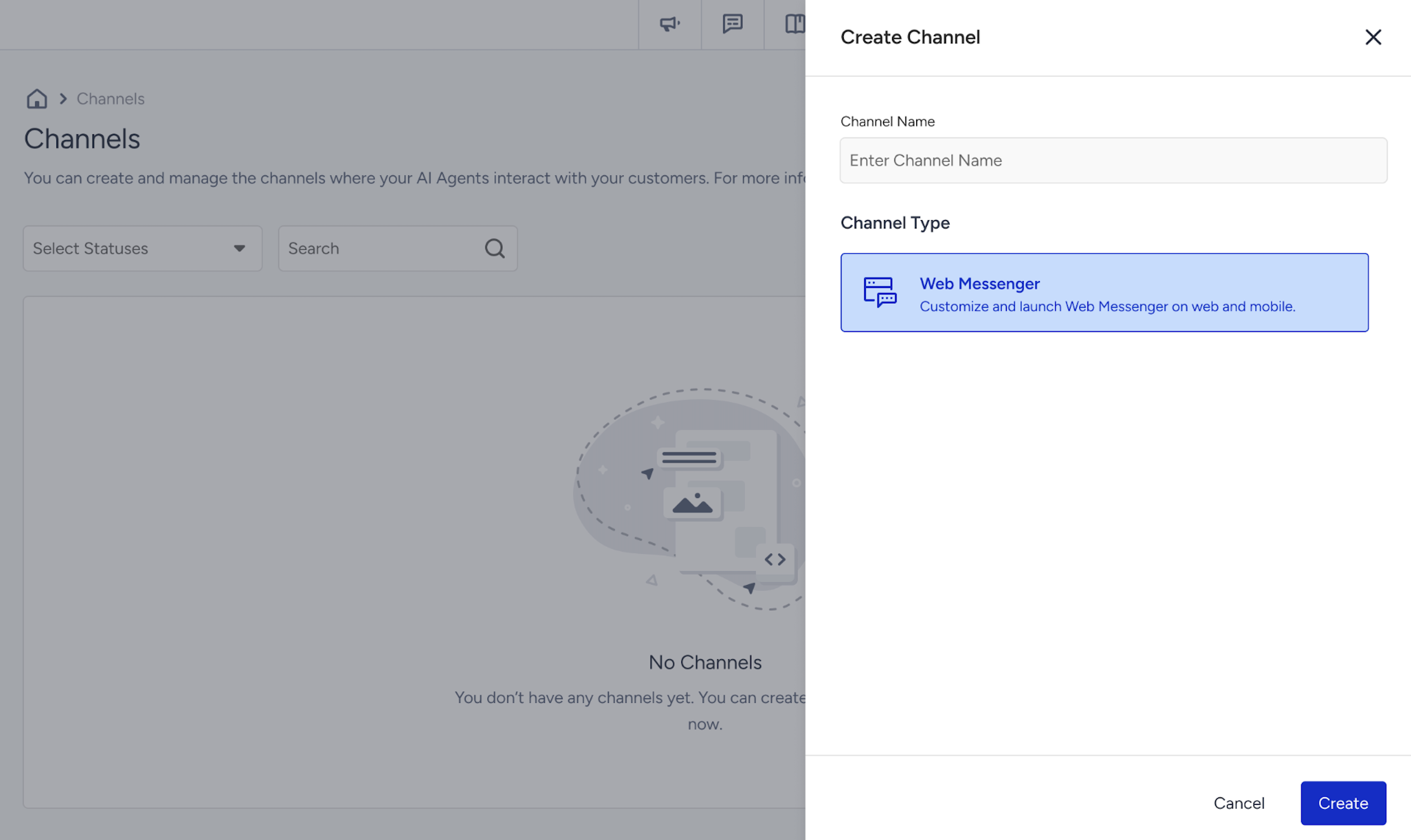
Under Channel Type, select Web Messenger.
Click Create.
The channel opens on the Design step with the Draft status. Setup has four steps: Design, Conversation Start, Conversation End, and Launch. A preview of your Web Messenger sits next to every step, and the channel status sits next to the step title. Click Save and Continue to move to the next step.
If you leave a step with unsaved changes, the Leave Page? pop-up lets you save or discard them.
Design
Make Web Messenger look like it belongs on your website. The step has three tabs: Chat Window, Launcher, and Product Cards.
Chat window
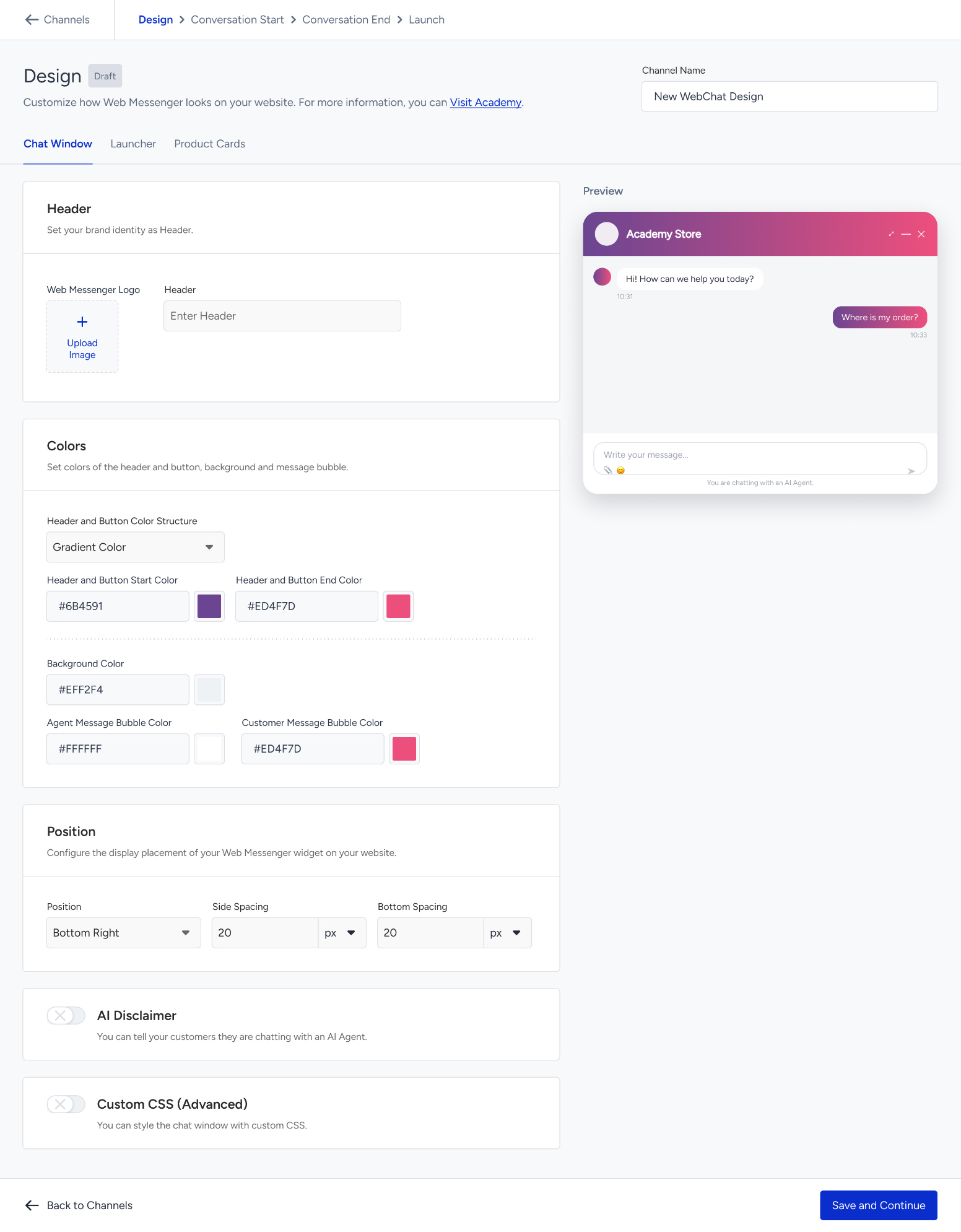
Set the look of the conversation area, from the header to the message bubbles.
Field | Description |
|---|---|
Web Messenger Logo | The logo displayed in the chat window header. Upload an image of up to 2 MB. |
Header | The title displayed in the chat window header. Up to 120 characters. |
Header and Button Color Structure | Select Solid Color or Gradient Color. |
Header and Button Start Color and End Color | The two ends of the header gradient, also applied to buttons. With Solid Color, a single Header and Button Color field is displayed. |
Background Color | The background color of the conversation area. |
Agent Message Bubble Color | The color of message bubbles sent by the AI Agent. |
Customer Message Bubble Color | The color of message bubbles sent by your customer. |
Position | Where Web Messenger sits on the page: Bottom Right or Bottom Left. |
Side Spacing | The space between Web Messenger and the side edge of the screen. Enter a value and select a unit: px, %, em, rem, vw, vh, dvw, or dvh. |
Bottom Spacing | The space between Web Messenger and the bottom edge of the screen, with the same unit options. |
Two more settings sit at the bottom of the tab:
AI Disclaimer: Turn on the toggle to tell your customers they are chatting with an AI Agent, then enter the disclaimer text (up to 1,024 characters).
Custom CSS (Advanced): Turn on the toggle to style the chat window with your own CSS.
Launcher
The launcher is the button that opens the chat window. A well-placed callout next to it invites customers to start a conversation.
Launcher Icon: Upload the image displayed on the button (up to 2 MB).
Launcher Size: Enter a width and a height in pixels, up to 500 each. Select Keep Proportions to lock the width-to-height ratio when you resize the launcher.
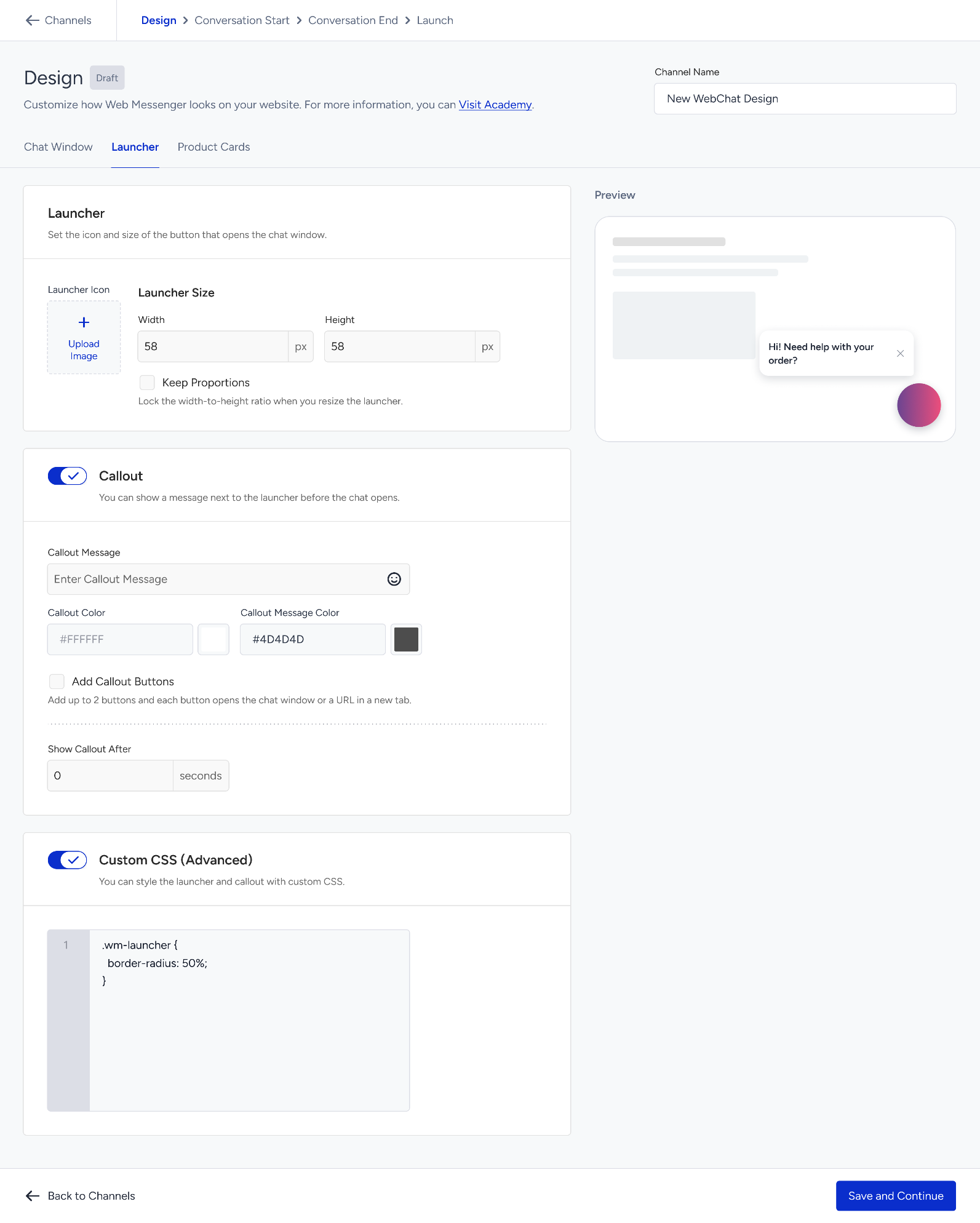
Under Callout, set the message displayed next to the launcher before the chat window opens.
Field | Description |
|---|---|
Callout Message | The message displayed next to the launcher. Up to 200 characters. |
Callout Color | The background color of the callout. |
Callout Message Color | The text color of the callout. |
Show Callout After | How many seconds after page load the callout appears. |
Select Add Callout Buttons to add up to two buttons to the callout. For each button, set:
The action: Open Chat Window or Open URL in New Tab.
Callout Button Text (up to 40 characters), Callout Button Color, and Callout Button Text Color.
URL, when the button opens a URL.
Turn on Custom CSS (Advanced) to style the launcher and the callout with your own CSS.
Product Cards
If your AI Agent is a Shopping Agent, shape how product recommendations appear in the chat.
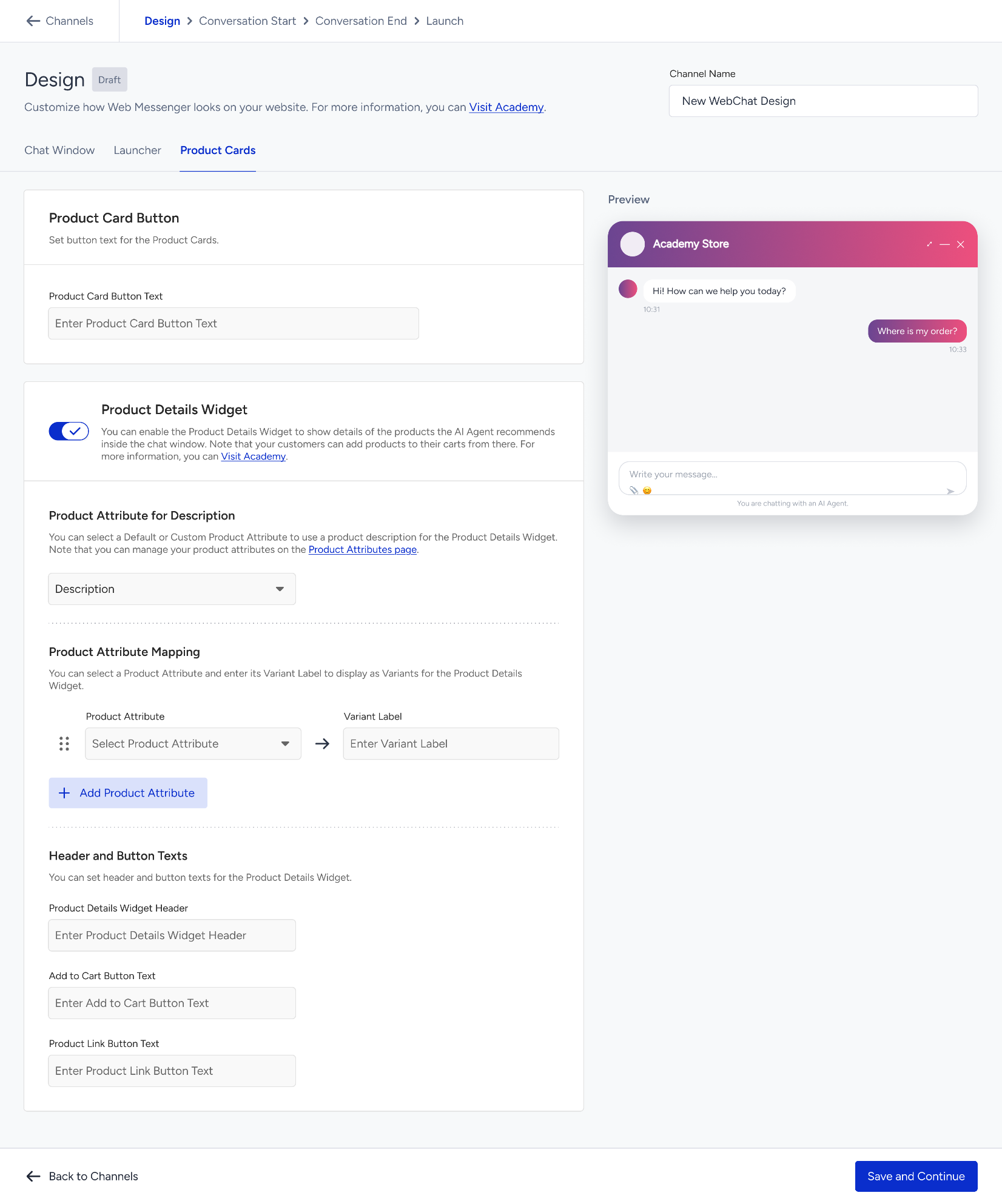
Set the Product Card Button Text (up to 20 characters) displayed on the product cards your AI Agent sends.
Turn on the Product Details Widget toggle to show the details of a recommended product inside the chat window. Your customers can add products to their carts from there. For more on the widget, see Product Details Widget for Shopping Agent.
Product Attribute for Description: Select a default or custom product attribute to use as the product description. You manage your product attributes on the Product Attributes page.
Product Attribute Mapping: Select a Product Attribute and enter its Variant Label (up to 255 characters) to display a variant. Click Add Product Attribute to add another one.
Header and Button Texts: Set the Product Details Widget Header, the Add to Cart Button Text, and the Product Link Button Text (up to 20 characters each).
Conversation start
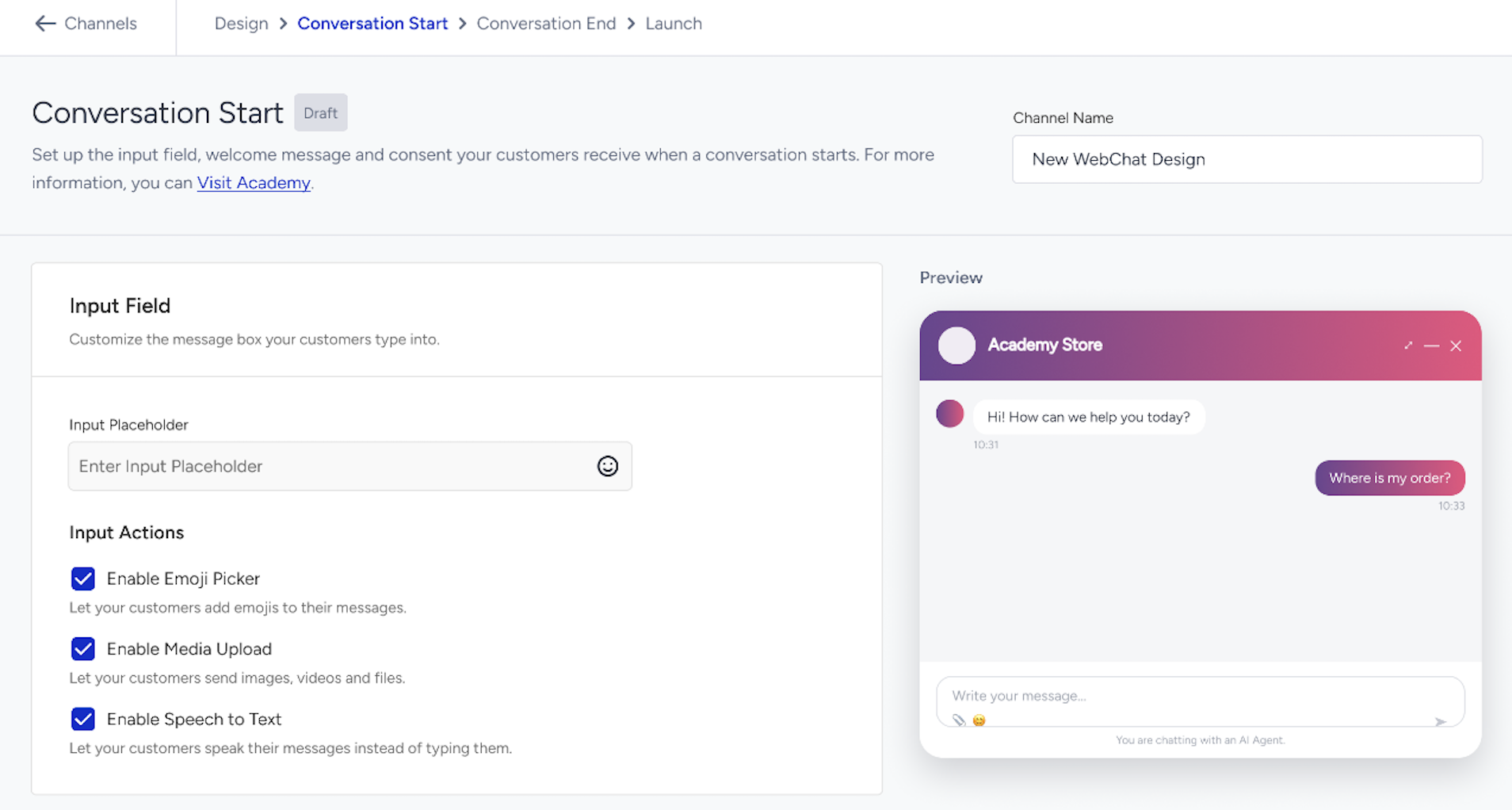
Set up the input field, welcome message, and consent request your customers see when a conversation starts.
Input field
Input Placeholder: Descriptive text displayed in the message box your customers type into.
Input Actions: Select Enable Emoji Picker to let your customers add emojis, Enable Media Upload to let them send images, videos, and files, and Enable Speech to Text to let them speak their messages instead of typing them.
Consent (GDPR)
Turn on the toggle to ask your customers for consent before the conversation starts.
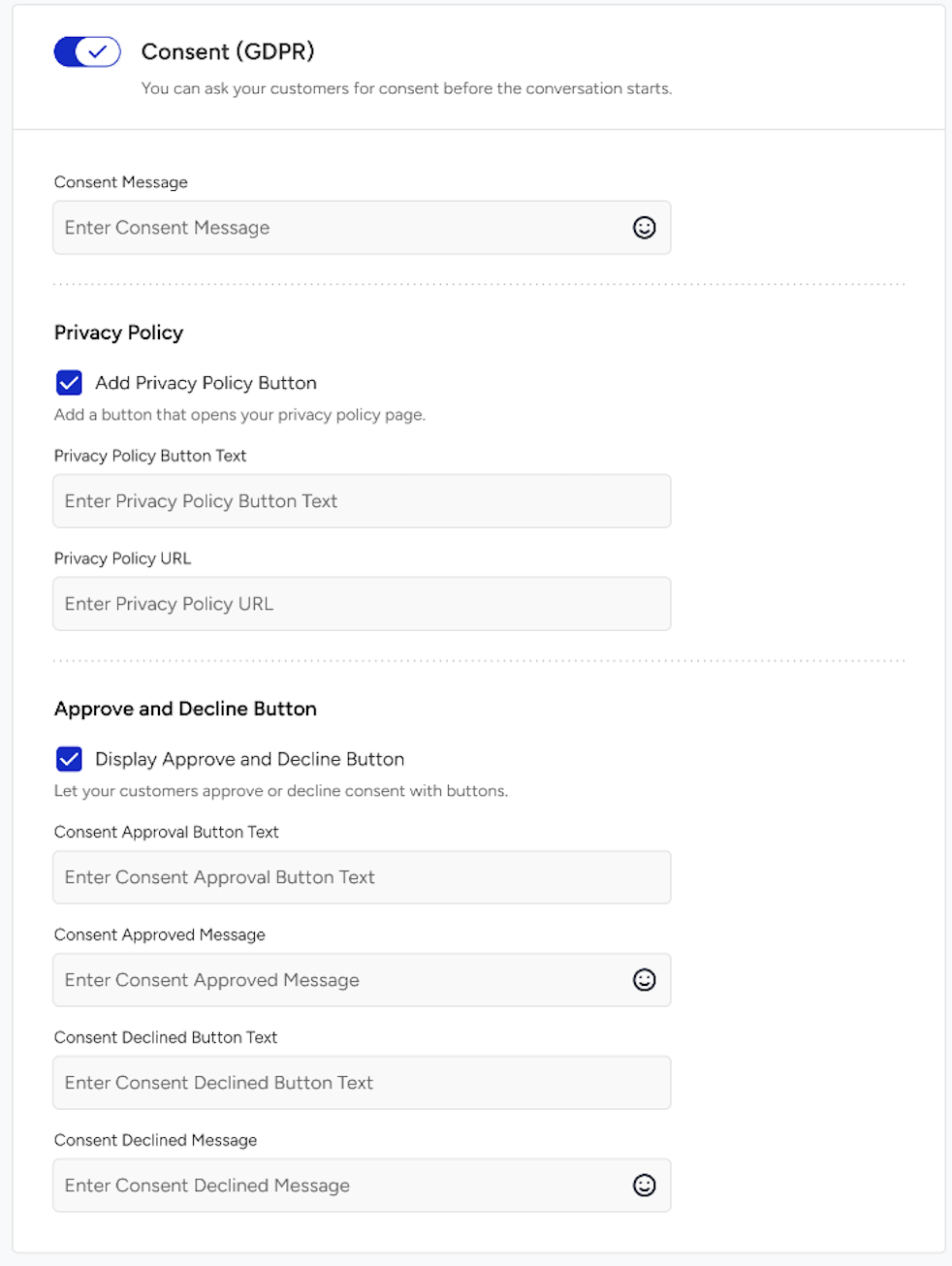
Consent Message: The text shown to your customer (up to 1,024 characters).
Privacy Policy: Select Add Privacy Policy Button to add a button that opens your privacy policy page, then enter the Privacy Policy Button Text (up to 20 characters) and the Privacy Policy URL.
Approve and Decline Button: Select Display Approve and Decline Button to let your customers approve or decline consent with buttons. Then enter the Consent Approval Button Text, Consent Approved Message, Consent Declined Button Text, and Consent Declined Message. Button texts can have up to 20 characters and messages up to 1,024.
Welcome message
Turn on the toggle to send an automatic first message when a customer opens Web Messenger, then enter the Welcome Message (up to 1,024 characters). 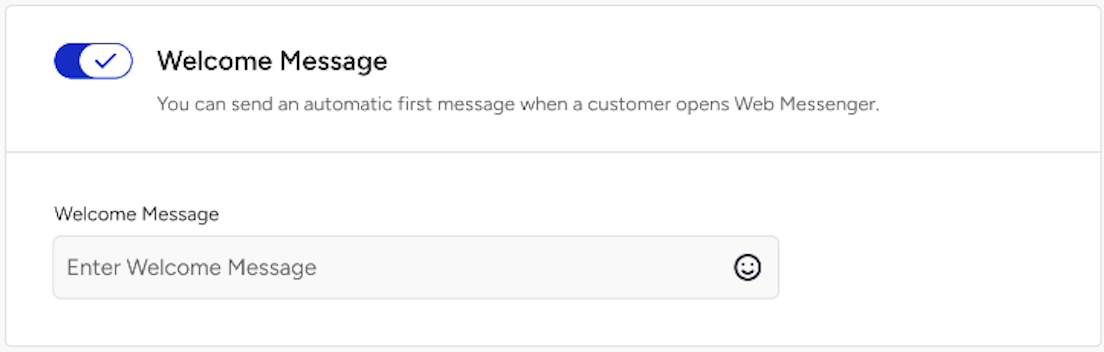
Conversation end
Decide how a conversation wraps up: when it times out, what customers see if something goes wrong, and whether they can rate the experience.
Conversation timeout
End conversations automatically due to customer inactivity.
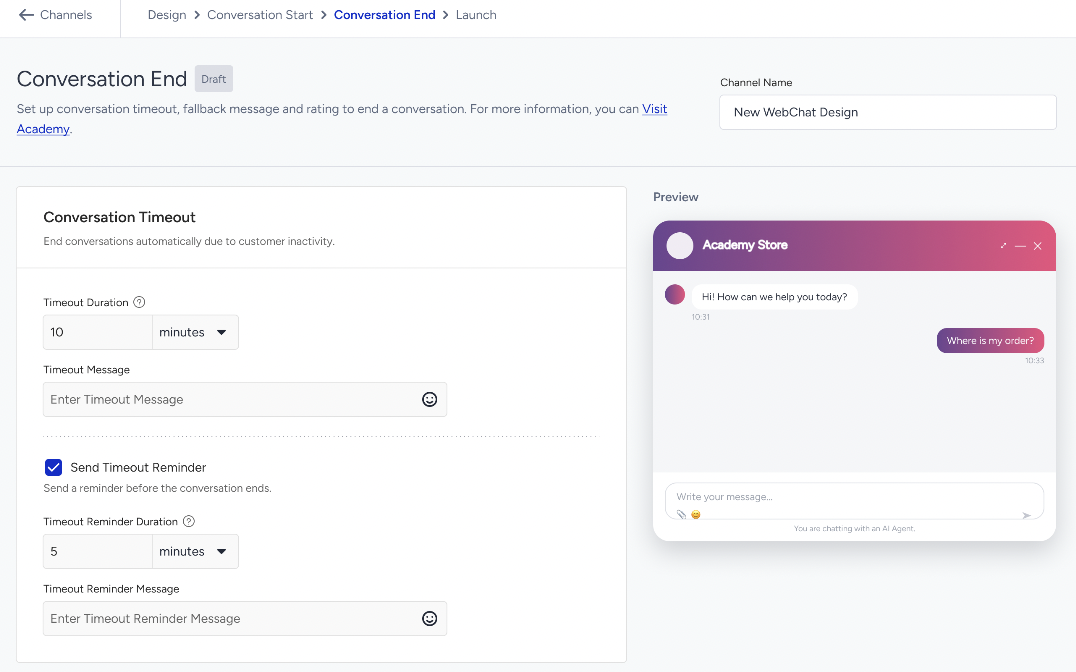
Timeout Duration: How long a conversation can stay inactive before it ends automatically. Enter a value and select minutes or hours.
Timeout Message: The message shown when the conversation ends (up to 1,024 characters).
Send Timeout Reminder: Select it to send a reminder before the conversation ends, then set the Timeout Reminder Duration and the Timeout Reminder Message. The reminder duration must be shorter than the timeout duration.
End conversation pop-up
You can customize the pop-up displayed when a customer tries to end a conversation.
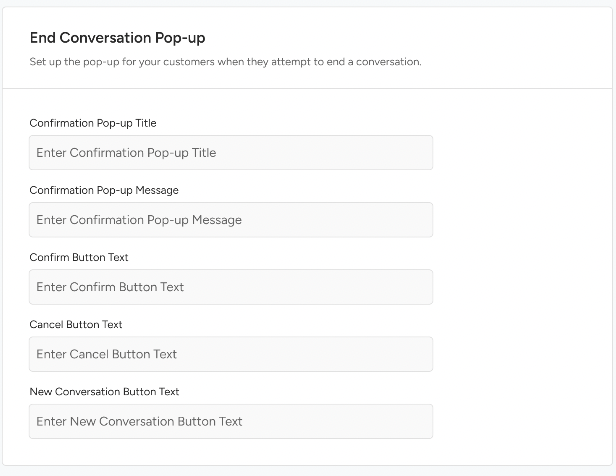
Confirmation Pop-up Title (up to 40 characters)
Confirmation Pop-up Message (up to 120 characters)
Confirm Button Text and Cancel Button Text (up to 40 characters each)
New Conversation Button Text
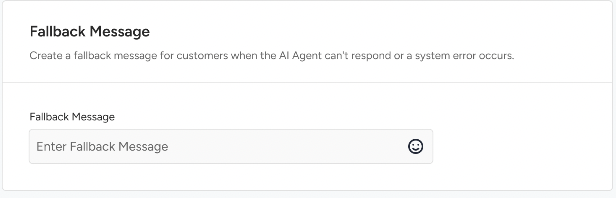
Fallback message
Enter the Fallback Message your customers receive when the AI Agent can't respond or a system error occurs (up to 1,024 characters).
Rating
Turn on the toggle to collect ratings at the end of the conversation.
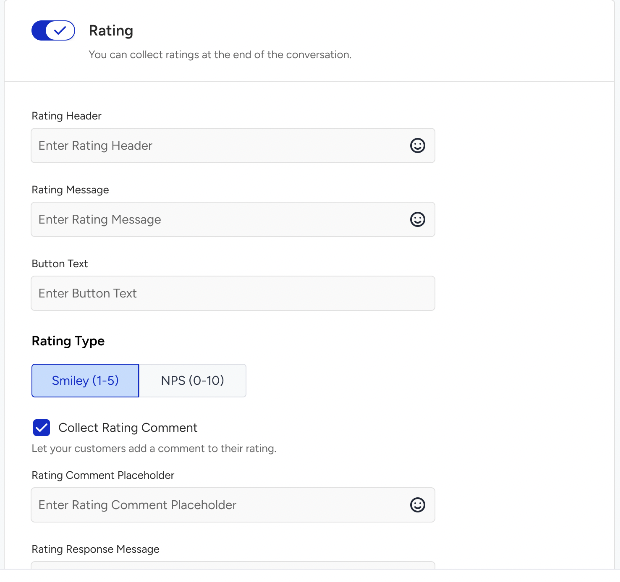
Field | Description |
|---|---|
Rating Header | The title of the rating screen. Up to 128 characters. |
Rating Message | The text shown above the rating. Up to 1,024 characters. |
Button Text | The text displayed on the submit button. Up to 40 characters. |
Rating Type | Select Smiley (1–5) or NPS (0–10). |
Collect Rating Comment | Select it to let your customers add a comment to their rating, then set the Rating Comment Placeholder (up to 128 characters). |
Rating Response Message | The message shown after your customer submits the rating. Up to 1,024 characters. |
Launch
Connect your channel to an AI Agent and take it live on your website.
If a required field in an earlier step is empty, the Before You Launch panel lists the steps to complete, with a button that takes you to each one.
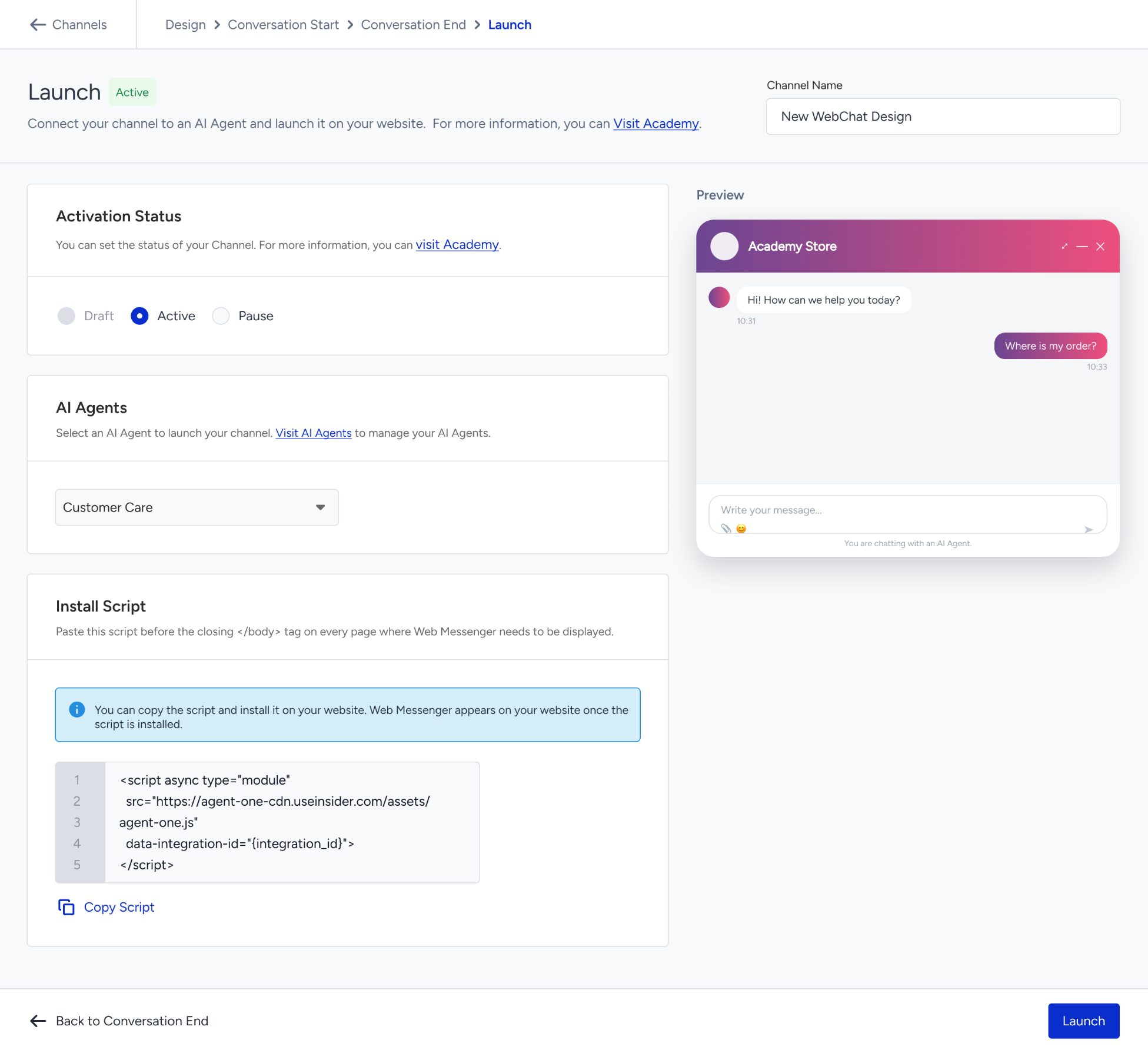
Activation status
Set the status of your channel: Draft, Active, or Pause. You can pause a channel only after you launch it.
AI Agents
Select the AI Agent that answers conversations on this channel. Agents in Draft status are displayed but can't be selected. You manage your agents on the AI Agents field.
Launch your channel
Select Active under Activation Status and click Launch. To keep working on the channel later, select Draft and click Save as Draft.
Confirm in the Launch Channel? pop-up.
An Active channel can't be moved back to Draft. You can pause it anytime.
Install the script
The script becomes available once you launch the channel. Until then, you can check your Web Messenger in the preview.
Click Copy Script.
Paste the script before the closing
</body>tag on every page where Web Messenger needs to appear.
<script async type="module" src="https://agent-one-cdn.useinsider.com/assets/agent-one.js" data-integration-id="{integration_id}"></script>Web Messenger appears on your website once the script is installed. You can copy the script again anytime from the See Script action on the Channels page.
Manage your channels
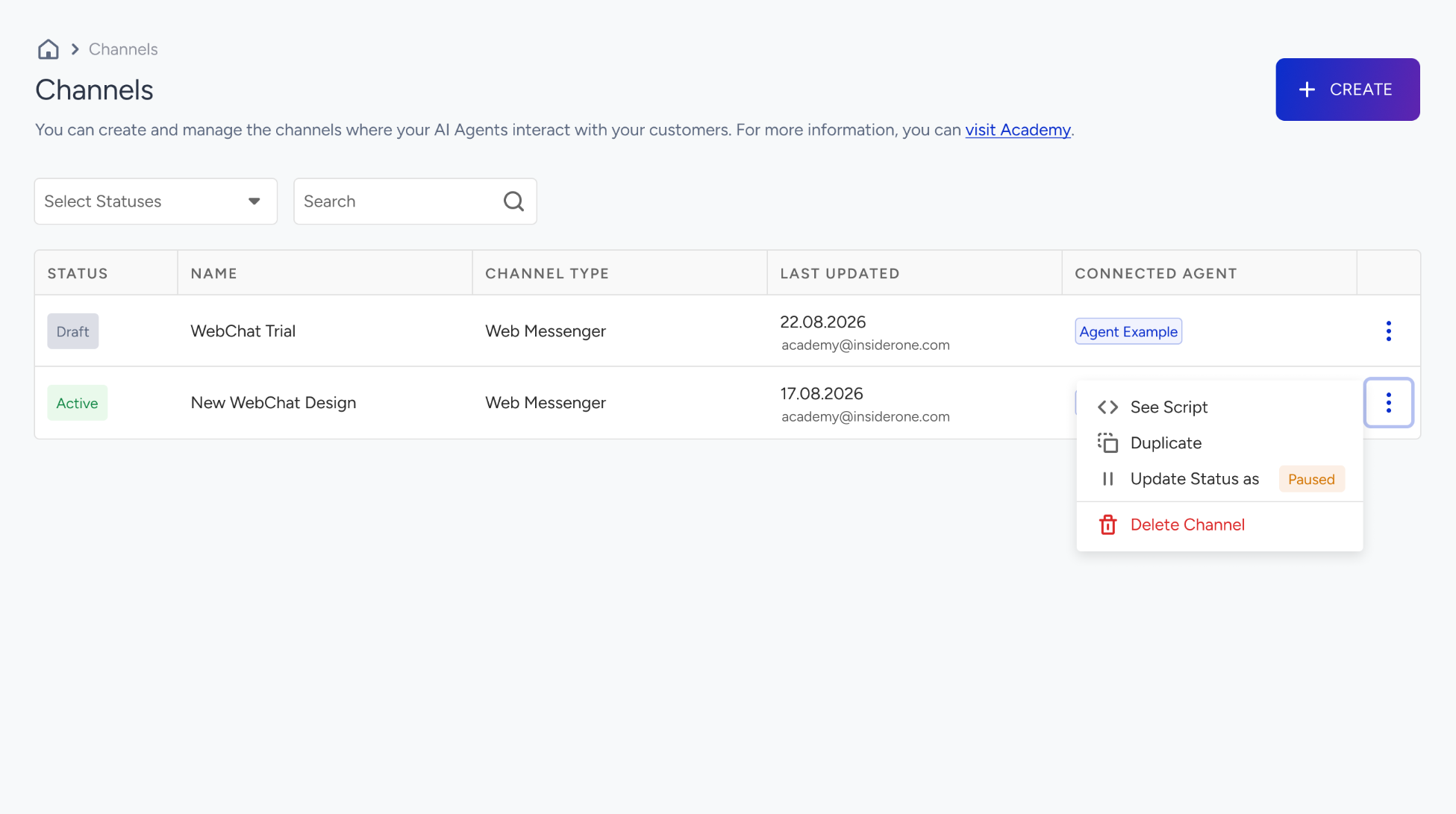
The Channels page lists your channels with their Status, Name, Channel Type, Last Updated (date and the user who made the update), and Connected Agent. Use Select Statuses and Search to narrow the list.
Status | What it means |
|---|---|
Draft | Created but not launched yet. A channel needs a connected Active AI Agent to launch. |
Active | Launched. Web Messenger is displayed on every page where the script is installed. If the script is not installed, it is not displayed. |
Paused | Hidden on your website. Settings are kept, and you can relaunch the channel anytime. |
Updates Pending | An Active channel with saved changes that are not applied yet. Refer to Update an Active channel. |
Use the actions menu on a channel row to manage it:
See Script (Active and Paused channels): Displays the install script with Copy Script.
Duplicate: Creates a copy of the channel in Draft status. You can edit the Duplicate Channel Name before you confirm.
Update Status as Paused or Update Status as Active: Takes you to the Launch step, where you pause or relaunch the channel.
Delete Channel: Deletes the channel permanently.
When you pause a channel, Web Messenger doesn't appear on your website until you launch it again. Active conversations remain active until they time out.
When you delete an Active channel, Web Messenger is removed from your website right away. When you delete a Paused channel, you can't relaunch it and its settings are lost.
An AI Agent that is connected to a channel can't be deleted. Replace it in the channel first. The AI Agents page displays the channels each agent is connected to.
Update an Active channel
When you edit an Active channel, Insider One saves your changes but doesn't apply them yet. The channel displays the Updates Pending status on the Channels page and a note inside the channel.
Open the channel and make your changes.
In the Launch step, click Update and confirm in the Update Channel? pop-up.
Your changes apply to new conversations only. Open conversations continue with the previous settings until they end.
User roles
What you can do on the Channels page depends on your Insider One user role. For more on roles, see User Management.
Action | Administrator | Editor | Collaborator | Viewer |
|---|---|---|---|---|
View channels | Yes | Yes | Yes | Yes |
Edit a Draft channel | Yes | Yes | Yes | No |
Edit an Active channel | Yes | Yes | No | No |
Launch a channel | Yes | Yes | No | No |
Pause or relaunch a channel | Yes | Yes | No | No |
Delete a channel | Yes | Yes | No | No |
If your role doesn't allow an action, the channel opens in view-only mode or an error message is displayed. Contact your Account Administrator for access.
Limitations and good to know
Draft to Active: An Active channel can't be moved back to Draft. You can pause it.
AI Agent: A channel can't be launched without a connected AI Agent, and only Active agents can be selected.
Script: The install script is available only after you launch the channel.
Preview: The preview is view only. You can't chat with your AI Agent in it.
Callout buttons: You can add up to two buttons.
Images: Logo and launcher images can be up to 2 MB.
Text limits: Messages can have up to 1,024 characters. Button texts have shorter limits, shown in each field's counter.
Updates: Changes to an Active channel apply only after you click Update, and only to new conversations.
Troubleshooting
Why isn't Web Messenger showing on my website?
Check that the install script is added before the closing </body> tag and that the channel status is Active. A Paused channel is hidden.
Why can't I launch my channel?
A channel needs a connected AI Agent in Active status and all required fields filled in. Check the Before You Launch panel in the Launch step. You also need the Administrator or Editor role.
Where do I find the install script?
The script is available after you launch the channel, in the Launch step and under See Script on the Channels page.
Why can't I chat with my agent in the preview?
The preview is view only. Install the script on a test page to try a real conversation.
Why don't my customers see my latest changes?
If the channel displays Updates Pending, click Update in the Launch step. Changes apply to new conversations.
Why can't I delete my AI Agent?
The agent is connected to a channel. Replace it in the channel, then delete it.
Next steps
Your Web Messenger is ready to greet customers. Launch it on a test page first, watch a real conversation, and fine-tune the welcome message and rating questions from there.