Personalization is at the heart of effective customer engagement. When users feel that your messages are tailored to them, they are more likely to pay attention, engage, and convert. That’s why personalized messages consistently outperform one-size-fits-all communication.
With dynamic content in Architect, you can easily insert user attributes, event parameters, and product details to personalize your messages and make every message feel relevant and valuable. Architect gives you the flexibility to personalize not just text, but also images, links, and other message elements, so you can create rich, tailored experiences across all channels.
And to ensure every message looks complete, Architect also allows you to set fallback values, so even if some data is missing, your users will never see empty or broken content.
You can personalize the content on the following channels in your journeys:
- Web Push
- App Push
- SMS
- Call an API
- InApp (Only default and custom attributes are available)
- On-Site (Only default and custom attributes are available)
Dynamic content options
You can use the following components to personalize content in your journeys:
| Components | Notes, if any |
|---|---|
| Default attributes | - |
| Custom attributes | - |
| Event parameters (default and custom) | - |
| Expressions | Enabled per request |
| Coupons | You need to have at least one coupon list uploaded. This option is not available for Call an API. |
| Recommendations | - |
| Product catalog attributes | Available only if you have On Price Drop or On Back in Stock as the starter element |
| Call an API response | Available only if you have a Call an API element with response variables configured in a previous step in the same journey |
| Cart/Browse/Purchase/Wishlist Items | Available only in Email and Call an API channels |
| Campaign attributes | - |
| Array of Objects Rules | Personalize a message using an attribute that holds a list of objects (e.g., a list of pets, orders, or basket items) and apply rules to choose/filter which object's values are inserted into the content. |
Fallback
You can add a fallback to your dynamic content to make sure users never see an empty value.
When you insert dynamic content into your message, an info box will appear asking you to set a fallback. Enter the value you want to show if the dynamic content is missing, and click the Save button. Once added, the dynamic content chip will turn dark blue to indicate that a fallback is set.

For image fields, your fallback can be either a dynamic link or a static image. The info box will guide you on the correct type of input for each case.
Use dynamic content
You can add dynamic content through the Add Dynamic Content button on input fields.
Suggested reading: Data Ingestion for Cross-Platform Personalizations - Event Parameter Personalization
Web Push
You can customize the following web push elements with dynamic content using default and custom attributes and event parameters:
- Push icon
- Title and description
- Web push link
- Action button links
- Rich push image URL

App Push
You can customize the following app push elements with dynamic content:
- Push message title
- Message
- Deep link
- Rich push image URL

You can use default and custom attributes, event parameters, coupons, cart items, browsed items, purchased items, wishlist items, and recommendations in email.
You can use all available dynamic content options to personalize your subject and preheader.

To personalize your email content, you can use the HTML Editor or Drag and Drop Editor to add all available dynamic content.

Browse abandonment, cart abandonment, wishlist abandonment, and post-purchase use cases
Personalized emails are one of the most effective ways to re-engage users and drive conversions, especially for key ecommerce scenarios such as browse abandonment, cart abandonment, wishlist abandonment, and post-purchase recommendations. In Architect, you can easily add personalization to your emails using product blocks or dynamic content.
Product blocks are available in the drag and drop editor and come preconfigured with the most common product details, including product name, price, discounted price, and image. You can add up to eight product blocks in a single email, each linked to a different item (item 1, item 2, item 3, and so on). This makes it quick and seamless to build highly personalized campaigns, such as showing multiple items left in a user’s cart or highlighting several products they recently browsed.
If you prefer more flexibility in your design, you can also insert dynamic content attributes individually from the dropdown menu. Here, product data is grouped under cart items, browsed items, purchased items, and wishlist items, and you’ll also find additional formatting options for attributes like price. This approach is ideal if you want to place product details in specific areas of your email or create a fully customized layout.
We recommend using product blocks whenever possible, as they provide a ready-made and consistent structure that saves time. However, if your design requires more customization or creative placement of product attributes, the dynamic content dropdown gives you the control you need. Together, these options let you personalize emails for every use case while keeping your brand experience consistent and engaging.
Fallback in email
Once you add your dynamic content, it will appear in brackets in your email design. If you want to add a fallback, you should add “|” and the fallback value just before the ending brackets.
For example, say you add the Name attribute as dynamic content. It will look like the following in your email design.
{{Name}}, you have left items in your cart!
If the user's name is absent, you want to show a simple "Hey" at the beginning of the phrase above. The fallback value will be inserted inside the brackets like the following:
{{Name|Hey}}, you have left items in your cart!
Formatting options in email
The templating language in email allows you to format the dynamic content values according to your use case:
SMS
You can customize the SMS message text with dynamic content.
Call an API
You can customize the following Call an API elements with dynamic content:
- Path
- Headers
- Body
Since Call an API is highly flexible and can support a wide range of scenarios, it gives you access to all types of dynamic content, including cart, browse, purchase, and wishlist items, as well as campaign attributes and more.

InApp
You can personalize your in-app campaign using default attributes, custom attributes, and soon, event parameters. Simply type @ in the editor to view and insert the available options.

On-Site
You can customize your on-site campaign with custom user attributes. You can type @ and see the custom user attributes.

Suggested reading: Data Ingestion for Cross-Platform Personalizations
Cart, browsed, purchased, and wishlist items
Cart items
Cart Items are special keys for cart abandonment use cases. You can add the abandoned product information in the content to design your email templates. Architect collects the last eight cart items by default.
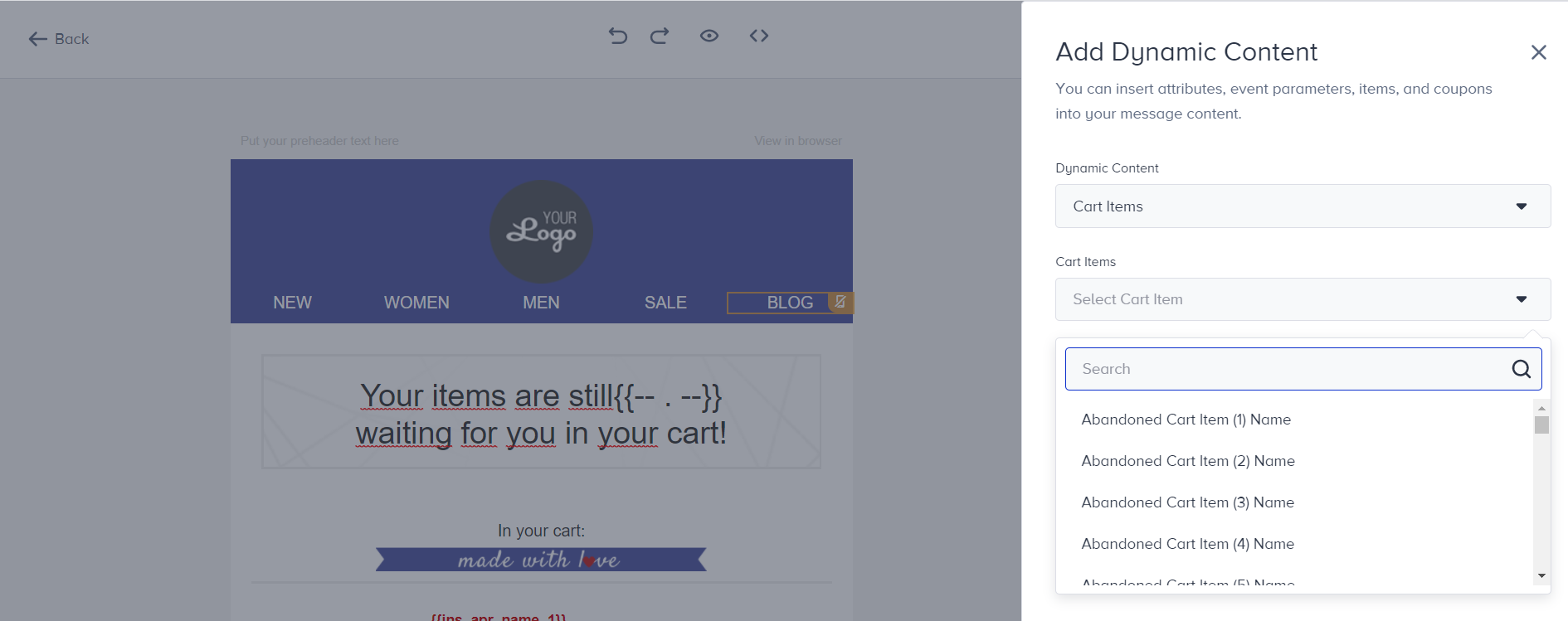
Once enabled, it can eliminate the data sources for the cart items to not consider a particular platform. For example, selecting only mobile events so that the system does not consider the website will not block the collection of data, but it will not consider unselected sources to show cart items.
| Personalization | Description |
|---|---|
| Abandoned Cart Item Name (1,2,..,8) | Item name |
| Abandoned Cart Item URL (1,2,..,8) | Link address of the item |
| Abandoned Cart Item Image (1,2,..,8) | Image link of the item |
| Abandoned Cart Item ID (1,2,..,8) | Item ID |
| Abandoned Cart Item Price (1,2,..,8) | Updated price based on your currency settings (e.g. 19,9 or 19,99 USD) |
| Abandoned Cart Item Not Converted Price (1,2,..,8) | Price based on your website or app currency (This option does not take your account settings into account) |
| Abandoned Cart Item Formatted Price (1,2,..,8) | Price with 2 decimals based on your currency settings (e.g. 19,9o or 19,99 USD) |
| Abandoned Cart Item Original Price (1,2,..,8) | Undiscounted price if there is a discount (e.g. 19,9 or 19,99 USD) |
| Abandoned Cart Item Original Formatted Price (1,2,..,8) | Undiscounted price with 2 decimals if there is a discount (e.g. 19,90 or 19,99 USD) |
| Abandoned Cart Item Quantity (1,2,..,8) | Quantity of the same item |
| Abandoned Cart Item Category (1,2,...,8) | Category of the item |
| Total Cart Amount | Total cart value |
| Total Cart Item Count | Total item count in the cart |
| Total Cart Item Kind | Number of different items in the cart |
| Cart Item's Currency | Cart item's currency |
Five different price attributes are available:
- Price: Updated price based on the currency on InOne settings (19,9 or 19,99).
- Not Converted Price: Price based on the website currency.
- Formatted Price: Price based on panel currency settings with 2 decimals (19,90 or 19,99).
- Original Price: Undiscounted price if there is a discount (19,9 or 19,99).
- Original Formatted Price: Undiscounted price if there is a discount with 2 decimals (19,90 or 19,99).
Browsed items
Browsed Items are special keys for browse abandonment use cases. You can add the browsed product information in the content to design your email templates. Architect collects the last 8 browsed items by default.
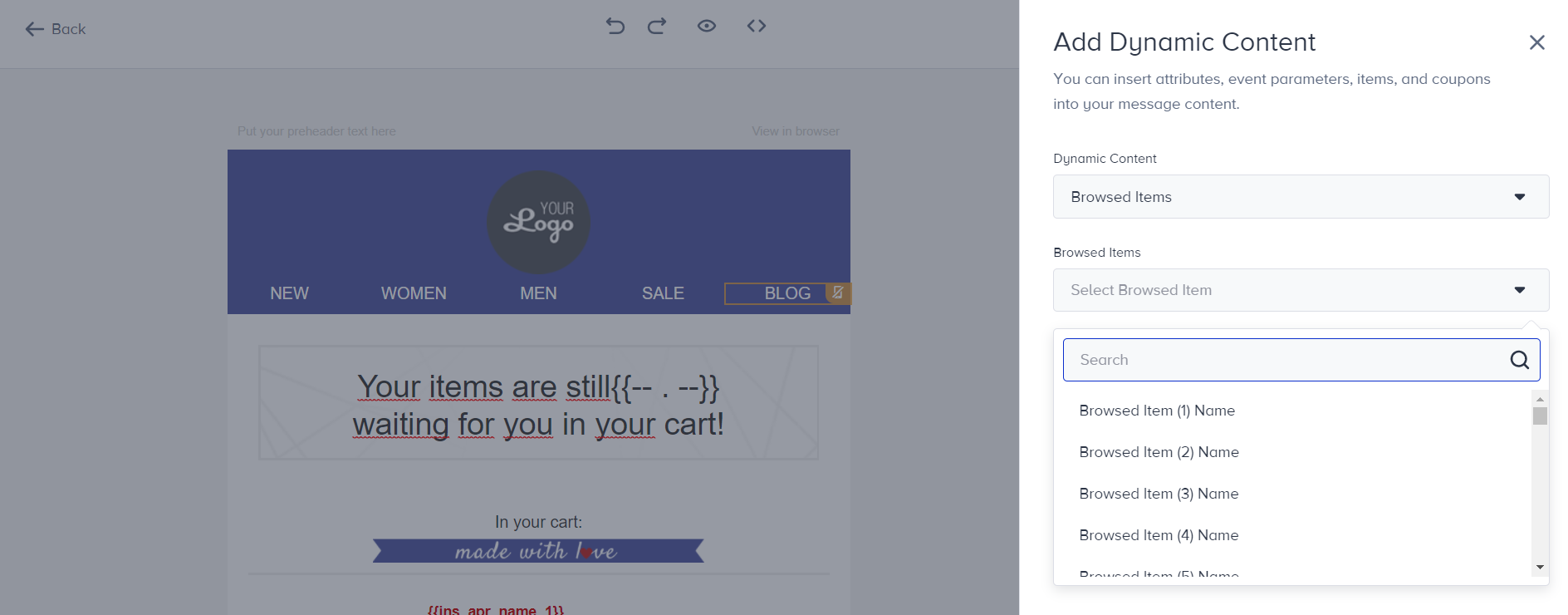
Once enabled, it can eliminate the data sources for the browsed items to not consider a particular platform. For example, selecting only mobile events so that the system does not consider the website will not block the collection of data, but it will not consider unselected sources to show browsed items.
| Personalization | Description |
|---|---|
| Browsed Item Name (1,2,..,8) | Item name |
| Browsed Item URL (1,2,..,8) | Link address of the item |
| Browsed Item Image (1,2,..,8) | Image link of the item |
| Browsed Item ID (1,2,..,8) | Item ID |
| Browsed Item Price (1,2,..,8) | Updated price based on your currency settings (e.g. 19,9 or 19,99 USD) |
| Browsed Item Formatted Price (1,2,..,8) | Price with 2 decimals based on your currency settings (e.g. 19,9o or 19,99 USD) |
| Browsed Item Original Price (1,2,..,8) | Undiscounted price if there is a discount (e.g. 19,9 or 19,99 USD) |
| Browsed Item Original Formatted Price (1,2,..,8) | Undiscounted price with 2 decimals if there is a discount (e.g. 19,90 or 19,99 USD) |
| Browsed Item Not Converted Price (1,2,..,8) | Price based on your website or app currency (This option does not take your account settings into account) |
| Browsed Item Category (1,2,...,8) | Category of the item |
| Browsed Items' Currency | Item currency |
| Total Browsed Item Count | It is used for Display Conditions to show more or fewer rows in the email content. |
Purchased items
Purchased items are special keys for your use cases, such as post-purchase, confirmation email, etc. You can add the product information for the purchase to the content and design your email templates. Architect collects the last eight purchased items by default.
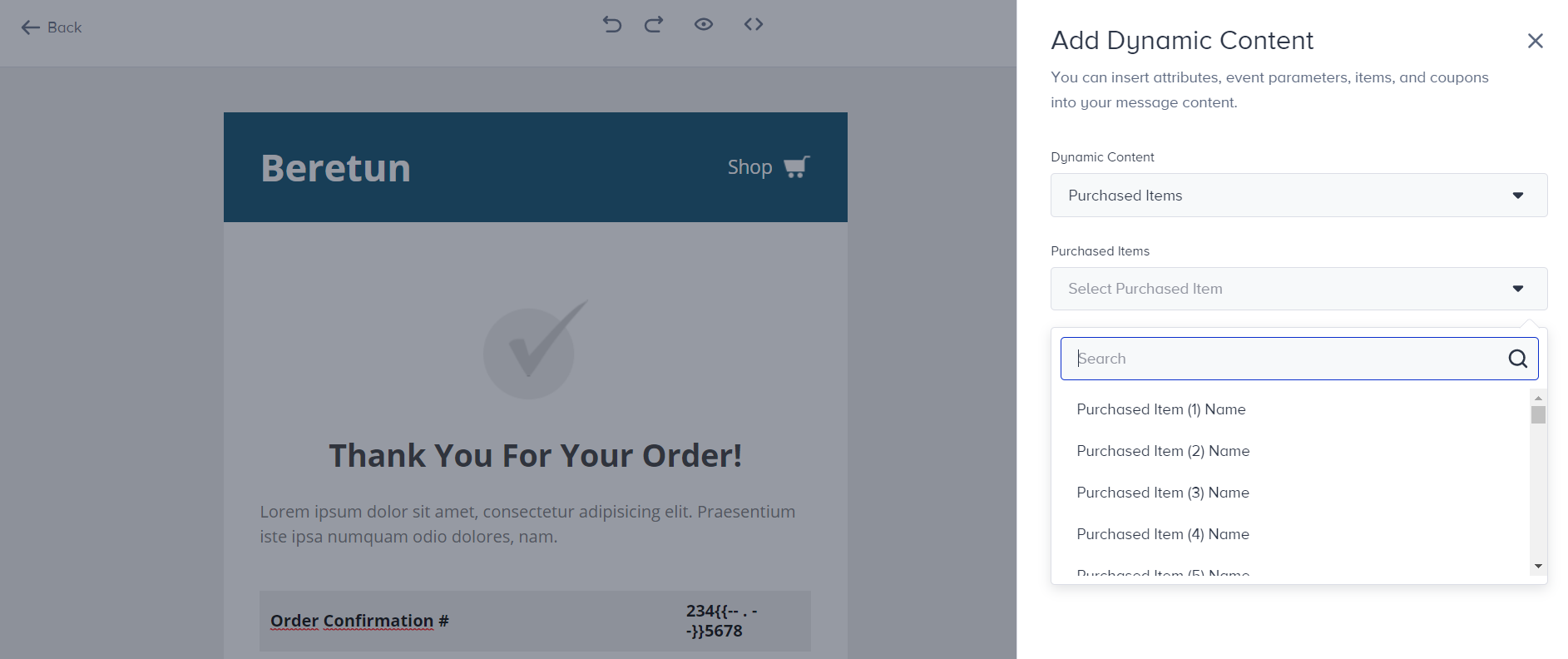
Once enabled, it can eliminate the data sources for the purchased items to not consider a particular platform. For example, selecting only mobile events so that the system does not consider the website will not block the collection of data, but it will not consider unselected sources to show purchased items.
| Personalization | Description |
|---|---|
| Purchased Item Name (1, 2,...,8) | Item name |
| Purchased Item URL (1, 2,...,8) | Link address of the item |
| Purchased Item Image (1,2,..,8) | Image link of the item |
| Purchased Item ID (1,2,..,8) | Item ID |
| Purchased Item Price (1,2,..,8) | Updated price based on your currency settings (e.g. 19,9 or 19,99 USD) |
| Purchased Item Formatted Price (1,2,..,8) | Price with 2 decimals based on your currency settings (e.g. 19,9o or 19,99 USD) |
| Purchased Item Original Price (1,2,..,8) | Undiscounted price if there is a discount (e.g. 19,9 or 19,99 USD) |
| Purchased Item Original Formatted Price (1,2,..,8) | Undiscounted price with 2 decimals if there is a discount (e.g. 19,90 or 19,99 USD) |
| Purchased Item Category (1,2,...,8) | Category of the item |
| Purchased Item Quantity (1,2,..,8) | Quantity of the same purchased item |
| Purchased Items' Currency | Item currency |
| Total Purchased Item Count | Total purchased item count |
| Total Purchased Amount | Total purchased item value |
| Total Purchased Item Kind | Number of different purchased items. It is also used in Display Conditions to show more or fewer rows in the email content. |
Wishlist items
Wishlist items are special keys for some use cases, such as wishlist reminder or wishlist price drop email. You can add the product information for the wishlist items to the content and design your email templates. Architect collects the last eight wishlist items by default

| Personalization | Description |
|---|---|
| Wishlist Item Name (1, 2,...,8) | Item name |
| Wishlist Item URL (1, 2,...,8) | Link address of the item |
| Wishlist Item Image (1,2,..,8) | Image link of the item |
| Wishlist Item ID (1,2,..,8) | Item ID |
| Wishlist Item Price (1,2,..,8) | Updated price based on your currency settings (e.g. 19,9 or 19,99 USD) |
| Wishlist Item Formatted Price (1,2,..,8) | Price with 2 decimals based on your currency settings (e.g. 19,9o or 19,99 USD) |
| Wishlist Item Original Price (1,2,..,8) | Undiscounted price if there is a discount (e.g. 19,9 or 19,99 USD) |
| Wishlist Item Original Formatted Price (1,2,..,8) | Undiscounted price with 2 decimals if there is a discount (e.g. 19,90 or 19,99 USD) |
| Wishlist Item Category (1,2,...,8) | Category of the item |
| Wishlist Item Quantity (1,2,..,8) | Quantity of the same wishlist item |
| Wishlist Items' Currency | Item currency |
| Total Wishlist Item Count | Total wishlist item count |
| Total Wishlist Amount | Total wishlist item value |
| Total Wishlist Item Kind | Number of different wishlist items. It is also used in Display Conditions to show more or fewer rows in the email content. |