You can start your journeys with the On Price Drop starter, which sends triggered messages to your users when a product's price decreases. This encourages them to purchase at a discounted price, driving conversions and revenue for your business.
You can also start your journeys with the On Back in Stock starter to inform your customers when a product they visited before is back in stock, to drive them to purchase it. This can help you engage your customers and increase your conversions.
With the product catalog attributes, you can send these messages with the dynamic information of the related product, such as its name, page URL, image, etc., to increase users' interaction with the messages.
This article explains the following concepts:
- Price drop attributes
- Back in stock attributes
- Constant product catalog attributes
- Adding product catalog attributes
Price drop attributes
You can insert the following price drop attributes into your message content:
| Personalization |
|---|
| Product Name |
| Product Category |
| Product URL |
| Product Image |
| Original Price (e.g. 9,9) |
| Original Price (Formatted; e.g. 9,90) |
| Original Price (Not Currency Converted) |
| New Price (e.g. 9,9) |
| New Price (Formatted; e.g. 9,90) |
| New Price (Not Currency Converted) |
| Price Change Amount |
| Price Change Percentage |
| Price Currency |
- Price: Updated price based on the currency in the InOne settings (19,9).
- Not Currency Converted Price: Price based on your website or mobile app currency.
- Formatted Price: Price based on the currency settings with two decimals (19,90).
- Price Change Percentage (with decimals): Takes the exact value returned from the product catalog. For example, if the discount percentage is 43.0 and this attribute is added, the user will see 43.00 in the message content.
- Price Change Percentage (without decimals): The decimals are removed. For example, if the discount percentage is 43.00 and this attribute is added, the user will see 43 in the message content. It rounds to the lowest value. If the percentage is 25.80, then it will be displayed as 25.
Back in stock attributes
You can insert the following back in stock attributes into your message content:
| Personalization |
|---|
| Product Name |
| Product Category |
| Product URL |
| Product Image |
| Price (e.g. 9,9) |
| Price (Formatted; e.g. 9,90) |
| Price (Not Currency Converted) |
| Price Currency |
- Price: Updated price based on the currency in the InOne settings (19,9)
- Not Currency Converted Price: Price based on your website or mobile app currency
- Formatted Price: Price based on the currency settings with two decimals (19,90)
Constant product catalog attributes
A user can visit many product pages such as product A and B. Those products might have price drops at different times. A user enters the journey because the price of product A drops. While the user is proceeding on the journey, the price of product B drops before the user receives a price drop message. In this case:
- The user will receive a price drop message about product B.
If you enable "Use the Price Drop Attribute that letsthe user into this journey," the option:
- The user will receive a price drop message about product A.
Because product A was the reason why the user entered the journey, the same logic applies to the Back in Stock use case.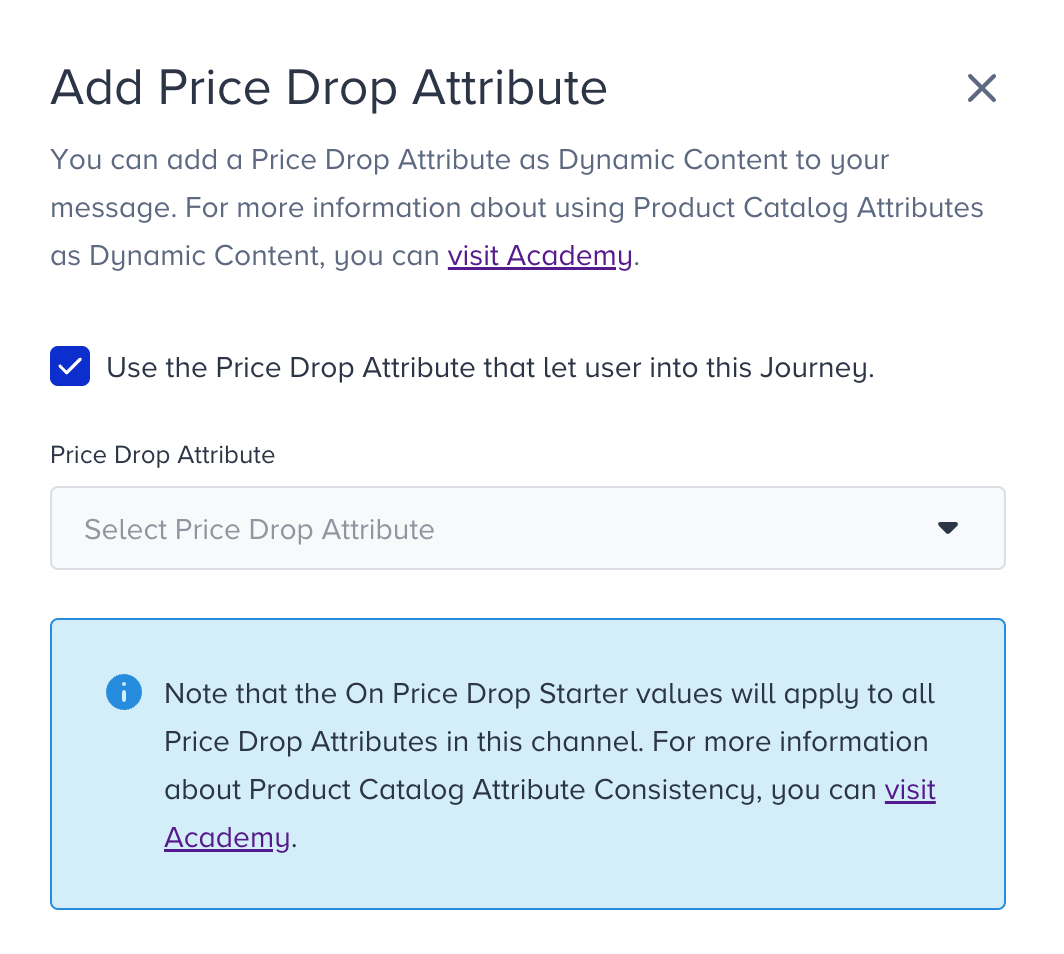
How can I add the product catalog attributes?
Once you add the On Price Drop or On Back in Stock starters to your journeys, the respective product catalog attribute will be available in the Add Dynamic Content option on all available channels in your journeys.
- Web Push
- App Push
- SMS
1. Add the On Price Drop or On Back in Stock starter. 2. Add your other elements to your journey. Design your journey based on your business needs by adding a channel element.
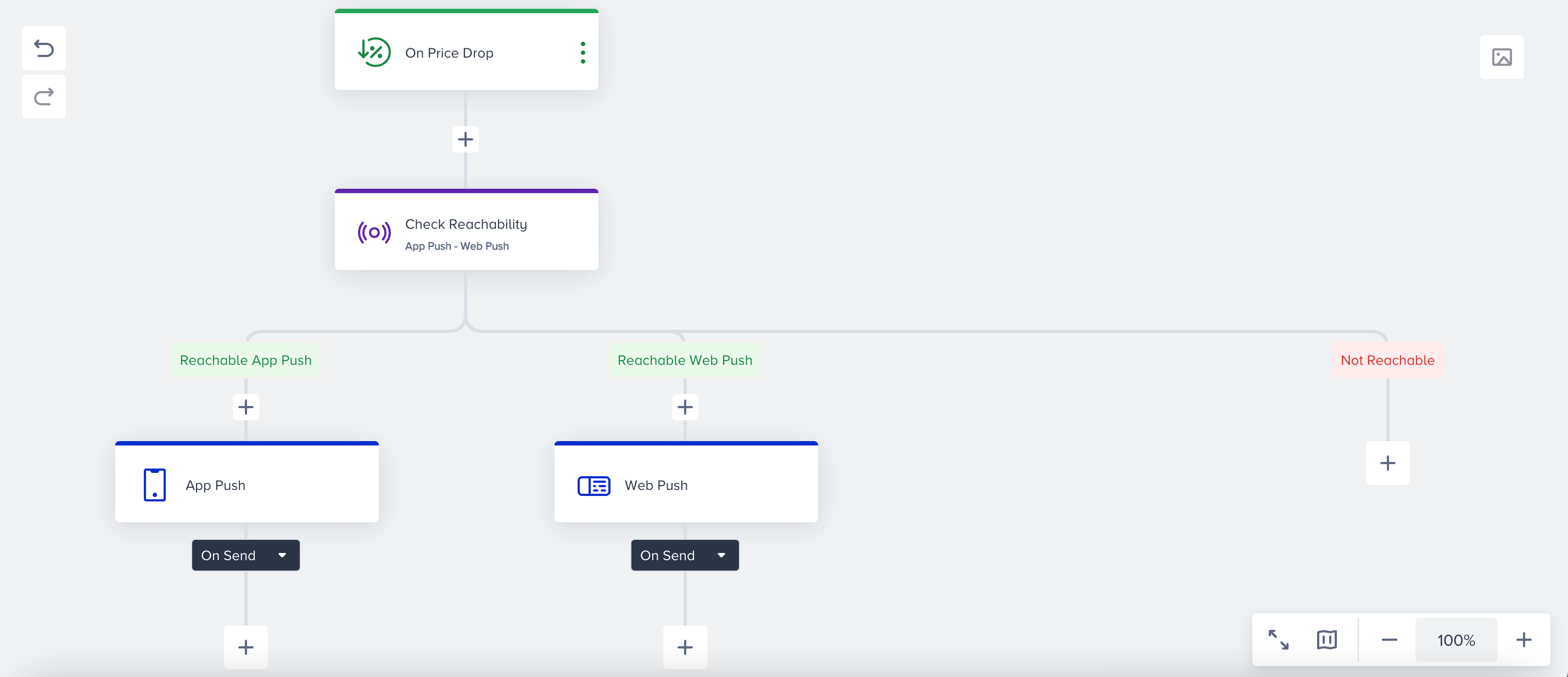 3. Click the channel element that you want to personalize.
4. Click the Add Dynamic Content button.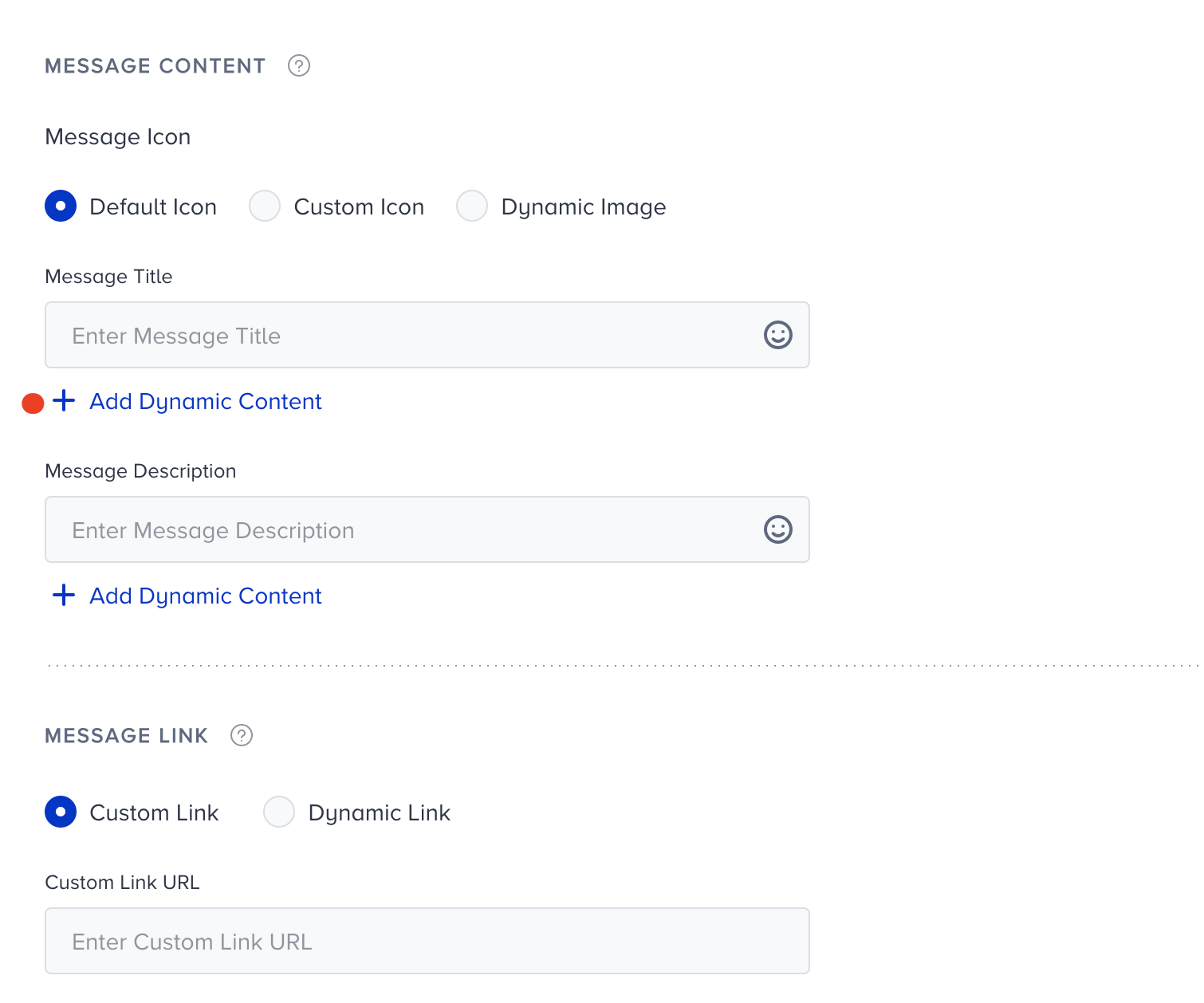 5. Hover on the Product Catalog Attributes to see the available options for your starter element. The example below is for the On Back in Stock starter.
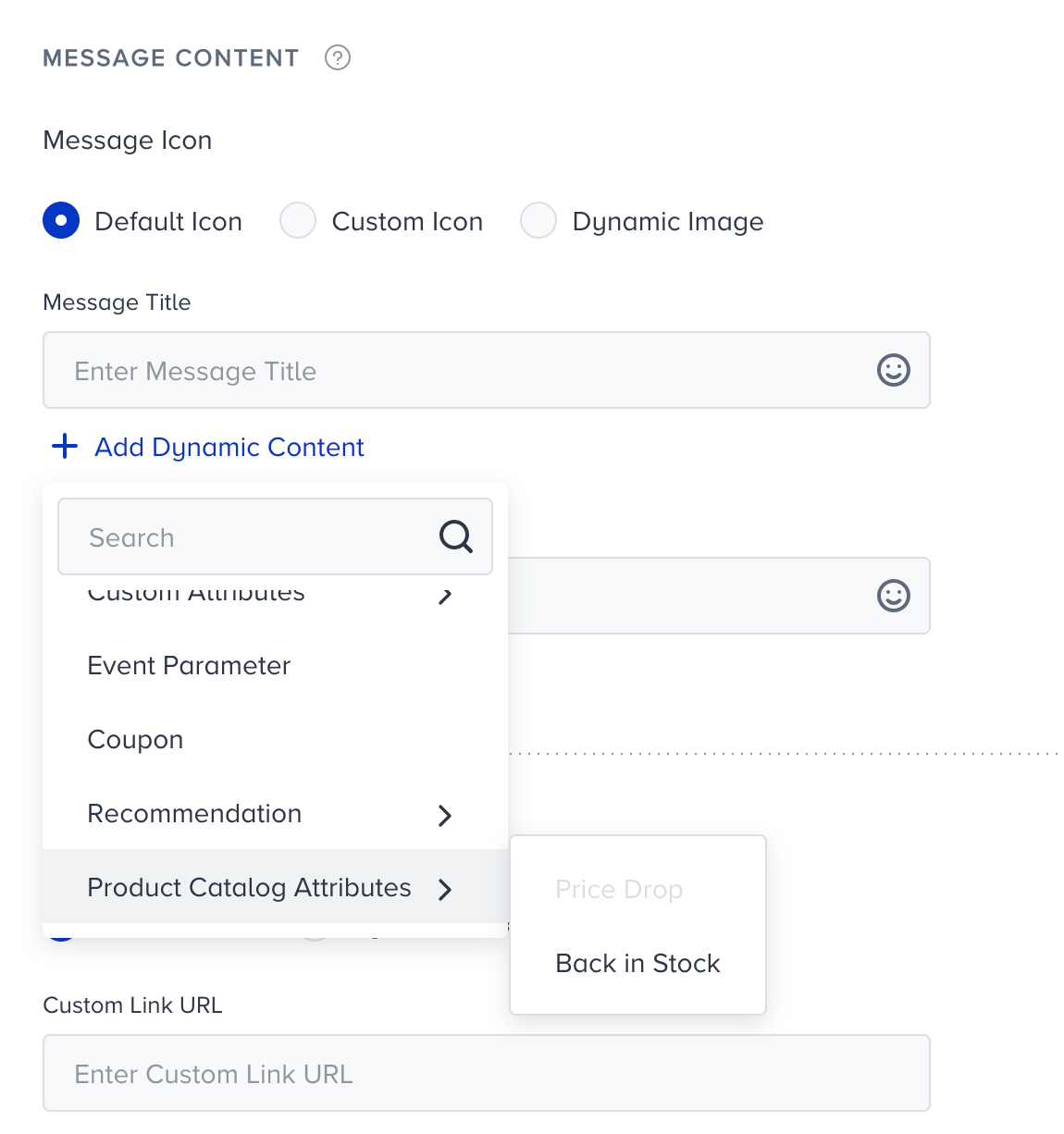 6. Select the attribute you want to use in your message.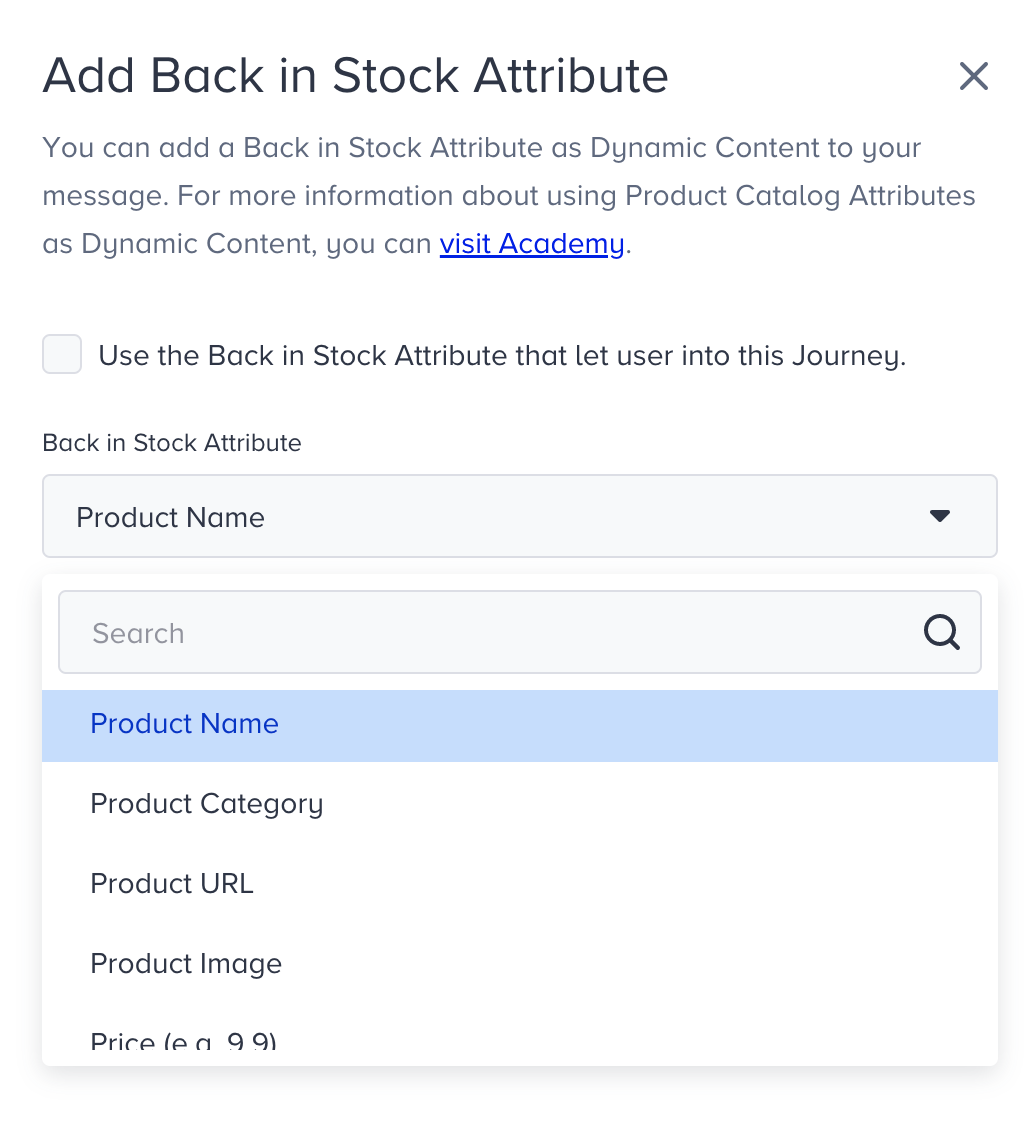
7. To send a relevant message to your starter element, check the "Use the Back in Stock Attribute that let user into this journey" box.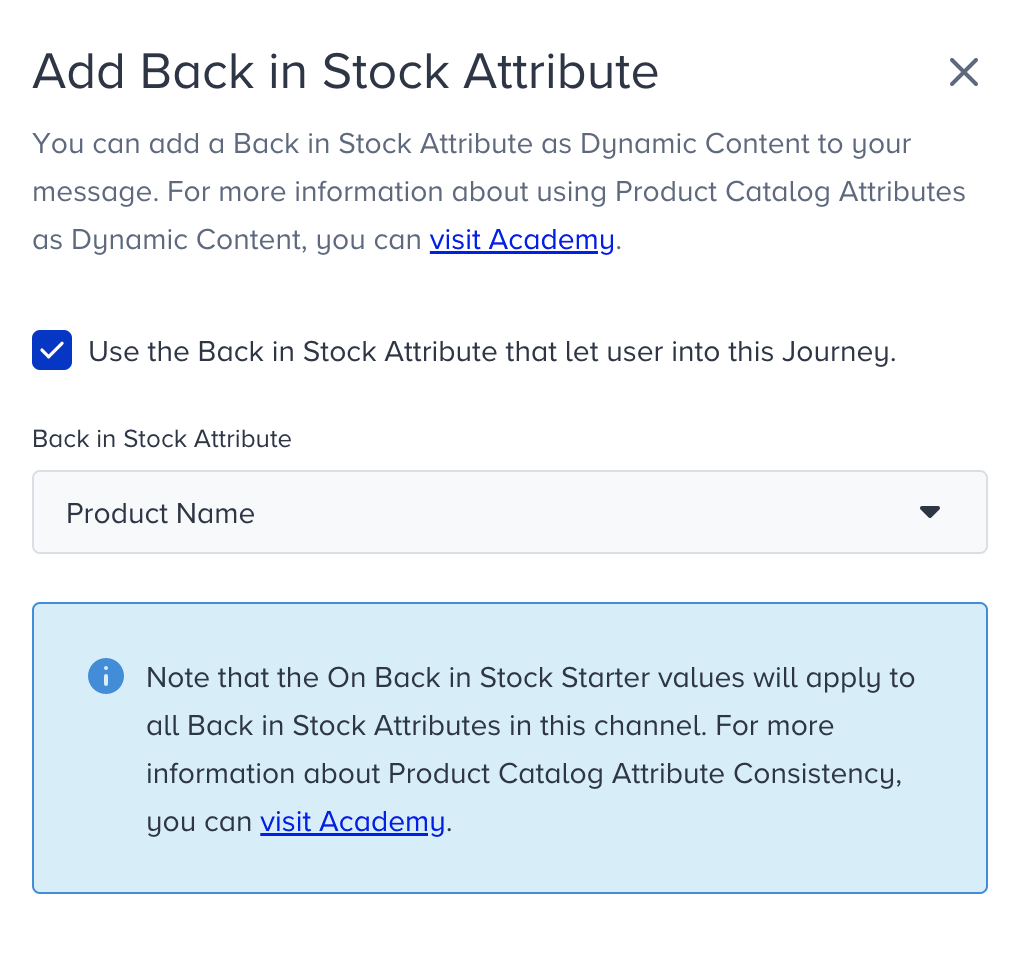 8. Compose your message.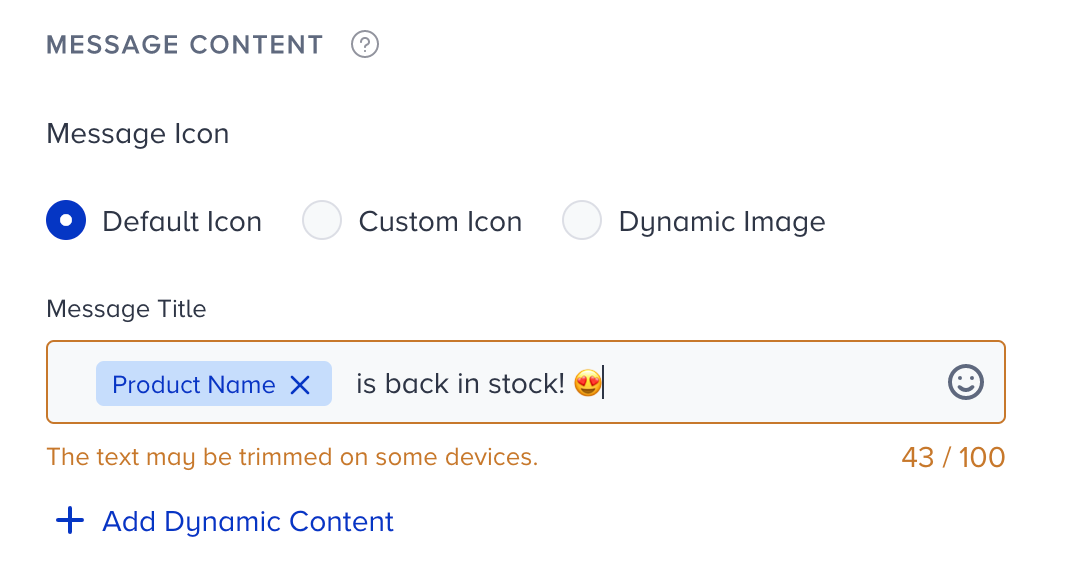
You can define a fallback value for your dynamic attribute to show in case there is no matching value to show the user.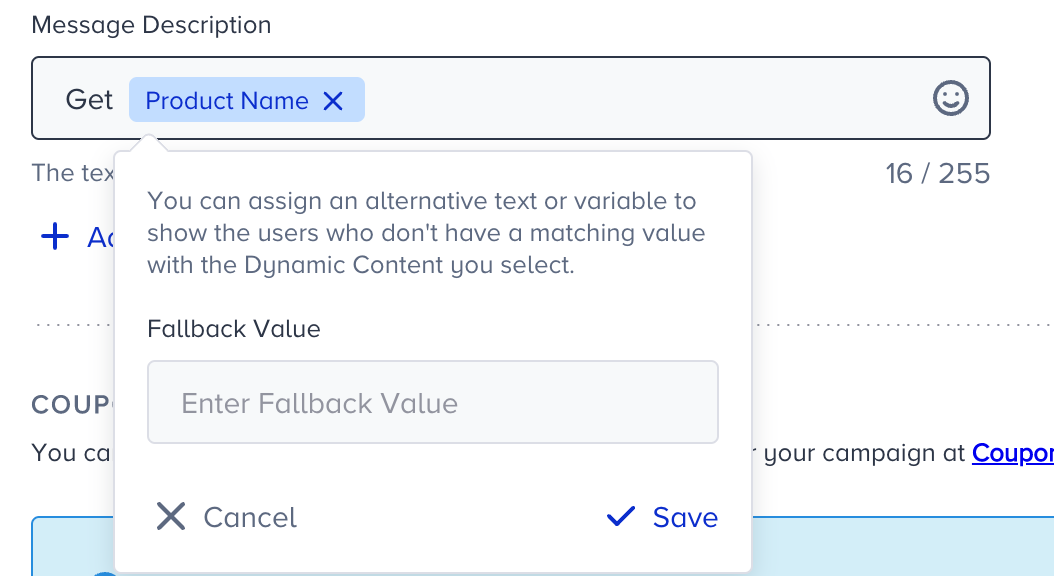
9. You can enable a constant product catalog attribute. While the user is proceeding on the journey, the price of another product might drop before the user receives the original price drop message. If you want to send the price drop information that triggered the journey instead of the new product price drop, enable the "Use the Price Drop Attribute that lets the user enter this journey" option. Therefore, you can send a relevant message to your starter element.
10. Click the Save button to save your changes.
11. Apply the same steps for the Price Drop attribute with your On Price Drop starter.