Suggested readings: Personalized Content in Architect Journeys, Coupon Lists, Coupon Status, Creating a Coupon List, Coupon Usage Reminder
You can use coupon codes, also called vouchers or promo codes, in the message content of the Web Push, App Push, Email, SMS, WhatsApp, InApp, and OnSite channels.
If this video does not load in your region, you can watch it on our YouTube Channel.
To add a coupon code to your message, follow these steps:
1. Add a channel element to the journey
Add one or more channel elements to the journey where you can use coupon codes: Web Push, App Push, Email, SMS, and WhatsApp.
2. Add a coupon code to the content
Click the Add Dynamic Content button to add the Coupon Code attribute to your message.
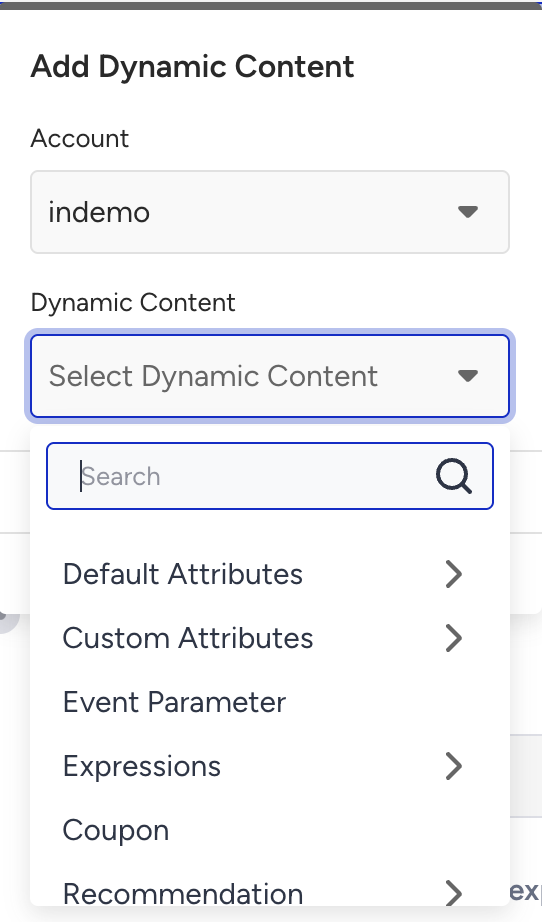
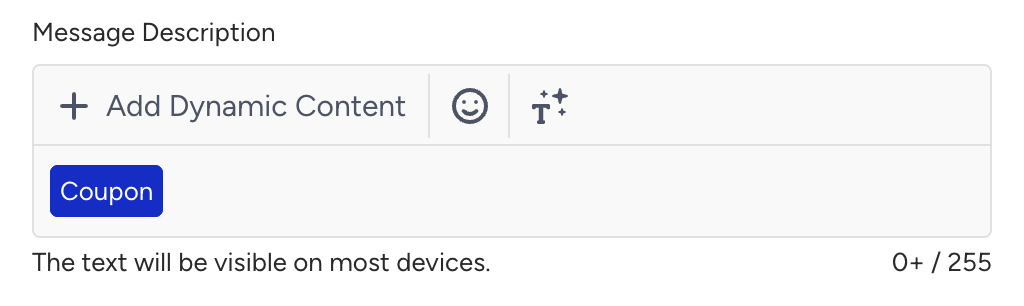
For InApp and OnSite channels, to use a coupon in your template, you can either select a template that includes a coupon or manually add the Coupon component.
3. Send a new coupon or a previously assigned one
Once you have added the coupon as dynamic content, you have two options:
You can send a new coupon to your user from the coupon list of your choice.
You can send a coupon that was previously sent to the users in the same journey.
If you want to remind your users of the coupons you have sent before, you should select the second option. However, this option will be enabled only if you have previously sent a message with a coupon to your users in the same journey.
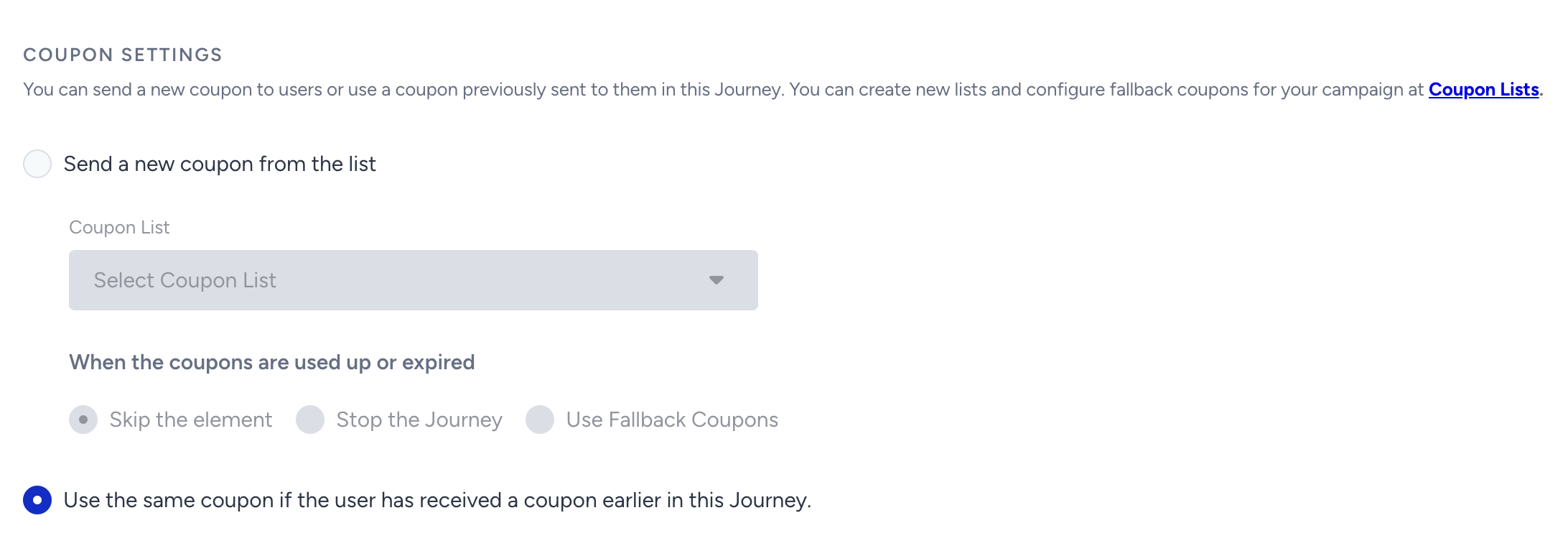
Select one of the coupon lists that you have uploaded before from the Coupon Settings section inside the channel's inner pages.
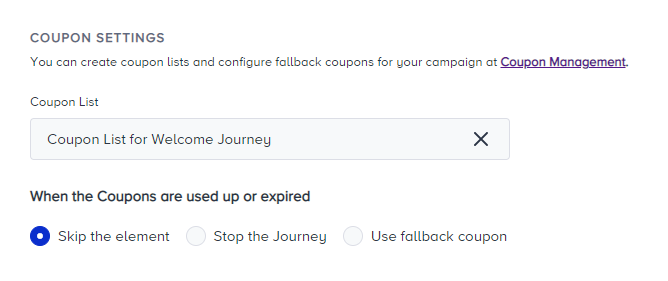
You can select the coupon lists only for the Active or Processing status. You can select the same coupon list in different channels and journeys. For InApp and OnSite channels, the same coupon cannot be reused. Additionally, this option will be unavailable in other channels if the original coupon was assigned through either of these channels.
You can also set coupon reminders for your coupon lists. Refer to Coupon Usage Reminder for further details.
.png)
4. Select an action
Select the action that will be taken when the coupons on the list are expired or used out.
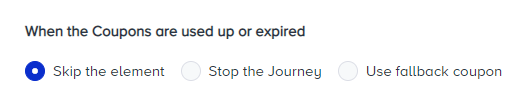
Skip the element: Users will skip the related element and proceed to the next element without receiving any message from that specific element.
Stop the Journey: The Journey will be automatically paused when coupons are expired or used out.
Use fallback coupon: The fallback code that you have entered while uploading coupons will be used instead of the coupons.
5. Save the element
Click the Save button to save the channel element.
Coupon Events
The following custom events are created for cases where the coupon feature is used within a journey.
Coupon Usage Event
The Coupon Usage event allows the segmentation of users who used or didn’t use their coupons and tracks when a coupon is redeemed by a user.
Coupon Allocate Bulk Event
The Coupon Allocate Bulk event distributes coupons to multiple users simultaneously. It is useful for mass campaigns targeting a large audience.
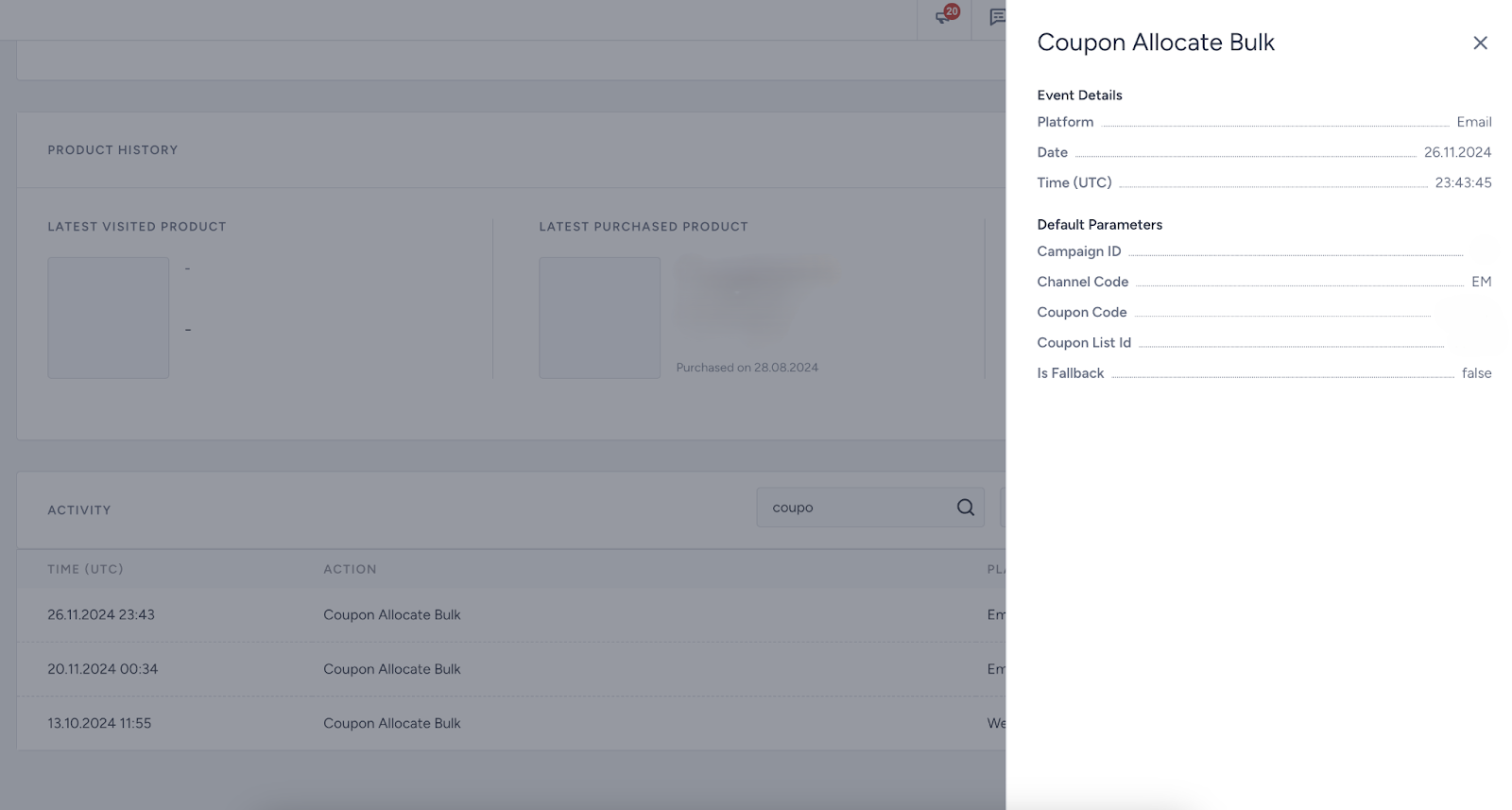
For the email-assigned coupon
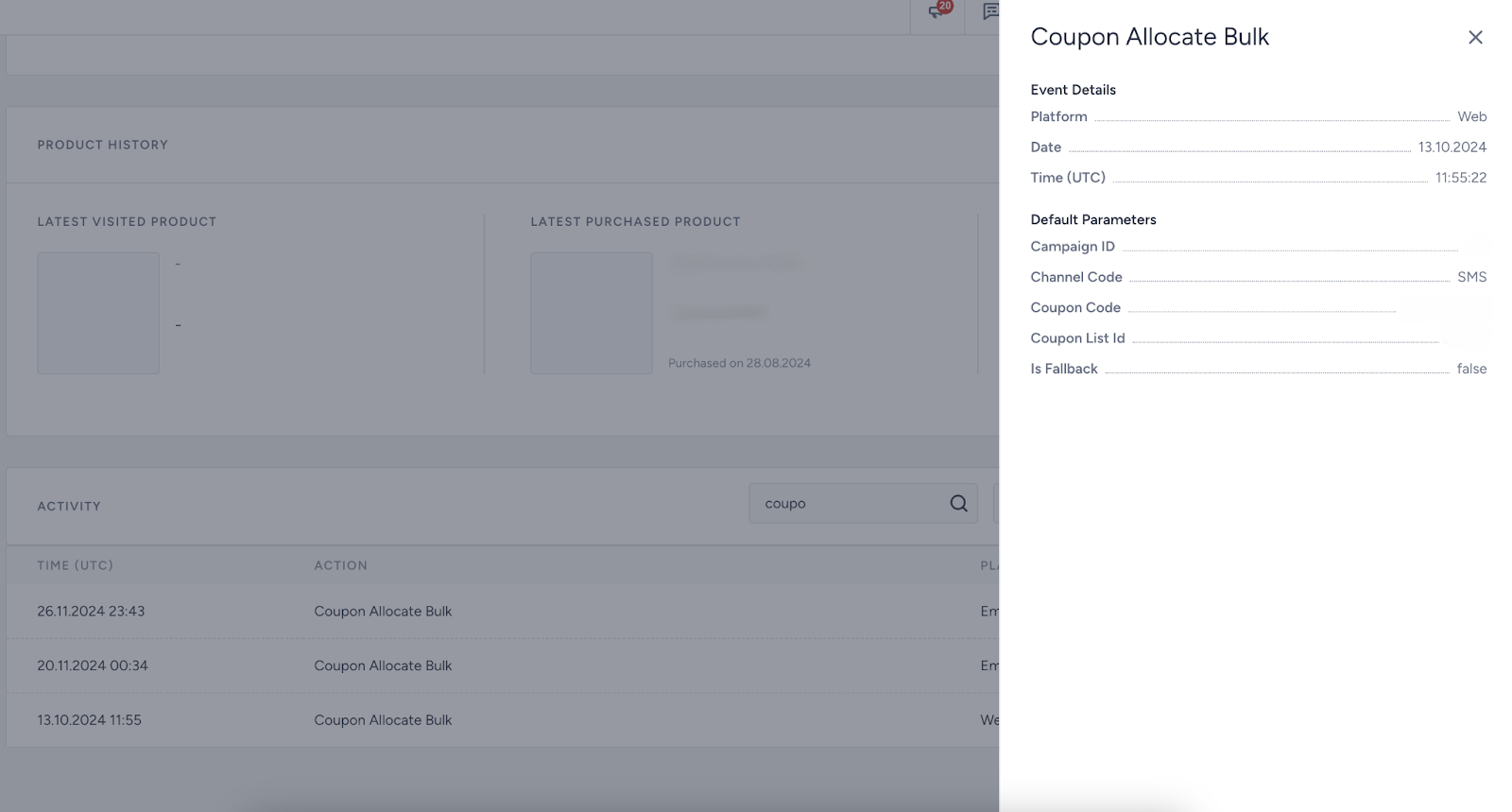
For the SMS-assigned coupon
These events are currently available only in Architect journeys.
The coupon usage events should be sent by the customers. The coupon service can track events, such as when a coupon is assigned to a user. However, customers should verify and send an event when the coupon is used.
You can see which coupons are assigned to users through these events. These events contain information about which code is assigned to which user. You can use these codes in the User Coupon Platform to segment and identify users who received specific codes. For detailed user-coupon data, you can use the Insider Webhook.