Custom goals are additional conversion actions you can add to a campaign to track performance beyond the three default goals (Purchases, Clicks, and Leads Collected). Default goals are automatically applied to every campaign and cannot be removed, while custom goals are optional and configured per campaign based on what you want to measure.
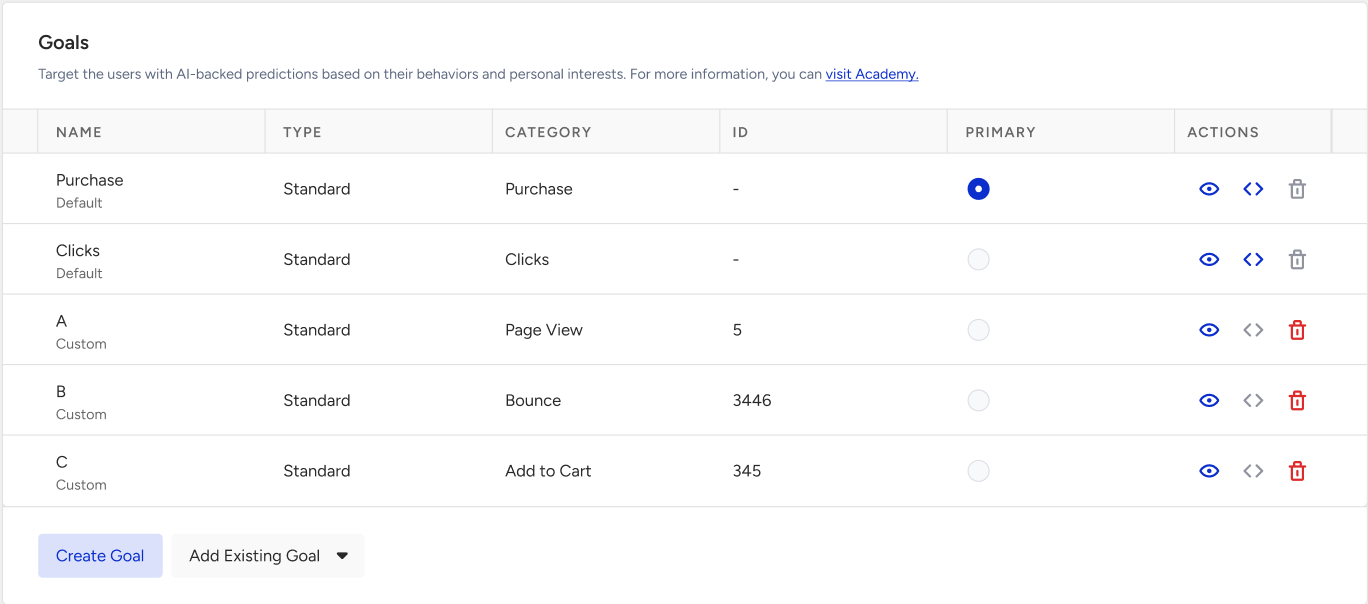
Custom goals come in two families:
Standard goals are measured on the user's browser and track what the user does on your site, such as a pageview, a click on an element, a rule match, a product interaction, a bounce, or an add-to-cart action.
Event Goals are measured server-side and track events that already flow into your Unified Customer Database (UCD). They support click-through and view-through attribution and can be narrowed down with event parameters.
When to add a custom goal:
Add a custom goal when the default goals do not capture the specific action you want to attribute to a campaign. For example, if you want to track add-to-cart events, pageviews on a specific URL, or the performance of a specific product, you need a custom goal.
Standard Goal
A standard goal counts a conversion when a user performs an action on your website while the campaign is running. The action is detected in the user's browser, so the goal is defined by what it should match on the page, such as a URL, an element, a product, or a rule.
Event Goals
An Event Goal counts a conversion when a user sees or clicks your campaign and then triggers an event. You can add up to 10 event goals to the same campaign.
If a user sees or clicks your campaign, the attribution window starts, and the goal event triggers shortly afterward (e.g., within 10 seconds), the impression or click event associated with the attribution window might not match the goal event. As a result, the conversion may not be tracked for that campaign. This is a known limitation called a “race condition.”