InStory Element Library provides a range of elements you can add to your stories to create more engaging experiences for your website visitors..png)
Create your InStory campaign as usual and select your InStory template in the Design step.
Click the story that you want to edit.
Click Add Elements on the toolbar at the top of the page.
You can add text, stickers, an emoji slider, a poll, or a countdown timer. Select the element you want to add and place it.
Elements Library
Text
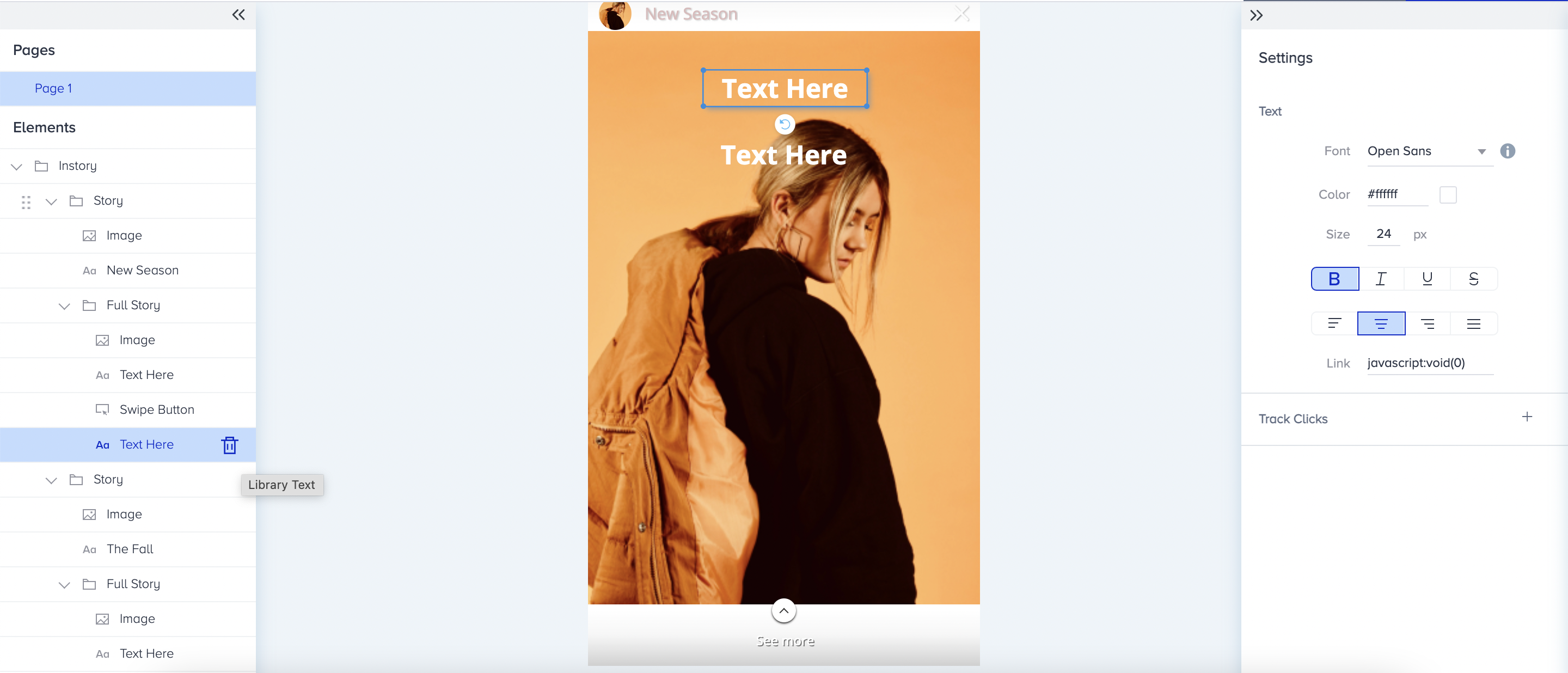
You can click your text element to add new text. The right menu allows you to customize its style (font size, color, and alignment). You can also delete it by clicking the icon next to it.
Countdown
You can customize the look of your countdown timer using the style options on the right menu.
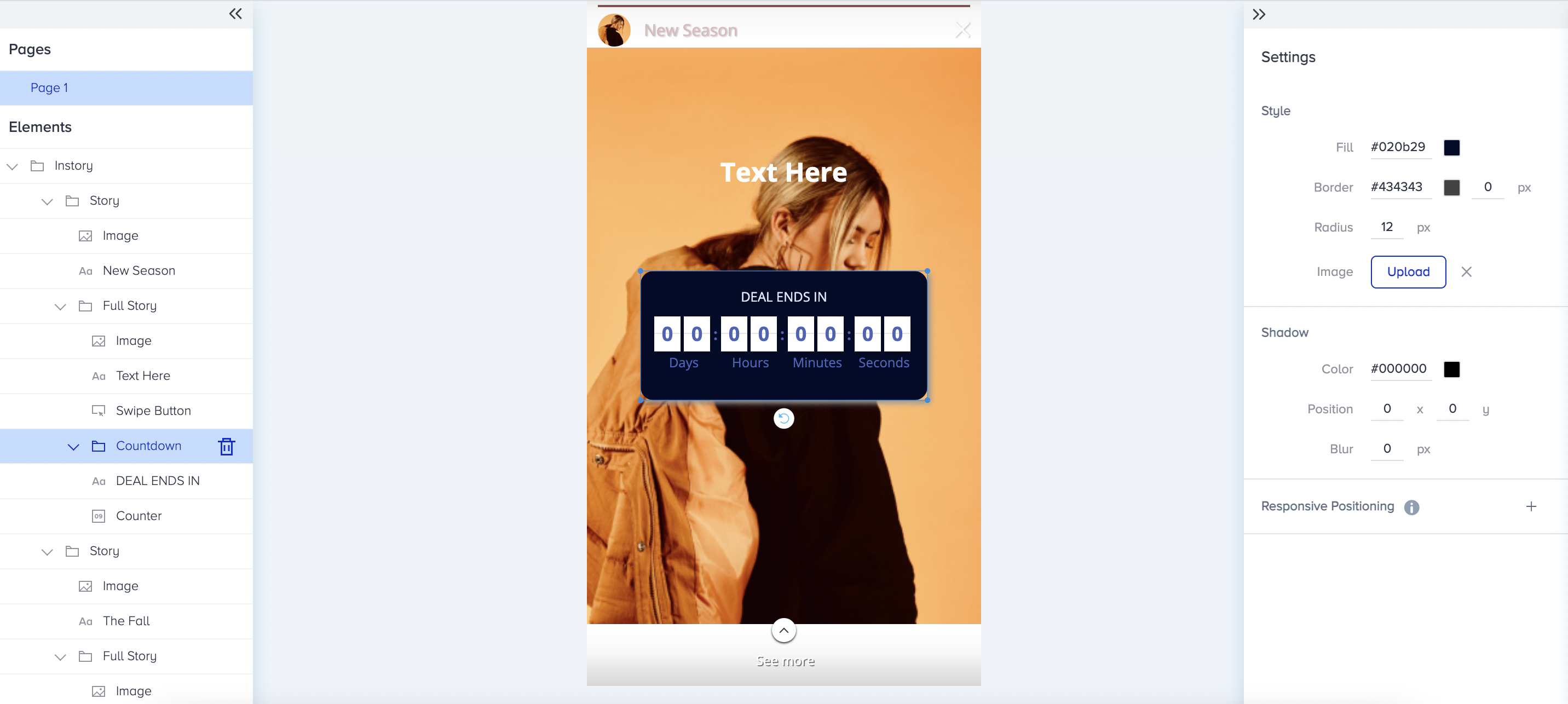
You can align its position using Responsive Positioning.
You can configure your timer with Countdown Settings.
The timer will not start on the design page until you test your campaign in Active or Test status.
You can add an After Finish Text to display when the countdown ends.
Sticker
You can change your sticker using Background Settings and align its placement using Responsive Positioning.

Emoji Survey
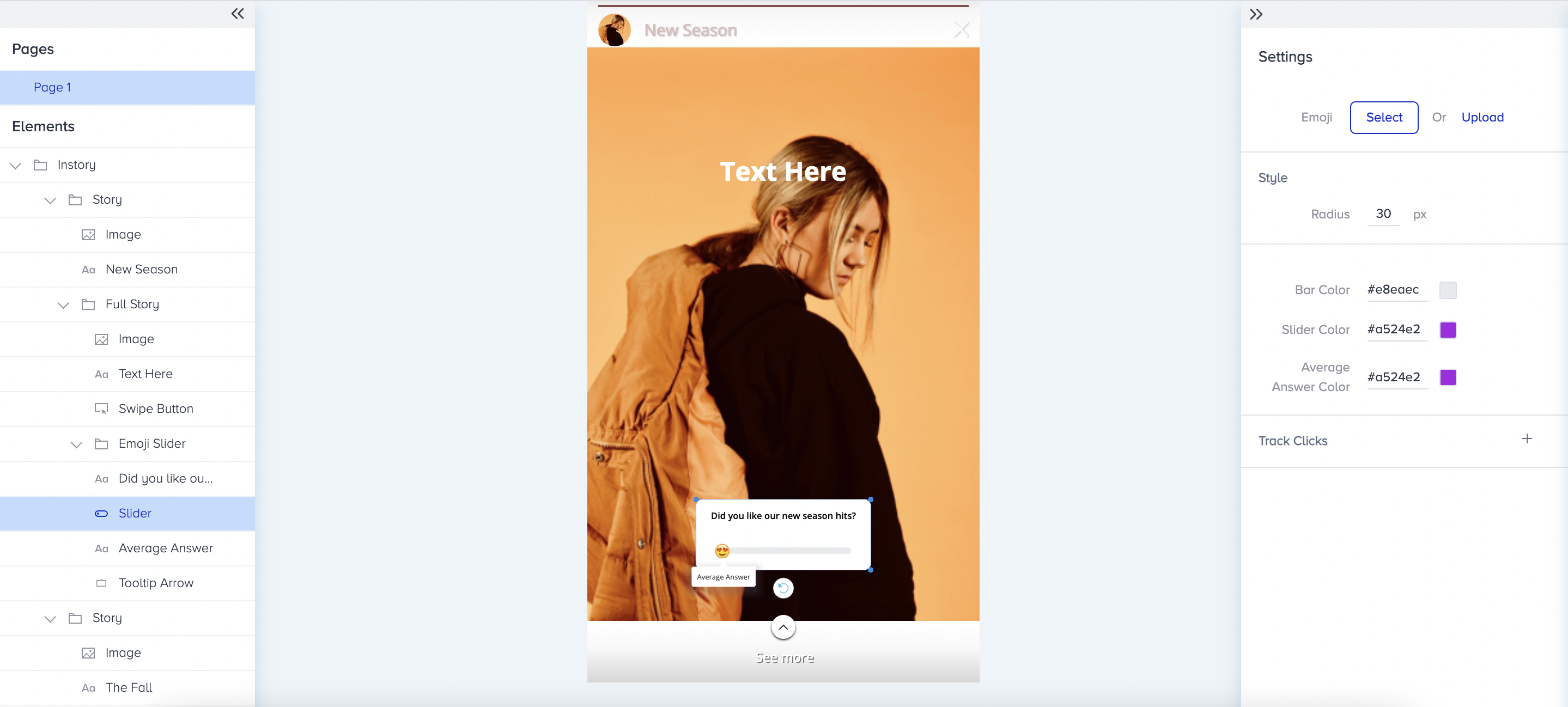
You can use emoji sliders on your stories to interact with your users. In the right menu, you can select emojis, upload your own, or configure the text style.
Poll
You can ask your users a question with answer options or offer them options. You can configure its settings in the right menu, and you can add links to answer buttons to direct your users to a specific page.
