Suggested readings: Architect Channel Email, Using Email, Architect Email Analytics, Email Metrics
When you are at the Email element on the canvas, you can click the Go to Email Analytics button to see this channel's analytics.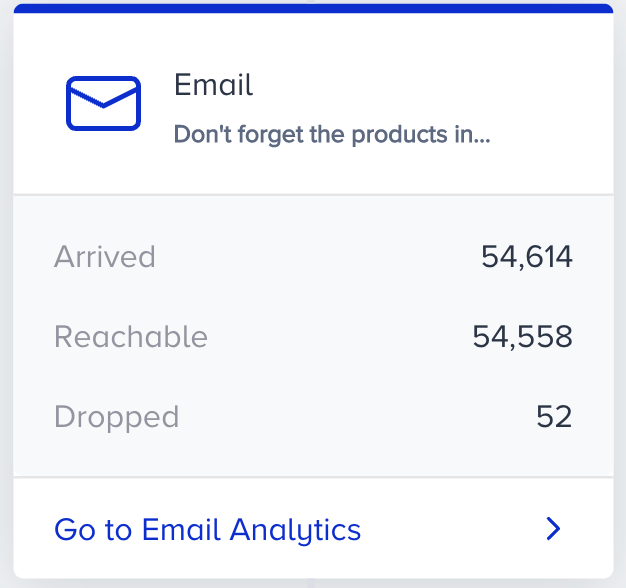
To filter the email metrics, you can:
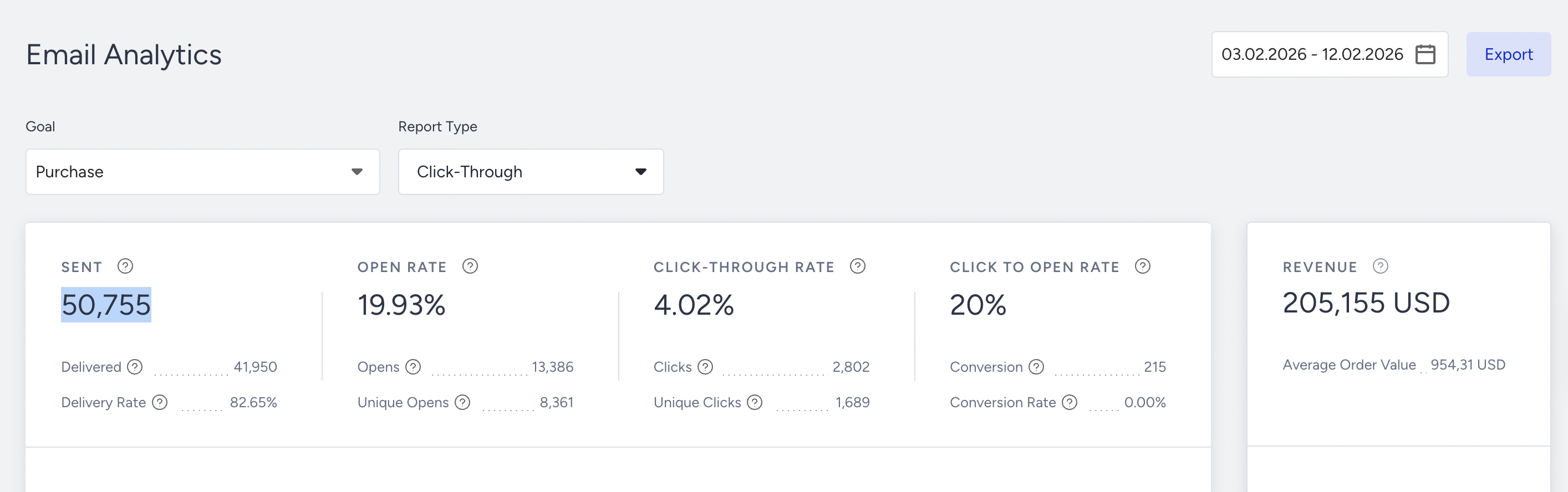
Select a goal to evaluate your email conversions and conversion rate metrics via the dropdown in the top left corner of the page.
Purchase is the default goal set on your account. You can set goals on the top bar of the canvas when creating your journey. Read more on Set Goals.
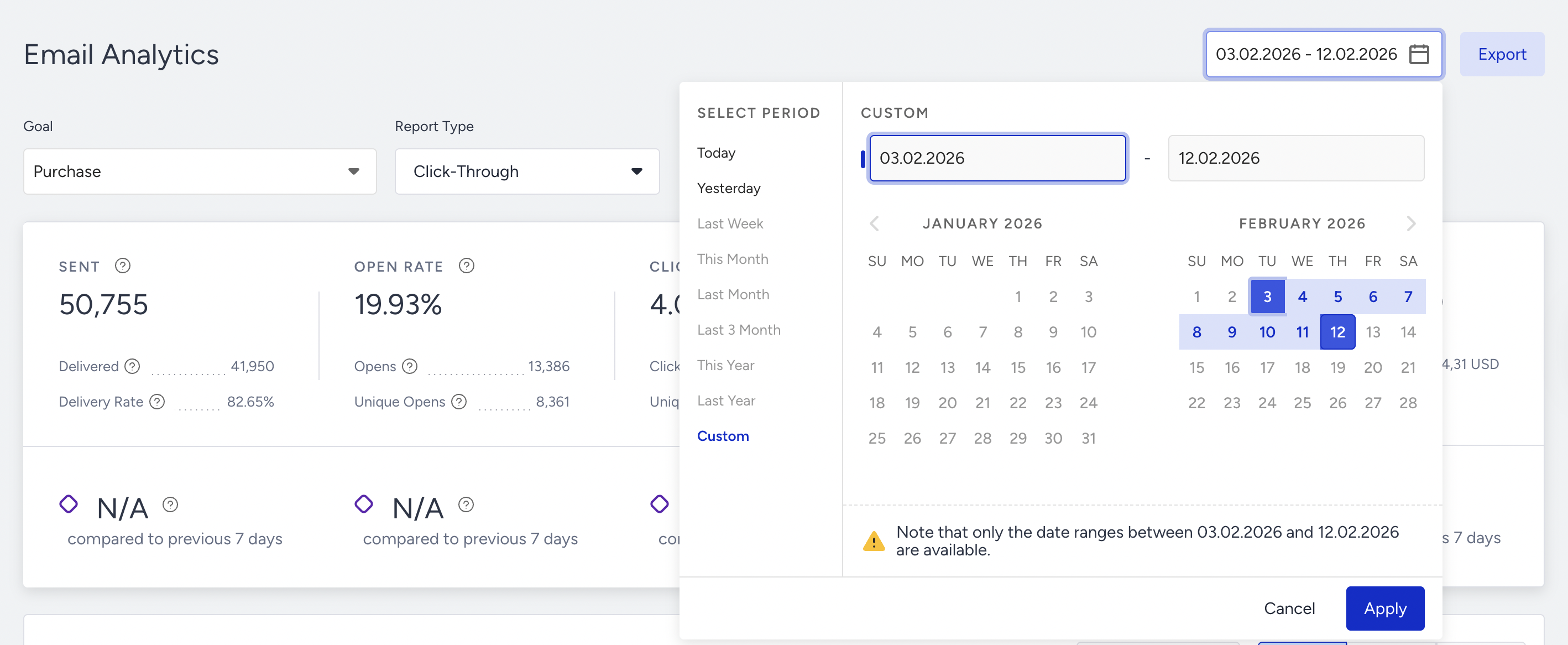
Select a time range using the date picker in the top right corner of the page.
You can also click the Export button to export your report to Excel.
You can also use the Architect Channel Analytics API to export your results.
If you have an AMP form in your email design, you can collect responses and export them as well. In the settings panel, select the predefined data-collection service. Once you decide, the feedback form replies will be saved. Later, you can export the form responses from the Channel Analytics page.
You can also click the Export > Form Responses button to export your report in Excel format.
Channel Metrics
Narrowing down your results, you can see the following metrics:

You can view incremental or decremental changes in sent, open, click-through, conversion, and revenue across the selected date range. For example, choosing last month compares the last month to the previous month. Selecting 7 days in the date picker compares the selected 7 days with the previous 7 days.
Since only 6 months of prior data are available for comparison, you can select a period of up to 6 months.
Sent: The number of emails addressed to the users.
Delivered: The number of emails messages successfully transferred to the email service providers.
Delivery rate: The percentage of the delivered to the sent email messages.
Architect counts each metric on the date its own event happens, not on the date you sent the message. On a narrow date range, a rate such as the delivery rate can exceed 100%, for example, when deliveries are confirmed after the send date. Widen the date range to cover both the send and the later events.
Open rate: The percentage of times the users open the emails to the delivered emails.
Opens: The estimated number of email messages opened by users and MPP service (Mail Privacy Protection). This number demonstrates the number of opens regardless of unique users. This means that if the same user opens the sent email 5 times, this number will increase by 5.
Unique opens: The estimated number of email messages opened by the users and MPP service (Mail Privacy Protection) for the first time. This number demonstrates the number of opens regarding the uniqueness of users. This means that if the same user opens the sent email 5 times, this number will increase by 1 and not 5.
Clickthrough rate: The percentage of times the users clicked on the URL in the email to the delivered emails.
Clicks: The total number of times the users clicked to the CTA in your email messages. This number demonstrates the number of clicks regardless of unique users. This means that if the same user clicks on the same item 5 times, this number will increase by 5.
Unique clicks: The number of times that the recipients clicked any link in your message for the first time. This means that if the same user clicks the same link 5 times, this number will increase by 1 and not 5.
Conversion goal duration settings affect the conversions and revenue metrics of your campaigns. For example, the conversion goal duration of your campaign is 1 hour. You see this campaign but do not purchase within the next hour. In this case, no conversion or revenue is displayed on the stats for this campaign.
Click-to-open rate: The percentage of the unique clicks to the unique opens.
Conversion rate: The percentage of conversions to the number of delivered email messages.
Conversions: The number of successful goal accomplishments. Conversions change according to the Conversion Goal selection on the dropdown.
Revenue: The total value of the purchases made via email.
Average Order Value: The revenue division by the number of purchases made via Email.
Performance by Metrics
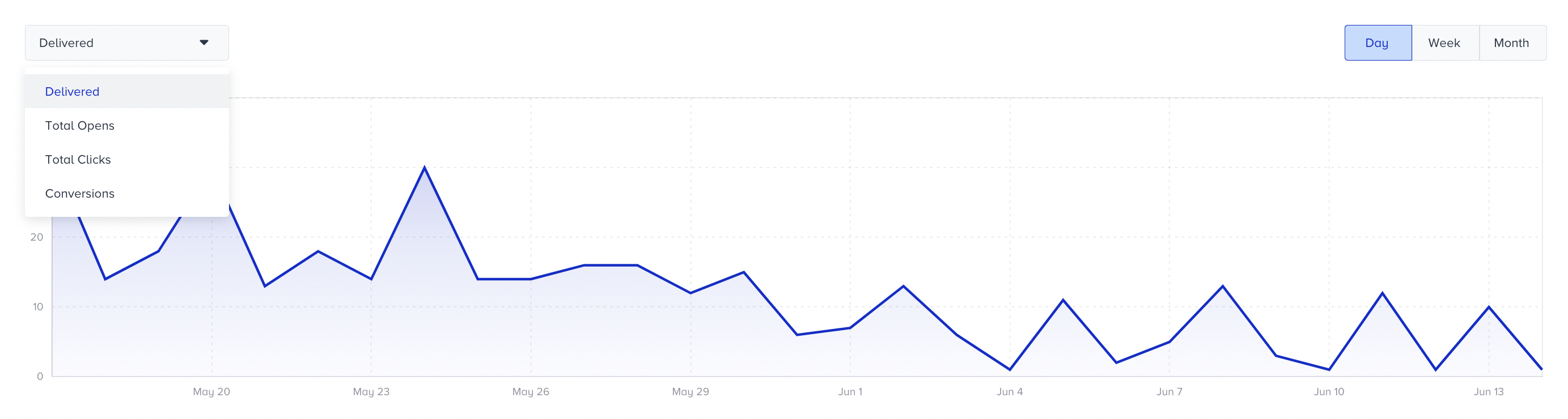
The charts section displays the daily, weekly, or monthly details on a line chart based on your time range selection and the metric you can select using the dropdown in the top left corner of this section. You can also select Delivered, Total Opens, Total Clicks, or Conversions.

The last section of this page allows you to view the following email-related details of the campaigns that you send on a specific date range:
Bounce Rate: The percentage of emails that bounce to the total emails sent.
Bounces: A bounced email is an email message returned to the sender because the recipient's address is invalid. A bounce may occur if the domain name doesn't exist or the user is unknown. If an email is on the bounce list, we will auto-drop any future requests to this email address.
Blocks: A blocked email is an email message that reaches the user’s email server but is bounced back as undeliverable before it reaches the intended recipient. Blocks can also happen when your message was rejected for a reason related to the message, not the user’s address. This can happen when your mail server IP address is added to a blacklist, blocked by an ISP, or when the message content is flagged by a filter on the receiving server. Blocks might also occur because the user’s inbox is full. Blocks are soft bounces.
Spam Reports: The number of users who have marked the email as spam. We will auto-drop any future requests to this email address.
Unsubscribers: The number of unsubscribes you have at the end of the date range chosen.
Refer to Email Metrics for further information on the metrics.
Open Rate Breakdown
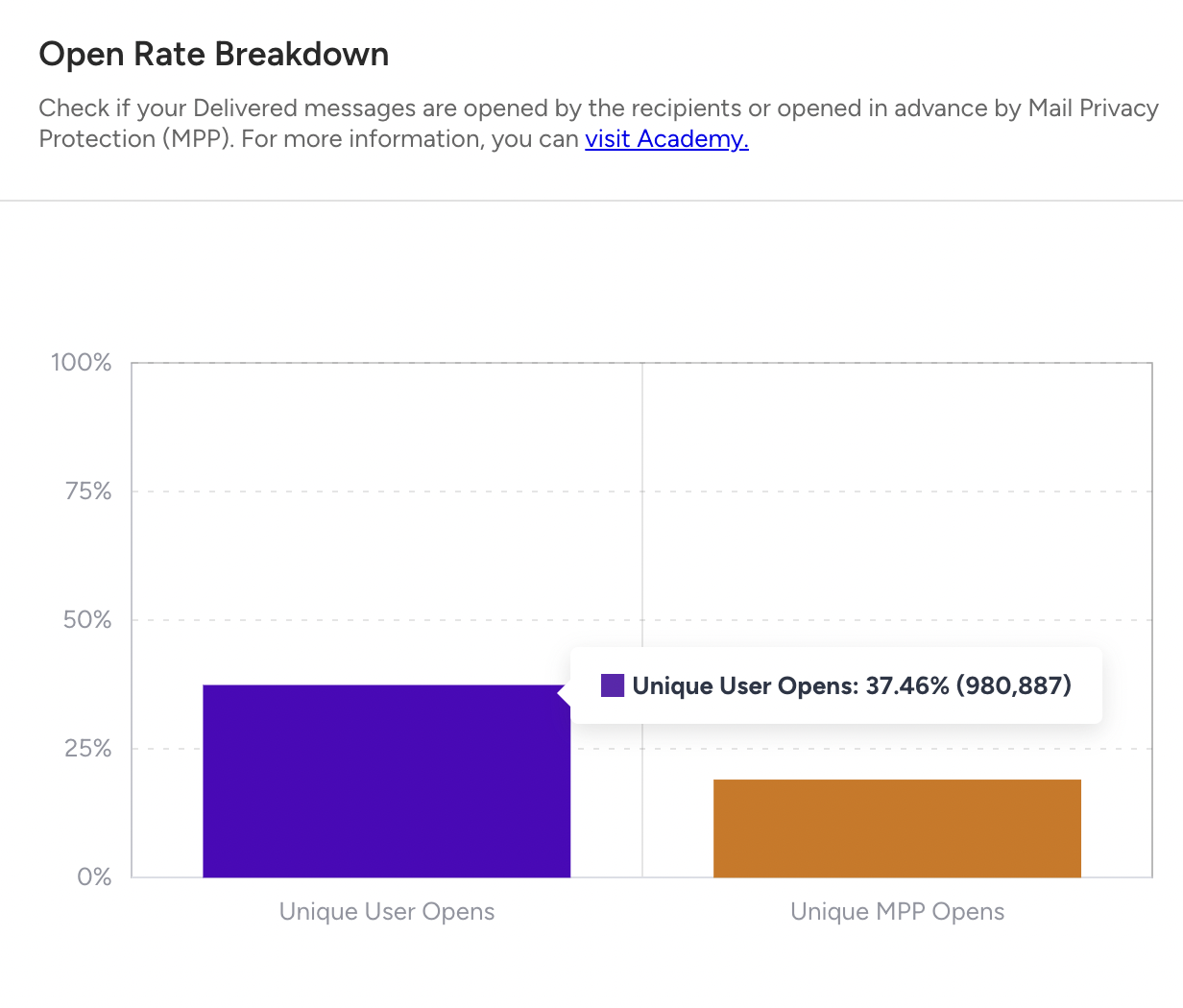
This section allows you to see the Open Rate Breakdown to check if your delivered messages are opened by the recipients or opened in advance by Mail Privacy Protection (MPP).
Unique User Opens: Calculated by (Unique User Opens/Delivered)*100.
Unique Machine Opens: Calculated by (Unique Machine Opens/Delivered)*100
Dropped Messages
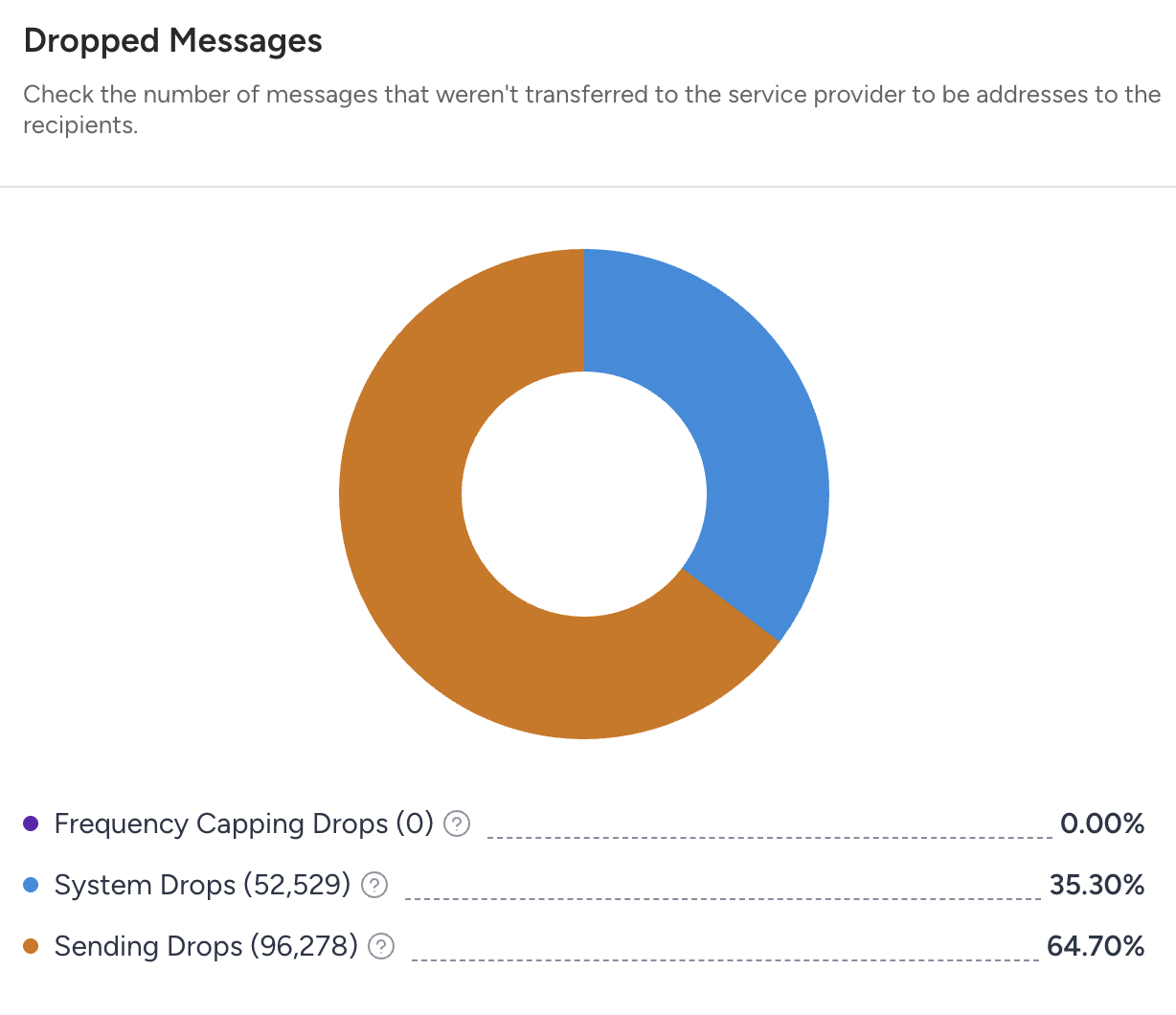
In this section, you can see the analytics of dropped subscribers to whom emails are not delivered due to various reasons. Some of these reasons are as follows:
Frequency capping drops: Emails are not delivered to the intended recipients due to enabled Email Channel Frequency Capping.
System drops: Emails are not delivered to the intended recipients due to default frequency capping. These emails may not be delivered due to incorrect integration as well (e.g., the value of email_optin and gdpr_optin is false).
Sending drops: Emails are not delivered because the email service provider cannot deliver them on their end. This equals Bounce Drops + Spam Report Drops + Unsubscribe Drops + Invalid Emails.
Link Click Activity
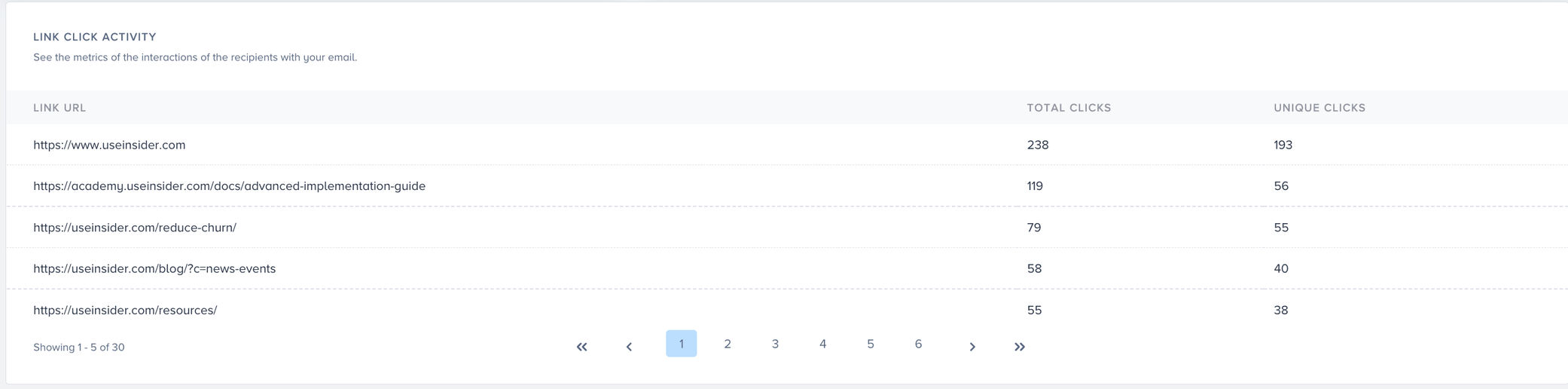
The Link Click Activity shows the total and unique clicks for URLs embedded in emails sent from journeys.