After you complete the integration process, you can start creating emails in your journeys following the steps below:
1. Add email channel on canvas
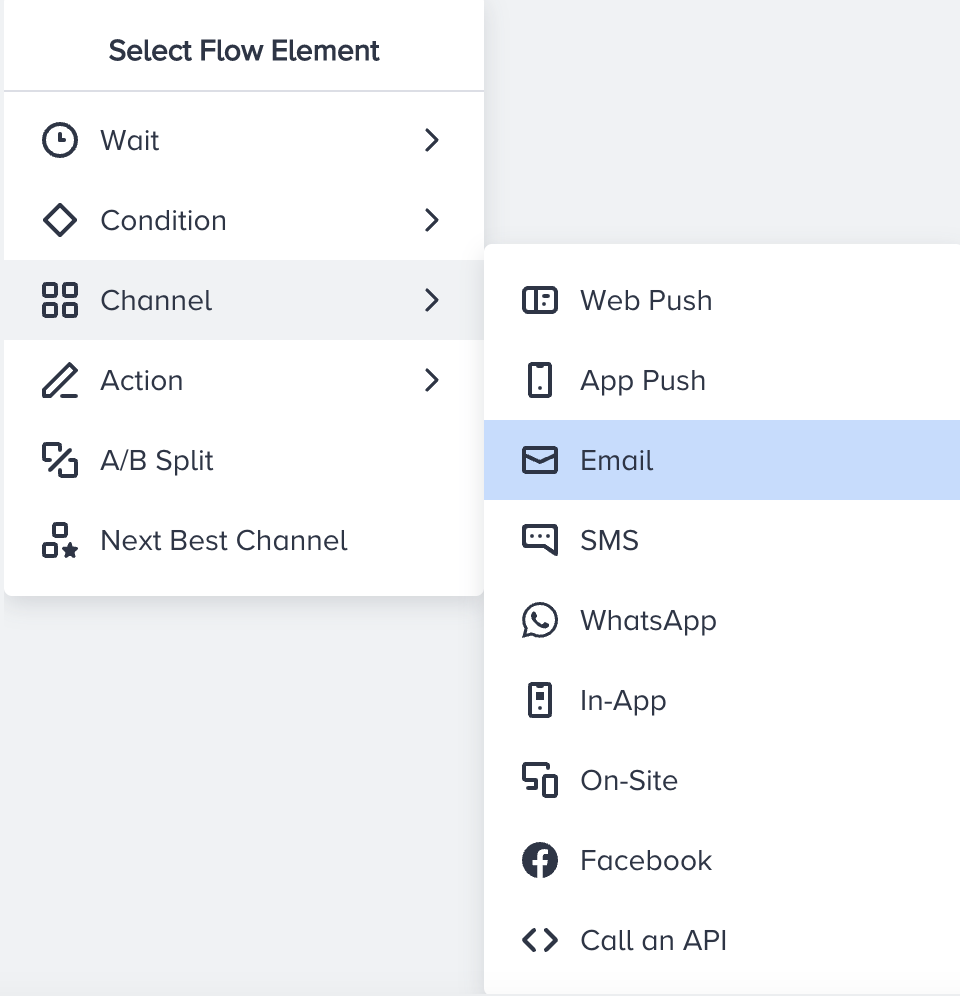
Click the Add button on the path you want to add email channel on your journey.
Click Channel > Email.
2. Select a sender and reply-to email address
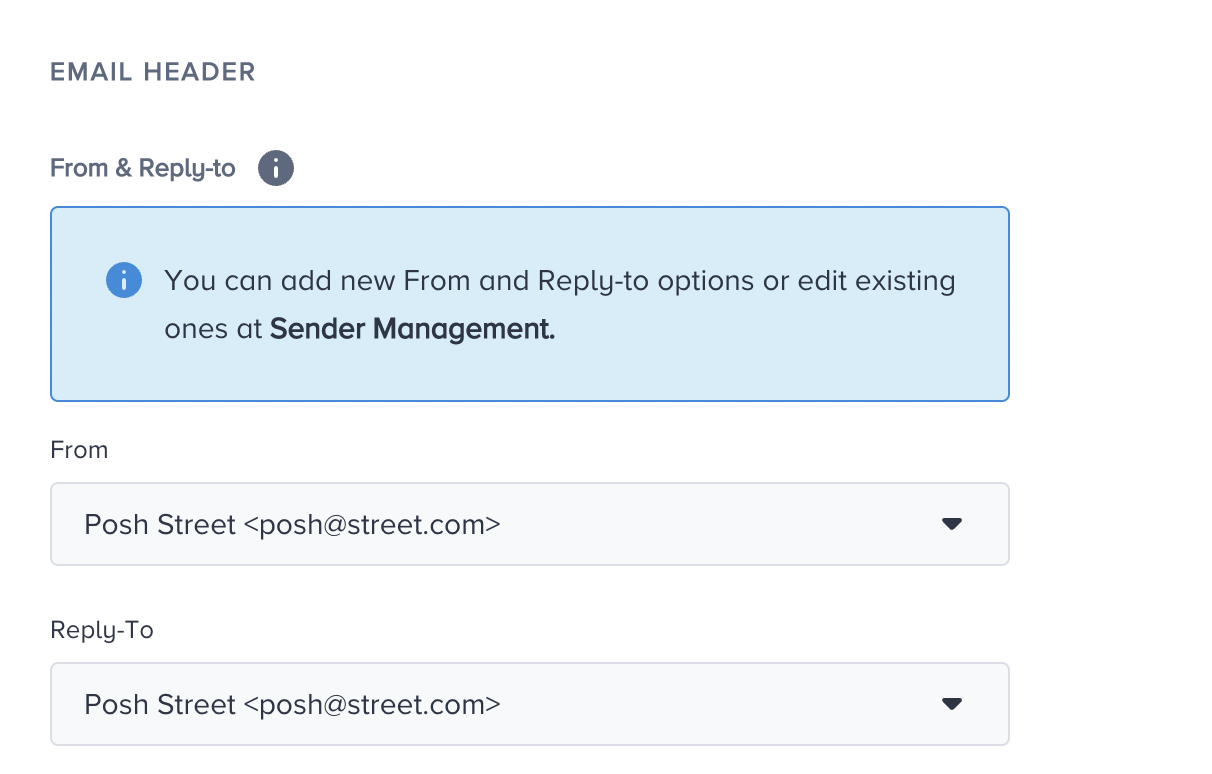
Select your sender email address from which you want to send your email to your users. You can change the sender address to another verified address based on your use cases.
Reply-to is the email address to which your users can send a reply. By default, the reply-to address is the sender (from) address, however, if you want to set a different reply-to address, you can select one from the dropdown.
Read more on Sender Management.
You can also add Dynamic Sender Address to your emails. The Dynamic Sender Address feature is released in beta. If you want to participate in the beta testing and get an early access, you need to create a support ticket. This feature is available for promotional bulk emails and Architect emails.
3. Specify subject
Click the Subject field to enter your subject.
If you want to be inspired or need assistance when creating your subject and preheader, you can always use the Generate Text option.

To use an AI-generated text:
1. Click the Generate Text button to see the side modal.
2. Enter a prompt you want to generate the text about.
3. The language option will be the default selected language of your panel.
4. Select your industry and use case to define the context for the text to be generated.
5. Click the Generate Copy button.
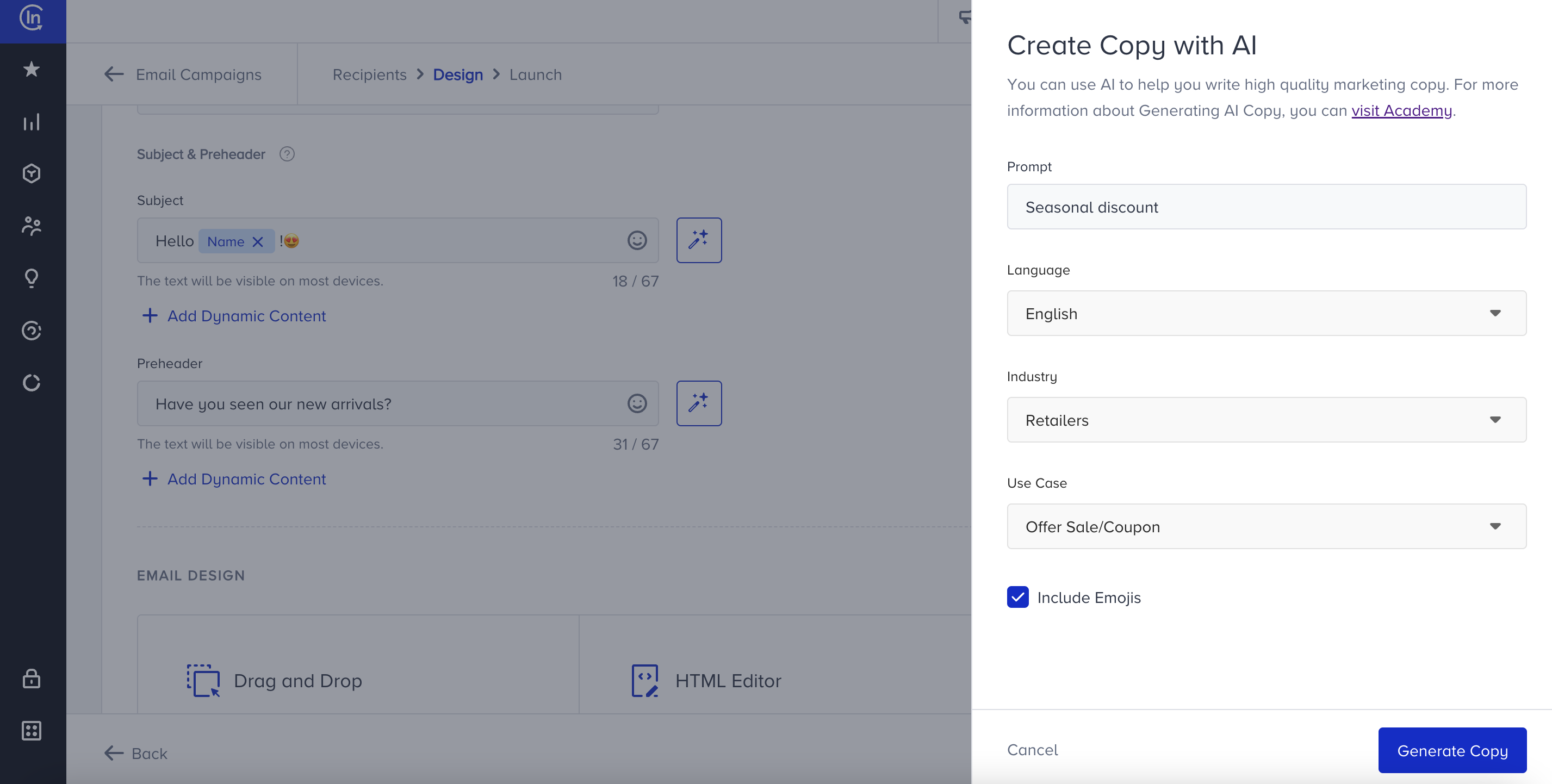
If you want to include emojis in your copy, you can check the "Include Emojis" box.
This option indicates that the AI can generate copies with emojis. However, not all options might include emojis.
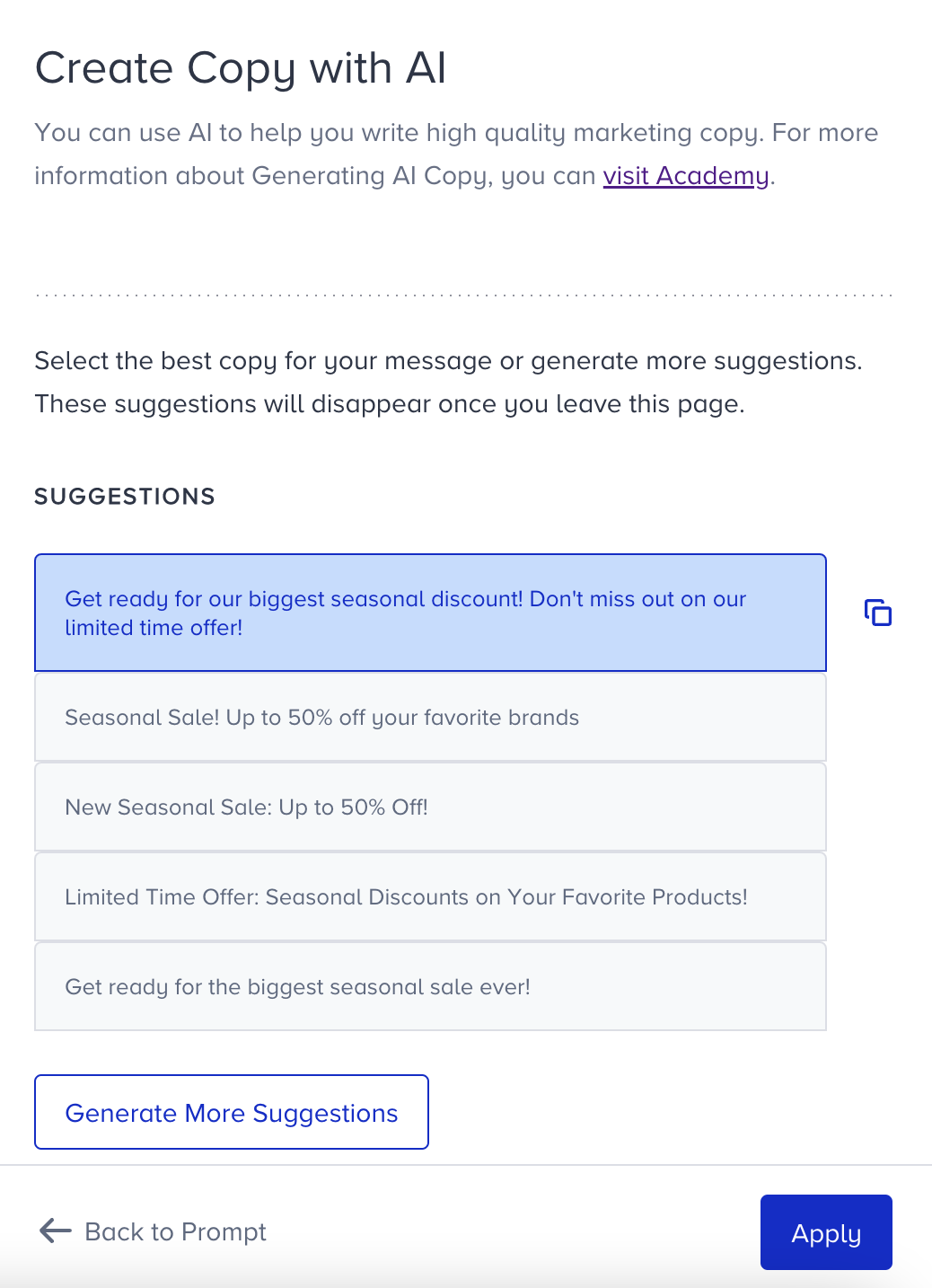
The modal displays 5 suggestions. To see more, you can click the Generate More Suggestions button.
To use any suggestion, you can select it and click the Apply button, or copy it via the Copy button against the suggestion you want to use.
Once you click the Apply button, the copy will be added to the respective field.
You can use default and custom user attributes, event parameters, and coupon code in the content to personalize it for your users. You can send a new coupon or previously assigned one. Read more on dynamic content.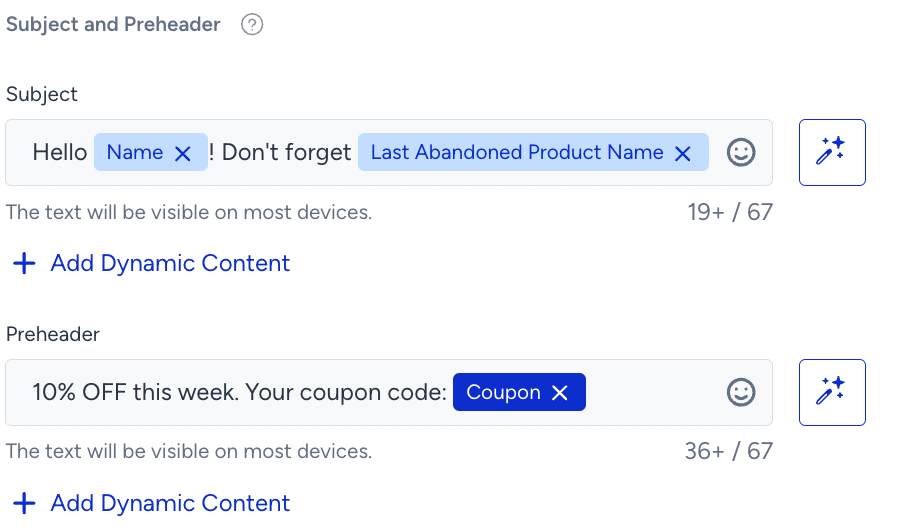
For users who do not have a value for the dynamic content, you can add alternative text (fallback) by clicking on the content tag.
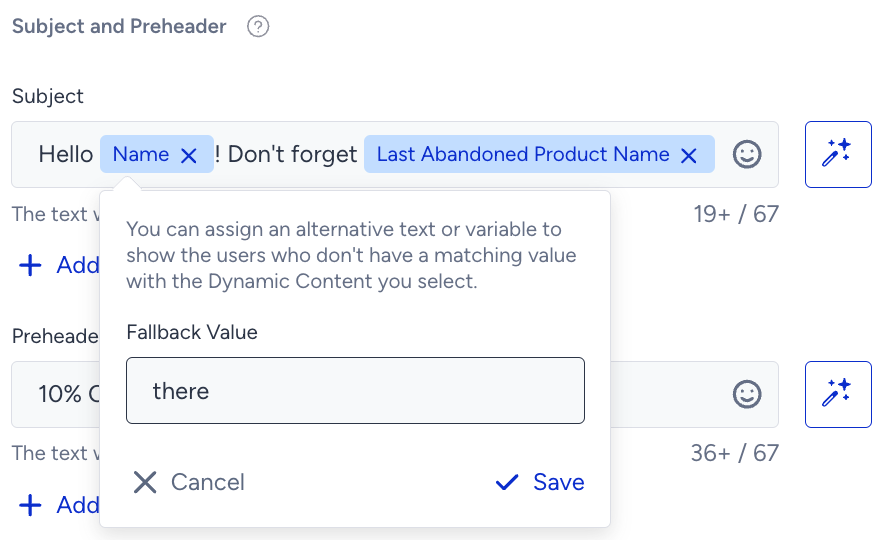
Architect excludes dynamic content from the character limit calculation. When you add any dynamic content, it does not have an impact on the character count. When you assign a fallback value to the dynamic content, it will be displayed to the user if the dynamic content's value is empty for that user. In this case, the character count includes the fallback value.
The plus sign in the character count indicates that dynamic content will receive a value upon message delivery to the end user.
The Subject line will be trimmed at the 66th character in most devices if you add more than 66 characters.
4. Add pre-header
Pre-header is a summary text that is displayed next to your subject line in the inbox. It helps increase the open rates on emails as it can draw users' attention. When you leave it blank, it is automatically defined by the email clients.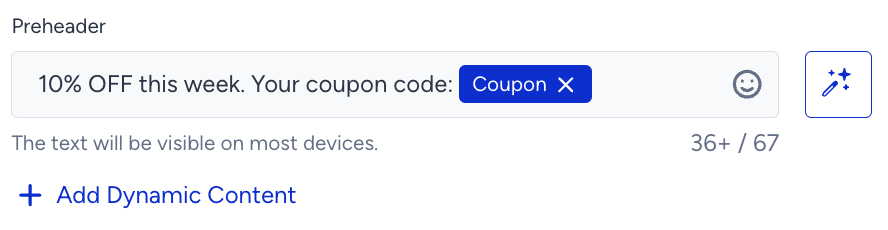
You can enable the Add White Space After Preheader toggle to add white space after the preheader and prevent the email HTML text from appearing in the preheader.
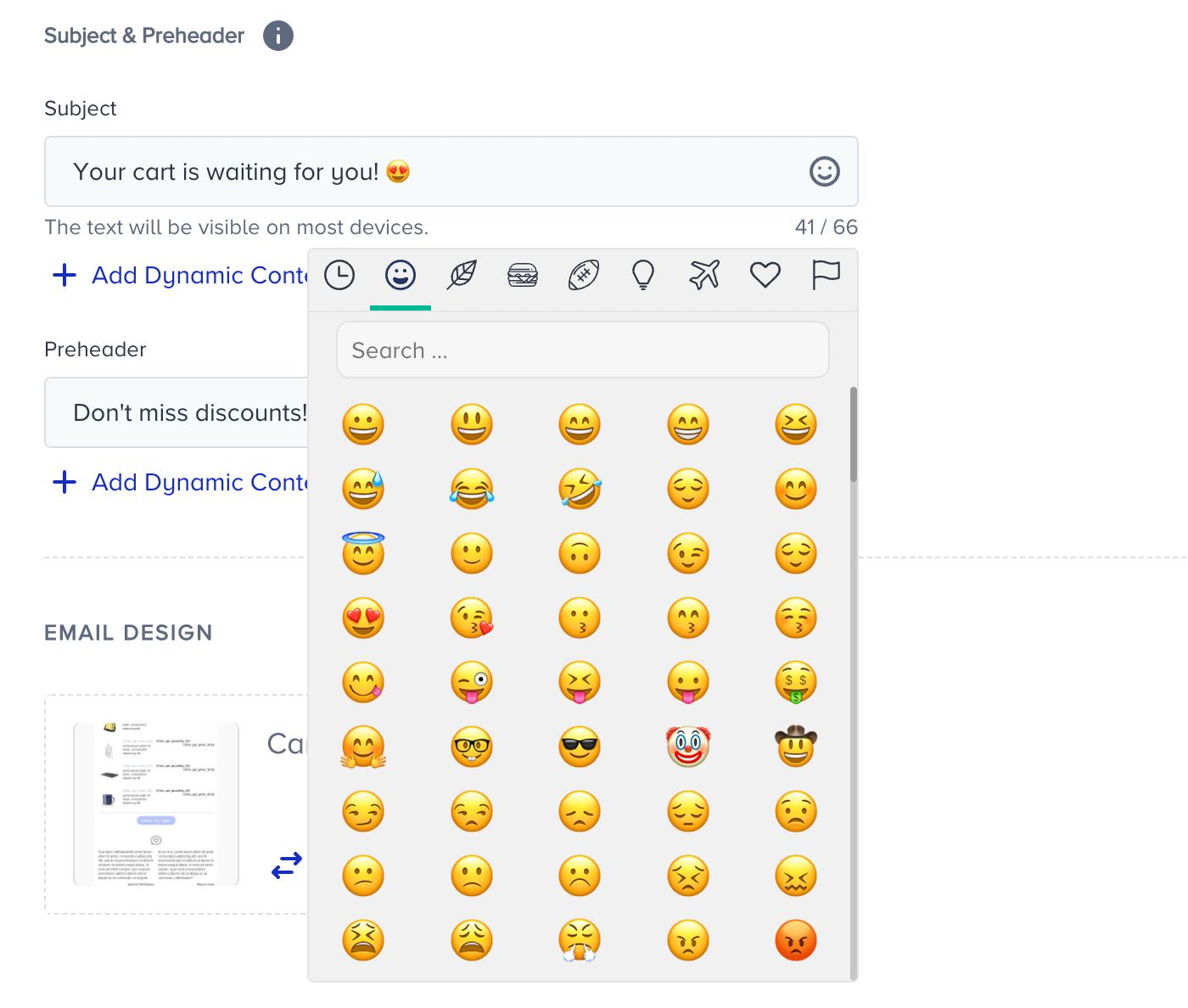
Also, you can use emojis to increase your open rates.
You can insert the coupon code into the content, and select one of the coupon lists you uploaded beforehand. 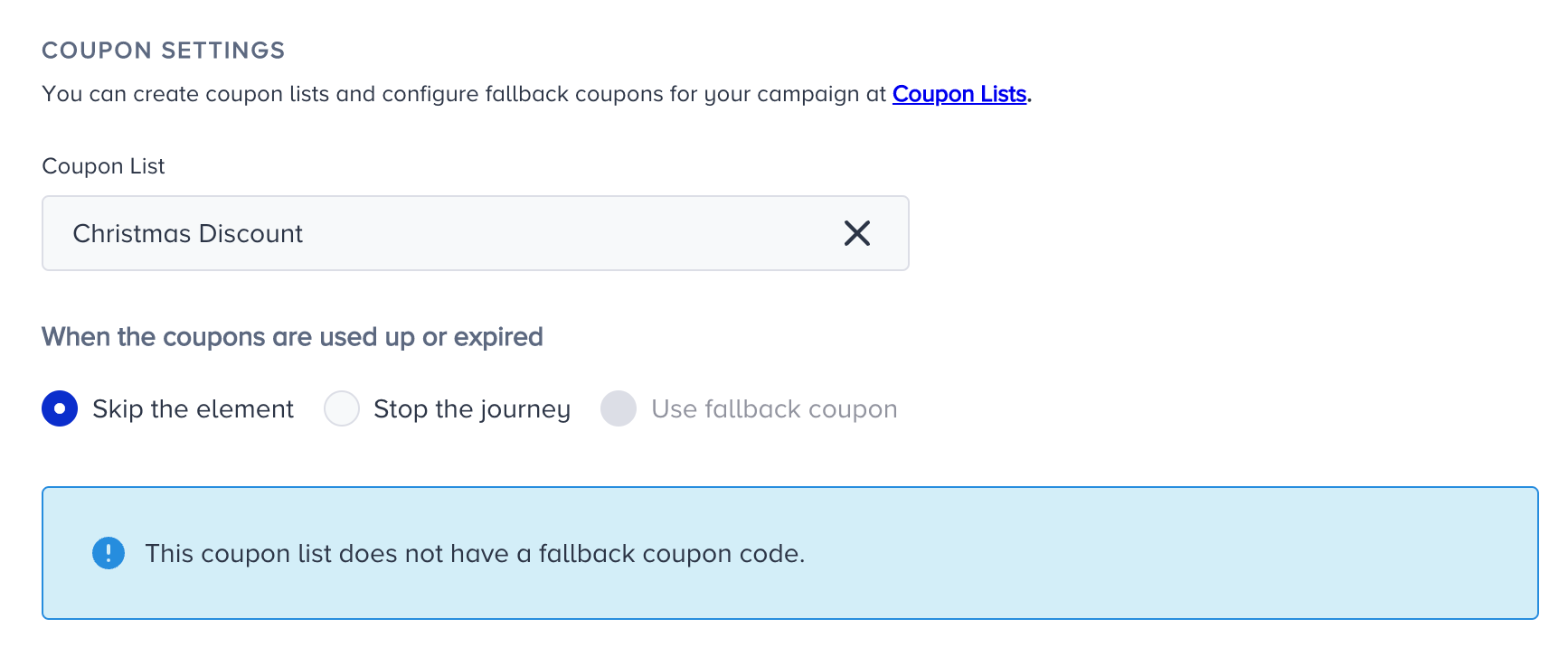
5. Design your email

You can design your email using one of the following options:
Selecting a pre-built template
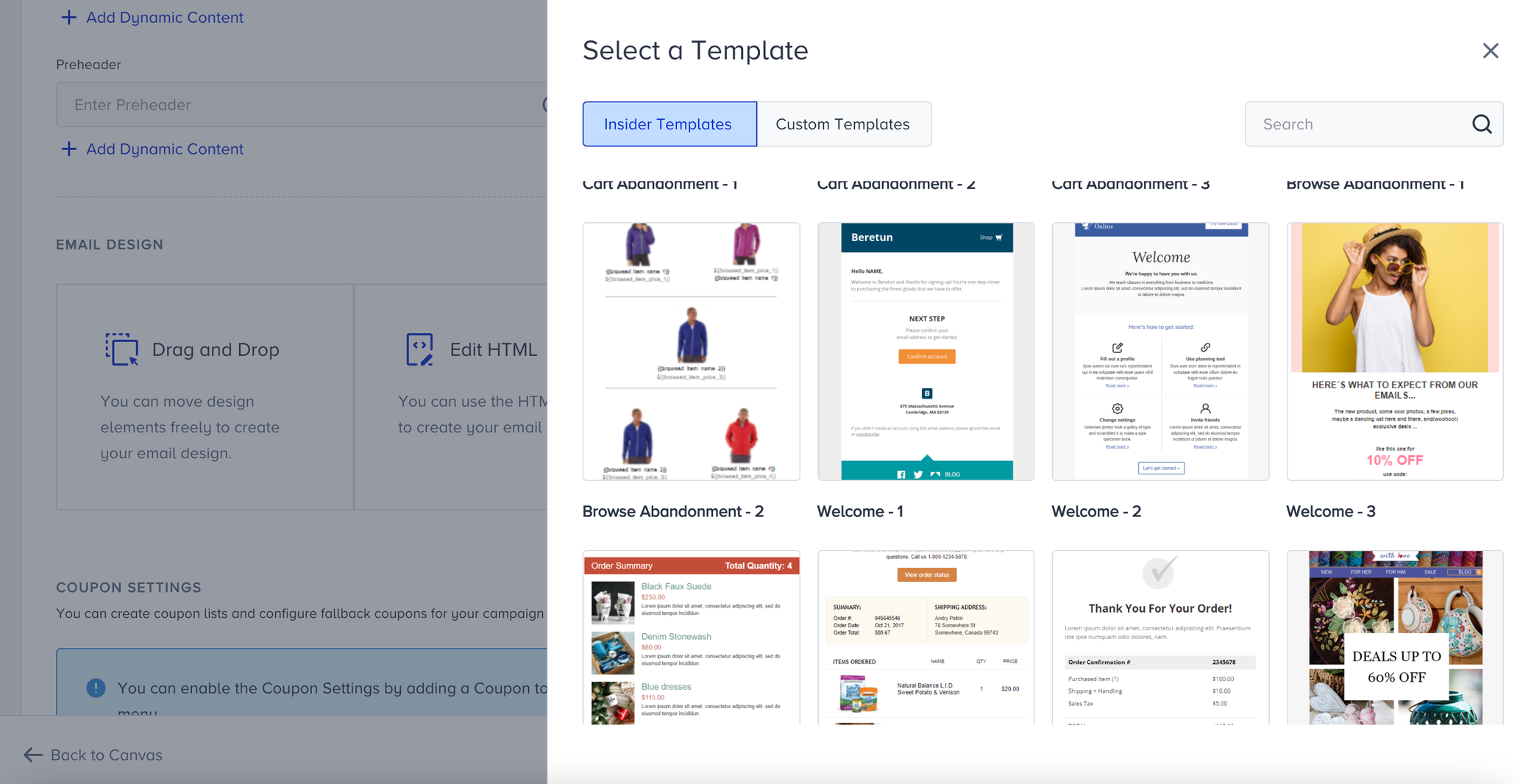
To select a pre-built template, you can use one of the templates in the library which are based on business use cases, or you can use one of the templates that you saved before.
Click Select Template.
Select a template type using Templates dropdown or search your template using the search bar.
Selecting the template you want to use, you'll be redirected to the editor page of the template where you can customize the elements of the template.
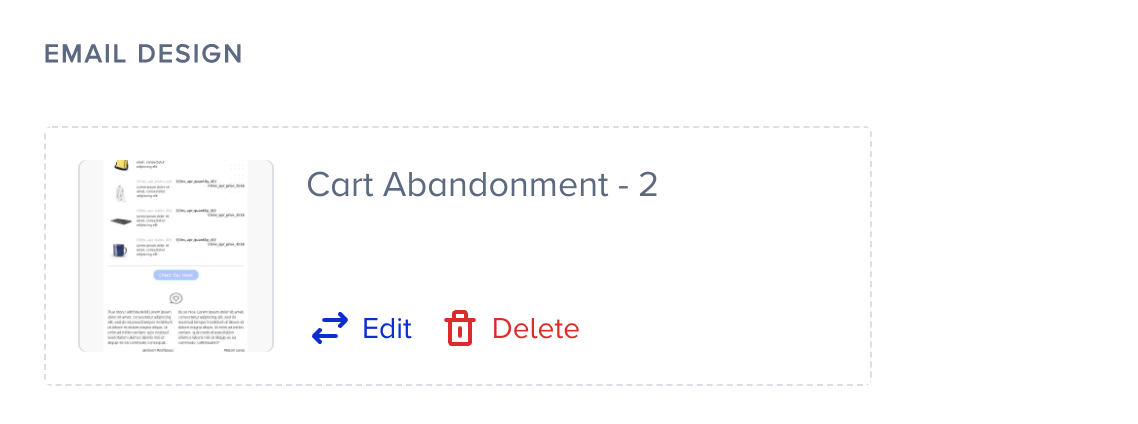
After saving the email template, you will be redirected to the main page of the email element and you will see the thumbnail of the saved template.
Email Template Library helps use templates both in Email and Architect. However, templates with Cart/Browsed/Purchased Blocks in the email design cannot be used in the Email product, while a transactional email template cannot be used in Architect emails.
After completing your email design, you can conduct a spam test and inbox preview. Filling out the subject line and email template fields is mandatory to start a test. Once you start the test, the Start Test button will be disabled and will stay the same until you make a change either to the subject line or template. This helps prevent you from accidentally using your credits on the same unaltered design.
Adding display conditions
While designing your message, you can add display conditions to your email to dynamically change the content displayed to the users after mailing depending on whether the specified condition is met.
In addition to the default and custom attributes you can use in the display conditions of an email, you can also use the cart, browsed, purchased, and wishlist items, event parameters, and coupons in your Architect email campaigns.
Use the following syntax to perform the use cases listed below correctly with the display conditions, and edit them to fit your email content design.
Cart Items: {% if ins_apr_total_product_kind > 0 %}
Browsed Items: {% if browsed_item_total_product_count > 0 %}
Wishlist Items: {% if ins_wapr_total_product_kind > 0 %}
If you use event parameters in display conditions, the correct syntax format is {% if event.c_event_parameter %}.
When you select Cart Abandonment or Browse Abandonment templates for an email campaign in your journey, you can see the predefined display conditions based on use cases. Each row of the email template has different display conditions.
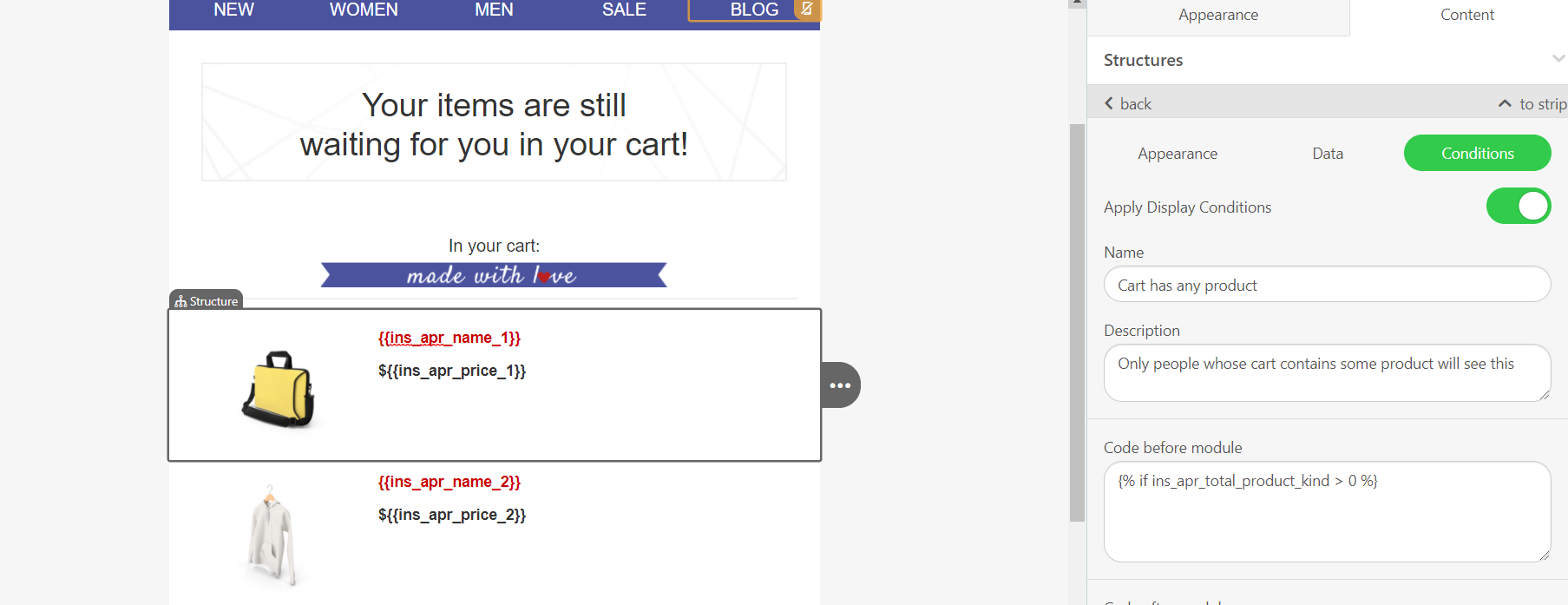
To set display conditions for event parameters in the Drag and Drop editor:
1. Select where you want to apply the conditions in your template. It can be a container, structure, or stripe.
2. Go to Content > Conditions tab of your selection.
3. Select the condition and select Custom for the category.
4. Set the display condition for your content in the Code before module section.
Below you can see some use cases about using the event parameters in the display conditions.
Use Case 1: Beauty clinic
A beauty clinic wants to personalize the email content based on the service type a customer has booked, and offer special discounts to their loyal customers who book appointments during off-peak hours.
In this case, the necessary event and event parameters are as follows:
Event: Booking Appointment
Event Parameters: service_type, appointment_time, customer_loyalty_level
The beauty clinic has two different service types: facial and hair treatments. The email should consist of 3 different blocks to use the display conditions correctly.
Below are some display condition examples:
Service type promotion
The correct syntax for hair treatment is {% if booking_appointment.c_service_type = "Hair Treatment" %} and for facial treatment, it is {% if booking_appointment.c_service_type = "Facial Treatment" %}. With this syntax in the display conditions, the user will display either the hair treatment or facial treatment content depending on their service type.
Loyalty level discount
The correct syntax should be {% if booking_appointment.c_customer_loyalty_level = "VIP" or booking_appointment.c_customer_loyalty_level = "Loyal" %}. With this syntax in the display conditions, the user will display the discount code on the next evening appointment if they’re Loyal or VIP customers.
Use Case 2: Beauty clinic - multiple event parameters
The beauty clinic wants to personalize the email content based on the service type a customer has booked. Customers can make multiple appointments and the beauty clinic wants to display 3 appointments in the same email content. However, not all customers make multiple appointments at the same time and it could affect the email content the customers display due to the empty event and event parameter values.
The necessary event and event parameters for this use case are as follows:
Event: Booking Appointment
Event Parameters: service_type, appointment_time, customer_loyalty_level
In this case, you should first group the events to add the event and event parameters.

After grouping the events, the display condition for each content block will be as follows:
Block #1: {% if booking_appointment.c_service_type_1 != empty %}
Block #2: {% if booking_appointment.c_service_type_2 != empty %}
Block #3: {% if booking_appointment.c_service_type_3 != empty %}
If the beauty clinic wants to personalize the email content based on the service type a customer has booked and display multiple appointments in the same email content, the display conditions for content blocks will be as follows:
The first hair treatment block: {% if booking_appointment.c_service_type_1 != empty and if booking_appointment.c_service_type_1 = "Hair Treatment" %}
The first facial treatment block: {% if booking_appointment.c_service_type_1 != empty and if booking_appointment.c_service_type_1 = "Facial Treatment" %}
Use Case 3: Real estate
A real estate agency wants to tailor their email responses based on the property type a potential buyer is interested in and the source of the inquiry. For example, if the inquiry is about a luxury apartment, they want to showcase premium features, and if the inquiry is made through their website, they want to encourage the use of their online tools.
The necessary event and event parameters for this use case are as follows:
Event: Property Inquiry
Event Parameters: property_type, inquiry_source, budget_range
Below are some display condition examples:
Property type promotion
For Family House content, the correct syntax should be {% if property_inquiry.c_property_type = "Family House" %}.
Inquiry source encouragement
To show the “Take advantage of our online tools to find your perfect home!” content, the correct syntax should be {% if property_inquiry.c_inquiry_source = "Website" %}.
Inserting Product Catalog Blocks
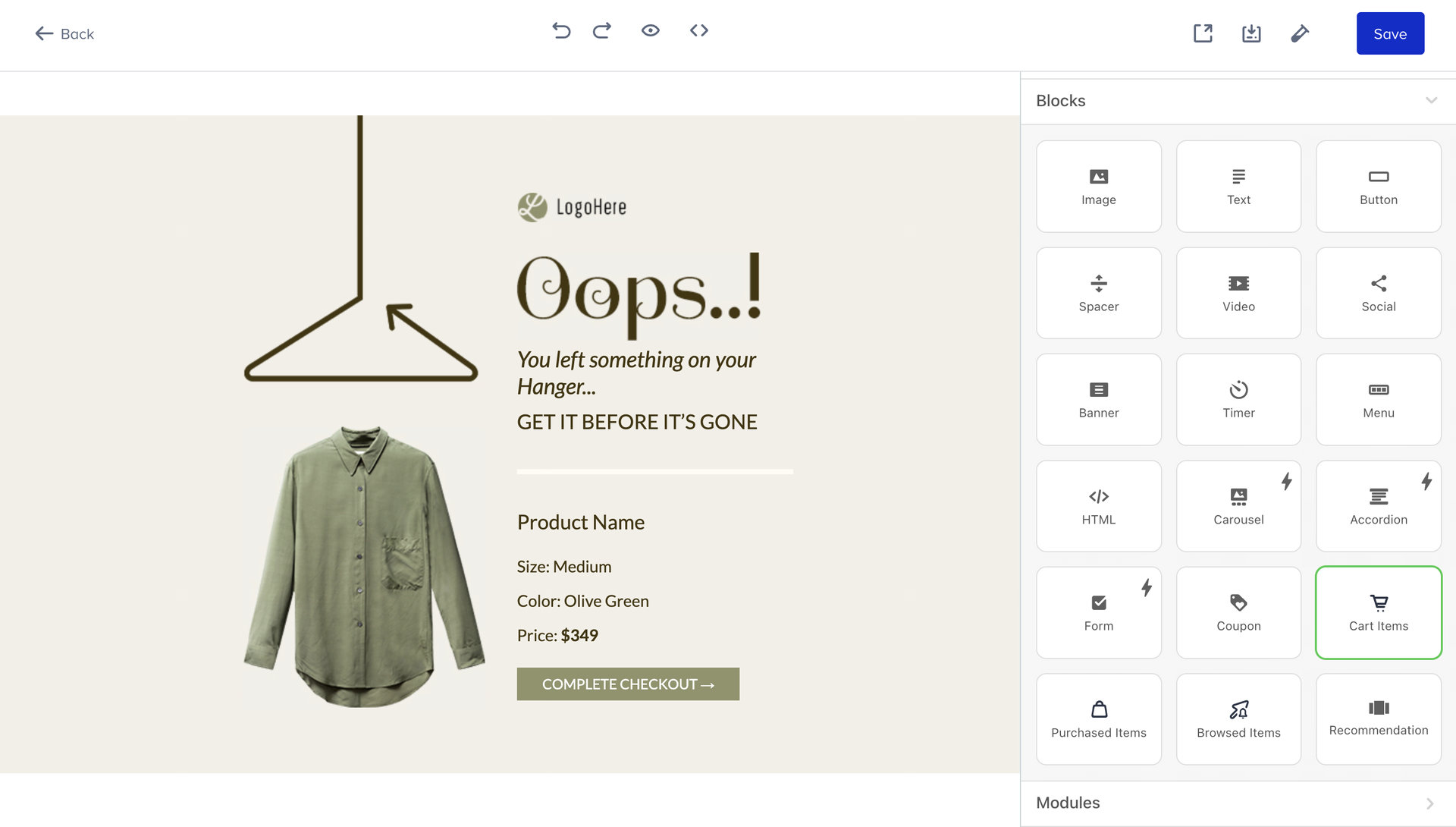
Drag & Drop Editor enables you to use product catalog blocks that are Cart Items, Purchased Items, and Browsed Items in your emails in Architect. This module brings product information to your emails and you can utilize it with Cart Abandonment, Browse Abandonment, Post-Purchase, and all the other use cases. These blocks will enable you to build your emails quickly.
You can use these modules to enrich your emails with product catalog information or to create essential Cart Abandonment, Browse Abandonment, and Post-Purchase emails. You can create new email templates using these modules or add them to your existing emails.
To add the product catalog modules:
Click on the element to go to the inner page of your email channel.
Select the Drag & Drop Editor.
Drag and drop one of the product catalog blocks on the editor.
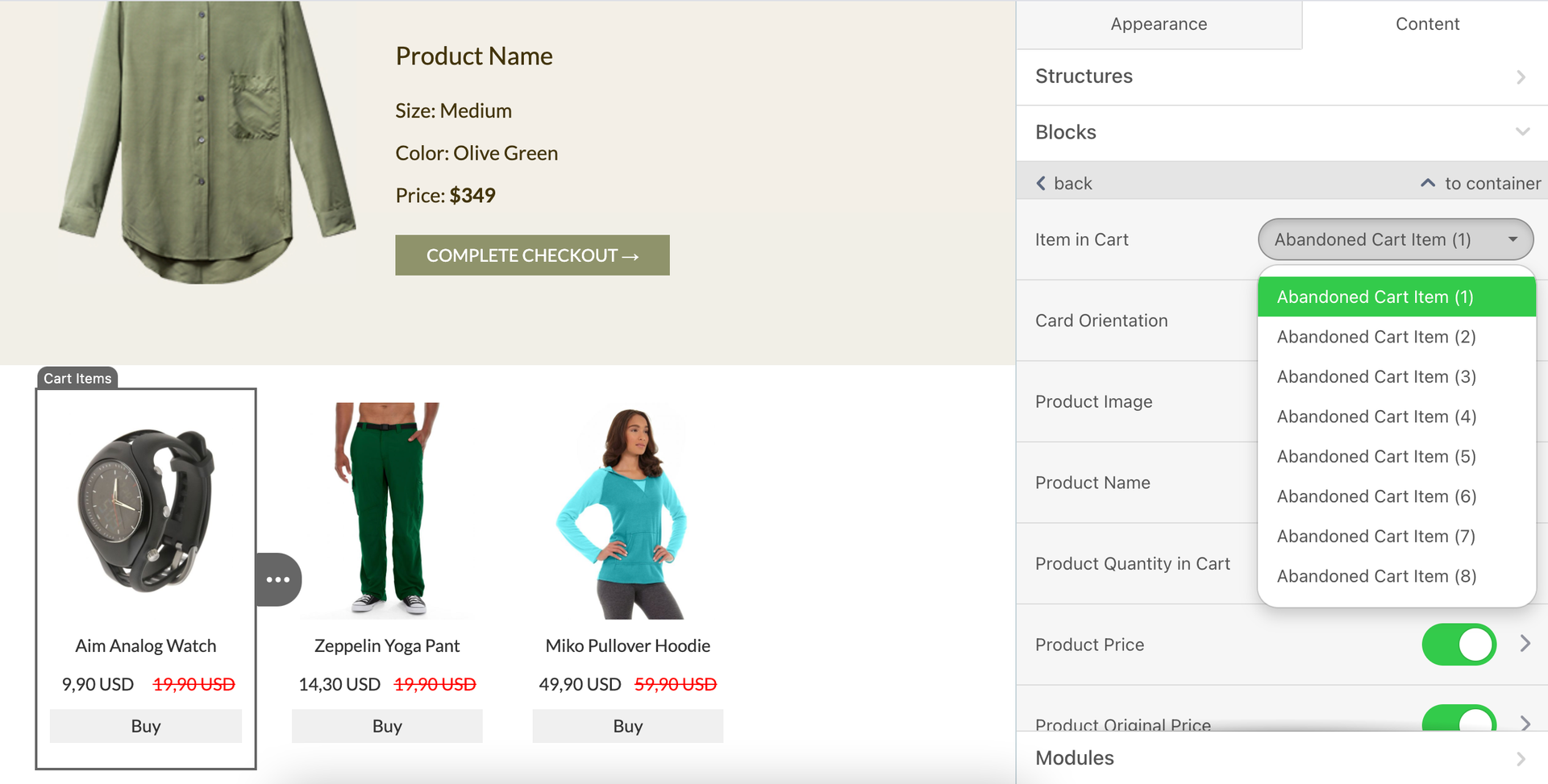
Select which product item you want to have in your email. As Insider keeps the last 8 purchased, browsed, and cart items in the database, you can select one in every new block. Please make sure you added the correct Display Conditions as your customers might not have as many items as you add in your content under their profiles.
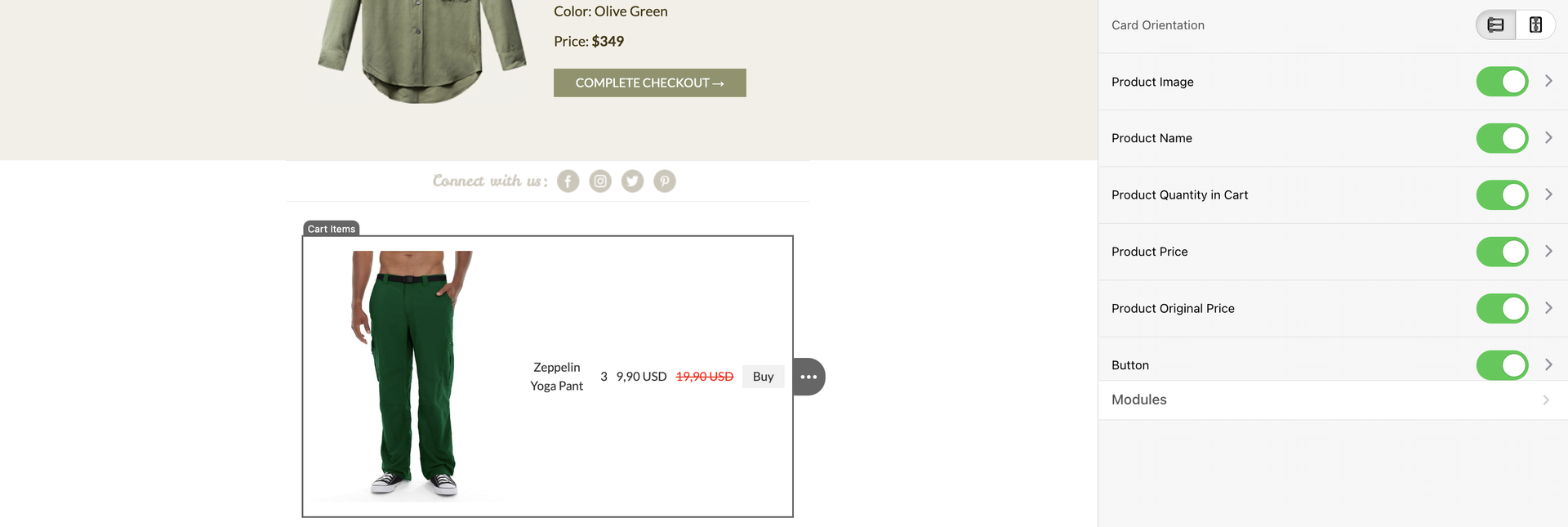
Select your Card Orientation to style your product cards.
Choose the product attributes to display where necessary. These attributes can be Product Image, Product Name, Product Quantity in the Cart, Product Price, Product Original Price, and Button.
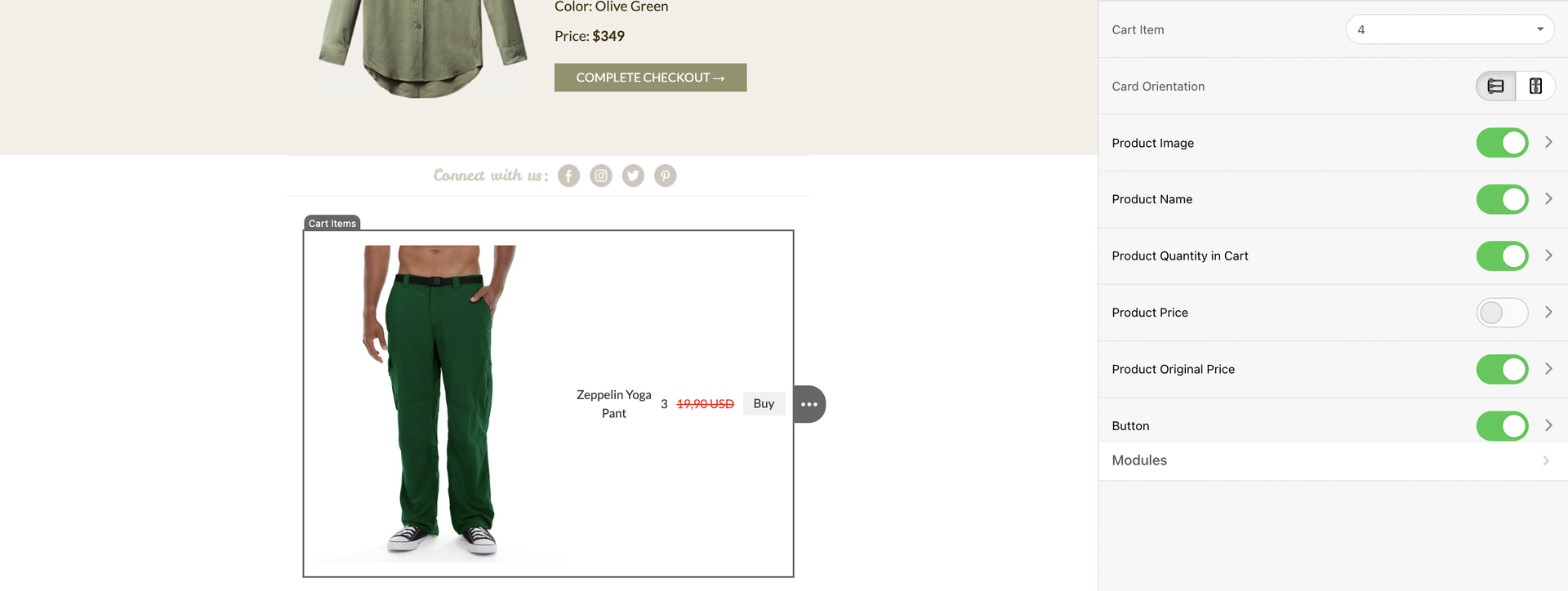
Click on the respective attribute to style it.
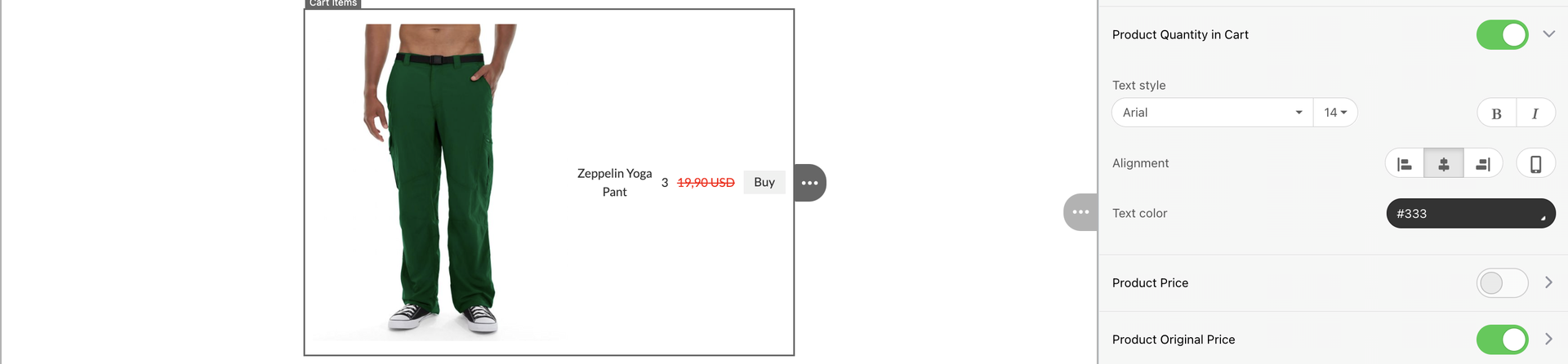
To style the product image, you can change the image size.
Select “Hide if same as discounted” on the Product Price attribute to hide if the price is the same as the discounted price.
Once you complete customizing your product recommendations, you can save your email and test it as usual.
The Currency Symbol allows you to customize the currency symbol displayed in your Product Catalog Blocks (Cart, Browsed, and Purchased) within the Drag and Drop editor.
Use this option to display a specific currency symbol (e.g., $, €, ₺) in your email content.
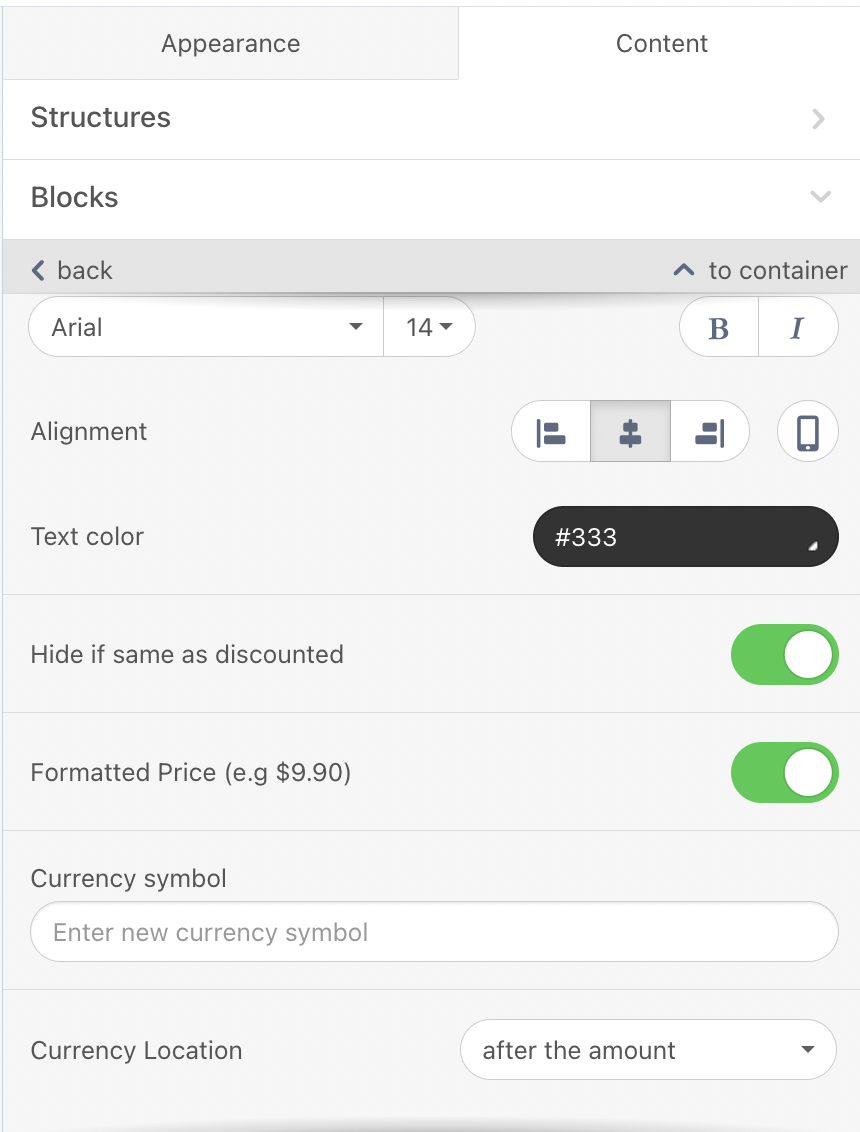
When you enter a currency symbol here, it replaces the currency information passed. Also, the selected symbol will be shown to all end users. Use this only when the currency is fixed for all your end users.
If you use the Not Converted Price format to display user-based pricing, this setting is not recommended, as it may display incorrect or misleading currency symbols.
The Text Trimming feature under the Product Name of custom blocks allows you to display your product names in a concise, single-line format by automatically trimming any excess text. This ensures a clean and consistent appearance for your product names across all devices and email clients.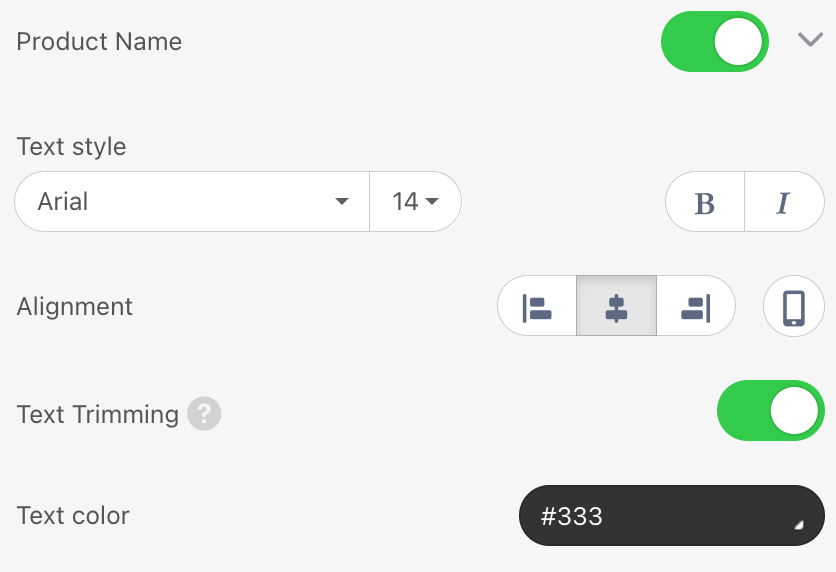
By default, Text Trimming is enabled for all blocks, ensuring that long product names or titles are automatically shortened to fit within the designated space without compromising the design of your email.
You can adjust or disable this feature as needed, depending on your design requirements.
The Version History enables you to easily track every edit made within the email editor, including the name of the user who made the changes and the date & time information. With the Restore option, you can quickly revert to any previous version of your email and restart the creation from that state.
.png)
Localization and multi-variant
The Localization feature enables you to create and launch multi-language journeys. You can select target locales based on linguistic and regional criteria within a single email campaign.
6. Configure Coupon Settings
You can enable the coupon settings when you add a coupon to your email. Before adding any dynamic content to your message, you will see the settings section as shown below.
.png)
You can add a coupon to your email using the Coupon block. Drag the coupon block and drop it anywhere you like in the message.

Once you add your coupon and save the design, you will see the coupon settings enabled. Select a coupon list to proceed.
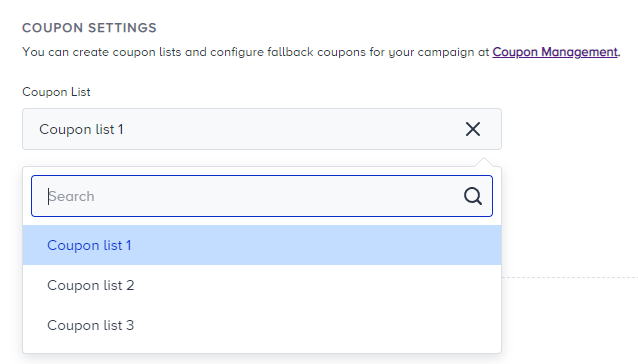
Select the action that you want your journey to take when the coupons are used up to expire. You can skip the element, stop the journey, or use a fallback coupon.
Read more on coupon lists.
You can also set coupon reminders for your coupon lists. Refer to Coupon Usage Reminder for further details.
.png)
7. Enable UTM Parameters
Define your UTM Settings to track users' actions on email. UTM source, medium, and campaign fields will be automatically filled. If needed, you can fill out the UTM term and content fields.
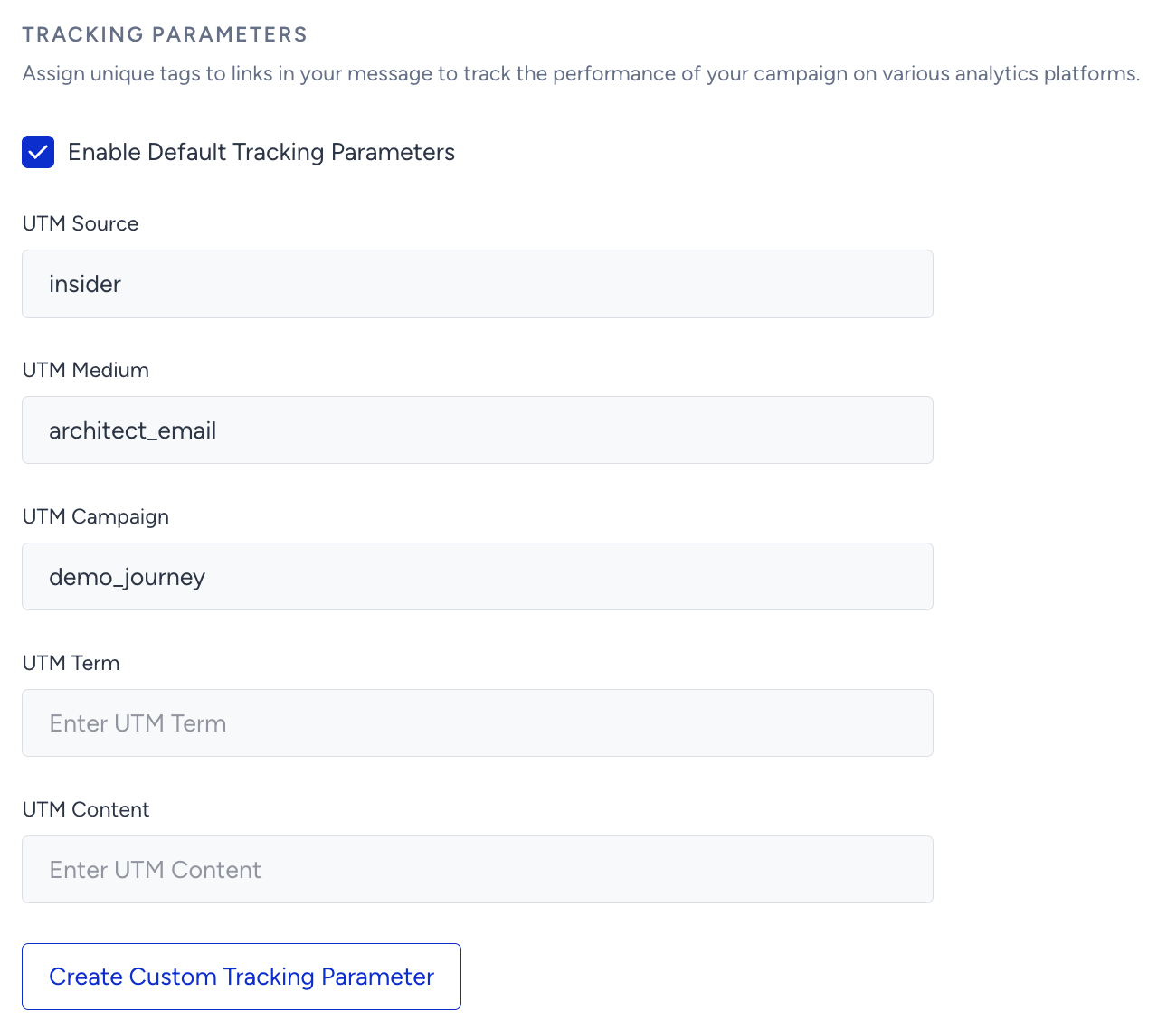
These parameters will be automatically added to each link in your email.
If you do not want to use UTM parameters or you already have added them manually in your email, you can disable the UTM Parameters checkbox.
If you want to add UTM parameters manually in your email, the parameters on the UTM Parameters section will be ignored. Only the parameters you add will be taken into consideration.
The UTM parameters are as follows:
utm_source (required): Identifies the source of your traffic (e.g. search engine, web push notification, or other referrals). An example of this tag is utm_source=insider.
utm_medium (required): Identifies the medium where the link was used (e.g. email, CPC, or another method of sharing). An example of this tag is utm_medium=architect_email.
utm_campaign (required): Identifies a strategic campaign (e.g. product launch, new feature, partnership, etc.) or a specific promotion (e.g. a sale, a giveaway, etc.). An example of this tag is utm_campaign=mothers_day_campaign.
utm_term: Suggested for paid search to identify keywords for your ad. You can skip this for Google AdWords if you have connected your AdWords and Analytics accounts. Let’s say you are running a Google Adwords campaign for your non-profit WordPress theme. You would have specific keywords picked up for your campaign. Some examples for this tag are utm_term=wordpress-theme, utm_term=non-profit-theme, utm_term=non-profit-template.
utm_content: Suggested for additional details for A/B testing and content-targeted ads. Some examples of this tag are utm_content=cta-top-banner, utm_content=cta-sidebar, utm_content=cta-bottom.
You can create a custom tracking parameter including custom UTMs with static values or dynamic attributes. To create a custom tracking parameter:
Click the Create Custom Tracking Parameter button.
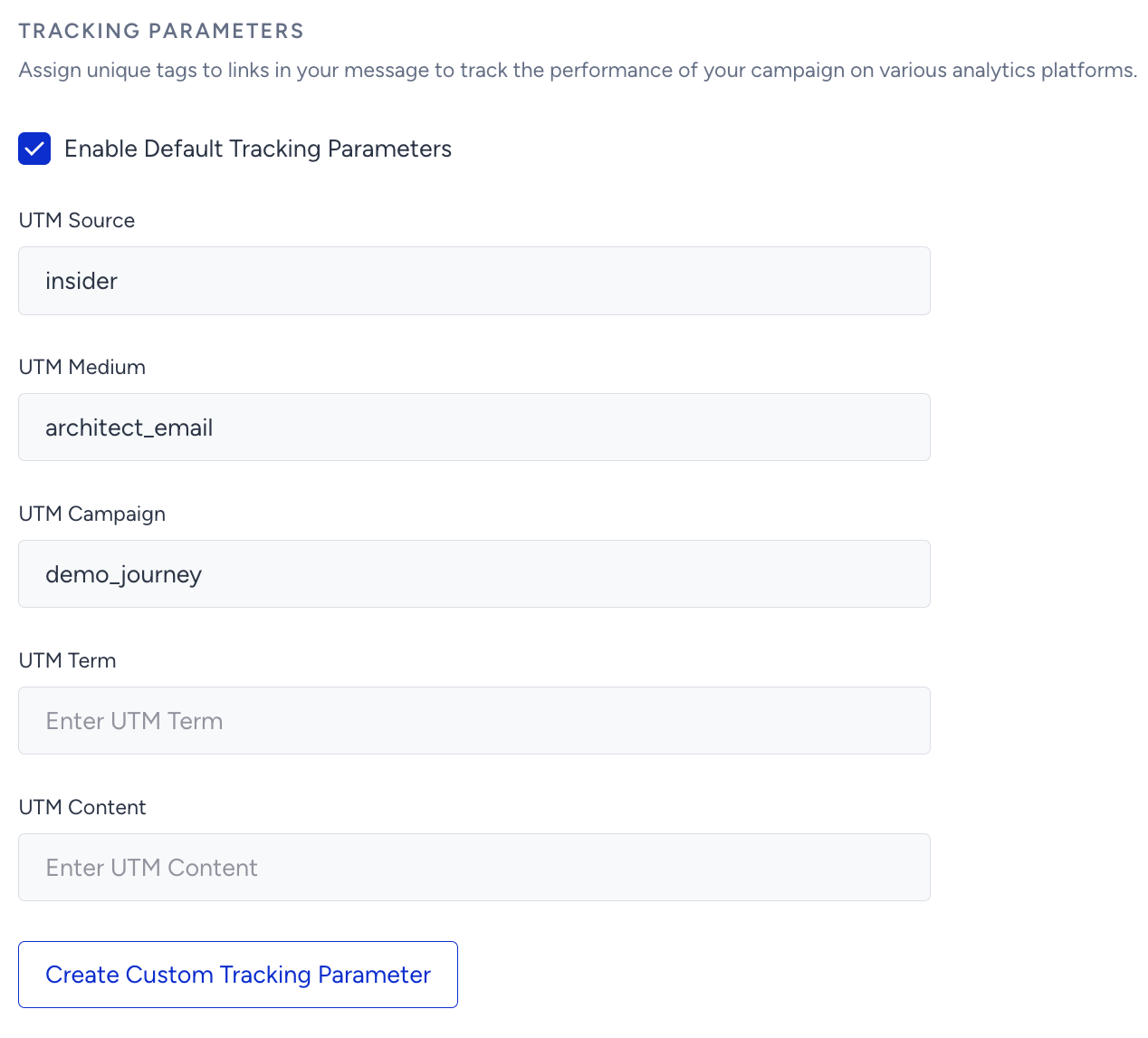
Add your custom tracking parameter label. You can also add the “utm_” prefix if you want to create a UTM parameter by enabling the “Add UTM to Label” checkbox.
Select one of the existing values or create a new one. You can also select one of the default or custom dynamic attributes as a value. Profile_ID and UUID are also listed among the options. Once added, they will fetch their values dynamically.
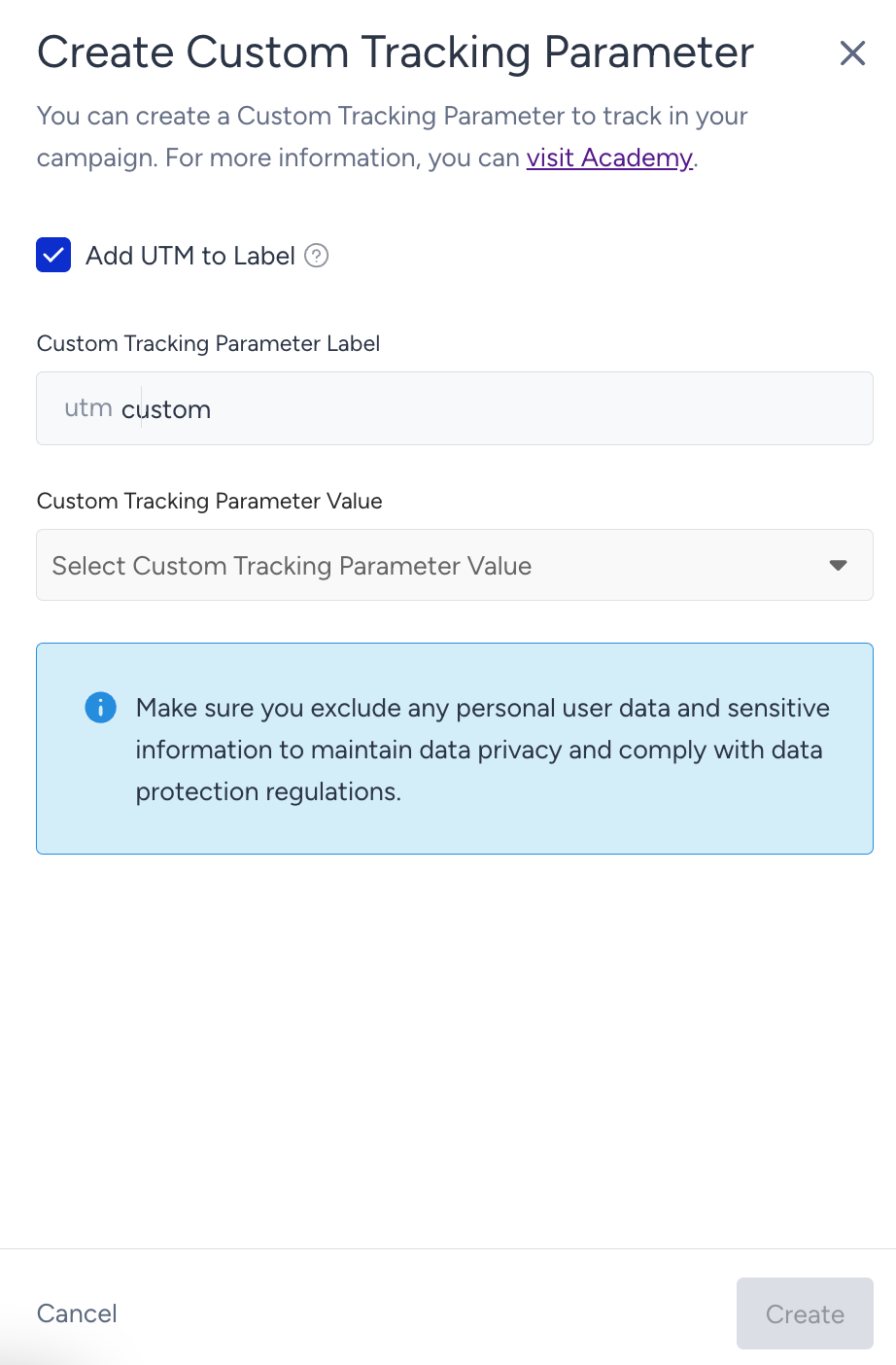
Click the Create button to save your tracking parameter.
Your custom tracking parameter will be successfully created and listed along with the given UTM parameters. You can edit or delete this parameter with the buttons against it.
The label and value cannot exceed 40 characters each.
8. Stock Control
You can add any event parameter from an event with a product_id parameter as dynamic content to perform stock control and confirm whether the product is still in stock immediately before the message is sent.
You can also choose whether the user proceeds to the next element or is dropped from the journey if the product(s) is out of stock.
.png)
9. Enable Send Time Optimization
You can optimize the time to deliver your messages to the end-users. It helps you engage your users more effectively and draw their attention when they are most likely to interact with your messages..png)
You should enable send time optimization based on your use cases. For example, send time optimization might not be a good fit for cart or browse abandonment cases. Read more on send time optimization.
If you set Channel Frequency Capping before, when you enable Send Time Optimization, Bypass Channel Frequency Capping will be automatically enabled.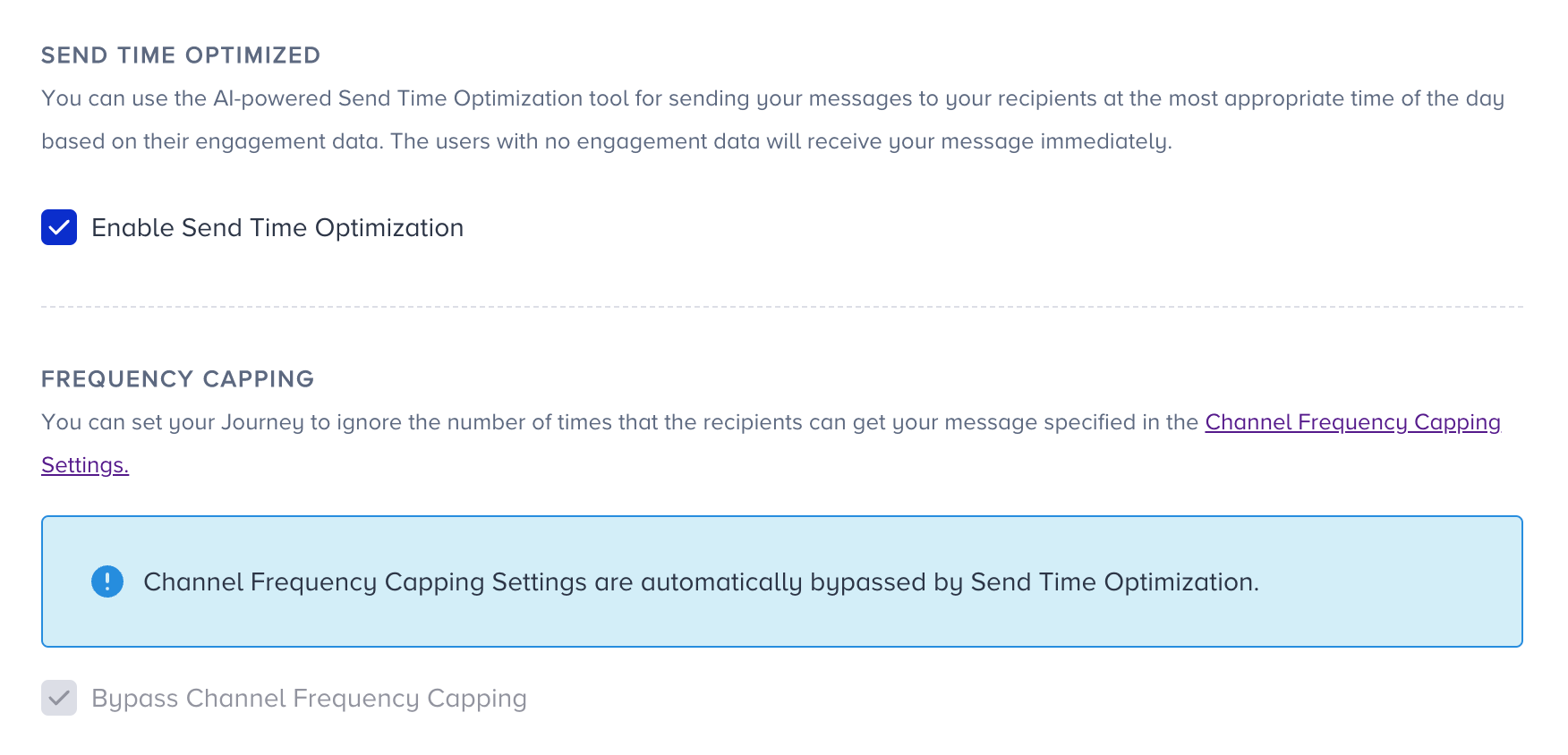
10. Bypass Channel Frequency Capping
You can send emails using single email campaigns or via the email channel in Architect. With global email frequency capping, you can limit the number of emails that a user can receive in a given time so as not to overwhelm your users with too many messages. For example, you can set the limit to a maximum of 5 emails per user in a day.
Architect enables you to override your global email frequency capping if you have configured any. Since journeys are for real-time cases and they require users to receive emails based on their actions, you may want to override the frequency capping that you set for your emails.
You can bypass the global frequency capping and not count the messages of this specific campaign within the limit of the channel frequency capping.
If a user reaches the limit of the emails they can receive in a day, they will proceed to the next step without receiving another message when they arrive at the email channel in the journey.

11. Enable Unsubscribe Group
Unsubscribe Group lets you set an unsubscribe group to be mapped with the Unsubscribe link in your email design. The recipients who click the Unsubscribe link will be unsubscribed from the selected group.
First, you should insert the Unsubscribe Group in the Email design by dropping the Group Unsubscribe tag under Default Modules. 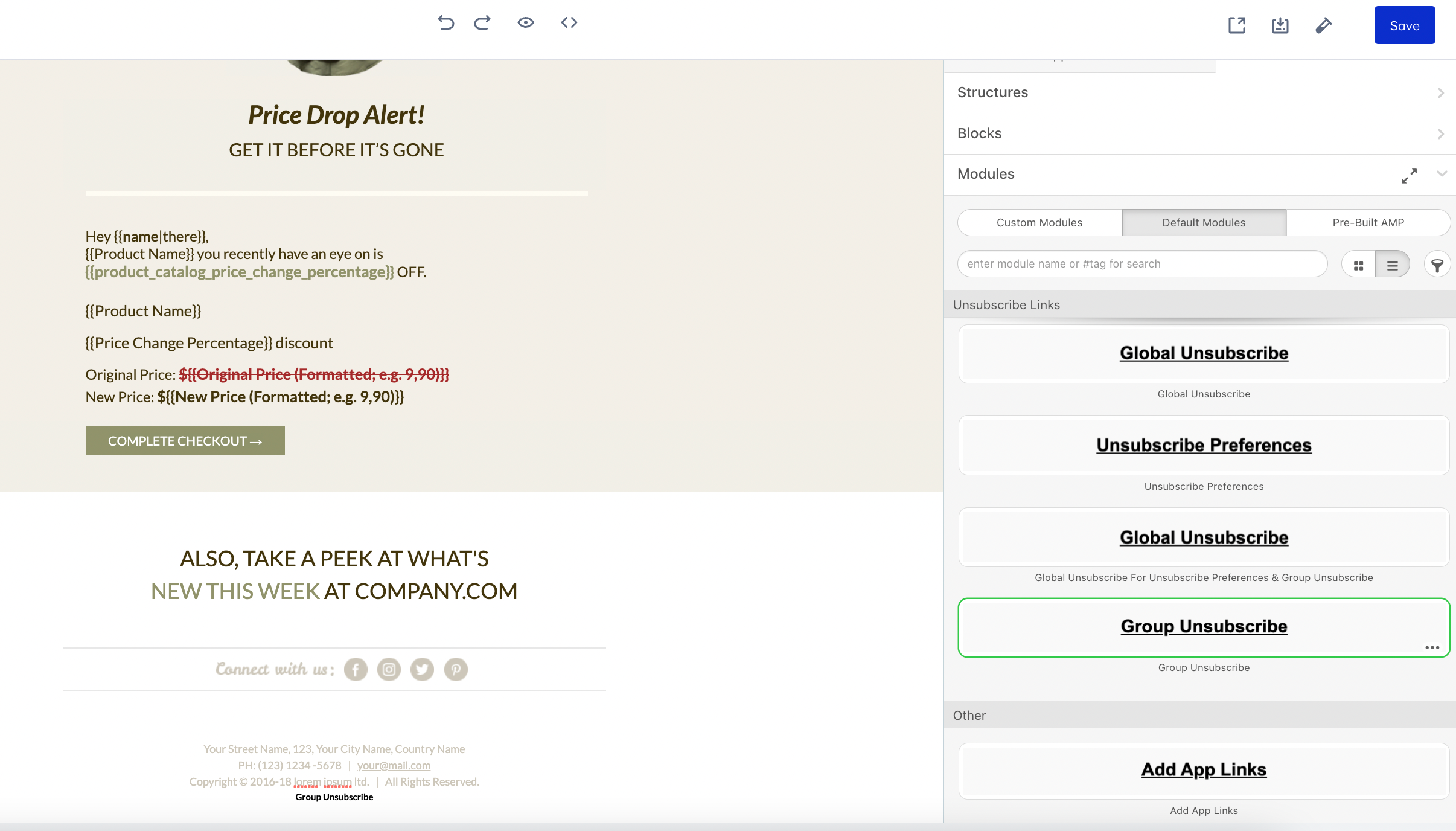 Then, after finalizing the Email design, you should enable the Unsubscribe Groups on the Email Channel page. You can select your desired group to remove the users who clicked on Group Unsubscribe tag on the Email.
You can manage Unsubscribe Groups globally from the Unsubscribe Groups page under Audience > Suppressions on the navigation menu.
For further information, refer to Add Unsubscribe Pages into Emails.
12. Test your email
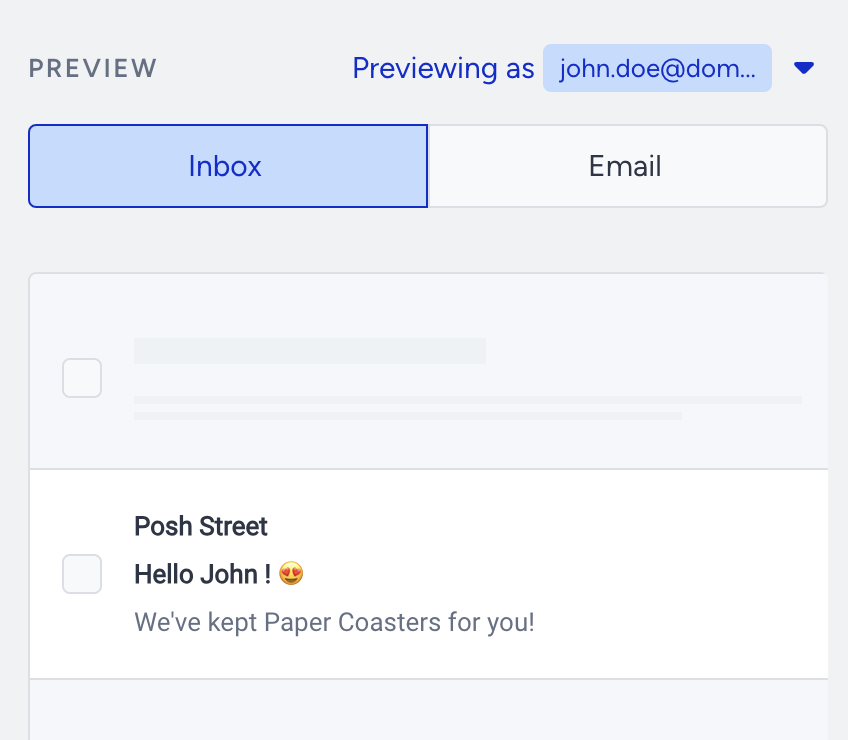
Before sending out an email to your users, you should always test it to see what your sender address, subject line, pre-header, and design look like.
Click the Test Message button at the bottom right corner of the page.
Add your email address. You can add up to 5 addresses.
Preview your message with the Inbox and Email modes.
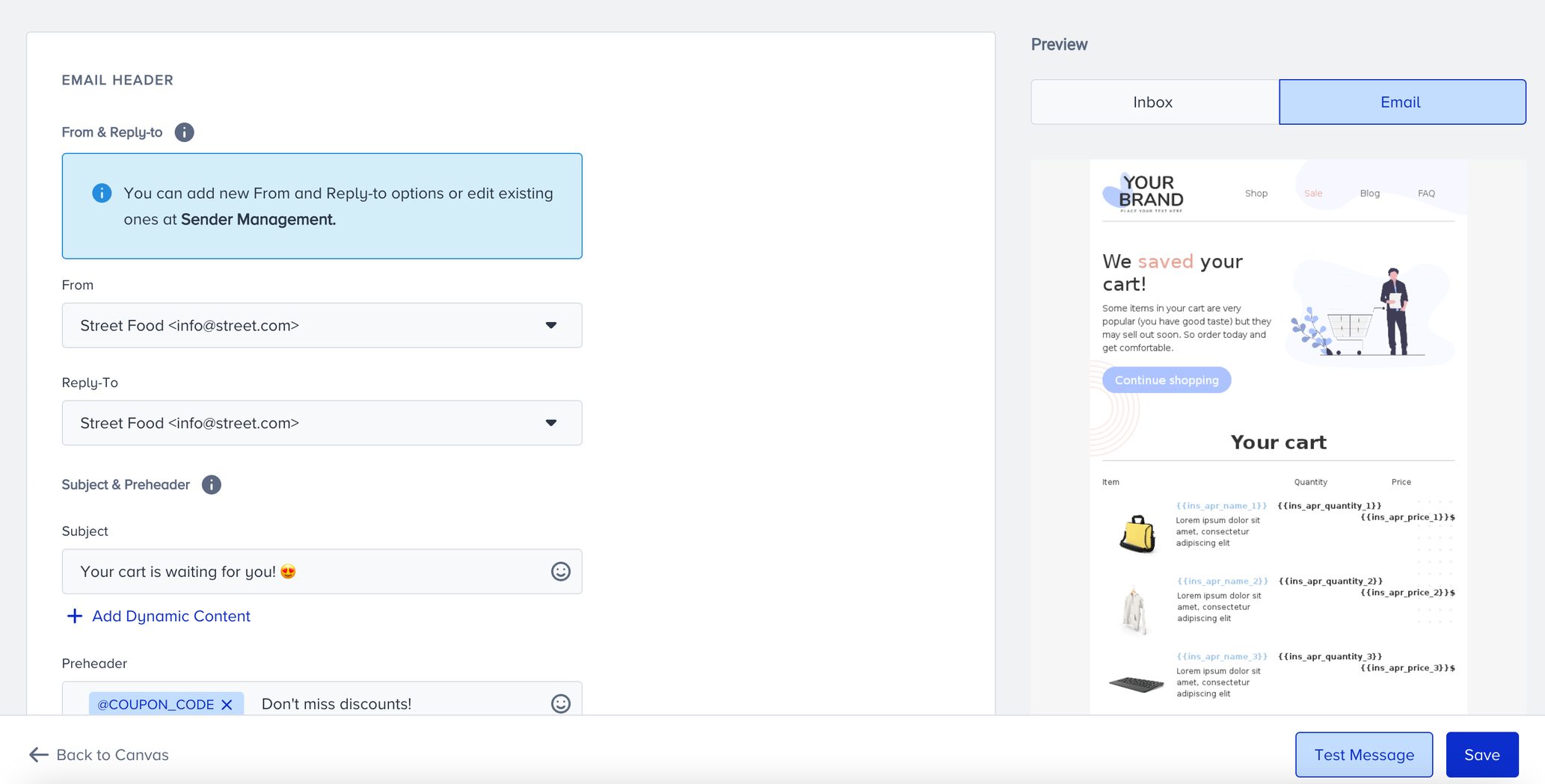
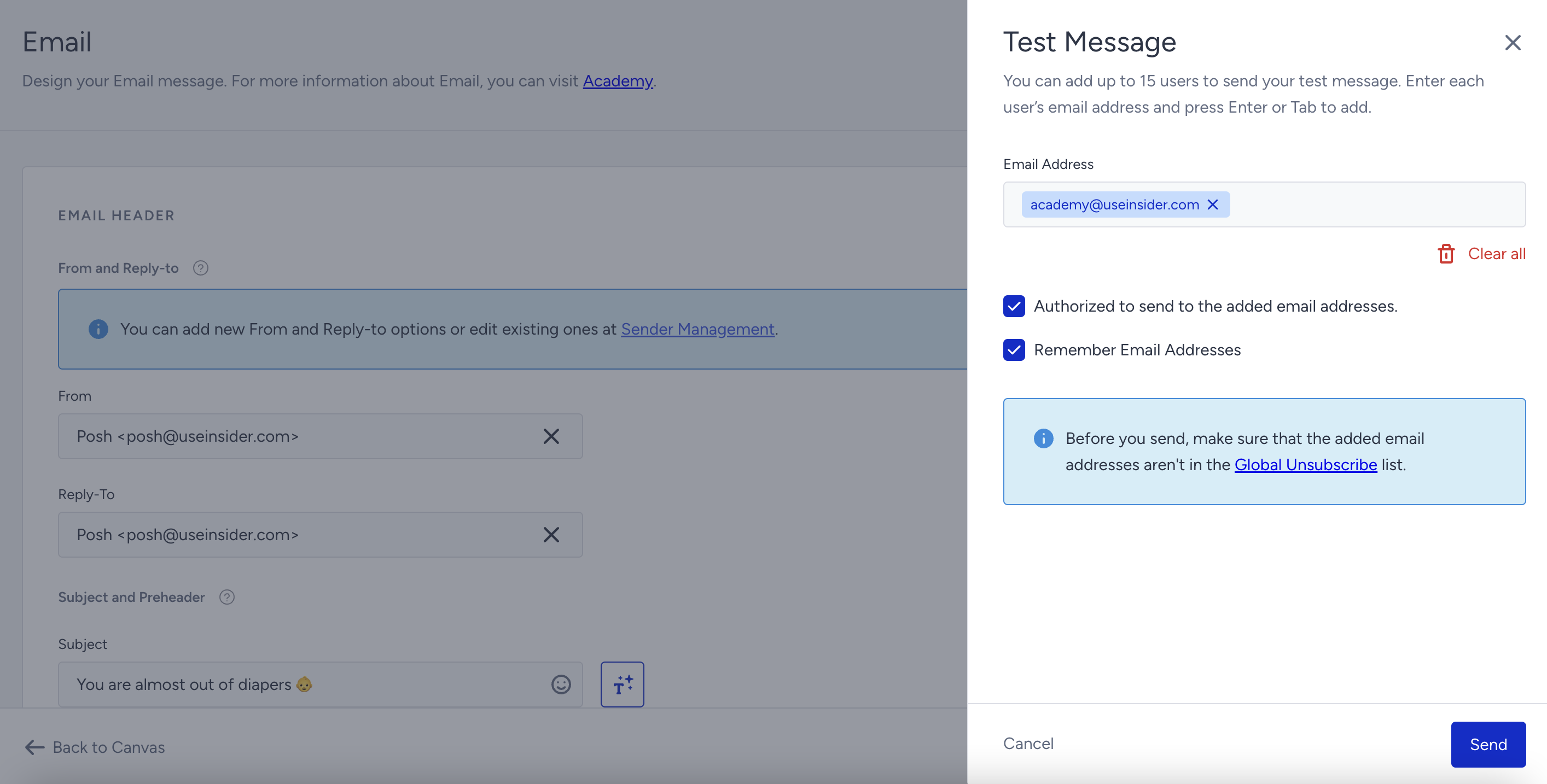
Dynamic content gets the value of the recipient while using the Test Email Message, except for:
Coupon codes
Call an API variables
Read more on the importance of testing your emails.
You can also preview the dynamic content in your messages as a user. Click the Preview as User button to preview your message with real values of the dynamic content.
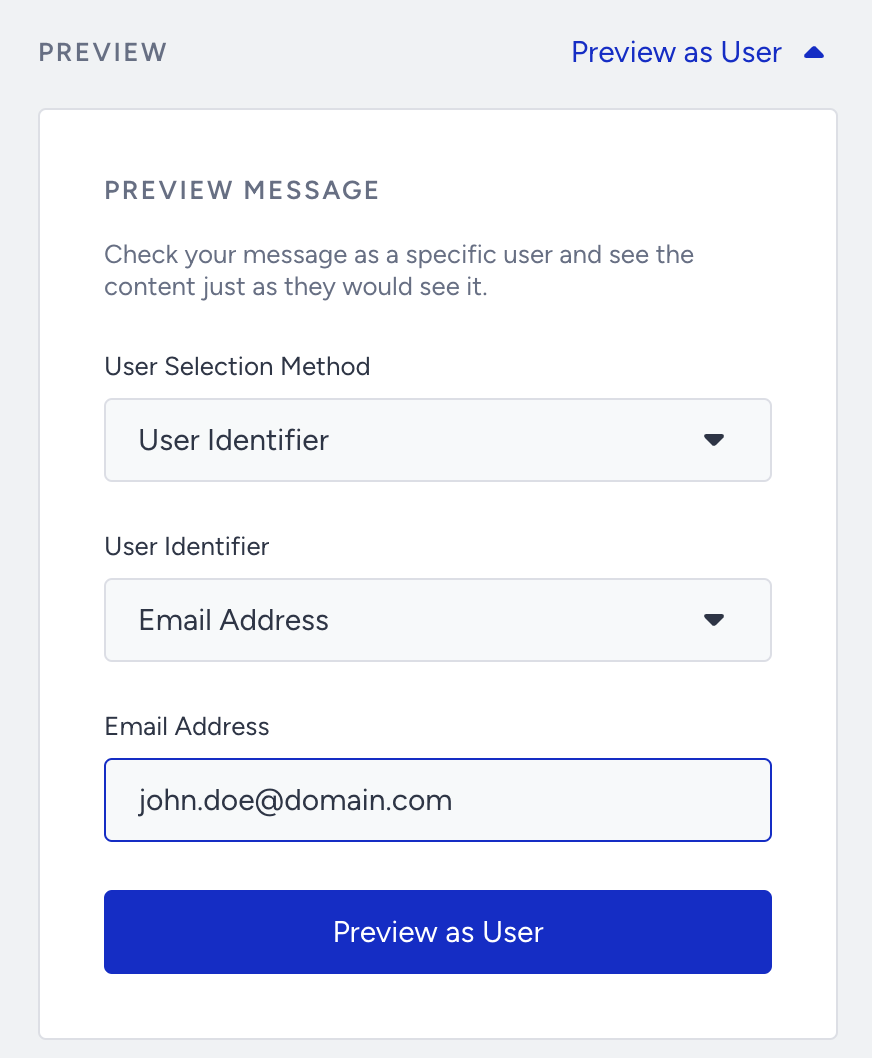
You can select one of the two User Selection Methods: User Identifier or Recent User. User Identifier will let you search for a user with Profile ID, Email Address, or Phone Number identifiers. Recent User will list the 10 recently searched users for you to choose from.
Once you select your user, click the Preview as User button to load the channel preview with real values of dynamic content for the user.
13. Rename Channel Name
Channel Name is generated by default based on journey name and channel type. You can rename it at the top right corner if you want to give it a different name..png)
14. Save email element
After configuring email settings, you can save the email page.
Make sure to click the Save button as there is no autosaving on this page. Autosaving functions only on the canvas page.
Live Actions and User Interactions
Live Actions
You can keep users on the flow until they view your email or click a link in it. To use this live action, you can select “On Click” or “On View” actions right after the email element. The default action is “On Send”. You do not need to set any if you do not want to use this feature.
For 30 days, users will not proceed to the next element unless they receive, view, or click the email, or you change the journey status to passive. However, after 30 days, users will proceed to the next element even if they haven’t performed these actions. These users will be displayed in the live stats as “Proceeded (Live Actions)".
Checking User Interactions
After the email element, you can take another action via branching your flow according to user interactions on the email after a while.
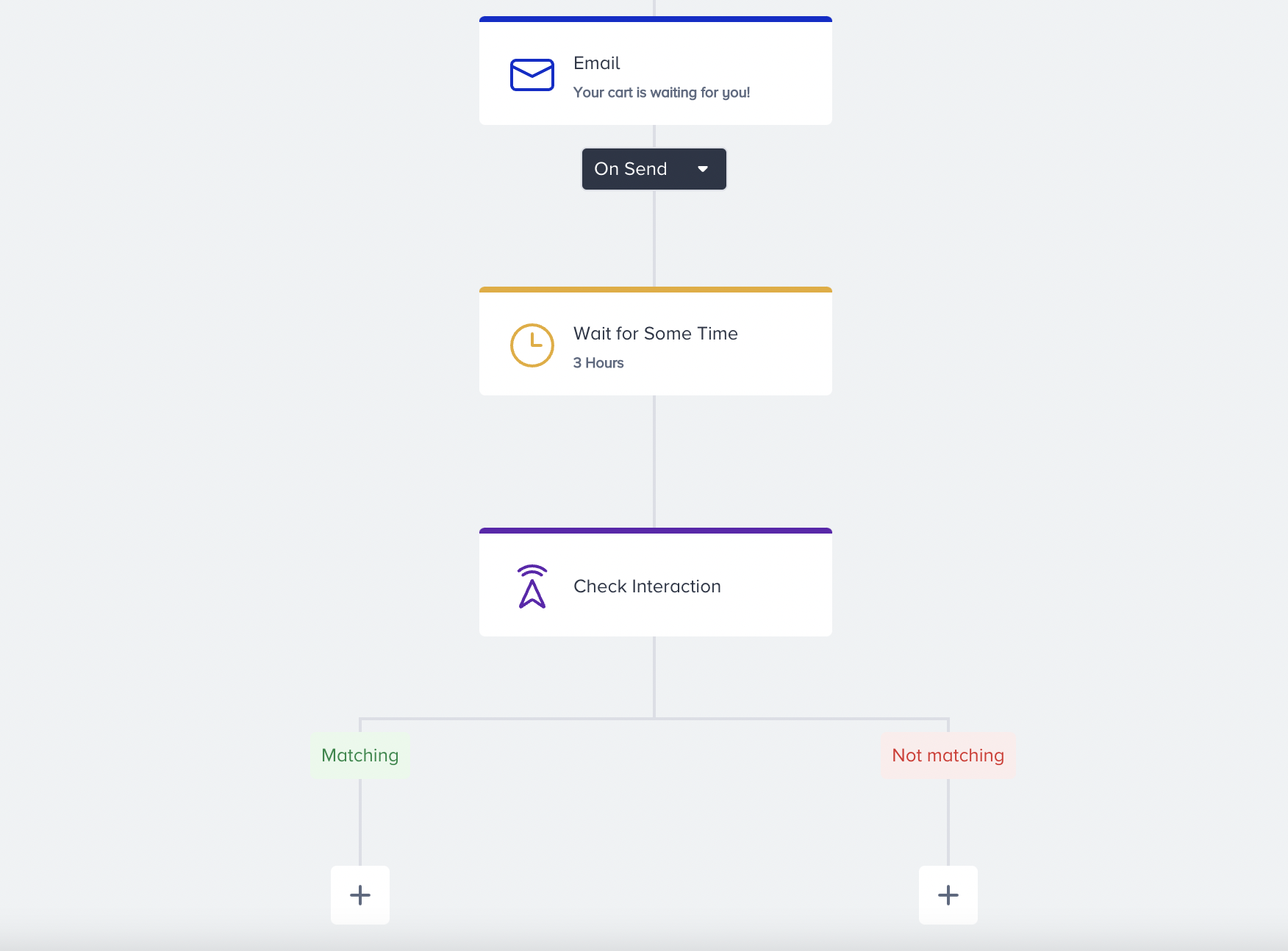
Read Check Interaction for further details.
Users do not take any action on the messages right after you send them. That's why you need to give users some time to take the desired action on the channels by adding a wait element before the check element.