Journey status, also known as pausing, stopping, or scheduling when an Architect journey runs, controls whether a journey is actively enrolling and processing users. Each status option determines how the journey behaves at any given point in its lifecycle, from initial launch through to completion or deactivation.
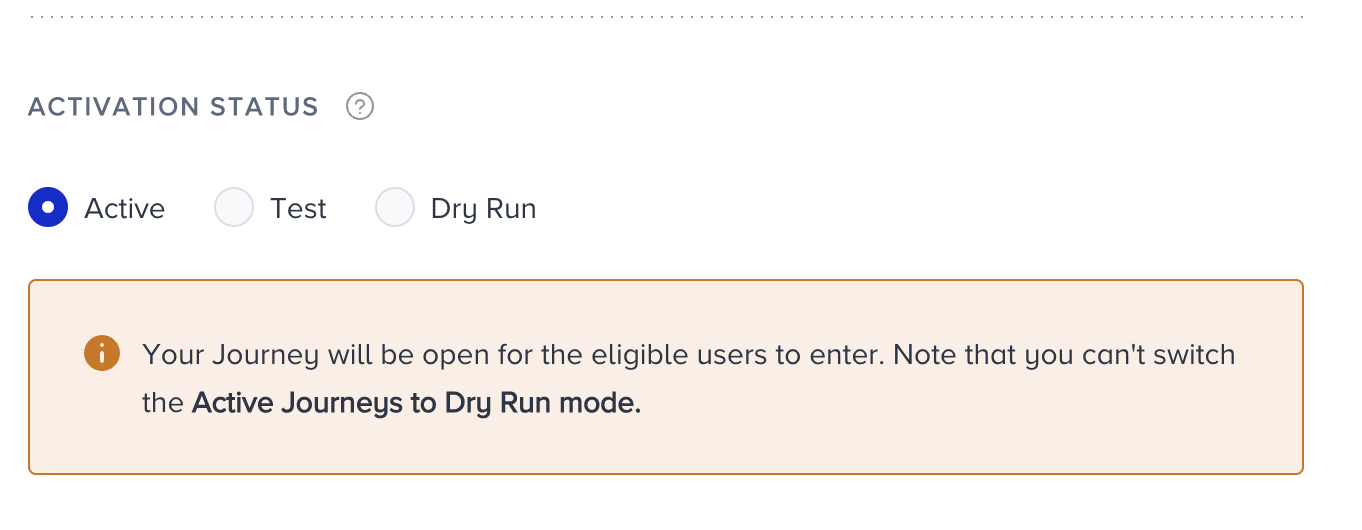
The available activation statuses are:
Active
Active means your journey is live, and eligible users can enter it. The journey can track all progress and users' actions. Also, the analytics are populated. On your listing page, you will see this journey with a green Active label.
Test
Test means that your journey is in test mode. In this case, your journey will be active, but only users who use the test function can enter it. The test function can vary based on your starter element in the journey. On your listing page, you will see this journey labeled in orange as 'Test'.
Journeys launched in Test status are automatically stopped after 2 days and saved as passive. However, you can still see the results after 2 days.
You can always change your journey status to Test.
Dry Run
A dry run is a simulation that lets you see what would happen if you launched the journey. It is one of the test options before launching your journey. In Dry Run mode, real users enter the journey by meeting the starter rule or condition, yet no user receives a message from the channels, and no action is taken for any user. This option helps you see how many users enter the journey and how they are distributed across the flow and its elements. You can also see how many users are reachable on a particular channel. A dry run lets you refine your journey before launching it to all users.
Journeys launched on Dry Run status are automatically stopped after 2 days and saved as passive. However, you can still see the results after 2 days.
Once you change the status of a journey from dry run to active, you cannot change it back to dry run. This happens only when you make your journey active; other statuses are not under the same rule.
If your journey has a Check Interaction element, you cannot use the dry run status since users cannot receive messages or take action.
The Wait for Event and Wait for Attribute elements will have a time-out duration of 0, meaning that any user who reaches this step will immediately move on to the next element without waiting for the event or attribute.
Analytics pages and Track Users are not available in Dry Run status.
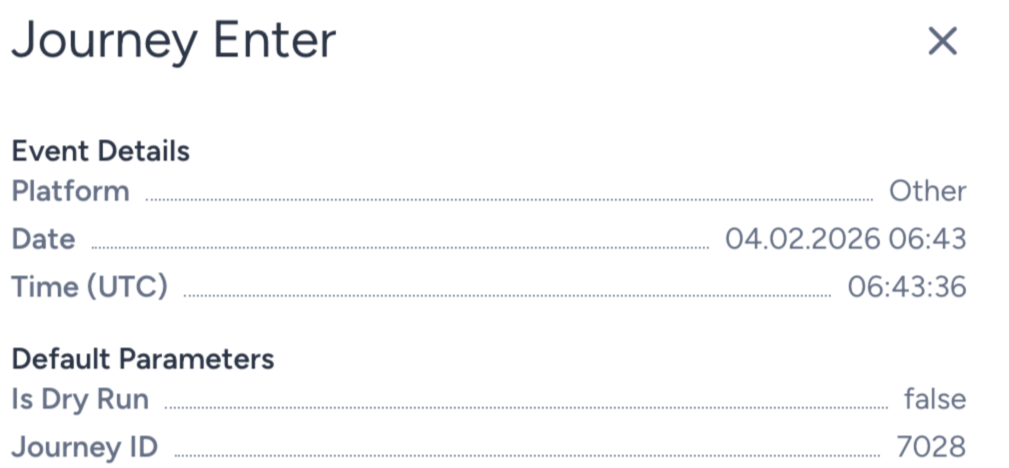
The Journey Enter event has Is Dry Run as a default event parameter. A user who enters a journey on dry run gets true for this parameter's value.
On your listing page, you will see this journey with a blue Dry Run label.
Passive
This status represents two cases. Either this journey is stopped on purpose, or it ended due to its pre-configured end date and time. No user can enter this journey anymore.
Users in the journey flow are dropped from the journey once it is paused and cannot resume it even if you reactivate the journey. However, if a user is in a Wait element, they are dropped once the Wait period ends. If you reactivate and launch the journey while users are still in the Wait element, they continue in the flow once the Wait period ends, as usual.
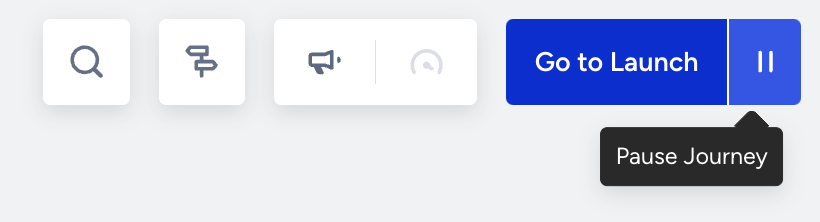
The passive status is removed from the activation status. Pause the journey and change its status to Passive.
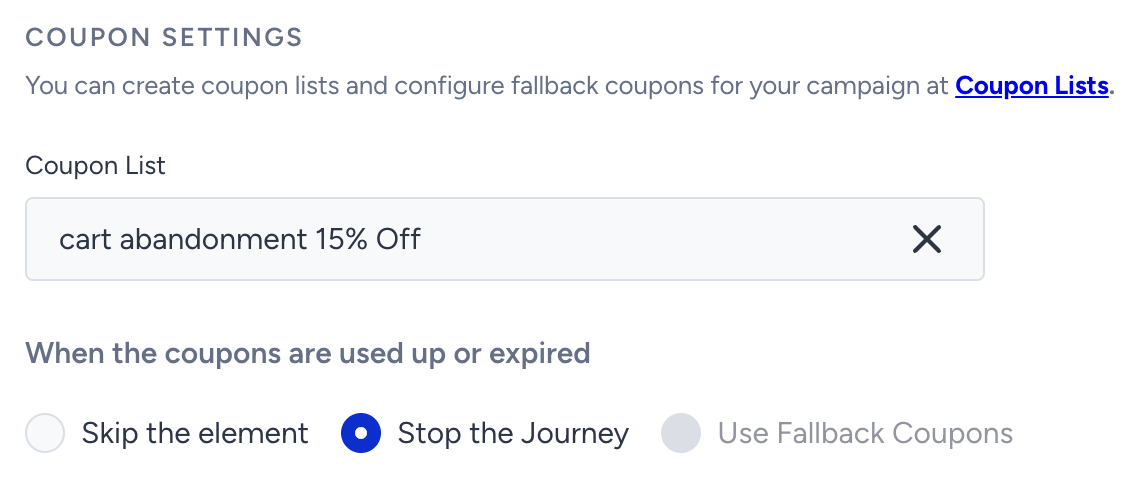
If the coupon lists run out of coupons or expire, the journey is automatically passivated if the Stop the Journey action is selected in the channel settings.
Also, you can still see the analytics of this journey when it is passive.
You cannot select the passive status when launching your journey for the first time.
On your listing page, you will see this journey with a red Passive label.

Sunset
Sunset means that you're closing the entrance gate to the journey. In this status, no new user can enter the journey. Users already in the journey can continue through the journey flow. On your listing page, you will see this journey with a purple Sunset label.
You can change only your active journeys to Sunset.
Journeys launched in Sunset status are automatically stopped after 6 months and saved as passive.
When you launch a new version of an active journey, Insider One changes the previous version to Sunset automatically. From that point, users who trigger the starter event enter only the new version. Users who are already in the previous version continue through its flow until they finish, and the previous version becomes Passive once no users remain in it.
Draft
Draft is the default status assigned when you create a new journey. It means the journey is part of the design process. All edits and changes are automatically saved when the journey is in draft mode. You cannot launch your journeys when they are in draft. On your listing page, you will see this journey with a grey Draft label.
See which status you can apply to a journey.
Current status | To be |
|---|---|
Draft | Test, Dry Run, Active |
Test | Dry Run, Active, Passive |
Dry Run | Active, Test, Passive |
Active | Test, Passive, Sunset |
Sunset | Active, Test, Passive |
Passive | Active, Test |
Activation Time
You can define what date and time the journey starts and ends.
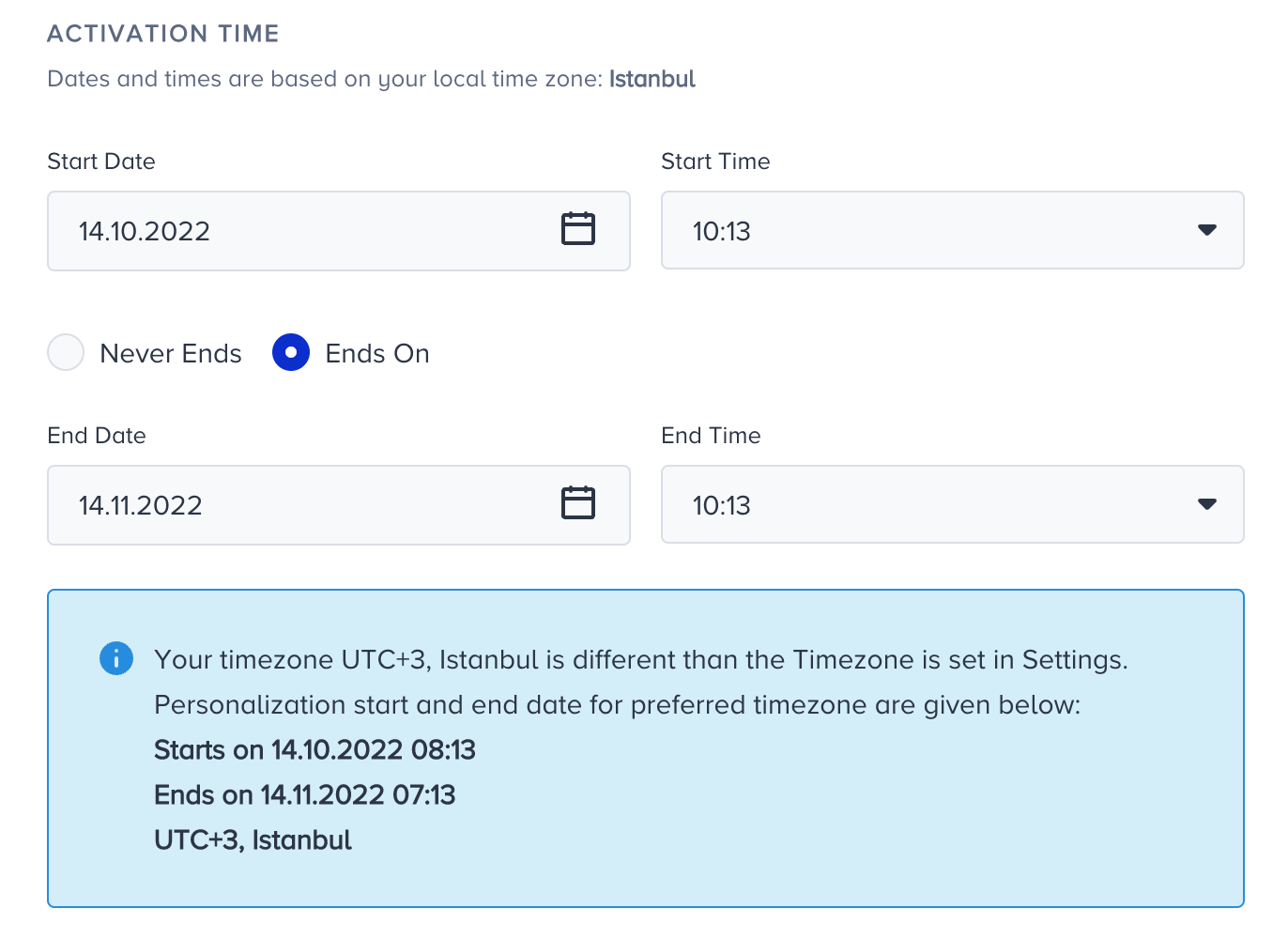
If your journey doesn't need to stop, like a non-stop journey, such as a cart abandonment journey, you can select the “Never Ends” option so it doesn't stop on a specific date and time.
Start-End Date and Time are set based on your local timezone.
The Never Ends option is not applicable for Dry Run or Sunset journeys. You can select the end date as 2 days ahead at most for the Dry Run status, while you can select it as 185 days ahead at most for the Sunset status.
Once you configure the activation status and time for your journey, you can proceed with the other launch settings.