The usage limits are defined in your contract. You can check your monthly WhatsApp utilization and avoid exceeding the limit.
Until June 30, 2025, WhatsApp followed a Conversation-Based Pricing Model. Under this model, businesses were charged once per 24-hour window, per conversation category, regardless of the number of messages sent within that period. As of July 1, 2025, WhatsApp has transitioned to a Per-Message Pricing Model for template messages. This change was introduced by Meta to simplify pricing, align with industry standards, and give businesses more granular cost visibility.
Navigate to WhatsApp Usage Analytics
You can use the WhatsApp Usage Analytics page to track your WhatsApp message volume, monitor quota usage, and understand how message charges are calculated based on the applicable pricing model.
To see the current status, navigate to Reports > Usage Analytics. 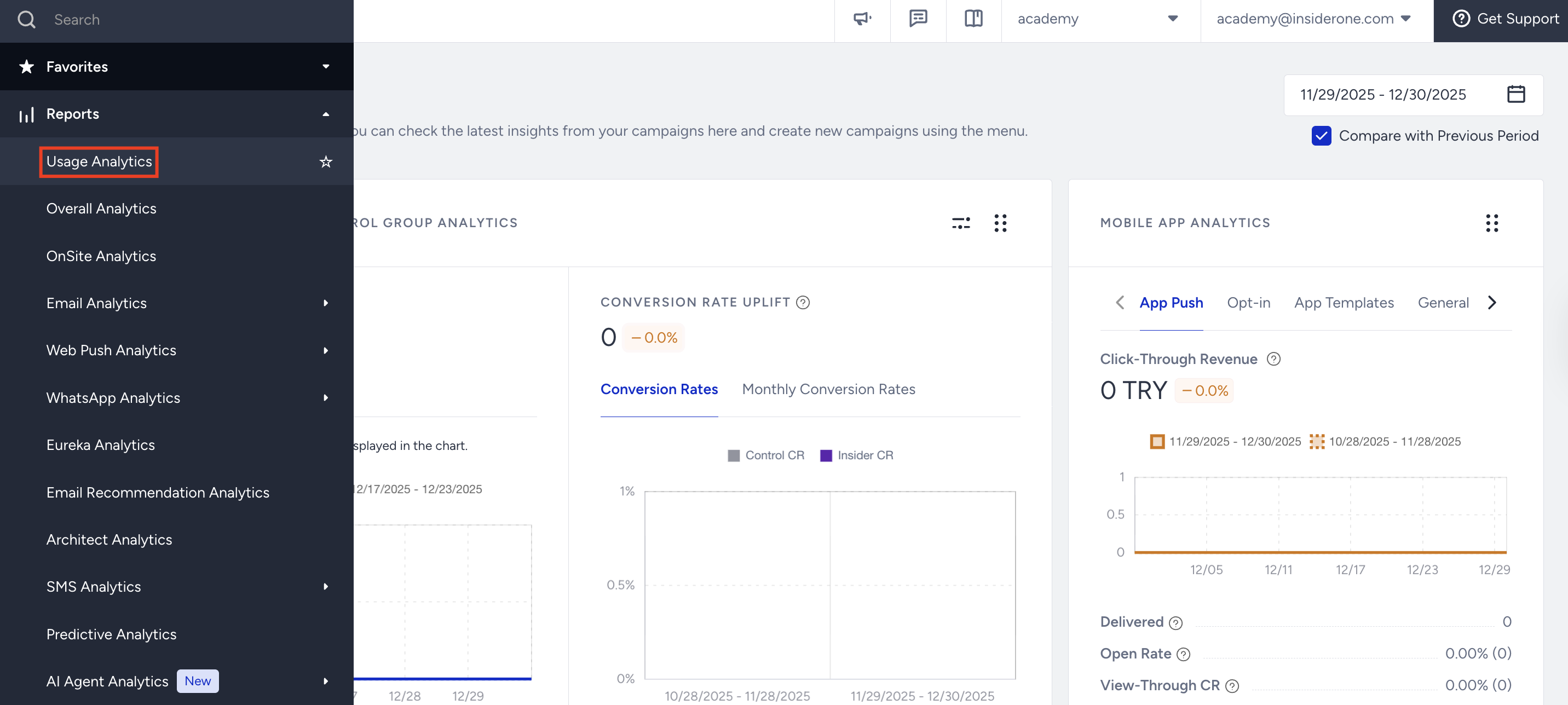
Overall Usage Overview
The Overall Usage Overview section provides a high-level view of total message consumption compared to your available quota.
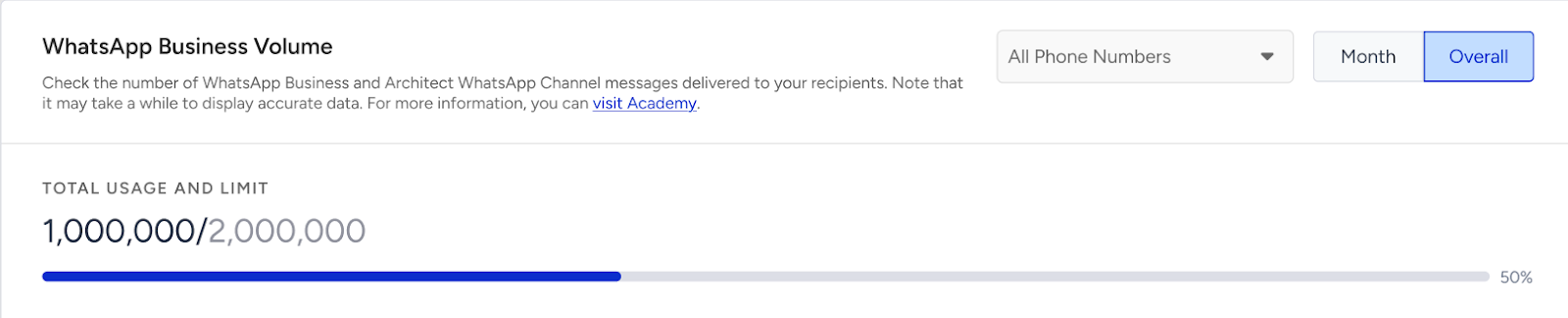
In this section, you can:
View your total message consumption
Compare usage against your assigned limit
Monitor overage status
This view is independent of country, account, or phone number breakdowns.
You can switch between:
Month view → Displays usage within the selected month.
Overall view → Displays cumulative usage.
Country Tab
The Country tab groups usage by delivery country.
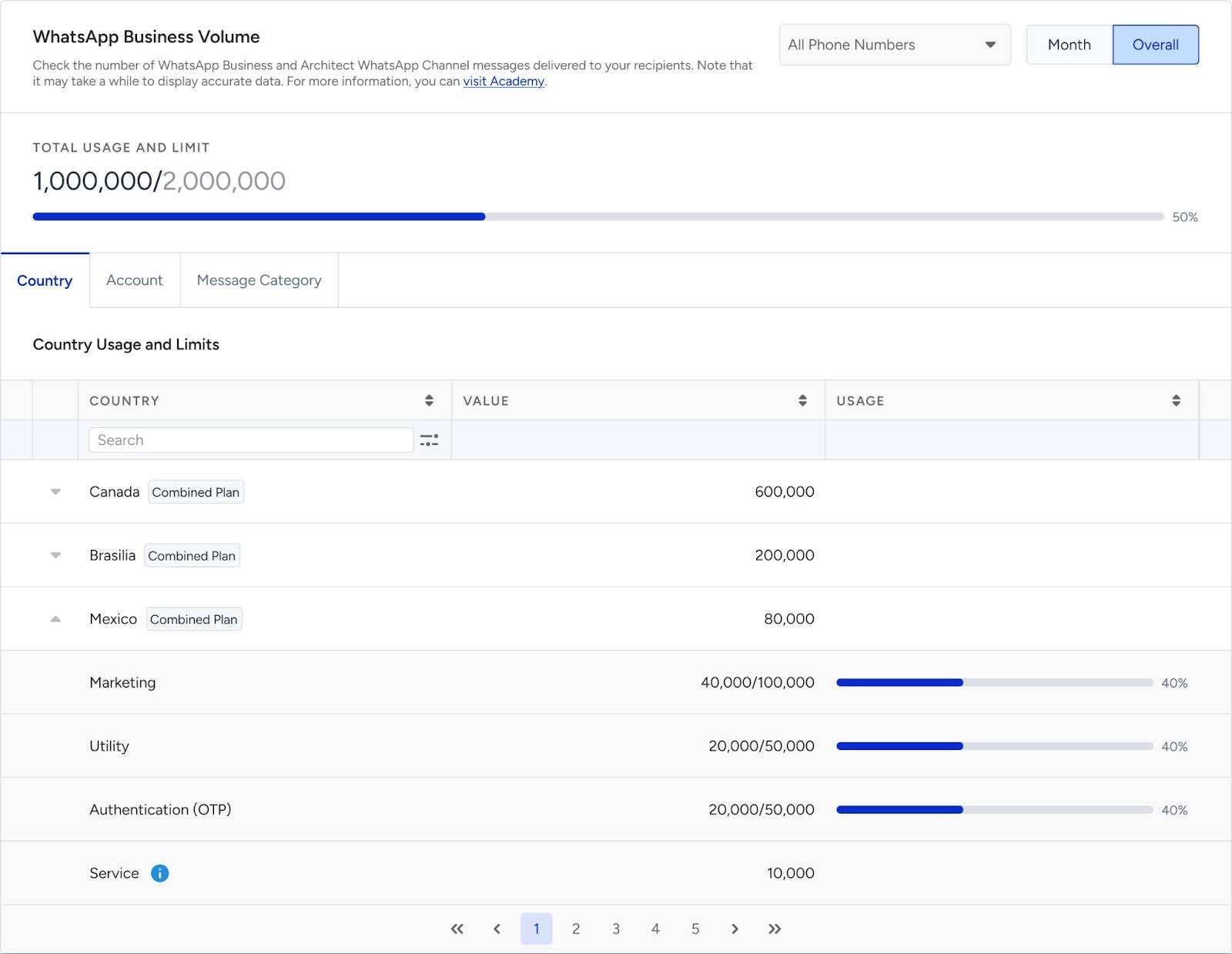
For each country, you can:
View total message volume
Expand the row to see the message category breakdown:
Marketing
Utility
Authentication
Service
Countries are not assigned individual quotas. This tab displays message activity, grouped by country, for monitoring.
Usage bars visually represent quota utilization per category.
If a message is sent to a country that does not have quota coverage under normal purchase conditions, the message will be dropped.
Important:
Service messages are free of charge and therefore:
Are displayed for monitoring purposes
Are not included when calculating total usage
Total consumption is calculated and displayed based only on messages sent in other message categories.
Account Tab
The Account tab groups messaging data by account.
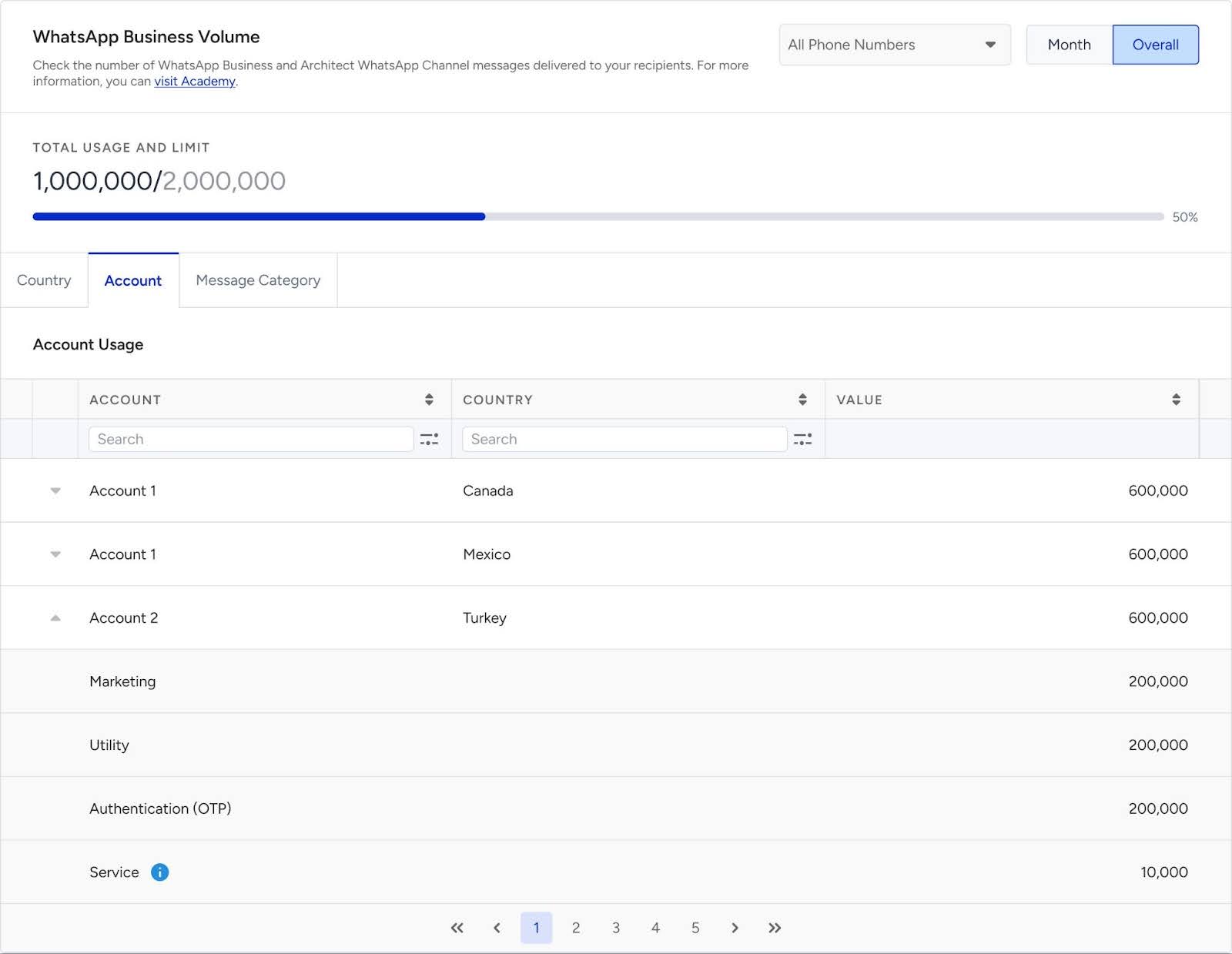
This view allows you to:
Track how much messaging volume is sent from each account
Analyze how usage is distributed across countries
Monitor quota consumption at the account level
You can expand an account row in the panel to display the message category breakdown (Marketing, Utility, Authentication, and Service).
This helps you clearly analyze how usage is distributed within each account. This view is especially useful when multiple accounts operate under the same business portfolio.
The All Phone Numbers filter includes only the phone numbers linked to the panel you are viewing. To see phone numbers belonging to other entities, please switch to the relevant panel.
Message Category Tab
The Message Category tab displays usage grouped by message type:
Marketing
Utility
Authentication
Service
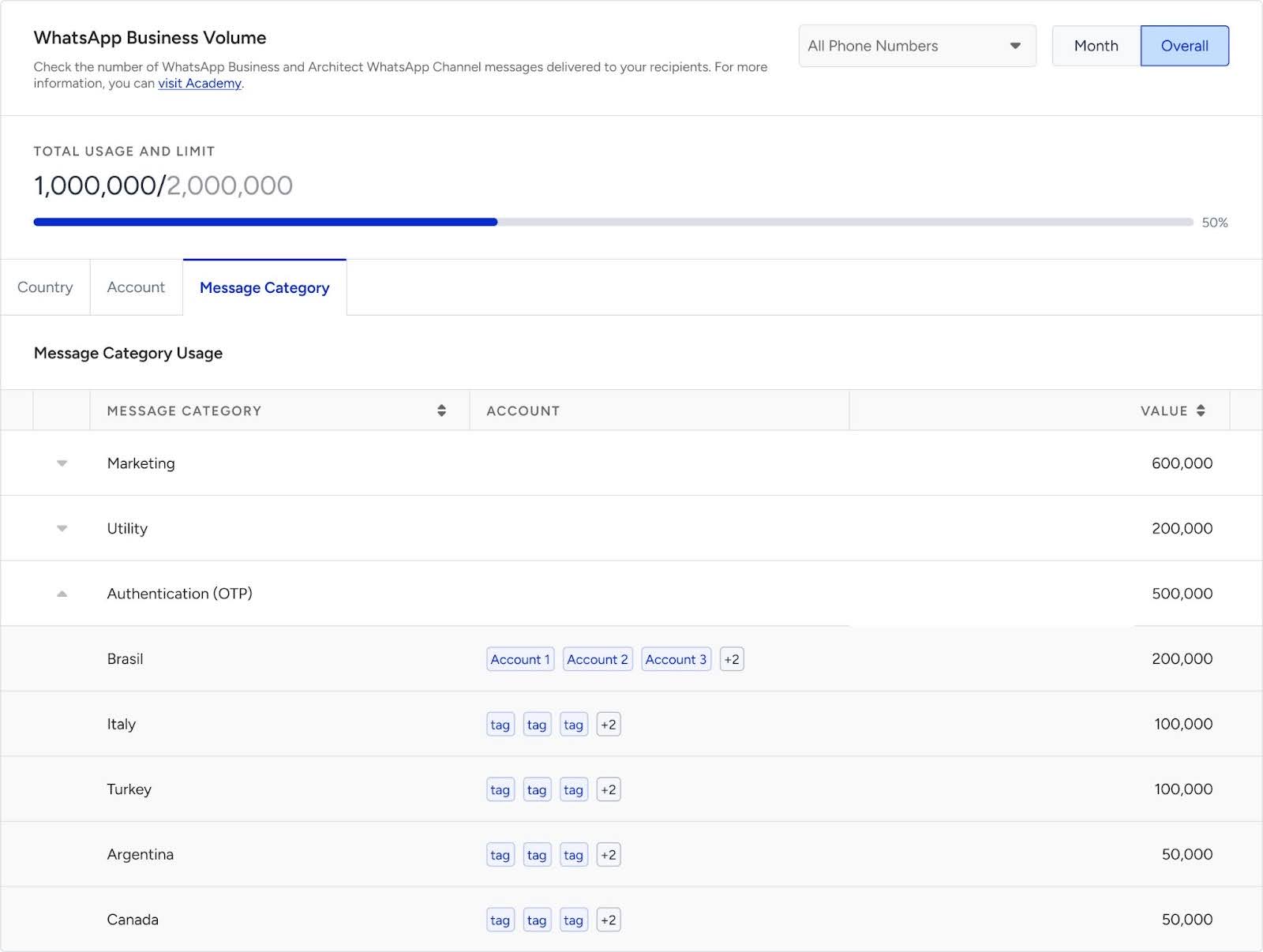
In this view:
Tags next to countries indicate which account sent the messages.
You can analyze how quota usage is distributed by category.
POC Usage
If you are running a Proof of Concept (POC), the analytics page clearly indicates how POC usage is applied.
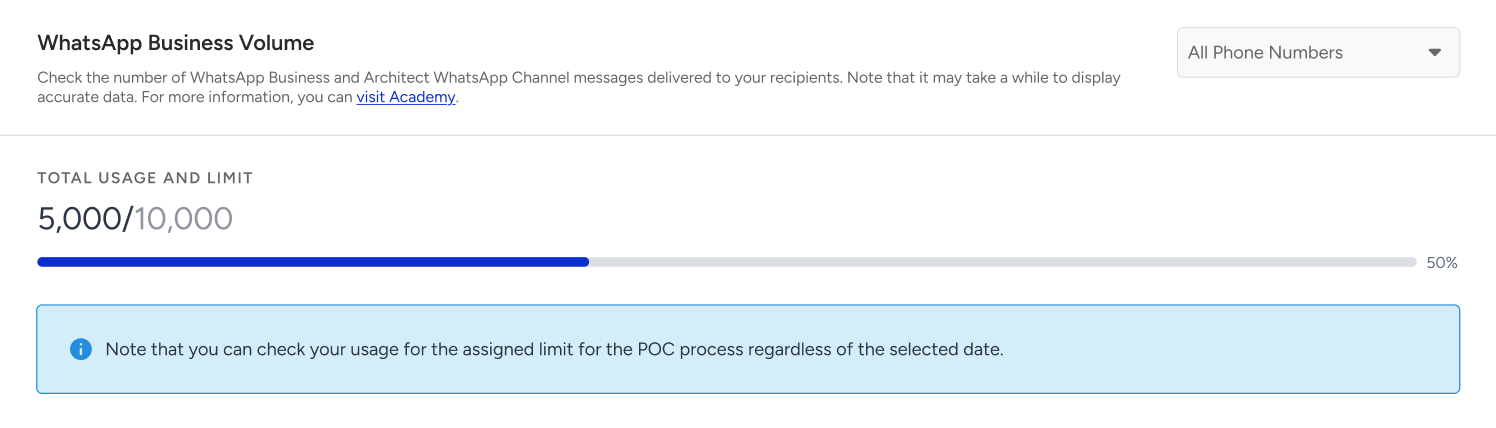
If your entire messaging plan is configured as POC, the total quota is displayed in the progress bar, allowing you to track your POC usage.
POC can be configured in two ways:
Important:
If the total POC quota of 10K messages is fully consumed, no further messages can be sent.
If the POC quota is split between categories (e.g., 5K Marketing and 5K Utility), messaging will continue only for the category that still has remaining quota.
Once a category’s quota is consumed (for example, Marketing), messages belonging to that category will be dropped, while messages from the remaining category (Utility) will continue to be delivered until its quota is also consumed.
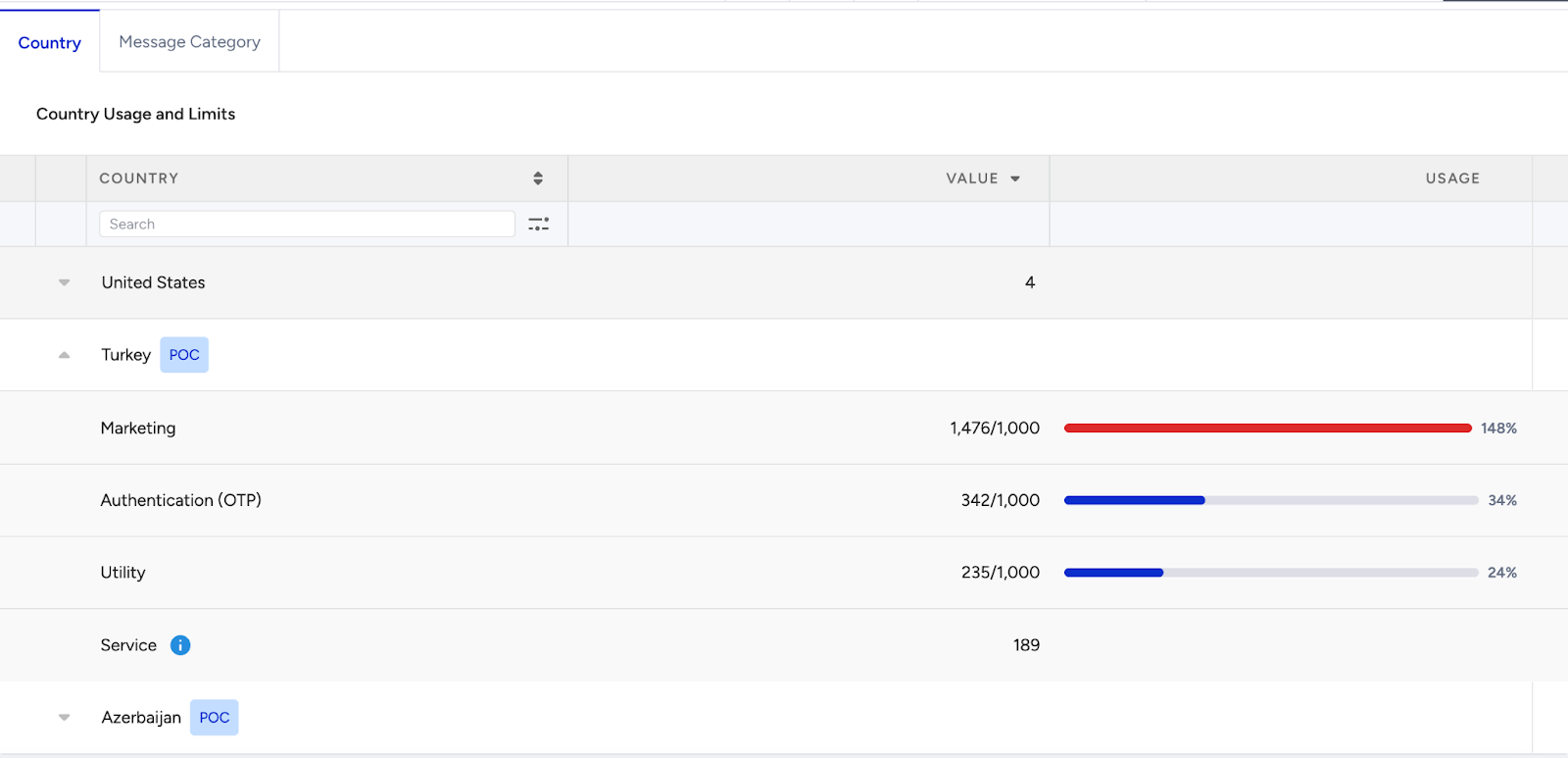
Country-Level POC
All message categories sent to a specific country are treated as POC.
A POC label appears at the country level.
All categories under that country are marked as POC.
A POC can be applied across multiple countries or categories. When messages are sent under more than one of these configurations, the total 10K POC quota is shared across all applicable countries and categories.
Category-Level POC
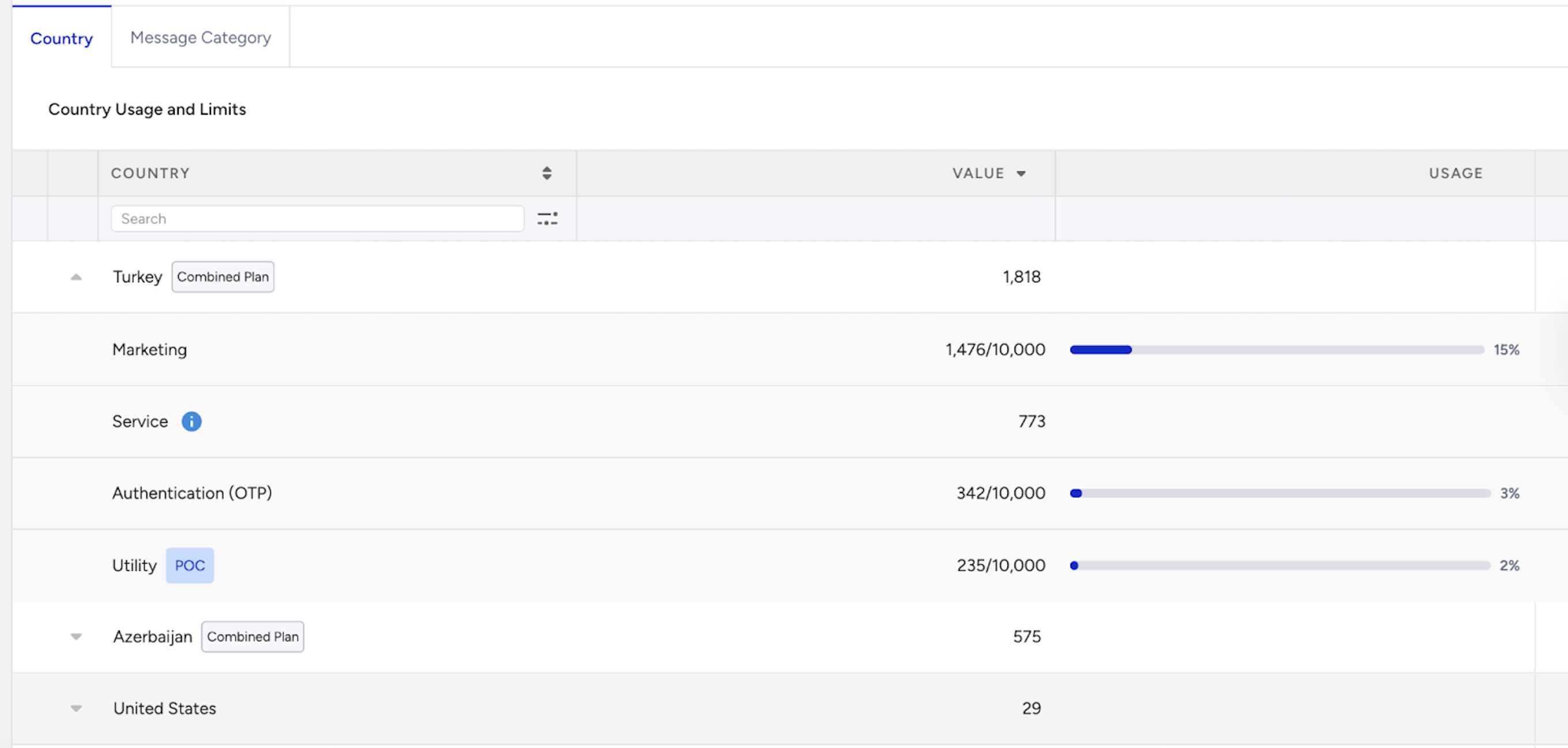
POC applies only to selected message categories.
Only categories marked with the POC label are treated as POC.
Other categories continue to be processed normally.
Important:
POC messages are displayed for monitoring purposes.
They are not included in total usage calculations.
They do not affect your assigned quota.
POC and Normal Usage Display
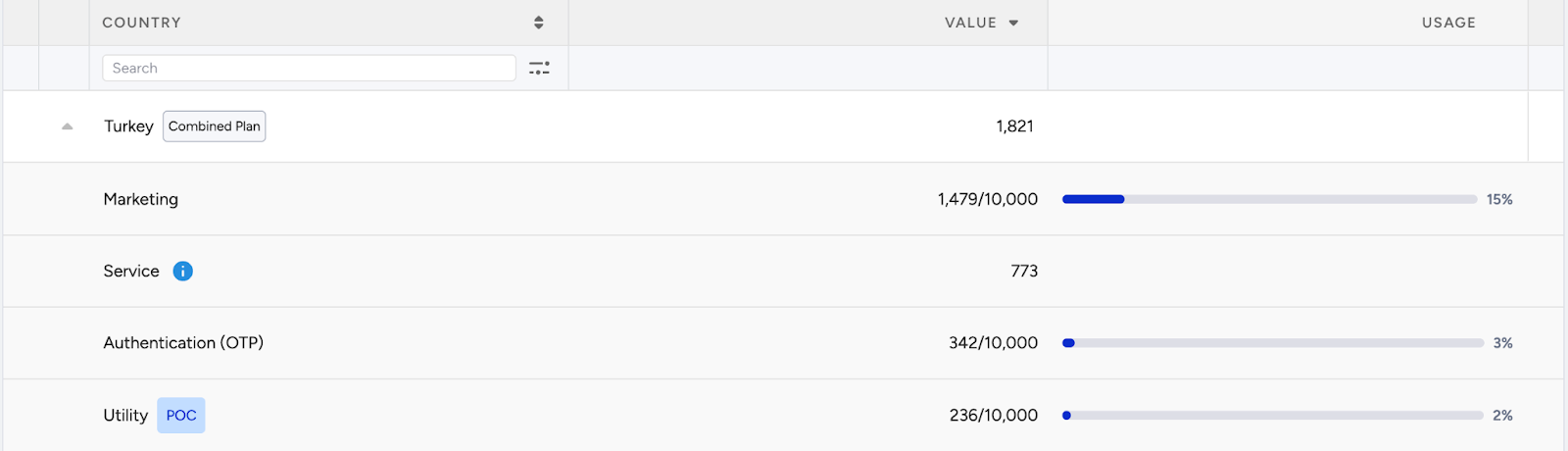
If messaging is planned for a country under both POC usage and normal usage quota, the panel display should follow the logic shown in the screenshot below.
In such scenarios, POC usage must not be included in the displayed usage calculations. The panel will reflect usage based only on the normal quota consumption, excluding POC usage amounts from the visualization.
This ensures consistent reporting and prevents POC allocations from impacting standard quota visibility.
Usage Notifications
This section explains how WhatsApp Usage notifications are sent to admin users and under which conditions email alerts are triggered.
One email is sent to each admin user under the entity within InOne. If the same user is an admin in multiple InOne panels, only a single email should be sent.
Normal Usage
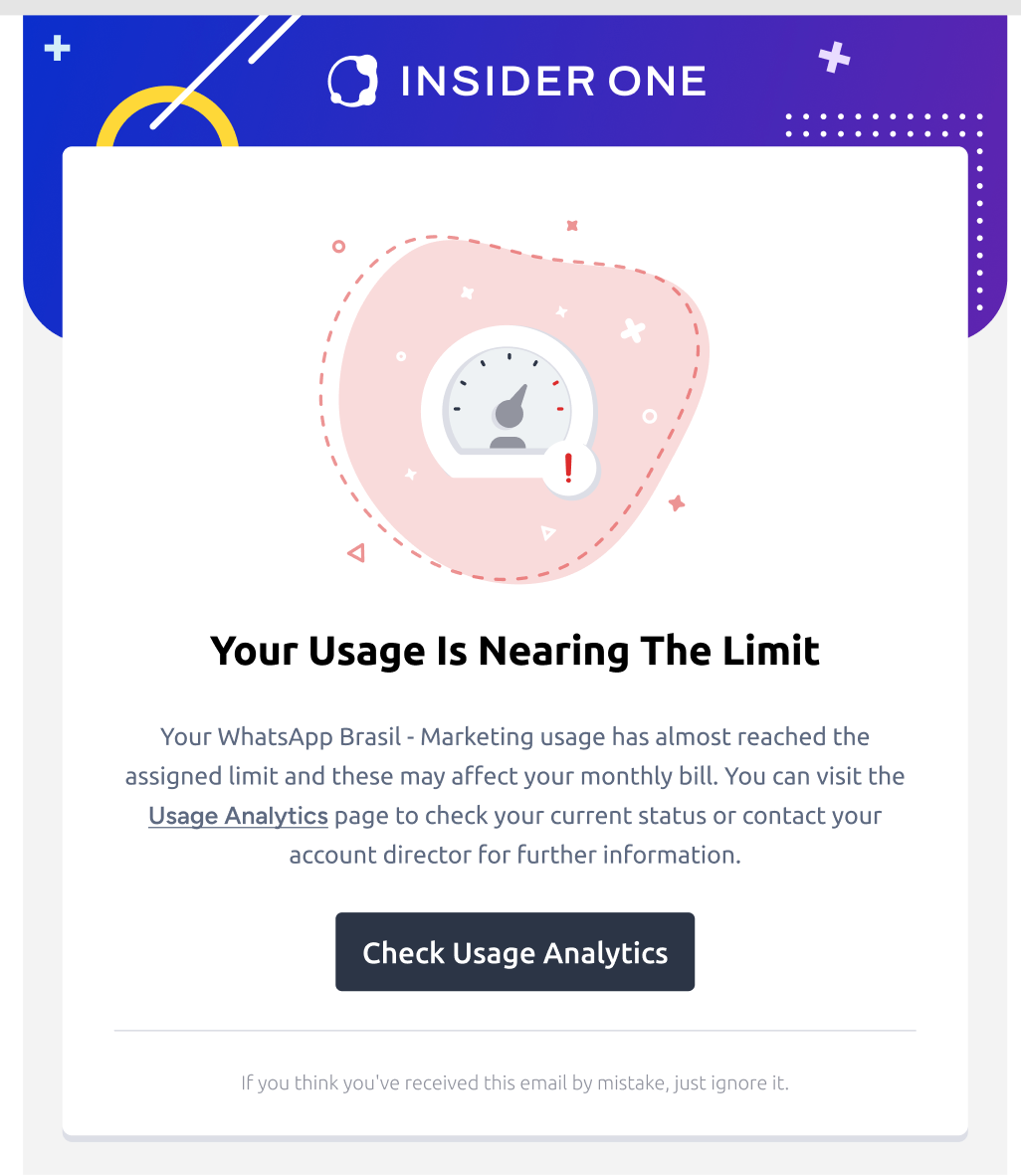
Under normal usage conditions, email notifications are triggered automatically when your quota consumption reaches defined threshold levels. These emails help you proactively monitor and manage your messaging limits.
Nearing the Limit
When your total usage reaches 80% of your allocated quota, an email notification is automatically sent to admin users.
The email subject line is: “Your usage is nearing the limit.”
This notification informs you that your quota consumption is approaching the defined threshold. It allows you to review your usage and take action before reaching the maximum limit.
Exceeding the Limit
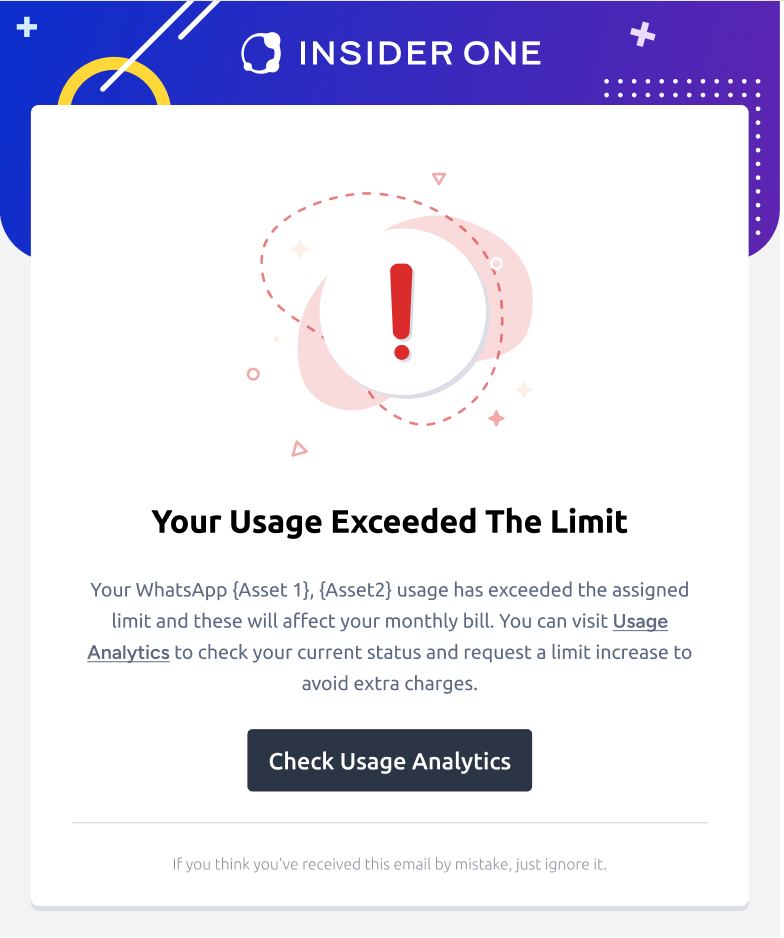
When your total usage exceeds the allocated quota, an email notification is automatically sent to admin users.
The email subject line is: “Your usage exceeded the limit.”
This notification informs you that your assigned quota has been fully consumed, and additional usage may be restricted based on your contract terms.
POC Usage
If your messaging plan includes a Proof of Concept (POC), separate email notifications are triggered based on POC quota consumption. These alerts help you track usage within the defined POC limits.
Nearing the Limit
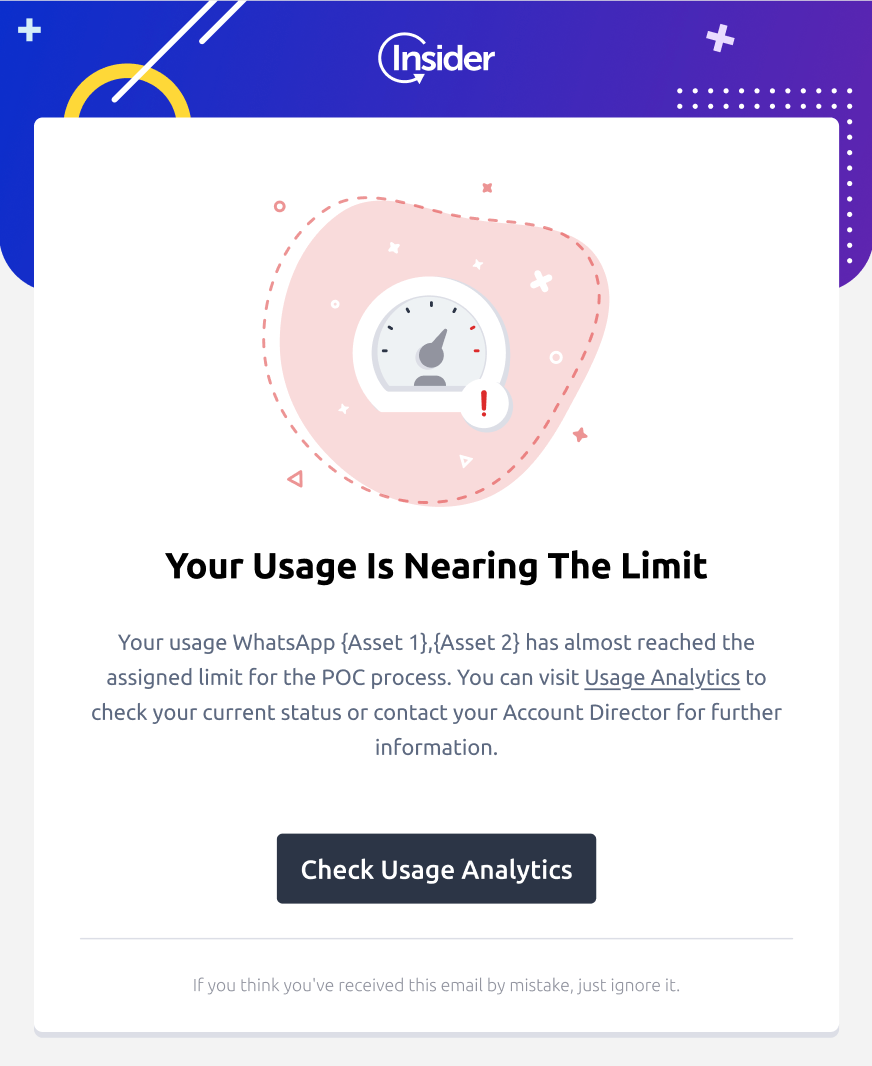
If your Proof of Concept (POC) usage reaches 80% of the assigned POC quota, an email notification is automatically sent to admin users.
The email subject line is: “Your usage is nearing the limit.”
This alert helps you monitor your POC consumption and manage remaining quota before the limit is reached.
Exceeding the Limit
If your POC usage exceeds the assigned quota, an email notification is automatically sent to admin users.
The email subject line is: “Your usage exceeded the limit.”
This indicates that the POC allocation has been fully consumed. Once the quota is exhausted, no further POC messages can be sent.
New Per-Message Pricing Model
Starting July 1, 2025, WhatsApp has transitioned from its current conversation-based pricing model to a per-message pricing model for template messages. Meta introduced this change to simplify the pricing structure, align with industry standards, and better reflect the value delivered to both users and businesses.
With the per-message pricing model, businesses are charged for each template message delivered, regardless of the conversation type.
Charges vary by message type:
Marketing Templates: Charged per delivered message.
Authentication Templates: Charged per delivered message.
Utility Templates: Charged per delivered message if sent outside the 24-hour customer service window; free if sent within it.
How is this different from the Conversation-Based Model?
Here’s how the new Per-Message Pricing Model differs from the previous Conversation-Based Model:
Conversation-Based Model: Charges per 24-hour window, regardless of how many messages are sent.
Per-Message Pricing Model: Charges per template message, enabling more detailed cost tracking and control.
For further information, refer to Meta’s Pricing on the WhatsApp Business Platform guide.
Message Template Categories
Template messages are the only type of messages that can be sent outside the 24-hour customer service window. Unlike non-template (free-form) messages, they are categorized as follows:
Marketing: Aimed at achieving various goals, from generating awareness to driving sales, such as new product announcements, targeted promotions, and cart abandonment reminders.
Marketing Lite: Enables you to track the performance of marketing messages, such as product announcements, promotions, and reminders, sent via the MM Lite API.
Utility: Meant for following up on user actions or requests such as opt-in confirmations, order/delivery management (e.g., delivery updates), account updates, alerts (e.g., payment reminders), and feedback surveys.
Authentication: Used to authenticate users with one-time passcodes, potentially at multiple steps in the login process (e.g., account verification, account recovery, integrity challenges).
Service: Reserved for resolving customer inquiries. Service conversations can only be opened with free-form messages.
For further information about message template categories and pricing, refer to Meta's article.
Usage Analytics Under the New Pricing Model
The Usage Analytics page now shows:
Total number of delivered and charged template messages.
Category-level breakdown (Marketing, Utility, Authentication).
Usage comparisons against your contract quota:
Overall view: Cumulative template messages charged.
Month view: Charged messages in the selected period.
Country-level allocation.
This shift enables more detailed cost tracking, helping you optimize your message delivery strategy.
Usage Analytics vs. Campaign Analytics
Metrics in WhatsApp Campaign Analytics and WhatsApp Usage Analytics serve different purposes and should not be directly compared.
WhatsApp Usage Analytics includes all messages charged by Meta, covering:
Architect (automation) WhatsApp journeys,
Standalone WhatsApp campaigns,
API-sent messages (via Transactional or Conversational API)
This page is best for tracking Meta-charged message volume and comparing your quota vs. actual usage.
WhatsApp Campaign Analytics focuses on campaign-level performance. You can use this page to analyze:
Message delivery
User engagement
Audience reachability
For quota tracking and cost monitoring, rely on WhatsApp Usage Analytics. For performance insights, use WhatsApp Campaign Analytics.
FAQ about WhatsApp Usage Analytics
Q: Why do I see different Overall and Usage Analytics numbers?
A: It depends on the time you're reviewing.
Before July 1, 2025: WhatsApp used a conversation-based pricing model. Even if multiple messages were delivered within the same 24-hour window, only one conversation was charged. So, even if 3 messages were delivered, WhatsApp Usage Analytics would count it as 1 charged conversation, while Overall WhatsApp Analytics would show 3 delivered messages. That's why the numbers never matched exactly.
After July 1, 2025, WhatsApp switched to a per-message pricing model. To track usage accurately, you need to consider the combined total from multiple sources: Architect journeys, API-sent messages, and WhatsApp Campaign Analytics. These are located on different pages, and due to technical infrastructure differences, they may not perfectly align.
For the most accurate view of how much of your quota has been used, always refer to WhatsApp Usage Analytics. This data comes directly from Meta and reflects the actual number of messages that have been charged.
Q: What happens if I send a second message within 24 hours (customer service window) to the same user?
A: It depends on the message category:
If both messages are Marketing templates, each one is charged separately, so you’ll be charged twice.
If both messages are Utility templates and are delivered within the same 24-hour customer service window, they are free; no charges apply.
If the Utility templates are sent outside the 24-hour window, they will be charged individually.
To sum up,
Marketing templates are always charged per message.
Utility templates are free if sent within the customer service window; otherwise, they are charged.
So, two messages within 24 hours:
2 Marketing messages → 2 charges
2 Utility messages (within the customer service window) → 0 charges
Q: Can I have multiple open customer service windows with a customer, and when does this occur?
A: Yes. This happens when you send a template of a new message category within 24 hours or send a template during an open customer service window.
Q: When is a new customer service window opened?
A: A customer service window starts when:
The customer messages you (initiating a 24-hour support window).
You reply with a free-form message, and no other open conversation exists.
If a conversation is already open and you reply within 24 hours, no new customer service window is started.