The Overall WhatsApp Analytics page provides comprehensive insights to help you monitor and enhance the performance of your WhatsApp campaigns. This guide covers all key metrics and data points, helping you to make informed decisions and optimize campaign outcomes. You can follow the outlined steps to navigate the analytics page efficiently, interpret key metrics, and resolve potential issues affecting your messaging success.
In this guide, you will learn about:
Navigate to Overall WhatsApp Analytics
To access the Overall WhatsApp Analytics page:
Navigate to InOne > Reports > WhatsApp Analytics, then select WhatsApp Analytics. 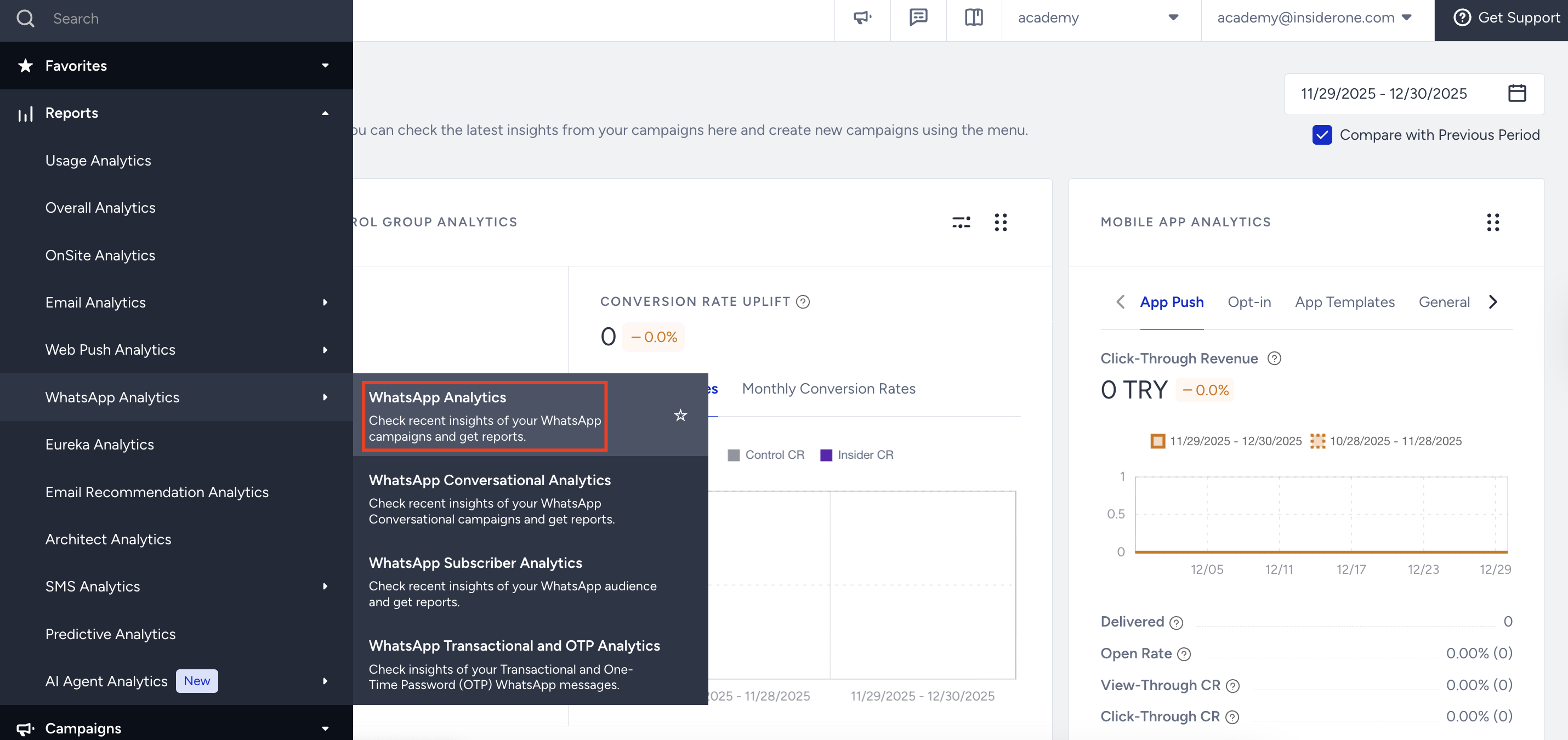
Alternatively, on the WhatsApp Campaign Listing page, click the Analytics tab. 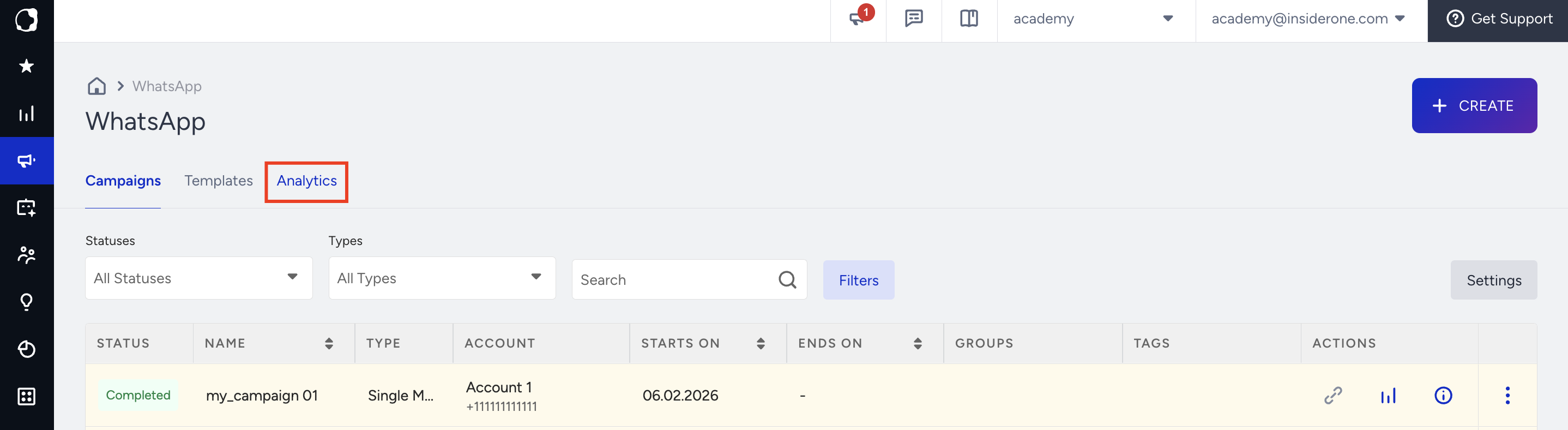
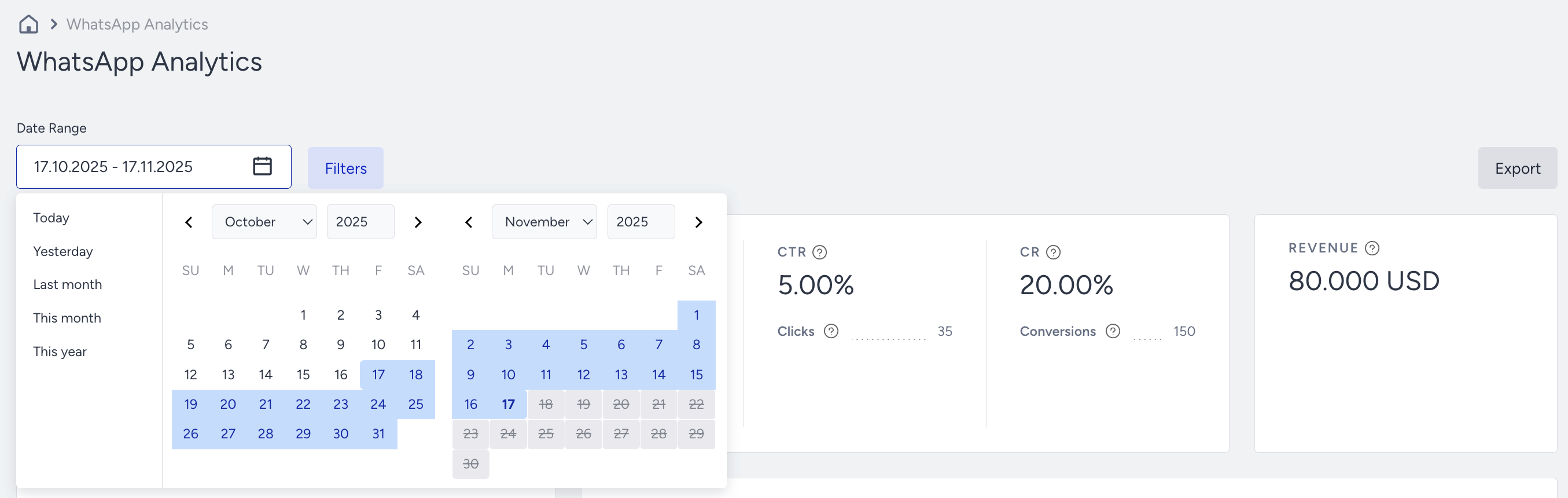
You can select a time range using the date picker in the top left corner of the page to filter the performance metrics.
Introduction and Metrics

Refining your results allows you to see the following metrics:
Targeted: The total number of recipients in your target audience is generated based on the automation of your campaign.
Sent: The total number of WhatsApp messages successfully transferred to the service provider to be addressed to the recipients.
Dropped: The total number of WhatsApp messages that weren’t transferred to the service provider to be addressed to the recipients.
Delivery Rate: The percentage of Delivered messages compared to sent WhatsApp messages.
Delivered: The number of WhatsApp messages successfully transferred to the recipients.
Undelivered: The number of WhatsApp messages that weren't addressed to the recipients by the service provider.
Delivery Pending: The number of Sent messages with no delivery reports received yet from Meta.
Meta assigns two primary message statuses: Success and Fail. However, some messages might not receive a status update, leaving their delivery status uncertain. These messages are classified as Delivery Pending.
Open Rate: The percentage of the people who open the delivered WhatsApp messages.
Opens: The number of delivered messages opened by recipients with the read receipts enabled.
Click-Through Rate: The percentage of the Total Clicks compared to the Delivered WhatsApp messages.
Clicks: The number of unique clicks on links in your WhatsApp messages. Each recipient is counted once per link, per campaign variation, regardless of how many times they click within 24 hours; clicks after 24 hours are counted as new.
The 24-hour window resets per link visit. If a recipient clicks the same link again after 24 hours, that click is counted as a new unique interaction.
Conversion Rate: The percentage of the Conversions compared to the number of Delivered WhatsApp messages.
Conversions: The number of successful goal accomplishments within the specified duration after a user clicks the link in the message. If the goal is achieved within the time interval set in the Goals step, the campaign is logged as a conversion.
Conversions for WhatsApp campaigns will be credited only to the last eligible campaign clicked within the attribution window. If a user clicks multiple WhatsApp campaigns and makes a purchase, only the last eligible campaign will be credited. If no eligible campaign is found, the conversion will not be attributed.
Revenue: The value of the Purchases made via your WhatsApp messages.
How is delivery performance evaluated in MM Lite API?
In the Marketing Messages Lite API (MM Lite API), message delivery performance is evaluated based on benchmark models and engagement-based metrics, rather than message volume alone.
MM Lite continuously analyzes how users interact with your messages, primarily through read and click actions. These interactions are used as key performance indicators to estimate how future messages are likely to perform.
The system reviews anonymized engagement data from the last 30 days and compares your template’s performance with similar templates across the following dimensions:
Country or region
Industry
Template category
Based on this comparison, Meta generates performance benchmarks such as:
Read Rate Benchmark
Click Rate Benchmark
These benchmarks typically reflect the high-performing range for comparable businesses.
How does user engagement affect delivery?
High read or click rates can increase your potential delivery capacity.
Consistently low engagement may gradually reduce future delivery scale.
Low interaction does not block message delivery, but it can influence how upcoming campaigns are scaled.
MM Lite operates through fully automated and continuously optimized systems, meaning delivery can expand or narrow based on predicted user engagement, not just the number of messages sent.
Refer to Meta’s official guide for more technical details.
Unsuccessful Messages
Various factors can cause messages to be unsuccessful. In the Unsuccessful Messages section, you can review and analyze the primary reasons behind Dropped and Undelivered messages.
Dropped Messages
Dropped messages are the total number of WhatsApp messages that weren’t transferred to the service provider to be addressed to the recipients.
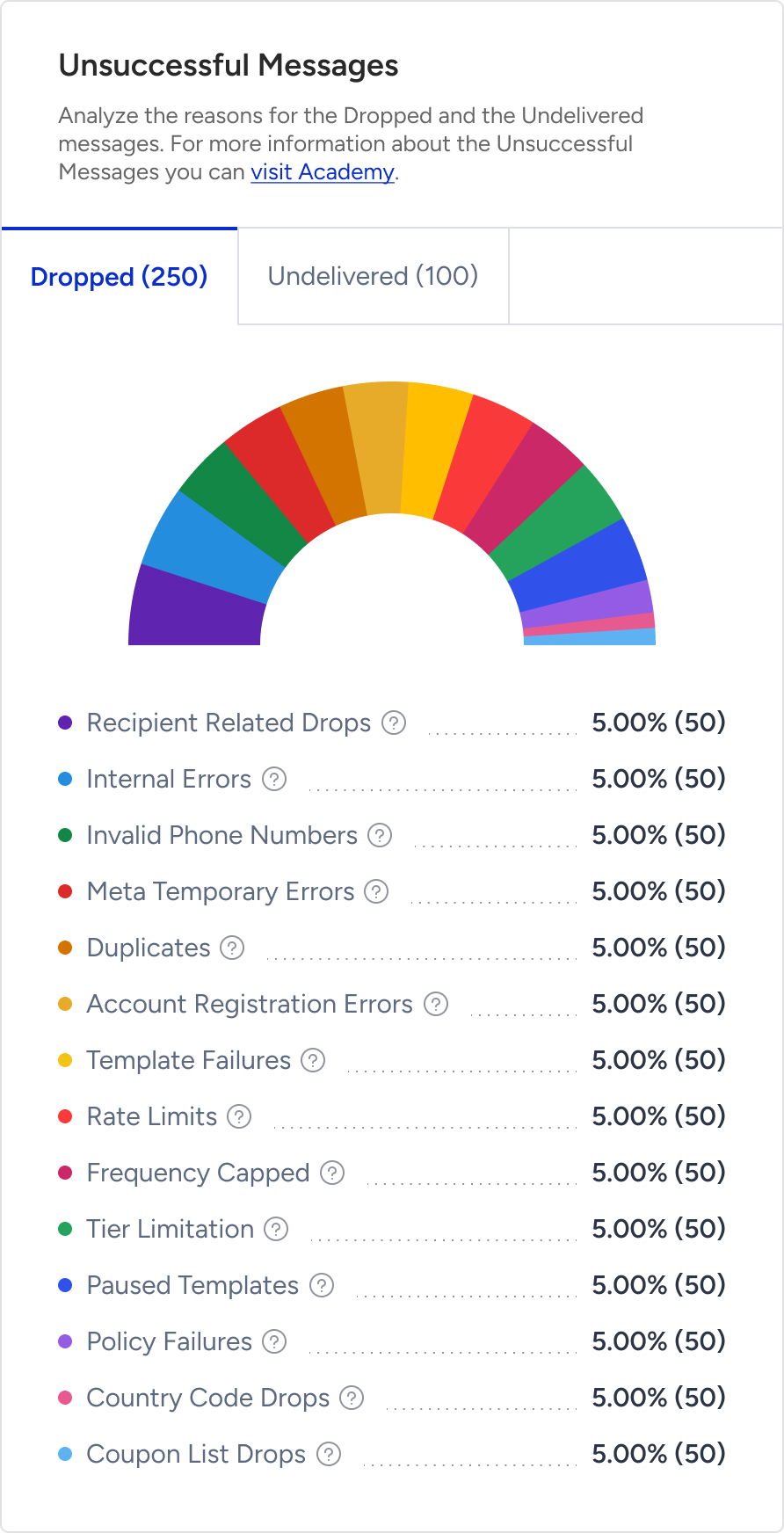
Dropped Message Reasons | Description | Possible Solutions |
|---|---|---|
Account Registration Errors | The percentage (and number) of dropped messages due to registration issues with your phone number at Meta. | You can: |
Country Code Drops | The percentage (and number) of dropped messages due to phone numbers with country codes other than those specified in your contract. | If you want to send messages to non-contracted countries, contact the Insider One team. |
Coupon List Drops | The percentage (and the number) of the dropped messages due to the use-up or expiration of coupon lists. | -Review the current coupon list for validity and remaining coupons. -Create a new coupon list if the existing one has expired or is fully used. |
Duplicates | The percentage (and the number) of the dropped messages due to duplicate recipients in the audience. | |
Frequency Capped | The percentage (and the number) of the dropped messages due to the Channel Frequency Capping settings. | You can: |
Internal Errors | The percentage (and the number) of dropped messages due to various internal system issues (bugs, server problems, technical malfunctions). | |
Invalid Phone Numbers | The percentage (and the number) of dropped messages due to the phone numbers are not a standard format (e164). | You can: |
Meta Temporary Errors | The percentage (and number) of dropped messages due to temporary issues at Meta. | |
Paused Templates | The percentage (and number) of messages that couldn’t be sent since Meta had paused their message templates due to too many low-quality ratings the recipients gave. | You can duplicate or create a new template and send it to engaged users to avoid getting this error and segment these users while sending new messages. |
Policy Failures | The percentage (and number) of dropped messages due to violating Meta policies. | |
Rate Limits | The percentage and number of dropped messages due to your account exceeding various limits of Meta. | |
Recipient-Related Errors | The percentage (and number) of dropped messages due to the various issues with the recipient's WhatsApp account. | You can try these actions: If you need any assistance, contact the Insider One team. |
Template Failures | The percentage (and the number) of messages dropped due to issues with message templates, including errors, policy violations, and approval delays. | You can check the WhatsApp Manager to verify that your template has been translated. See Quality Rating and Template Status. |
Tier Limitation | The percentage (and the number) of dropped messages due to the daily messaging limit per unique recipient via WhatsApp. | You can segment these users and send the message for the next day. |
 - If an end user wants to contact the business independently, they cannot send a message without first accepting the
 Undelivered Messages
Undelivered Messages are the total number of WhatsApp messages that weren’t addressed to the recipients by the service provider.
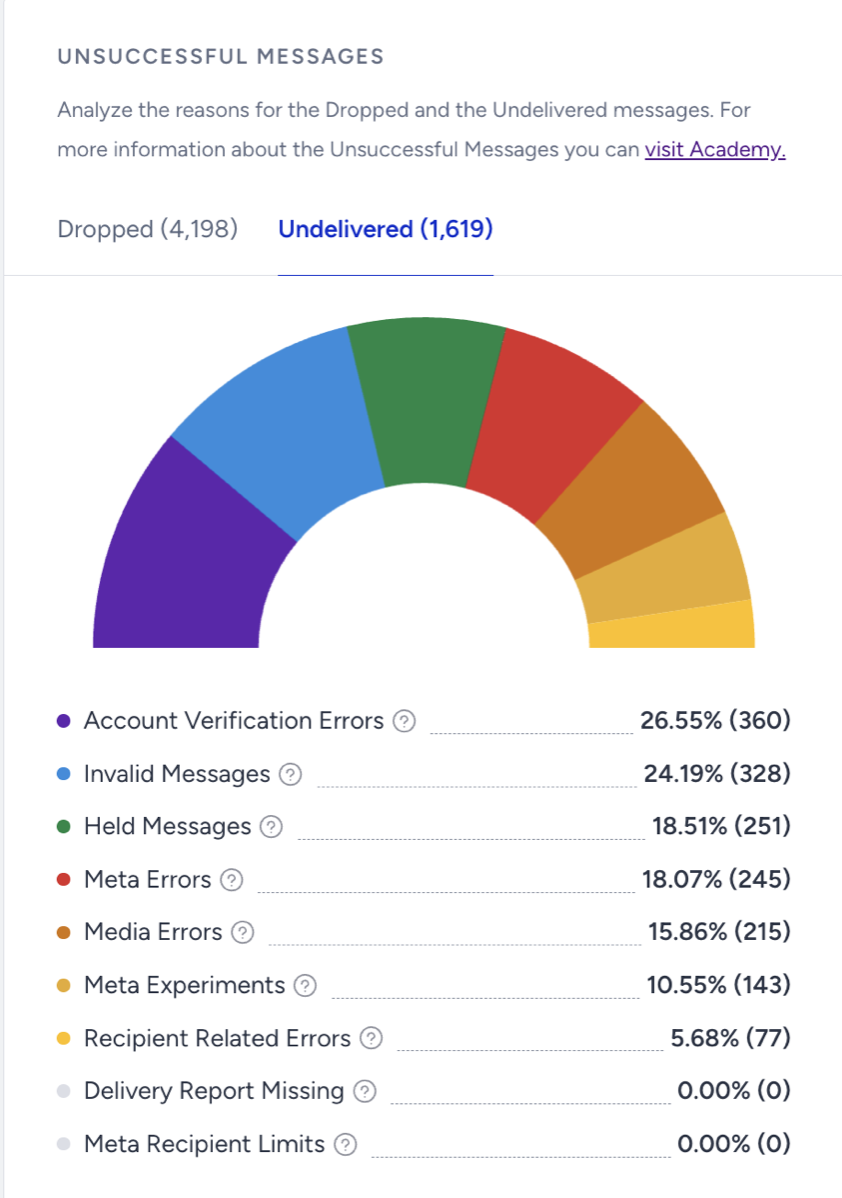
Undelivered Message Reasons | Description | Possible Solutions |
|---|---|---|
Account Verification Errors | The percentage (and the number) of undelivered messages due to verification issues with your phone number at Meta. This error is related to the account verification's must-do steps. Check the reasons in detail and take the necessary actions. | If you need assistance, reach out to the Insider One team. |
Delivery Report Missing | The percentage (and the number) of undelivered messages due to no delivery reports received from Meta. Meta allows a 30-day window for messages without status updates. If no status is received within this 30-day window, the messages are marked as Failed. Messages still under “Delivery Pending” status after 30 days are automatically marked as Undelivered and classified as “Delivery Report Missing.” | Use an alternative communication method, such as SMS or Email, to request the WhatsApp user to confirm that they can send a message to your WhatsApp Business phone number and ensure that your number is not included in their blocked contacts list (Settings > Privacy > Blocked or Blocked Contacts). |
Held Messages | The percentage (and number) of messages waiting to be delivered or not, according to the quality ratings given to the message template by the recipients. | You can duplicate or create a new template and send it to engaged users to avoid getting this error. You can segment these users while sending new messages. |
Invalid Messages | The percentage (and the number) of undelivered messages due to uncertain issues with your message content. | |
Media Errors | The percentage (and the number) of undelivered messages due to issues with the media elements of your message templates. | You can check your dynamic attributes/variables' media types supported by Meta, export the users who faced this issue, and re-segment them. |
Meta Errors | The percentage (and the number) of undelivered messages due to unexpected rejections by Meta. | You can segment these users who faced this error and try again to send a campaign to them. |
Meta Experiments | The percentage (and the number) of undelivered messages due to experimental features tested by Meta on specific WhatsApp users. | The users who face this error are part of Meta’s experiment. You can export these users, and If you must deliver the marketing template message to them, Insider One recommends you contact the user by some other non-WhatsApp means and ask them to message you so you can resend the message within the customer service window. |
Meta Recipient Limit | It operates like frequency capping by restricting the number of marketing messages a user can receive, depending on their engagement level. The limit applies only to marketing template messages that typically initiate a new marketing conversation. | If you want to avoid this issue, you should follow Meta’s rules on the Meta Recipient Limits below: |
Recipient-Related Errors | The percentage (and the number) of undelivered messages due to various issues with the recipient's WhatsApp account. | You can try these actions: If you need any assistance, contact the Insider One team. |
Performance by Campaign Metrics
You can evaluate the performance of your automated campaigns on a Daily, Weekly, or Monthly basis with your selected metrics.
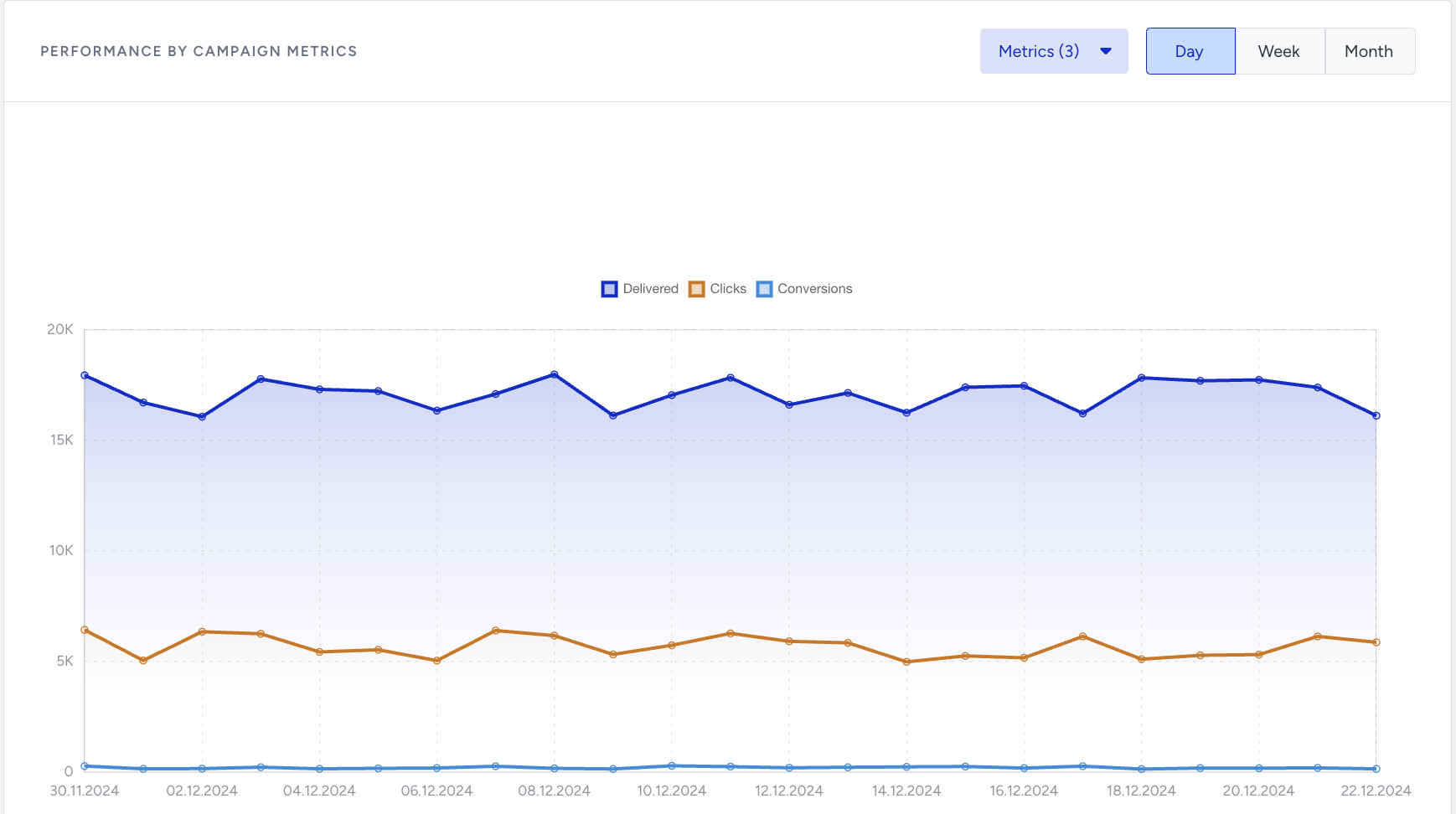
Campaign Metrics
At the bottom of the Overall WhatsApp Analytics page, you can see the Campaign Metrics for all the campaigns that you have created.
To locate a specific campaign, you can search for its name in the Campaign column's search bar or enter its ID in the ID column's search bar.
You can track their Status, Campaign Type, Campaign Tag, number of Delivered messages, Clicks, and Opens and the Revenue for each campaign.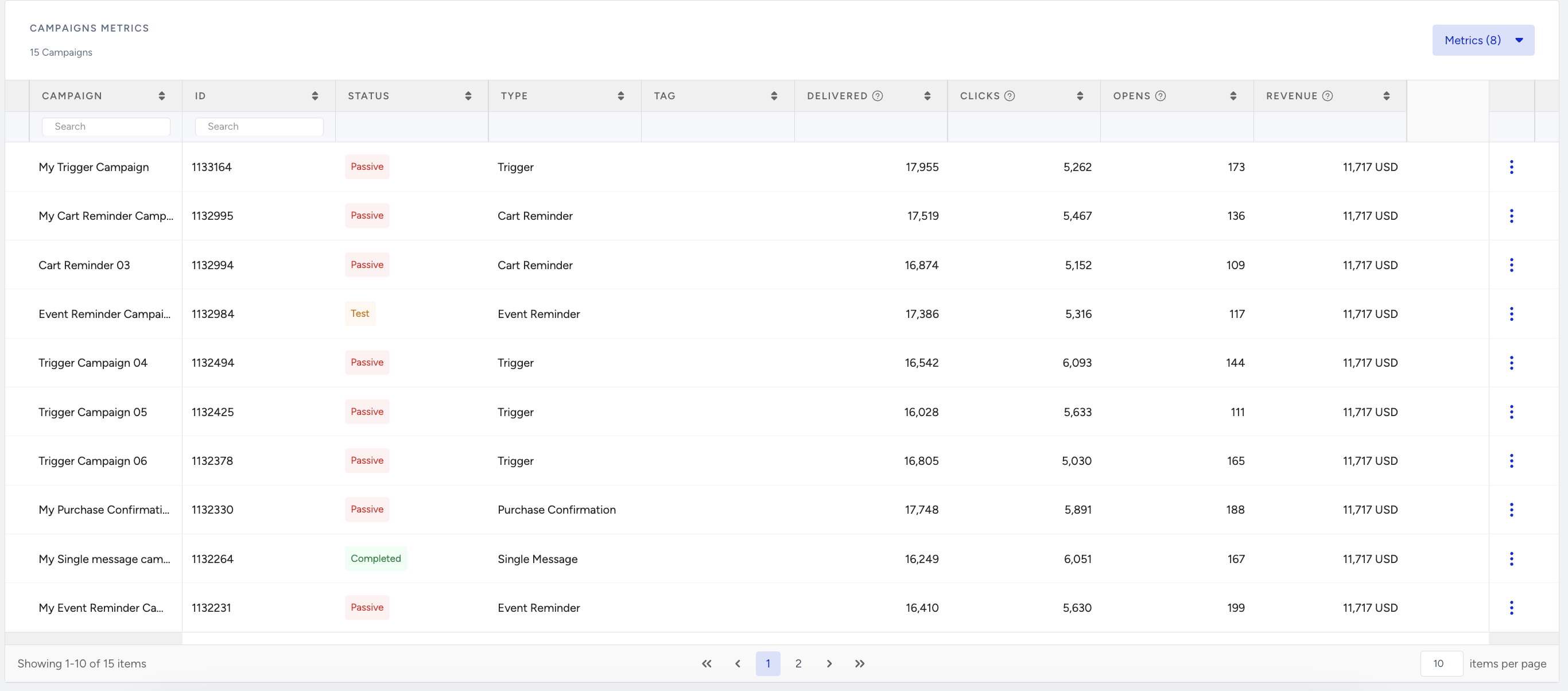
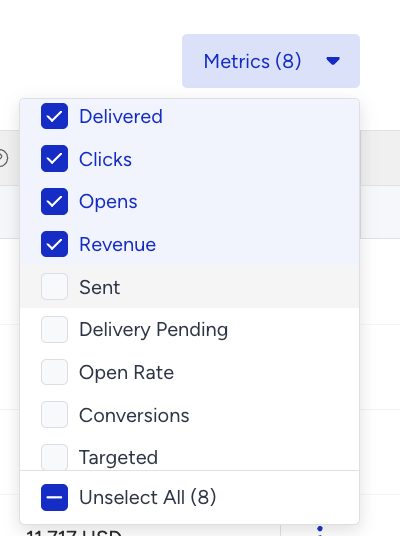
The default metrics are displayed automatically. To view different metrics, click on the Metrics option and select the ones you want to display.