The Overall Analytics page, also known as your all-campaigns performance dashboard, provides total performance, key information, and the value of your Insider One campaigns across all products in one place. This dashboard gives you an overview of your marketing initiatives in Insider and their impact. It eliminates the need to manually search through different analytics pages to gather an overall Insider One report.
The dashboard contains metrics in three main categories:
It shows summary metrics for OnSite, Web Push, Architect, Email, SMS, WhatsApp, and Smart Recommender campaigns.
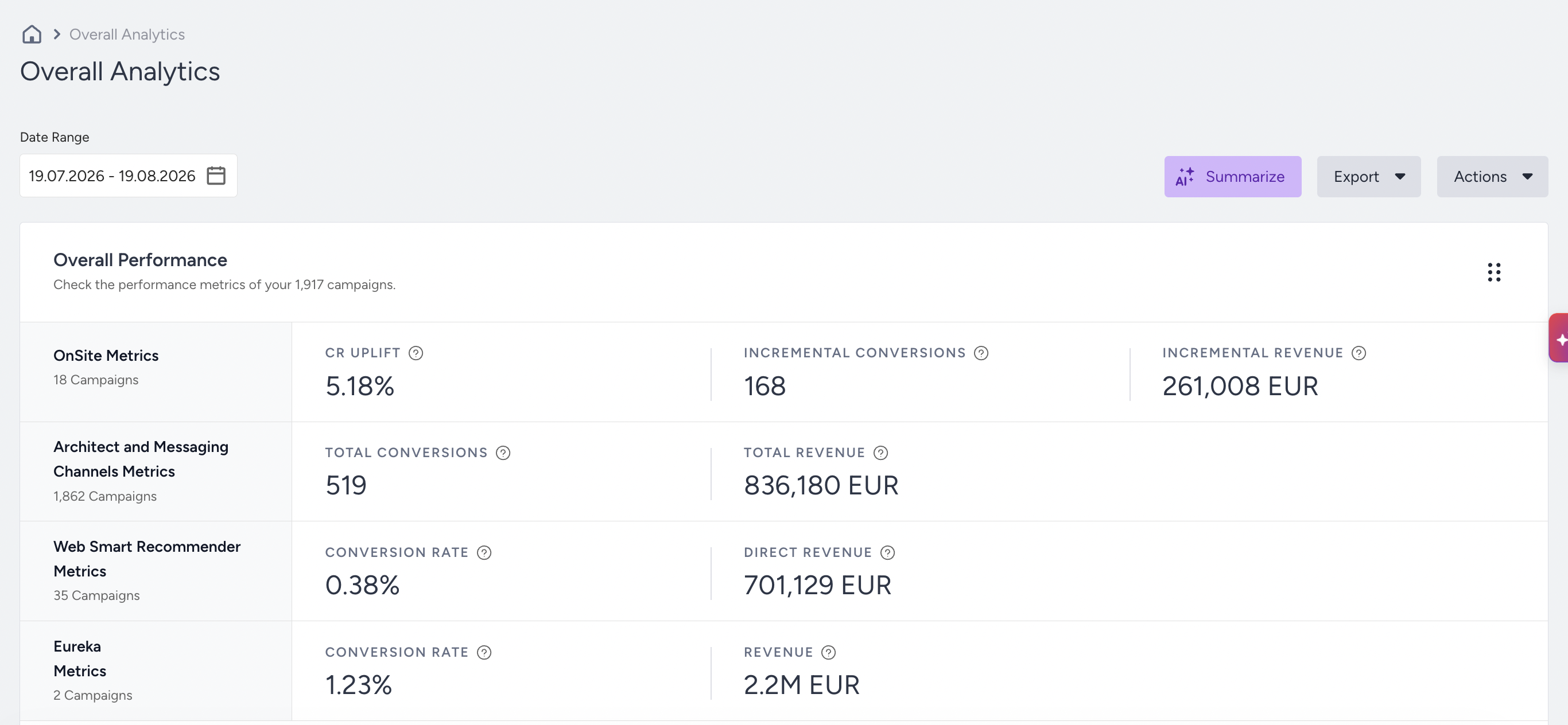
Overall Performance
This section displays the number of campaigns, total revenue, total conversions, total conversion rate, total conversion rate uplift, and total incremental revenue metrics for the selected date range.
Revenue by Channels Bar Graph
This channel-based bar chart displays total revenue by channel in a single view and provides clear comparisons. An exponential growth chart is used for visualization, as the revenue values may differ significantly.
Export
The exported report includes all selected dashboard metrics, with the exact breakdown in the panel. You can choose the sections and channels you want to export, along with the related key metrics. The export option is available for single export only.
Actions
Click Save as Default to save the metric, product, and filter selections and display the report based on the previously saved view. The date picker is not saved as a default.
You can select sections and channels to view on the dashboard.
Subscriber Metrics
This section displays the subscriber count for each messaging channel. It shows the current day's value, regardless of the selected date range.

Click the Metrics filter to select the products you want to see.
Product-Level Metrics
The report shows six default metrics for each product. You can add/remove metrics you want to view. Add at least one and up to six metrics to the dashboard. You can also save the metrics you select as the default.
You can also remove the default filters from product cards and apply any preferred filters. Click the Save as Default button to save the filters you select as part of your default view.
An overall analytics button is located at the bottom of each card and directs you to the respective dashboard.
OnSite Product Card
Summary metrics for OnSite campaigns are displayed for the “With Control Group” and “Without Control Group” options.
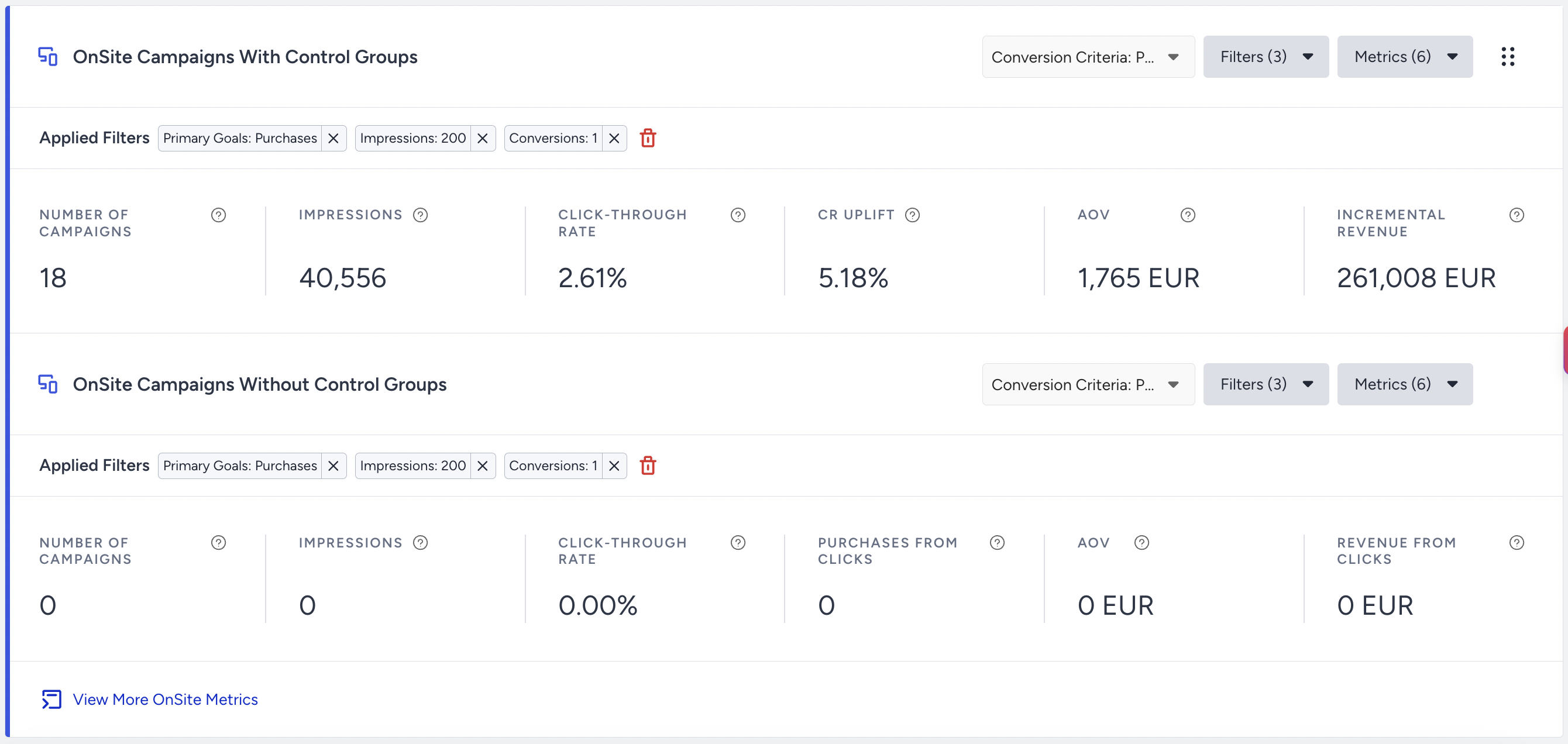
You can filter the metrics by conversion criteria and visit OnSite Analytics.
Web Push Product Card
Summary metrics of the Web Push campaigns are displayed on this card.

Click the View More Web Push Metrics button to visit the overall analytics dashboard.
Email Product Card
Summary metrics of the Email campaigns are displayed on this card.

You can click the View More Email Metrics button to visit the overall analytics dashboard.
SMS Product Card
Summary metrics of the SMS campaigns are displayed on this card.

You can click the View More SMS Metrics button to visit the overall analytics dashboard.
WhatsApp Product Card
Summary metrics of the WhatsApp campaigns are displayed on this card.

You can click the View More WhatsApp Metrics button to visit the WhatsApp Detailed Campaign Analytics.
Architect Product Card
Summary metrics of the Architect journeys are displayed on this card.
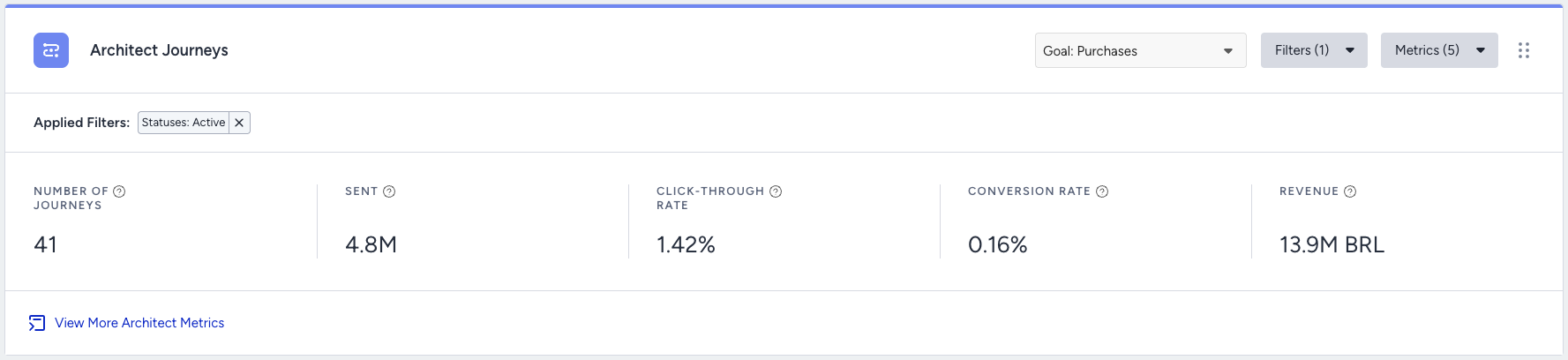
You can filter the metrics by the goal. You can click the View More Architect Metrics button to visit the overall analytics dashboard.
Smart Recommender Product Card
Summary metrics of Smart Recommender are displayed in this card.

You can display metrics by adjusting the attribution window period. You can click the View More Web Smart Recommender Metrics button to learn more about Smart Recommender Analytics.