Suggested reading: Elements of WhatsApp Message Templates
WhatsApp message templates, also known as building a WhatsApp message template with buttons before Meta approves it, are pre-approved message formats required under WhatsApp Business API usage policies. Brands can only initiate conversations with users through approved templates; you need at least one before you can create a WhatsApp campaign.
As an official Business Service Provider (BSP) partner with Meta, Insider One lets you create and submit templates for Meta approval directly from the InOne panel. Templates can include headers, body text, footer, and interactive buttons. Submissions that do not meet Meta's content policies are rejected; see the rejection reasons section in this article before submitting.
This article covers the answers to the questions below:
You can add anything to your template at this stage because you're simply submitting a template. However, when you use this template in your campaigns later, you can change it as you want.
Create a standard template
To create a new WhatsApp standard message template,
1. Navigate to InOne > Campaigns > Messaging > WhatsApp.
2. When you land on the listing page, switch to the Templates tab. 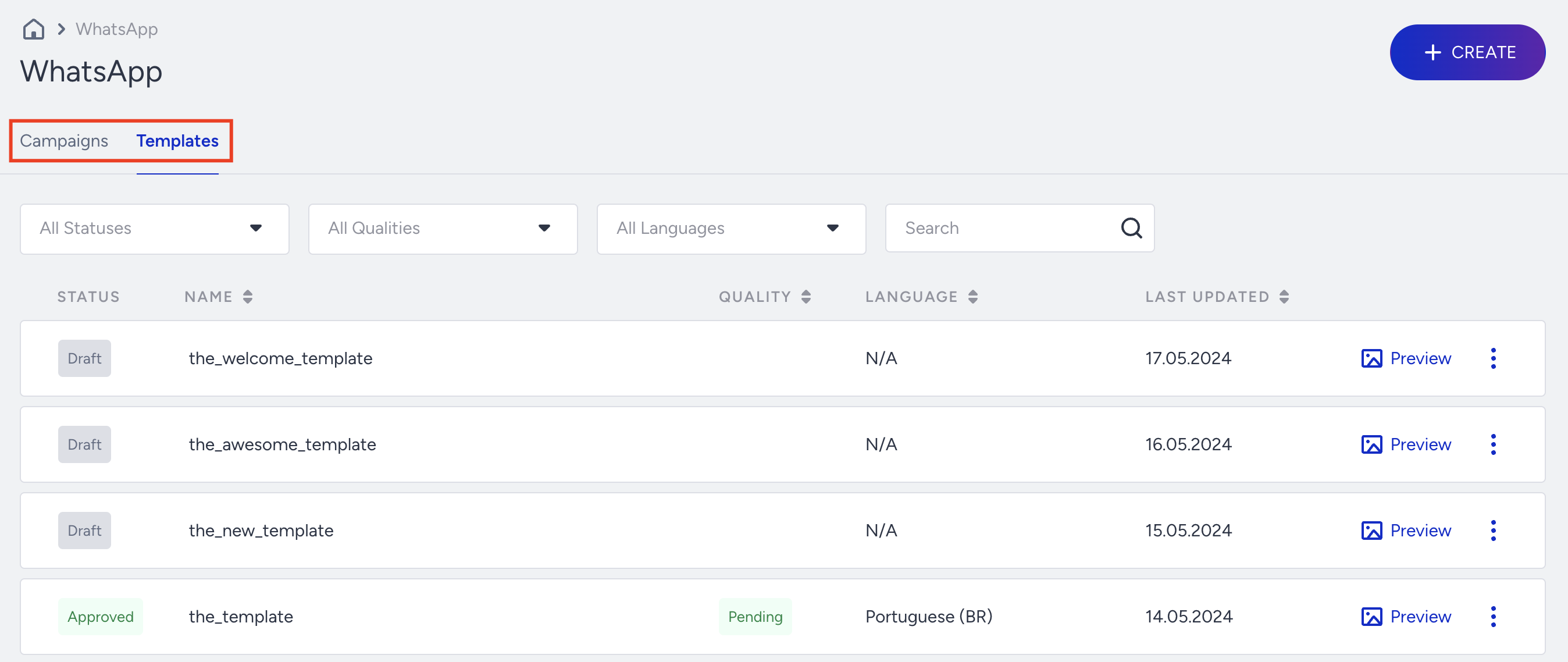
3. Click the Create button, name your template, and proceed to the template creation screen.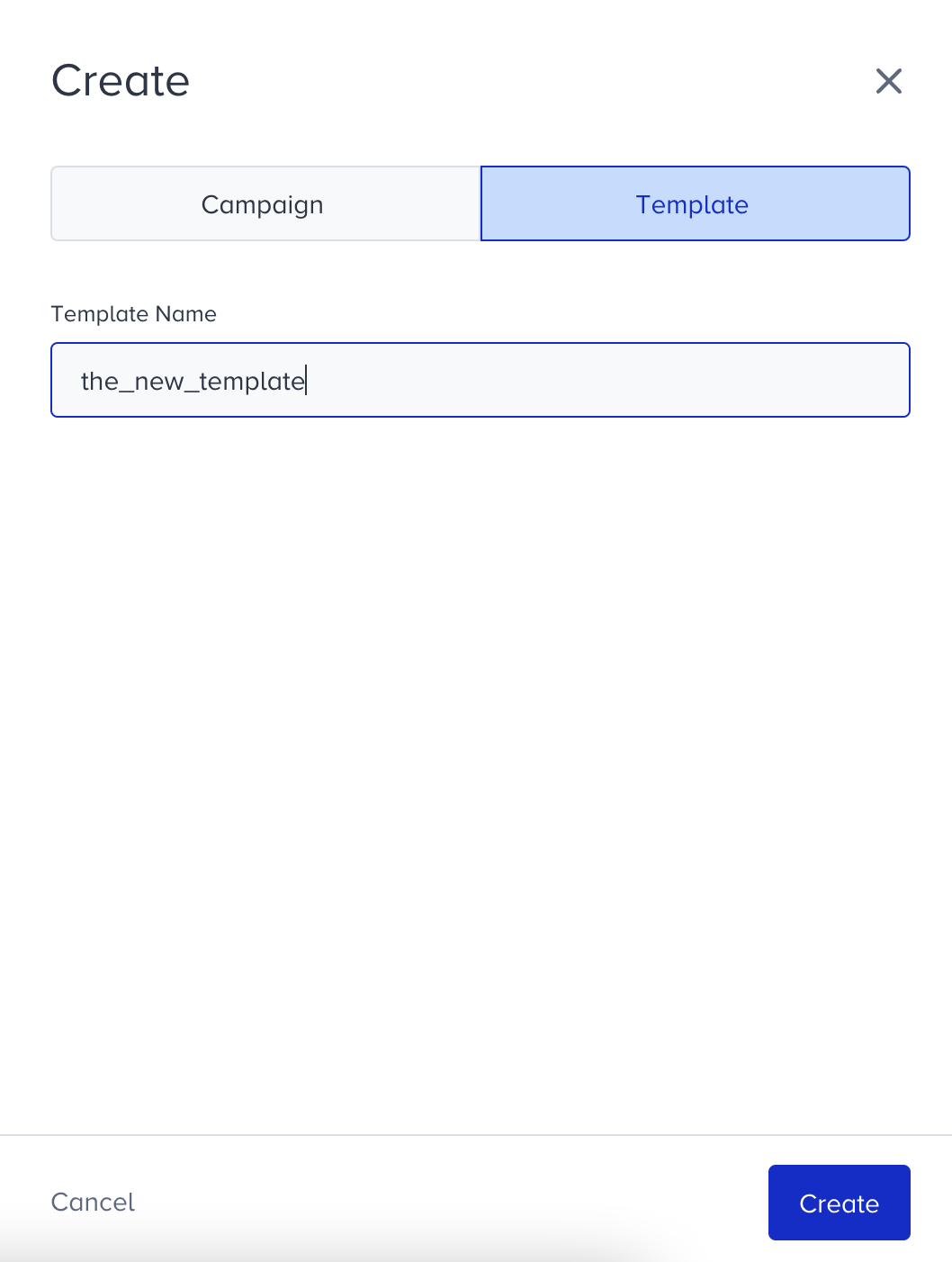
4. Select the Standard option for your template category. Marketing is automatically selected, but you might want to choose the Standard template under the Utility category if the message is transactional. Either way, the template will work, and if the category doesn’t match, Meta will update it to the correct category.
Refer to Create a WhatsApp Carousel Template to create a Carousel template.
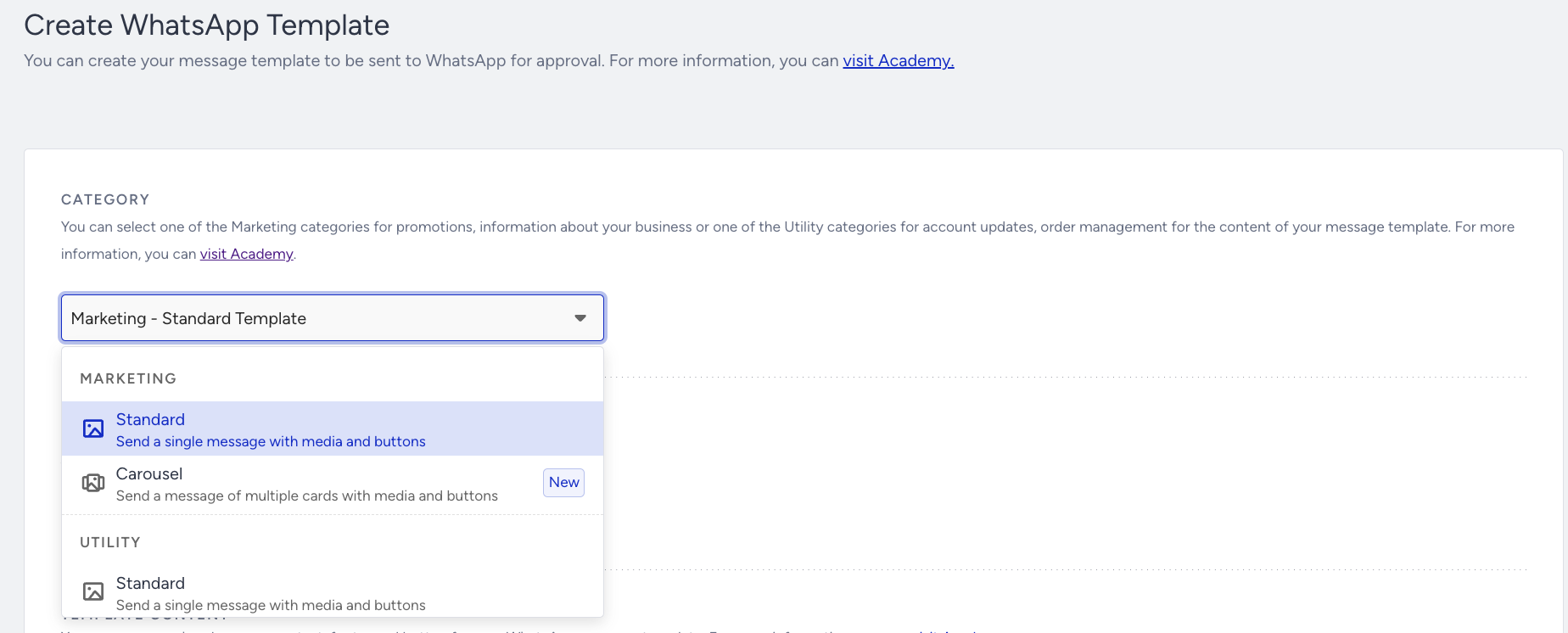
For further information, refer to Meta's guide on Template Categorization.
5. Select the template language first. It must be in line with the language you use in the message. It will be used to match the language of the receiver base in the Segments step.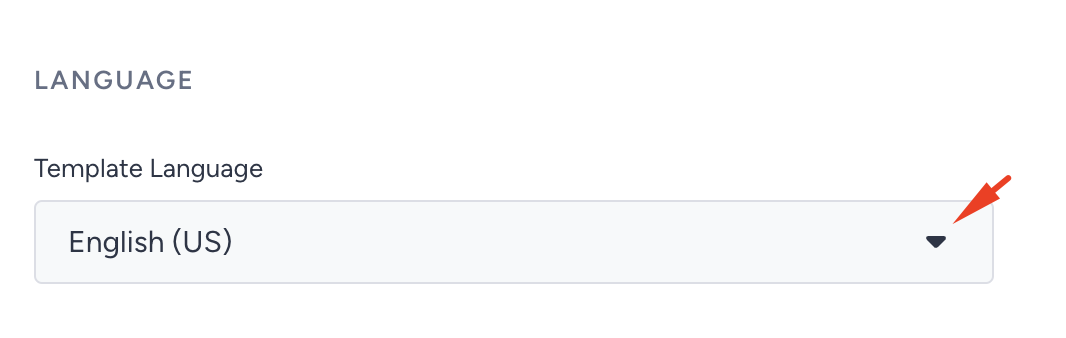
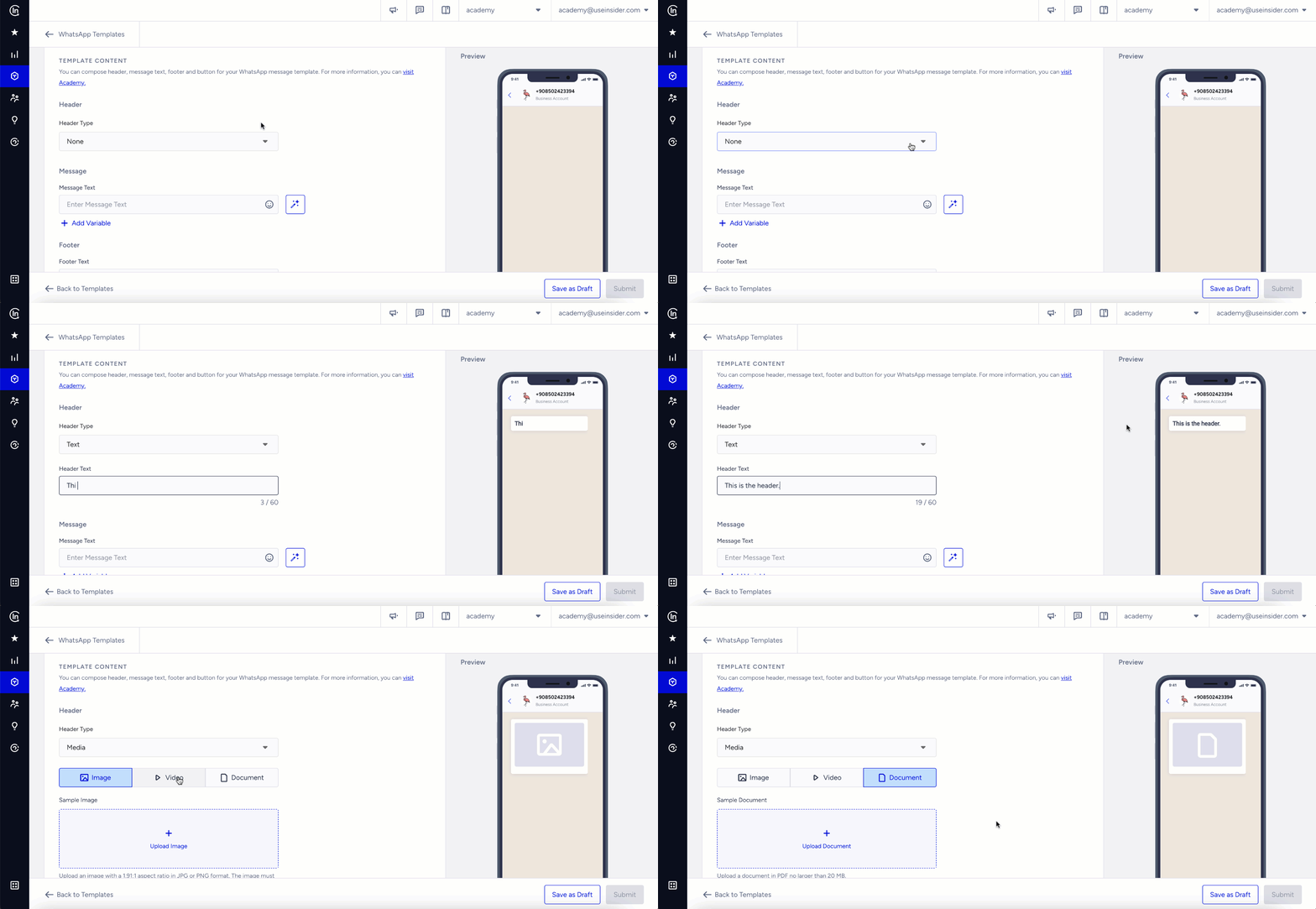
6. You can add text or media as a header to your message template to create more engaging content. Here is what you should consider when uploading media as a header:
If you want to use an image in your template, you can upload images with a maximum resolution of 1920 × 1920 pixels and a maximum file size of 5 MB in supported formats. Media with any aspect ratio can be uploaded. WhatsApp automatically resizes images as needed, with no cropping or rejection based on aspect ratio. For the best visual results, Insider One recommends uploading images with the highest possible resolution within the supported limits.
If you want to upload a video to your template, it must be in MP4 format and be no larger than 16 MB. The first frame will be displayed as the preview.
Changing a file's extension to .mp4 does not convert it into the correct format. The video must be originally encoded in MP4; otherwise, it might fail the format check and result in an error. If your video is in a different format or exceeds the size limit, you must convert or resize it before uploading.
3GPP (.3gp) video format cannot be uploaded during template creation due to Meta limitations. If you want to use a 3GPP video in your campaign, upload an MP4 video when creating the template, then replace it with your 3GPP file during the campaign creation step.
If you encounter a media upload error related to the video codec when uploading a video URL, refer to the troubleshooting steps below to resolve the issue.
If you want to upload a document to your template, you can attach PDFs up to 20 MB. Users can preview the document directly within WhatsApp without downloading it.
Avoid adding emojis to the header, footer, CTA button text, or any section without an emoji selector. Meta doesn’t support them in these areas, and including them will cause a submission error.
The media you upload will be a sample. When the template is approved, and you want to use it in your campaign, you can change it to a custom or dynamic one.
7. Enter your message in the text area. You can use emojis to make your message more friendly. You can also use variables to show more personalized content for your users. You can choose them from the default or custom attributes listed. You can write an alternative text to show users who do not have a value matching the dynamic content you select.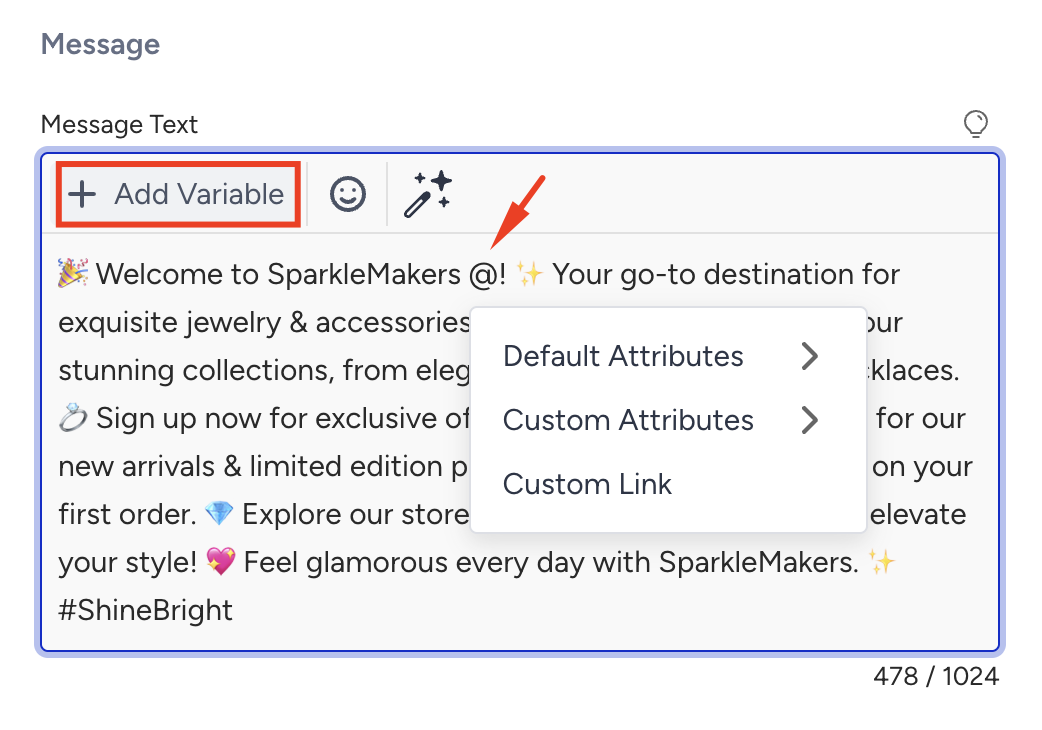
If you include angle brackets (< >) in the Message text field, any content within them will not be displayed in the message preview or sent message. This is a security measure to prevent potential code injection or message manipulation attempts, as angle brackets can be used to embed executable or unsafe content.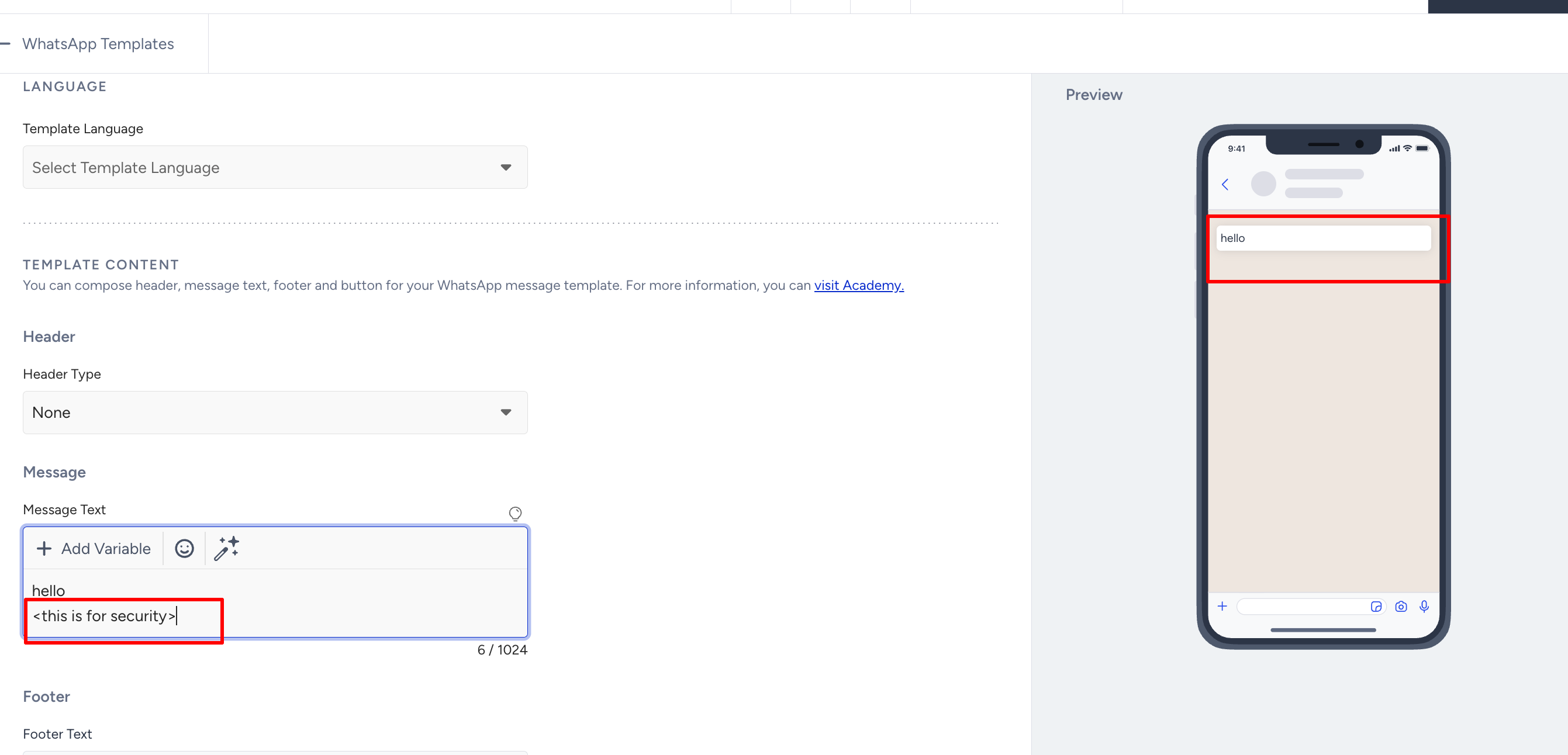
Important: Template Rejection Rules
To reduce the chance of rejection, follow these key rules when creating your template:
Do not start a template with a variable.
Do not end a template with a variable.
Do not place two variables back-to-back without text in between.
If you want to format text in your WhatsApp messages, refer to the Text Formatting table.
The attribute you choose here will be a sample. When the template gets approved and you want to use it in your campaign, you can change it to a default or custom one. For example, you apply a template that includes the name variable. After approval, you can change the attribute when you use it in your campaign.
If you need inspiration to create your WhatsApp messages, you can use the Generate Text option. 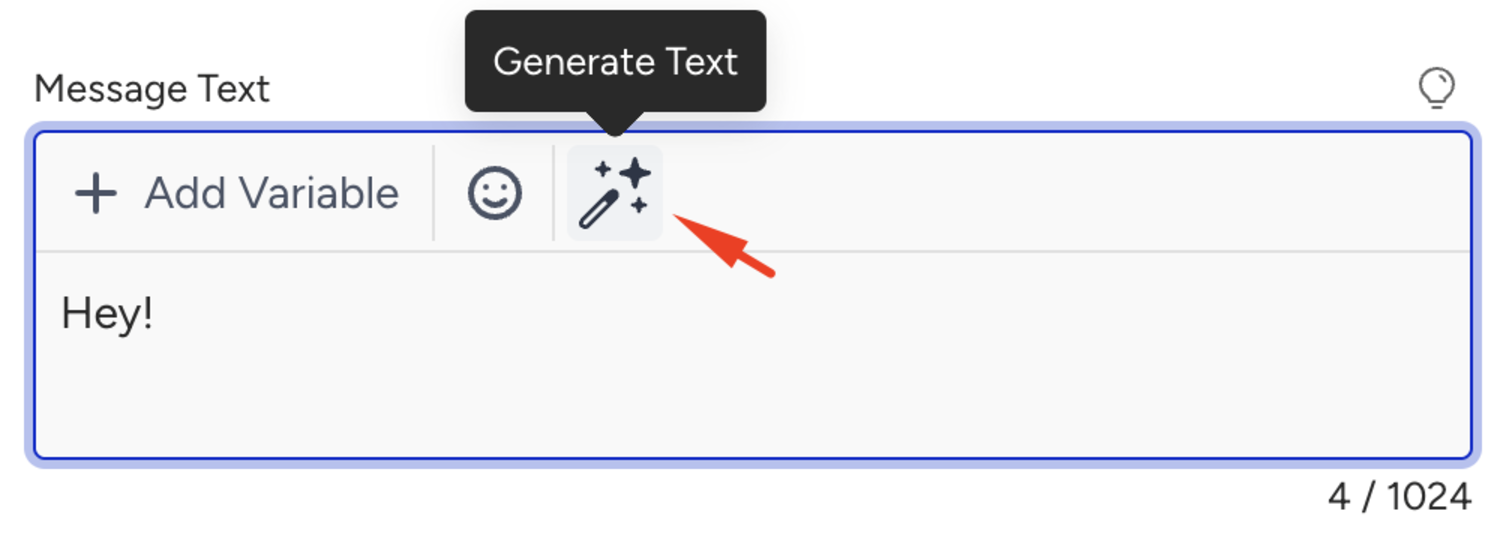
To use AI-generated text, refer to WhatsApp AI Text Generator.
8. You can also add a footer text in your message. You can provide additional information or explain the unsubscribe method here.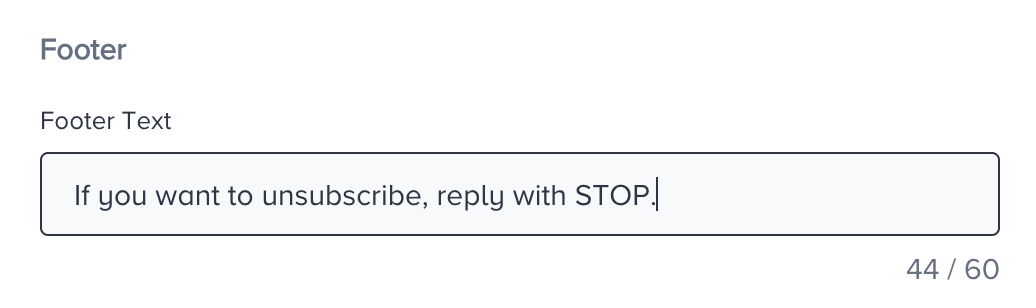
9. You can add buttons to your message template to drive higher engagement. Two button families are available, and one template can carry both.
Call to Action buttons send the recipient somewhere or hand them something to use:
Visit Website: Redirects users to a web page.
Call Phone Number: Allows users to call a phone number directly.
Copy Offer Code: Allows users to copy a promo or discount code.
Quick Reply buttons let recipients answer with a tap and keep the conversation going. When you add quick reply buttons to your template, you can add the "Response" within the new campaign.
Add buttons to the template
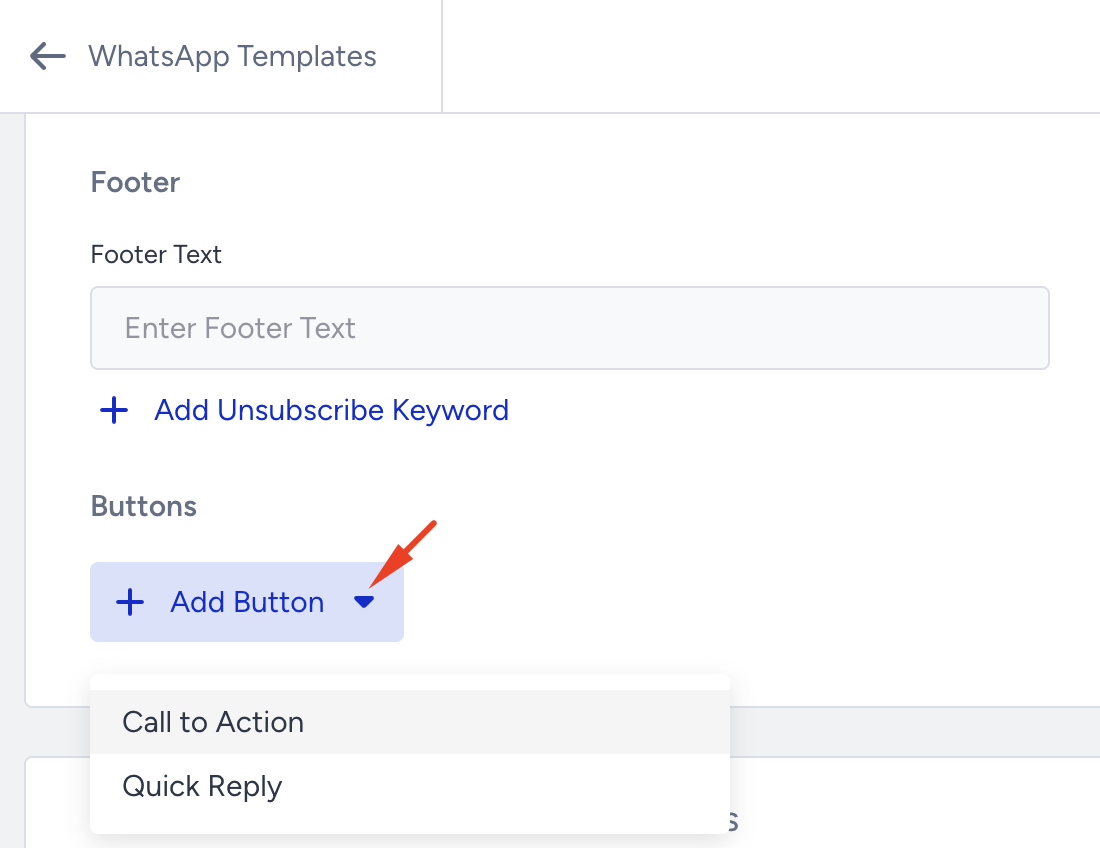
If your template has no buttons yet, click + Add Button and choose Call to Action or Quick Reply.
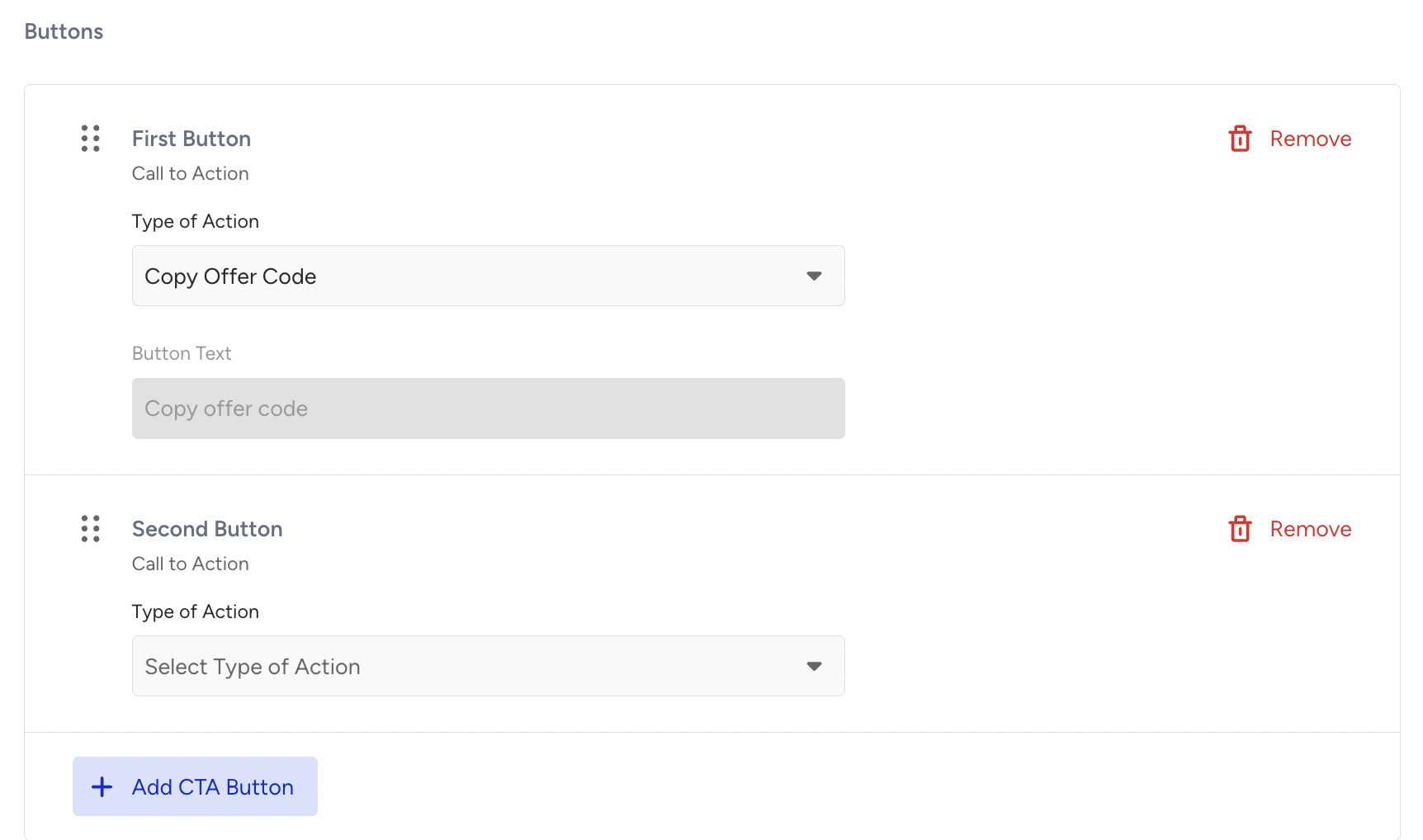
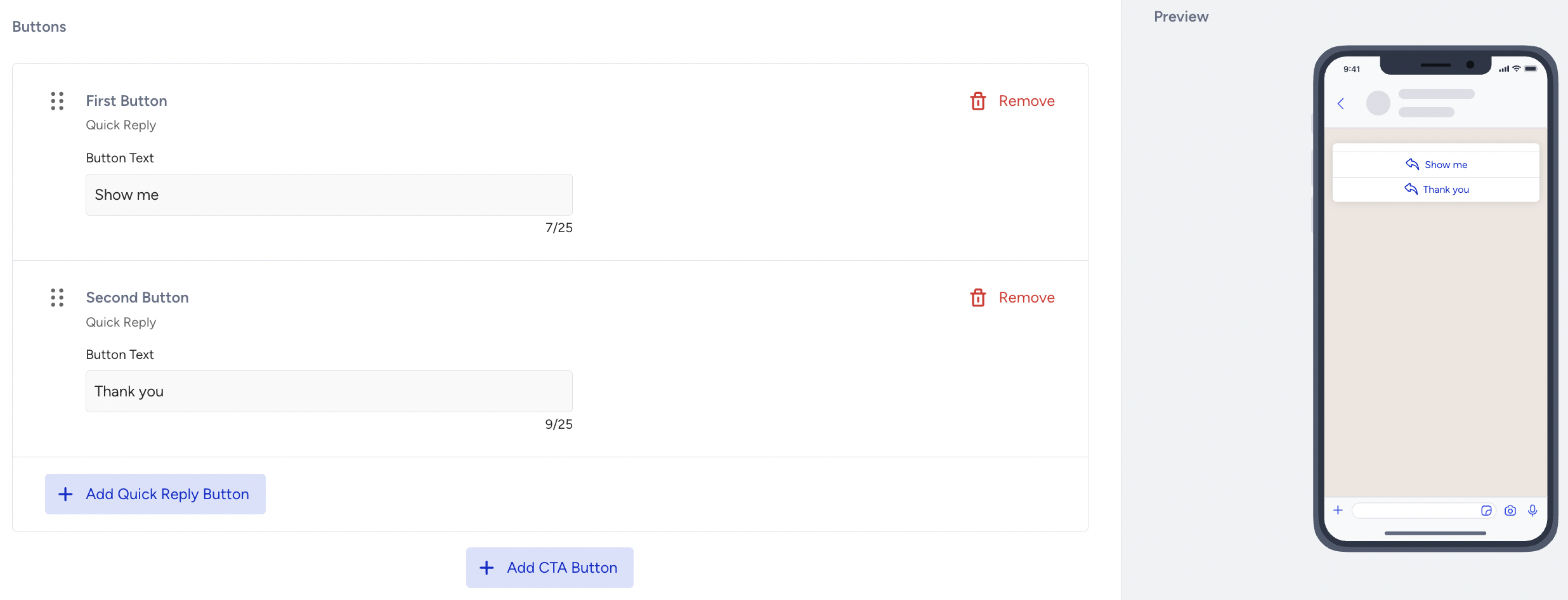
Fill in the button. Each row carries its position across the whole template, from First Button to Tenth Button, with its family shown underneath.
Add the next button from Add CTA Button or Add Quick Reply Button. Call to Action buttons collect in one block and Quick Reply buttons in another.
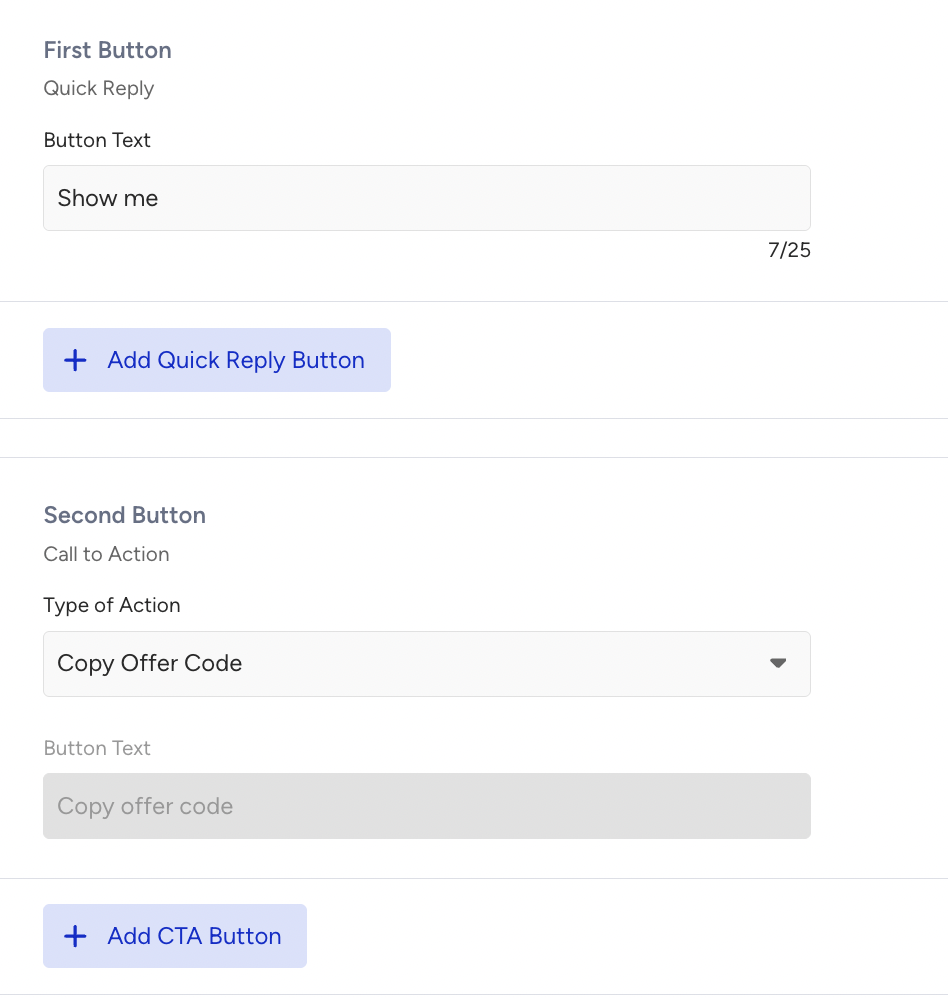
Reorder buttons inside a block by dragging a row. The drag handle appears once a block holds two or more buttons. A button stays in its own block.
How many buttons you can add
The Type of Action dropdown greys out an option once the template reaches that limit and tells you why:
You can add up to 2 Visit Website buttons.
You can add up to 1 Call Phone Number button.
You can add up to 1 Copy Offer Code button.
You can add up to 1 Request Contact Info button.
Both add controls disappear once the template holds 10 buttons.
Call to Action and Quick Reply buttons must each be grouped together. They cannot be interleaved.
A Share Contact Info button cannot be combined with any other button. It must be the only button in the template.
The order you set is the order recipients see. The preview lists the buttons in that order with the icon for each type, and collects them under See all options past the third button.
Combining the two families applies to Marketing and Utility templates.
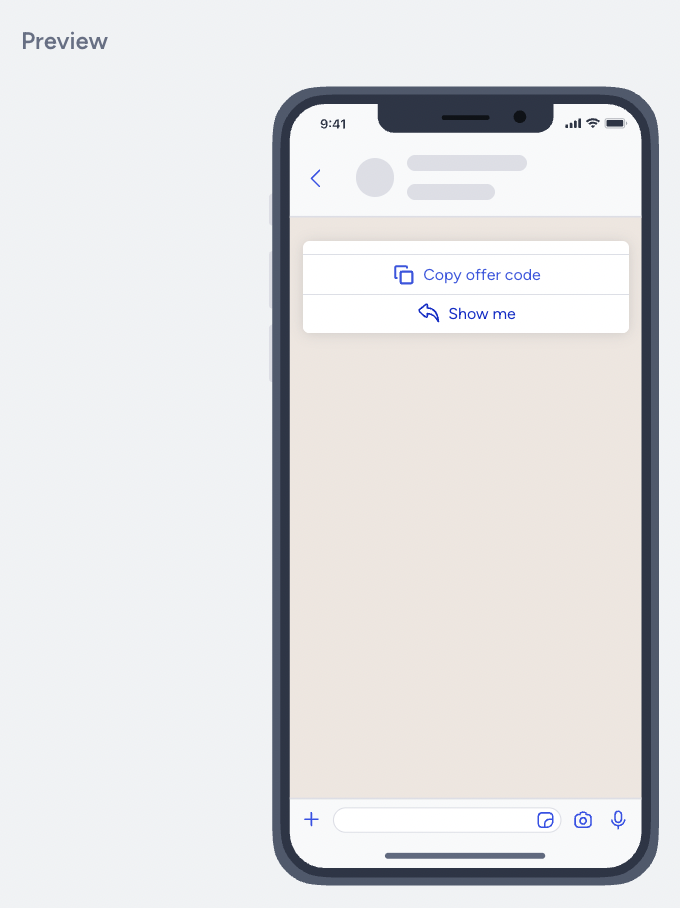
Visit Website CTA types
When adding a Visit Website CTA, you can choose one of the following link types:
Static (Custom) link: It is a preset URL in all messages using this template. For example, if you want to direct your users to a specific page, you can use the custom link as it is fixed.
Dynamic link: It is a dynamic URL to use attributes or a custom link to assign to your button. For example, if you want to tailor the user experience and offer users a personalized way to visit your website, you can use dynamic links.
Visit Website CTAs also support deep links, allowing you to direct users to a specific screen or feature within your mobile application using a custom URI scheme.
You can use deep links in CTA buttons:
Select Visit Website as the button type.
Select Dynamic Link or Custom Link.
Enter your deep link in the URL field. Example:
myapp://product/123Save and submit the template for Meta approval.
You can also include deep links directly in the message body text.
Enter the deep link directly into the template body.
Enable URL Shortener if you want the link to be tappable for recipients.
Deep links follow the same routing flow as standard URLs. When recipients tap a deep link, the link passes through Insider One's tracking domain to record click analytics before the mobile operating system opens the relevant app screen.
Deep links work only on mobile devices and require the related mobile application to be installed on the recipient’s device. They do not work in web browsers. If the application is not installed, the behavior depends on the app’s own deep link configuration.
You can add quick reply buttons to help users maintain the conversation easily. You can add up to three different buttons.
When you add quick reply buttons to your template, you can add the “Response” within the new campaign.
Link Previews on WhatsApp Templates
You can now use tappable image headers in your WhatsApp message templates to let users preview and open links directly from the message.
When you include a link, WhatsApp automatically displays a preview of the destination page, showing the website domain and a short description to help users understand where the link leads.
Users can open the link by tapping either the CTA button or the image header, creating a more seamless and engaging experience that improves click-through rates.
All links are routed through Insider One's secure tracking domain (insdr.one), ensuring every click is verified, measurable, and safely redirected to the final destination. You can also set a custom redirect domain to display your own branded domain in link previews and tappable image headers. Refer to the Custom Redirect Domain for more information.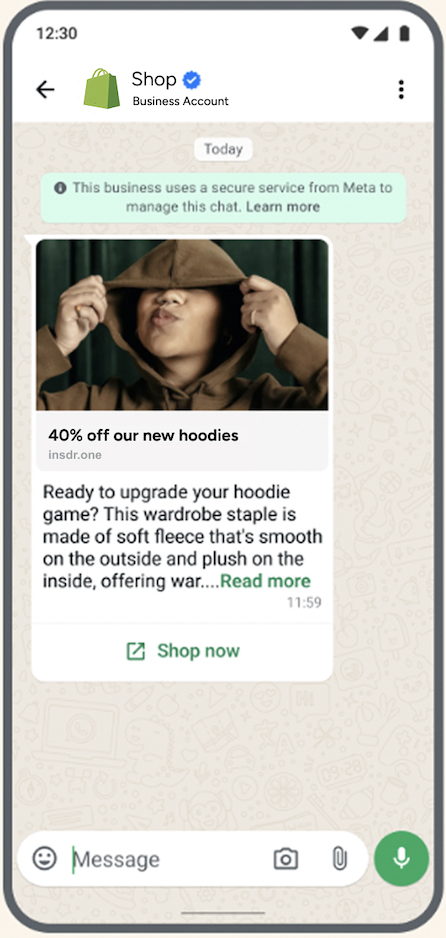
10. When you update all the fields with the necessary information, you can submit your template to be approved by WhatsApp. If you want to continue later, you can save it as a draft and edit it.
Only Administrator and Editor roles are authorized to submit a template to be approved by WhatsApp.
Troubleshoot WhatsApp video upload errors (codec issues)
If you receive a media upload error related to video codecs while creating a WhatsApp template, the uploaded file might not meet Meta’s media requirements. Follow the steps below to inspect and fix the video file.
Download the video file. Get the video URL from the campaign, paste it into your browser, and save the file locally (right-click > Save As).
Check the video properties. You can use one of these free online tools to inspect the video codec, resolution, and file size without installing anything:
MediaInfoOnline: Upload your file, and it will show full codec details
Metadata2go: Drag & drop your video to see metadata
Look for the Video Codec field in the results.
Compare against Meta's WhatsApp requirements:
Video Codec: Must be H.264 (not H.265/HEVC)
Audio Codec: AAC
Format: MP4 or 3GPP (.3gp)
Max File Size: 16 MB
Common rejection reasons:
Video encoded with H.265 (HEVC) instead of H.264
File size exceeding 16 MB
Non-AAC audio codec
Corrupted or non-standard MP4 container
4. If the codec is wrong, convert to H.264. You can use these free online converters:
FreeConvert: Select MP4 + H.264 as output.
CloudConvert MP4 Converter: Choose MP4 with H.264 codec.
Convertio MP4 Converter: Simple drag-and-drop conversion.
Upload the video, select MP4 (H.264) as the output format, and download the converted file. Then re-upload it to the campaign.
No software installation is needed for any of these steps.
Alternative: CLI approach (for technical users)
If you have FFmpeg installed, you can use the terminal instead:
Inspect codec, resolution, duration, and file size:
ffprobe -v error -show_entries stream=codec_name,codec_type,width,height,bit_rate,duration -show_entries format=size,duration,bit_rate -of default=noprint_wrappers=1 video.mp4or:
ffmpeg -i video.mp4
Re-encode to H.264 if needed:
ffmpeg -i video.mp4 -c:v libx264 -c:a aac -movflags +faststart output_h264.mp4
Preview a template
On the listing page, you can see your template's final look by clicking the image icon next to the template. You can also observe its status and start using it when it is approved.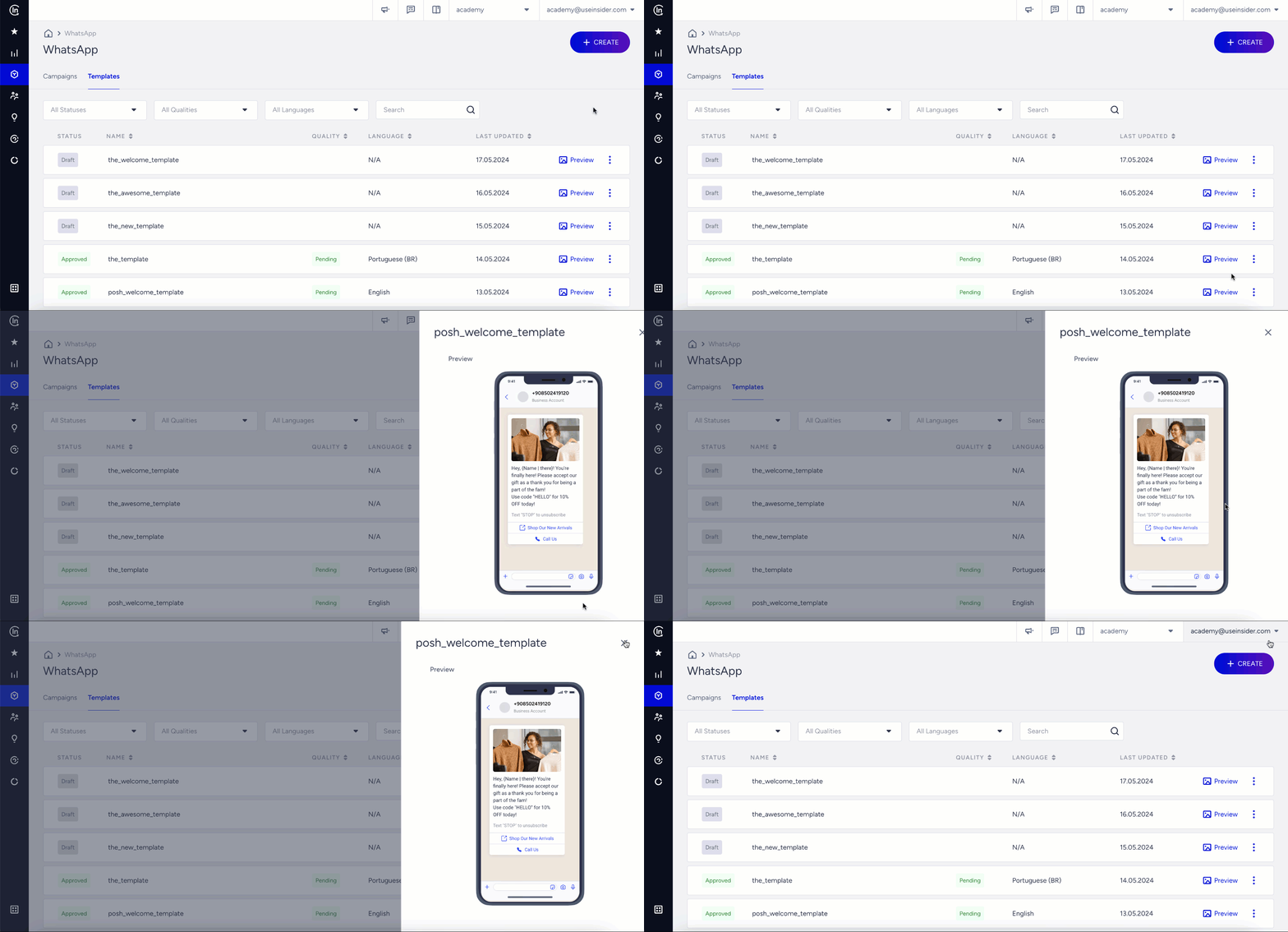
You can refer to WhatsApp's Message Templates Guidelines for further information on statuses and common rejection reasons.
Edit a template
Once a template is approved, you can edit it within Meta's limits, as described in Edit a WhatsApp Template on InOne.