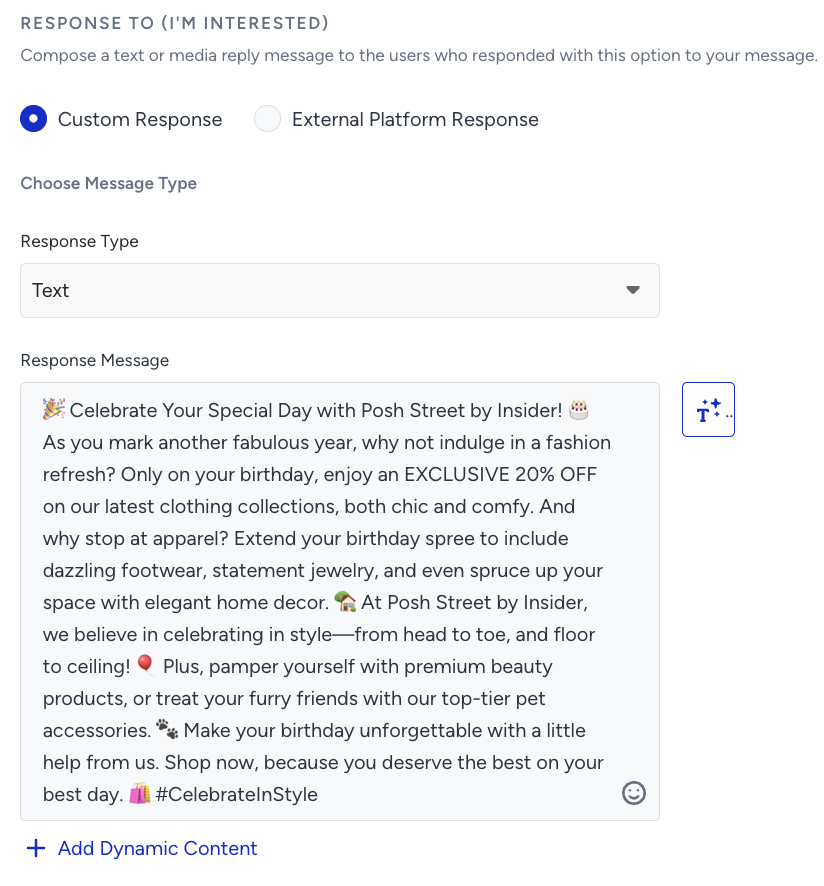
Generate Text option is available in both WhatsApp product and WhatsApp channel in Architect journeys.
You can also create a WhatsApp message template and build a campaign draft through a chat conversation with the WhatsApp Campaign Agent.
If you need some inspiration or assistance while creating your WhatsApp template messages, you can always get help from WhatsApp AI Text Generator, the AI message writer built into WhatsApp templates. This feature is a valuable tool that helps you craft content that aligns with your objectives for more engaging WhatsApp messages.
To use AI-generated text, follow these steps while creating a WhatsApp message template in Insider One's InOne panel:
Click the Generate Text button to see the side modal.
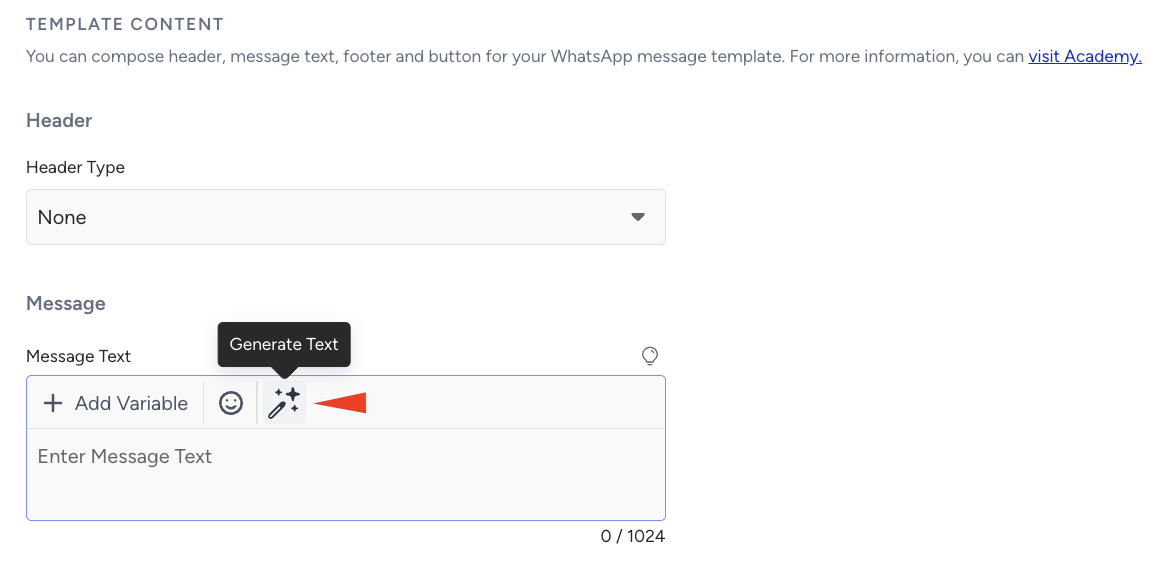
If you use the WhatsApp channel in Architect journeys, you can use the Generate Text button in the "Conversational" message type in the "Response To" section.
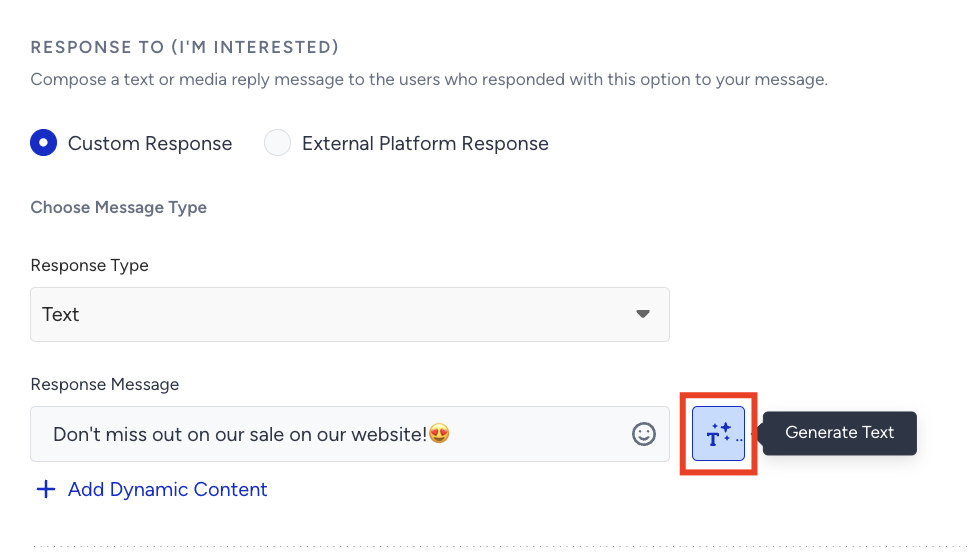
Enter a prompt that you'd like the text to be generated around.
Select your use case and industry to define the context for generating the text.
The language option will match your panel's selected language by default.
To include emojis in your copy, check the Include Emojis box.
This option lets the AI generate copy with emojis. However, not all options might include emojis.
Click the Generate Copy button.

The modal offers 8 suggestions: 4 advanced and 4 standard. To see more, click the Generate More button.
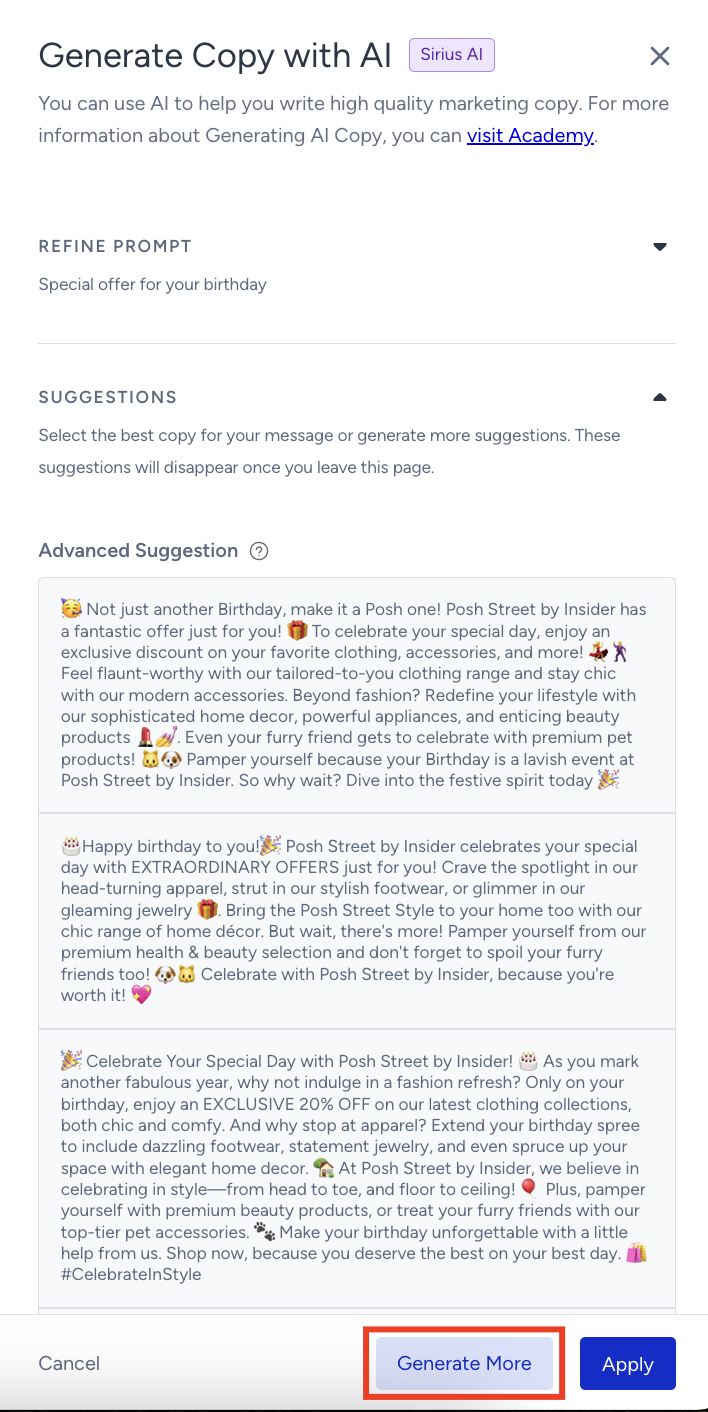
Advanced and standard suggestions are currently only available in the WhatsApp channel in Architect Journeys.
In standard text production, the information you enter is sent anonymously to OpenAI, which generates the suggestions. In advanced text production, your website is analyzed, and suggestions are generated based on the information entered in the fields. This results in more personalized, brand-voice-appropriate suggestions.
To use any suggestion, select it and click the Apply button.
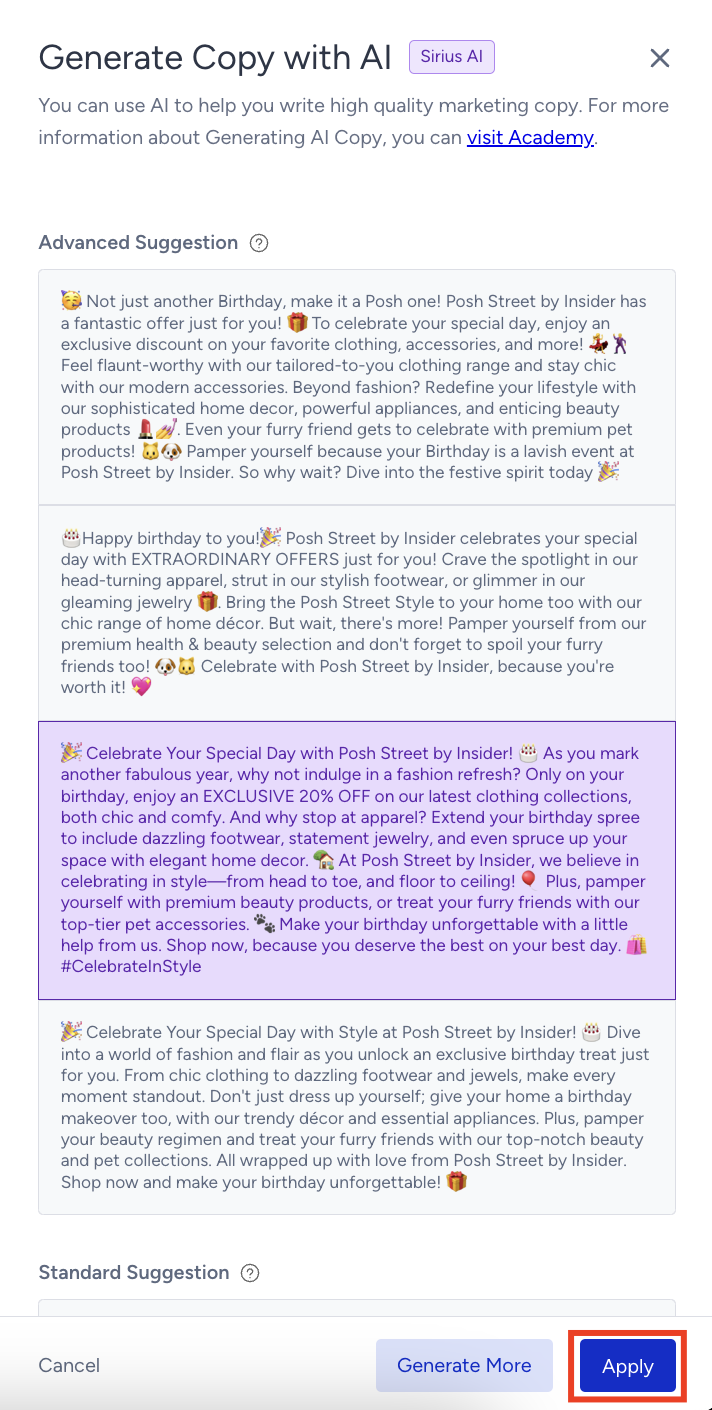
After clicking the Apply button, the generated copy will be added to the respective field in your WhatsApp message template.