Requirements
Complete the SMS Channel Setup before starting to use Insider One's SMS product.
To start collecting SMS opt-ins and send messages to your users, make sure you complete the SMS Opt-in Integration.
Cart Reminder lets you reach users via automated SMS and recover lost revenue from abandoned carts. The cart reminder solution allows you to send cart recovery messages with personalized content.
In this guide, you can find answers to the following questions:
Create a Cart Reminder SMS
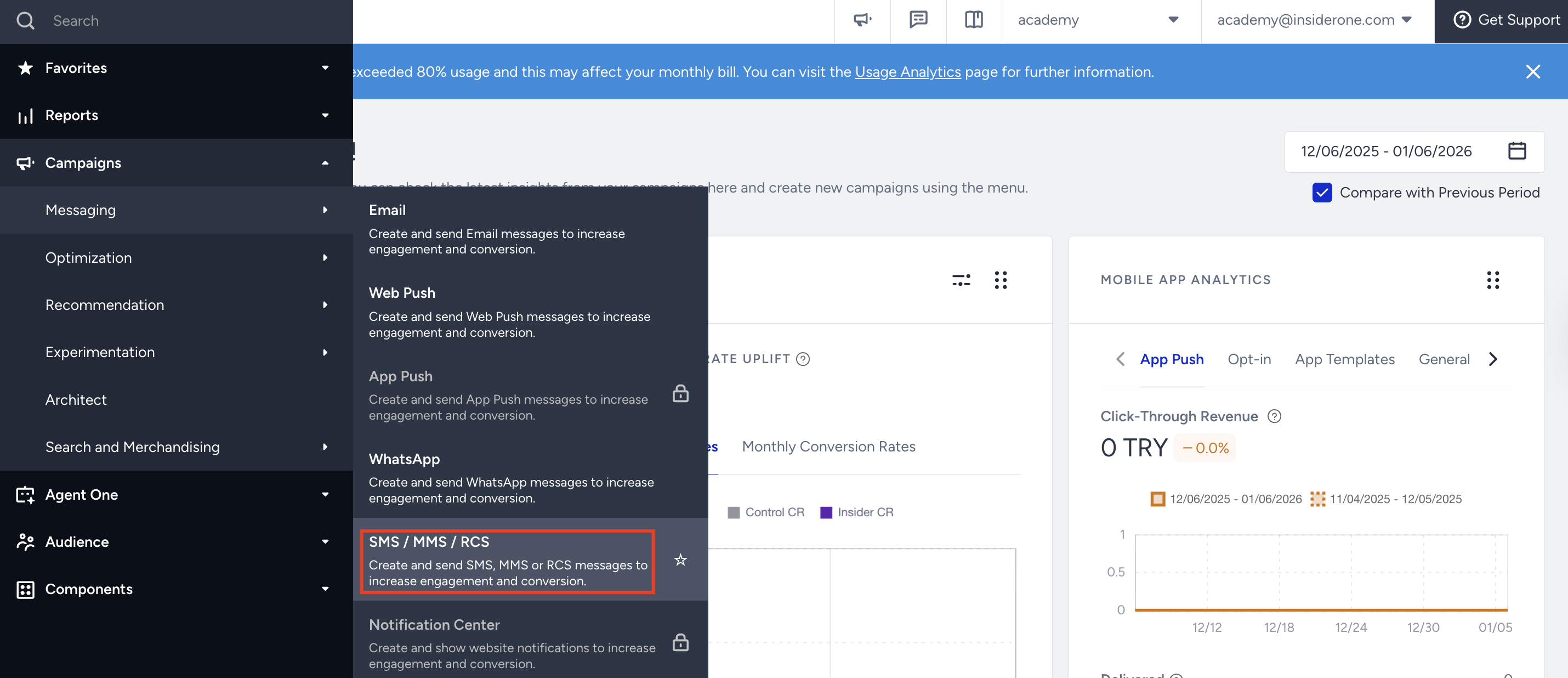
Navigate to Campaigns > Messaging > SMS/MMS/RCS.
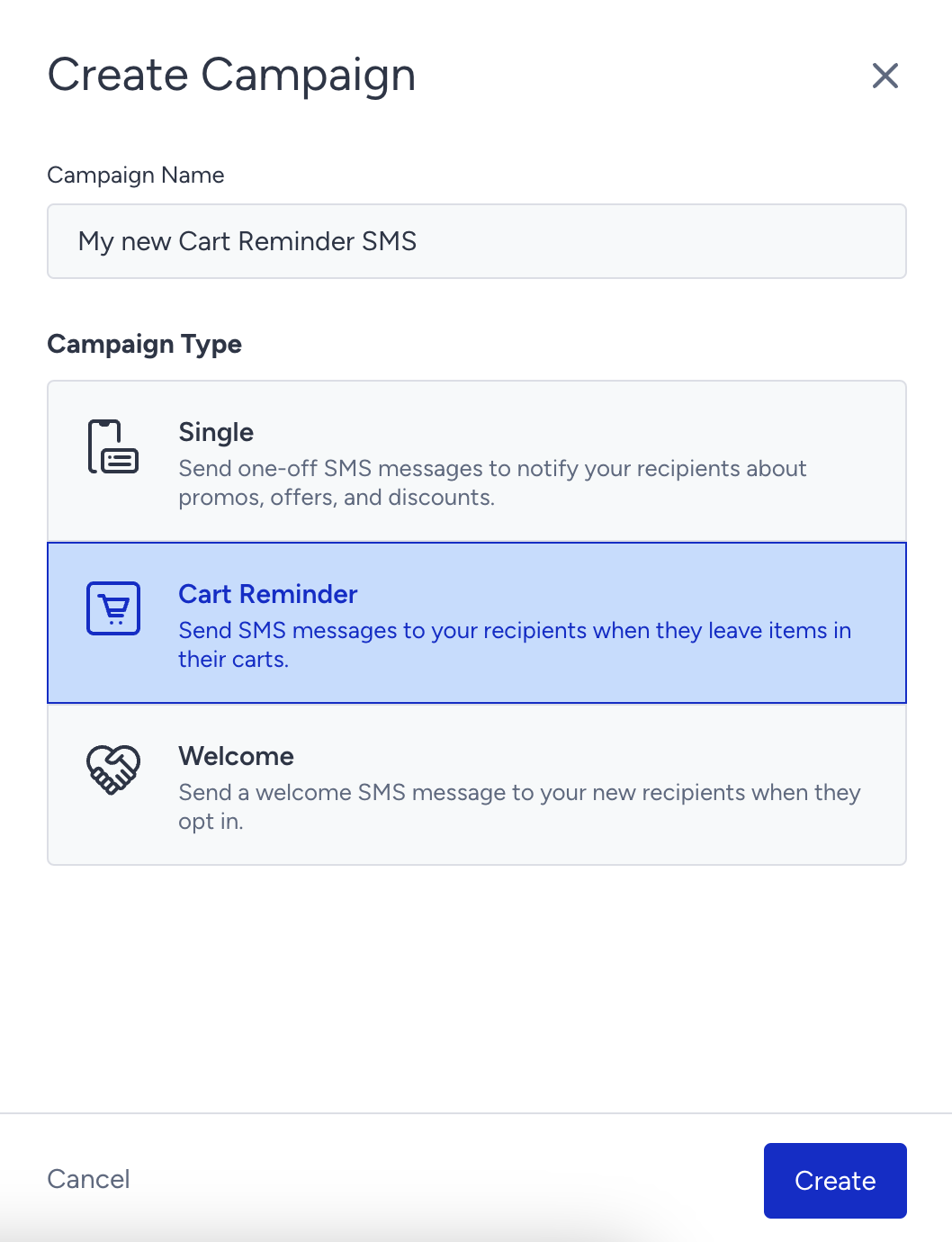
Click the Create Button. Select Cart Reminder Message and name your campaign.
Set your rules
Configure the cart abandonment trigger to decide when to send a message to users after they add an item to their cart but do not finalize the purchase. 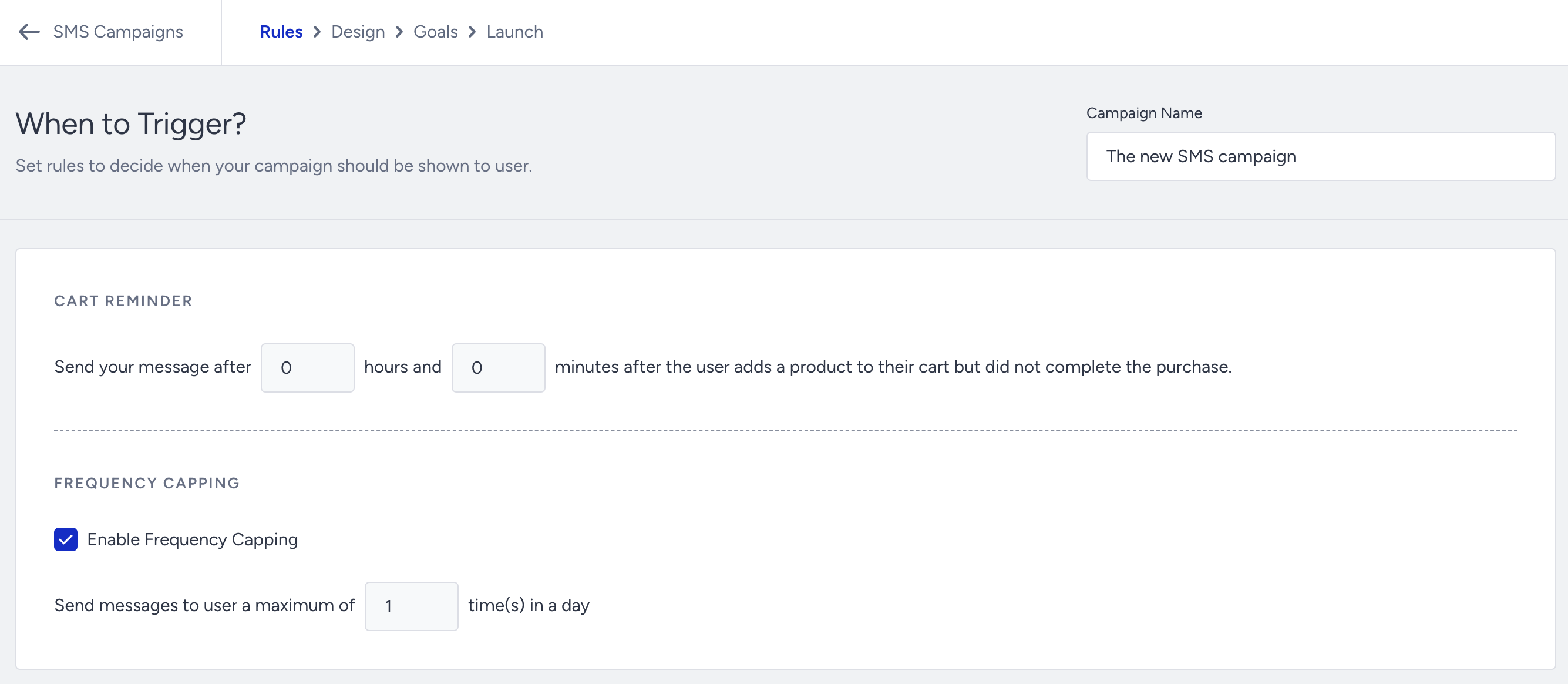
Frequency capping allows you to limit the number of messages a user can get in a day. When you enable it, you can define the maximum number of times your users can receive a message in a day.
Design your Cart Reminder message
1. Compose your message content within the character limits. If you want to be inspired or need assistance when creating your message, you can always use the Generate Text option. Read the SMS AI Text Generator for further information.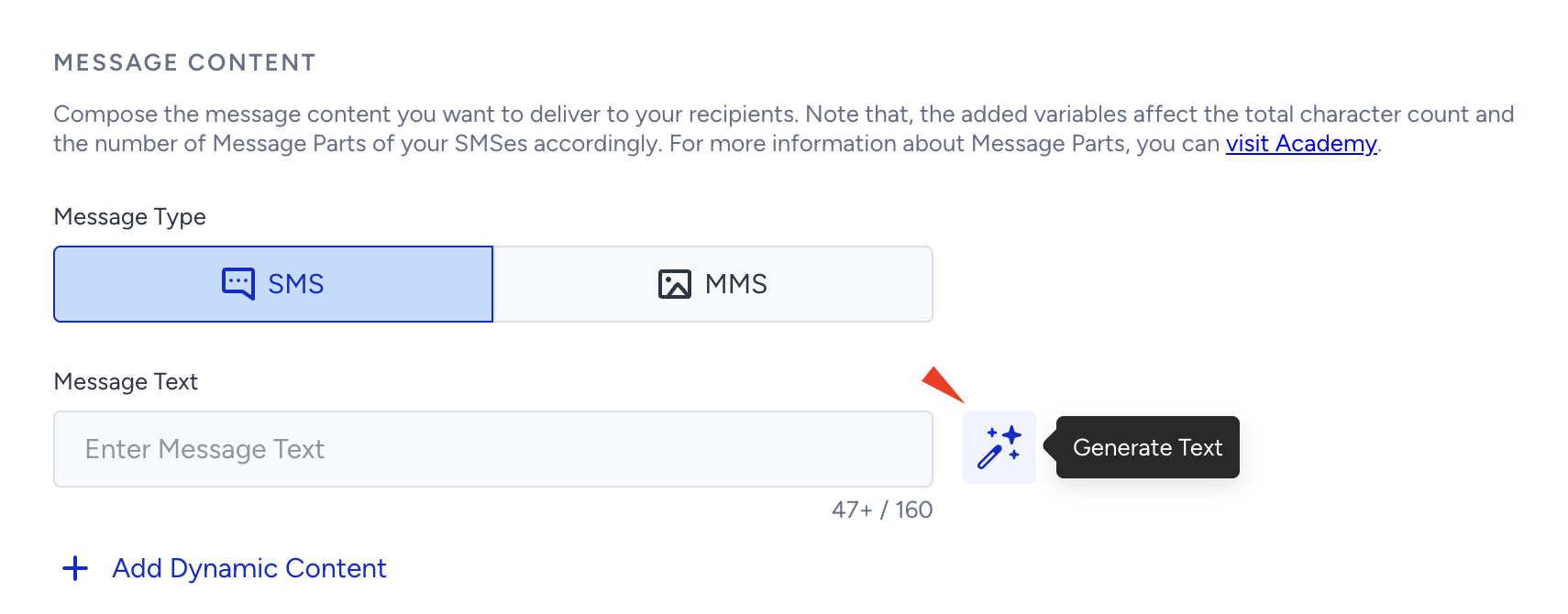
2. To personalize your messages, you can add default and/or custom attributes to your messages and create more CTR and conversions. We highly suggest that you enter a fallback value in case there is no value for the selected dynamic attribute.
Do not forget to add “Last Abandoned Product URL” dynamic content to your messages. It will encourage users to visit your site and complete the purchase.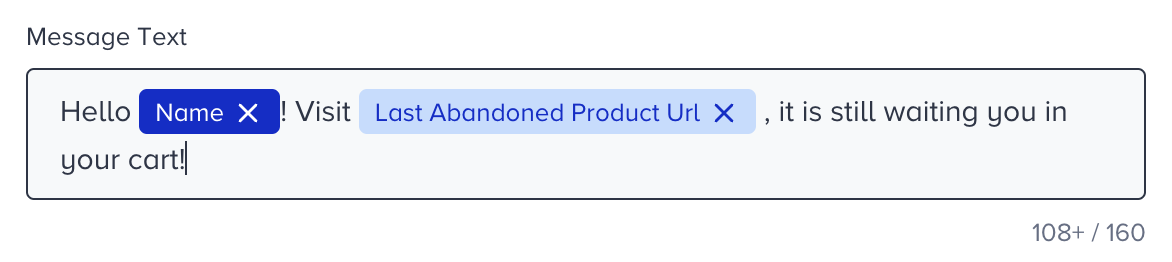
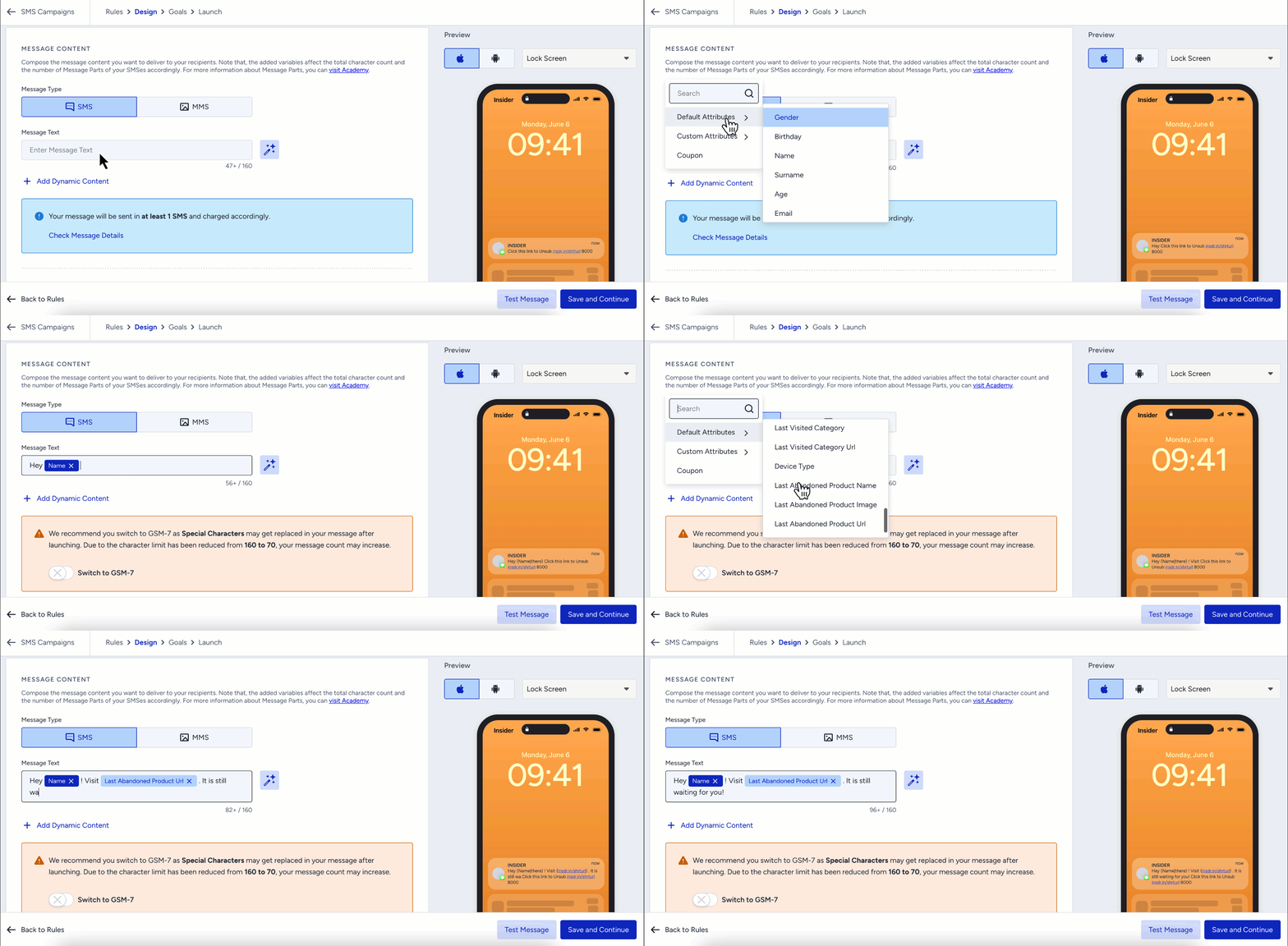
If you use characters other than GSM-7 in the SMS body, the SMS’s character limit will be reduced; therefore, your message’s part count will increase. To avoid this, enable the "Switch to GSM-7" toggle. Read SMS Smart Encoding for further information.
3. When you check the "Show Unsubscription Sentence in a new line" option, the unsubscription sentence you defined in SMS Settings will appear on a separate line at the end of your SMS.
Regarding the regulations for sending SMS to subscribers, some countries might require you to add an opt-out option in your message.
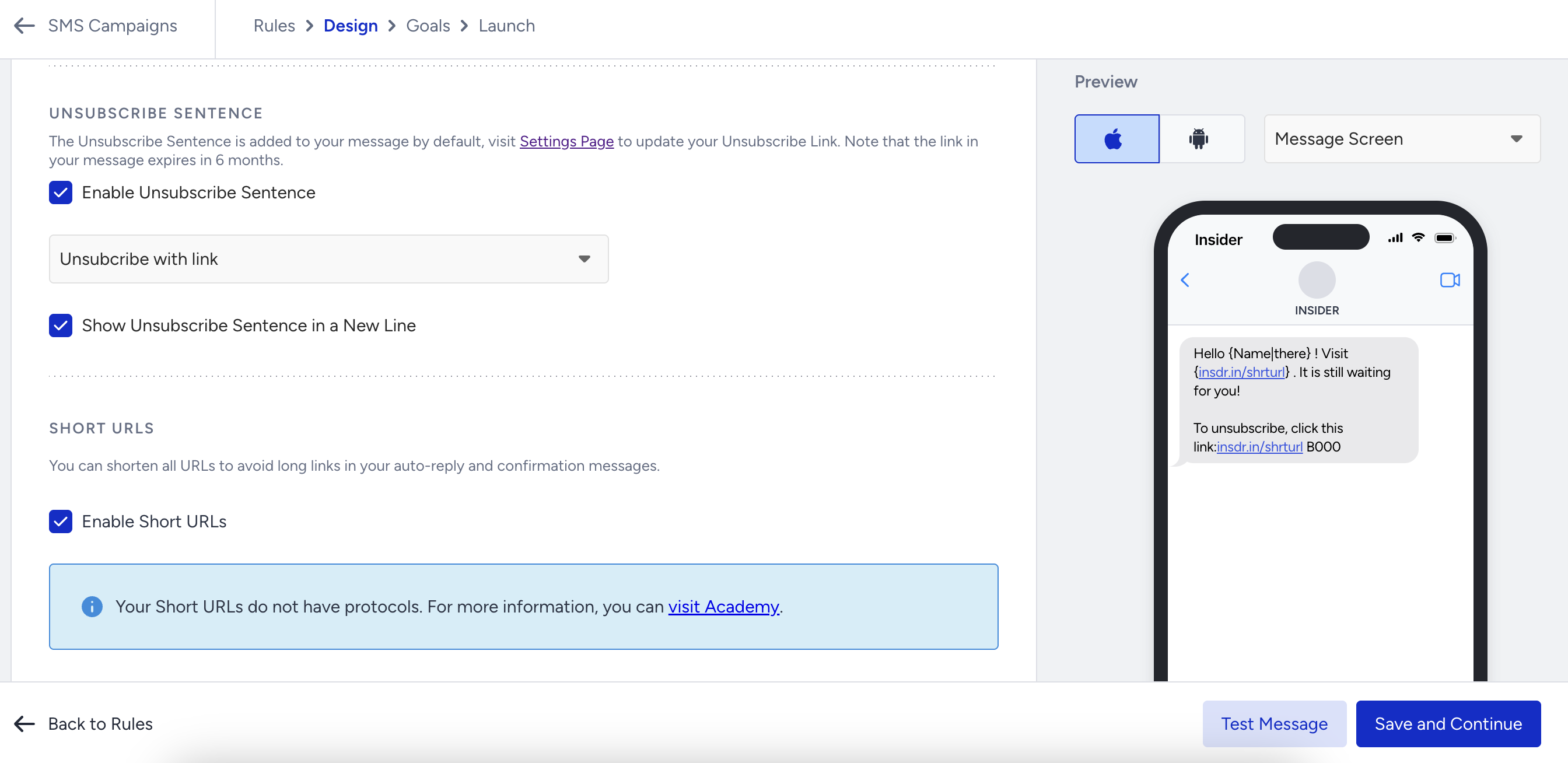
Note that the unsubscription sentence is included in the character limit, too.
4. You can also shorten your URL. It will help you decrease the character count of your messages and prevent sending your messages in more than one part. 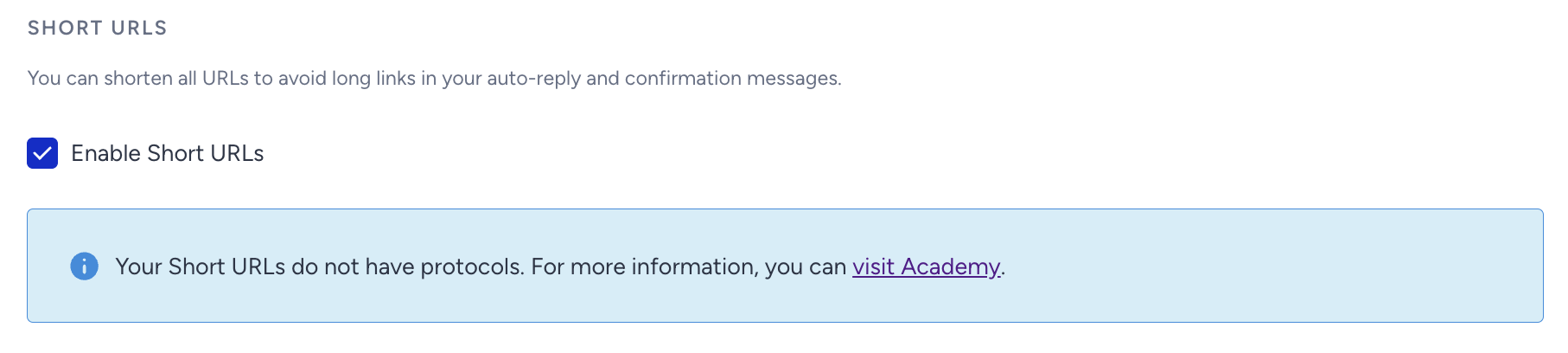
5. Configure your UTM settings automatically or manually.
To add custom tracking parameters, click Add Tracking Parameter.
You can remove any parameters that are not needed.
Global UTM parameters (default tracking parameters defined in your settings) are applied by default. You can update these parameters if needed.
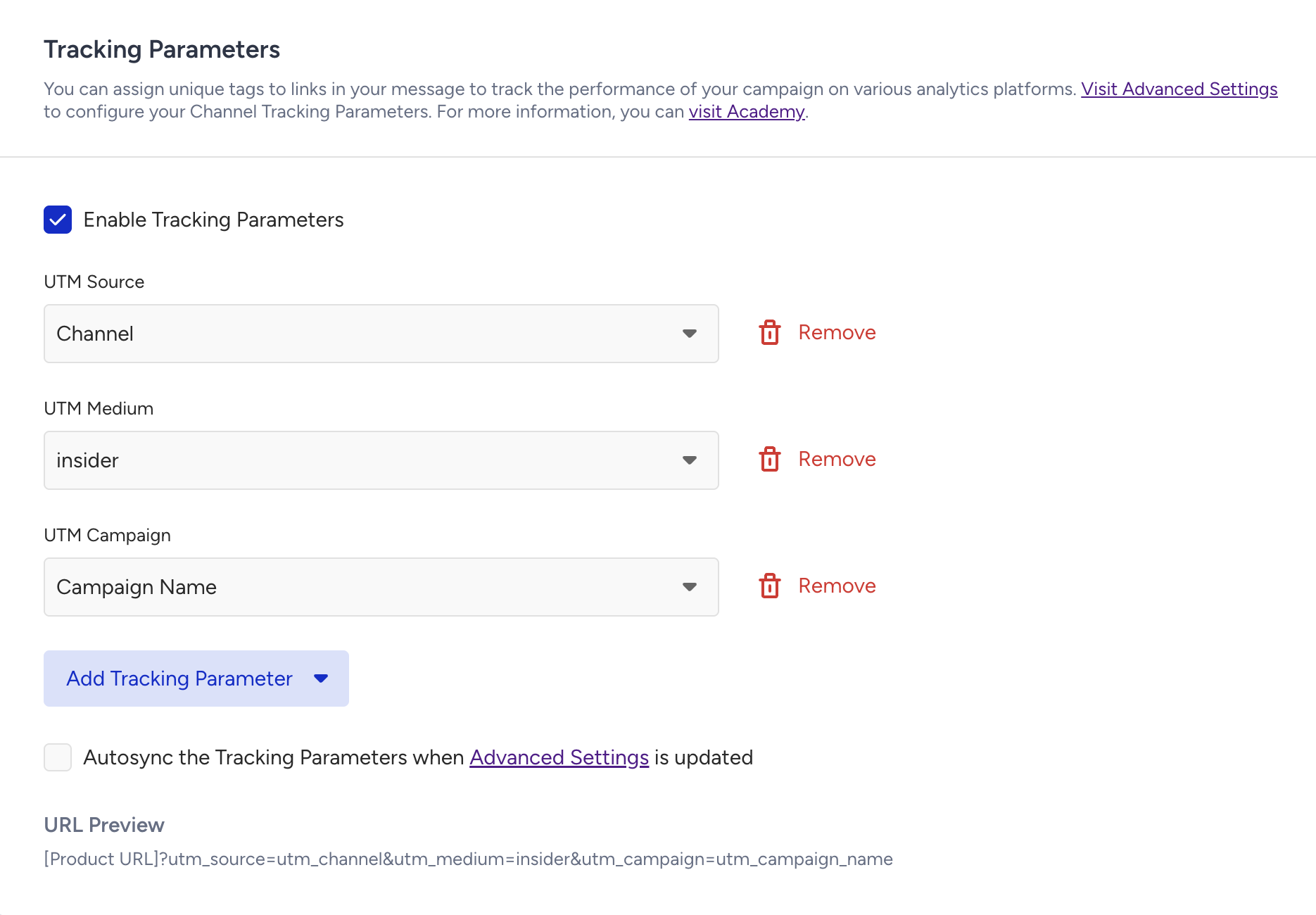
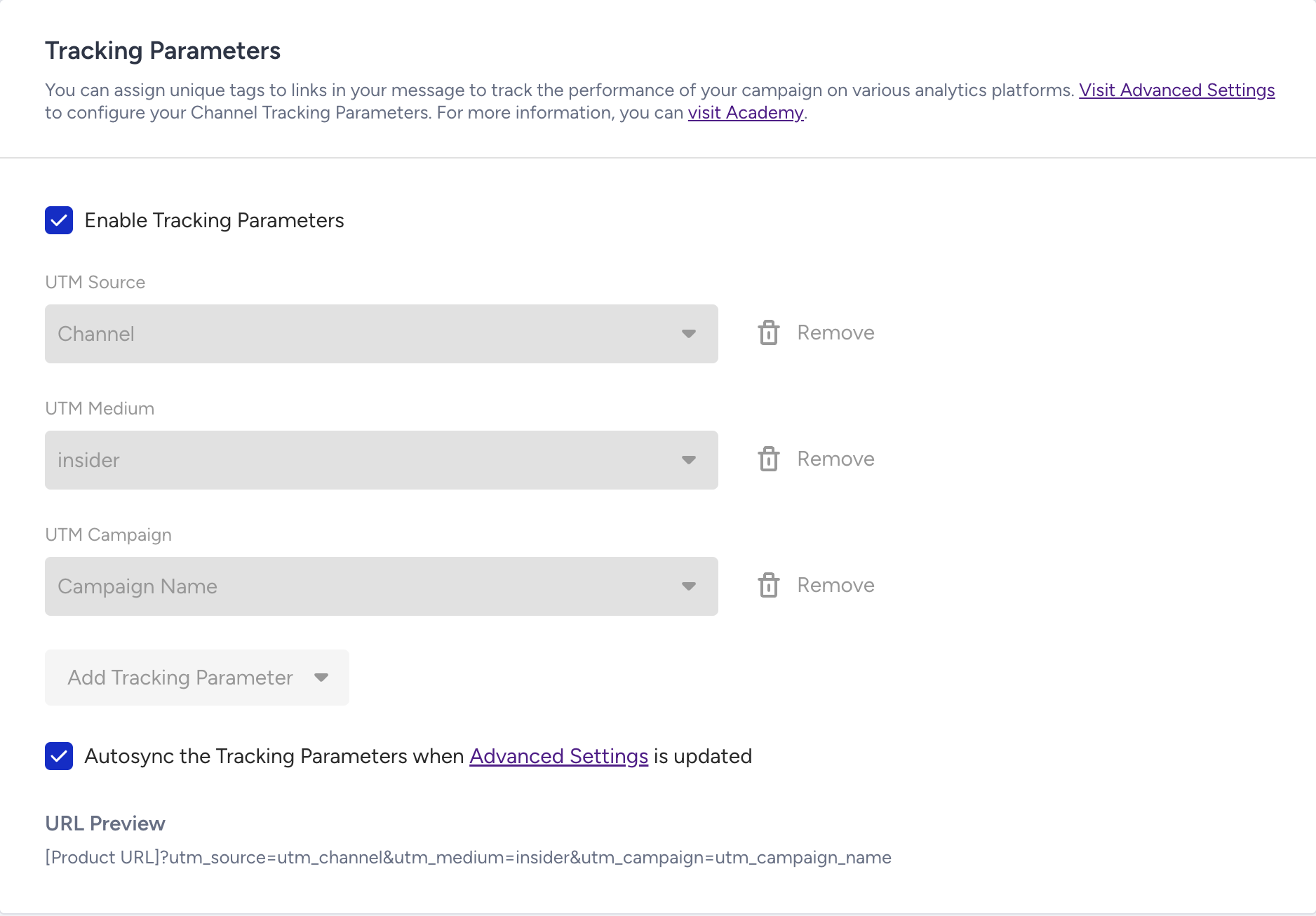
Enable Autosync Tracking Parameters to automatically sync tracking parameters when Advanced Settings are updated.
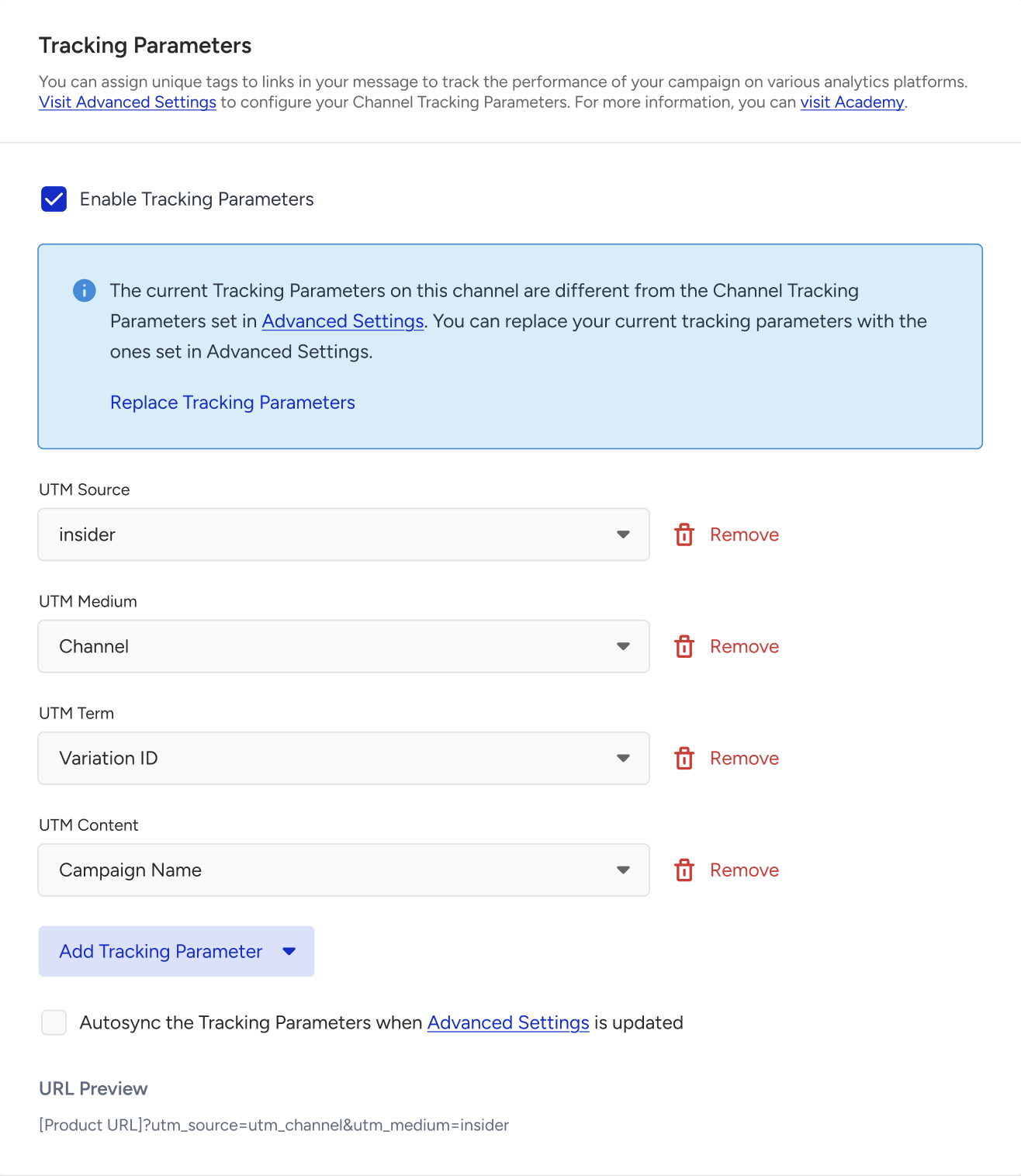
If the selected input parameters do not match your global settings, a warning is displayed in a blue info box. Click Replace Tracking Parameters to update the tracking parameters based on your global UTM settings.
Set your goals
Configure your goals to track the performance of your campaign. The default selected goal is Purchases. 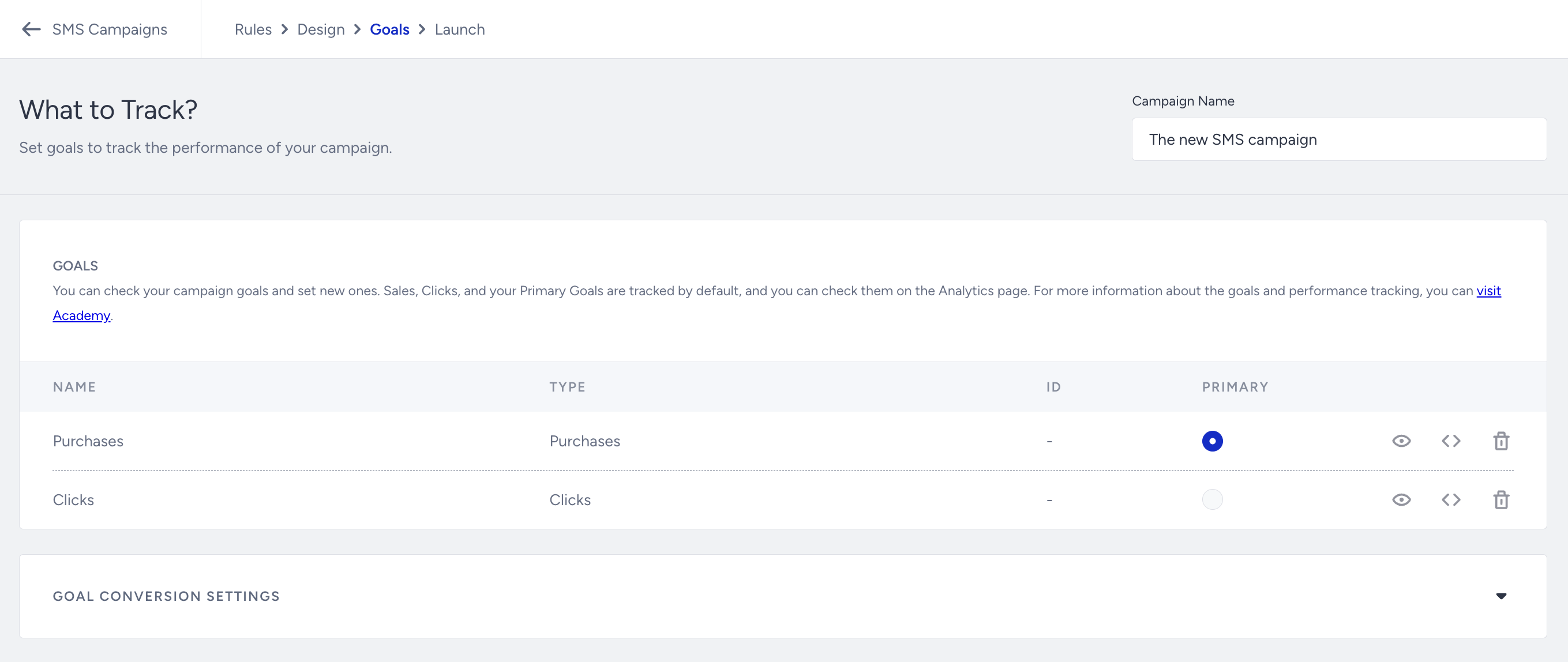
Goal Conversion Duration is the time interval that starts after a user clicks a campaign for the first time. During the time interval you set, when your goal is achieved, the campaign will be logged as a conversion.
Launch your Cart Reminder message
It is time to run your campaign, so you need to finalize the launch settings.
Choose the language that matches your campaign.
Define the activation time; if you do not want to end your campaign at a certain date, then choose the 'Never Ends' option.
On the right side of the screen, you will see an information area that shows whether everything is set up correctly to send your message.
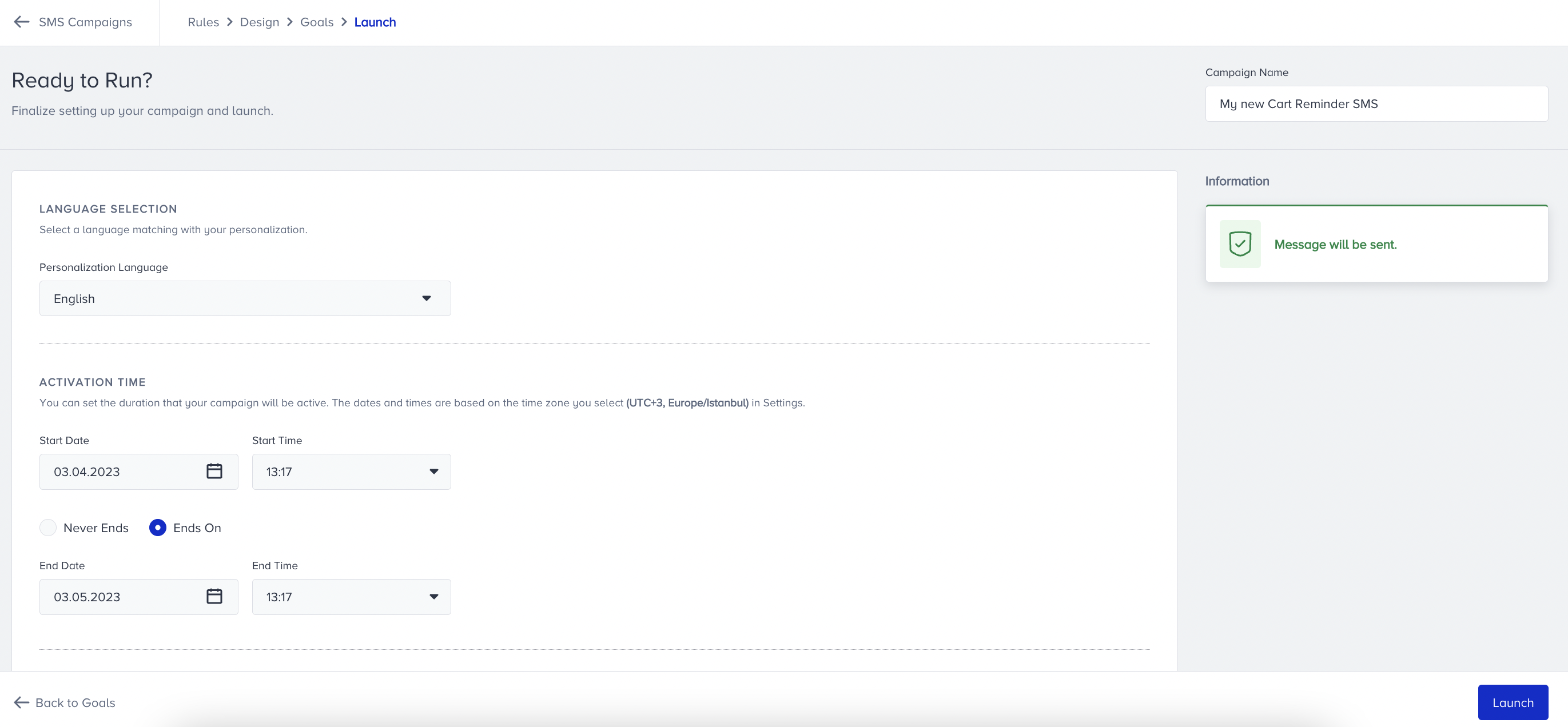
Under Activation Status, you can change the status of your campaign to Active, Test, or Passive.
You can see whether Silent Hours are enabled, which helps your SMS messages reach users at more appropriate times of the day.
You can assign or create tags for your campaign to reach it later easily.
Once you enable Frequency Capping, you can override the limit of messages that users can receive within a specified period, which is assigned in the Channel Frequency Capping settings.
You can write your campaign-related notes in the designated area as a reminder.
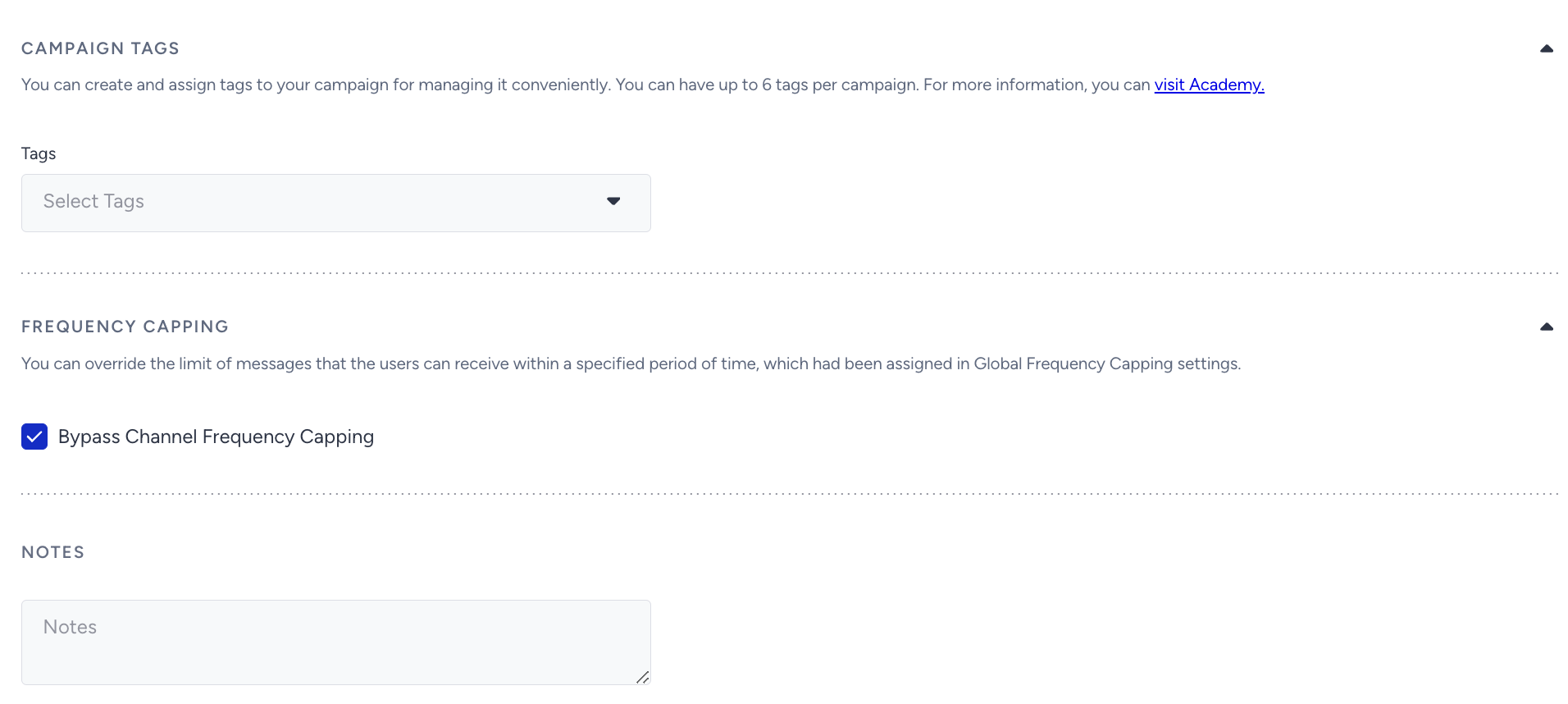
When your campaign is ready, we highly suggest that you test your campaign before launching it. After ensuring that everything goes as expected, you can start it.