The Knowledge Base (KB) is the primary source of information for your AI Agents. Agents use it to answer with accurate, up-to-date content taken directly from your website and documents.
AI Agents don't use static or hardcoded answers. They generate each reply from the content in your KB, so they can respond to a wide range of questions.
You can fill a Knowledge Base with content in two ways:
Website Crawling: Enter a website URL, and Insider One scans the site and extracts the relevant content. You can set the crawl depth, target pages, and filters to control which information the KB includes.
Document Upload: Upload supported file formats directly, and Insider One processes and structures the content. This method works well for internal documentation, guides, and other resources that aren't on a public website.
This article covers the following topics:
You can create up to four Knowledge Bases in a single InOne panel.
Create a Knowledge Base
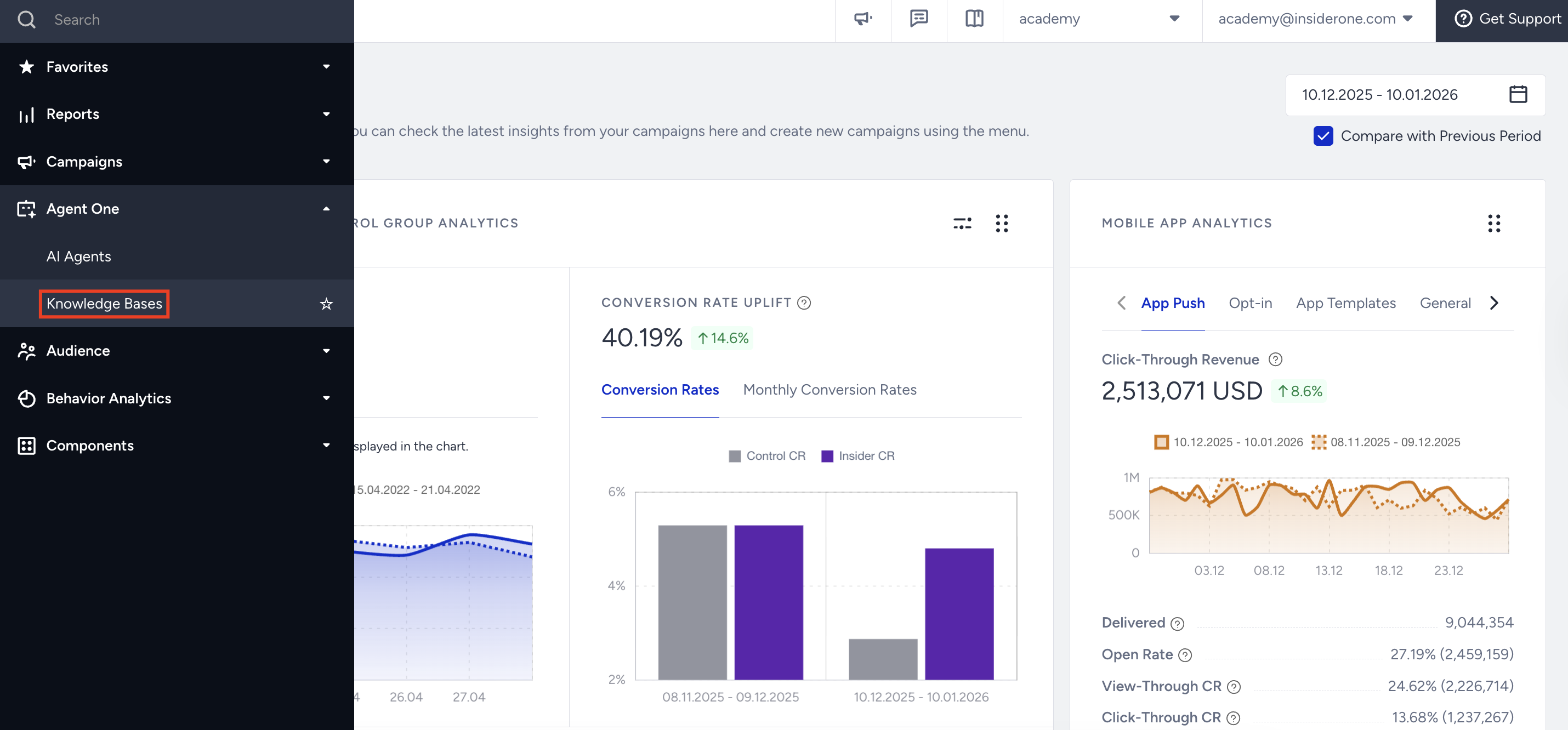
Navigate to InOne > Agent One > Knowledge Bases.
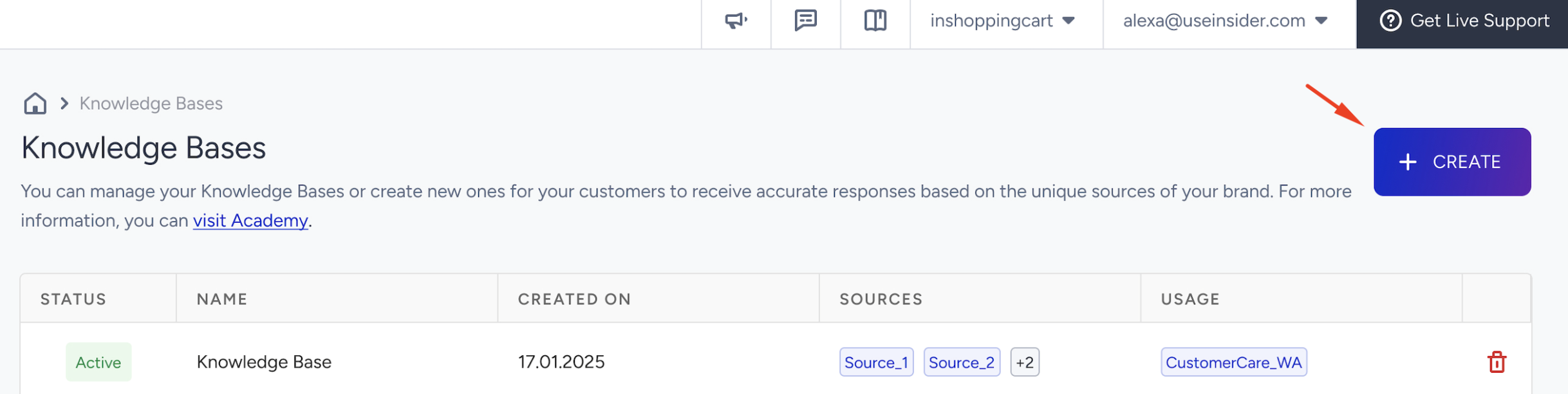
Click Create.
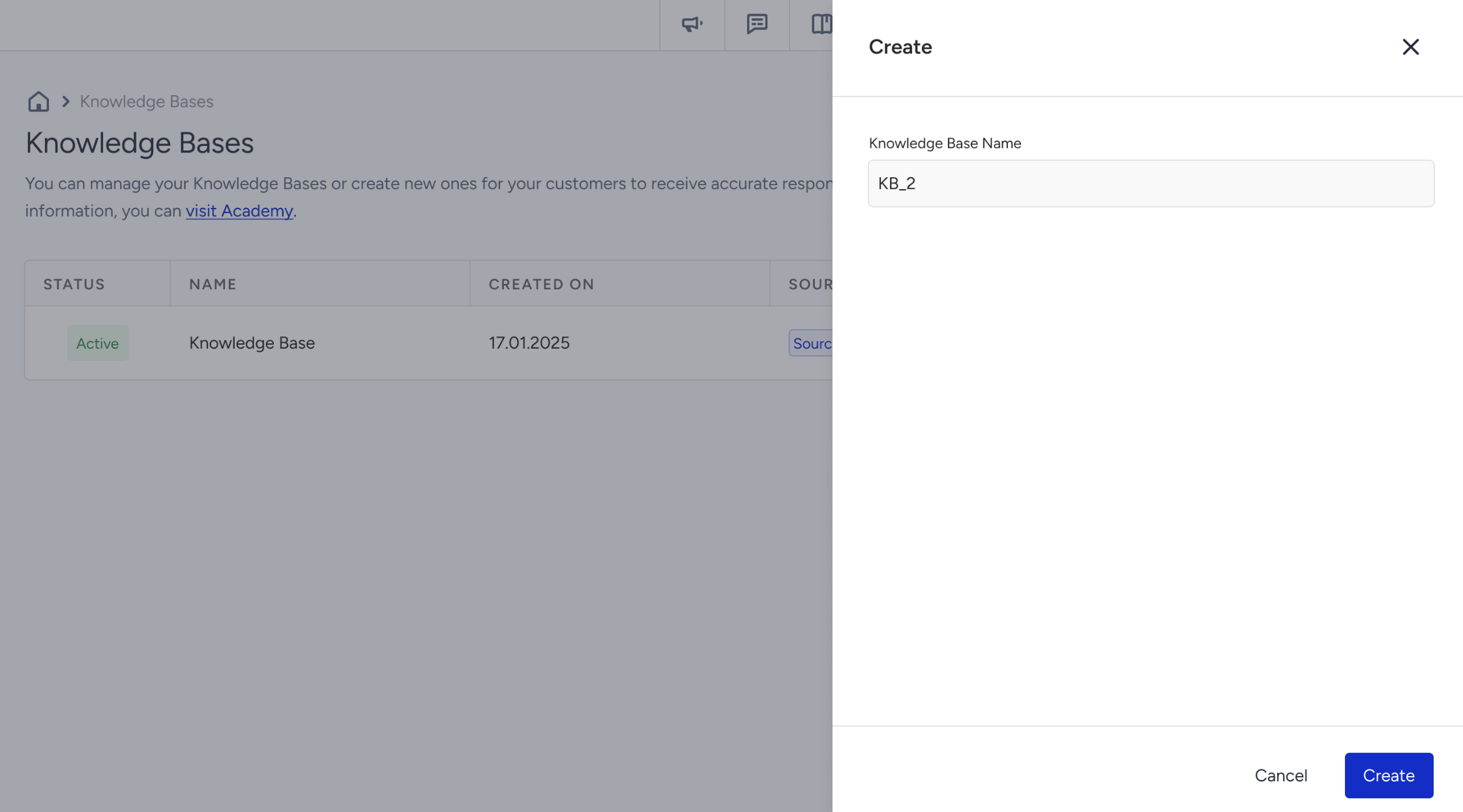
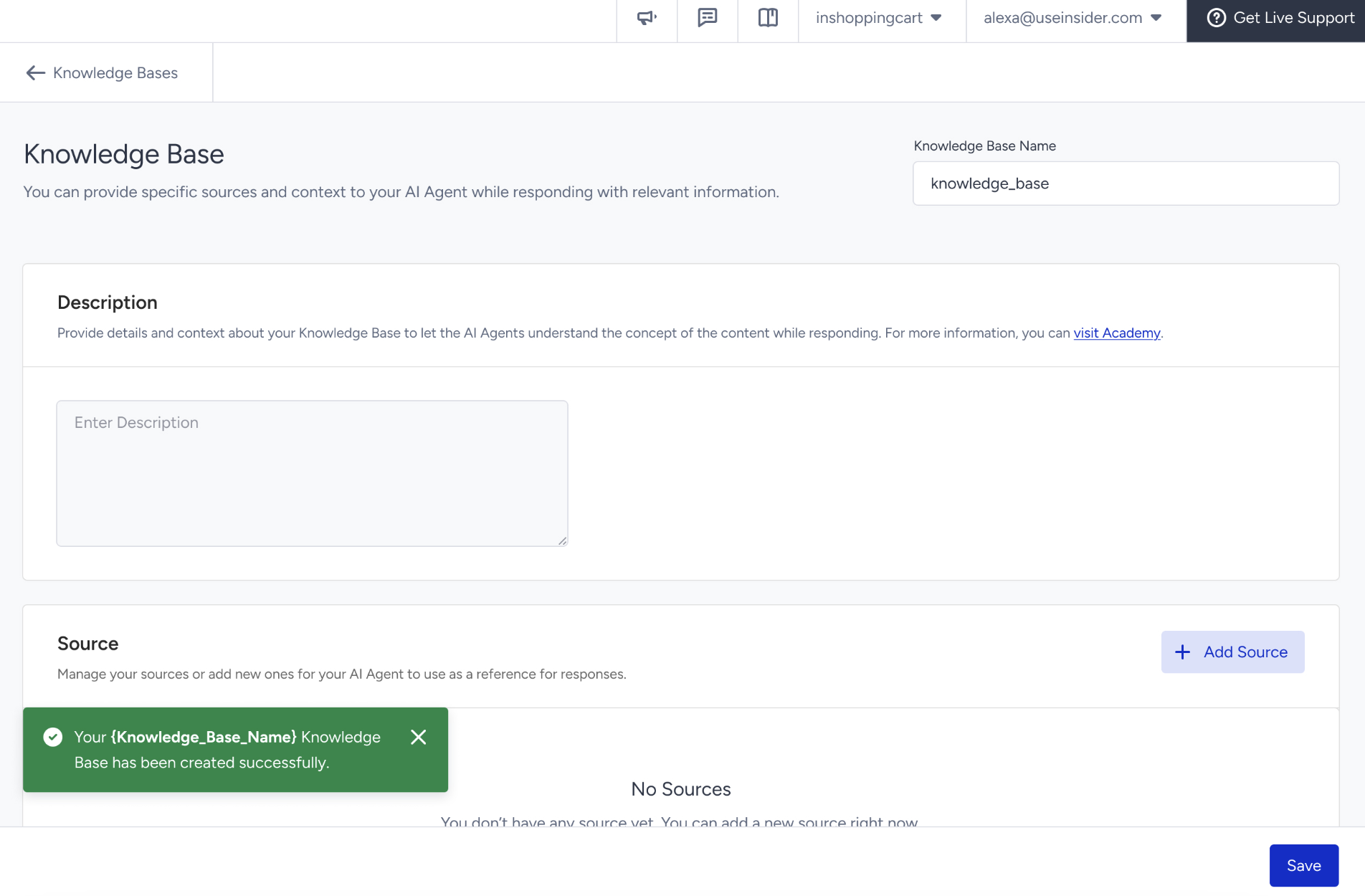
Enter a name for your Knowledge Base and click Create.
In the Description field, describe the purpose and content of your Knowledge Base. A clear description helps your agents understand when to use it.
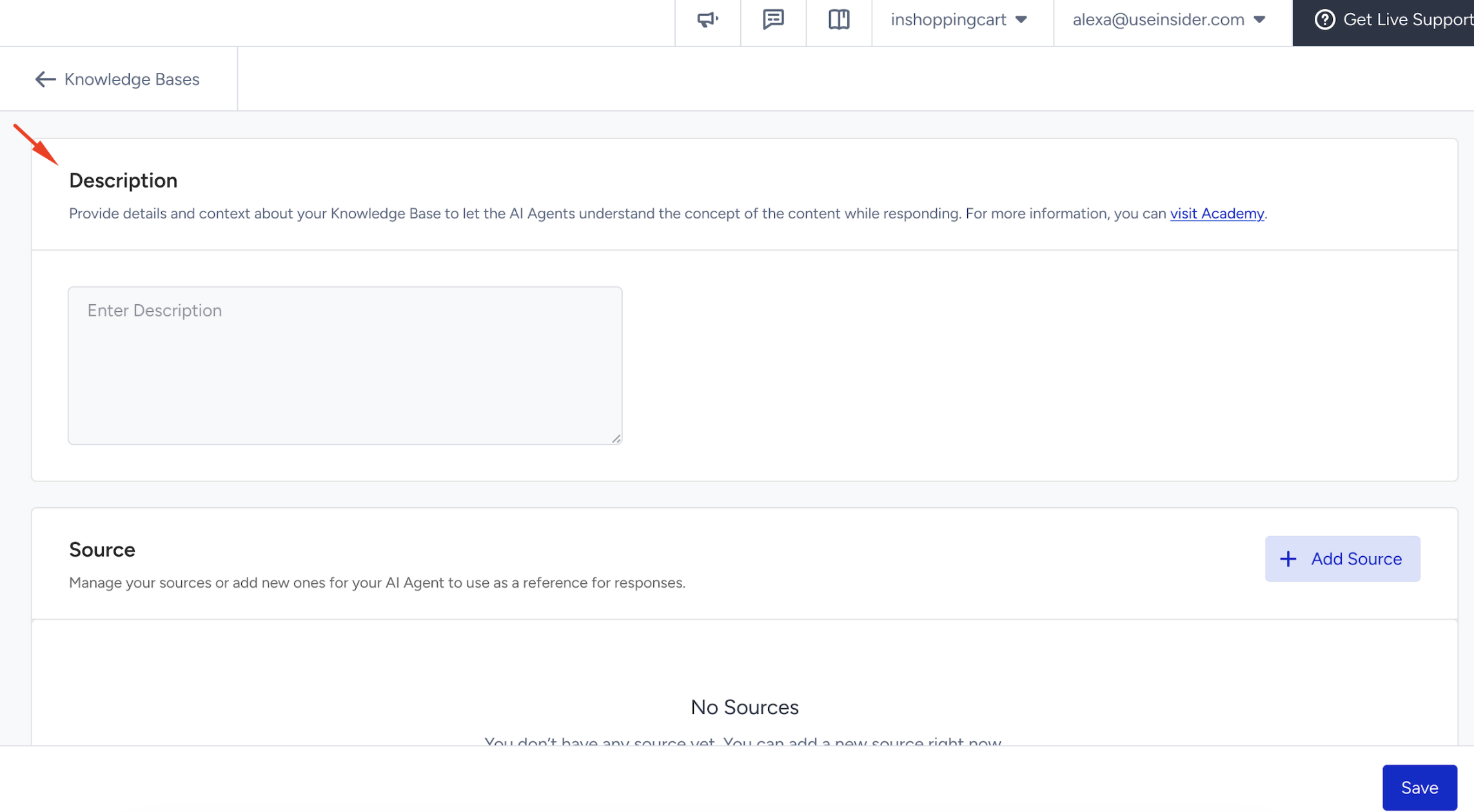
Your Knowledge Base now exists, but it stays empty until you add a source. Continue with Add a source to fill it with content.
Add a source
Sources are the content inputs that feed a Knowledge Base. When you add a source, your agents can pull information from it and answer with up-to-date content.
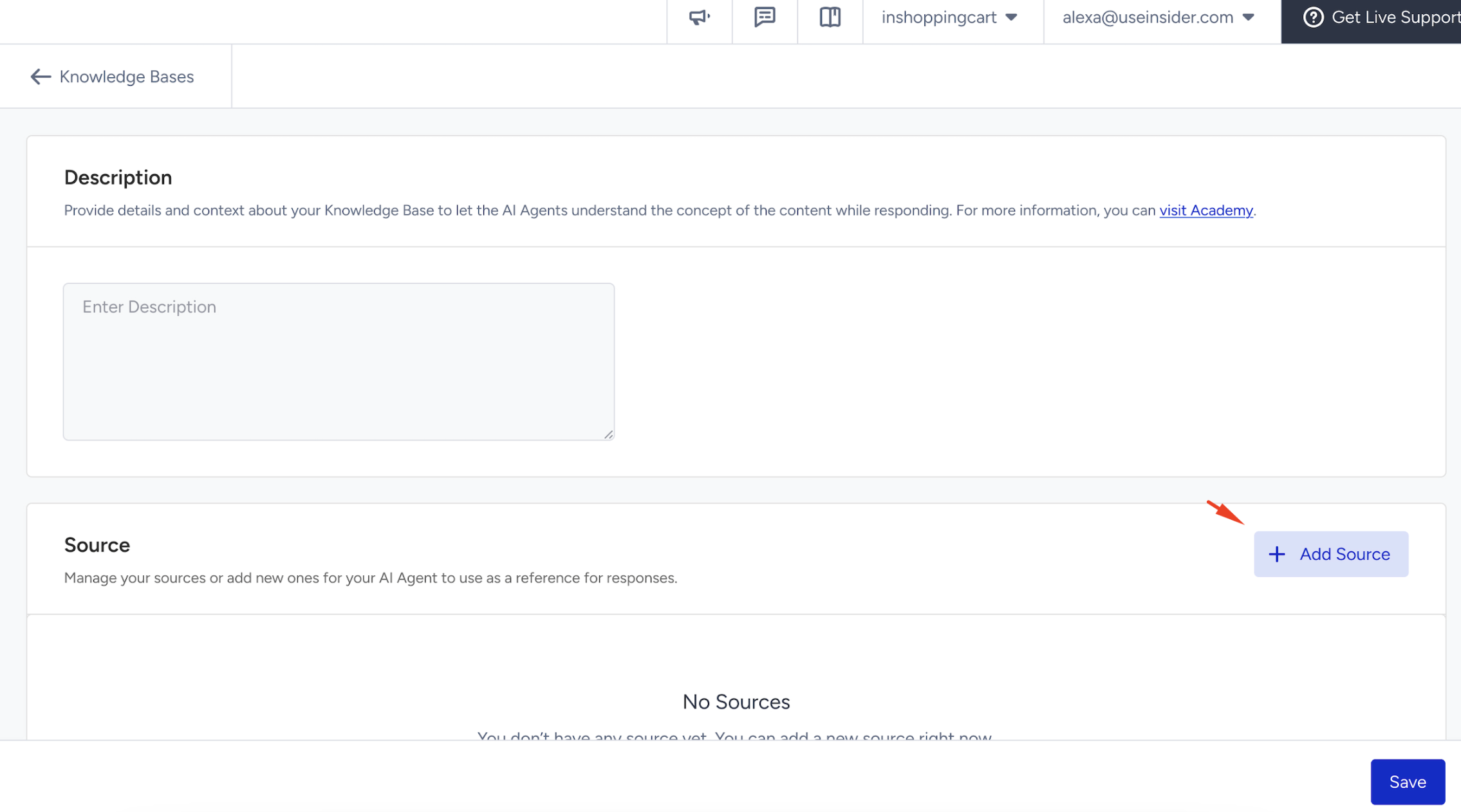
In the Sources section, click +Add Source.
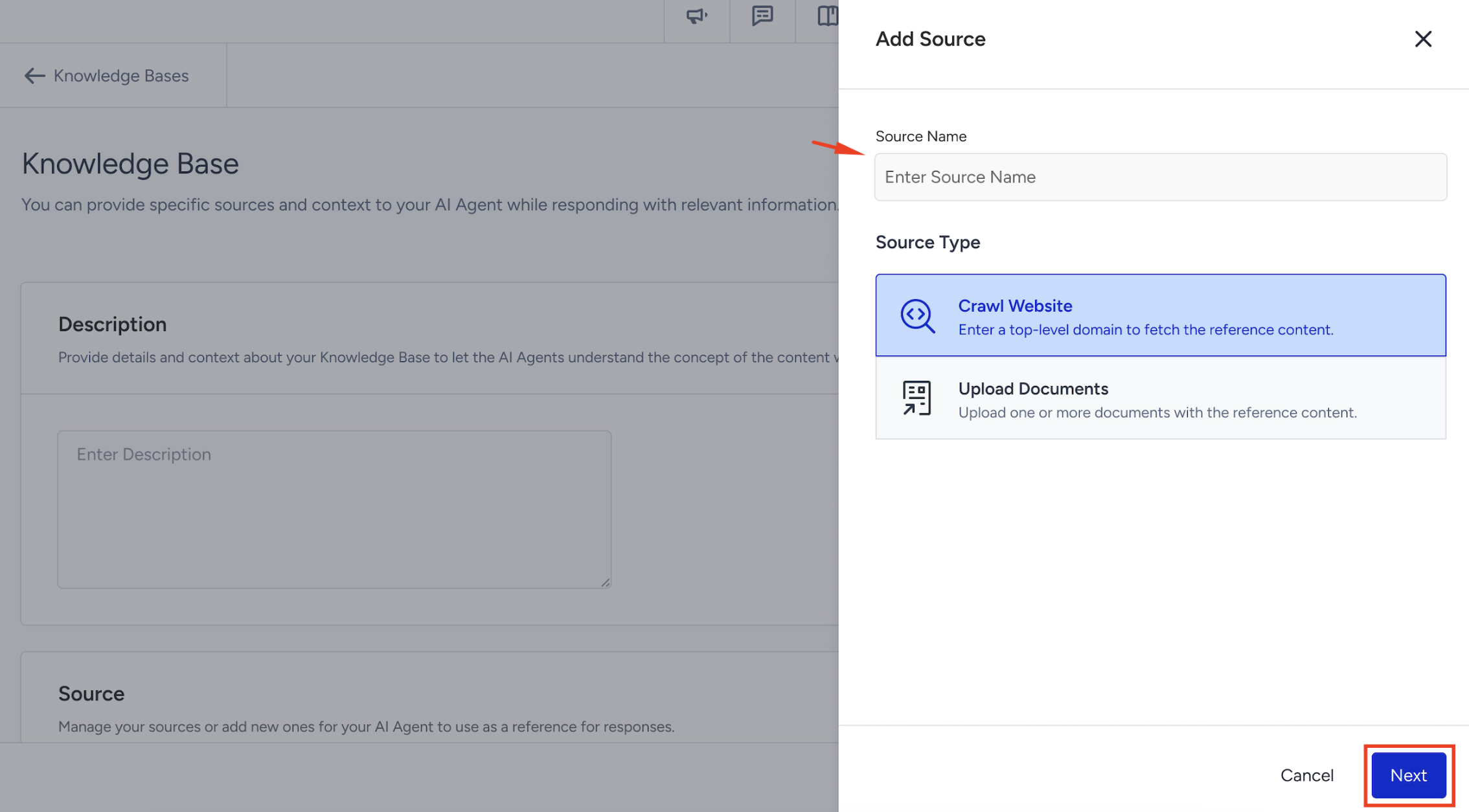
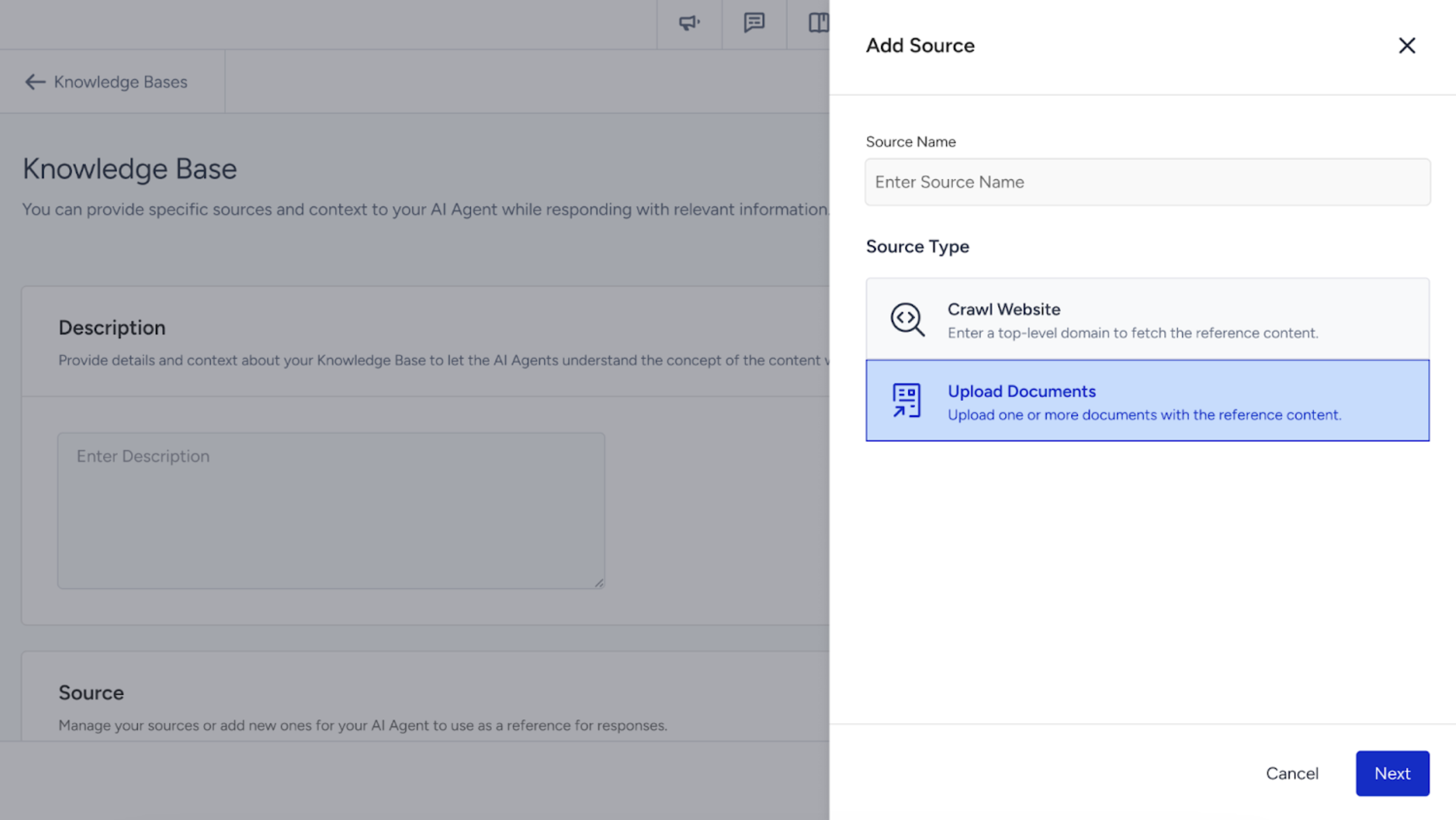
Enter a name for your source, select a source type, and click Next.
Choose Crawl Website or Upload Documents as your source type.
Keep the following in mind when you work with sources:
Each Knowledge Base can contain up to five sources. All of them appear in the Knowledge Base view.
You can edit a Crawl Website source to view its crawled pages and turn on Auto Crawl. For more information, see Manage a Crawl Website source.
For any other change, delete the source and create a new one with the revised settings. The source name is fixed and can't be edited.
Deleting a source can immediately change the behavior of any live agent that uses it.
Crawl website
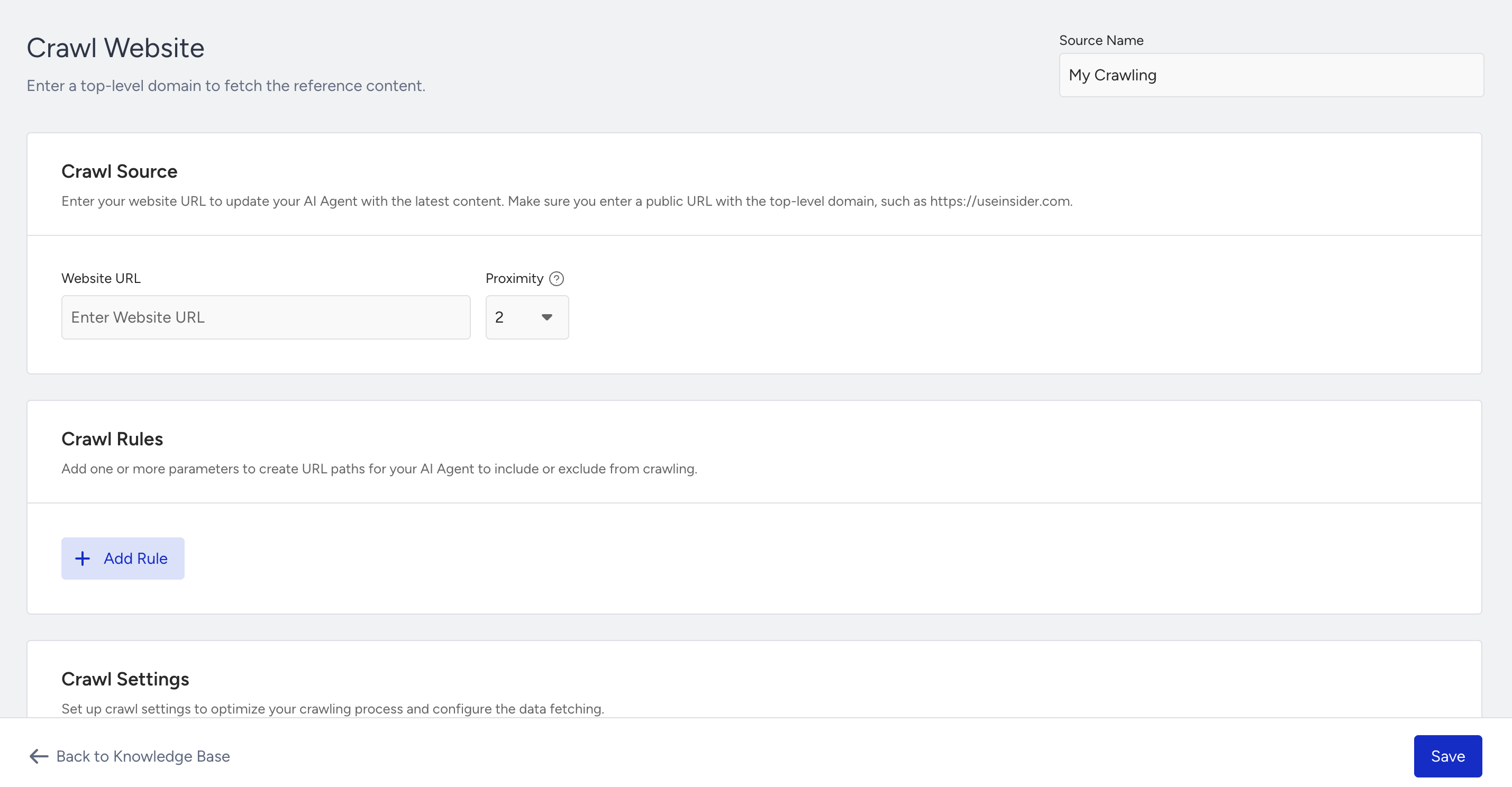
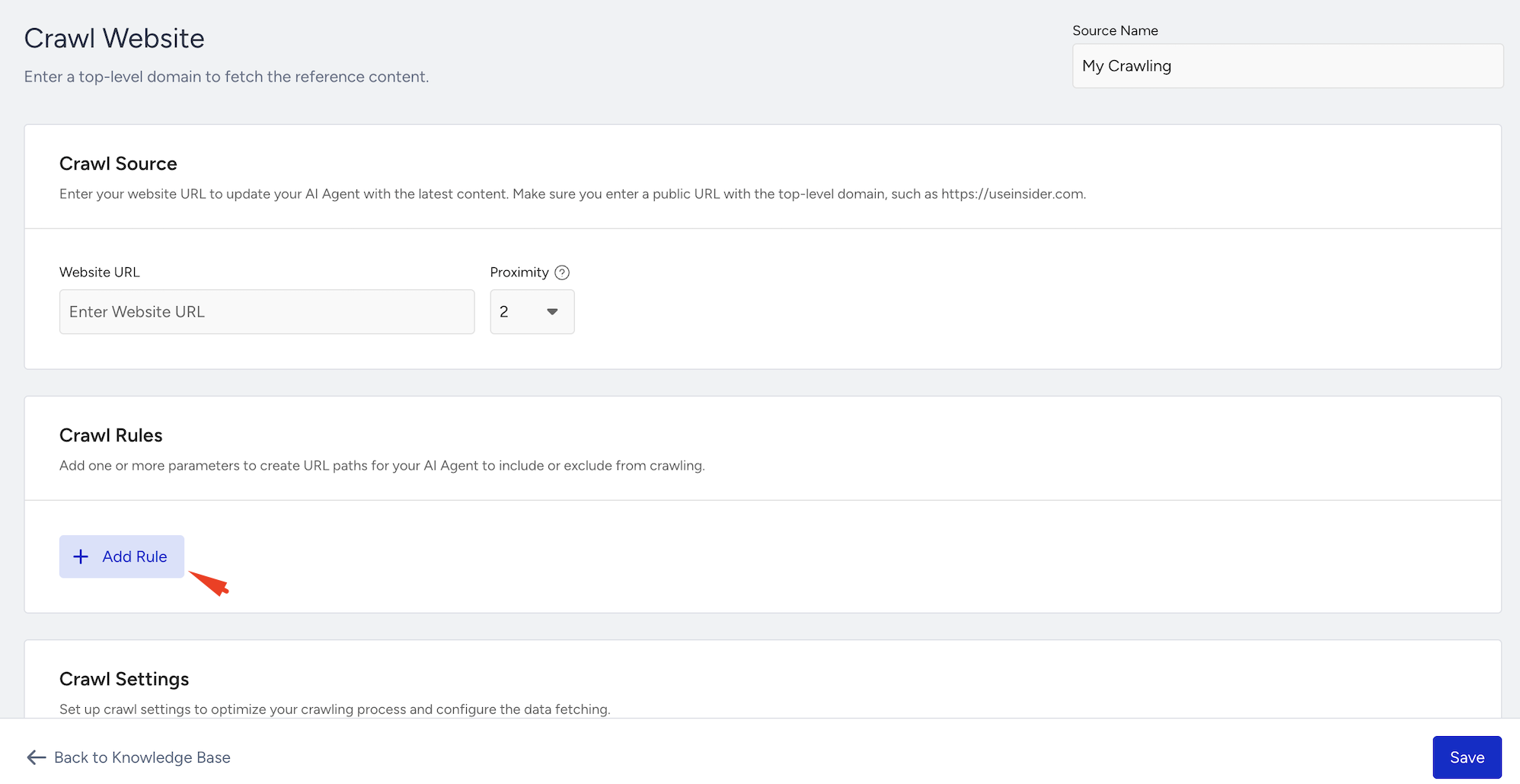
The Crawl Website option extracts content from a website for your AI Agent. Enter the website URL and set the crawl depth in Crawl Source. Choose which pages to include or exclude in Crawl Rules, and fine-tune the crawler in Crawl Settings. If your pages need extra request information, such as a token or a language, add Headers.
Crawl source
Enter the website URL you want to crawl. You can also set the proximity level, which defines how deep the crawl goes. Use a lower value to stay close to the starting URL, or a higher value to reach pages that are further away. The proximity must be a whole number between 0 and 10. If you don't change it, Insider One uses the default of 2.
Proximity is the number of internal link layers (click depths) that the crawler follows from the starting URL. For example, if you enter
https://example.comand set the proximity to 2, the crawler scans the starting URL and the pages it links to, such as:
https://example.com/about
https://example.com/products/product-a
https://example.com/blog/post-1The crawler does not visit pages that are linked only from these pages.
Crawl rules
Use crawl rules to control exactly which pages the crawler includes or excludes. You can define rules with Contains or Not Contains, and organize them into groups. This gives you precise control over the scope of the crawl.
To create crawl rules:
Click Add Rule.
Choose a rule parameter and enter the expression:
Contains: The URL must include the expression.
Not Contains: The URL must not include the expression.
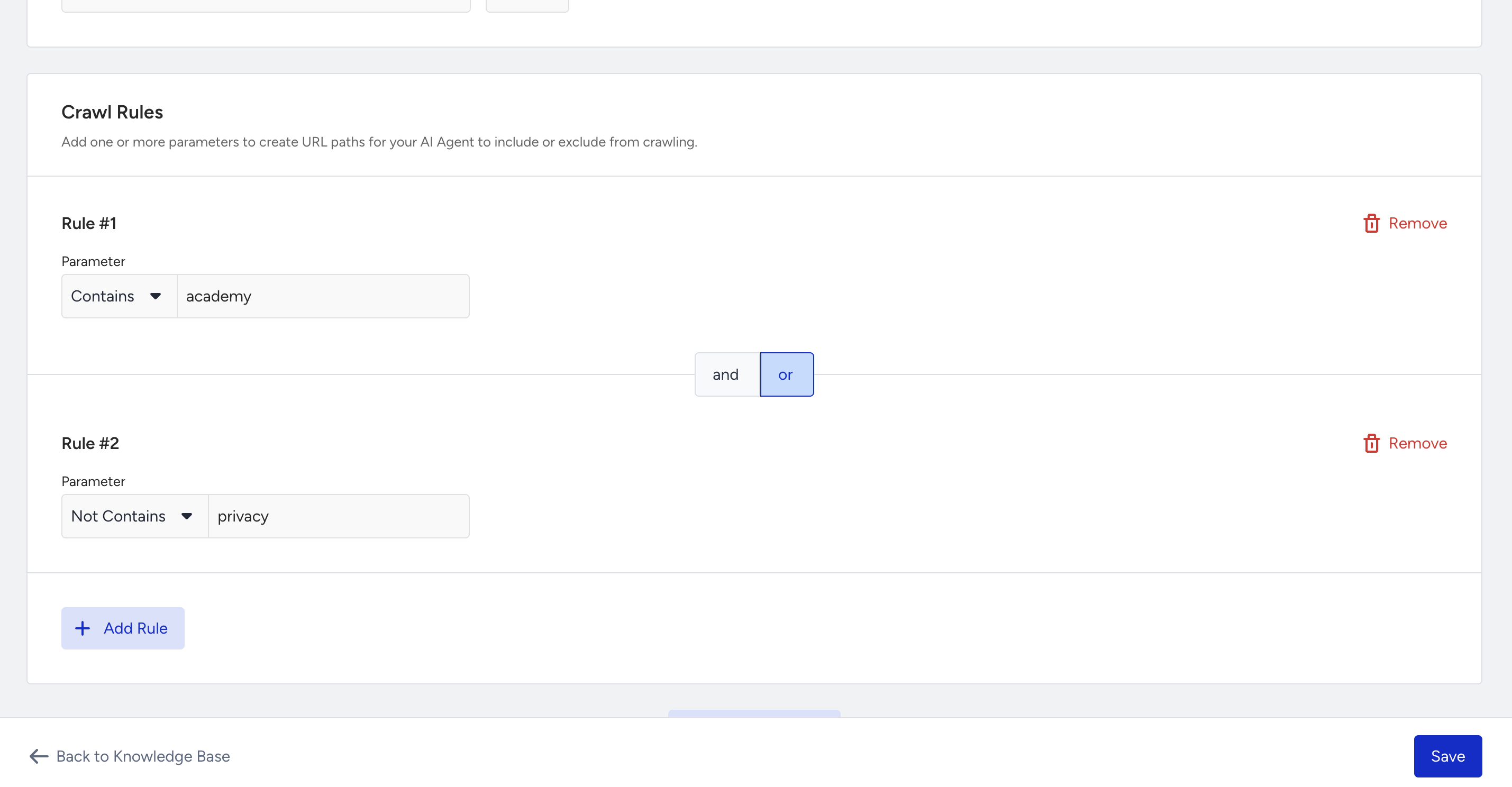
When you add the first rule, Insider One creates Rule Group 1 automatically.
Keep the following limits in mind when you create rules:
You can use only Contains and Not Contains as conditions.
Each rule must use valid URL characters.
You can create up to five rules per group and up to ten groups in total.
Each group combines its rules with a single logic type (AND or OR). All groups are also combined with a single logic type (AND or OR).
The following use cases show how you can combine rules.
Use case 1: Focus the crawl with AND conditions
This setup narrows the crawl to pages that match both groups:
Group 1: contains
faqOR containsflightGroup 2: contains
promotionAND containsdeals
As a result, the crawler visits only pages that match both groups. For example:
/faq/flight/dealsmeets all conditions./faq/promotiondoesn't meet them, because the URL is missing “deals.”
Use case 2: Skip specific pages with exclusions
This setup includes a page if its URL contains a keyword or if it doesn't contain another one. The groups are combined with OR:
Group 1: contains
helpGroup 2: not contains
promotions
As a result, the crawler includes pages that have “help” in the URL or don't have “promotions” in the URL. It skips only the URLs that contain “promotions” and don't contain “help.” For example:
/helpmatches Group 1./prod/docsmatches Group 2, because the URL has no “promotions.”
Crawl settings
Use crawl settings to fine-tune how the crawler behaves. These options give you more control over what the crawler collects or skips.
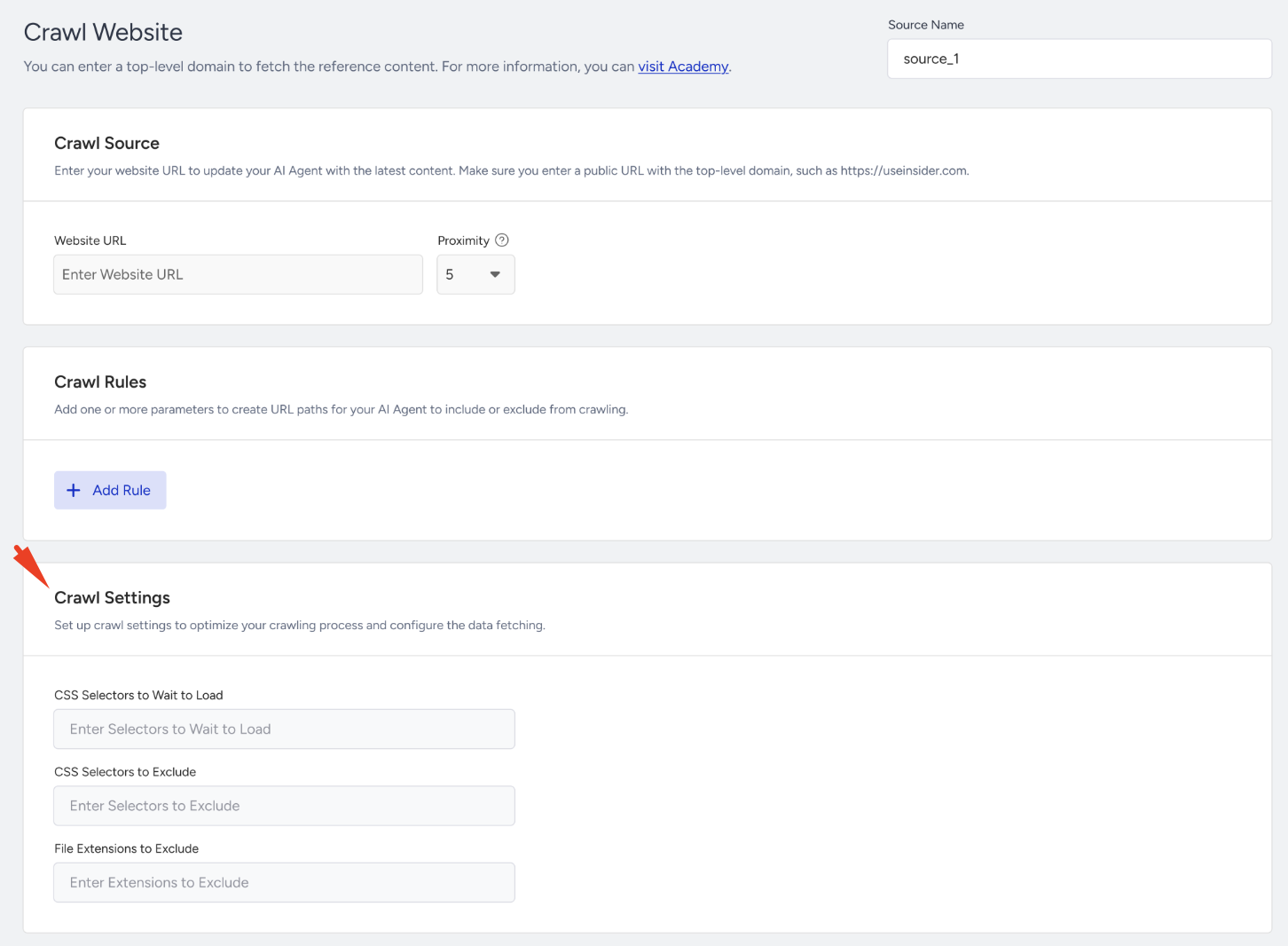
CSS Selectors to Wait to Load: Tell the crawler to wait for specific elements before it collects content. This helps with pages that load content after the initial render. For example:
.product-description,#faq-sectionCSS Selectors to Exclude: Tell the crawler to skip parts of a page, such as footers or banners. For example:
.footer,.cookie-bannerFile Extensions to Exclude: Prevent the crawler from downloading or indexing specific file types. For example:
.pdf,.jpg,.zip
Headers
Headers let you send additional information with your crawl request, such as authentication tokens or language preferences.
To add custom HTTP headers:
Click Add Header.
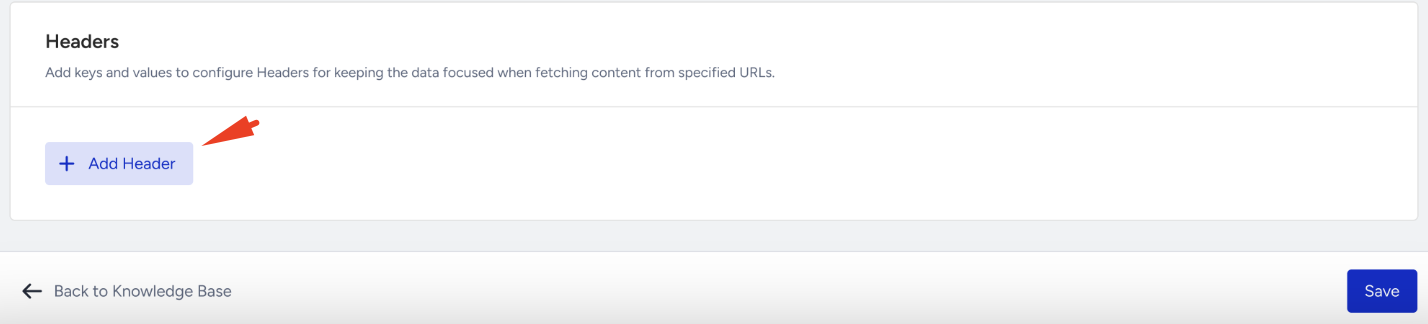
Enter a key and value pair.
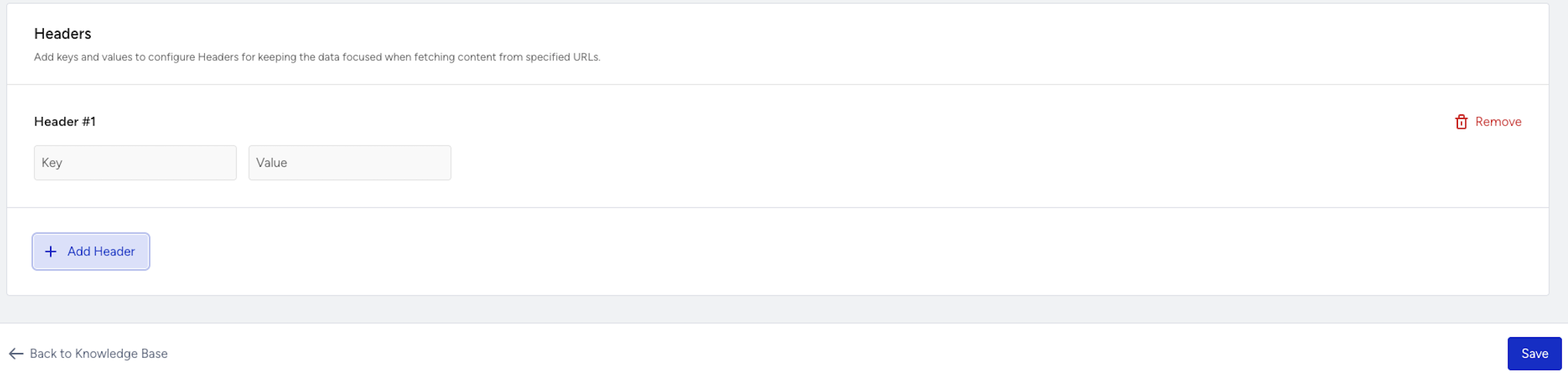
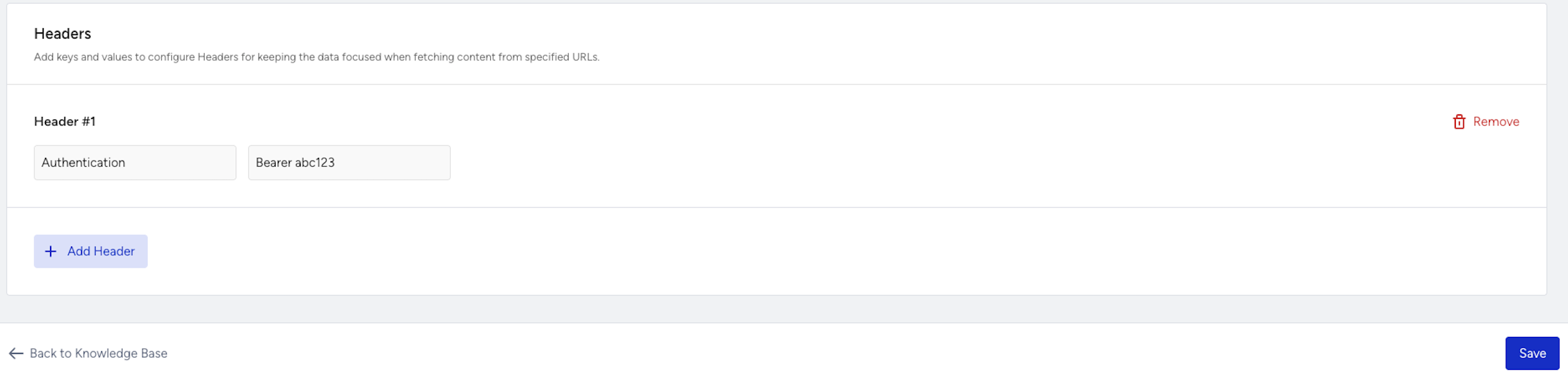
You can add common headers such as the following:
Authentication: Pass a token in a header to crawl pages as a logged-in user. For example:
Authorization: Bearer YOUR_TOKENLanguage preference: Request content in a specific language. For example:
Accept-Language: en-US(English, US)Accept-Language: tr-TR(Turkish)
Manage a Crawl Website source
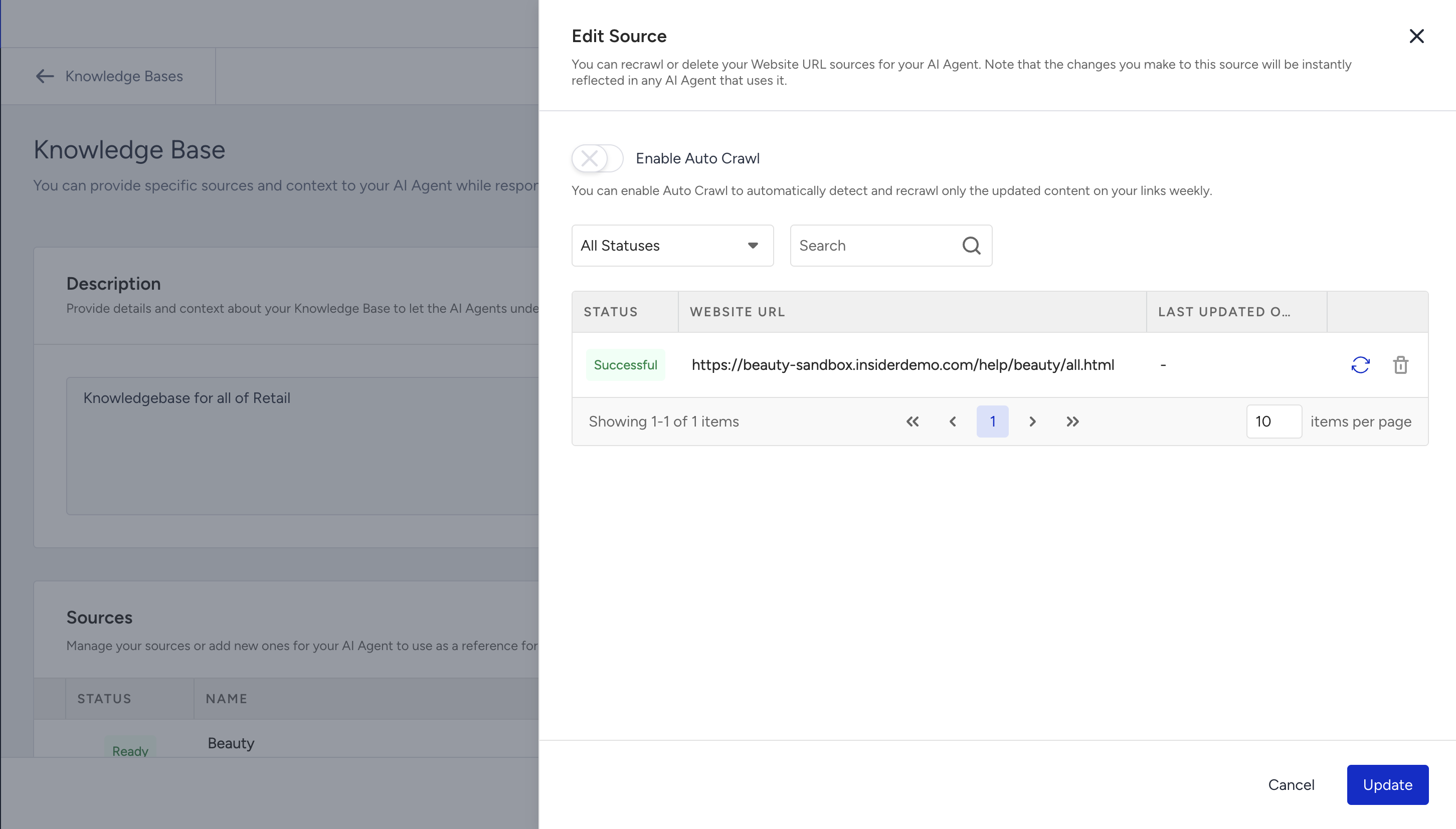
To manage a Crawl Website source, navigate to InOne > Agent One > Knowledge Bases, select your Knowledge Base, and click Edit for the source you want to manage.
View crawled pages
The Edit Source panel lists the pages the crawler collected from the source. Each page shows its status (Successful, Failed, or Crawling) and the date it was last updated.
To find specific pages, use Select Statuses to filter by status, or use Search.
To crawl a page again, click the Recrawl icon.
To remove a crawled page, click the Delete icon.
To save your changes, click Update.
Before you delete a source and create a new one, review its crawled pages so you don't duplicate content across your sources.
Enable Auto Crawl
To keep the content in your Crawl Website source up to date automatically, turn on Enable Auto Crawl. Insider One then checks the pages in the source every week and recrawls only the pages that changed. You can also turn it on when you create the source.
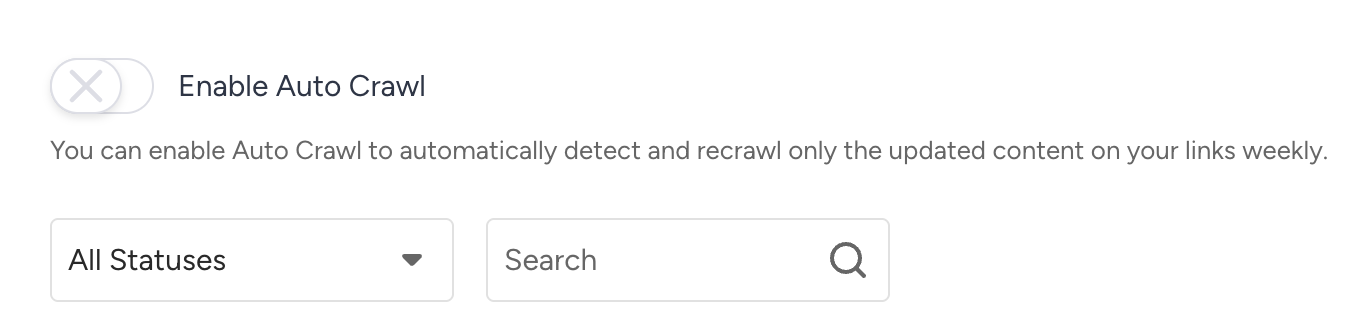
Auto Crawl is available only for Crawl Website sources.
Upload documents
In addition to website crawling, you can upload documents as sources for your Knowledge Base.
Supported file formats
.txt (plain text, ASCII only)
.md (Markdown)
.html (HTML)
.doc, .docx (Microsoft Word)
.csv (comma-separated values)
.xls, .xlsx (Microsoft Excel)
.pdf (Portable Document Format)
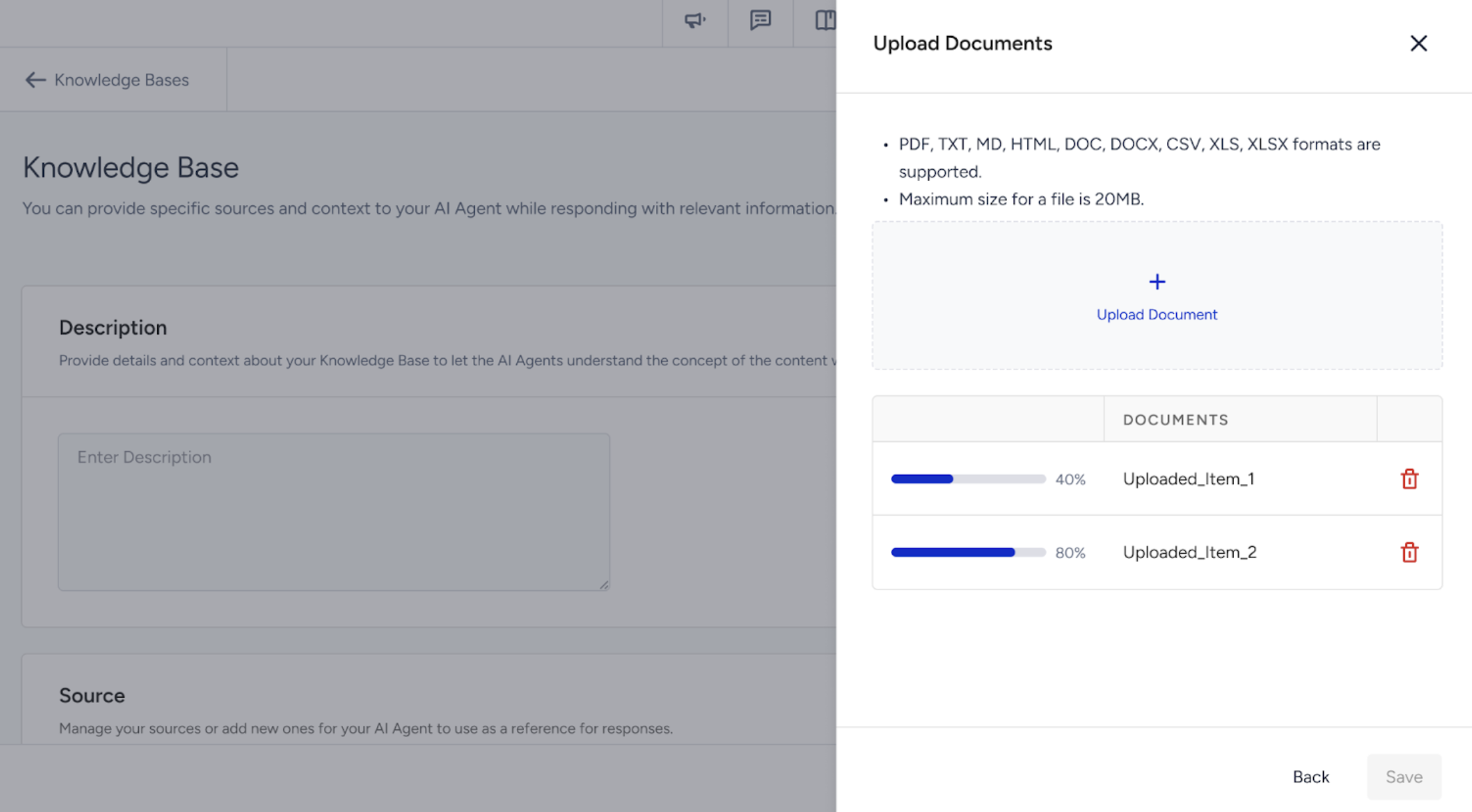
The maximum file size is 20 MB per file.
To upload documents as a source:
In the Sources section, click +Add Source, select Upload Documents, and click Next.
Upload your files one by one. Wait for each file to finish uploading before you continue, and stay on the page until all uploads are complete.
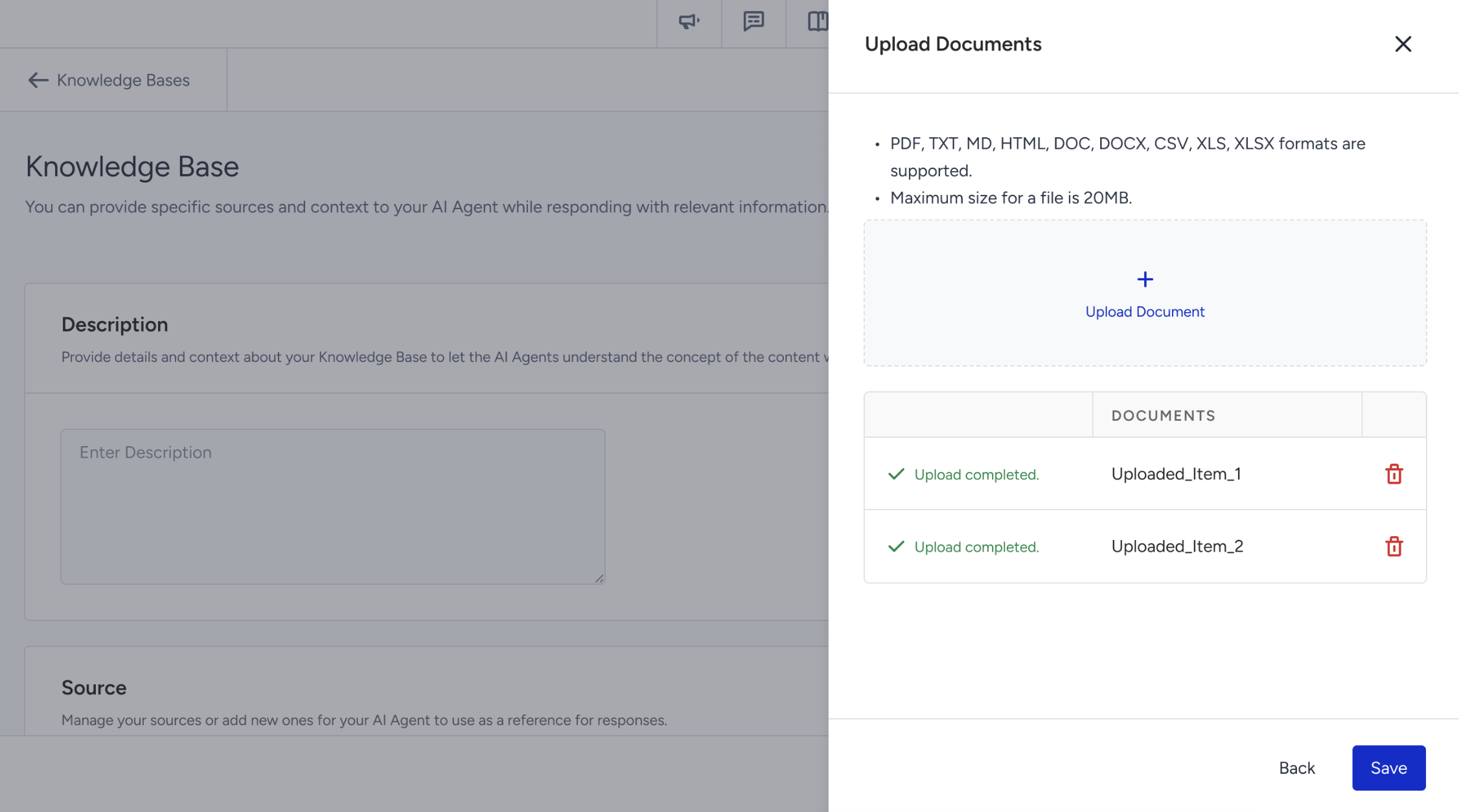
When all uploads are complete, click Save to add the documents to the Knowledge Base.
Your files appear in the source list with the status “Learning.”

When processing is complete, the status changes to “Ready.”

Click Save to save your changes.
Knowledge Base statuses
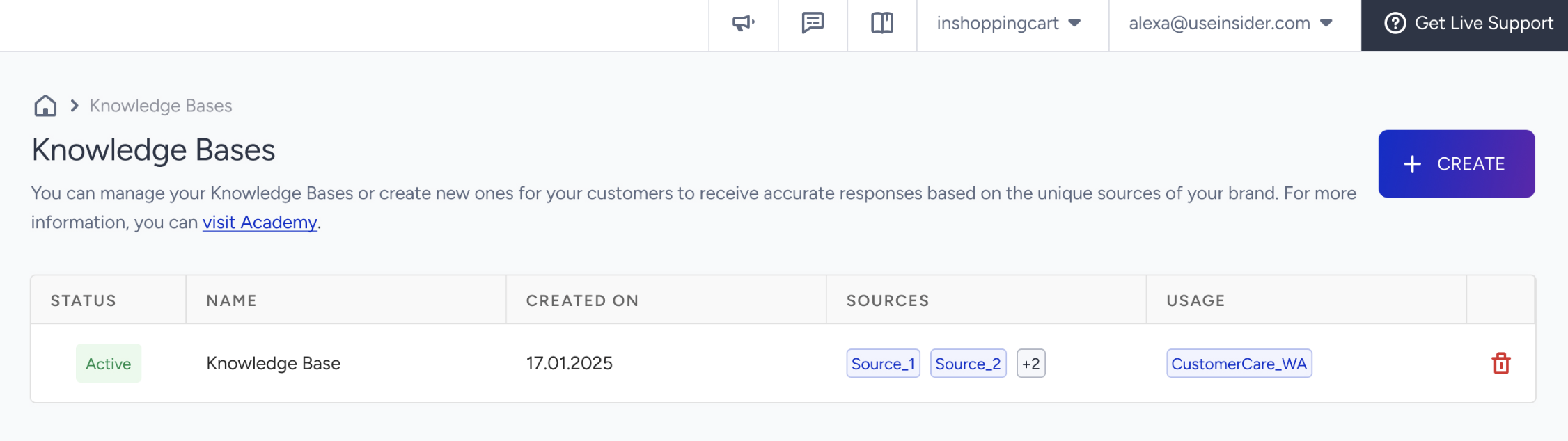
The Knowledge Bases page lists all your existing Knowledge Bases with their statuses. Each Knowledge Base also shows its sources and the agents linked to it, if any.
Active: The Knowledge Base is ready to link to your AI Agents.
Processing: Insider One is creating or updating the Knowledge Base through a crawl.
Errored: The Knowledge Base could not be created because of an issue during the crawl.
Delete a Knowledge Base
To remove a Knowledge Base, click Delete for that Knowledge Base on the Knowledge Bases page.
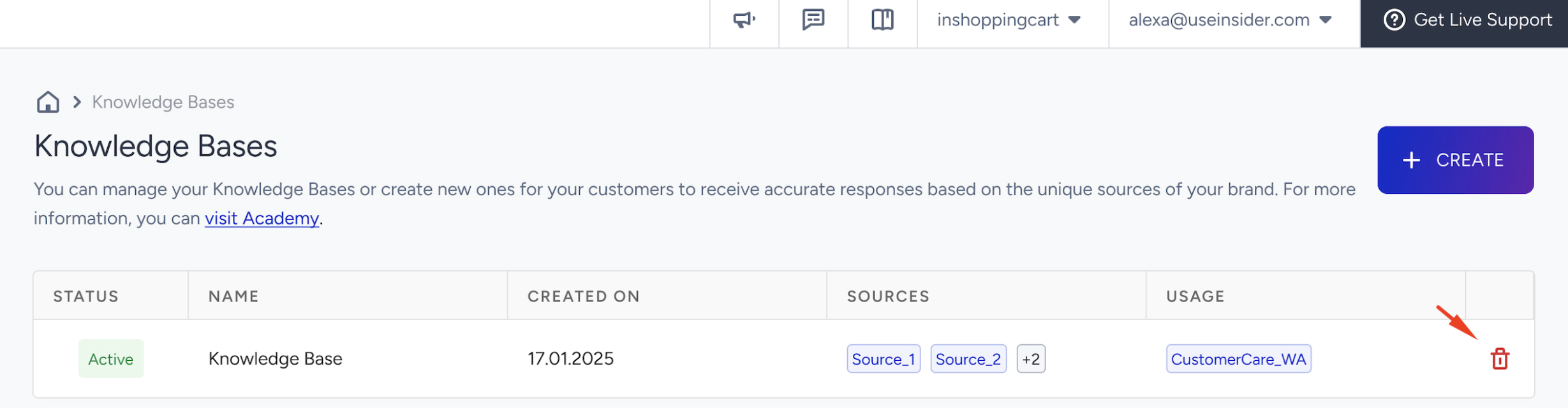
You can't delete a Knowledge Base while AI Agents are actively using it.
Next steps
After your sources finish processing, your Knowledge Base is ready to link to an AI Agent. Make sure its status is Active first. To link it, see Step 4 in Create and Configure the Support Agent or Create and Configure the Shopping Agent.