If you currently use the Merchandising Flow to manage your rules and want to switch to Eureka Strategies to unlock A/B testing, segmentation, and centralized rule management for your search and category pages, follow the steps in this article.
Before you migrate
When you migrate from the Merchandising Flow to Eureka Strategies, the following changes take place:
Your existing active Merchandising Rules are automatically converted into a strategy called Merchandising Strategy.
From this point on, you can no longer publish rules directly from the Merchandising Rules section.
This switch cannot be undone.
Migration is a one-time, irreversible action. Your live campaigns are not interrupted, and your existing rules remain active within the auto-created strategy.
Use case 1: Migrate with a Eureka pop-up campaign
If you only have a Eureka pop-up campaign, your migration is fully automatic. After switching, an initial Merchandising Strategy is created from your existing active rules and immediately assigned to your campaign variants. You require no manual steps to maintain continuity.
After the migration, you can create new strategies and assign them to new or existing campaign variants to run A/B tests and compare performance.
Switch to Eureka Strategies
To migrate to Eureka Strategies:
Navigate to Search and Merchandising > Eureka Strategies.
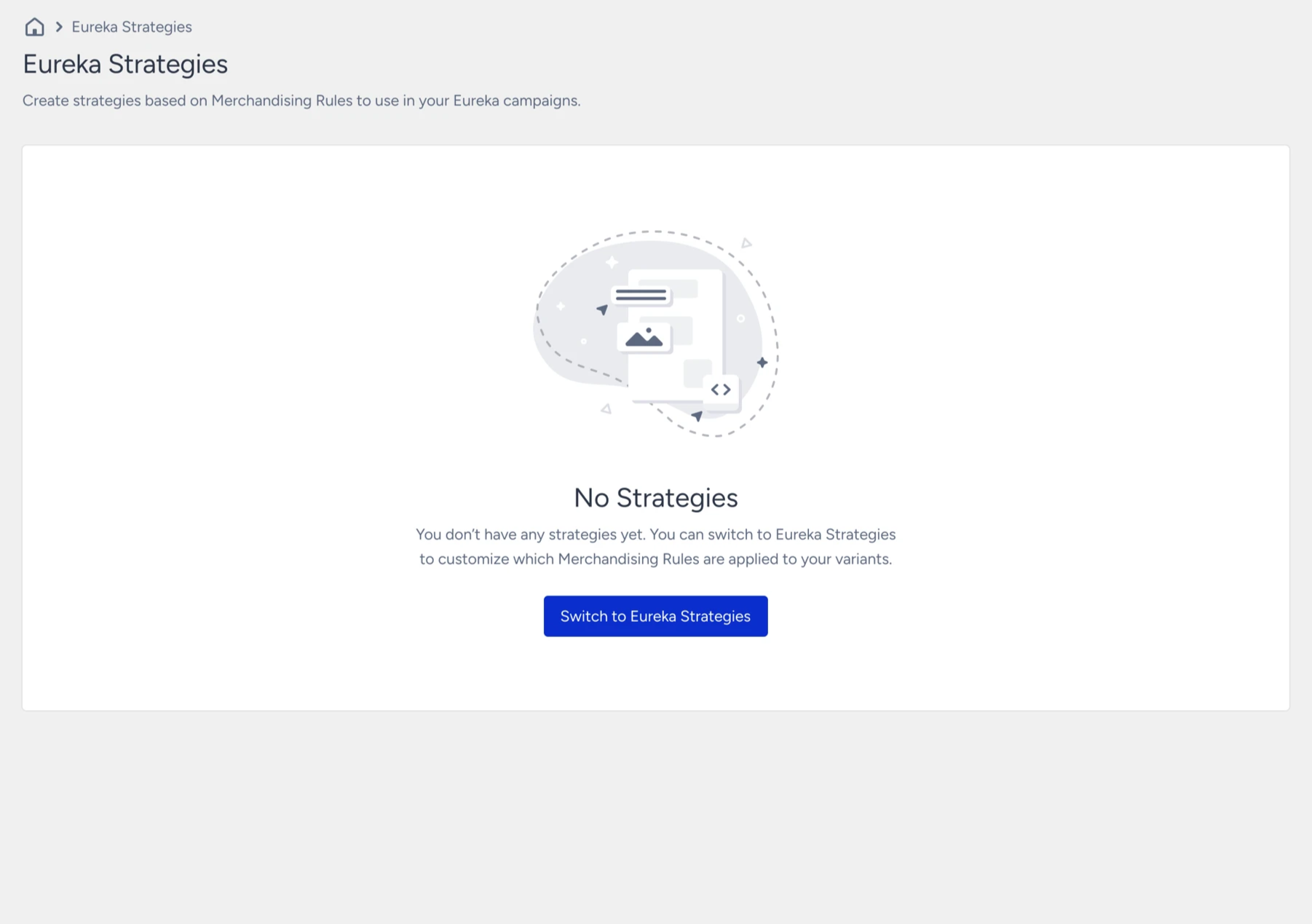
On the Eureka Strategies page, click Switch to Eureka Strategies.
Review the details on the confirmation modal; your existing Merchandising Rules will be converted into a strategy, and your campaigns will continue without interruption. Note that this action cannot be undone.
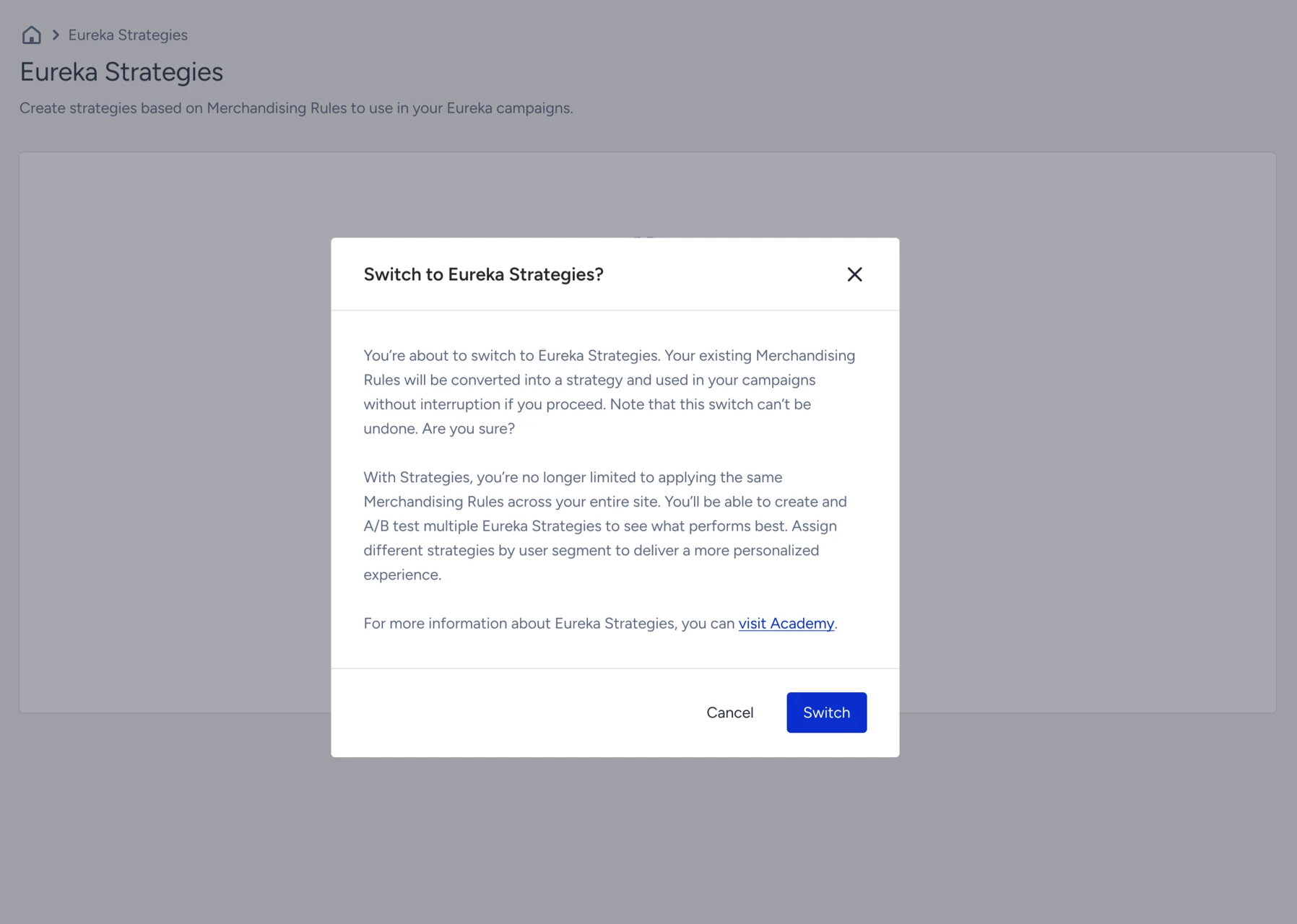
Click Switch to confirm.
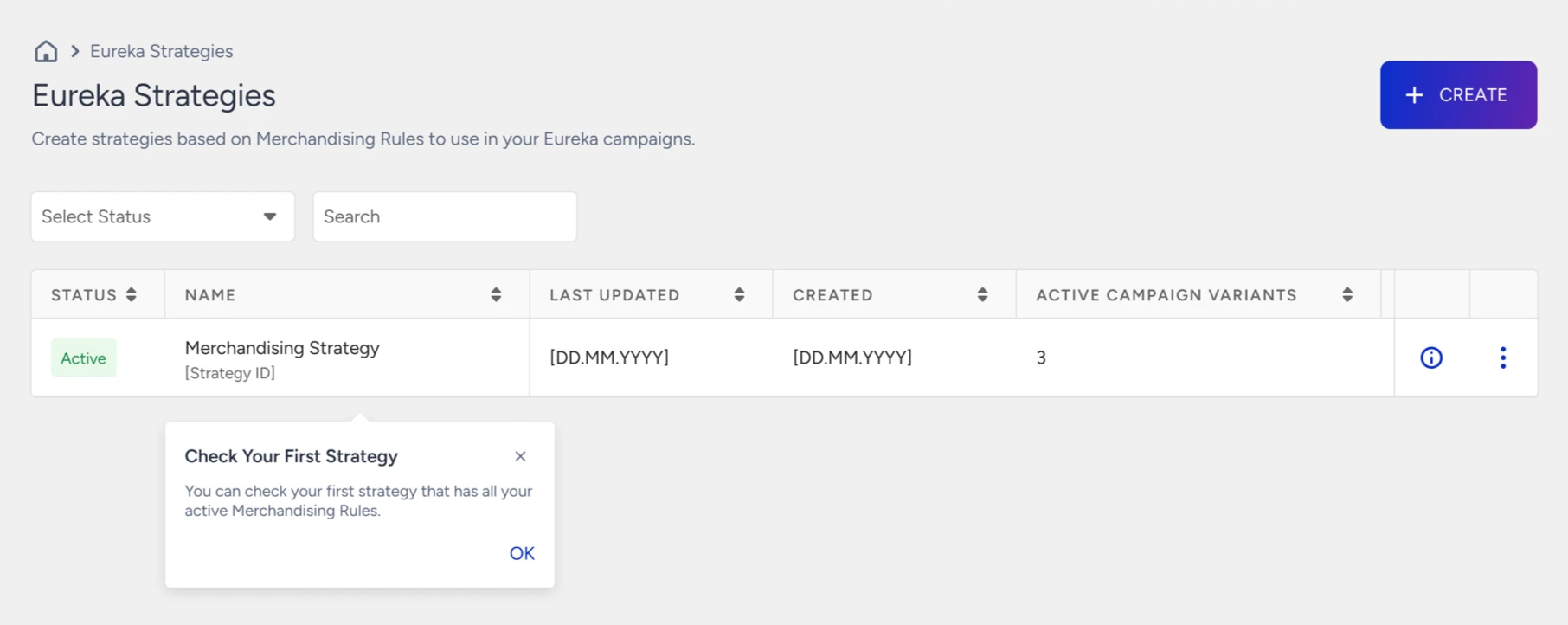
After switching, you are redirected to the Eureka Strategies listing page. Your existing rules now appear as the Merchandising Strategy with Active status and are automatically assigned to your campaign variants.
What to do next
Now that you are on the Strategies flow, you can:
Create additional strategies with different rule sets to test new approaches.
Navigate to your Eureka campaign, add a new variant in the Design step, and assign the new strategy to it.
Use Eureka Analytics to compare variant performance and identify the best-performing strategy.
Use case 2: Migrate with Eureka Search API or Eureka Category Collection API integration
If you integrated the Eureka Search API or Eureka Category Collection API directly, you need to pass the Strategy ID (sid) in your API requests for your Merchandising Rules to take effect after migration.
How the Strategy ID works
After migration, your active merchandising rules are grouped into a strategy. To apply the Merchandising Strategy to your search or category results, include the sid parameter in each API request. If sid is omitted, no strategy-based rules are applied to the results.
A strategy can be applied via the API even if it is not assigned to an active campaign. The sid parameter activates it independently for API-integrated pages.
Find your Strategy ID
Navigate to Search and Merchandising > Eureka Strategies.
Locate your strategy in the listing. The Strategy ID is shown below the strategy name.
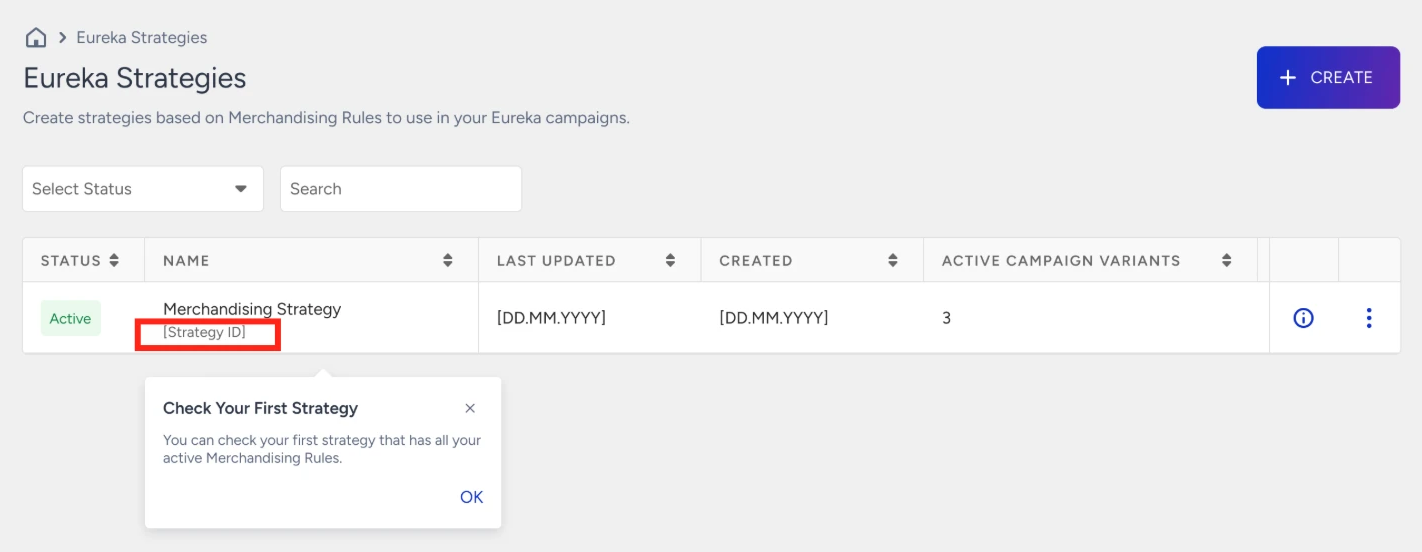
Copy the Strategy ID and include it as the sid parameter in your Eureka Search API or Eureka Category Collection API requests.
Recommended: SDK Integration
If you are currently using the Eureka Search API or Eureka Category Collection API directly, we recommend integrating with the Eureka SDK. With SDK integration, you can:
Create multiple Eureka campaigns and assign different strategies to each.
Target different strategies to different audience segments.
Assign different strategies to different variants within a single campaign to compare performance.
If you continue with the Search API or Category Collection API integration, managing multiple strategies requires manual effort on your side, you need to create variants and send separate requests for each variant with different strategy IDs. By integrating the Eureka SDK, you can manage all of this directly on the platform without any manual request handling.