The Event Collection API collects engagement data from these pages, including what users searched for, which products they saw, clicked, added to cart, and purchased. This data feeds the Eureka Analytics dashboard in Insider One’s InOne panel, where you can see metrics like search volume, click-through rate, add-to-cart rate, and conversion rate.
You use the Search API to get products. You use the Event Collection API to report what happened with those products.
Here is the complete flow for a search integration:
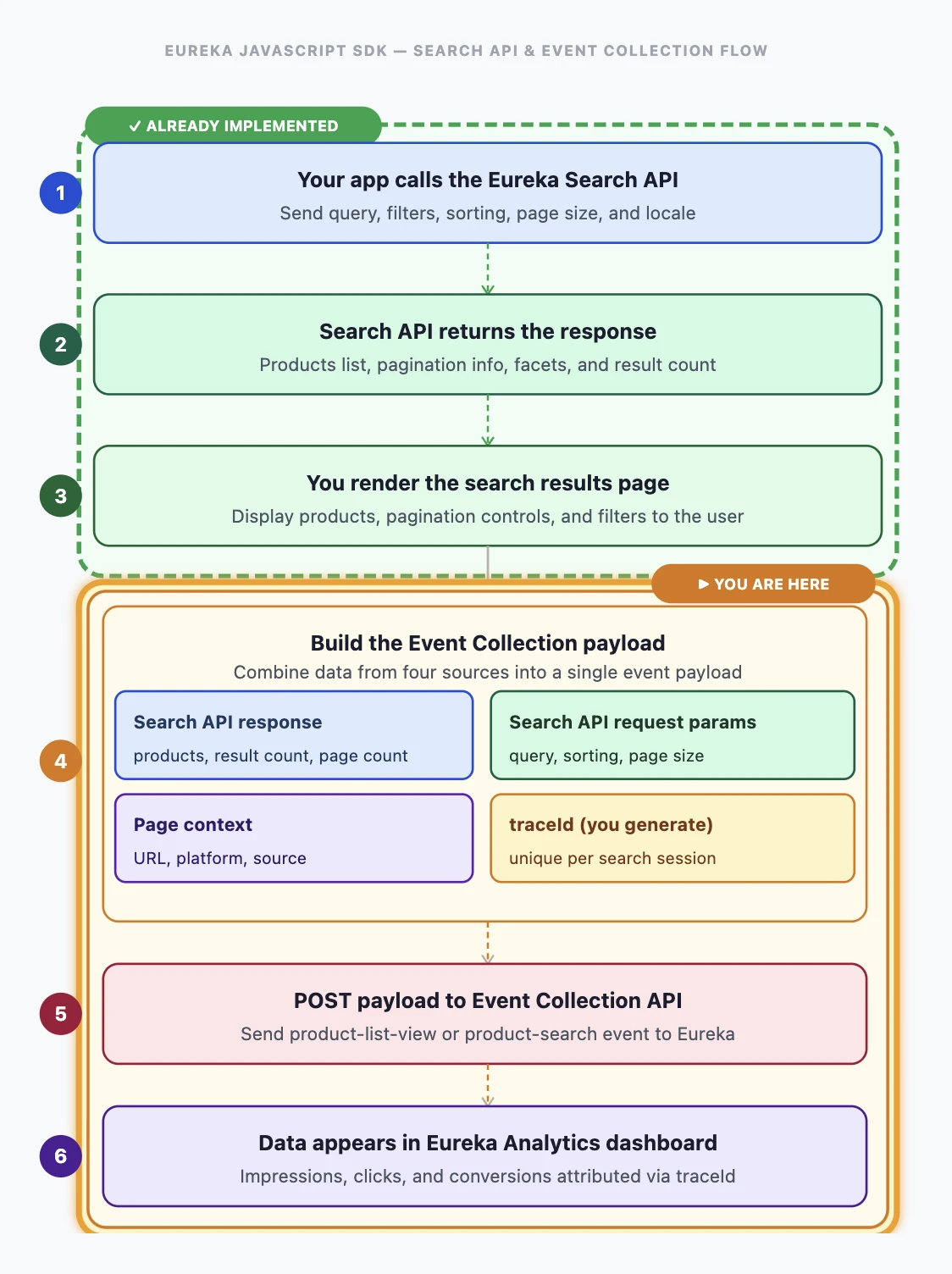
You already have this flow:
Your app calls the Eureka Search API with a query.
Search API returns products, pagination, and facets.
You render the search results page.
Together with this guide, the flow is enriched with:
You build an Event Collection payload using data from the DOM, the Search API response, and a traceId you generate.
You POST the payload to the Event Collection API.
The data appears in the Eureka Analytics dashboard.
The same pattern applies to category/brand listing pages (using the Category Merchandising API instead of the Search API).
Step 1: Build the Event Collection payload
The Event Collection payload is built using data you already have: your rendered page (DOM), the Search API request you sent, and the Search API response you received. For a detailed field-by-field mapping showing exactly where each value comes from, see:
Example for DOM references:
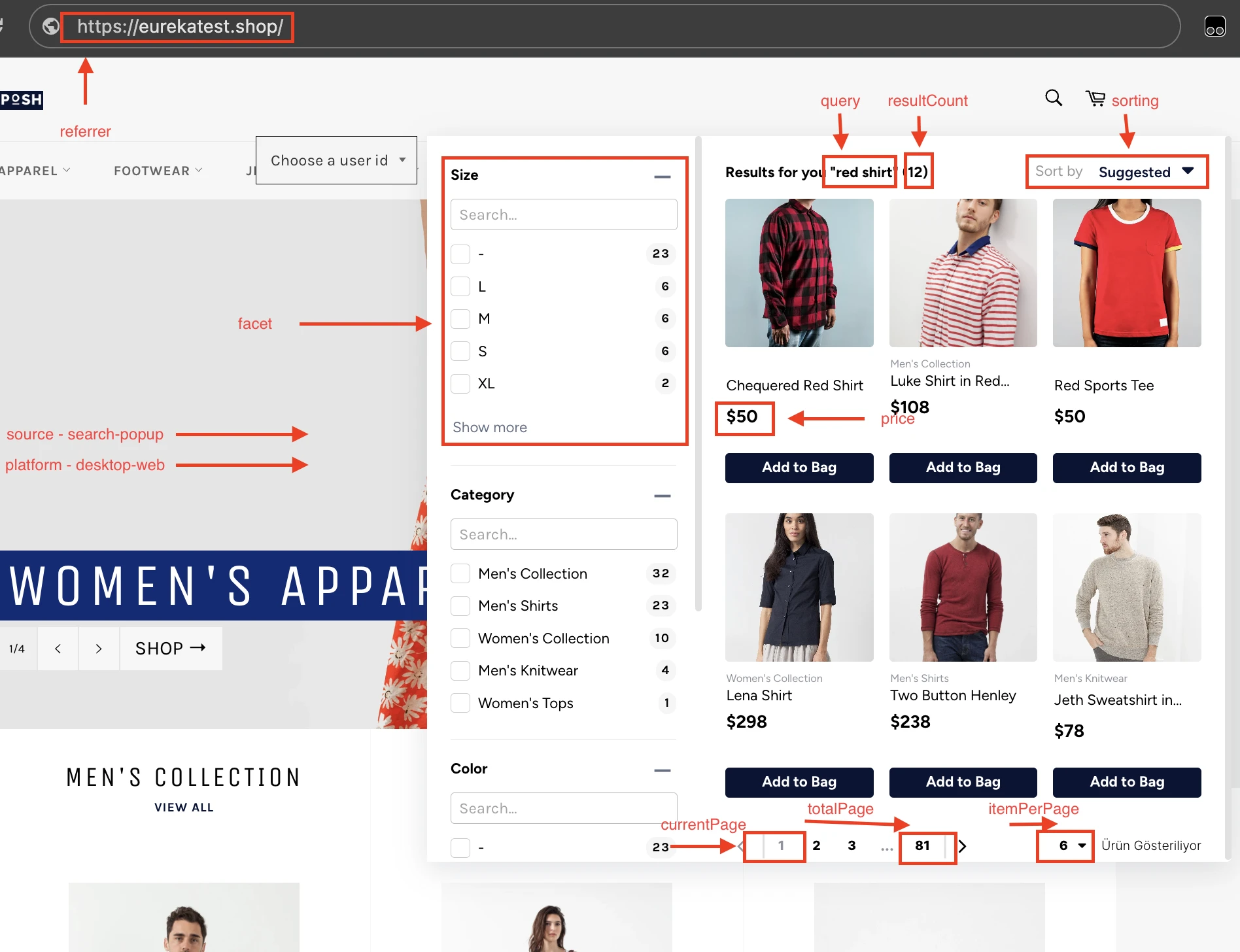
Refer to Payload Field References for further details.
Step 2: Get your credentials and send the event
You have the payload, and you need credentials to send it. You need an authentication token, partner ID, and locale information from the InOne panel:
You are already using these credentials for the Search API. The same x-auth-token, Partner ID, and Locale are used for the Event Collection API.
Endpoint and Headers
Endpoint
POST https://eurekaevent.api.useinsider.com/api/v1/events
Headers
Headers | Sample Value | Description |
|---|---|---|
Content-Type | application/json | |
x-auth-token | INS.************************ | This key is required to authorize your request. Refer to API Authentication Tokens to generate your Event Collection API token. |
x-partner-config-key | 10000001-en_GB | This is the concatenation of your partner ID and locale. Format: {partnerId}-{locale} |
Sample Request
curl -X POST https://eurekaevent.api.useinsider.com/api/v1/events \
  -H "Content-Type: application/json" \
  -H "x-auth-token: INS.xdhPW......" \
  -H "x-partner-config-key: 10008332-en_GB" \
  -d '{
    "eventType": "search",
    "source": "search-listing",
    "query": "queryA",
    "userId": "userA",
    "platform": "desktop-web",
    "traceId": "dXNlckErcXVlcnlBKzIwMjYtMDQ=",
 "sorting": "Relevancy",
    "integrationType": "api",
    "resultCount": 42,
    "itemsPerPage": 10,
    "totalPages": 5,
    "currentPage": 1,
    "referrer": "https://example.com/search?q=queryA",
    "products": [
      {
        "id": "prod-001",
        "price": 299.99,
        "currency": "USD",
        "groupCode": "group-1",
        "displayPosition": 1,
        "convertedPrice": 269.99,
        "preferredCurrency": "EUR",
        "isMerchandisedItem": false
      },
      {
        "id": "prod-002",
        "price": 149.99,
        "currency": "USD",
        "groupCode": "group-2",
        "displayPosition": 2,
        "convertedPrice": 134.99,
        "preferredCurrency": "EUR",
        "isMerchandisedItem": true
      }
    ]
  }'
Success Response
{ "status": "Success" }Error Responses
Validation Error (400):
{
  "status": "ValidationException",
  "code": 400,
  "message": "Validation Error Occurred",
  "validations": ["Key: 'Search.Query' Error:Field validation for 'Query' failed on the 'non_blank_string' tag"]
}
Read the validations array to see which field failed and why.
Authentication Error (403):
{
  "status": "AuthException",
  "code": 403,
  "message": "Partner token authentication is unsuccessful."
}
Verify your x-auth-token in InOne Panel > Integration Settings.
Step 3: Verify in Eureka Analytics
After sending events, you can verify them in the Eureka Analytics dashboard:
Navigate to Eureka > Search Analytics.
Check the search volume and engagement metrics.
Events may take a few minutes to appear in the dashboard. If you don't see your data, verify that your x-partner-config-key matches the your account in the dashboard.
Next steps
You've sent your first search event. Here's the full integration path:
Step | Event Type | When to send |
|---|---|---|
1 | search | User performs a search |
2 | product-list-view | User visits a category/brand page |
3 | product-click | User clicks a product |
4 | add-to-cart | User adds a product to cart |
5 | purchase | User completes checkout |
For detailed field definitions, refer to Common Payload Properties.
For field validation details and troubleshooting, refer to the Troubleshooting Guide.