A strategy lets you manage all Search, Category, Banner, and Facet merchandising rules from one place, so you can create different shopper experiences and compare how each strategy performs.
To create a Strategy,
Navigate to Search and Merchandising > Eureka Strategies.
Click the Create button.
Provide a Strategy Name.
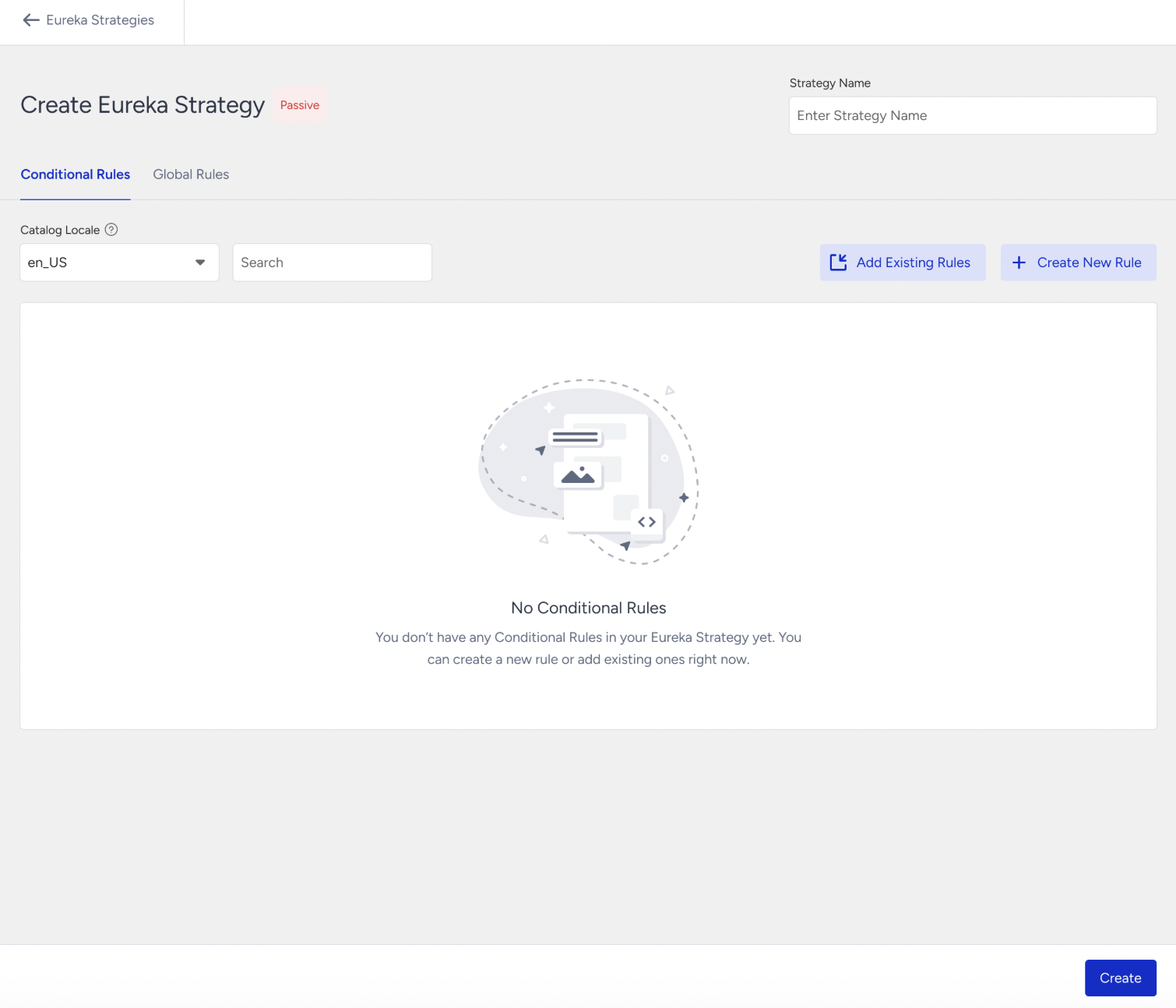
Choose Catalog Locale.
Add Conditional Rules to apply merchandising rules to specific search terms or category pages. You can:
Add Existing Rules: Select previously created Search or Category rules.
Create New Rule: Build a rule from scratch, setting keywords or categories as triggers.
Add existing rules
To add existing merchandising rules to the strategy,
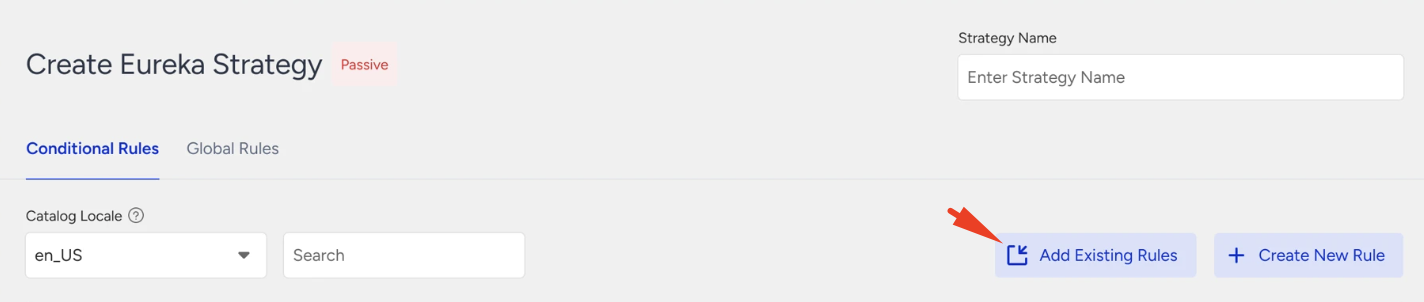
Click the Add Existing Rules button.
Enable checkboxes for the Search and Category rules that you want to add to the strategy. Click the Details button to view the merchandising rules.
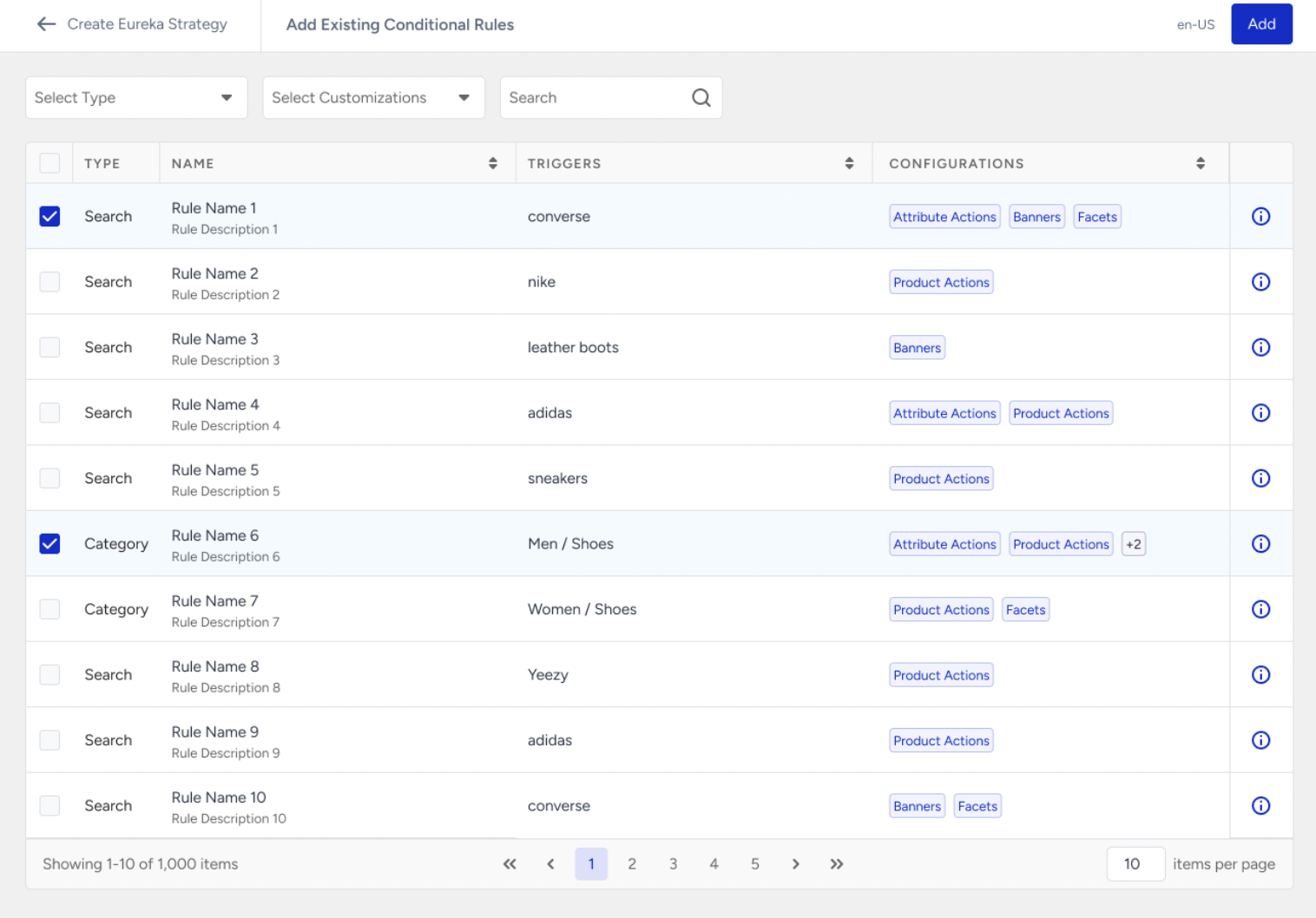
Click the Add button.
Create a new rule
To create a merchandising rule from scratch,
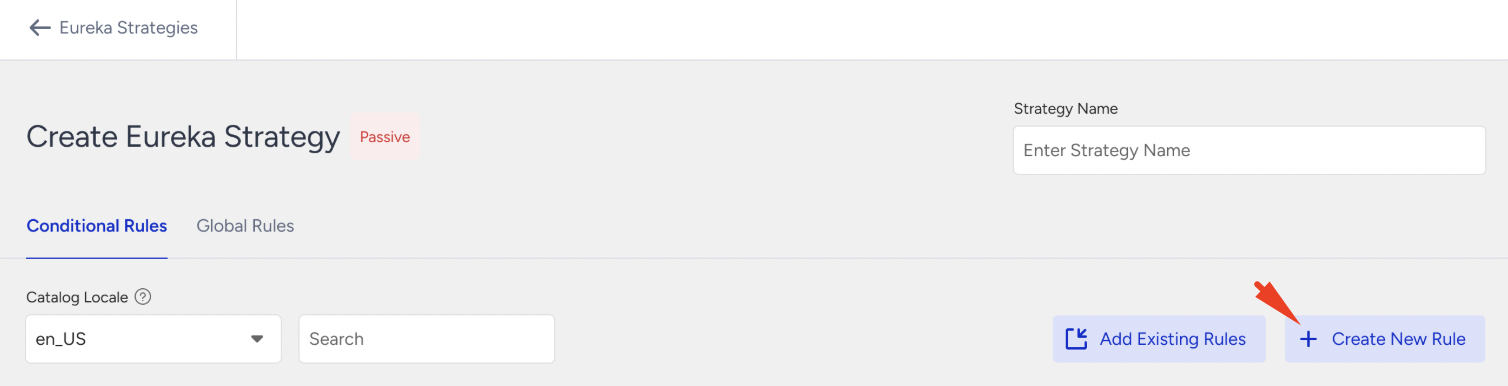
Click the Create New Rule button.
Choose Rule Type as Conditional Search Rule or Conditional Category Rule, then click the Create button.
Type the keyword in the search bar to set it as a trigger. This keyword triggers the merchandising rule. Create merchandising rules (product actions, product attribute actions, banner, facet merchandising). For further information, refer to Create a Search Merchandising Rule.
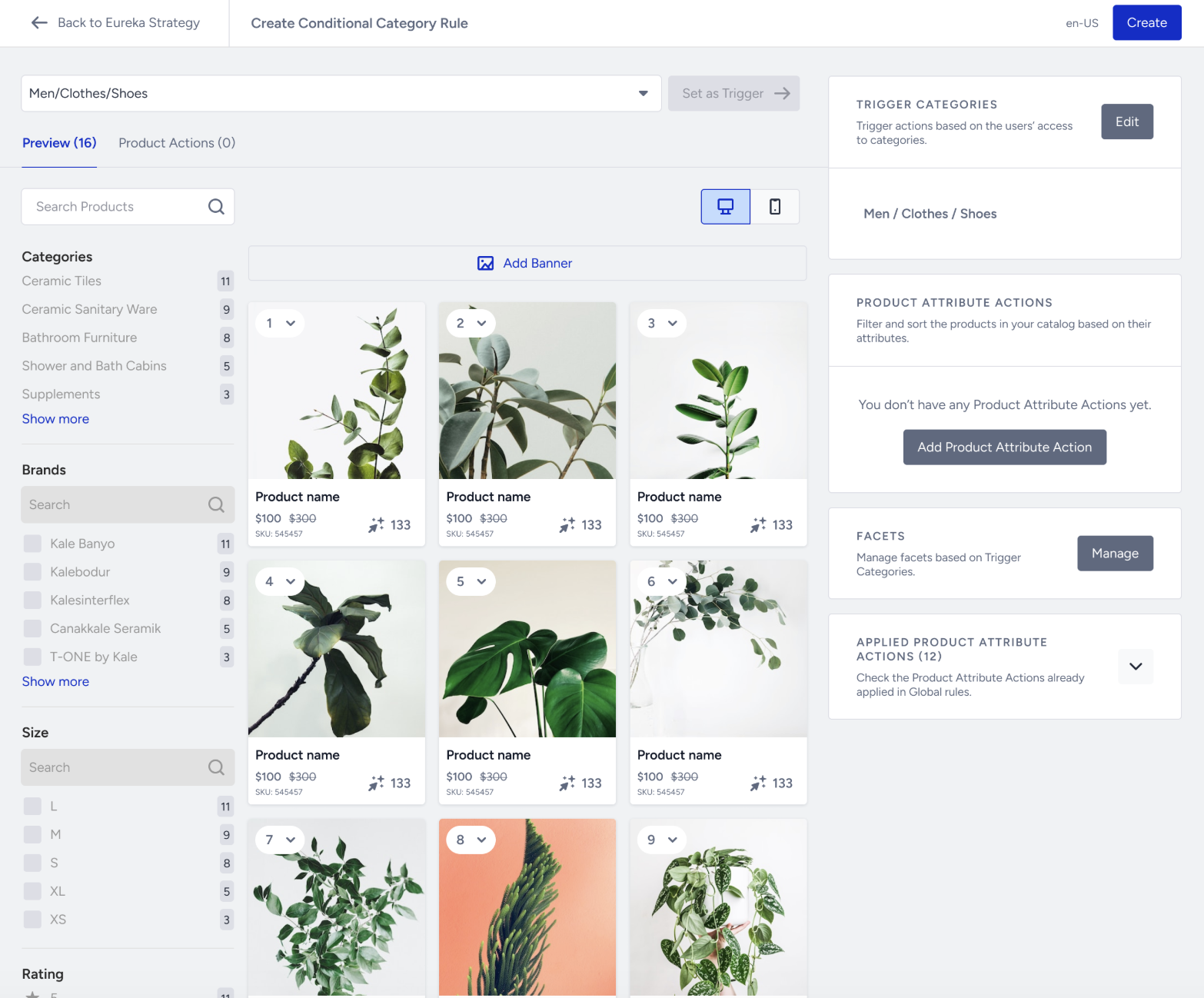
You can check other applied product attribute actions in the Global rules in the Applied Product Attribute Actions section.
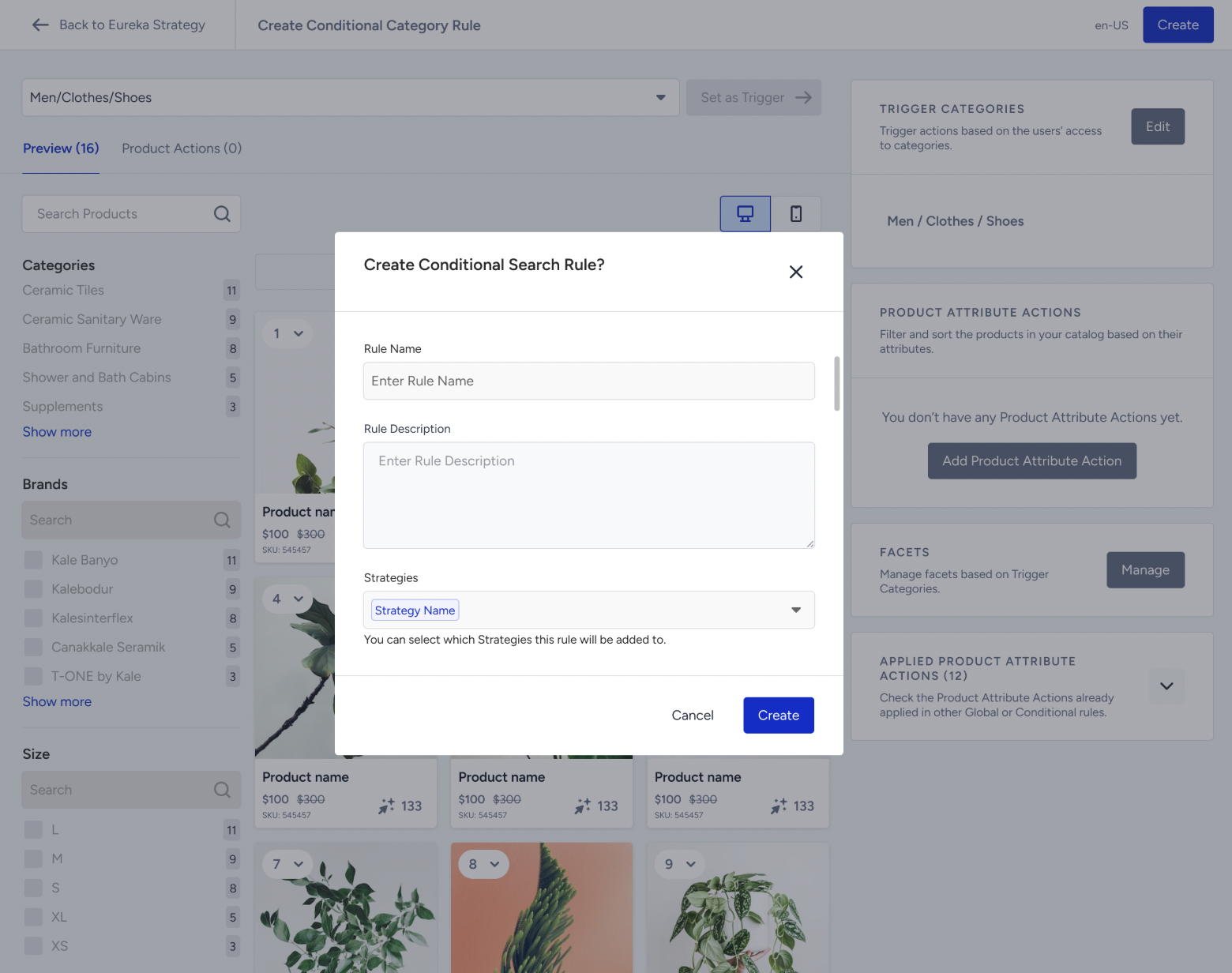
Click the Create button. Then, you enter the Rule Name and Rule Description, optionally. If you want to add this merchandising rule to other strategies, you can also choose them from the Strategies dropdown menu. Then, click the Create button.
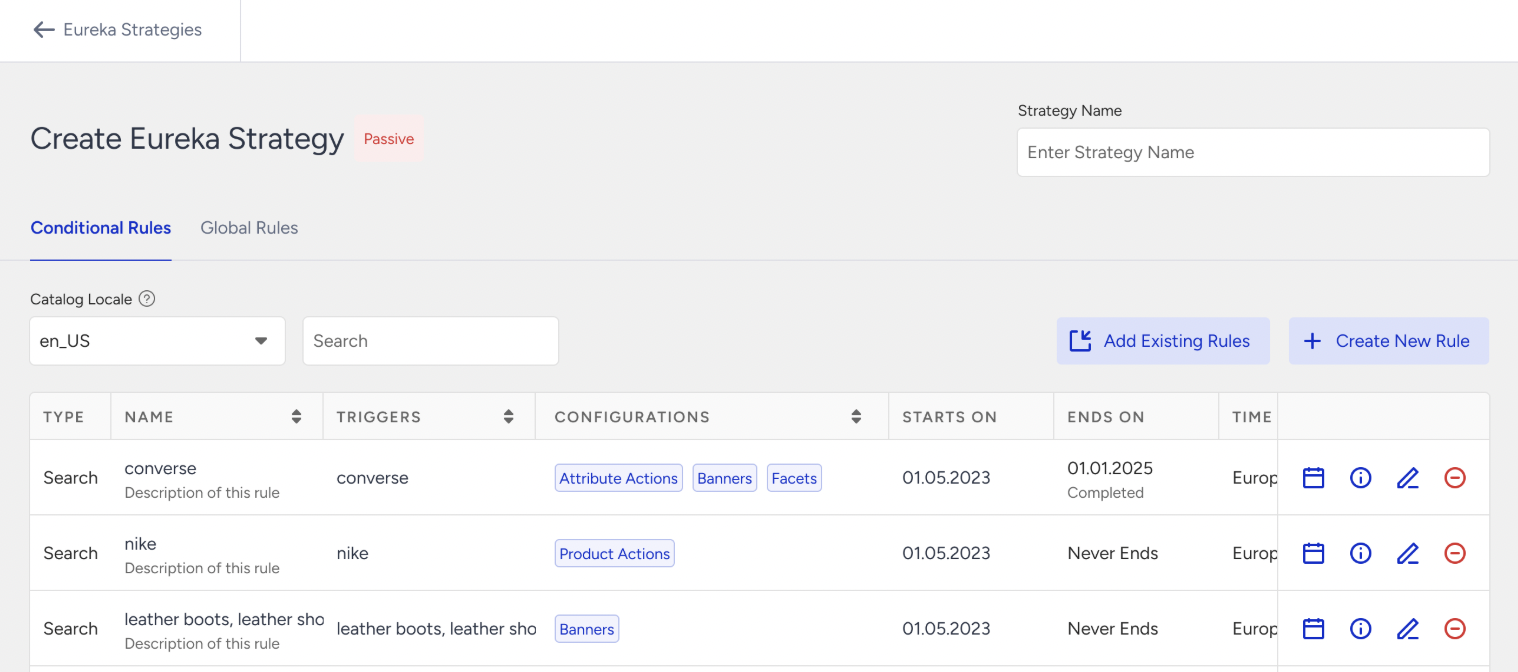
After adding existing rules or creating new rules, you see the added and created rules on the Create Eureka Strategy page.
Navigate to the Global Rules tab to add global merchandising rules to the strategy. Global Rules allow you to apply merchandising rules to all search results or category pages across your site, without limiting them to specific search terms or category pages.
Repeat the same steps for Global Rules. Do not forget that Global Rules affect all search results and category pages. We highly recommend using Global Rules only in very specific cases, where they may be the only solution, as they can negatively impact your search relevance or categories. To create a Global Merchandising Rule, you don’t need to set a trigger. For further information, refer to Global Merchandising.
Click the Create button to create the strategy with Conditional and Global Rules.