Answers right where shoppers decide.
Shoppers decide on the product page. When a question goes unanswered there, they leave to search elsewhere, and often do not come back. The Inline Widget places your Shopping Agent directly in your page, already open, so shoppers get a product-specific answer without leaving the page or opening a separate chat.
Unlike the Web Chat Widget, which opens from a floating icon, the Inline Widget becomes part of your page design. It shines on product details pages: your Shopping Agent already knows which product the shopper is viewing and opens with Conversation Starters for it, turning hesitation into confident purchases.
In this article:
Why marketers love the Inline Widget
Meet shoppers at the moment of intent. Answers appear on the product page itself, while the shopper is deciding.
Remove the first click. The conversation is already open, and suggested questions invite shoppers to tap instead of type.
Keep it on brand. Your logo, your colors, and your size, placed exactly where you want them.
Skip the small talk. The agent knows the product from the first message, so shoppers never have to explain which one they mean.
Launch fast, refresh anytime. Set it up in a few steps in InOne, add two short pieces of code, and update the look later without touching the code again.
Use cases
Settle the last-minute doubt
A shopper is one tap away from adding a jacket to the cart, but they are not sure about the material. Instead of opening a new tab to search, they tap a Conversation Starter for that jacket and get an answer on the spot.
Guide shoppers on any page
On category pages, the homepage, or content pages, the widget works as a shopping assistant for any question. A shopper who is still exploring can ask for ideas, and the agent responds with product cards they can open straight away.
Compare without losing their place
A shopper browses three similar products. Each product keeps its own conversation, so they can move between pages and pick up each discussion exactly where they left it.
How the Inline Widget works
The widget sits inside your page, in the place you choose. No floating icon, no separate window.
On a product details page, the agent knows which product the shopper is viewing, so they do not need to name it.
On a product details page, the widget opens with Conversation Starters for that product and suggests Follow Up Chips after each answer. Shoppers tap a suggestion instead of typing.
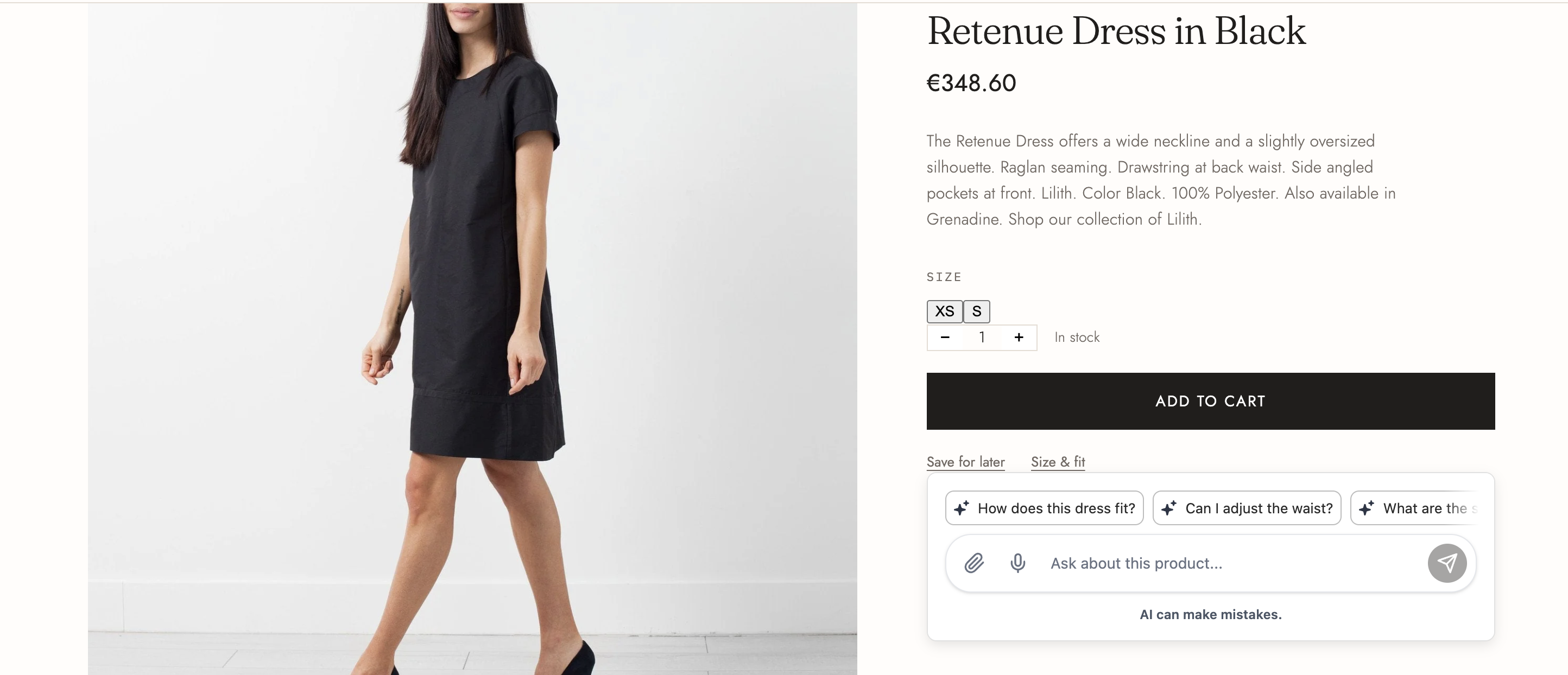
Shoppers can also type any question. The answer appears inside the widget, which grows with the conversation up to its maximum height and then scrolls inside.
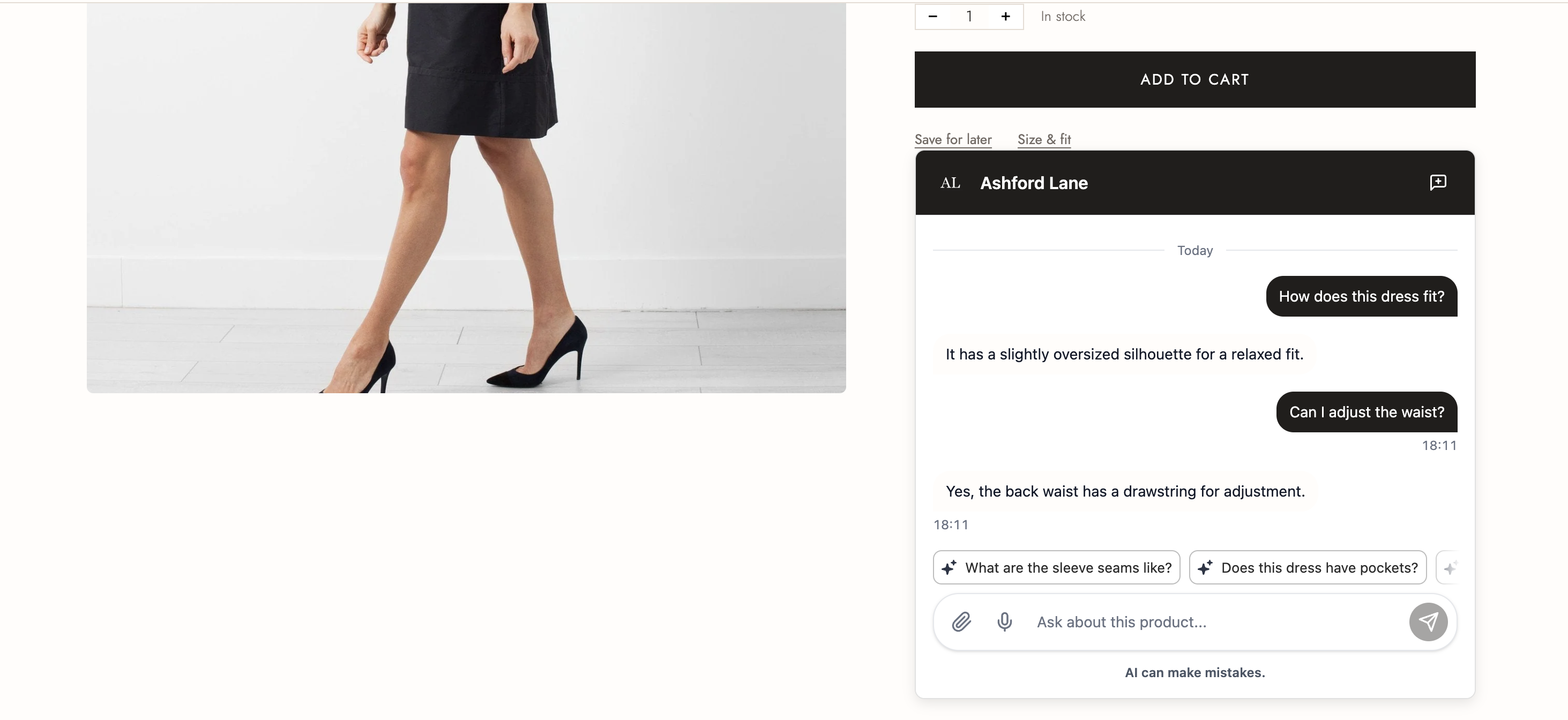
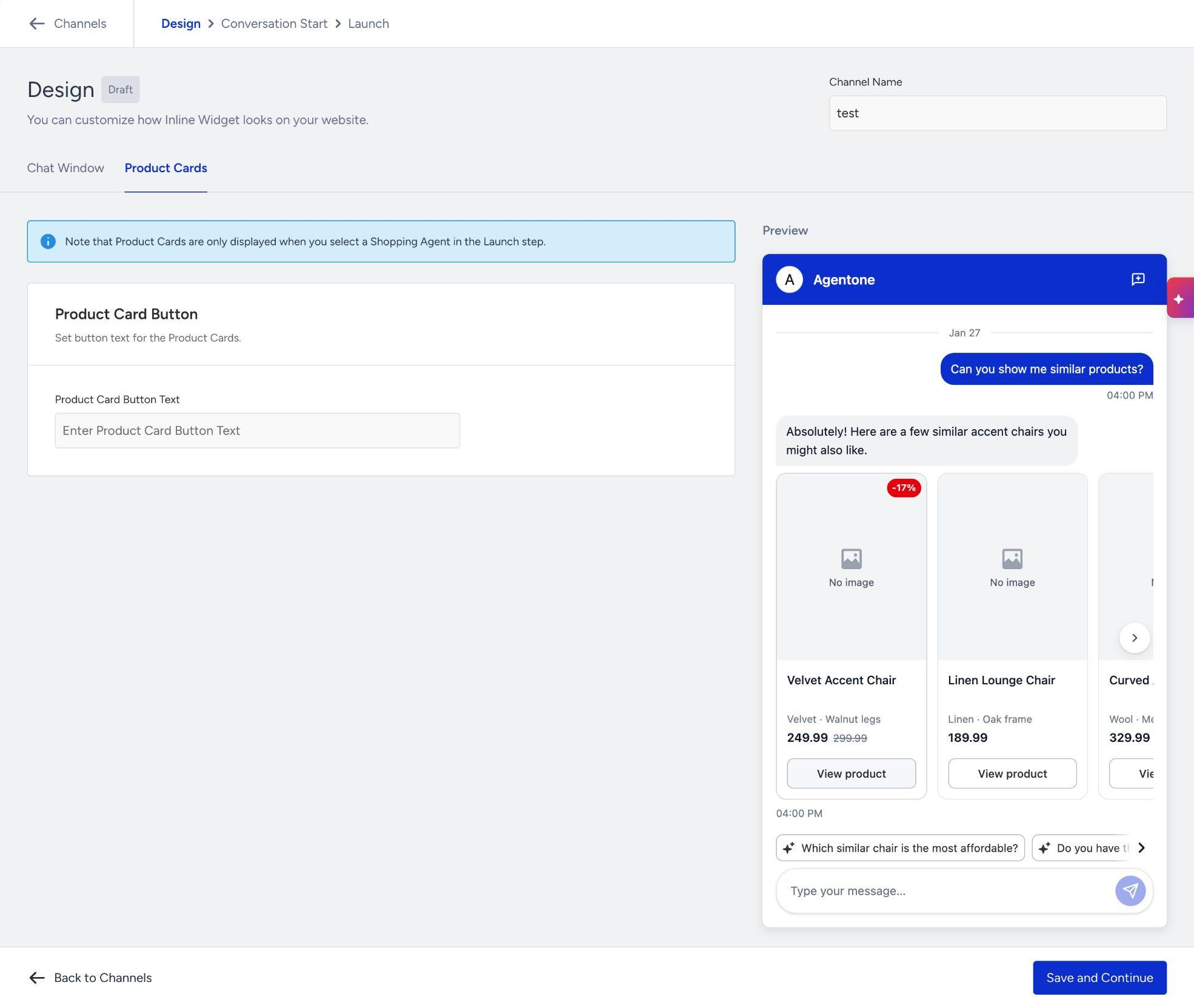
When the agent suggests products, product cards appear inside the widget.
Each product keeps its own conversation. When a shopper moves to another product, the widget shows that product's conversation, and the earlier conversation is still there when they return.
On a page without a product, the widget works as a general chat.
Before you start
You need:
A launched Shopping Agent connected to your product catalog.
The Insider One tag installed on the pages where you place the widget. On product details pages, the widget reads the current product from it.
Access to edit your website's page templates, so you can add the widget code.
Create an Inline Widget
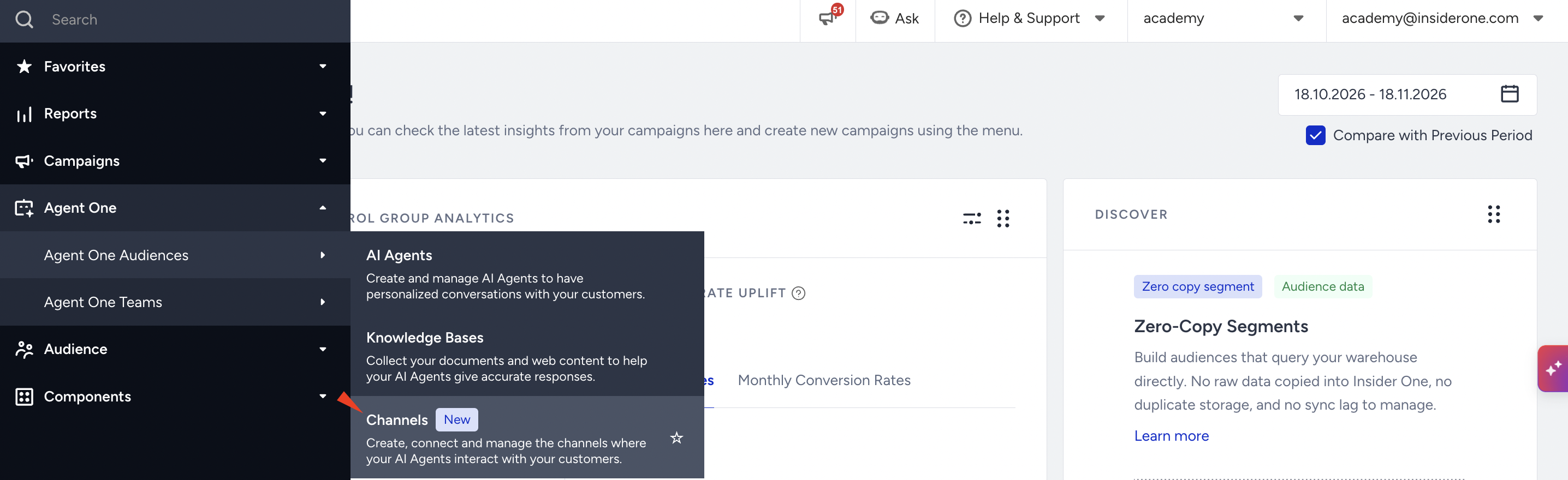
In InOne, navigate to Agent One > Agent One Audiences > Channels.
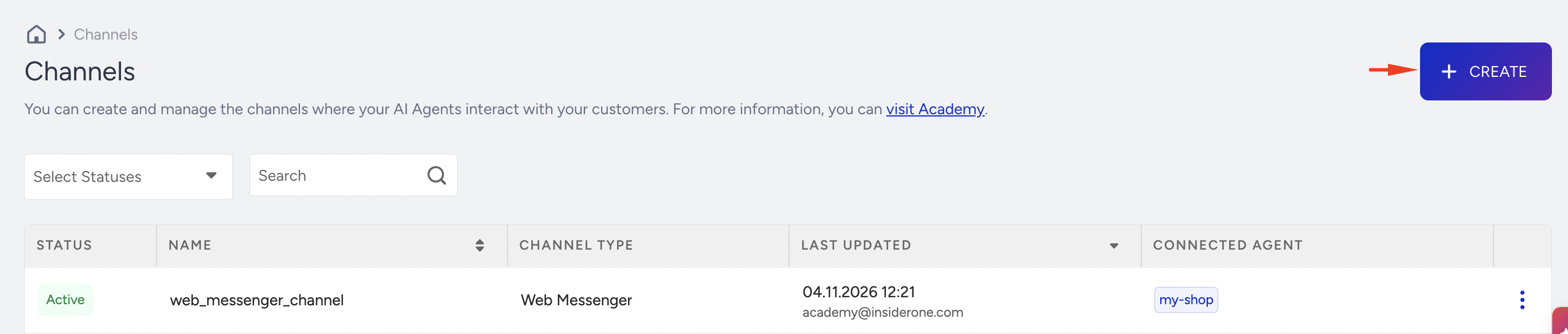
Click Create.
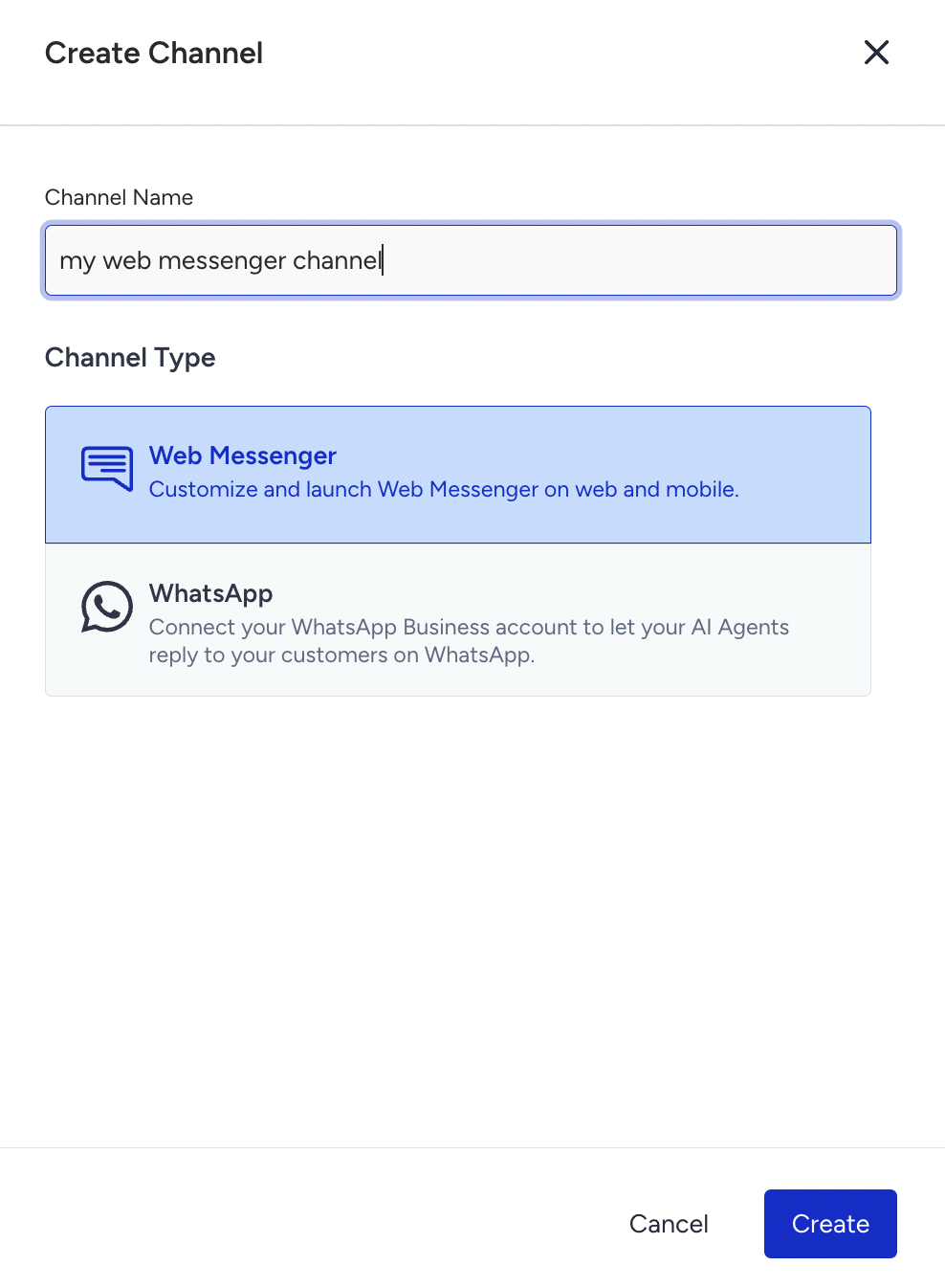
In the Create Channel drawer, enter a Channel Name, select Web Messenger, and click Next.
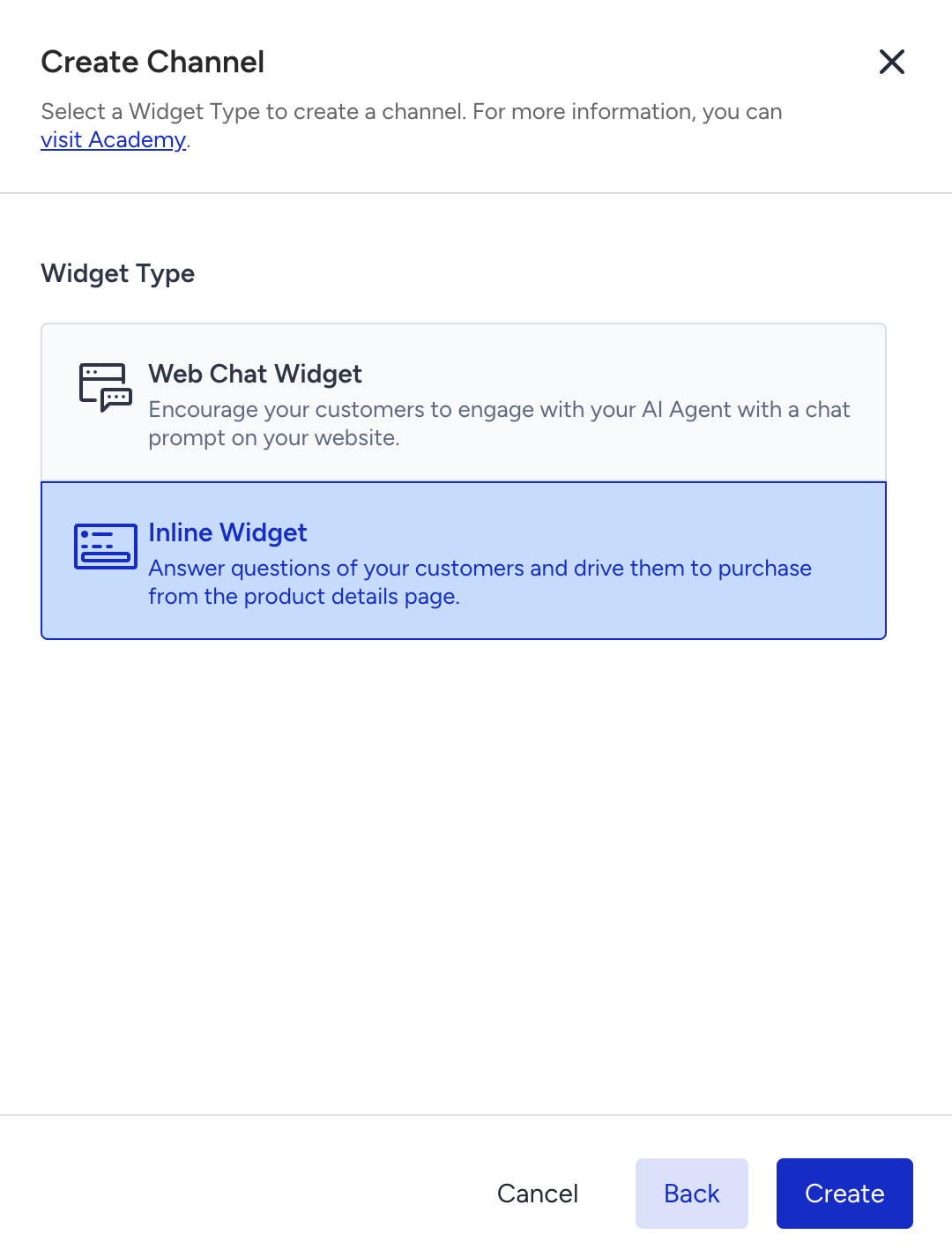
Under Widget Type, select Inline Widget and click Create. InOne creates the channel and opens its Design step.
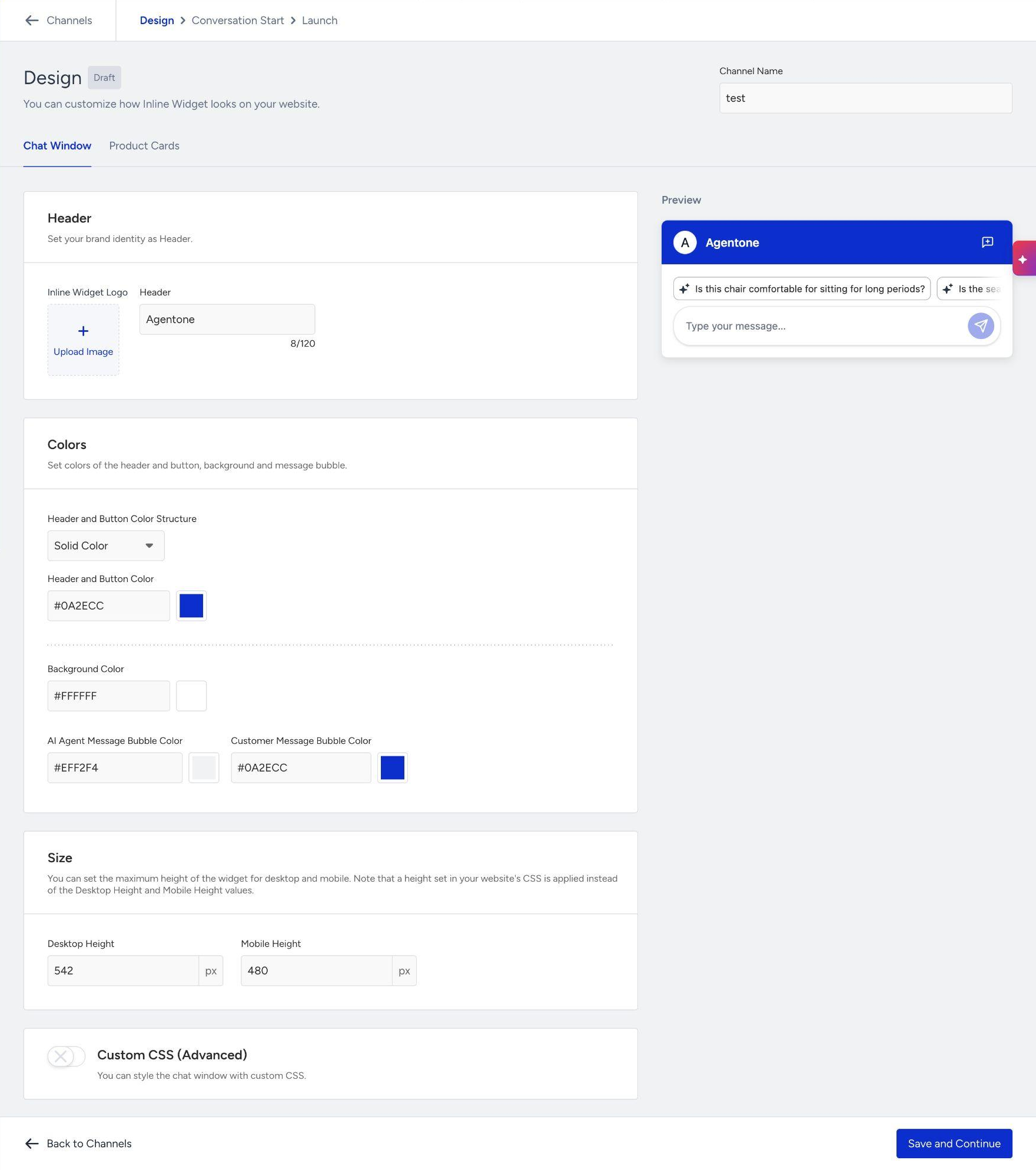
On the Design step, open the Chat Window tab and set how the widget looks:
Header: upload your logo and enter the name shown in the widget header.
Colors: set the header and button color (a single color or a gradient), the background color, and the message bubble colors of the AI agent and the customer.
Size: enter the Desktop Height and Mobile Height in pixels. These are the maximum heights of the widget, and they start at 542 px for desktop and 480 px for mobile. The mobile height applies on screens up to 480 px wide. The widget always takes the full width of the place where you put it.
Custom CSS (optional): turn it on to fine-tune the widget style with your own CSS.
Open the Product Cards tab and set how product cards look inside the widget, for example the text of the product card button. Click Save and Continue.
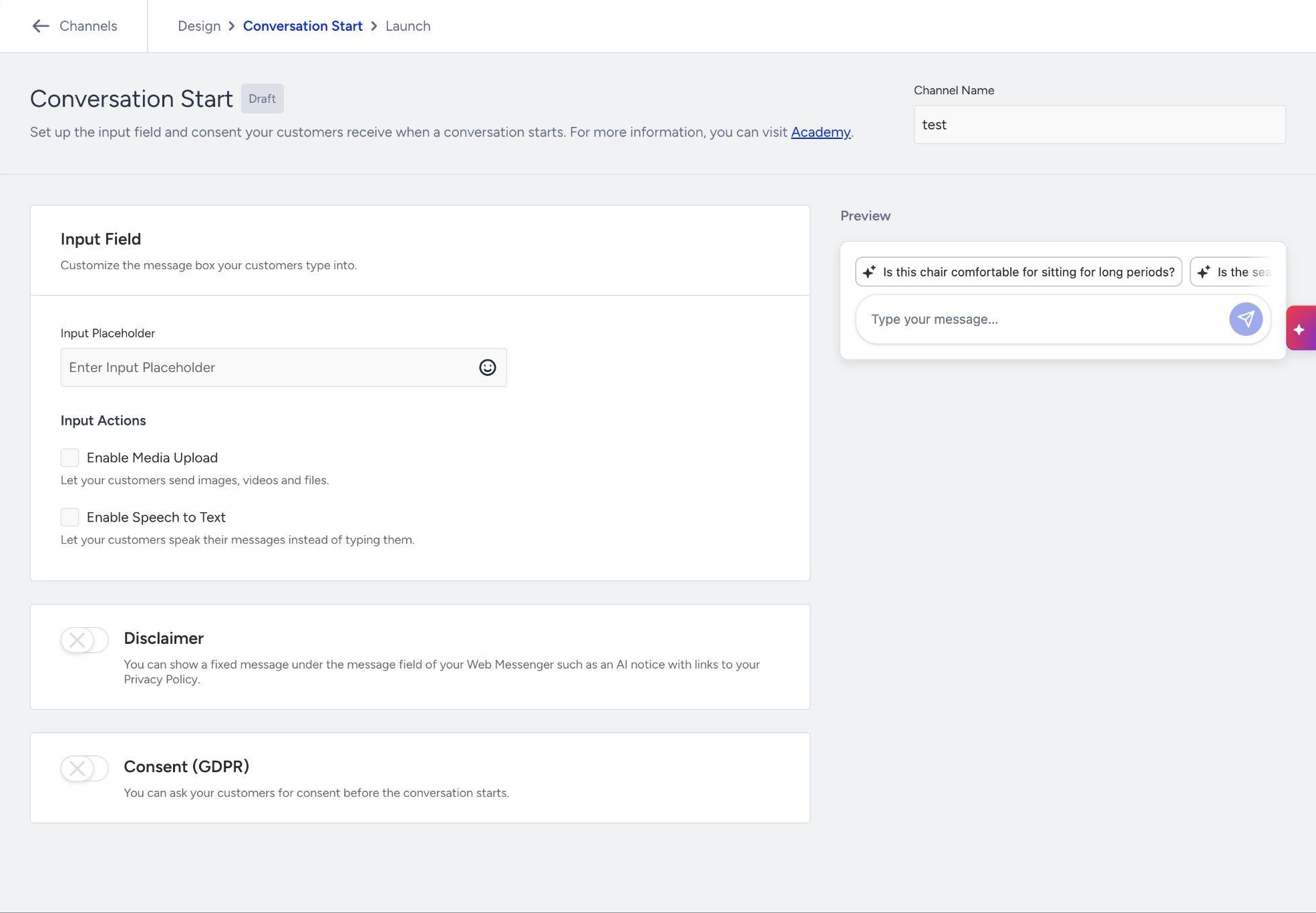
On the Conversation Start step, set what shoppers see before and while they type:
Input Field: enter the placeholder text of the message box (for example, "Ask about this product") and choose which input actions shoppers can use, such as media upload and speech to text.
Disclaimer: turn it on to show a short AI disclaimer under the message box.
Consent: turn it on to ask shoppers for consent (for example, under GDPR) before the conversation starts. You can add a button that links to your privacy policy, plus Approve and Decline buttons.
Click Save and Continue.
On the Launch step, select your Shopping Agent in the AI Agents card.
In the Activation Status card, select Active and click Launch. To finish the setup later, select Draft and click Save as Draft.
Open the channel again from the Channels page and go to its Launch step. The install card shows two pieces of code, each with a copy button. Both already carry your channel's integration ID. Copy them and add them to your page template.
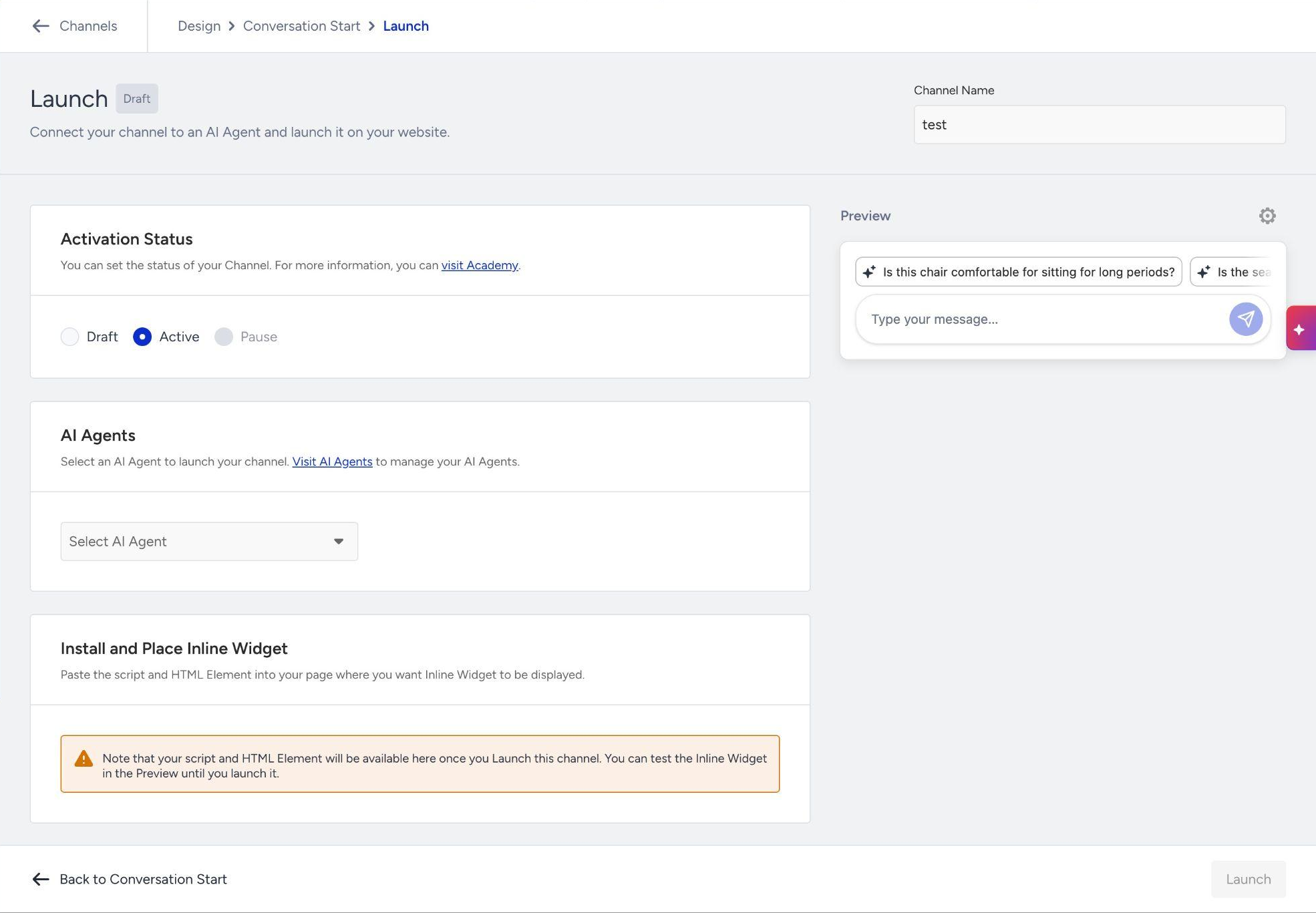
The code appears only after you launch the channel.
Get the most from the Inline Widget
Start with product details pages. The agent knows the product, opens with Conversation Starters for it, and answers at the moment of the purchase decision.
Place it where shoppers look while they decide. Right below the product information or close to the add to cart area works well. The widget shows on every page that carries the HTML element, with one Inline Widget per page.
Extend it to more pages. On category pages, the homepage, or content pages, the widget works as a shopping assistant for any question.
Give it room to shine. Set the Desktop Height and Mobile Height so a few messages and a product card fit comfortably, and check the result on a phone. To manage size in your own stylesheet, set a height or maximum height on the HTML element, and the widget follows it.
Enrich your catalog. Products with complete attributes (for example, size, material, and compatibility) get more specific Conversation Starters and more precise answers.
Keep setup light. Because the widget lives inside your page, there is no launcher, callout, welcome message, or conversation end to configure.
Let shoppers keep browsing. Product cards take shoppers straight to the product, where they add it to the cart on your page as usual. If you turn on consent, shoppers are asked once per browser session.