Zero-Copy Segments let you build audiences directly on the data in your data warehouse, without importing that data into Insider One. You write a SQL query, and Insider One runs it on your warehouse. The users it returns are matched to their profiles in Insider One, and you can use the resulting segment in your campaigns and journeys.
Your raw warehouse data never leaves your warehouse. Insider One stores only which users belong to the segment.
Zero-Copy Segments support Snowflake, Google BigQuery, and Databricks.
Benefits
No data copying. You do not need an import pipeline or a copy of your tables in Insider One, so you avoid the replication cost that comes with one.
Fresher audiences. Every sync reads your warehouse as it is at that moment, not a copy from the last scheduled import.
Less dependency on IT. Once your warehouse is connected, marketers and analysts can build and update segments with SQL themselves, without opening a request for each change.
Your warehouse stays the system of record. Governance, access rules, and compute stay in your environment.
Before you begin
Make sure that:
Zero-Copy Segments are enabled for your account. Contact your Insider One team for access.
You have access to a warehouse. You can reuse an existing Snowflake, Google BigQuery, or Databricks authentication, or create a new one during setup.
Your warehouse data contains an identifier that exists in Insider One. This can be an email address, a phone number, or a UUID.
The users you want to reach already exist in Insider One. Users returned by your query who do not have a profile in Insider One are not added to the segment. To receive messages, users also need the relevant channel contact field and consent.
Create a Zero-Copy Segment
You create a segment in three steps: Authentication, Segment, and Launch.
1. Open Zero-Copy Segments
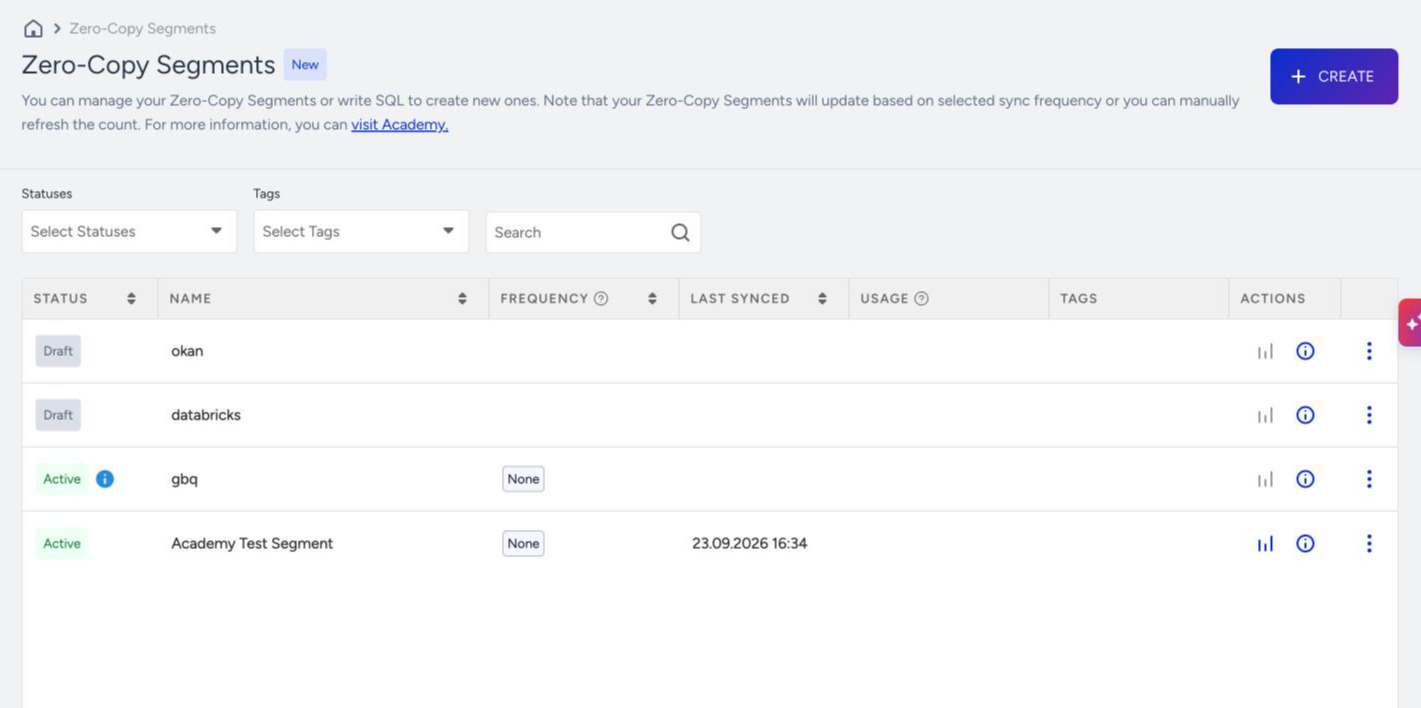
In the InOne panel, navigate to Audience > Segments > Zero-Copy Segments.
The listing page shows all of your Zero-Copy Segments with these columns:
Column | What it shows |
|---|---|
Status | Active, Draft, or Action Required. |
Name | The segment name. |
Frequency | The sync interval. None means the segment syncs manually. |
Last Synced | When the last sync finished. |
Usage | How many campaigns, journeys, and segments currently use this segment. |
Tags | The tags you added. |
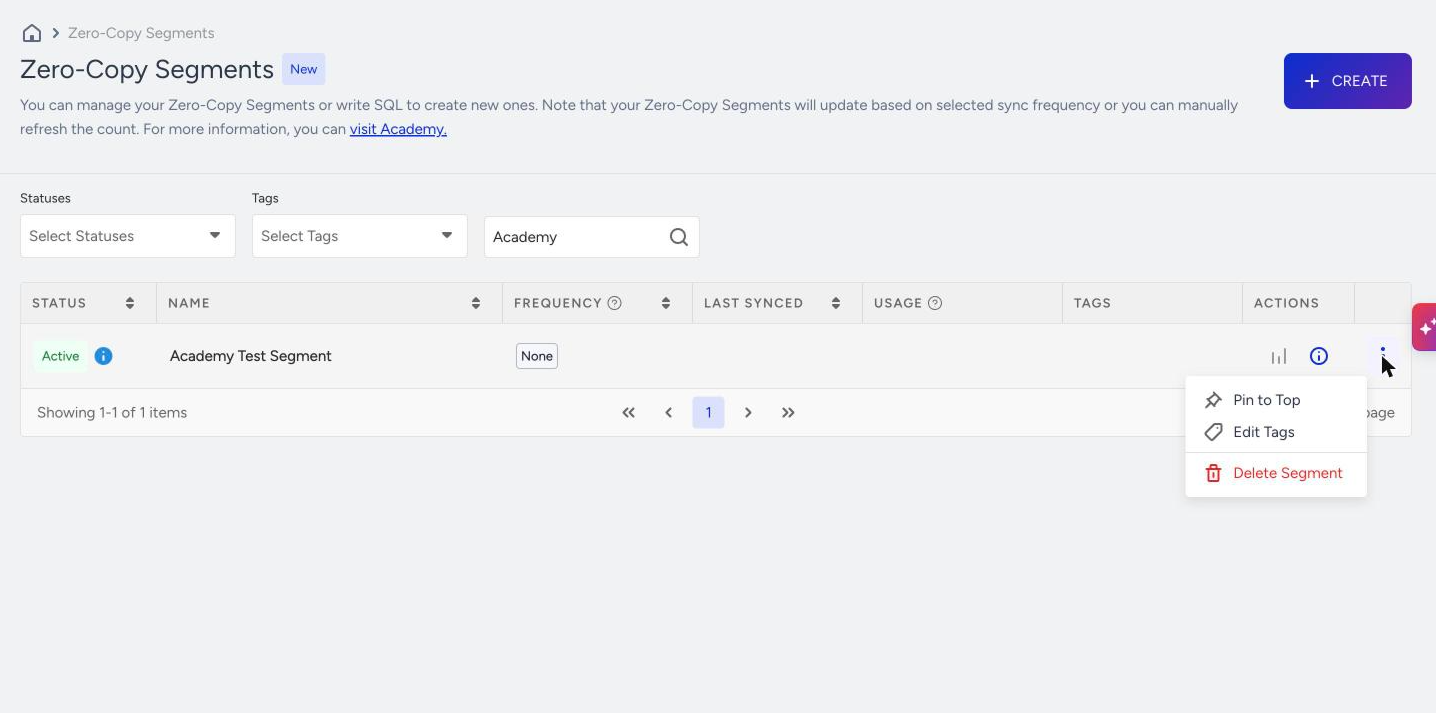
Actions | Monitoring (chart icon), Details (info icon), and a menu for Pin to Top, Edit Tags, and Delete Segment. |
You can filter the list by status and tag, or search by name.
2. Name your segment
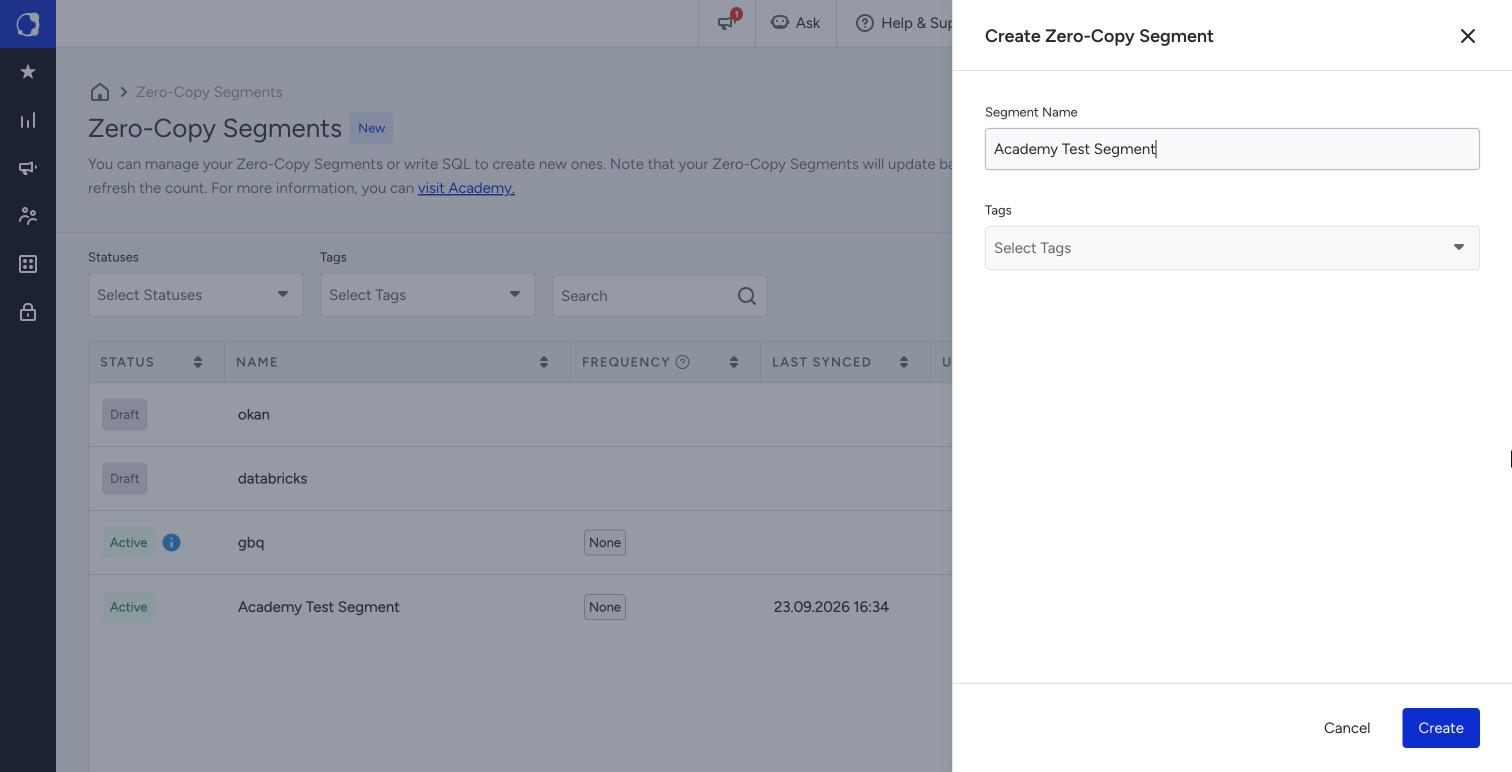
Click Create.
Enter a Segment Name. Tags are optional.
Click Create.
3. Select or create an authentication
In the Authentication step, choose the warehouse connection this segment queries.
To use an existing authentication, open the Authentication dropdown and select one. Authentications are grouped by platform and show their status.
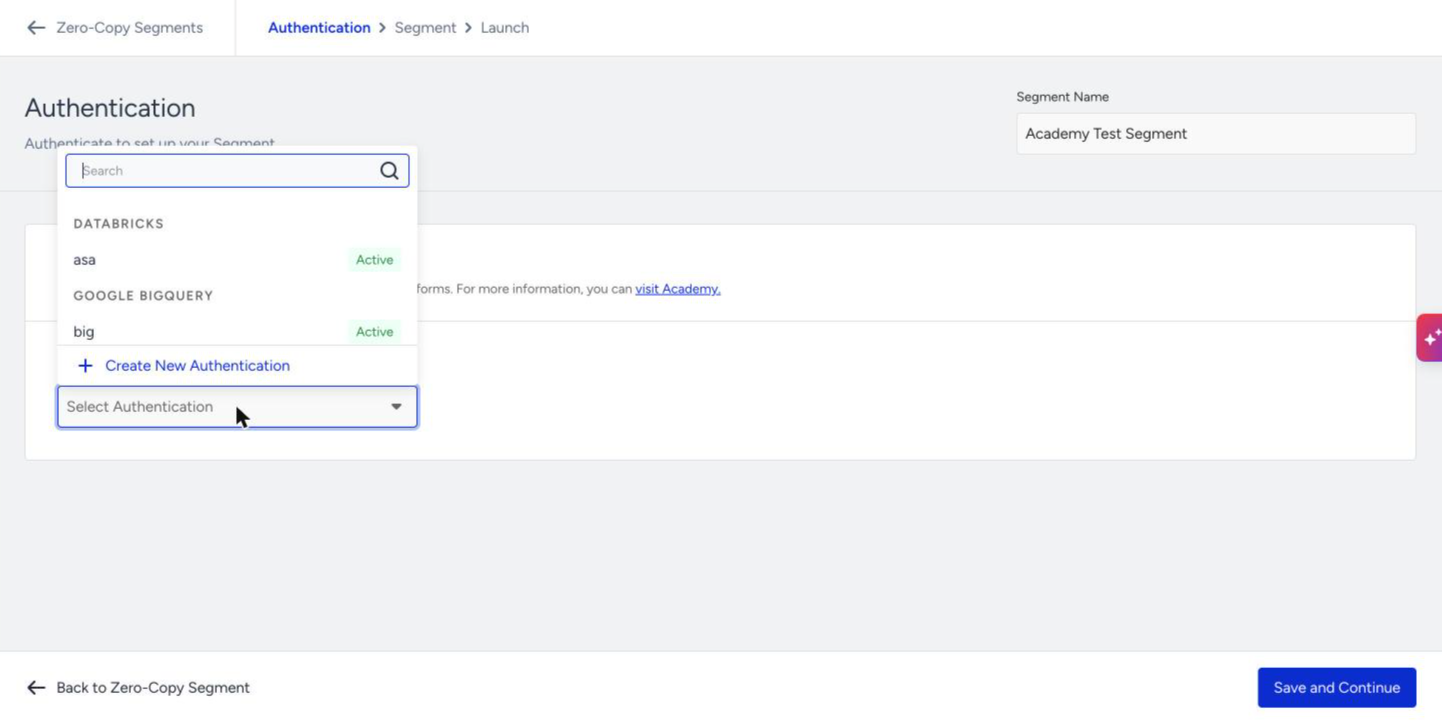
To create a new authentication, click Create New Authentication at the bottom of the dropdown, then choose Databricks, Google BigQuery, or Snowflake. You create an authentication once and can reuse it in Zero-Copy Segments and integrations.
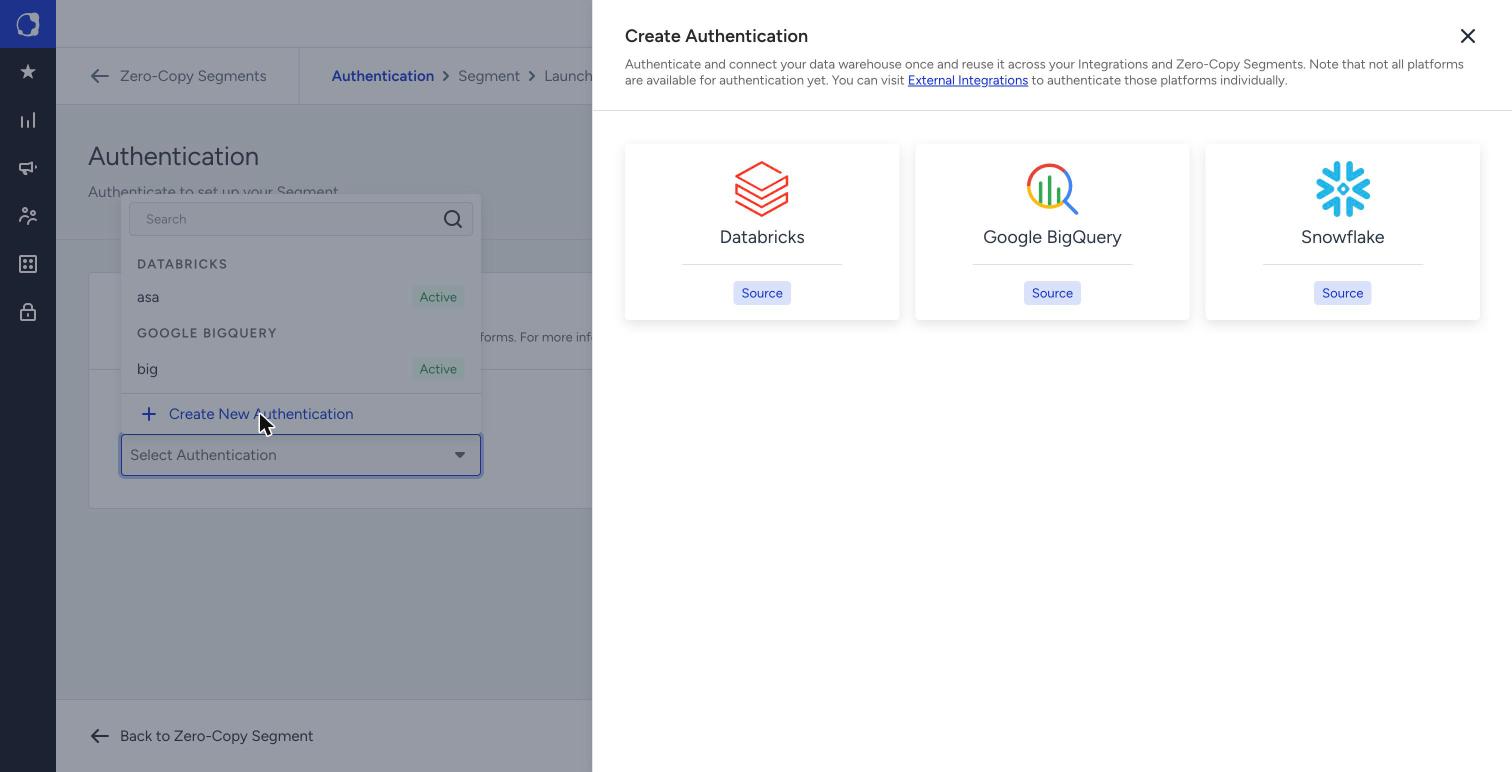
Each platform asks for different details:
Platform | What you need |
|---|---|
Snowflake | An authentication name, your Snowflake Data Sharing Account ID, and a Warehouse. The form walks you through generating an RSA key pair, uploading the private key (PEM file, up to 5 MB, with an optional passphrase), and running the provided SQL in Snowflake. The SQL creates a dedicated read-only role and user for Insider One. |
Google BigQuery | An authentication name and a service account JSON key (up to 5 KB). The service account needs the BigQuery Data Viewer, BigQuery Job User, and BigQuery Metadata Viewer roles. The form also gives you a Cloud Shell script to create a dedicated bucket and grant access to it. |
Databricks | An authentication name, plus the Client ID, Secret, Server Hostname, and HTTP Path of a service principal with access to your workspace. |
For every platform, allowlist the Insider One IP addresses (the form links to the list). Then click Verify Authentication and Save.
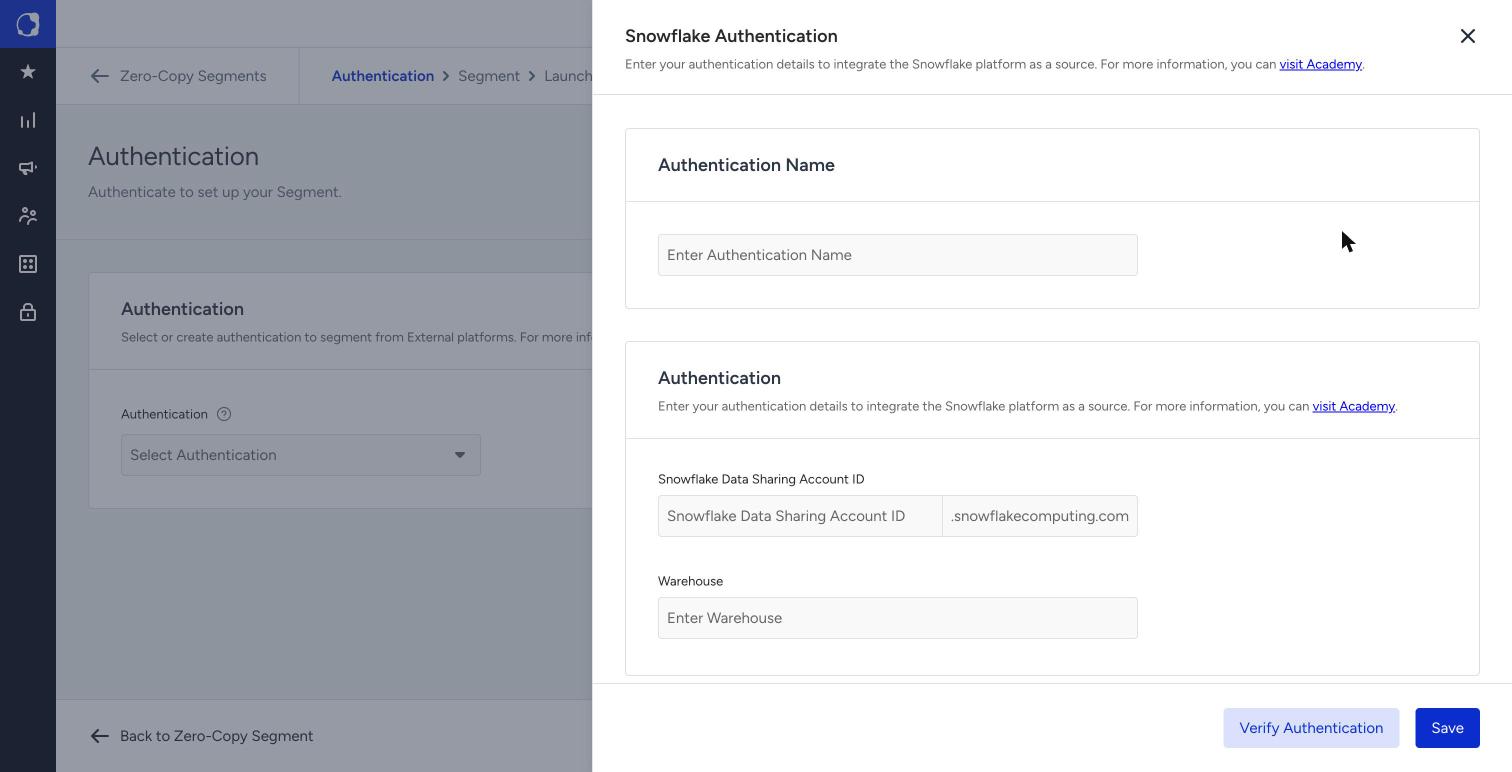
For full setup instructions, see Import Data from Snowflake, Send Google BigQuery Data to Insider One, and Import Data from Databricks.
After you select an authentication, click Save and Continue.
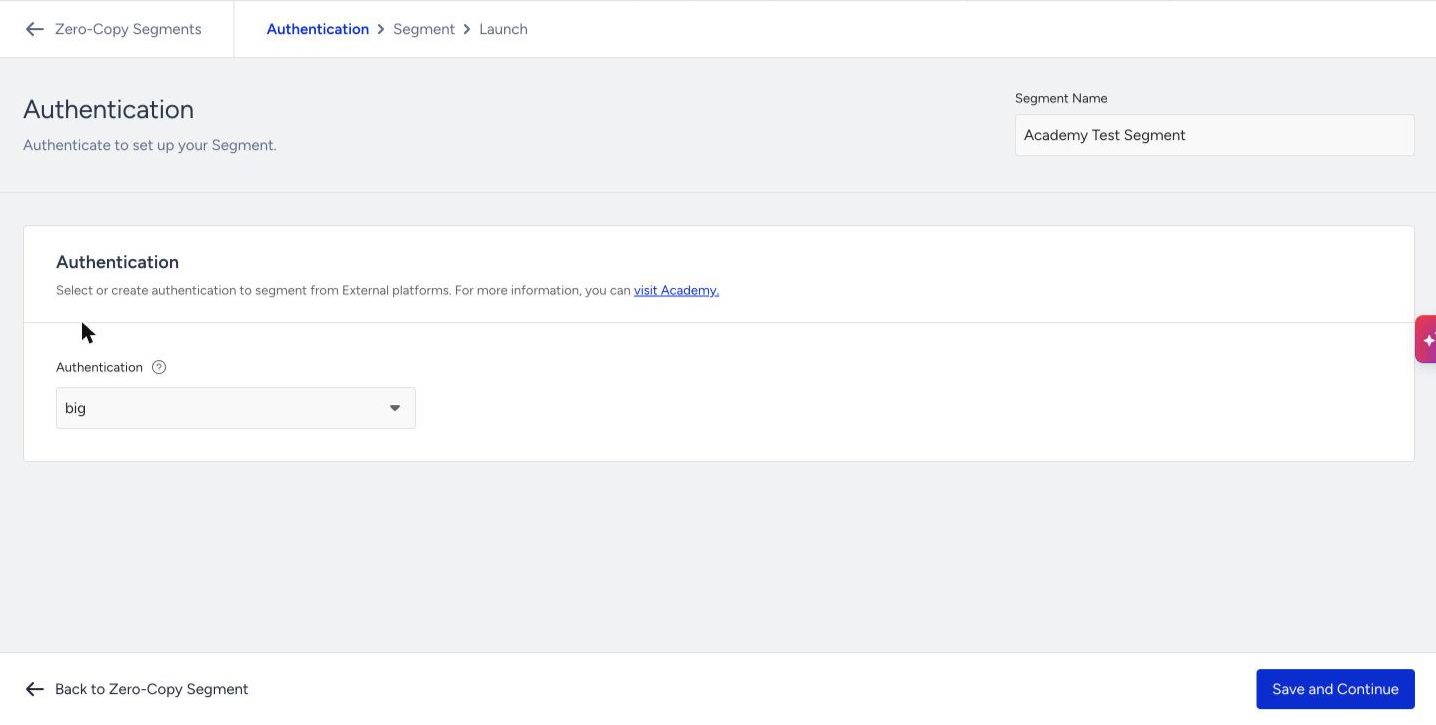
A segment always queries a single warehouse. To combine audiences from different warehouses, create a separate Zero-Copy Segment for each one and combine them in a Dynamic Segment.
4. Select an identifier
In the Segment step, select the Identifier your query returns: Email Address, Phone Number, or UUID. Insider One uses this value to match the rows your query returns to user profiles.
Important: Choose carefully. You cannot change the identifier after you activate the segment.
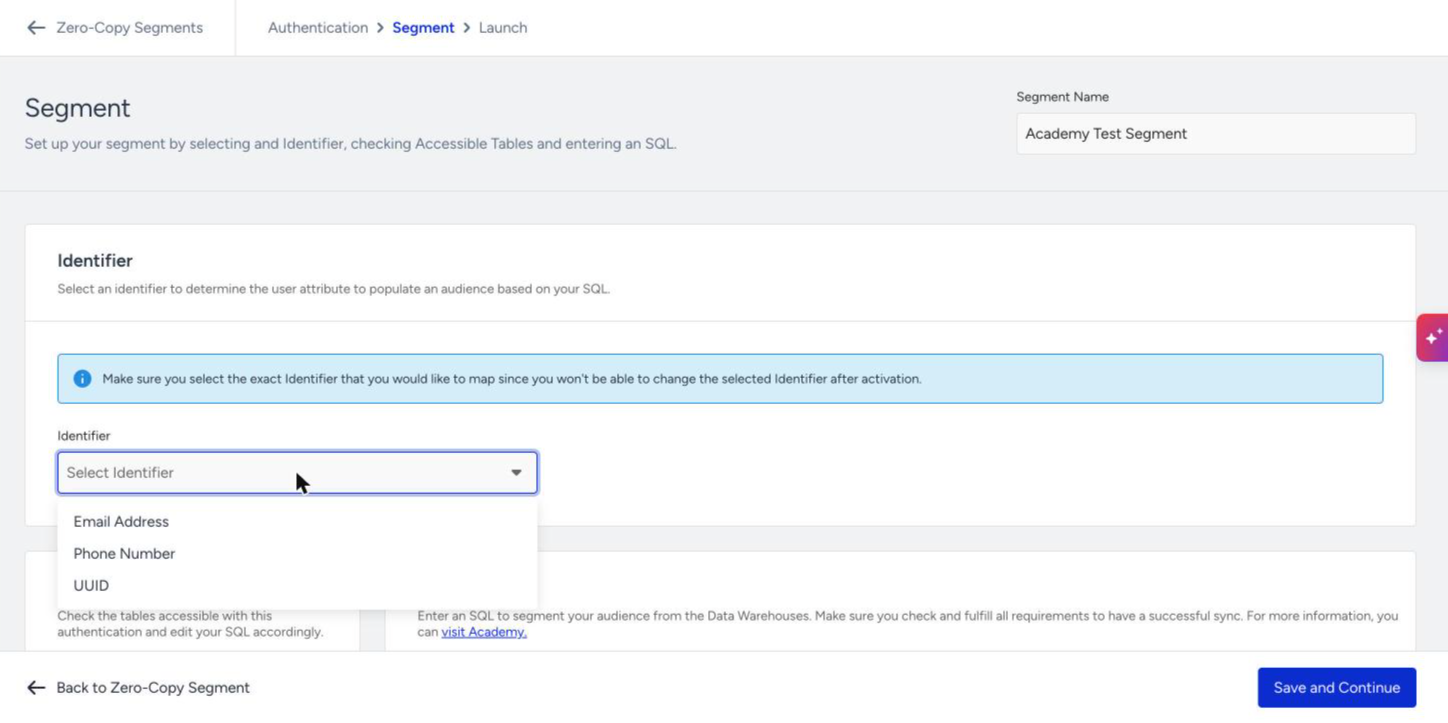
Before matching, Insider One cleans up the values your query returns:
It removes surrounding spaces.
It converts email addresses to lowercase.
It converts phone numbers to E.164 format. Phone numbers must include the country code (for example, +90 555 111 22 33).
It skips values it cannot use: phone numbers without a country code, invalid email addresses, and placeholders such as null or N/A.
It matches UUIDs exactly, including uppercase and lowercase letters.
If your identifier can hold more than one value per user (for example, your account allows two email addresses per profile), a user joins the segment when your query returns any of their values. The user stays in the segment as long as your query still returns at least one of their values.
Campaigns go to the user's most recently updated value, which might not be the value your query returned. For example, with an email limit of two, the user joins the segment if either email is in the query result, and the campaign goes to the email that was updated last.
Best practice: For predictable results, build Zero-Copy Segments on an identifier that holds a single value per user.
5. Write your SQL
Use the Accessible Tables panel to browse the databases, schemas, tables, and columns this authentication can read. Each column shows an icon for its data type.
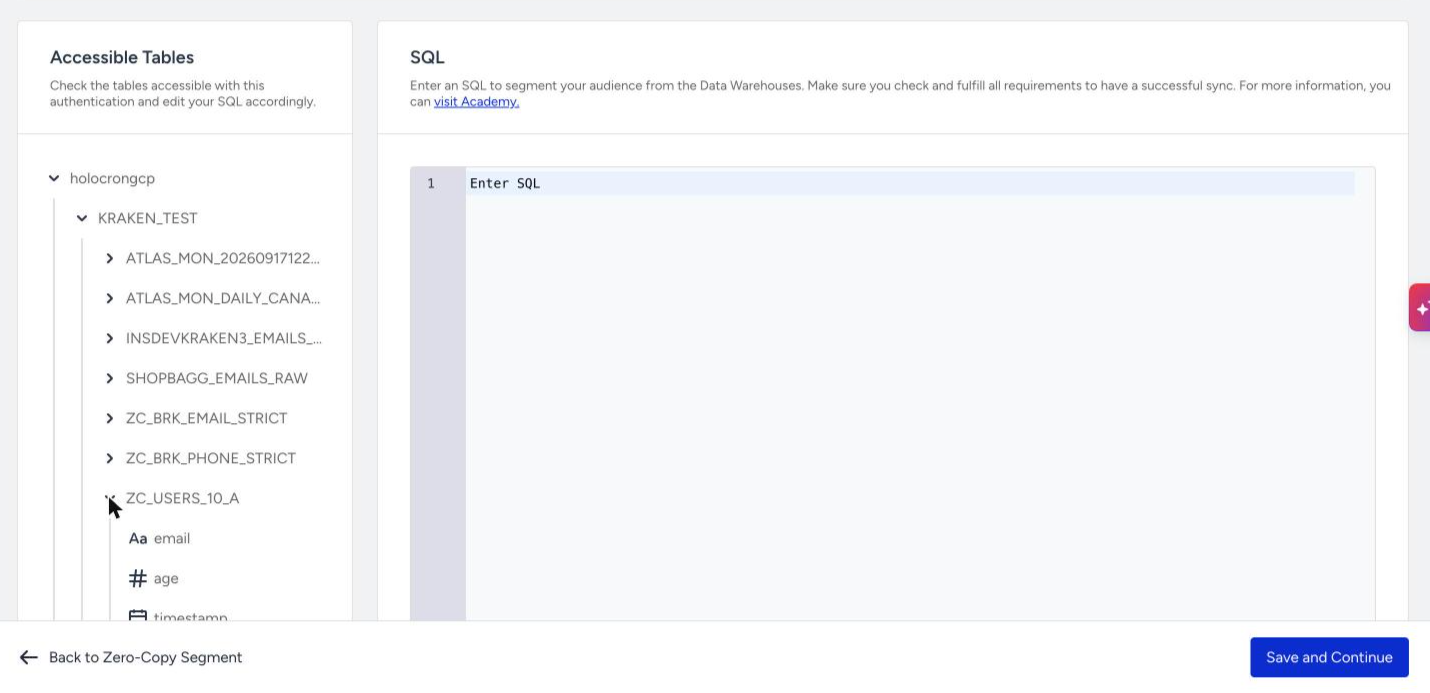
Write your query in the SQL editor. Your query must meet every item in the Requirements list below the editor:
Requirement | What it means |
|---|---|
Identifier | The query returns the identifier you selected, in the correct format. |
Table | The query reads from a table in Accessible Tables, referenced by its full name. |
Single Query | The segment is defined in one SQL statement. To combine logic, use CTEs (WITH) or subqueries. |
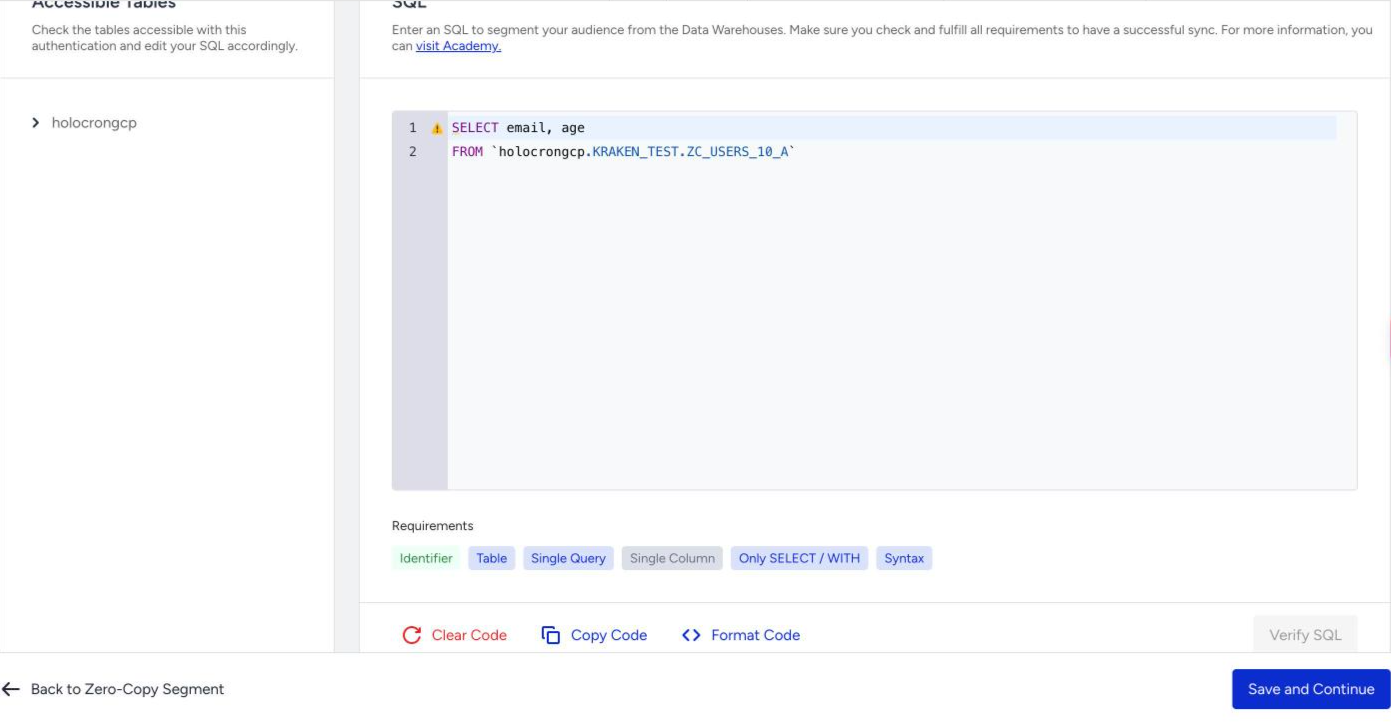
Single Column | The query returns exactly one column: the identifier. Extra columns make validation fail. |
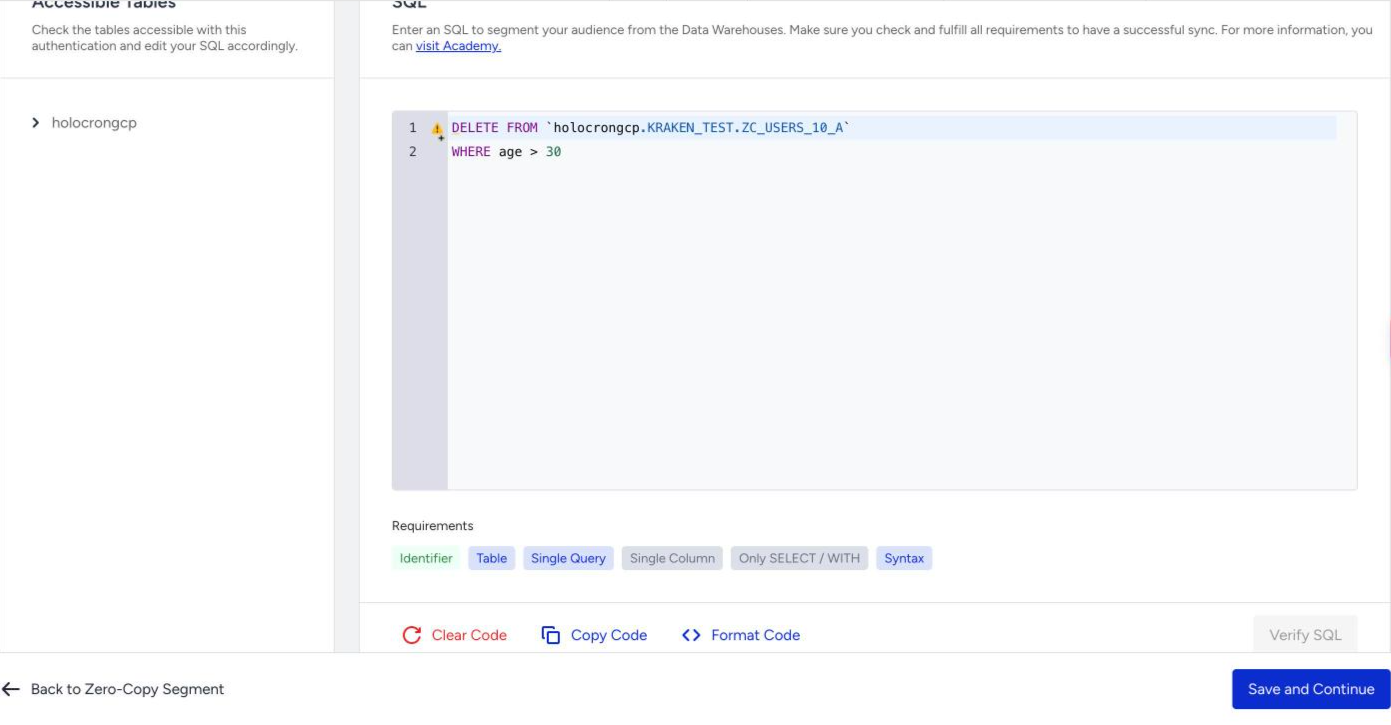
Only SELECT / WITH | The query only reads data. INSERT, UPDATE, DELETE, and other statements that change data are not allowed. |
Syntax | The SQL is valid, with no missing keywords, unmatched parentheses, or clauses in the wrong order. |
The list updates as you type. A requirement turns gray when your query does not meet it, and a warning icon appears on the line with the problem. Hover over the icon to see which requirement failed.
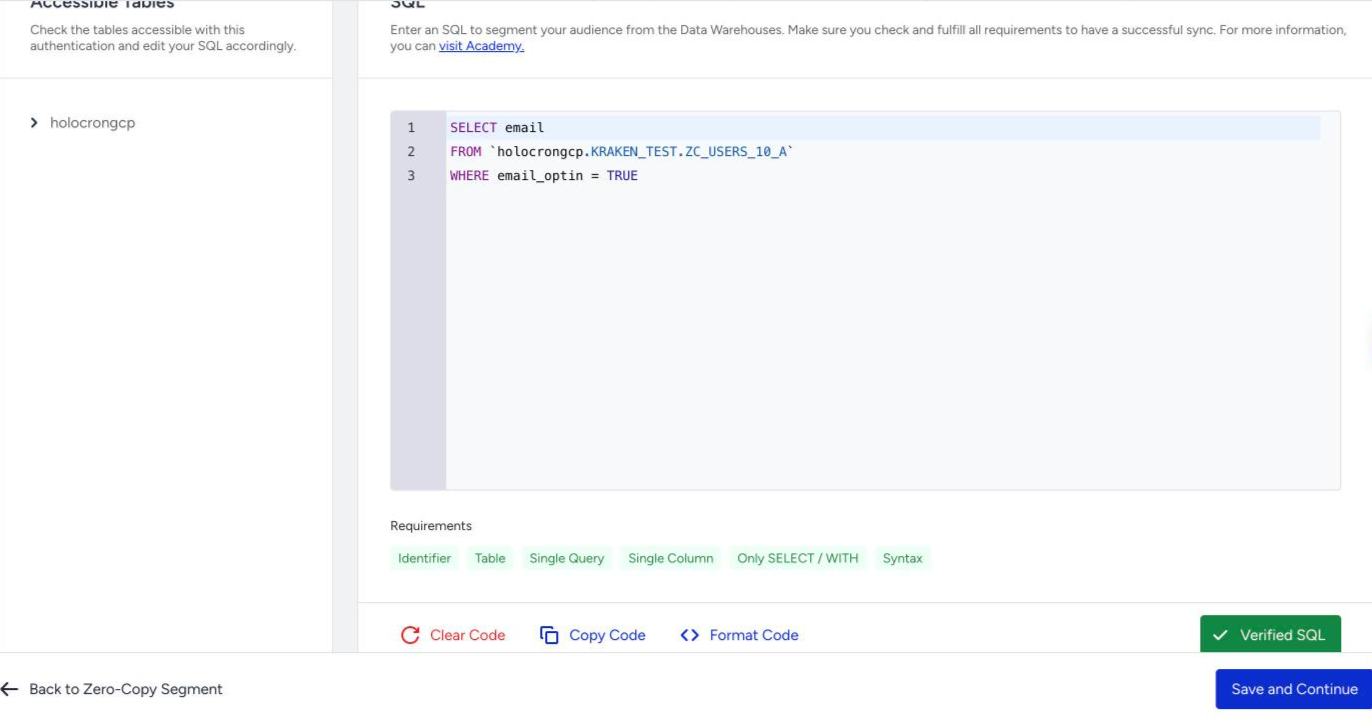
Example (Google BigQuery). This query returns the email addresses of users who opted in to email:
SELECT email
FROM `my_project.my_dataset.customers`
WHERE email_optin = TRUE
Example with a common table expression (CTE). This query returns users who purchased more than three times in the last 90 days:
WITH recent_buyers AS (
  SELECT email, COUNT(*) AS orders
  FROM `my_project.my_dataset.orders`
  WHERE order_date >= DATE_SUB(CURRENT_DATE(), INTERVAL 90 DAY)
  GROUP BY email
)
SELECT email
FROM recent_buyers
WHERE orders > 3
Use your own warehouse's SQL dialect. Snowflake, BigQuery, and Databricks each write table names differently.
The editor also offers Clear Code, Copy Code, and Format Code.
6. Verify your SQL
Click Verify SQL. Insider One checks the query against your warehouse.
If verification succeeds, every requirement turns green, and the button changes to Verified SQL.
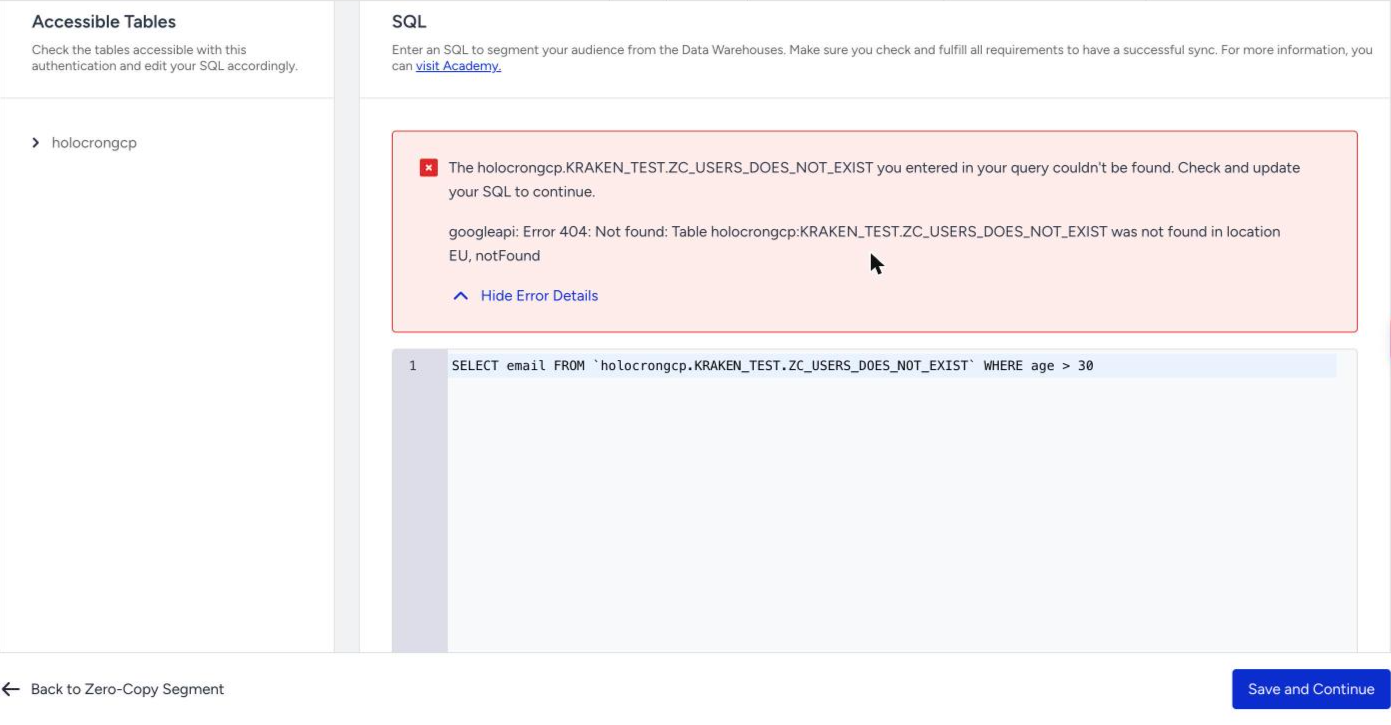
If verification fails, the failed requirement turns red, and an error message appears above the editor. Click Show Error Details to see the original error your warehouse returned.
The Verify SQL button stays disabled while any requirement is grayed out.
When the SQL is verified, click Save and Continue.
You can move to the Launch step without verifying your SQL, but you can activate the segment only after the SQL is verified.
7. Choose a sync method and launch
In the Launch step, choose how the segment stays up to date:
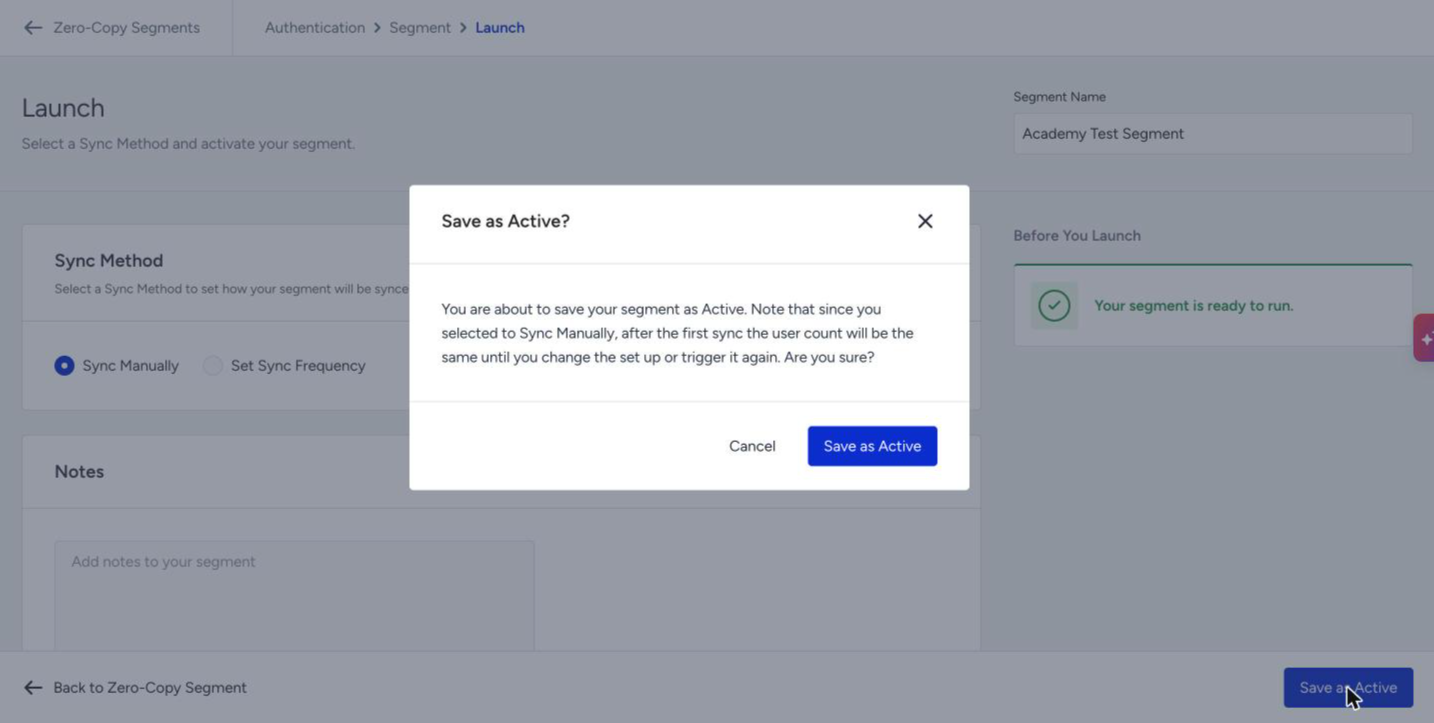
Sync Manually. The segment syncs once when you activate it. After that, it changes only when you edit it or trigger another sync.
Set Sync Frequency. The segment syncs automatically on a schedule.
Frequency | Extra settings |
|---|---|
Monthly | Day of the Month, Sync Time |
Weekly | Day of the Week, Sync Time |
Daily | Sync Time |
Hourly | None |
Every 45 minutes | None |
Every 30 minutes | None |
Every 15 minutes | None |
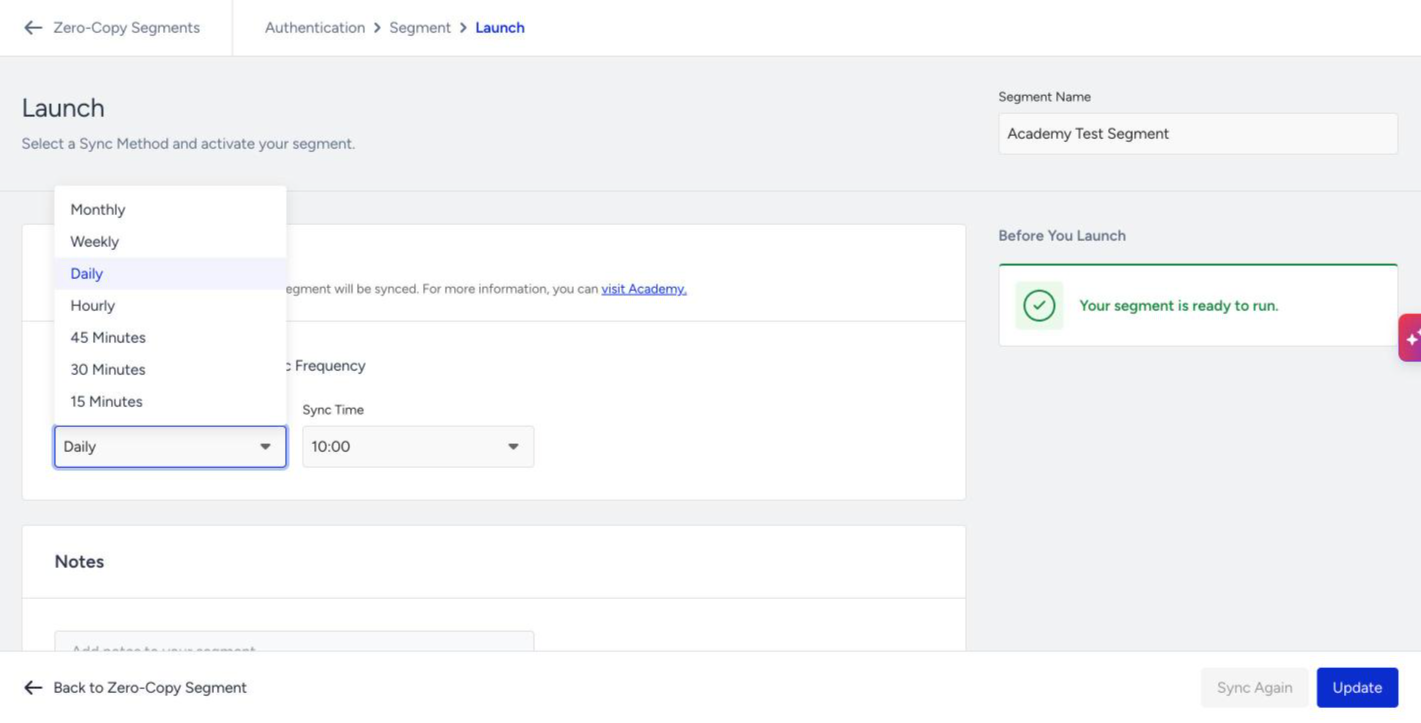
Each sync runs your full query on your warehouse, so frequent syncs consume more warehouse compute. Choose the longest interval that still keeps your audience fresh enough for your use case.
You can also add Notes for your team.
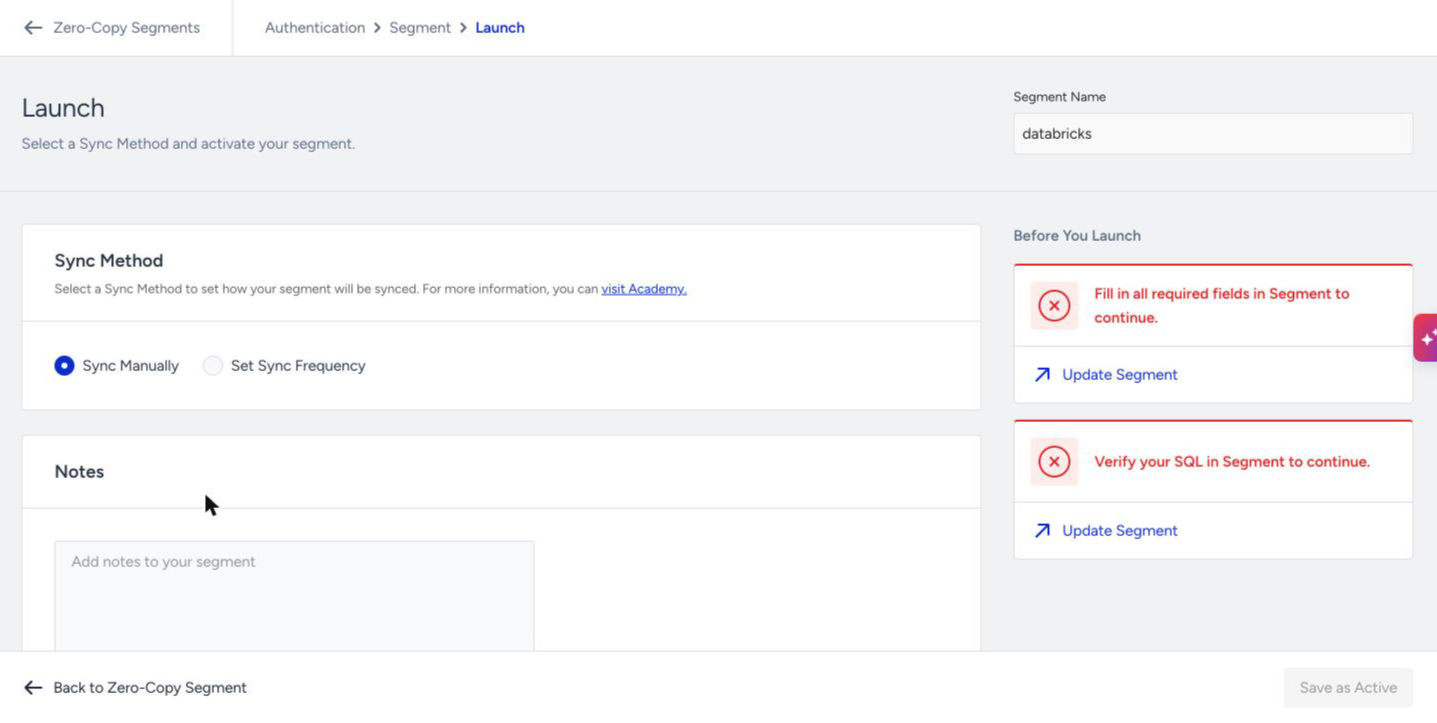
The Before You Launch panel shows whether you can activate the segment:
"Your segment is ready to run." You can activate the segment.
"Verify your SQL in Segment to continue." or "Fill in all required fields in Segment to continue." Click Update Segment to go back and fix the issue.
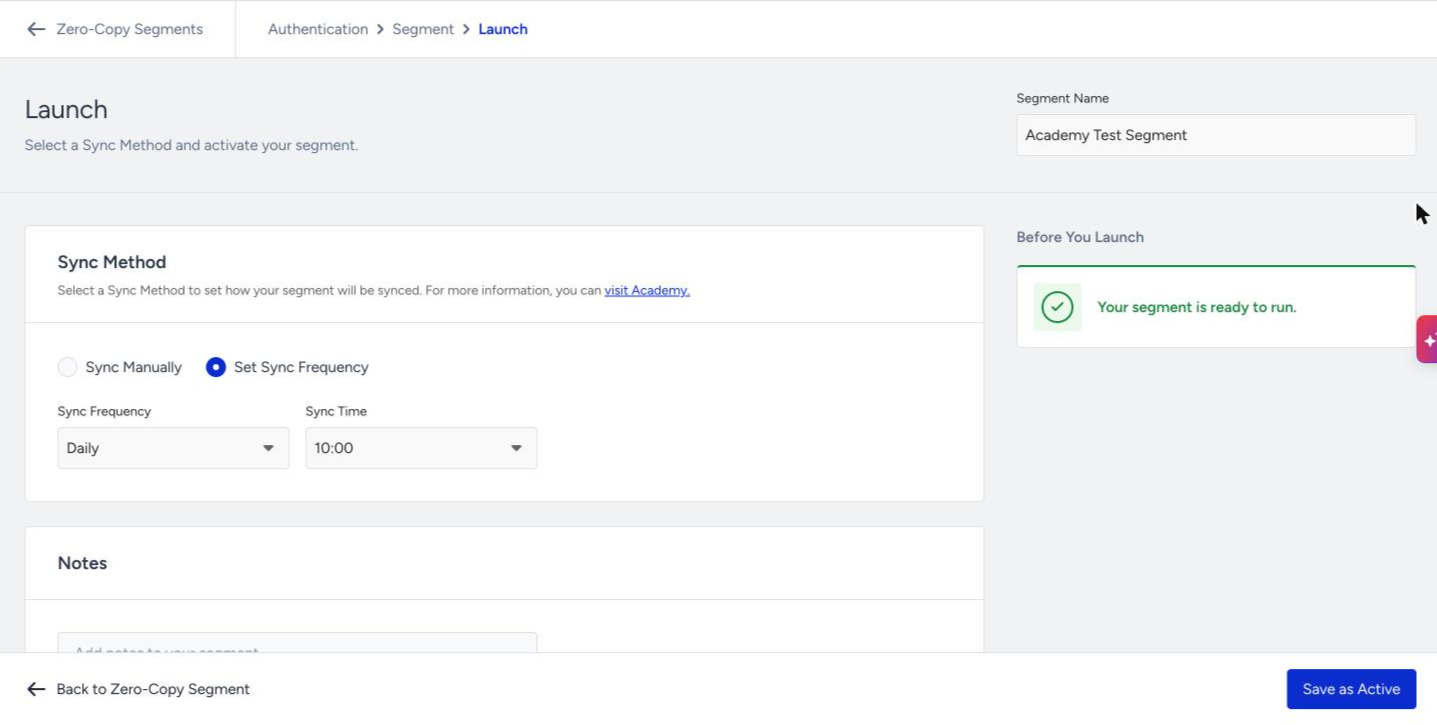
Click Save as Active and confirm. Insider One saves the segment and starts the first sync.
The first sync
After you activate the segment, you return to the listing page. The segment shows Active with a blue info icon. Hover over the icon to see the First Sync Running message.
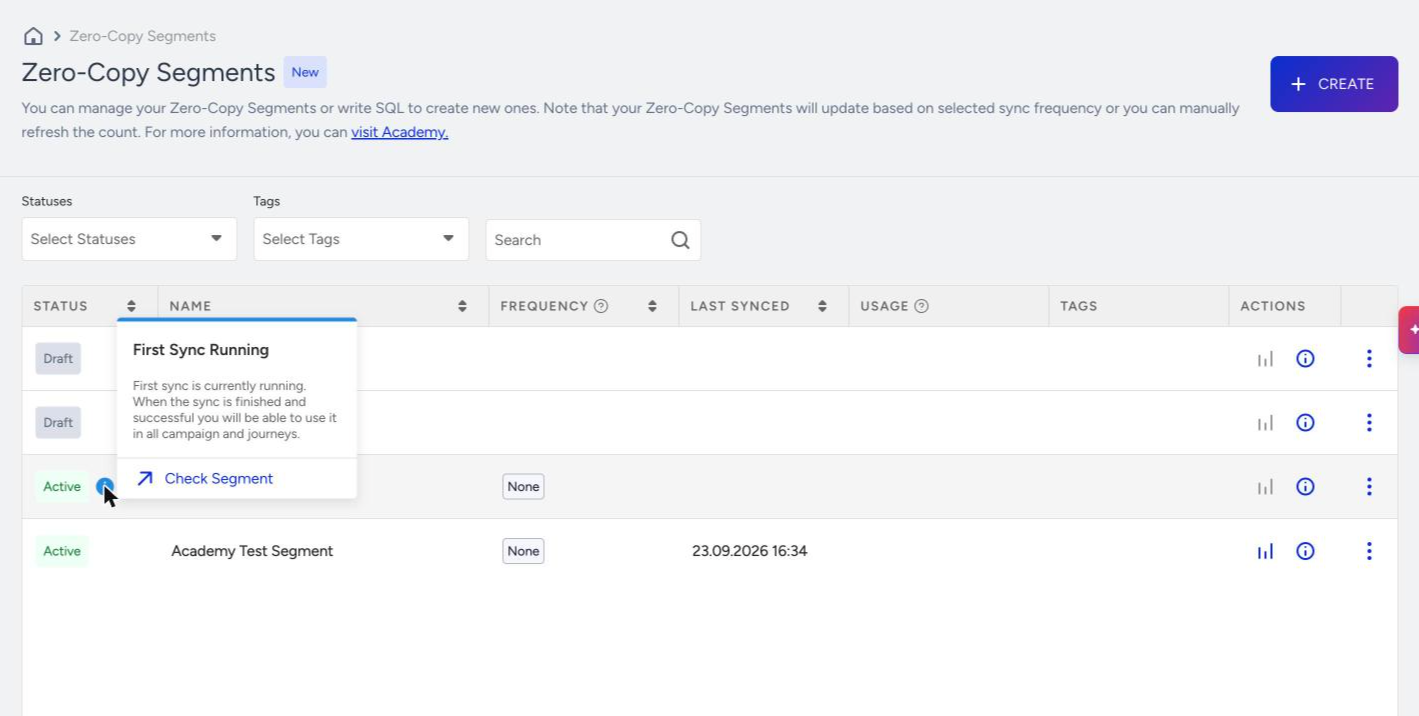
While the first sync is running:
You cannot use the segment in campaigns or journeys yet. It becomes available once the first sync finishes successfully.
You cannot edit the segment. If you open it, a banner explains that you can edit it once the sync completes.
Monitoring is unavailable. The chart icon stays disabled until the first sync finishes.
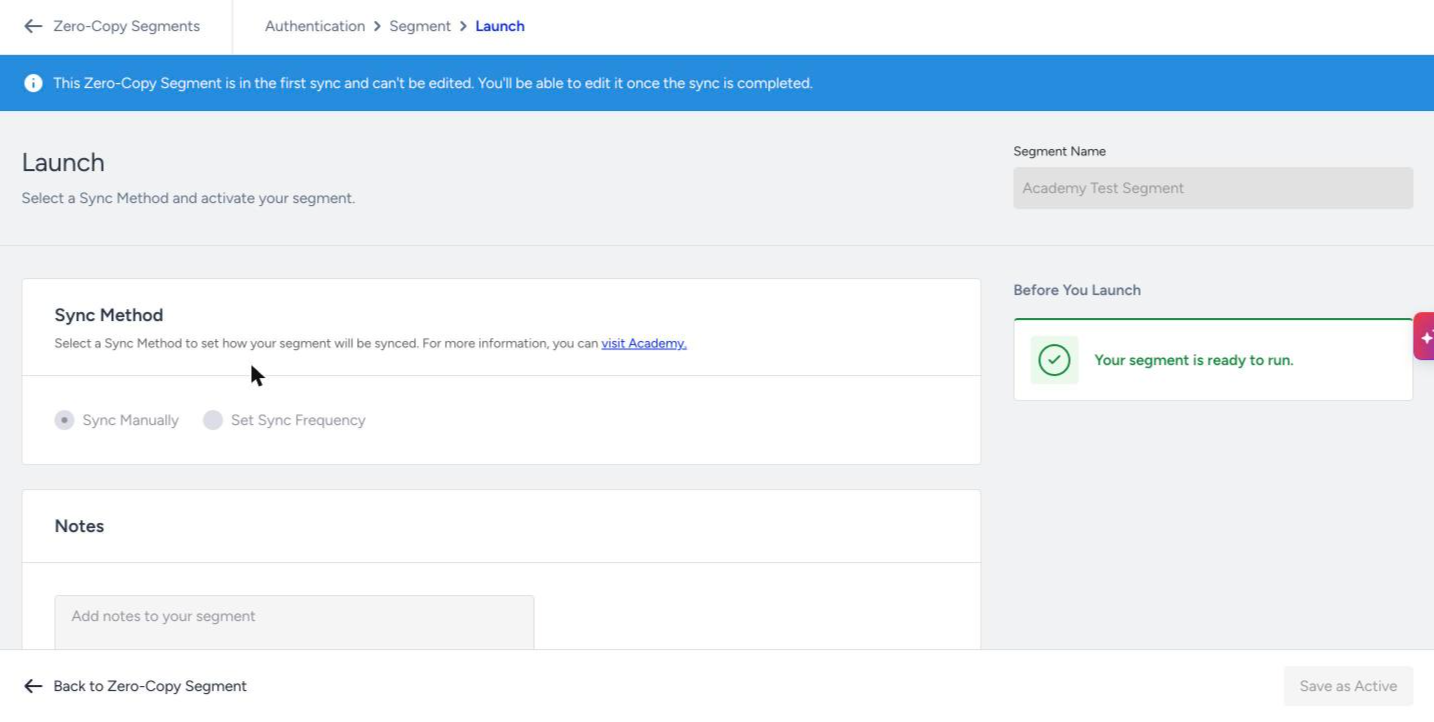
If the first sync fails, the segment returns to Draft and keeps the error. You also receive an email about the failure, except for authentication errors. To use the segment, open it, fix the authentication or SQL, and activate it again.
Sync duration depends on your query and your warehouse. Your query can run on the warehouse for up to 60 minutes. If it runs longer, it times out, and the segment moves to Action Required. This limit covers only the query running on your warehouse, not the time Insider One takes to process the results afterward.
Use a Zero-Copy Segment
Once the first sync finishes, you can select the segment under Saved Segments when you set the audience for a campaign.
Keep in mind:
Campaigns use the latest completed sync. If a sync is still running when a campaign starts, the campaign uses the users from the last successful sync.
Users added to your warehouse during a sync join the segment at the next sync.
Always-on surfaces use the latest sync. On-site campaigns, In-App campaigns, and Architect Check Conditions do not trigger extra syncs. They use the segment as of its latest scheduled or manual sync.
You can combine Zero-Copy Segments with each other and with other segment types in a Dynamic Segment.
Monitor a segment
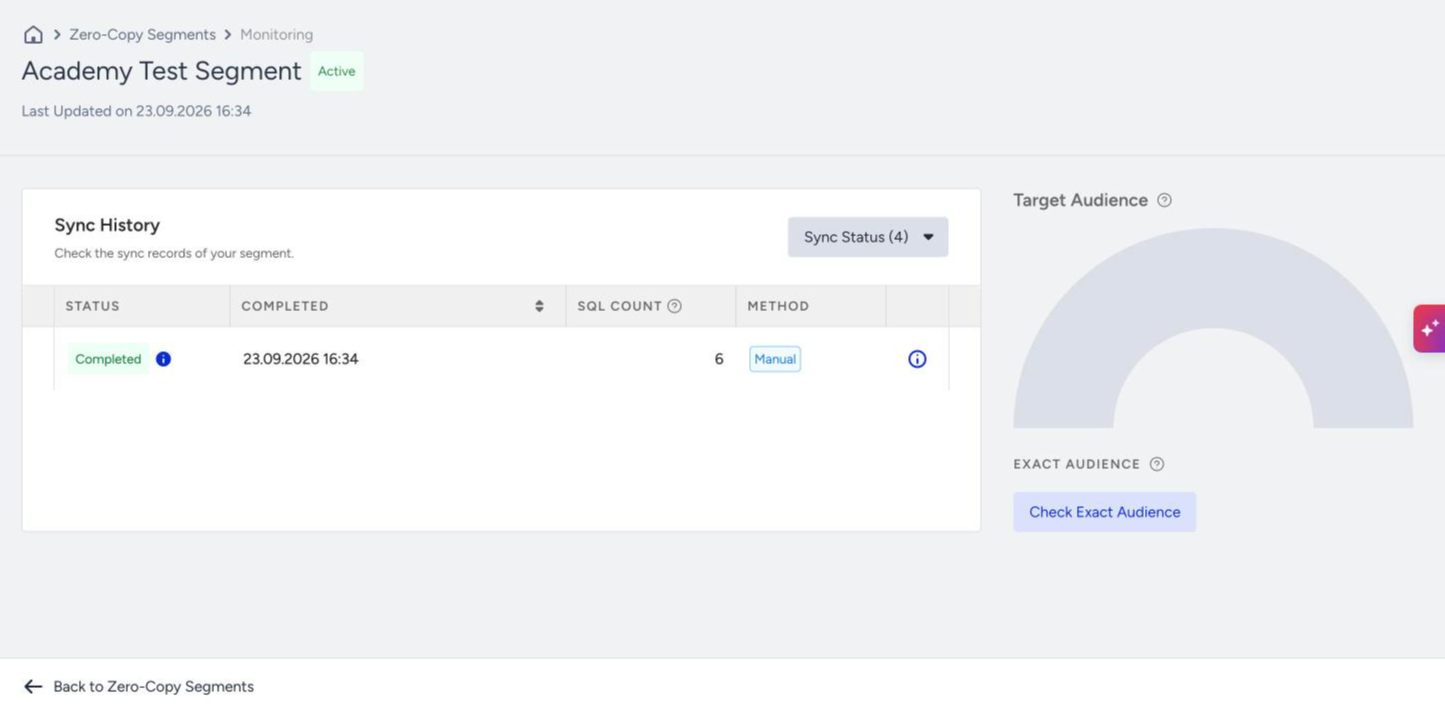
Click the chart icon next to a segment to open its Monitoring page:
Sync History lists every sync with its status, completion time, SQL Count (the number of rows your query returned), and method (manual or scheduled).
Target Audience shows the Exact Audience: the number of users matched to a profile in Insider One. Click Check Exact Audience to calculate it.
Why the audience can be smaller than the SQL count
Only users who already exist in Insider One join the segment, so your query can return more rows than the segment has users. For example, if your query returns 100 email addresses and 10 of them match a profile in Insider One, your segment has 10 users.
Common reasons for a large difference:
Many users in your warehouse do not have a profile in Insider One yet.
The users were added to Insider One after you created the segment. These users join the segment the next day. If you are importing new users, import them first and then create the segment.
Some identifier values are unusable, for example, phone numbers without a country code, invalid email addresses, or UUIDs whose letter case differs from the value stored in Insider One.
The query returns the wrong column as the identifier.
Segment details and management
Click the info icon to open the details panel. The Information tab shows the platform, creation and last-modified details, segment ID, authentication, sync frequency, tags, and notes. The Campaigns, Journeys, and Segments tabs list everything that uses this segment.
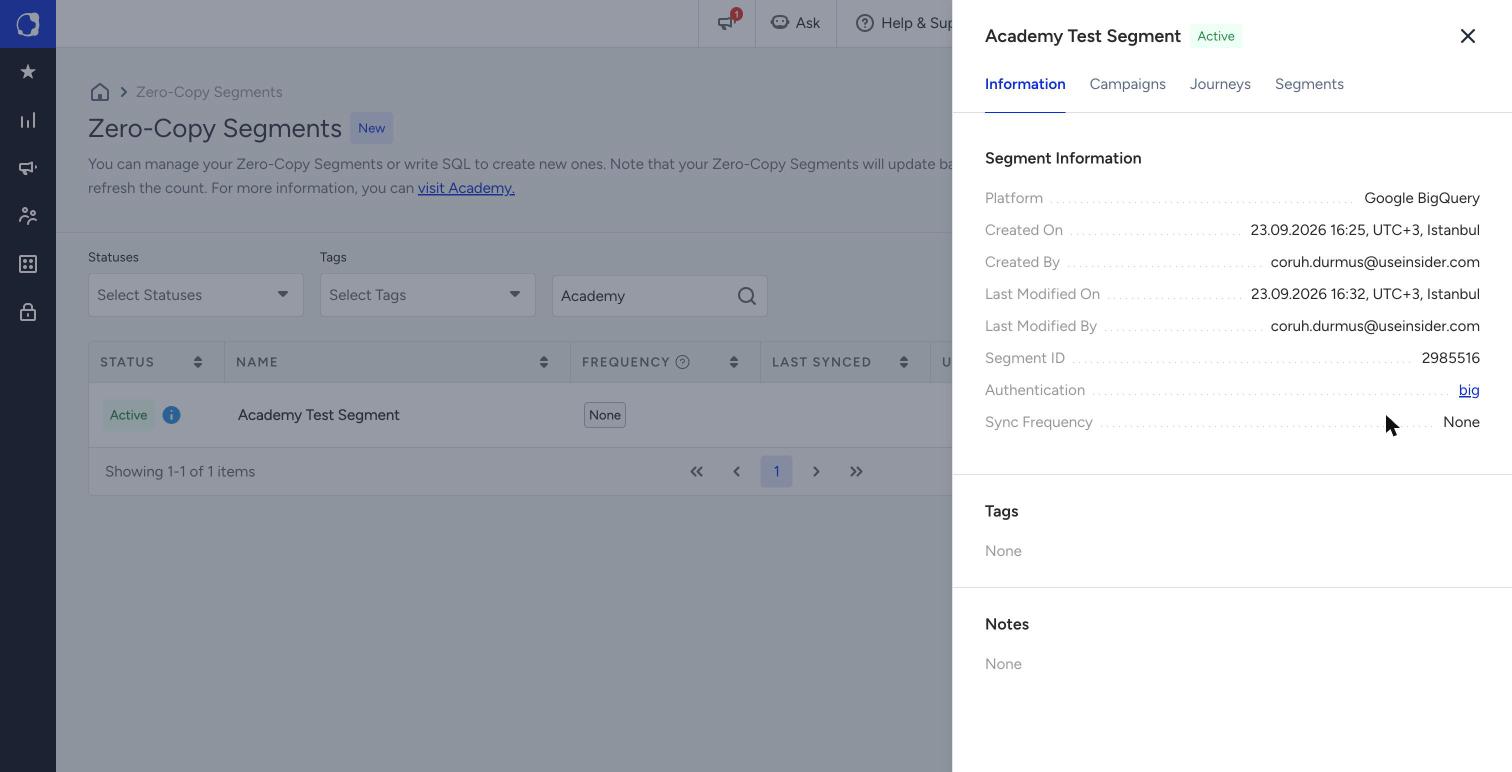
From the row menu, you can Pin to Top, Edit Tags, or Delete Segment.
Edit an active segment
After the first sync, you can update the SQL and the sync method. The identifier and the warehouse authentication stay fixed; to query a different warehouse, create a new segment.
On the Launch step of an active segment, click Update to save your changes, or Sync Again to run a sync right away (for example, for a segment that syncs manually).
Delete a segment
You can delete a segment from the row menu only when nothing uses it. If a campaign, journey, or Dynamic Segment actively uses it, remove it from those first. The Usage column and the Campaigns, Journeys, and Segments tabs in the details panel show where a segment is used.
Statuses and troubleshooting
Status | Meaning | What to do |
|---|---|---|
Draft | Setup is incomplete, the segment is not activated yet, or its first sync failed. | Open the segment, complete or fix the setup, and click Save as Active. |
Active | The segment is live. A blue info icon means the first sync is still running. | No action needed. Wait for the first sync to finish before using the segment. |
Action Required | A sync failed after the segment's first successful sync. | Open the segment and fix the cause listed below. |
A segment that has already synced successfully moves to Action Required when:
Authentication fails, for example because credentials or permissions changed or were revoked in your warehouse. Update the authentication.
The table or a column is missing, for example after a table is renamed or dropped. Update the SQL.
The schema changes in a way that breaks the query. Update the SQL.
The query runs longer than 60 minutes on your warehouse. Simplify the query or optimize it in your warehouse.
Campaigns keep running while a segment is in Action Required. They use the users from the last successful sync until you fix the segment. The segment is not paused.
Important: Fix an Action Required segment as soon as possible. If a segment stays in Action Required for more than 90 days, users who should have joined it during that time might never join, even after you fix it. In that case, create the same segment again under a new name.
Limits
Limit | Value |
|---|---|
Warehouses per segment | 1 |
Identifiers per segment | 1 |
Columns returned by the query | 1 (the identifier) |
Statements allowed | SELECT and WITH only |
Maximum query runtime on your warehouse | 60 minutes |
Actively syncing segments per account (with a sync frequency set) | 25 (manually synced segments do not count toward this limit) |
Zero-Copy Segments per account | 50 |
Users per segment | 5 million |
Tables listed in Accessible Tables (Databricks) | The last 2,000 tables |
Cost and warehouse differences
Queries run on your warehouse, using your compute. Your warehouse provider bills that usage; Insider One doesn't charge for query compute.
Query speed depends on your warehouse size, configuration, and current load.
FAQ
Q: Does Insider One store my warehouse data?
A: No. Insider One stores only which users belong to the segment. Your tables and columns stay in your warehouse.
Q: Can I preview the query results before activating?
A: No. Verify SQL checks that the query is valid and runs on your warehouse. After the first sync, you can check the returned row count and the matched audience on the Monitoring page.
Q: Can I change the identifier or the warehouse later?
A: No. Create a new segment instead.
Q: What happens if a sync fails after the segment has been live for a while?
A: The segment moves to Action Required, and campaigns keep using the users from the last successful sync until you fix it.
Next steps
With Zero-Copy Segments, you query your warehouse directly, match the results to Insider One profiles, and keep the audience current through manual or scheduled syncs. Once your first segment is active, combine it with other segments in a Dynamic Segment or select it as the audience for your next campaign.