In addition to the default events provided by Insider One, you can also define custom events. These are useful when you need to track data points not included in the default list, or when you have specific business use cases.
When creating custom events, make sure they comply with the predefined platform limits to ensure smooth data processing and compatibility.
In this article, you can find answers to the following questions:
Create a Custom Event
You can create a maximum of 5,000 events per panel in total, including both custom and default events.
To create a custom event,
Click the Create button on the Events tab.
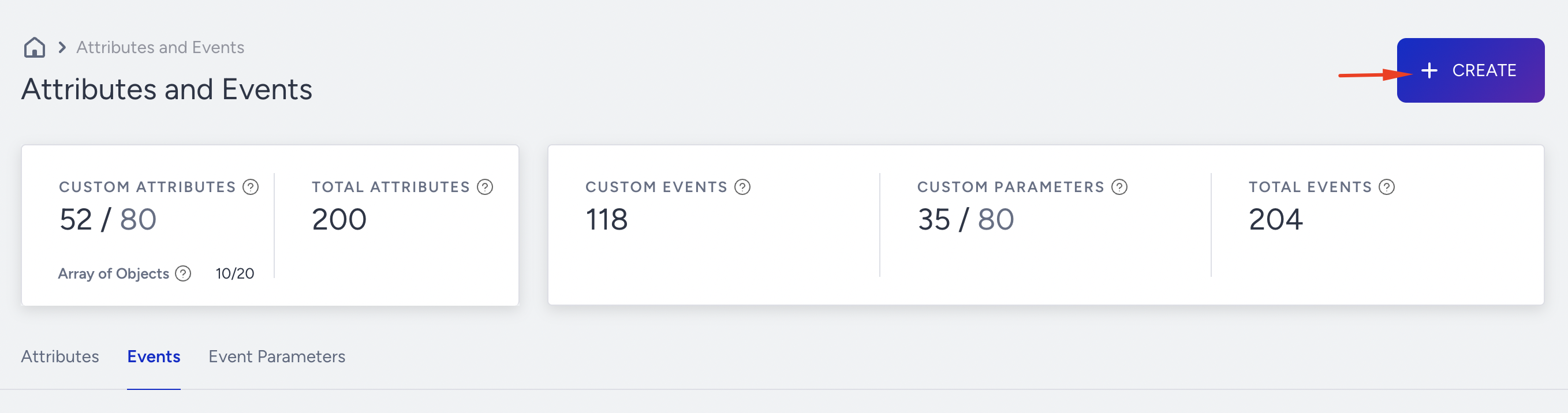
On the creation modal, fill in the necessary details:
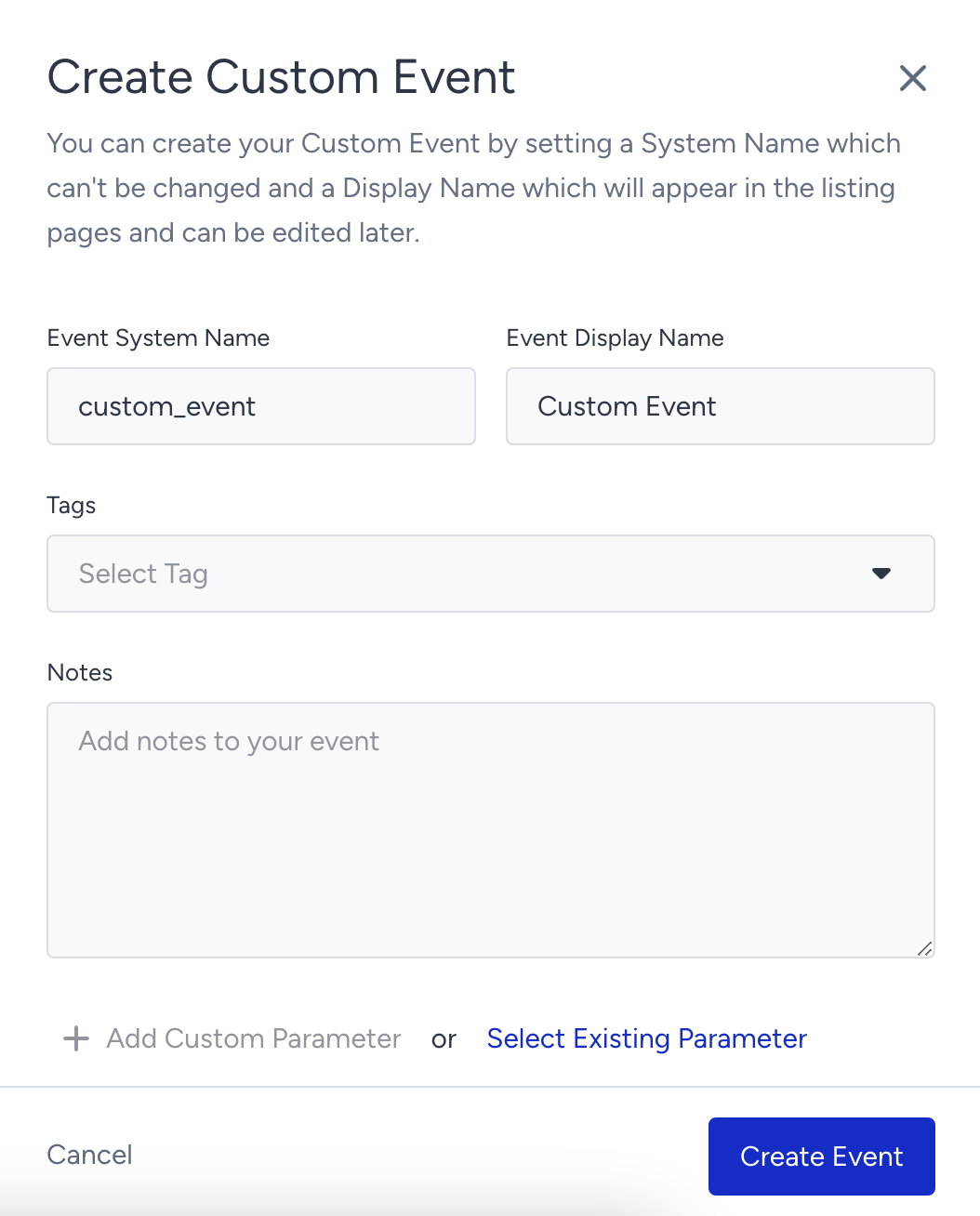
Event System Name: The name used for any system interaction, such as the Upsert User API parameter. It is recommended to create it in all lowercase, without spaces.
Event Display Name: The primary name of the data you will see when interacting with the panel, such as when selecting a segmentation.
Tags: The labels or keywords to help organize and categorize the data.
Notes: You can input any explanation about your events to remind yourself of the definition. This is an open field text input area.
3. Since events have no data types, the creation will include adding Event Parameters to the created events. You can choose existing Event Parameters or create new ones.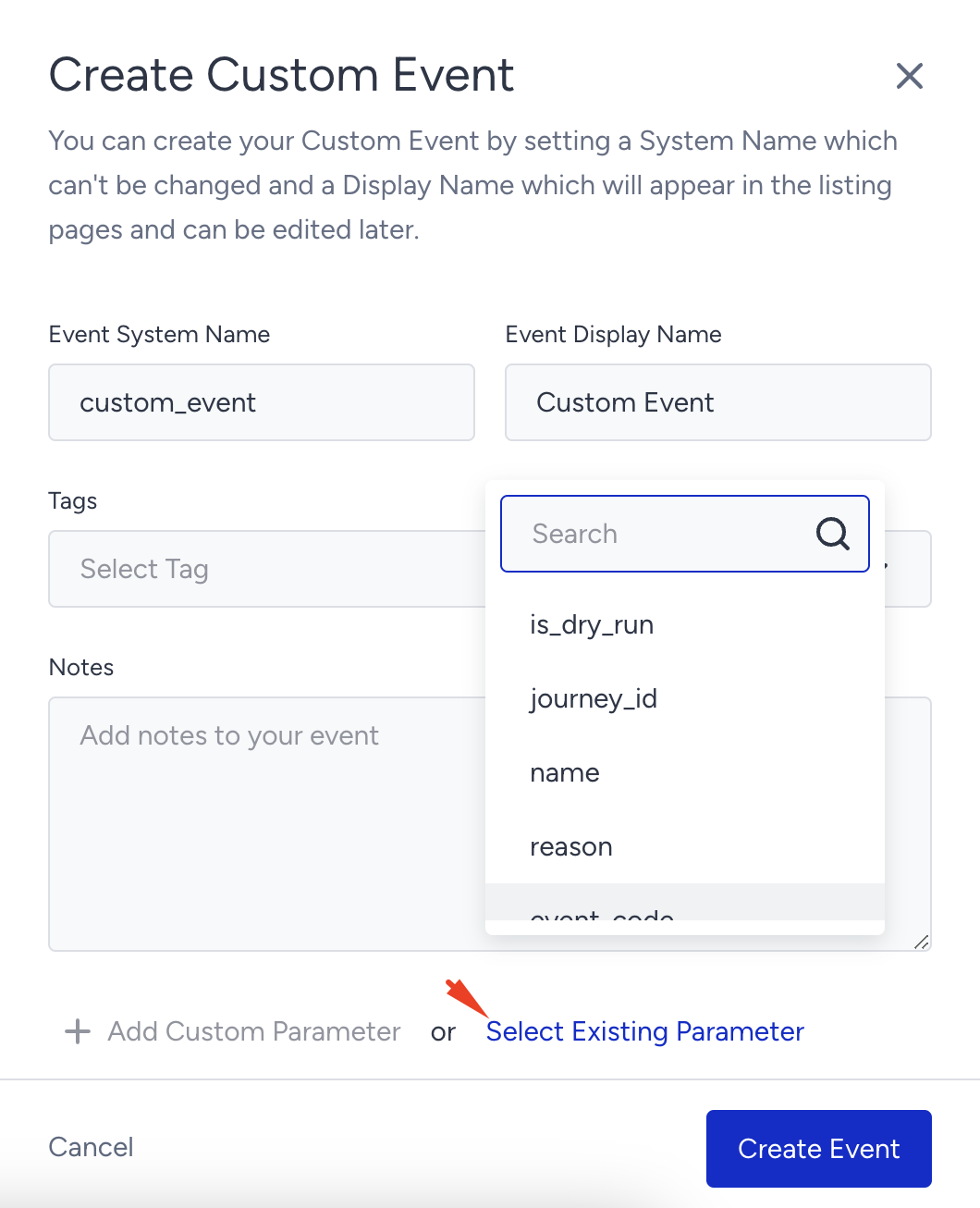
The existing parameters are displayed as a dropdown with their names, and +Add Custom Parameter opens a new section, similar to an attribute creation pop-up. You can choose the Parameter Name and Data Type for the Event Parameter.
Edit a Custom Event
Select the Edit option from the dropdown menu next to the event to edit a custom event.
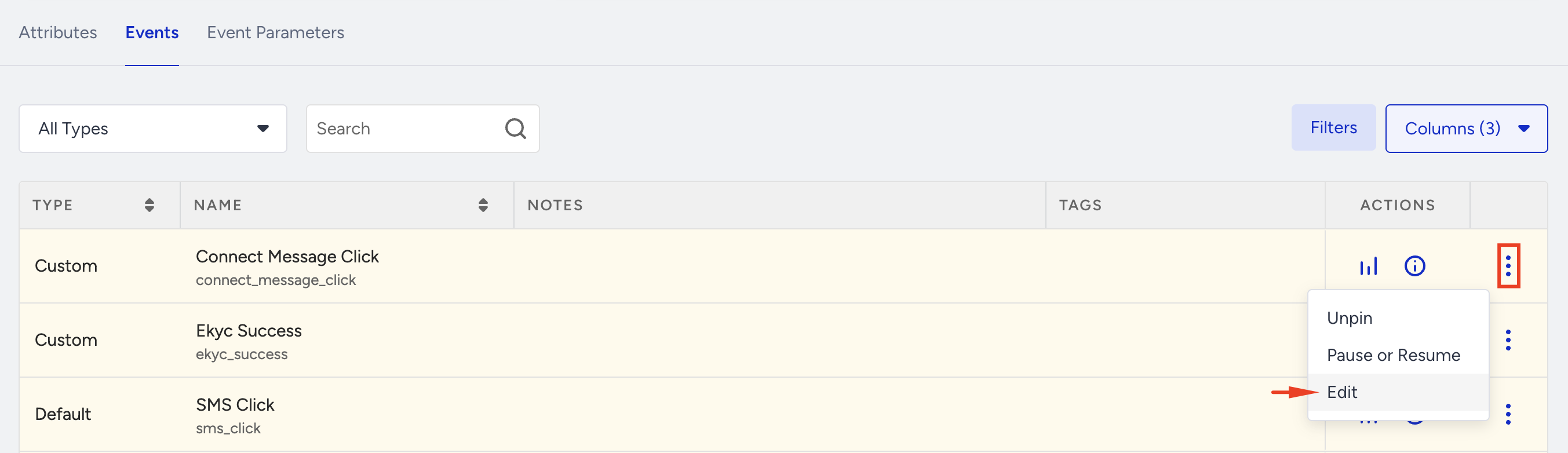
While editing existing events, you cannot remove parameters, change the data type, or alter the system name. The editing capabilities for existing events include:
Adding new parameters to the event
Changing the event Display Name
Adding/removing tags
Editing the Notes section
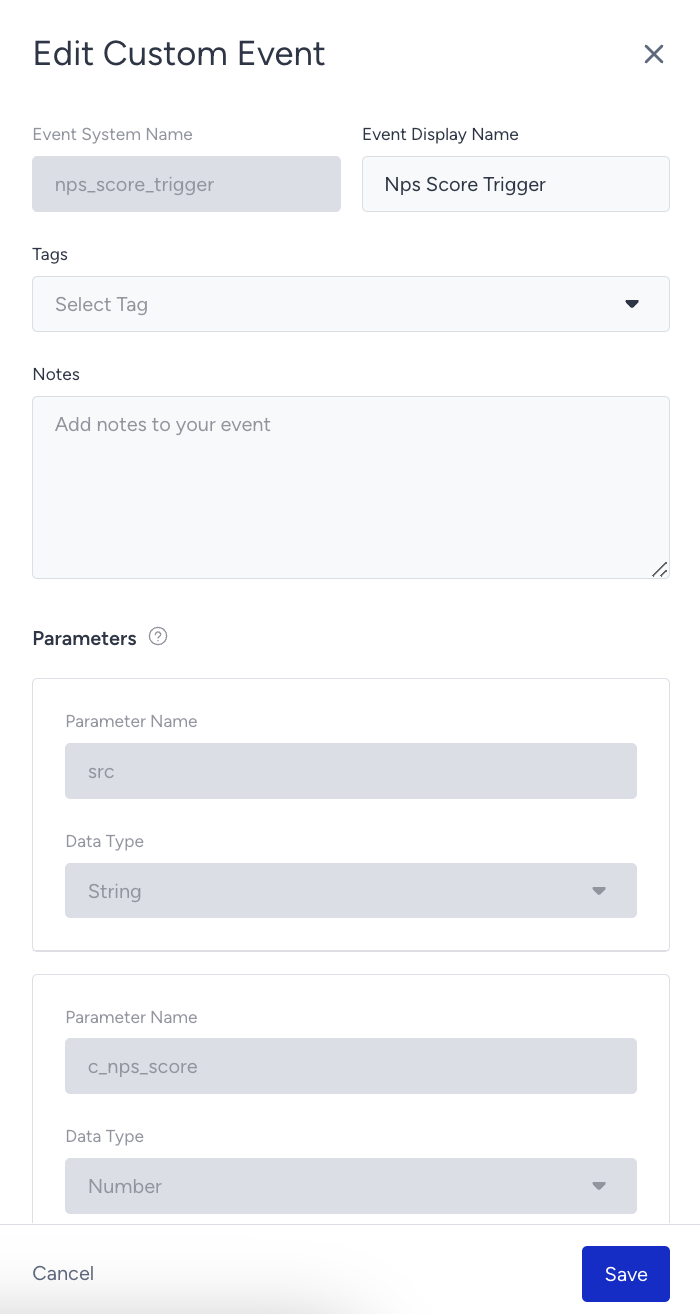
Make the necessary changes, and then click the Save button.
Create an Event Parameter
Similar to the flow for Custom Events, Event Parameters also have a creation process that contains the following settings:
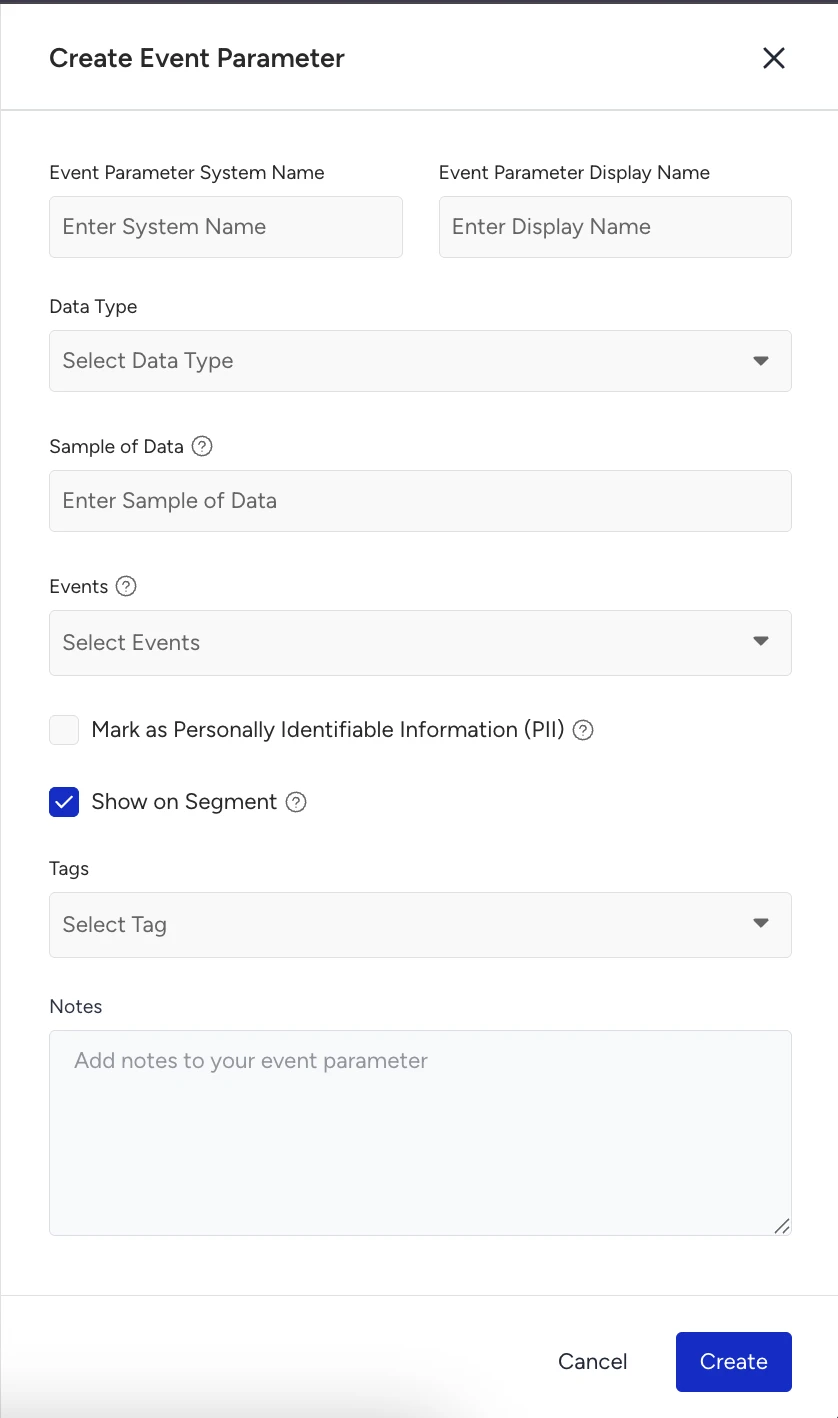
Event Parameter System Name: The name that will be used for any system interaction with the parameter, such as the Upsert User API. You can only use lowercase letters and underscores for the system name. No spaces and special characters are allowed.
Event Parameter Display Name: The name of the data point that users will see while interacting with it inside the InOne panel (e.g., while selecting it in segmentation, etc.).
Data Type: This is the standard type you must define for an Event Parameter.
The Boolean data type can only have one of two possible values: True or False. e.g. Club Member = True
The Date data type is used to store and manipulate dates and times. It is used to represent a specific point in time in RFC 3339 format, such as 2026-01-10T15:41:00Z.
The Number data type represents a number that indicates an amount. The number can be either a whole number, a positive or negative number, or a floating-point number. e.g. '712*
The Number Array is a collection of numerical values stored together, allowing for operations like sorting, searching, and calculations on the elements. e.g. "1, 2, 3, 4, 5."
The String is a data type used to represent text or a sequence of characters. It can be used to store and manipulate alphanumeric data, such as names, addresses, or messages. e.g., "Hello"
The String Array is a collection of strings that can be stored together, providing functionality for tasks such as sorting, searching, and modifying the individual string elements. e.g., "apple," "banana," "orange."
The URL is a string of characters that provides a unique address for accessing resources on the internet. e.g. "http://insiderone.com"
Sample of Data: This is a free-text optional input box designed to add sample values for the Event Parameter you’re creating. Its purpose is to help you skim through the list of possible values and gain a quicker understanding of your datasets.
For example, if you have the attribute of Store ID, you can input one of the sample values: “ST0015-A”
Events: The Events dropdown is a mandatory field that allows you to select one or more events for your Event parameter. The Event Parameter will be added to the events you select from the dropdown when you create it.
Mark as PII: Mark this checkbox if you want an Event Parameter to be marked as one that contains Personally Identifiable Information. This allows control over information access for panel users based on their roles and permissions. For example, panel users with PII access set to False cannot see the information in this attribute in the InOne panel.
The "Show on Segment" checkbox allows you to choose whether the attribute you’re creating will be available for selection while you’re creating segments.
Tags: Tags are labels or keywords that you can add to help organize and categorize the data by adding them to your Event Parameter.
Notes: This free-text input field allows you to add any notes or explanations about your Event Parameter as a reminder of the definition.
Edit an Event Parameter
When editing an Event Parameter, editing the System Name and Data Type fields is restricted to prevent potential issues with live campaigns or dynamic segments.
When opening the edit side modal for an Event Parameter, you see a section listing where this Event Parameter is currently in use:
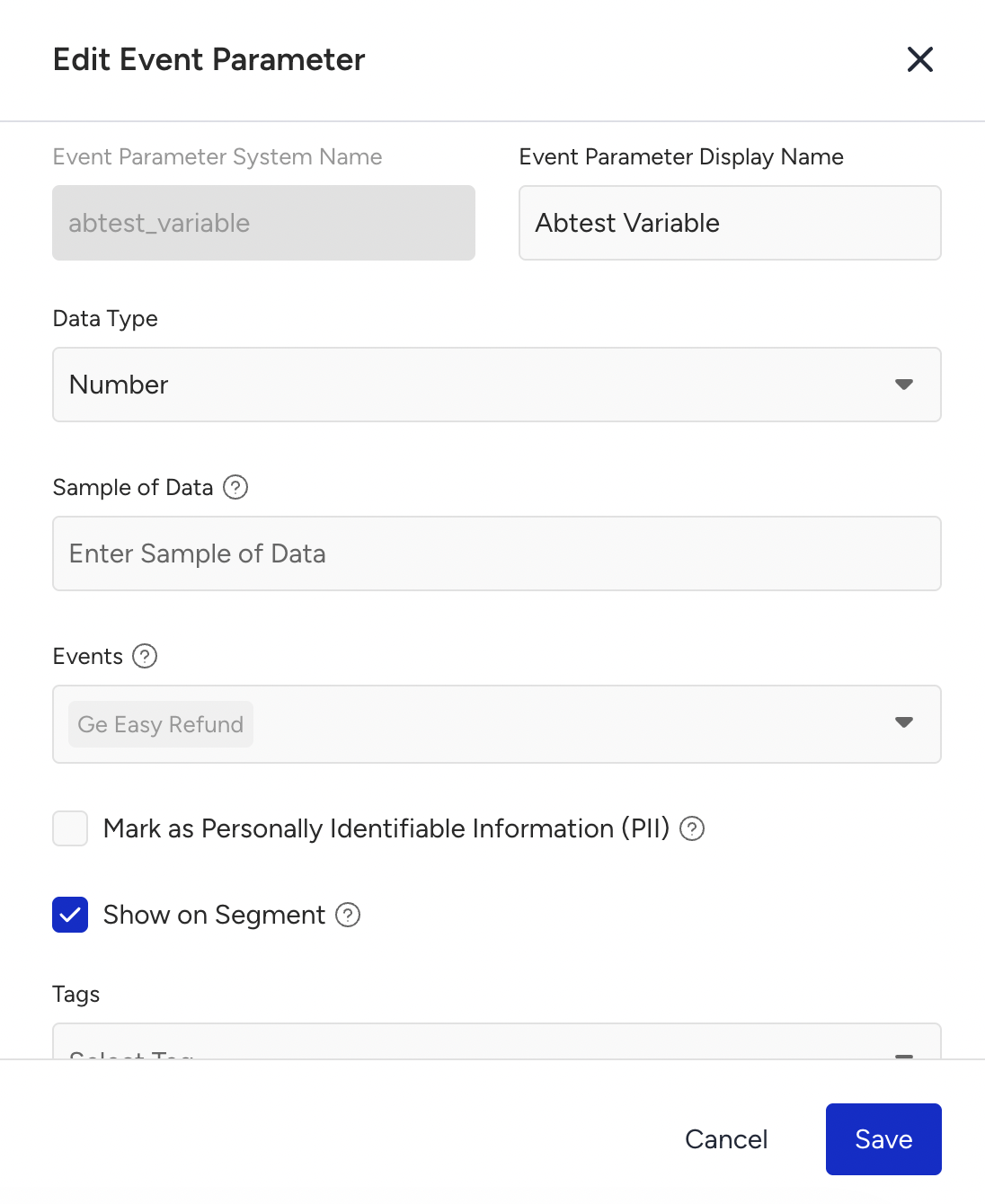
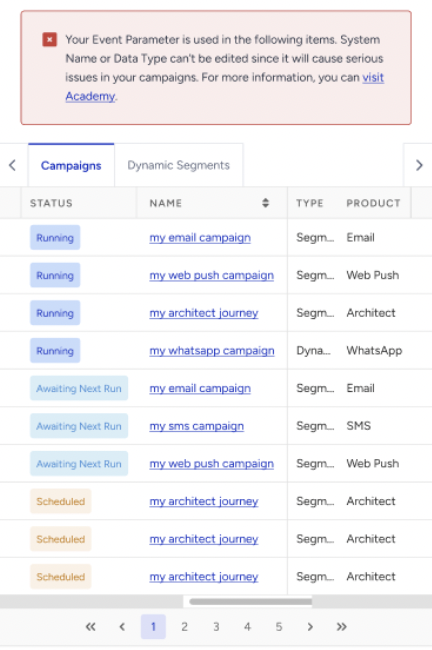
You can edit an Event Parameter depending on where it's currently being used. The ability to update fields like System Name and Data Type changes based on their usage in campaigns or dynamic segments:
Used in Both Campaigns and Dynamic Segments
System Name and Data Type are not editable.
New events can still be added to the parameter via the dropdown. Existing ones cannot be removed.
You must wait until all campaigns have ended and all dynamic segments that use the Event Parameter have been deleted.
Used Only in Campaigns
System Name and Data Type are not editable.
New events can still be added to the Event Parameter via the dropdown. Existing ones cannot be removed.
To be able to edit Event Parameters, all running campaigns must be completed, and dynamic segments using the event parameter must be deleted.
Used Only in Dynamic Segments
System Name and Data Type are not editable.
New events can still be added to the parameter via the dropdown. Existing ones cannot be removed.
Once all listed dynamic segments are deleted, the fields will become editable.
Not used in any Active Campaign or Dynamic Segment
You can still add new events to the Event Parameter via the dropdown. Existing ones cannot be removed.
All other event parameter fields are fully editable.
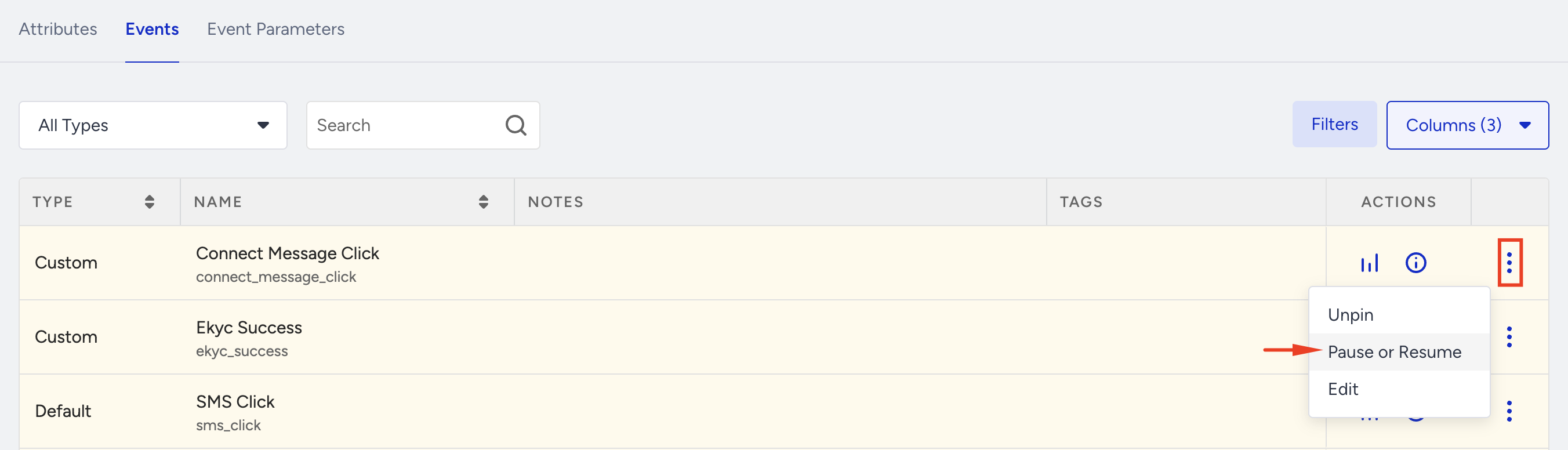
You can pause or resume any Events or Event Parameters ingestion directly on the Attributes and Events page. Pausing ingested data means that Insider will stop accepting data (or block it) from flowing into its database. You might need it in case you send the wrong batch of data and need to stop it.
Notes on creating or editing events
The following limitations apply when working with events. These default rules ensure data consistency and system performance. If your use case requires adjustments (e.g., increased attribute capacity), contact the Insider One team; we can review and increase the limits to meet your needs.
New events must be sent via the Upsert API to be recognized and activated in the system.