Dynamic Date Starter, also known as a birthday or anniversary trigger or date-based automation, triggers users based on date-type attributes or date-type event parameters. You can select an event or attribute option in this starter. When you select an event, choose an event parameter in date format. Also, the Dynamic Date Starter lists only date-type attributes.
This article explains the following concepts:
Dynamic Date Starter can take users from every platform, such as websites and mobile applications, as well as those where the data comes from Upsert User Data API. The same users can perform certain events or have date-type attributes across these platforms. In such a case, the Dynamic Date Starter considers the user's last action or last updated attribute.
Refer to Use an Array of Objects in Journey Elements to use a date inside an object as the date the journey runs on.
Architect triggers the On Dynamic Date starter once a day at 1:00 (UTC+0) by default. However, you can change the default Trigger Time. The selected trigger time is in UTC, not your time zone.
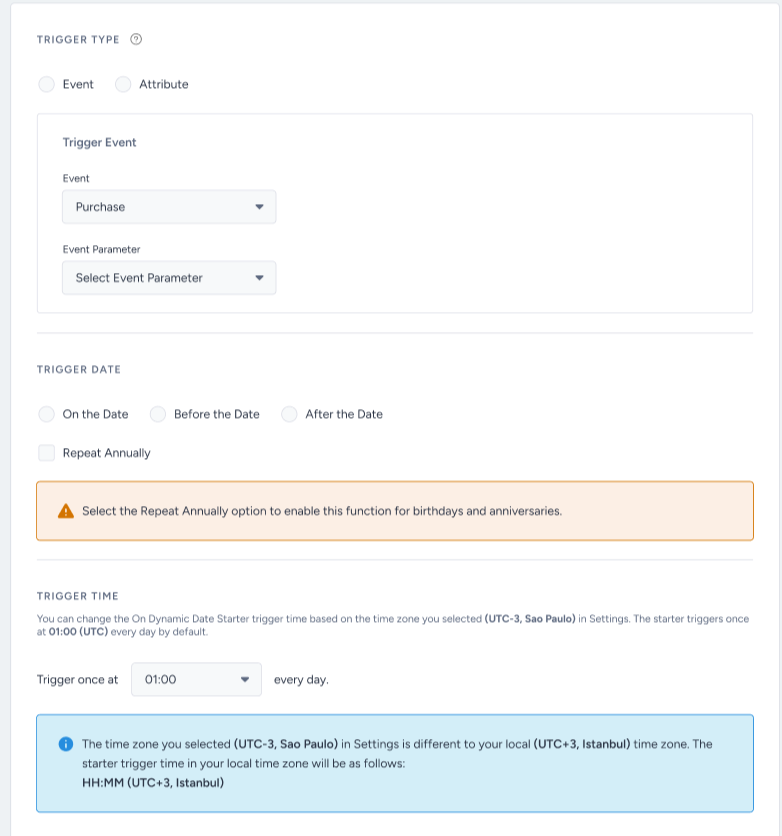
Also, you can change the Trigger Frequency to configure how often the On Dynamic Date starter will be triggered.
.png)
.png)
If User Eligibility is set to Once or Multiple, the count bubble in the new-version draft will exclude users who have already entered the current version of the journey. When you build a new version of your journey, you will have a more realistic view of how many users will enter your journey. For Multiple User Eligibility cases, the users will enter the new version once the re-eligibility duration finishes.
.png)
Tips and tricks
If you are going to run a journey that needs to ignore the year within the date for each user, you can activate the Repeat Annually option. Once activated, it ignores the year in the date. For Birthday or Anniversary use cases, you need to activate the option. This is because users have birthdays every year, and their birth years are also in the past. For such use cases, you need to ignore the year. The same goes for Anniversary.
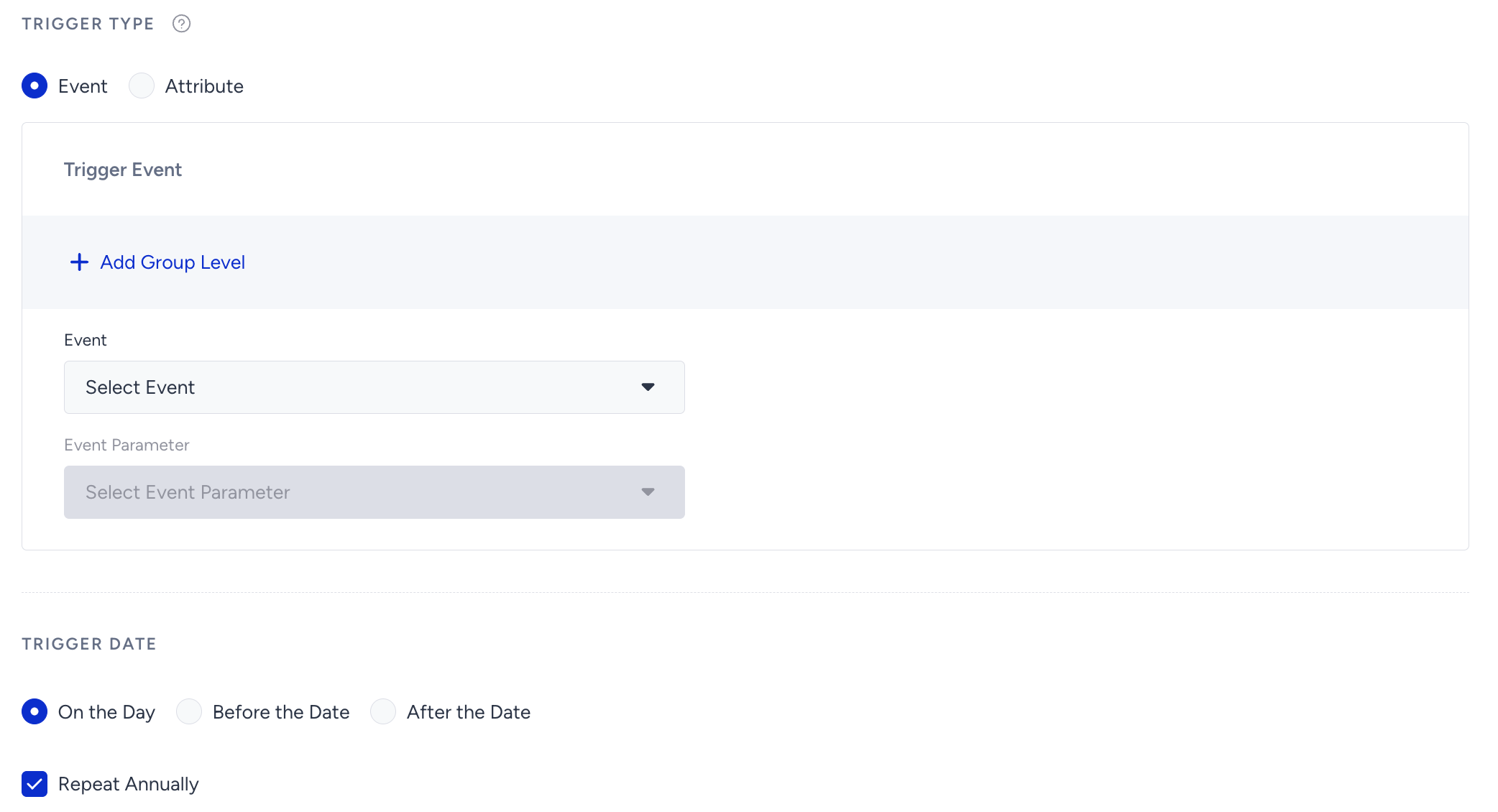
You can select the Before the Date option to trigger users ahead of a specific date. This lets you send a message to users before the specified day. For example, you can send a voucher code 7 days before the user’s birthday to make them feel valued and boost their engagement.
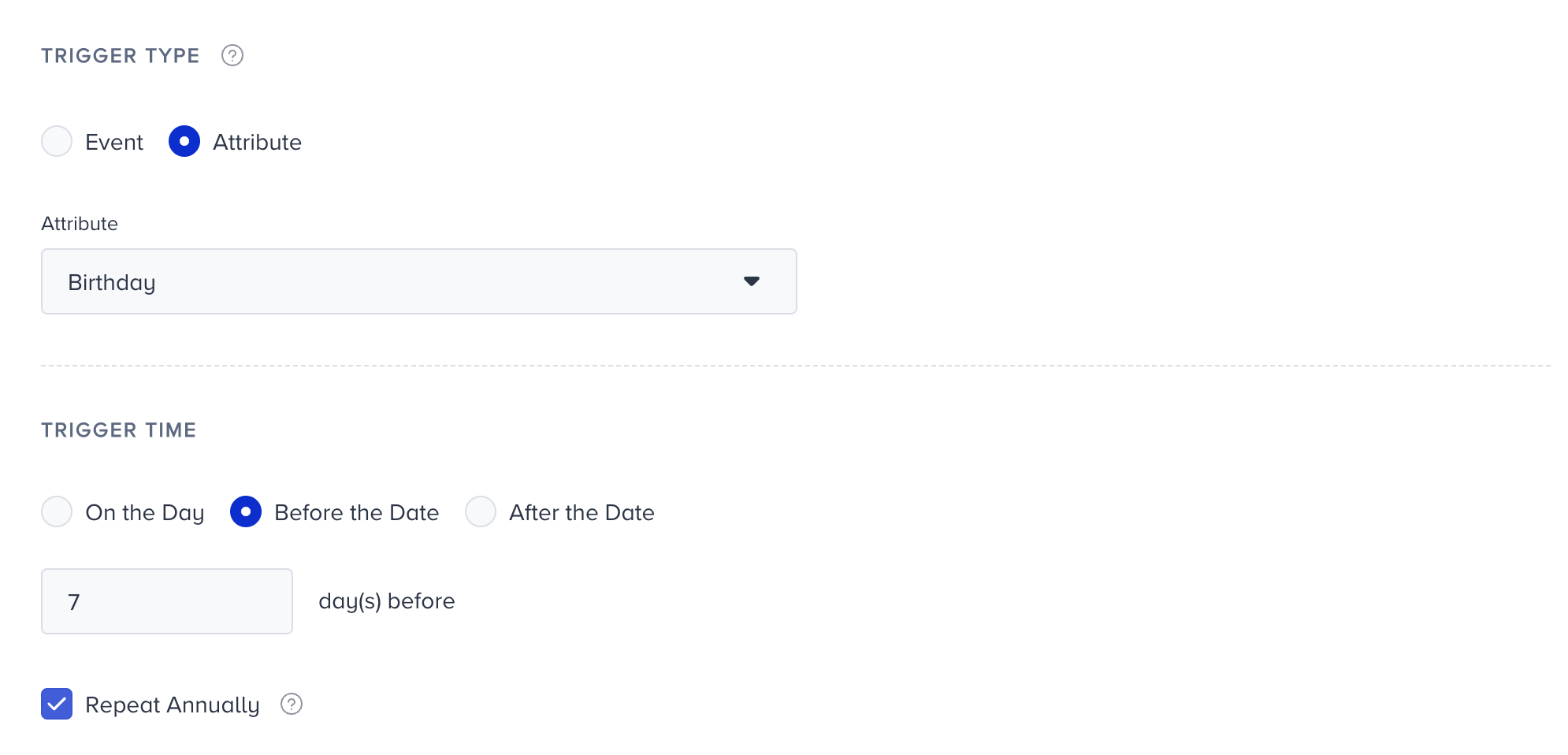
If you want to trigger users after a particular day has passed, you can select the After the Date option. If you have any cases where data is sent out from any source within a specific time, but you also want to trigger a dynamic date starter after it, you can use this option. Also, you can use this option for some cases, like ‘X days after the purchase’, to send a post-purchase message.
You can select after the date and enter a value up to 3650 days. To celebrate a user’s 10-year Anniversary, you can enter 3650 days.
Segmented users may come from the Upsert User Data API or any other source without their language information. That’s why selecting the "All Languages" option in the Launch Settings is recommended.
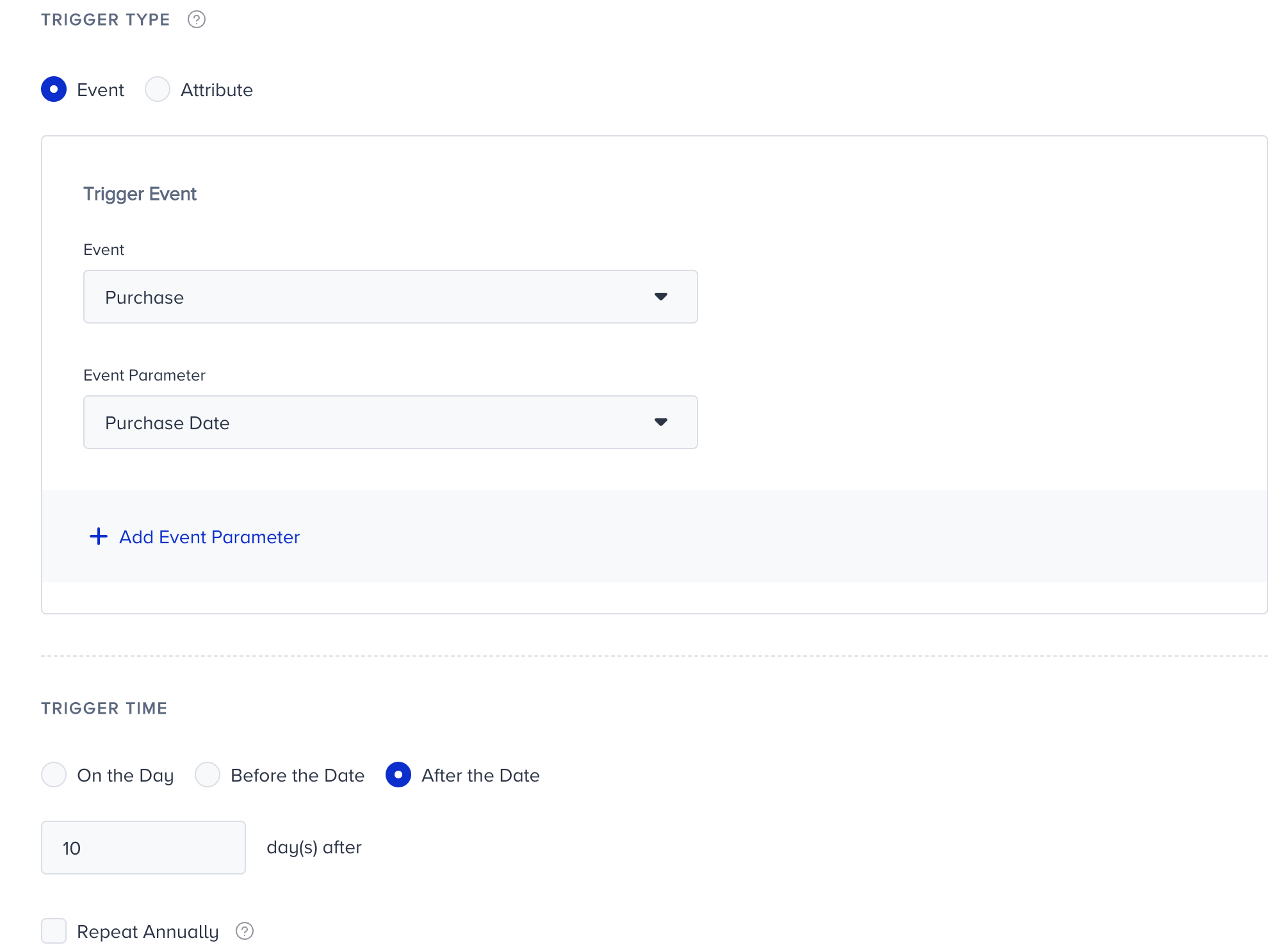
If you want to check specific trigger event parameters, you can add event parameters in the trigger section. This can help you target a more specific action. For example, if you want to send check-in reminders 2 days before a flight, you can add event parameters such as gate number, seat number, or package information to personalize your messages.
You can use constant event parameters in your content to send exactly the same event’s information that made your users enter a journey.
You can also hold this starter event's parameter values constant and check them later in the journey, in Check Conditions, Wait for Event, Exit Criteria, or Journey Goals.
For example, you want to segment an audience that booked a flight for future dates and did not purchase any ancillaries, such as baggage or seat selection. After the segmentation, you will send notifications for ancillaries to your passengers, including information about their flight details. In this case, you can set your segmentation for a starter as follows:
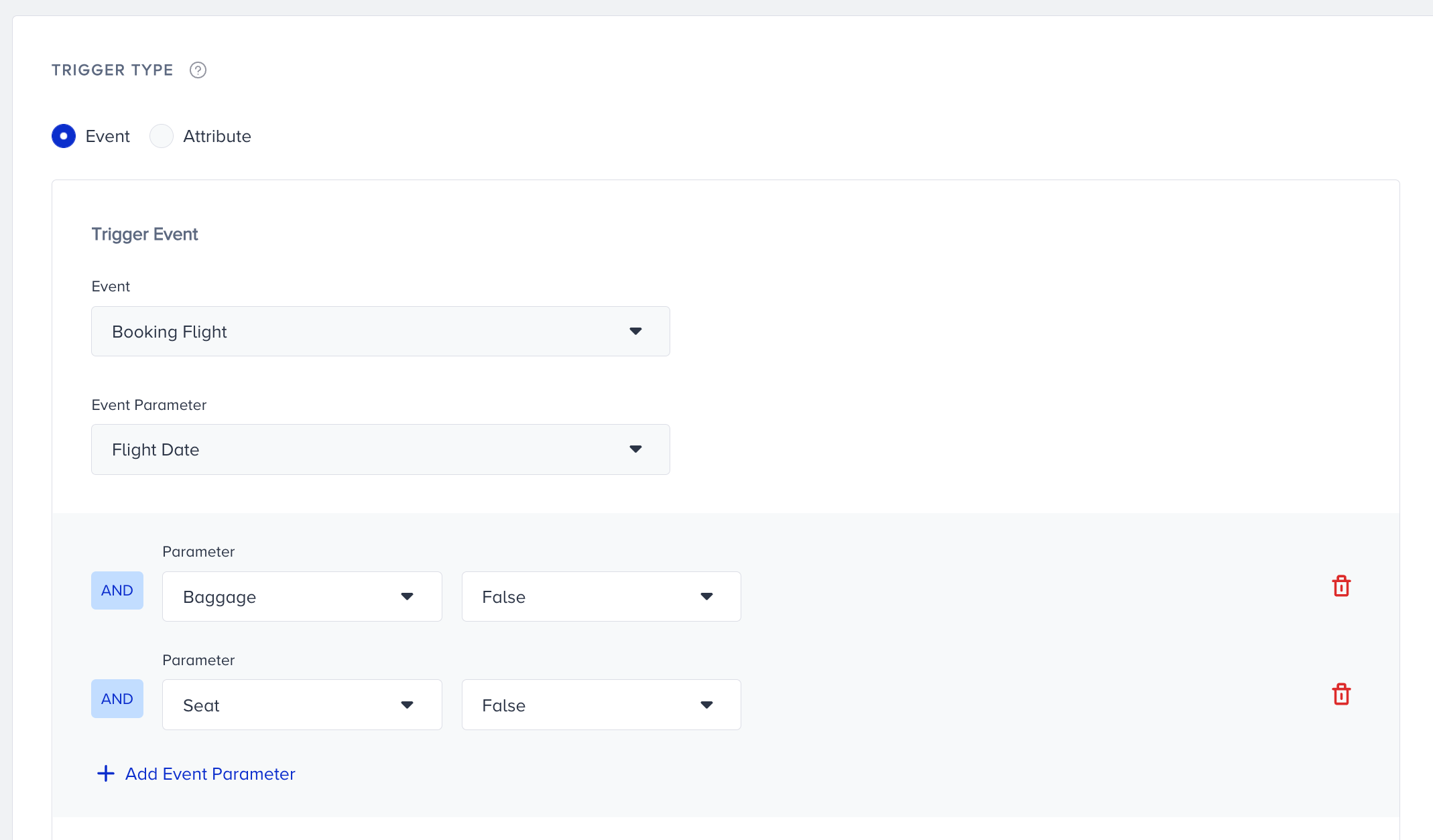
Constant Event Parameters help you keep the same event for entering the journey for every single passenger and use the event parameters of this event. This way, you can send the right content to your passengers. If your users have other flights that might fit into this segment, you can use the constant event parameters to send notifications with the correct flight details. For example, if a passenger named John booked a flight without any extra baggage or seat from CDG to JFK, you can send them a reminder 3 days in advance of their flight as follows: "Hello John, you can use your seat for a better view from CDG to JFK. How about a discount code for a better deal? Use SEAT10 to get 10% off."
Additional segmentation
You can add more segments to your starter condition to target your audience more precisely. For example, you can take users whose birthday is today and who have a high discount affinity. Then users can enter the journey if they meet the date condition and the additional segment filters.
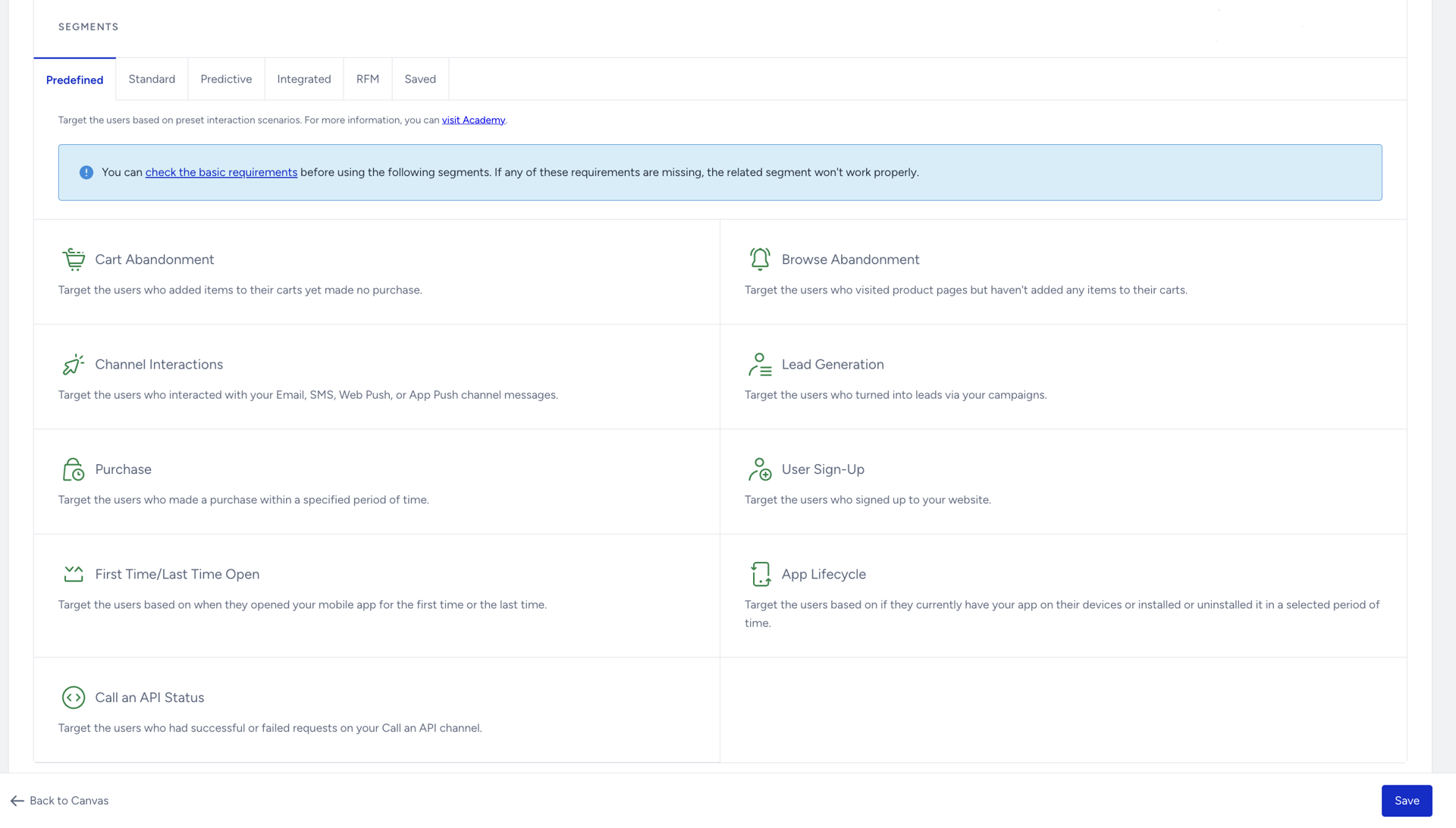
You can select predefined segments, standard segments, predictive segments, RFM segments, and saved segments to filter the users you take into the journey.
Requirements
Before starting to use Dynamic Date in your journeys, make sure to complete the following requirements:
The Insider Tag Integration should be completed.
The SDK integration should be completed for mobile app data reading.
System rules should be defined.
Date type attribute should be created.
Events should be activated.
Events should be sent from the website, mobile app, or Upsert User Data API (if you are using any of them).
Use cases
With the On Dynamic Date starter, you can:
Send celebration messages to your users on recurring yearly events, such as birthdays and anniversaries.
Target users whose subscription is about to expire.
Send a post-purchase email X days after the purchase date.
Send a flight reminder before the flight date.