The On Event Starter, also known as an event-triggered or action-triggered journey, immediately takes users into the journey when they perform a specific event. This starter tracks user events across all platforms: website, mobile app, and offline environments. It helps you run real-time use cases by taking users into the designated journey as soon as they complete a specified event.
An event is an action that the user can perform across the website, app, or offline environment. One such example is a product page view. Events help you track what users are doing. Moreover, you can segment and check users' actions in more detail. For instance, by using the product page view event, you can check which product or category the user visited. Some event examples are Visit cart page, Make a purchase, Submit a form, Add an item to the cart, etc. Read more on Events & Attributes here.
This article explains the following:
When the user performs the event, they can only enter the journey once, unless they go through the same event again.
The On Event starter does not consider the date-type event parameters. This means you can't select any date-type event parameter for any event.
When using a date-type event parameter in Architect, date logic differs by starter type.
On Event: If you use a relative condition, such as in the next 2 days, in the starter’s filtering logic, the Architect evaluates it as a rolling time window. In practice, 2 days means the next 48 hours from the time of evaluation, not the end of the second calendar day.
On Dynamic Date: If you use a date in On Dynamic Date, Architect evaluates the matching date as the full UTC calendar day. The system matches values from 00:00:00 UTC to 23:59:59 UTC for the target day, based on the configured frequency and start hour.
For example, a date of 2026-01-31 14:00 UTC is still within 48 hours of 2026-01-29 14:13 UTC, so that specific example would still qualify for an On Event condition of in the next 2 days. To show a miss caused by the rolling window, the target date must be later than 2026-01-31 14:13 UTC.
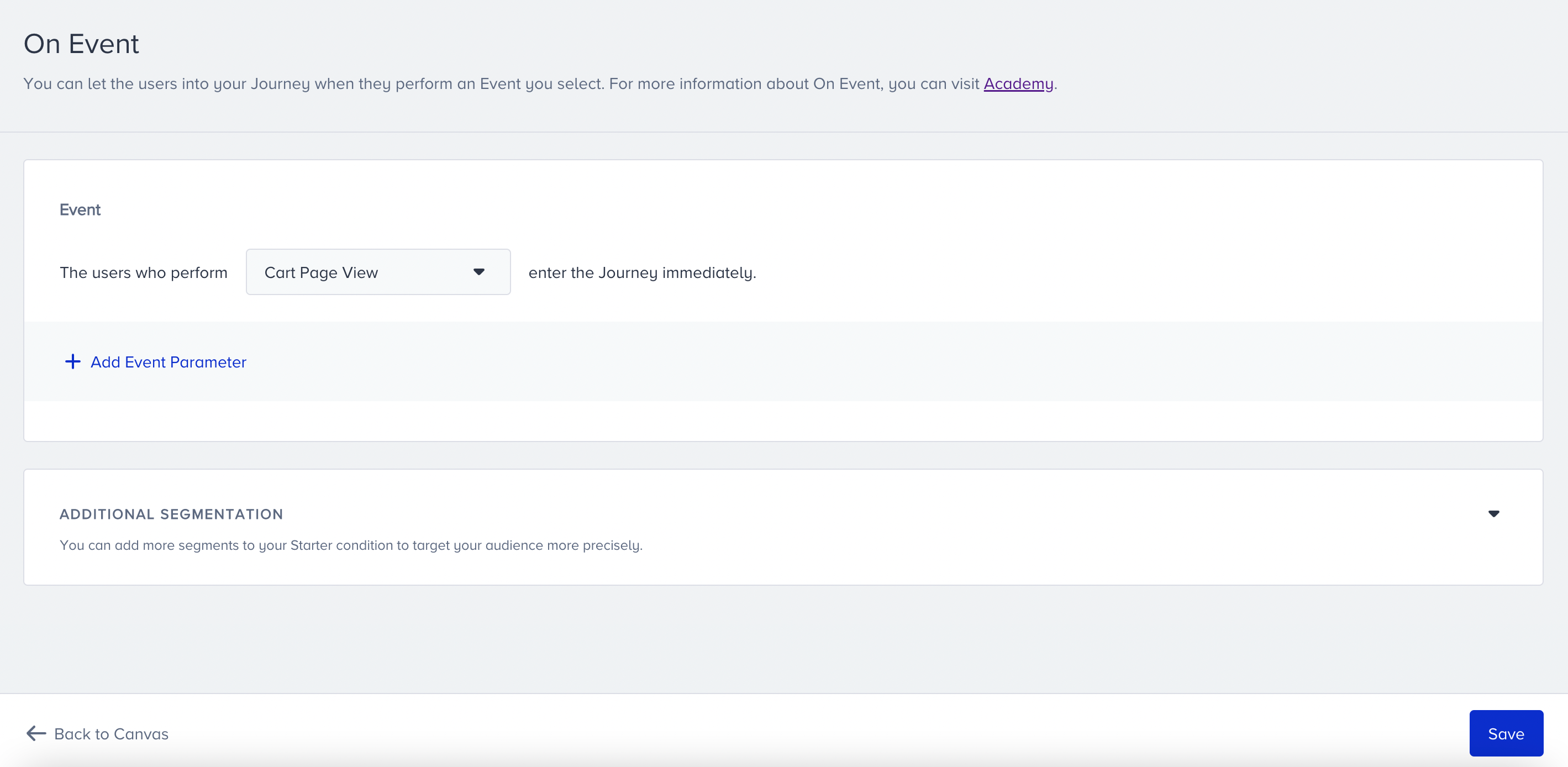
Additional segmentation
You can add more segments to your starter condition to target your audience more precisely. For example, you can take the users who perform the cart page view event and have a high Likelihood to Purchase value.
Users can enter the journey if they perform the selected event and meet the optional segment filter criteria.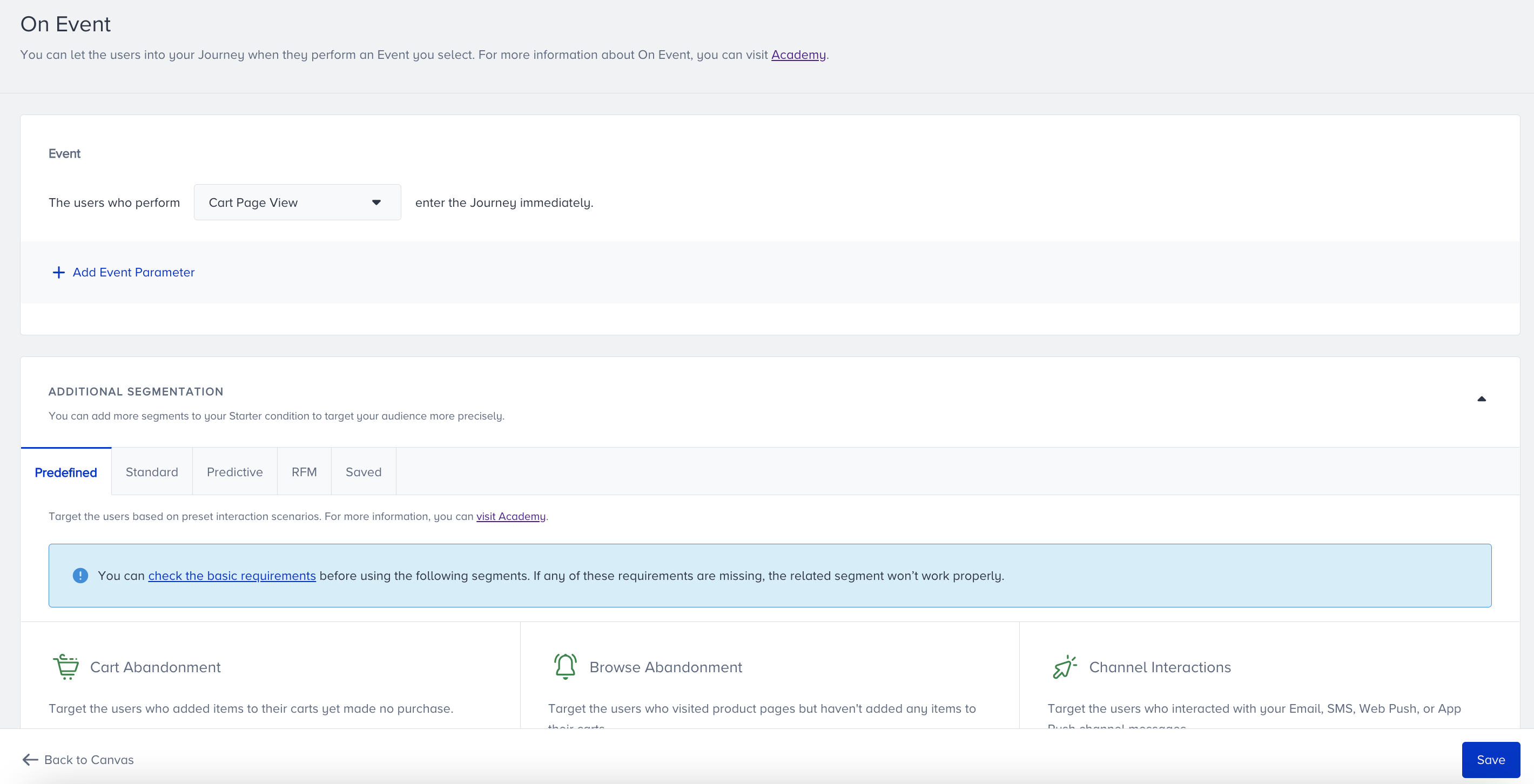
Homepage View and Mobile App Open events cannot be used in the On Event starter without selecting additional segmentation.
You can select predefined segments, standard segments, predictive segments, integrated segments, RFM segments, and saved segments to filter your users to take into the journey..png)
Tips & Tricks
Before creating your journey, you can consider the following tips and tricks.
Users may come from the Upsert User Data API or another source without language information. That’s why we suggest selecting the "All Languages" option in the launch settings pop-up.
You can use event parameters to narrow down the segments for a better-targeted audience.
You can use custom events in the On Event Starter.
We suggest using the On Event Starter for time-sensitive use cases.
Hold this starter’s property constant
When you build a journey with an On Event starter, you can hold the starter event's parameter values constant and check them later in the journey. Add a Constant Starter Property Value in Check Conditions, Wait for Event, Exit Criteria, or Journey Goals to compare a downstream event's parameter against the exact value that brought each user in.
Use cases
You can use the On Event Starter to create the following use cases.
Welcome/Onboarding: Send a welcome email within one minute to users who have signed up to the website or mobile app.
Cart Abandonment: Trigger users who added an item to their cart.
Browse Abandonment: Trigger users who visited a specific product page.
Post-Purchase: Trigger users who completed a purchase.
Lead Generation: Trigger users who submitted a lead collection form.
User Actions on Channels: Trigger users who opened an email.
Requirements
To use the On Event starter, make sure you have completed the following requirements.
Insider Tag integration should be completed.
SDK integration should be completed for mobile app data reading.
System rules should be defined.
Events should be activated.
Events should be sent from the website, mobile app, and Upsert User Data API (if you use one of the above).