Rules enable you to trigger your campaign based on conditions such as page URL, traffic source, and device type.
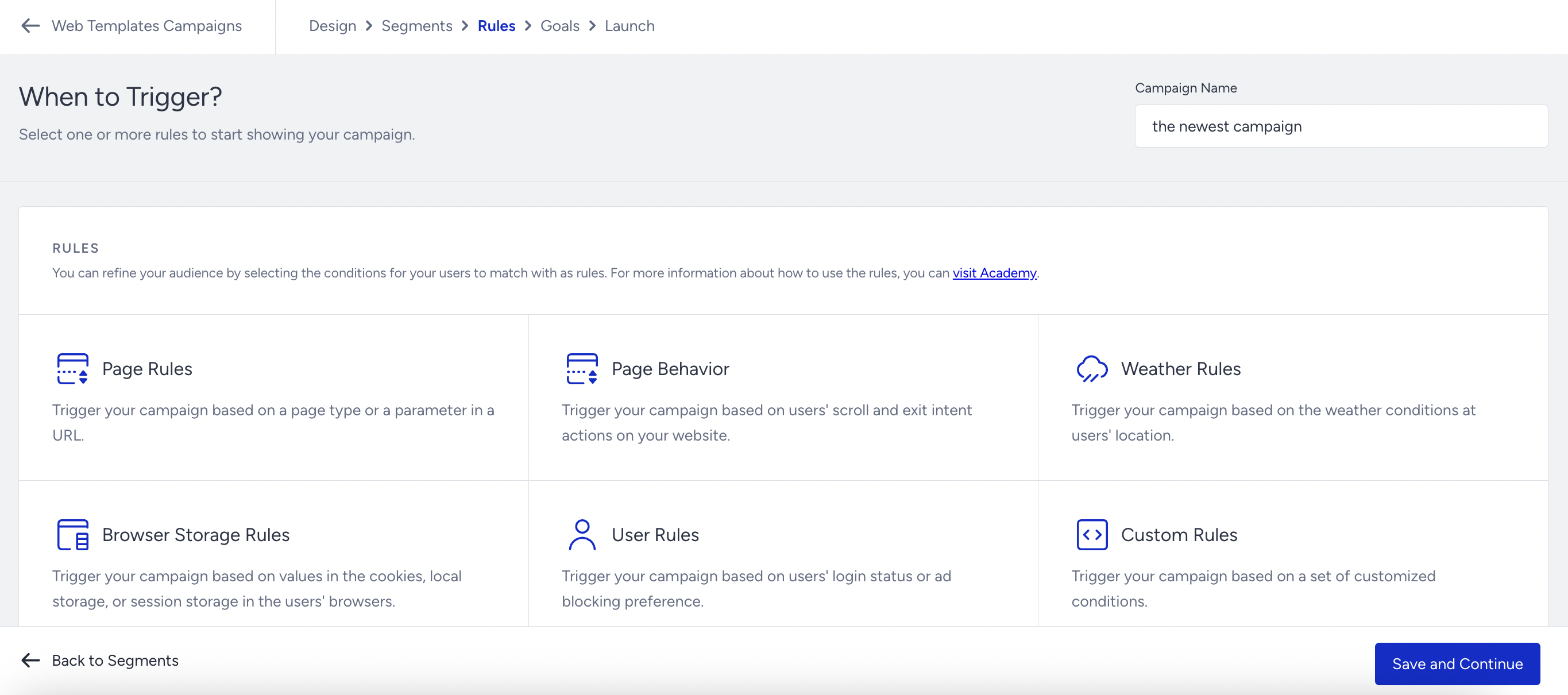
Campaign Rules
The list below shows all available rules. You can choose one or more to trigger your campaign.
Unlike Segments, you cannot personalize your campaign without selecting any rules. If you do not have any specifications on where to display the campaign, you can select Page Rules > Page Type > All Pages to trigger your campaign on all pages for eligible users.
How Insider interprets Rules with "AND" and "OR" in Web Templates
Insider evaluates campaign rules step by step, following the grouping and operator logic. Here are the key points:
The "AND" operator requires all conditions connected by it to be true for the campaign to be displayed. The user must meet every condition in the group.
The "OR" operator allows the campaign to be displayed if any of the connected conditions are true. Only one needs to be met.
When you combine "AND" and "OR" in groups, the system evaluates each group separately according to the grouping logic. For example, if two groups are connected by "OR," the campaign will be shown if either group evaluates to true. Inside each group, if rules are connected by "AND," they must all evaluate to true.
Rules are evaluated in sequence. If a rule at an earlier stage evaluates to false, the system does not continue to the next rule in that group. As a result, the campaign will not be shown because the evaluation stopped at the rule that failed.
Campaign Trigger Settings
You can use the Campaign Trigger System to sequence and trigger your campaigns based on how users interact with other campaigns. For example, you can trigger a Lead Collection campaign based on how users interact with a Hello Bar on your website:
The user clicks on a button on your website > sees the Hello Bar > clicks the button on the Hello Bar > and sees the Lead Collection.
The Campaign Trigger is only available for Web Templates.
To enable the Campaign Trigger, mark its checkbox in the Rules step of your campaign.
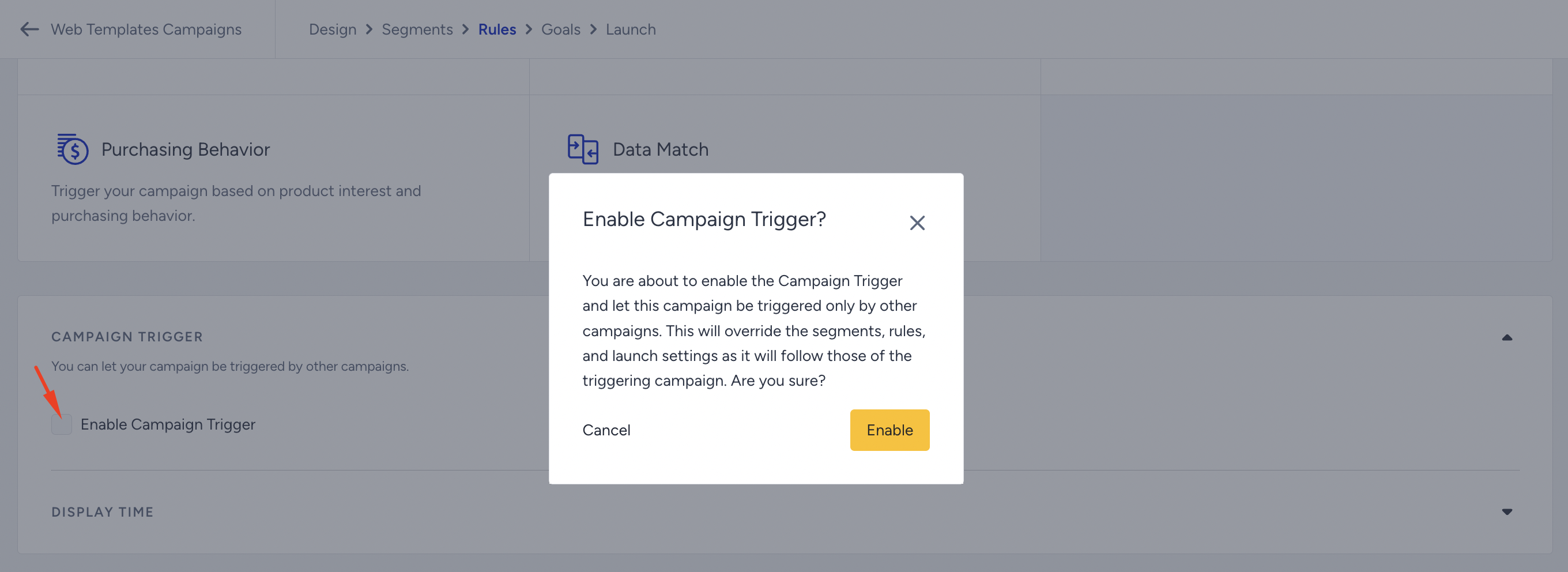
Enabling a Campaign Trigger will override the respective campaign's segments, rules, and launch settings. That campaign will instead follow the segments, rules, and launch settings of the campaign that triggers it.
For a campaign to be triggered by other campaigns, its status must be active. No user will see this campaign directly; it follows the campaign's segments, rules, and launch settings that trigger it.
Remember that you can trigger a campaign by another campaign if they are on the same platform. In other words, you cannot use the Campaign Trigger settings to connect a responsive campaign to a desktop campaign.
You do not need to launch this campaign with a 100% traffic allocation because only the variation group will be triggered. Once you launch the respective campaign (the one that another campaign will trigger), you can view it under Select Campaign in the Design step for the triggering campaign.
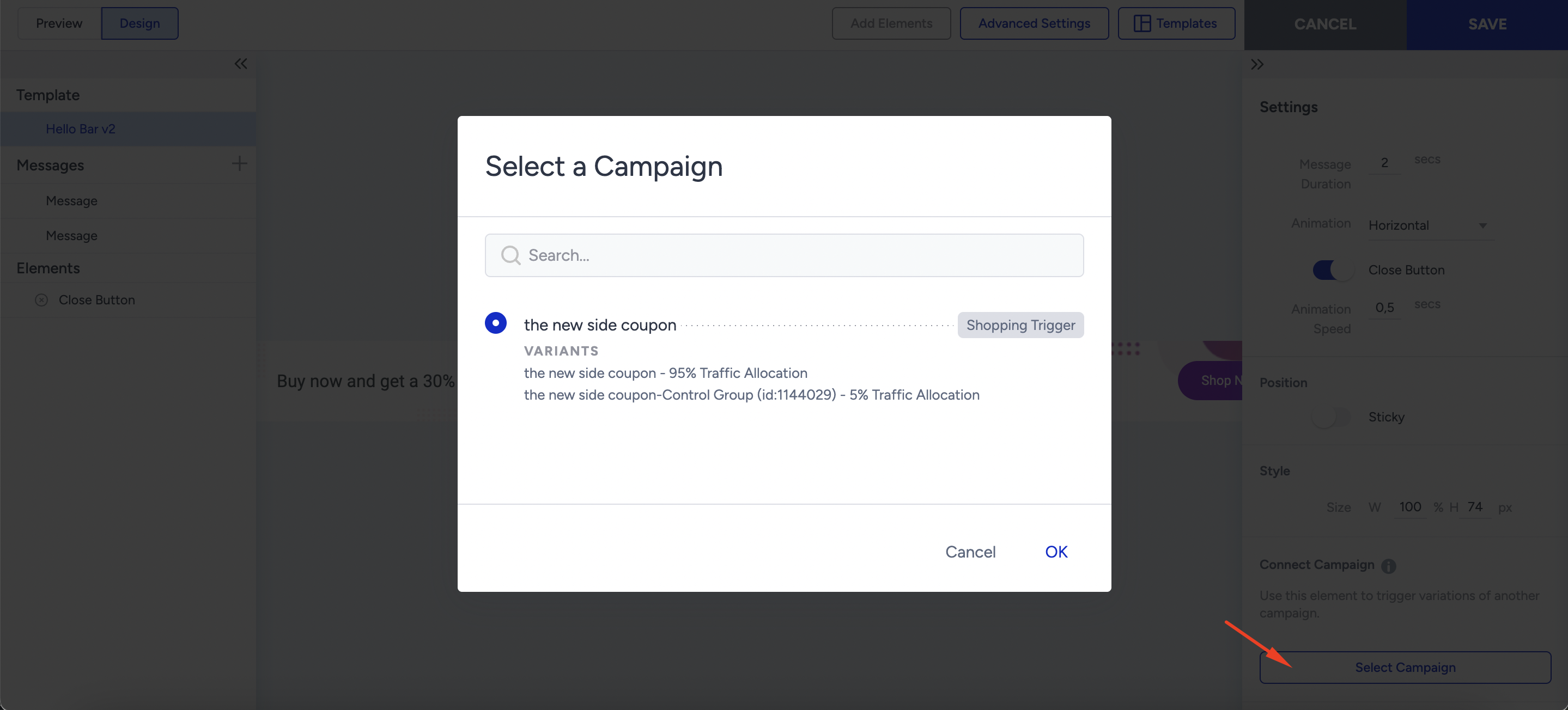
Select any template element you want to use to trigger another campaign.
Click Select Campaign to see the list of campaigns selected to be triggered by another campaign.
Select the campaign you want to trigger based on users' interactions with the corresponding element, then click OK.
Display Time Setting
Display Time helps you determine when and for how long your campaign will be visible to users visiting your website.
The Display Time setting is available for OnSite campaigns.

Show instantly: Users will see the campaign as soon as they meet the rules. You can also set a time to hide it.
Show later: Users will see the campaign after the time you set when they meet the rules. You can also set a time to hide it.
If you want to delay showing your campaign to users, you can choose the "Show Later" option and set a time.