With Page Rules, you can trigger your campaigns based on a page type or a parameter in a URL.
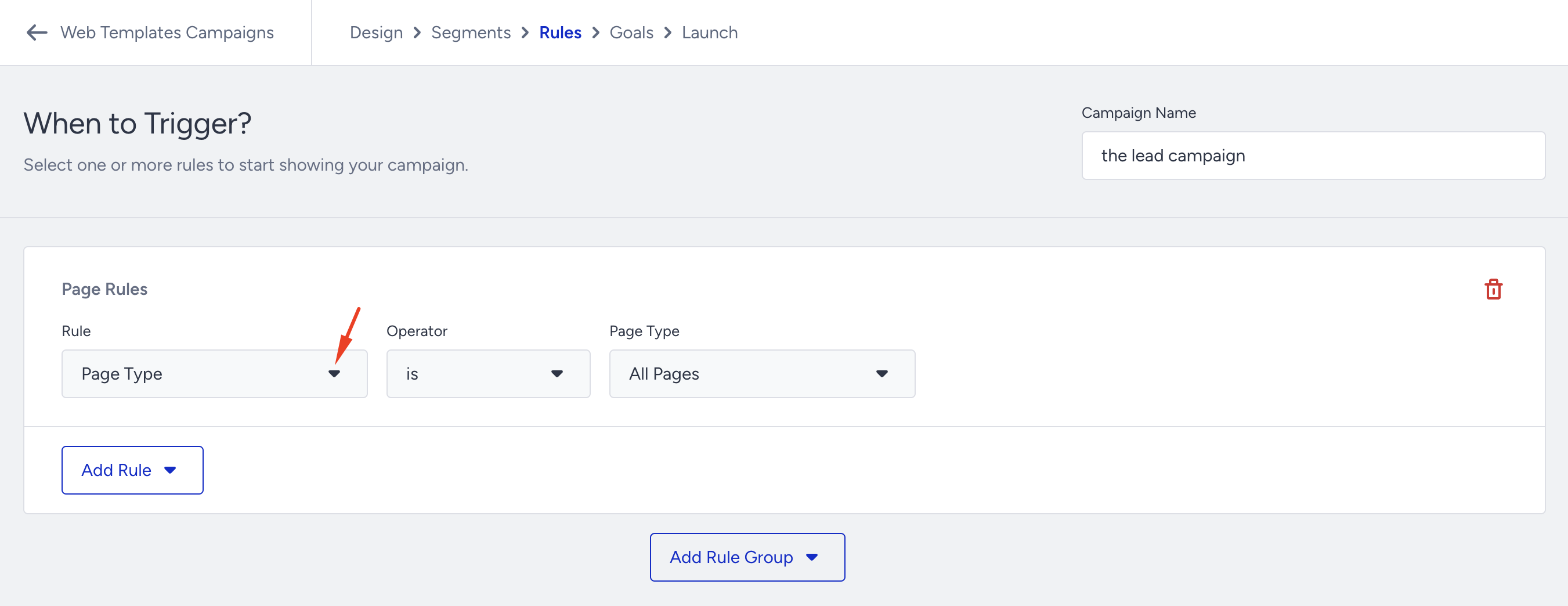
Page Rules definitions
The various page rules based on which these rules will be targeted are:
Cart Amount targets users when the cart value exceeds a defined threshold. For example, if you've set the value to>$50, a user who adds items worth $100 to their cart is targeted by this rule.
Number of items in the cart targets users who have added more than the defined number of products to their cart. For example, if you've set the value to>5, then if a user adds 7 items to their cart, they are targeted by this rule.
Page Type targets any page that is defined in the system rules. E.g. Page Type - is - Category Page.
Page URL targets any parameter in the page's URL where the user is at that moment. E.g., Page URL - does not
Selector targets a page with a specific element selector. You can display a campaign if there is a specific element on a page. For example, on a product page, a button might appear based on the number of items in the user's cart (like an 'add one more item' button), and it only appears if there are items in the user's cart. You might want to show a campaign, such as a 'buy 3 get 2 free' promotion with a coupon code, when this button is present. This campaign could be triggered by the button's selector, leading to a pop-up or an inline banner. E.g., Selector - is - #myelement.
Landing Page URL targets a keyword in the landing page URL when the user lands from a different referrer. E.g., Landing Page URL - is exactly - poshstreet.co/register.
.png)
Product Added to the Cart: Triggers your campaign based on the name or ID of the product(s) in your cart (e.g., Product added to the cart - contains - Name - shirt).
Product Category to the Cart: Triggers your campaign based on the main or sub-category of the product(s) in your cart (e.g,. Product category to the cart - contains - kids).
Category Name: Triggers your campaign based on the category that the user is viewing.
Last Visited Product targets users based on their last visited product name or ID of the user, for example, if you want to target users who last visited Dresses. If this keyword is named in the product name, you can use this rule with the value “Dress” for the “contains” operator.
Last Visited Category targets users based on the last visited category name of the user. It only works if the category you want to target is defined as a category page. For example, if you want to target users who last visited the Sneakers category. You can use this rule with the “Sneakers” value for the “is exactly” operator.
Most Visited Product targets the most visited products of unique users according to the product name or ID. For example, if a user constantly keeps checking Niki shoes, then use this rule to target them with Niki products.
Most Visited Category targets the most visited product category of unique users according to category name. For example, if a user constantly checks the Sneakers category, then target them using this rule. Add the Most Visited Category with the “contains” operator and the “Sneakers” category.
Last Search targets the user’s last searched keywords. For example, you can target users who searched for Sneakers the last time they searched.
Product Category: Triggers your campaign based on the product category defined in the System Rules. This rule functions only on the product pages (e.g., Product Category - is - Dresses).
Product Name: Triggers your campaign based on the product name defined in the System Rules. This rule functions only on the product pages (e.g, Product Name - contains - Shoes).
Product Price: Triggers your campaign based on the product price as defined in System Rules. Product Price targets the value in the preferred currency previously set in the settings. This rule applies only to product pages (e.g., Product Price is greater than -200).
Except for the page URL, all the rules mentioned depend on your website mapping, which the Insider One team did after the Insider Tag integration. Therefore, if you encounter any problems, you should submit a request through the Insider One Help Center. We strongly recommend implementing the full-scope Insider Web SDK to avoid potential issues.
Use Cases
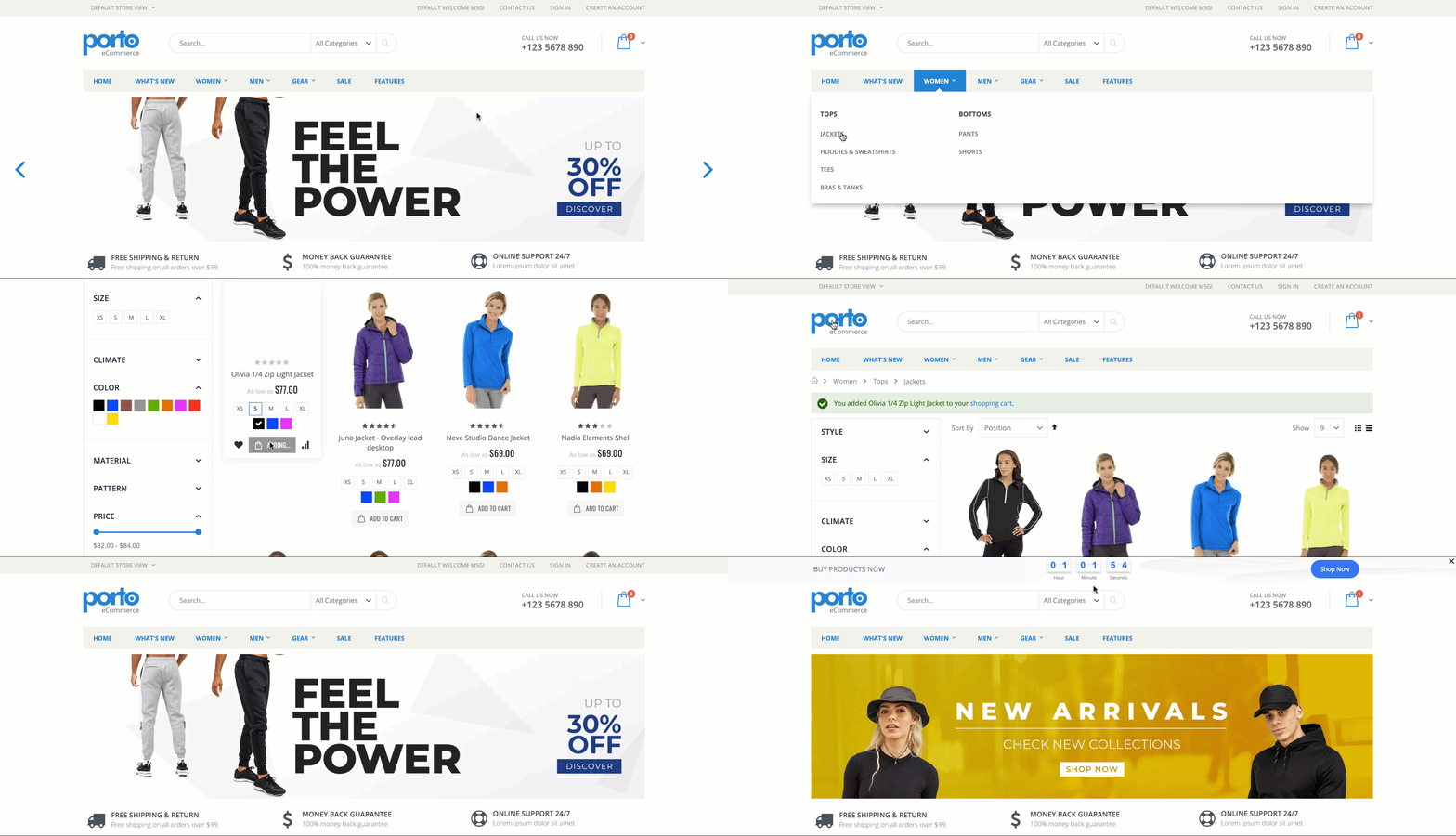
You can use the Progress Bar if the cart total is lower than your website's AOV.
You can customize a Countdown to create urgency when the user adds the product to the cart but does not complete the purchase.
You can use Cart Reminder to notify the user about items in their cart when the cart contains more than 0 items.
You can differentiate your banners in Onsite Experiment based on your Google Ads campaigns' UTM parameters using the Landing Page URL rule.
You can send users a Web Push when their last visited category has many discounted products to bring them back.
You can display the products you last searched for under your search bar by using Onsite Experiment.
You can differentiate your Social Proof content by using the Product Category Rule. For example, Sneakers are on fire! X people are watching them!
You can display a Floating Cart if the cart contains at least one item and the user has spent more than 30 seconds on the same page.
You can use the Sticky Menu if the user constantly checks for X-brand shoes. Then, use this rule to target them with X products.