Data Layers trigger your campaign based on the values in Web SDK (e.g., Web SDK - contains - email_optin - true).
The Data Layers rule is available for OnSite and Architect campaigns.
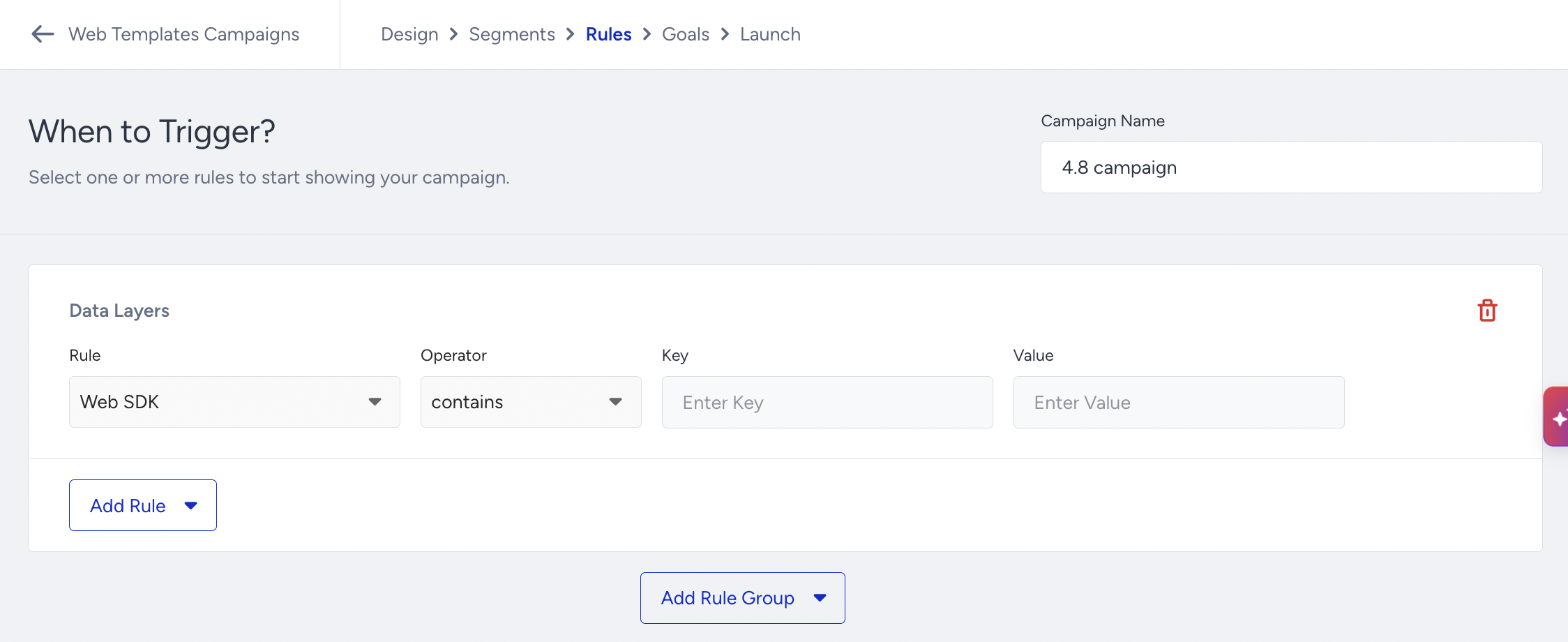
After you select "Web SDK", select an operator:
For String values, you can use "contains," "is exactly," and "does not contain" operators.
For Numeric values, you can use "is greater than," "is less than," "is greater than or equal to, ""is less than or equal to," and "is equal to" operators.
For Boolean values, you can use "is" and "is not" operators.
Note: If you select an operator for a string or numeric type, you need to enter both the key and value. If you choose an operator for a Boolean type, you need to enter only the key.
Below are some examples for each data type:
String type
A string stores a sequence of characters, such as "John Doe." It is a text value denoted in double or single quotes.
For example, you would like to target when "name" under the "user" key is "jack". Then, you need to set the rule as follows:

So, you can use a nested structure for targeting.
Numeric type
For example, if you'd like to target the "stock" key for the product method, in this case, the setting should be like this:

Note: Since no validation is available, you must be careful when entering the key and value.
Boolean type
When using a Boolean value, selecting the operator determines the expected outcome:
is: The value associated with the key is expected to be true.
is not: The value associated with the key is expected to be false.
To use a Boolean-type key, you must provide the key you want to evaluate as true or false.
For example, if you want to target when the "user.sms_optin" is true, then you need to set the rule as follows:

In this case, if the value of the "user.sms_optin" key is false, the rule will not match, and the campaign will not be displayed.
For example, if you want to target when the "user.gdpr_optin" is false, then you need to set the rule as follows:

In this case, if the value of "user.gdpr_optin" key is false, the rule will match, and the campaign will be displayed.
If you have any custom object in your Insider Web SDK, you need to call any key under the custom object, as in "user.custom.membership";

Define a Data Layer Rule
While defining a data layer rule, entering keys in the correct format and order is crucial. All the objects must be defined together, separated by commas.
For example, you want to show the campaign on the homepage and define it via a Data Layer rule; this is the path in the Web SDK. You can determine the rule as shown below:

For example, if you want to display the campaign only to female users and share gender information through the Insider Object, you can set the rule as shown below:

The value you enter must match the one defined in the Insider Web SDK.
Since there is no validation in InOne for key and value parameters, you are strongly advised to pay close attention when preparing the rules. If you enter the keys or values incorrectly, they won't match the Insider Web SDK, and your campaign won't be displayed.
Use Cases
You can show a Smart Recommender campaign based on gender.
You can show on-page campaigns for your opted-out users to win them back with a coupon code.
You can display membership-based discount campaigns to your registered users using the relevant retention keys and values.
You can launch Social Proof campaigns based on the number of products left in stock.