Price Drop Web Push notifications help you automatically alert users when the price of a product they previously viewed decreases. These timely messages create a sense of urgency, encouraging users to return to your website and complete their purchase, thereby improving both engagement and conversions.
You can configure Price Drop campaigns using rules based on product views, percentage drop thresholds, and visit behavior. The notifications are triggered only when the conditions you define are met, ensuring personalized and relevant outreach.
Before using Price Drop Web Push, ensure that Web Push is properly set up in your channel settings and that the opt-in collection is active.
This article answers the following questions:
What are the requirements for Price Drop Web Push notification?
How can I set rules to trigger a Price Drop Web Push notification?
Requirements for Price Drop Web Push notification
Price Drop utilizes the same data collection methods as the Smart Recommender product. Product catalog database integration is implemented via three approaches; you can use only one or combine them based on your platforms and use cases.
Product Catalog Integration via Clickstream Data: Your product catalog information is processed every time one of your customers visits your website or product detail pages. This integration type requires system rules to be integrated, and all the product information will then be collected and processed by Insider One API.
Product Catalog Integration via XML: With this integration type, you can use your own XML product catalog as the source for your product feed. You can integrate through Insider One's InOne panel and send all the product attributes provided in the XML file to the product catalog database using Insider One's InOne panel.
Product Catalog Integration via API: With this method, you can send your product catalog information via insertions and updates via the Catalog API.
Create a Price Drop Web Push notification
To create a Price Drop Web Push notification,
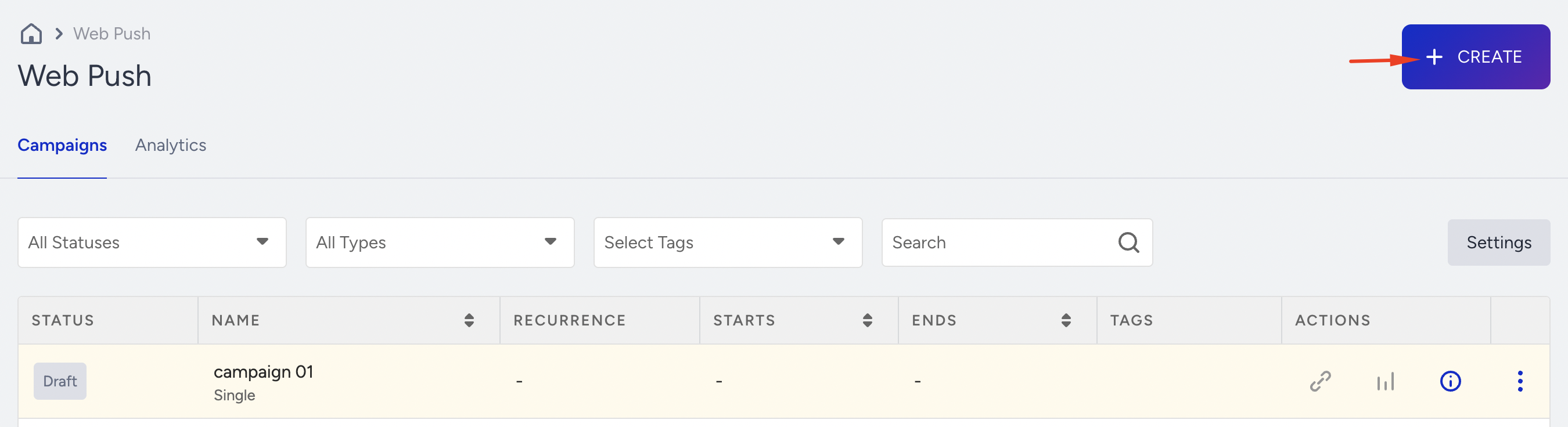
Navigate to Campaigns > Messaging > Web Push.
Click the Create button to start.
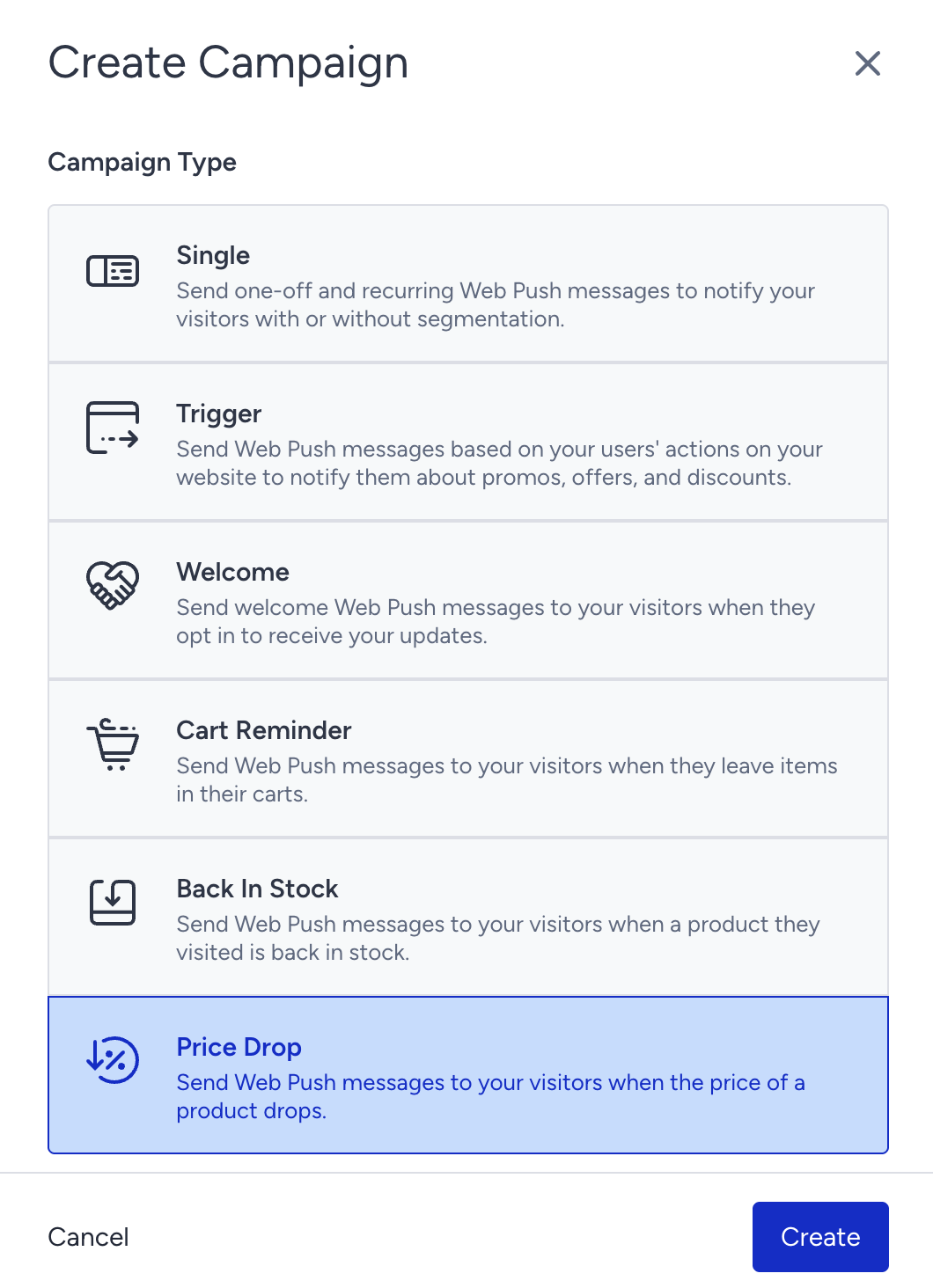
Name your campaign, select your campaign type, and click the Create button.
Segment your audience
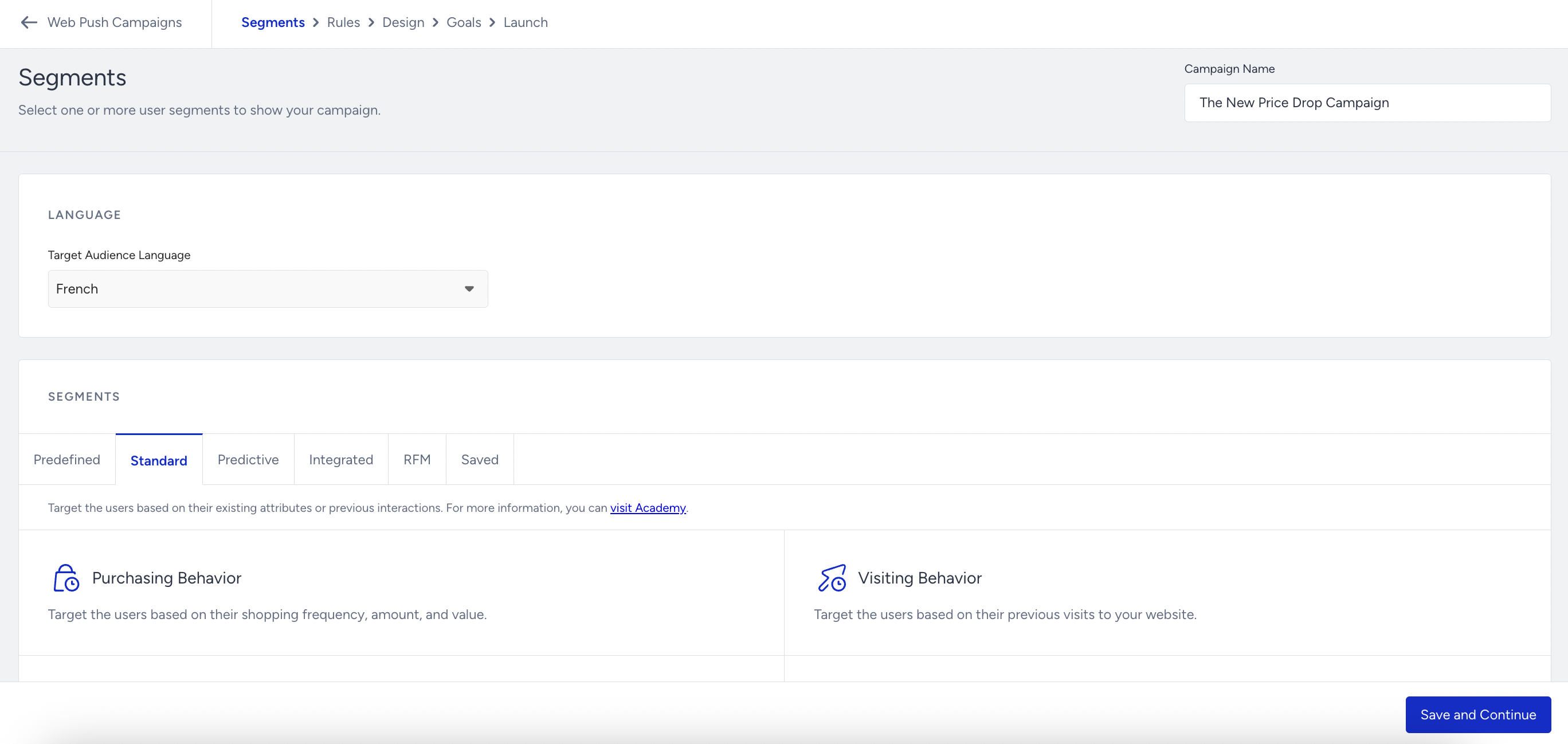
Define your users in the Segments step of your campaign to narrow down and target the right audience.
Choose your target audience's language first to send it to the opted-in users who have opted in for the respective language. To target all your subscribers, select the "All Languages" option.
Then, continue selecting your segment groups. You can choose one or more user groups to display your campaign.
Set rules to trigger your Price Drop Web Push notification
Configure rules to send a Price Drop Web Push when specific conditions are met, such as a percentage drop and the number of visits to a product page. Additionally, use cases can be prepared for the products added to the wishlist.
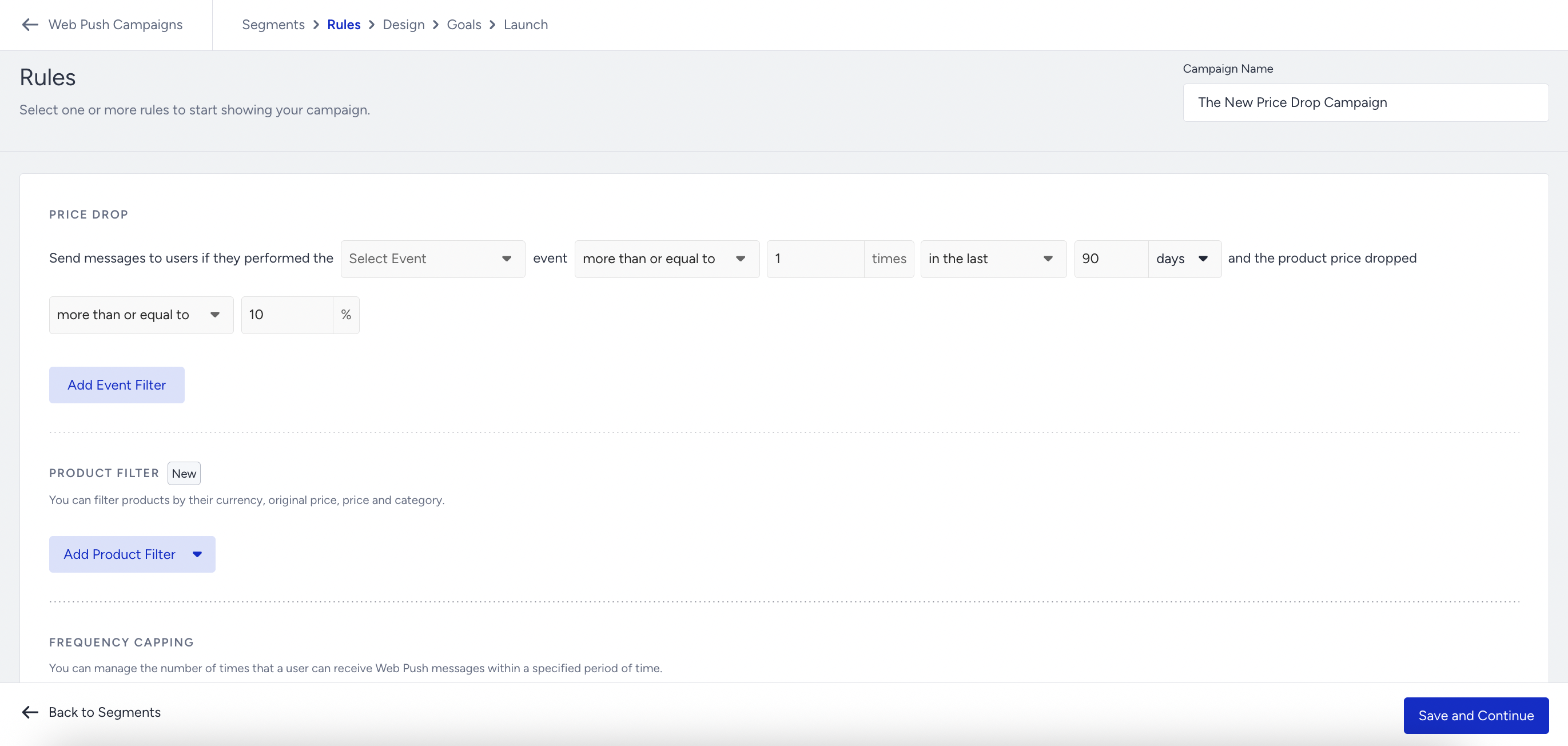
For sharper, niche segmentation, you can use ready-to-use event filters. You can include or exclude users from campaigns based on their purchase, product page view, cart page view, and add to wishlist actions in the last 90 days.
You can use Product Filters to exclude product categories or specific products based on price drop percentage, currency, or original price. Some examples are:
You can exclude the “night dresses” category from price drop journeys.
You can include a 20% price drop, but exclude products with discounts under 10 USD to avoid overwhelming your users with messages about small discount amounts. There may be cases where the original product price is 5 USD, and it drops to 4 USD. In this case, the price drop is 20%. You may want to exclude products that will bring little revenue.
You can consider a 20% price drop, but exclude products priced under 10 USD to avoid overwhelming your users with too many messages.
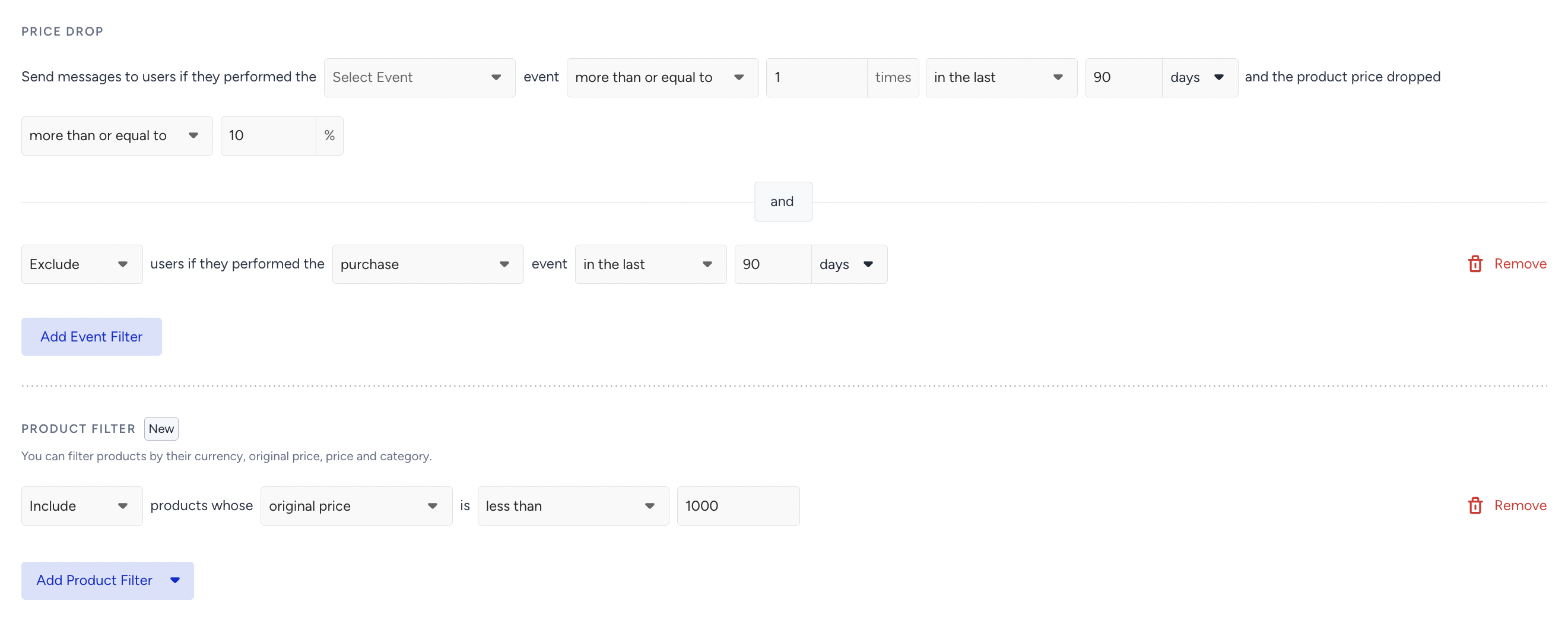
When you add a purchase event filter for Price Drop campaigns, users are excluded only if they purchased the same product that has dropped in price.
This means the purchase of other, unrelated products does not trigger the exclusion. The system checks explicitly for a match between the product in the campaign and the product in the user's purchase event.
You can also define a frequency cap to limit the number of Web Push notifications a user receives from this campaign in a day.
Design a Price Drop Web Push notification
In the Design step, customize your campaign's text and visual content.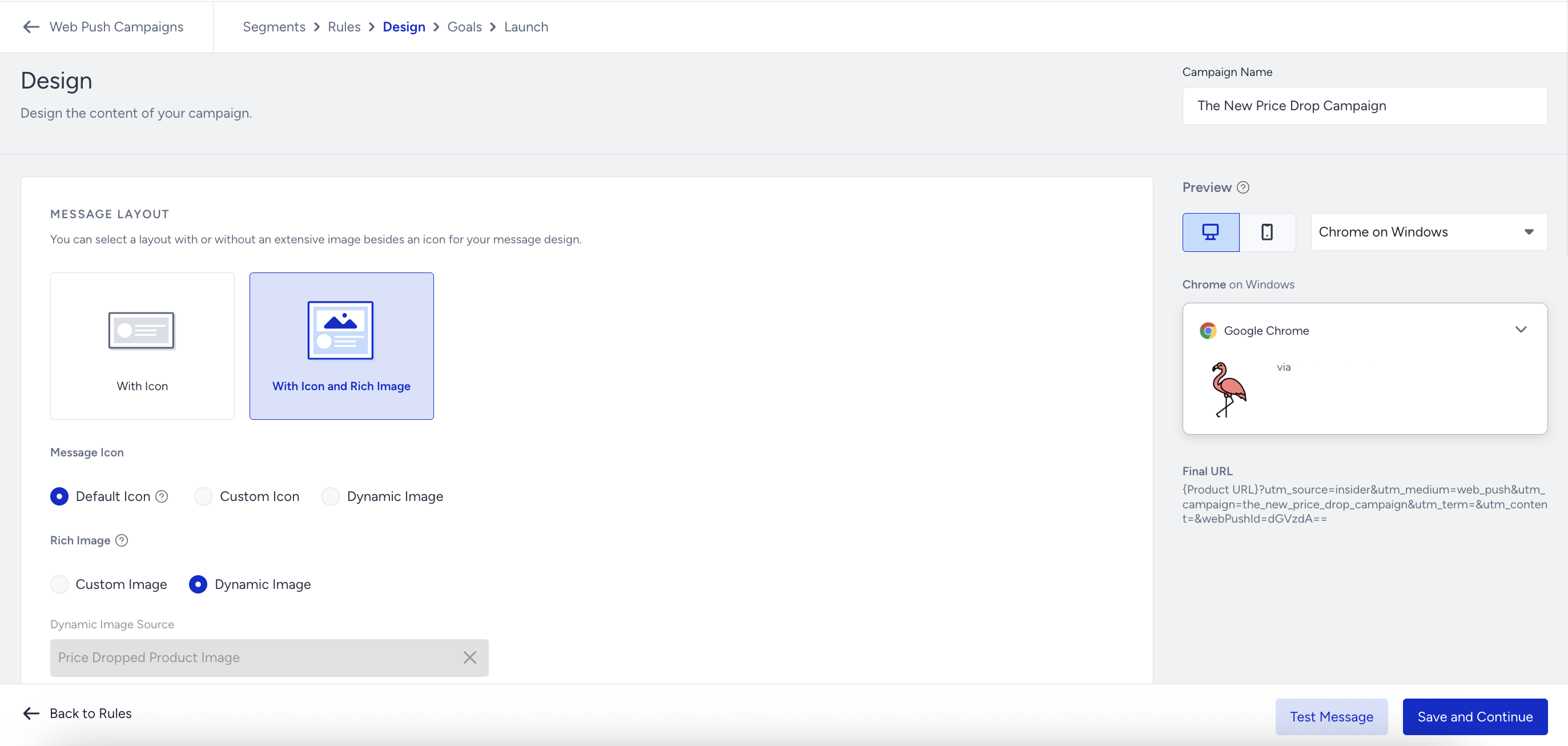
1. Select a layout to start designing your notification. It can be with an icon or an icon and a rich image. Choose the type of rich image if you have chosen the layout with a rich image.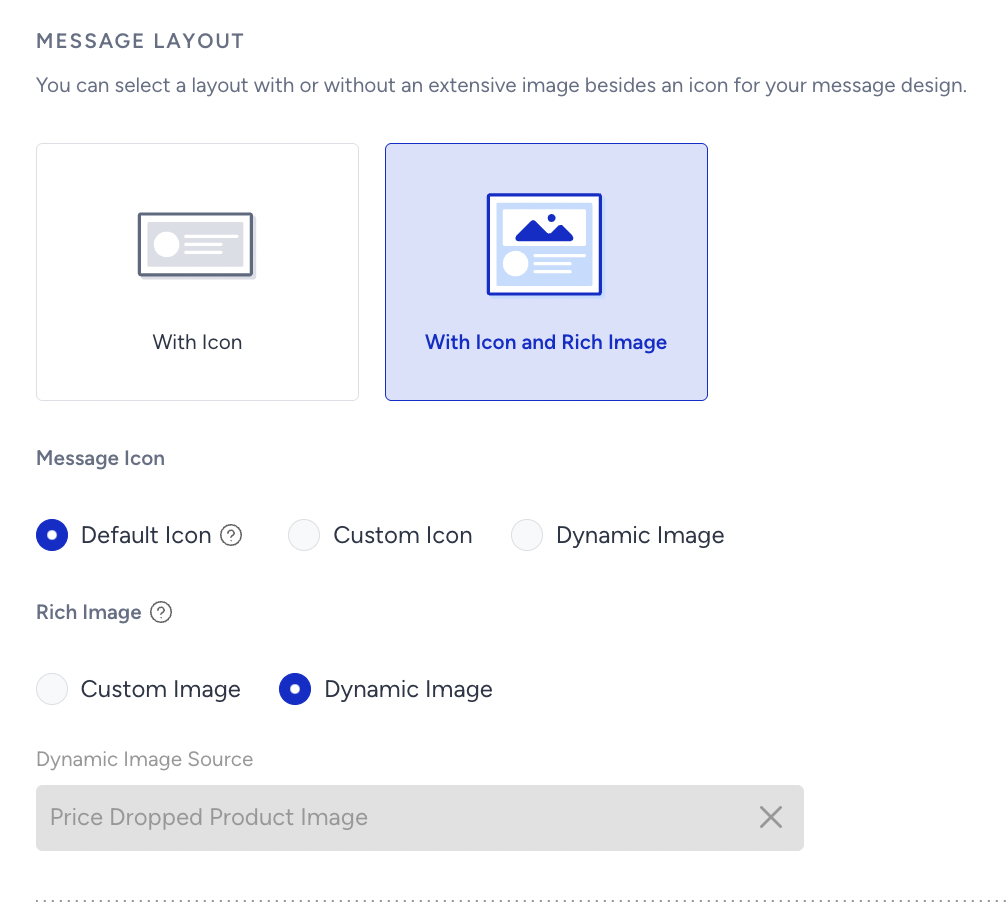
2. You can add text, emoji characters, or attributes to personalize your messages further. You can choose the name attribute when you click on + Add Dynamic Content. To add conditions, fallbacks, and formatting to the title and description, turn on the Liquid Tags toggle.
When you add user attributes, you can also define a fallback or alternative text to ensure that your Web Push notifications are not broken if the attribute values are empty.
You can also get assistance from the text generator to create your title and description.
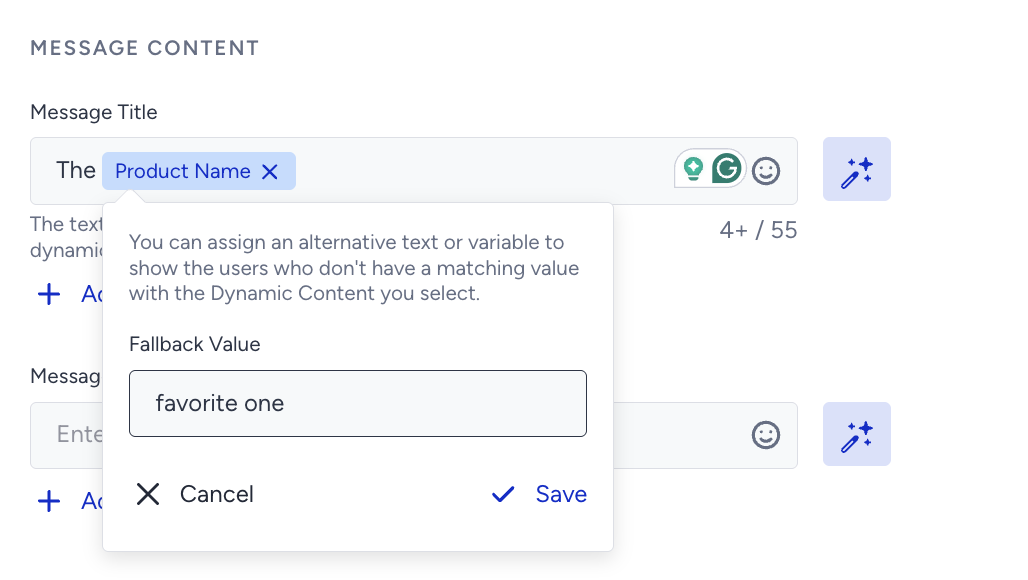
We highly recommend keeping your content brief, as the title and description may be trimmed on some devices due to factors such as the browser, operating system, screen resolution, and input language.
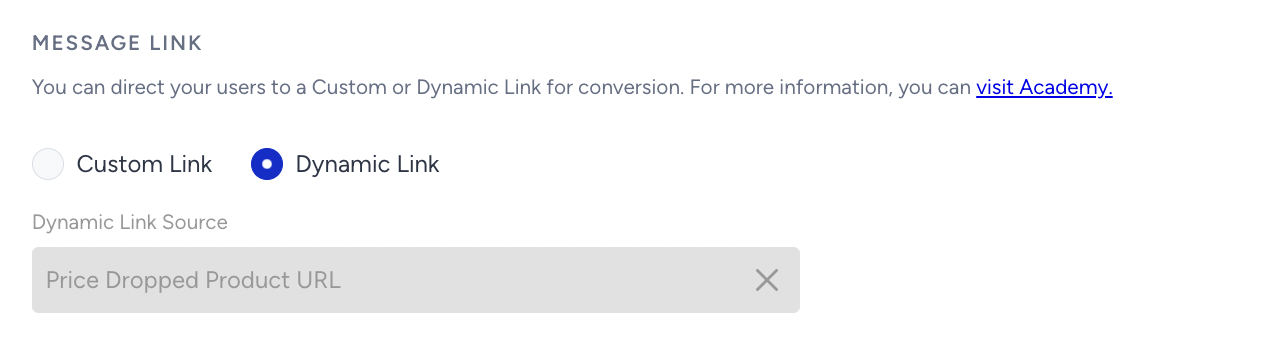
3. Define the message link that the user will be redirected to when clicking the notification. You can provide it in two types:
Custom link: The static URL you enter manually.
Dynamic link: You can use default or custom attributes, which should be pre-defined in custom user attributes. You can also define a fallback to ensure your Web Push notifications are not disrupted if the URL source value is empty.
4. You can add up to two optional Message Action Buttons to Web Push notifications to increase user interaction. Using this option, you can direct your user to different links by clicking on the notification body, action button 1, or action button 2. When a user clicks any of them, the Web Push notification will disappear.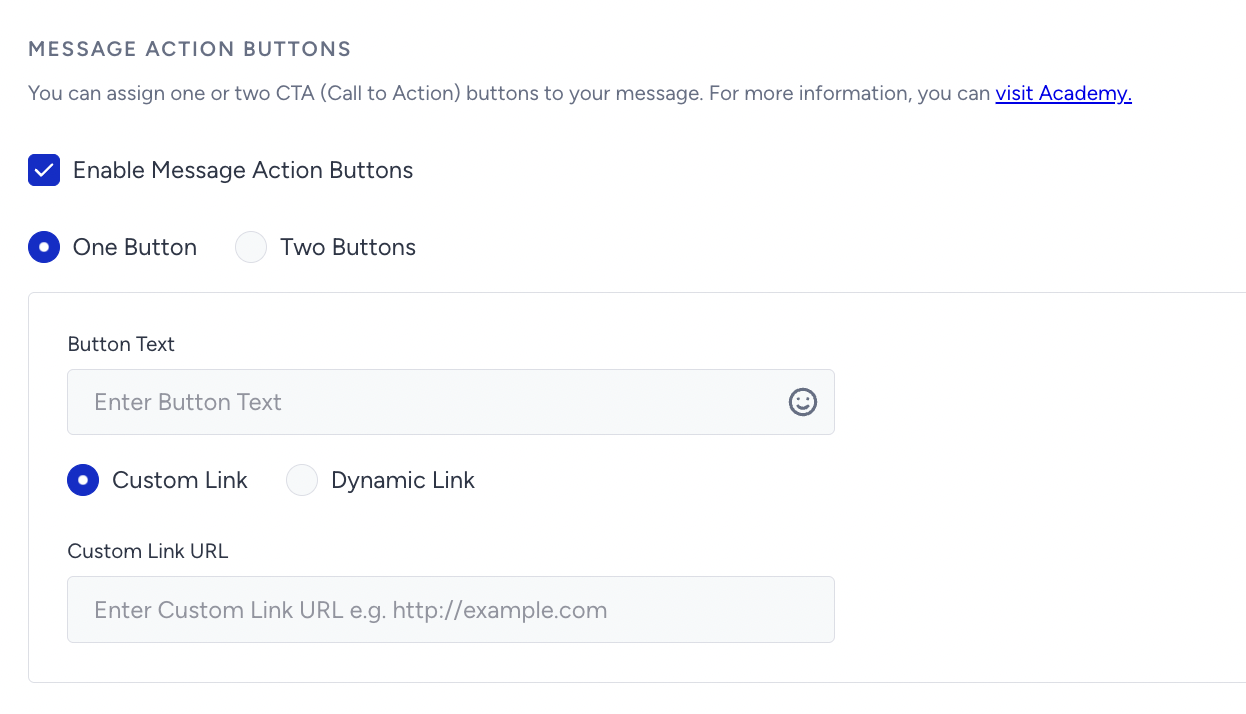
5. UTM Parameters are simply tags that you add to a URL. When your notification is clicked, the tags are sent back to Google Analytics if you have the Google Analytics tracking code for your website. Enter the necessary information if you have Google Analytics set up to track your campaign's performance.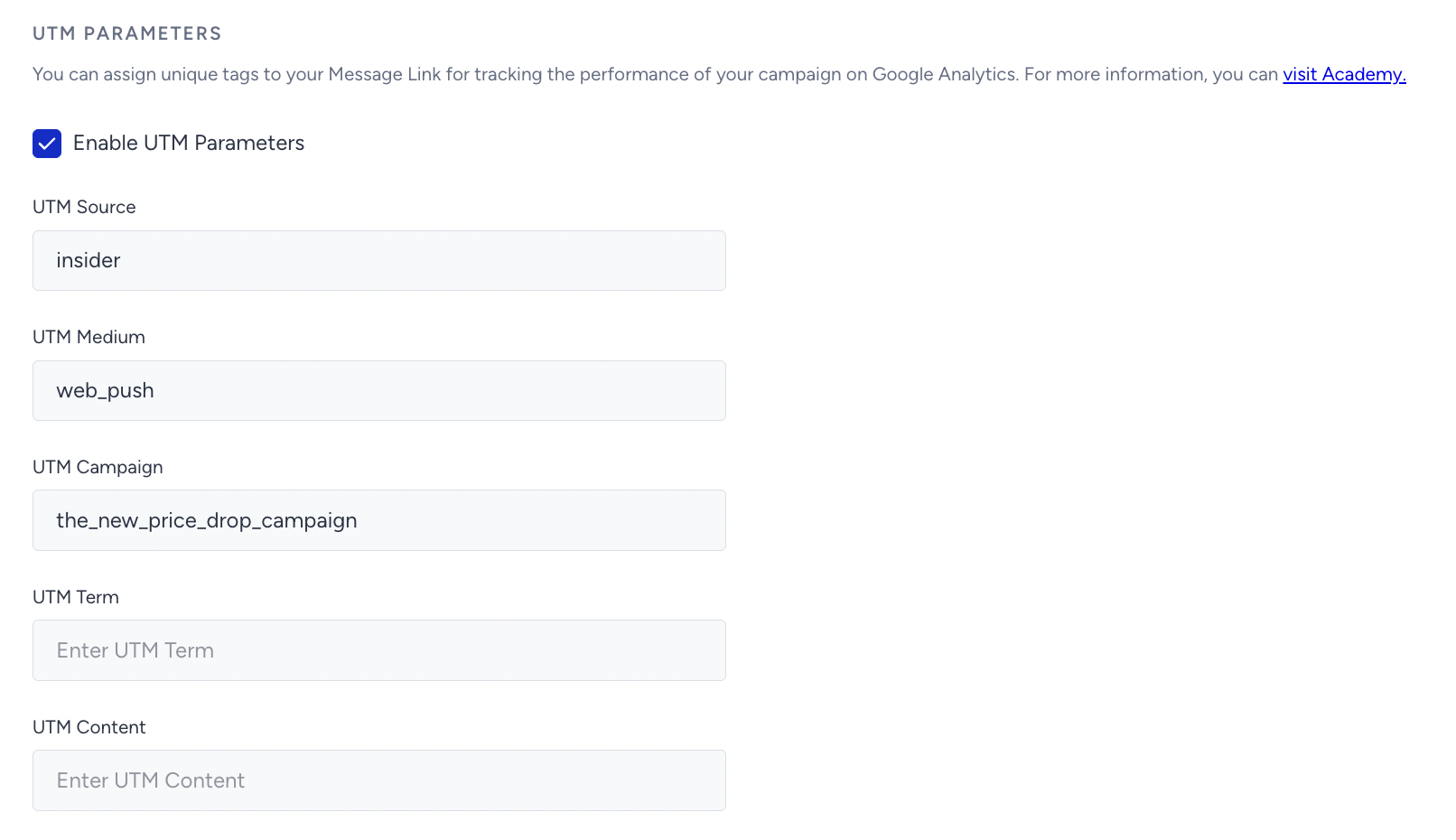
Preview your Price Drop Web Push notification
At any point during the design of the Web Push notification, you can see a live preview of what your subscribers will receive. Under Preview, located on the right side of your screen, you can view text, images, and UTM parameters. 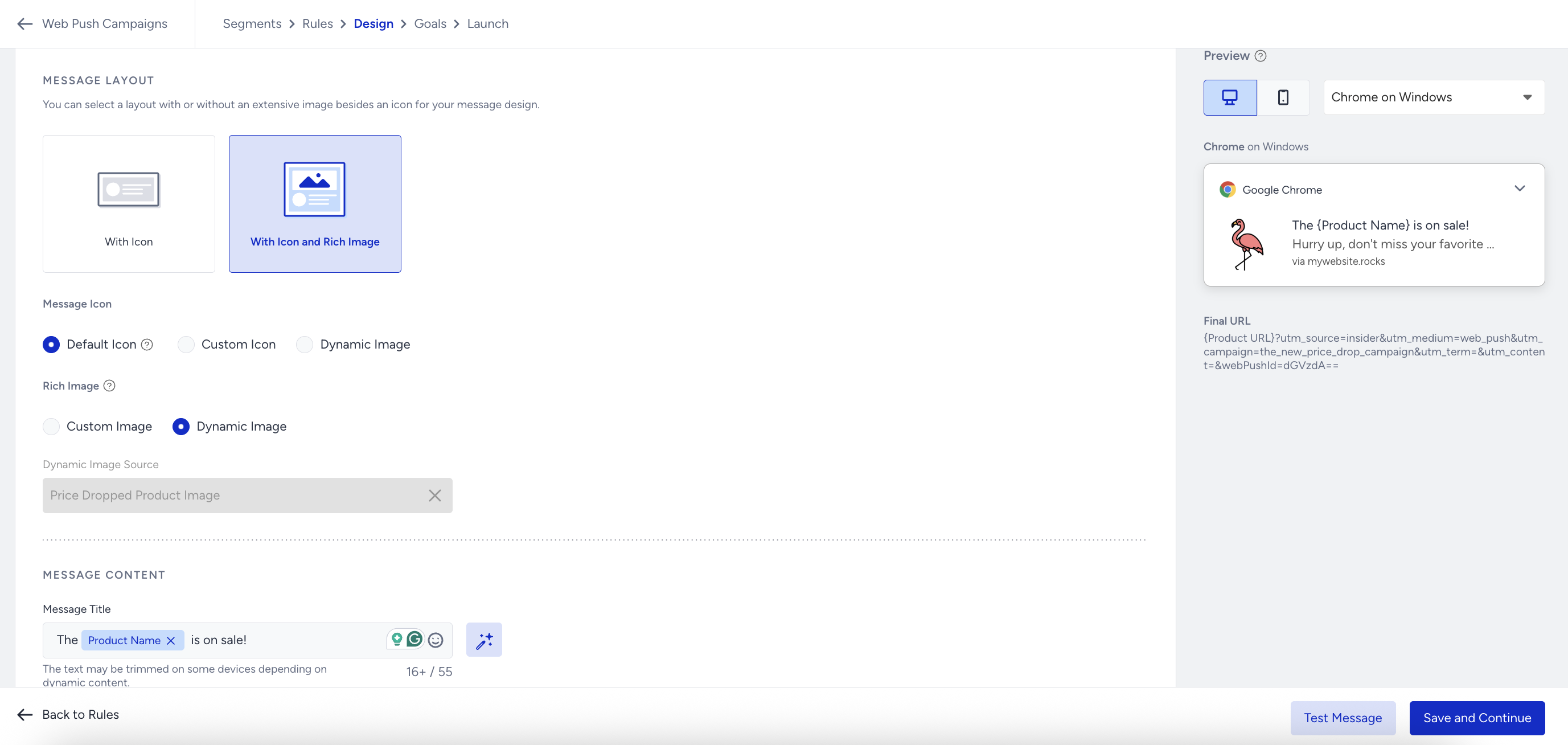
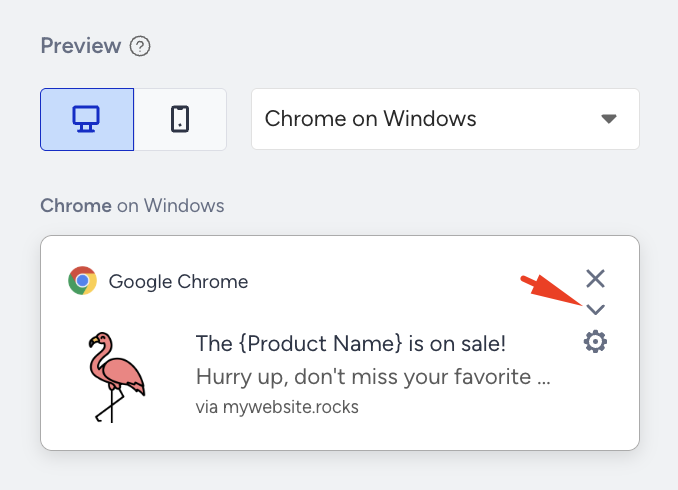
You can click the collapse/expand button in the preview Web Push notification to view the collapsed and expanded views.
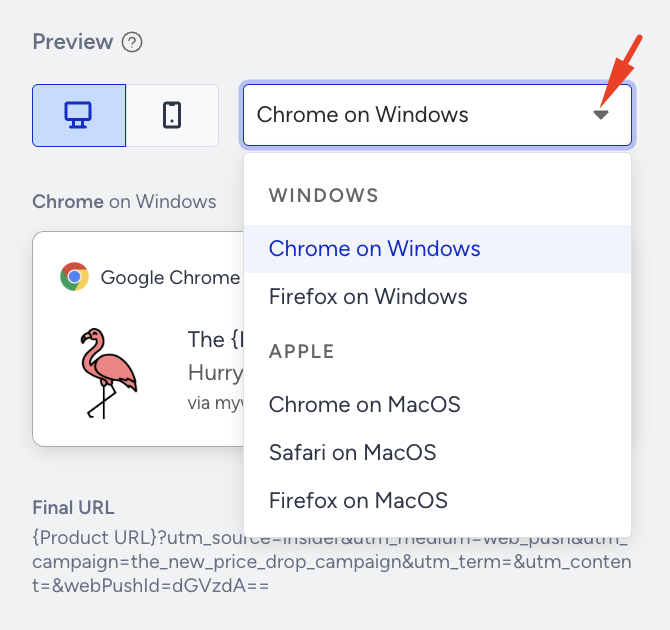
You can view how your Web Push will look in different operating systems and browsers. First, select the device, then select the operating system and browser from the dropdown menu.
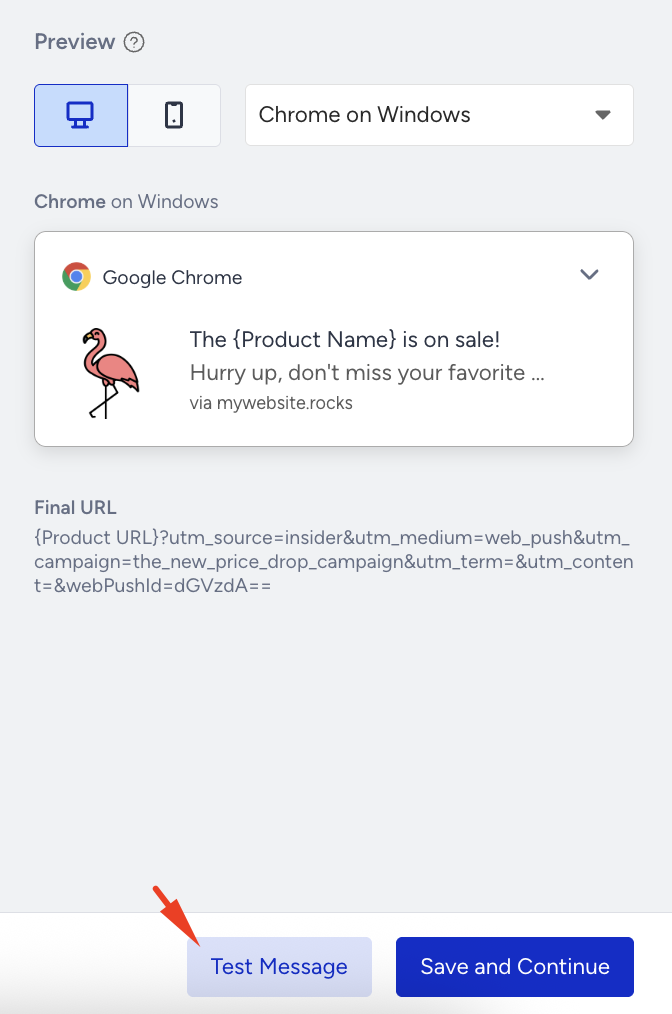
You can click the Test Message button in the bottom-right corner of the page to send a test Web Push notification to your device.
Set goals for a Price Drop Web Push notification
You can set goals to track your campaign's performance. The default goal is Purchases; you can change it to Clicks. Under Conversion Duration, you can set the period during which users must accomplish the goals of your campaign.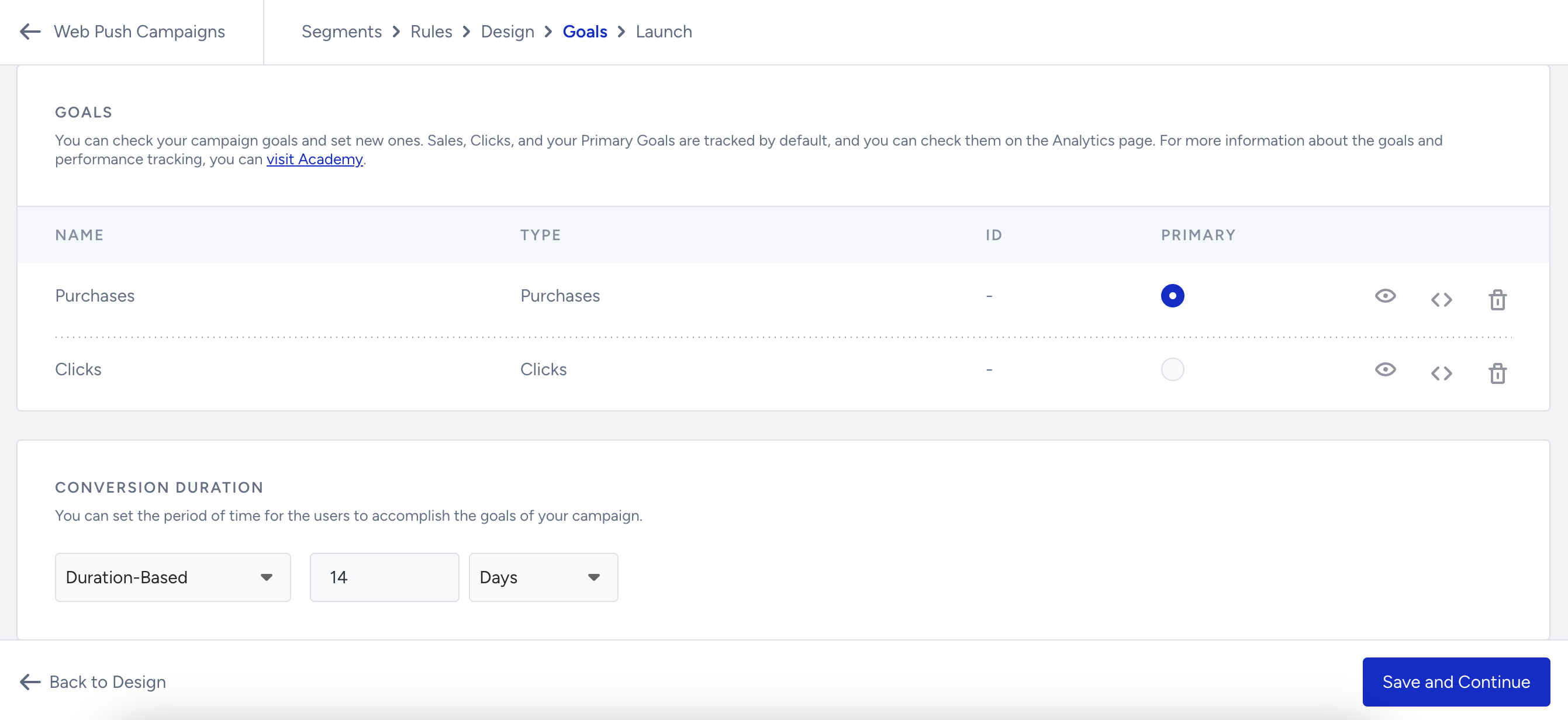
Launch a Price Drop Push notification
In the Launch step of your campaign,
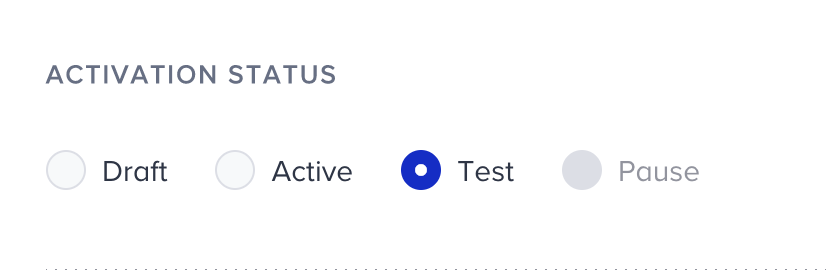
You can choose the activation status of your campaign.
Draft: Your campaign has not been sent yet and is currently in draft status. You can make changes to it later.
Active: This indicates that your campaign is live on your website and can be displayed to eligible users.
Test: This means your campaign is in test mode and cannot be displayed to any user unless they have a test link.
Pause: You can pause your campaigns temporarily.
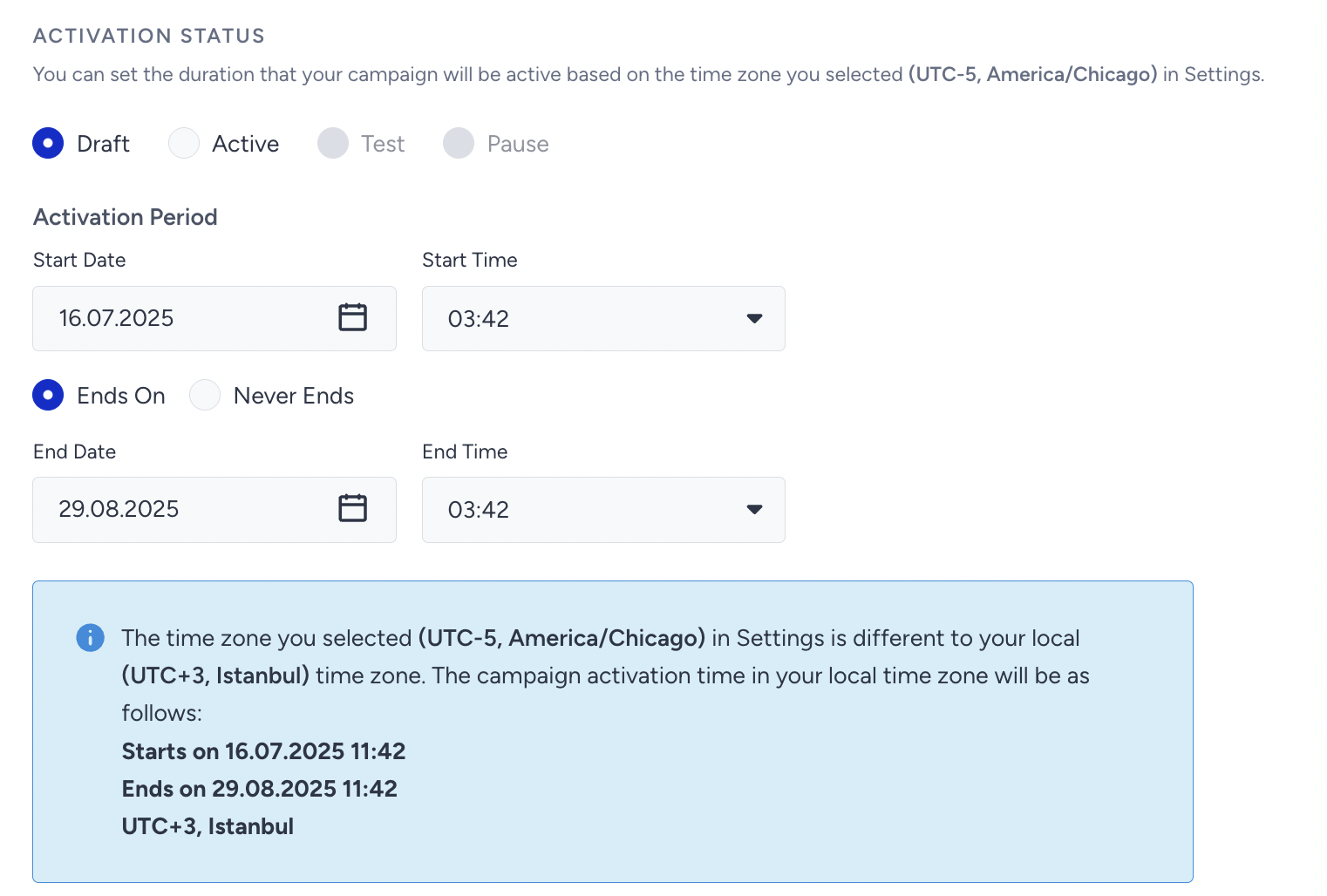
Set the activation time to start and end your campaign.
Time to Live refers to the expiry time of the Web Push notification. All Web Push notifications will be sent out at the specified time. However, users who do not have their browsers open when the Web Push is sent will receive it the next time they open their browser, unless the time to live has passed.
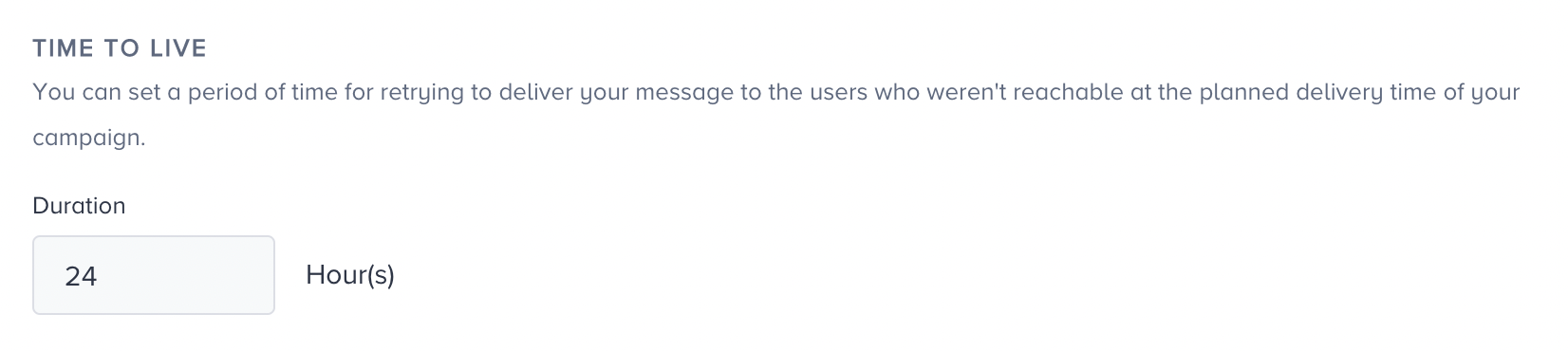
For example, imagine a Price Drop Push notification scheduled to be sent at 10 am with a Time to Live of 2 hours. If User A’s browser is not open at 10 am and they open their browser at 11 am, they will receive the Web Push at 11 am. If they only open the browser at 12:30 pm, they will no longer receive the Web Push notification, as it has already expired at noon. This is useful for time-sensitive offers that you promote with web pushes.
Frequency Capping enables you to limit the number of web push notifications a user receives in a day. To turn off the defined delivery limit for your campaign, you can enable the Bypass Channel Frequency Capping checkbox.

By setting Silent hours, you can prevent Web Push messages from being delivered between these hours.
A silent hour is a period during which Web Push notifications are prevented from being delivered at a specific interval. Notifications that reach users at the wrong time can be disturbing. You wouldn't want to wake up and lose them with a notification sent at 3 am. Additionally, some countries have laws and penalties, including high fines, regarding this matter.
You can choose to continue sending these Web Push notifications with a delay after the Silent Hour ends, or you might not send Web Push notifications that fall within that hour range.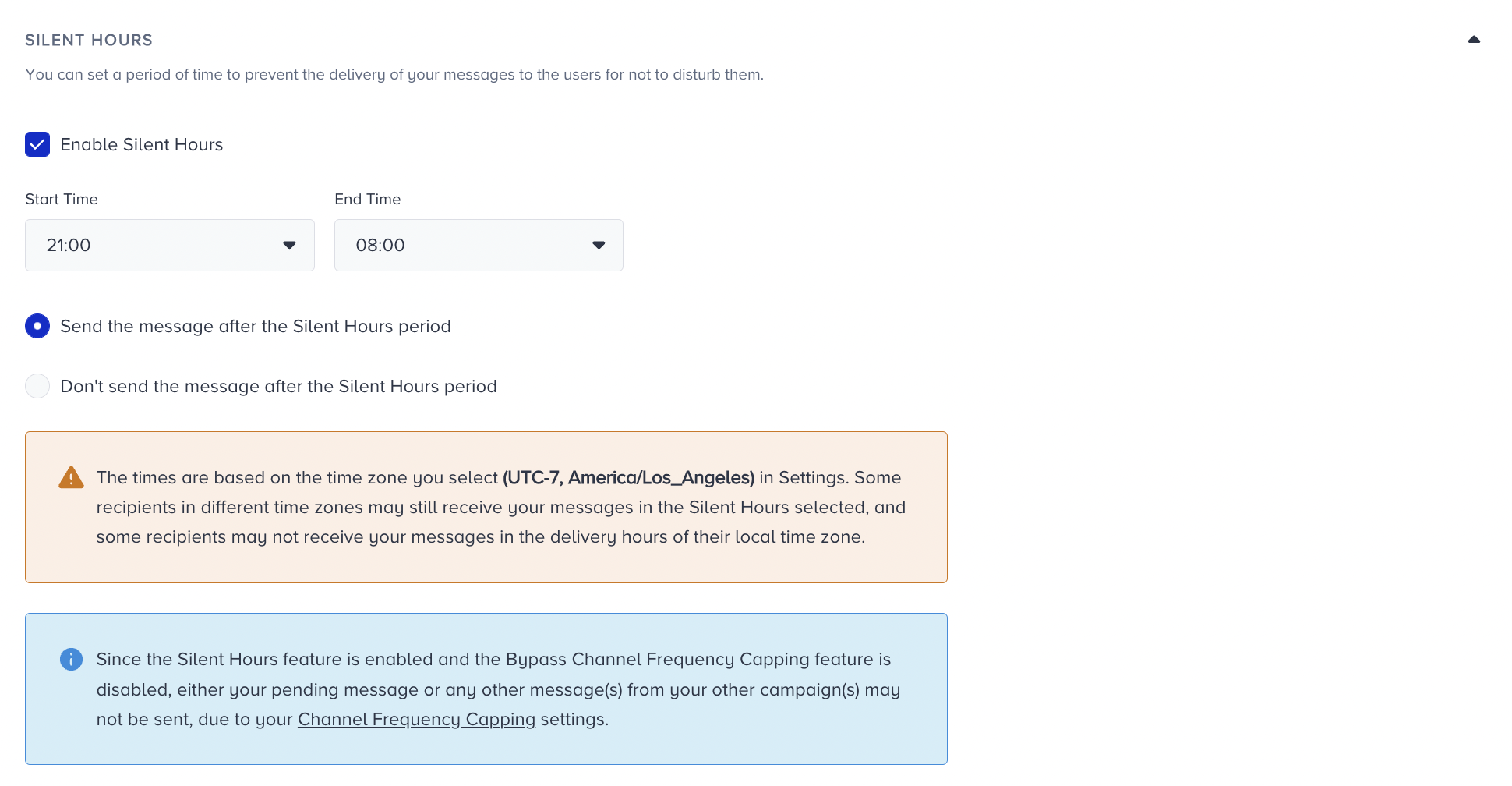
You can use tags to find or filter your campaign easily. You can add previously created tags to the campaign.
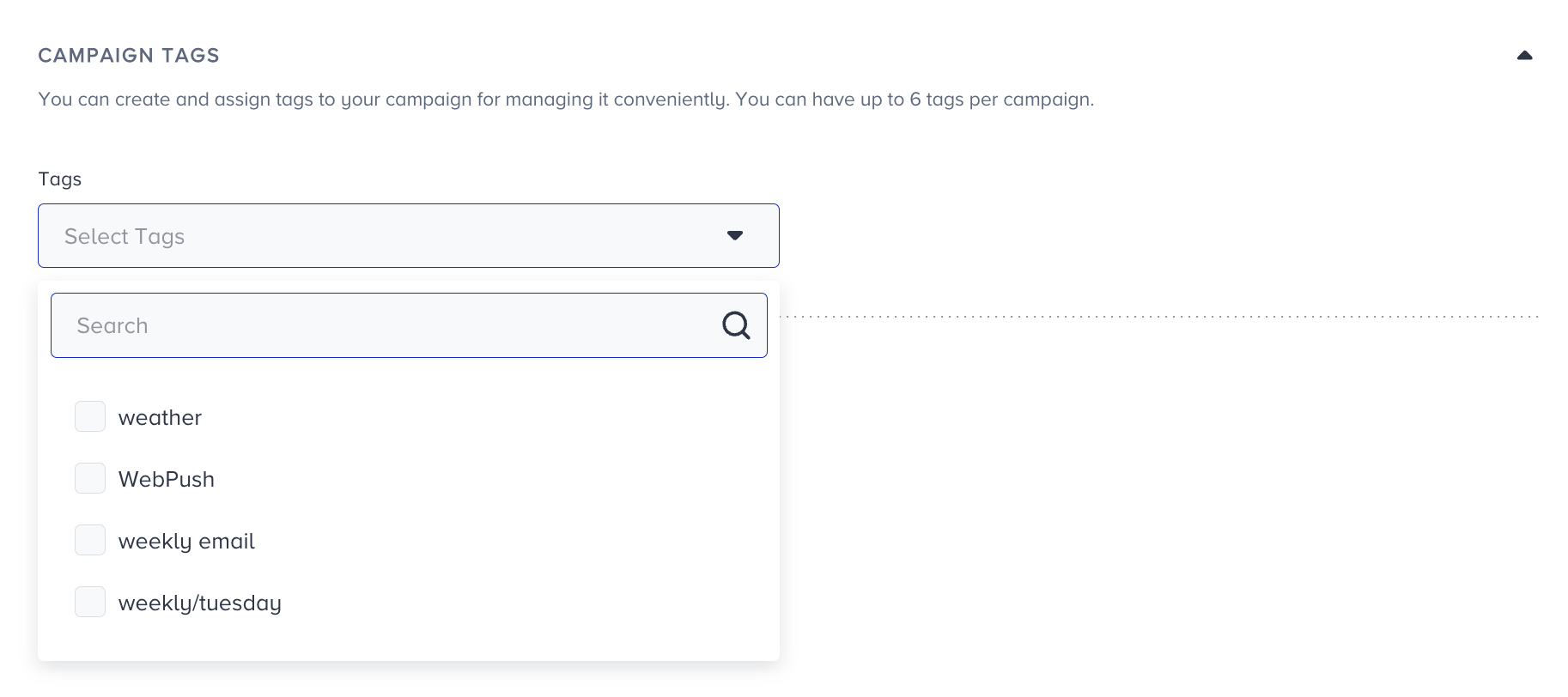
You can also create new tags and save them for later use.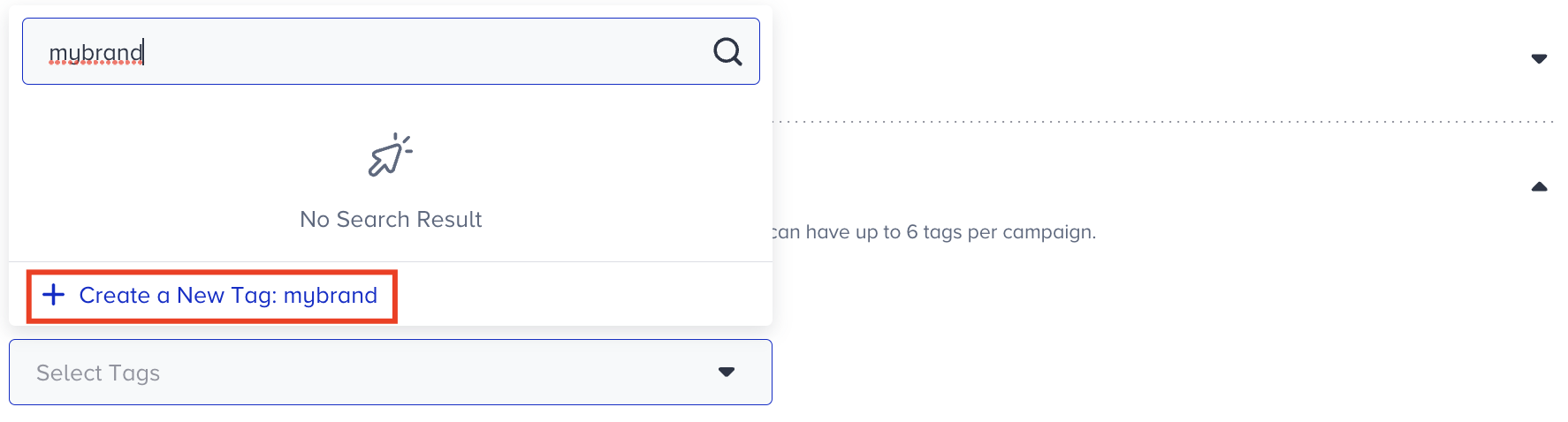
You can add up to six tags per campaign.
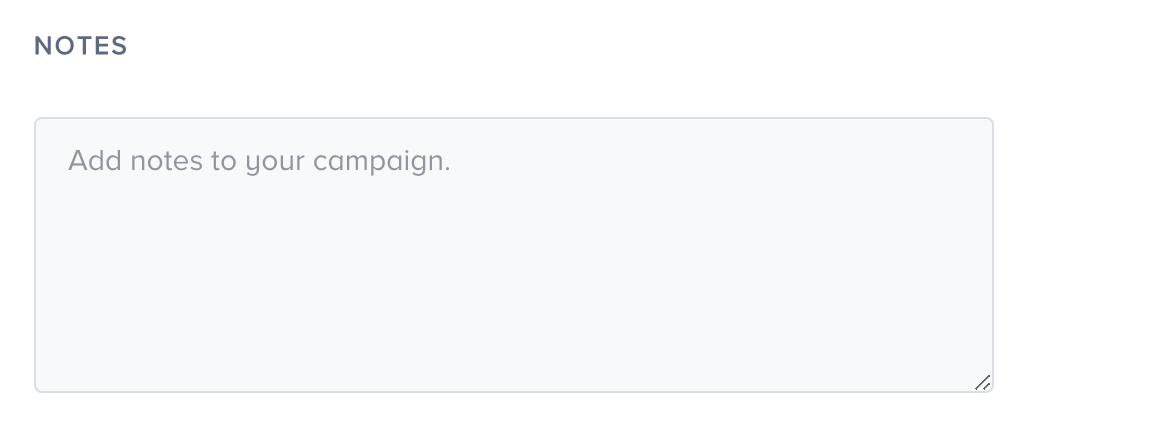
You can write notes in the designated area to remind yourself or your team members about the campaign.
You can see the information if your campaign is ready to go. When your design is ready, click Launch Campaign.
Users are notified as soon as a product's price drops, if the segments and rules have been matched. As a result, you may notice a higher number of delivered push notifications in your campaign analytics compared to the previous periods.