The Catalog API provides full control over your Product Catalog by allowing you to create, update, and synchronize product information directly with Insider One. It is designed for real-time data management and is best suited for large or frequently changing catalogs that require immediate updates without relying on user behavior or scheduled syncs.
This integration method establishes a direct backend-to-backend connection, ensuring that product data remains accurate and up to date across all Insider One channels.
Insider One stores the product attribute values submitted through the Catalog API after validating the request against the supported structure, data types, and constraints. It does not manually correct or transform values such as product names. Ensure that attribute values are accurate and correctly formatted in your source system before sending them. To correct existing product data, send the updated values through the Catalog API’s Update method.
How product information is collected
With the Catalog API, product information is sent directly from your backend systems to Insider One through secure API requests. Each request includes structured product data in JSON format, defining attributes such as item ID, name, price, category, description, and stock status.
Unlike Clickstream or XML integrations, the Catalog API does not depend on your website’s HTML structure or hosted feed files. Instead, it connects directly to backend systems such as ERP or PIM tools. This ensures that updates to the Product Catalog are reflected immediately when a product is created, updated, or removed in your system.
API methods
Two primary API methods are used in Catalog API integration:
Ingest API
The Ingest API is used to add new products to your catalog. It supports sending one or multiple product records in a single request, making it suitable for bulk uploads or initial catalog imports.
When products are added using the Ingest API, the Product Catalog is updated immediately.
Update API
The Update API is used to modify existing products in the catalog. It allows you to update specific attributes—such as price, stock status, or description—without resending the full product record.
This method is ideal for ongoing synchronization, ensuring that any changes in your backend system are reflected in the Insider One catalog in real time.
Together, the Ingest and Update APIs enable continuous, real-time catalog synchronization, ensuring that Smart Recommender always operates on the most accurate product data.
Requirements before starting
Before integrating with the Catalog API, ensure the following prerequisites are met:
Product attribute planning
Define all product attributes in advance. Create any required custom attributes in the Product Attributes section before starting the integration.
Backend API capability
Your system must be able to generate and send secure API requests with properly formatted JSON payloads.
Authentication setup
Obtain your Insider One API key and endpoint details from the Insider One team. These credentials are required to authenticate all API requests.
Consistent identifiers
Verify that your item_id and locale values match those used on your website or app to ensure correct product mapping and consistency across systems.
Step-by-step integration
This section outlines the steps required to integrate your Product Catalog with the Catalog API. Follow these steps in sequence to ensure a secure, stable, and fully synchronized catalog setup.
1. Define Product Attributes
Review the list of default and required product attributes for your selected Product Catalog Feed type.
Create any custom product attributes you plan to use before starting the API integration. All attributes must be defined in the system before sending data through the Catalog API.
2. Generate API Credentials
To generate your Catalog API credentials:
Navigate to Settings > Inone Settings.

Switch to the Integration Settings tab, and click Generate API Key.

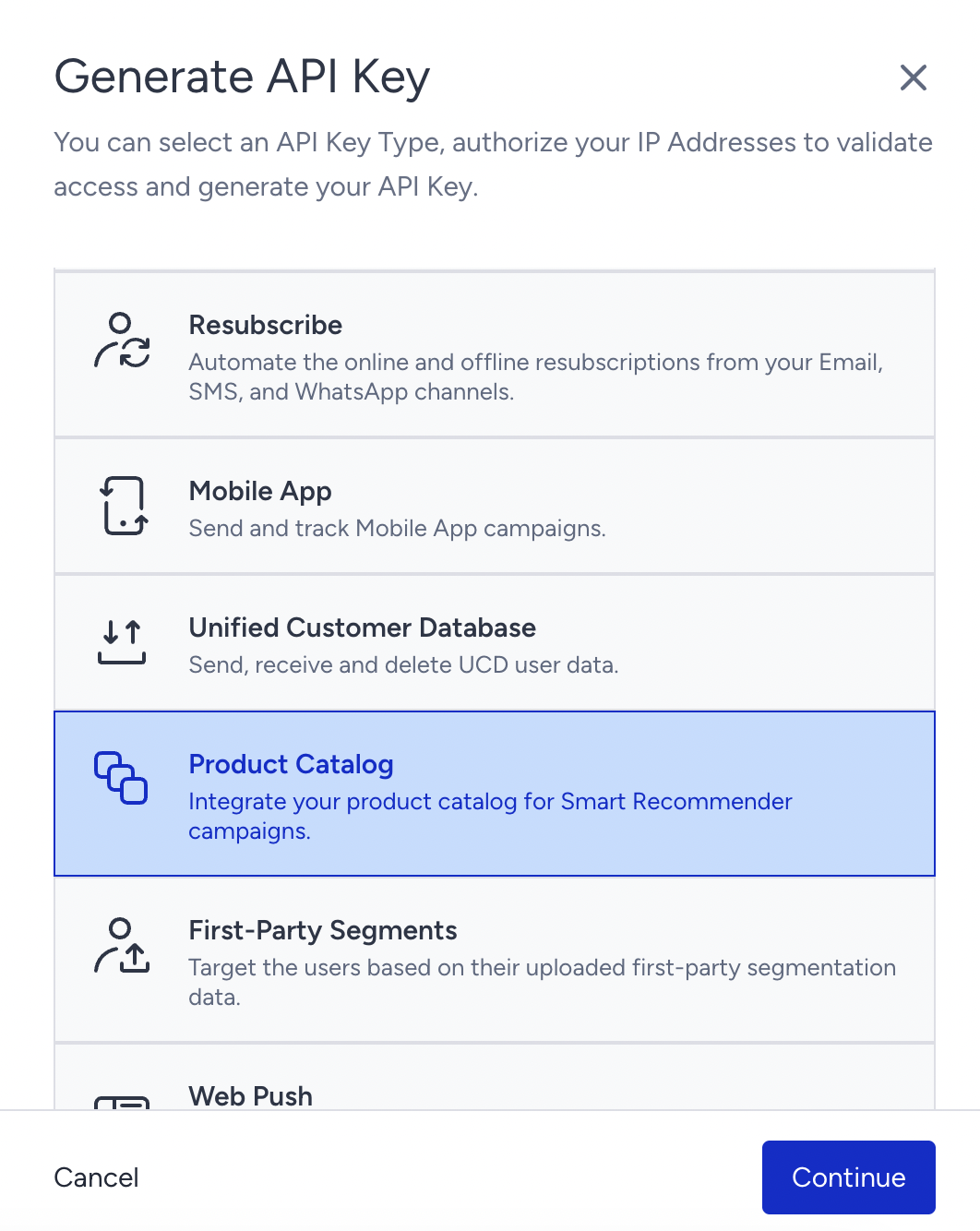
Select Product Catalog and click Continue.
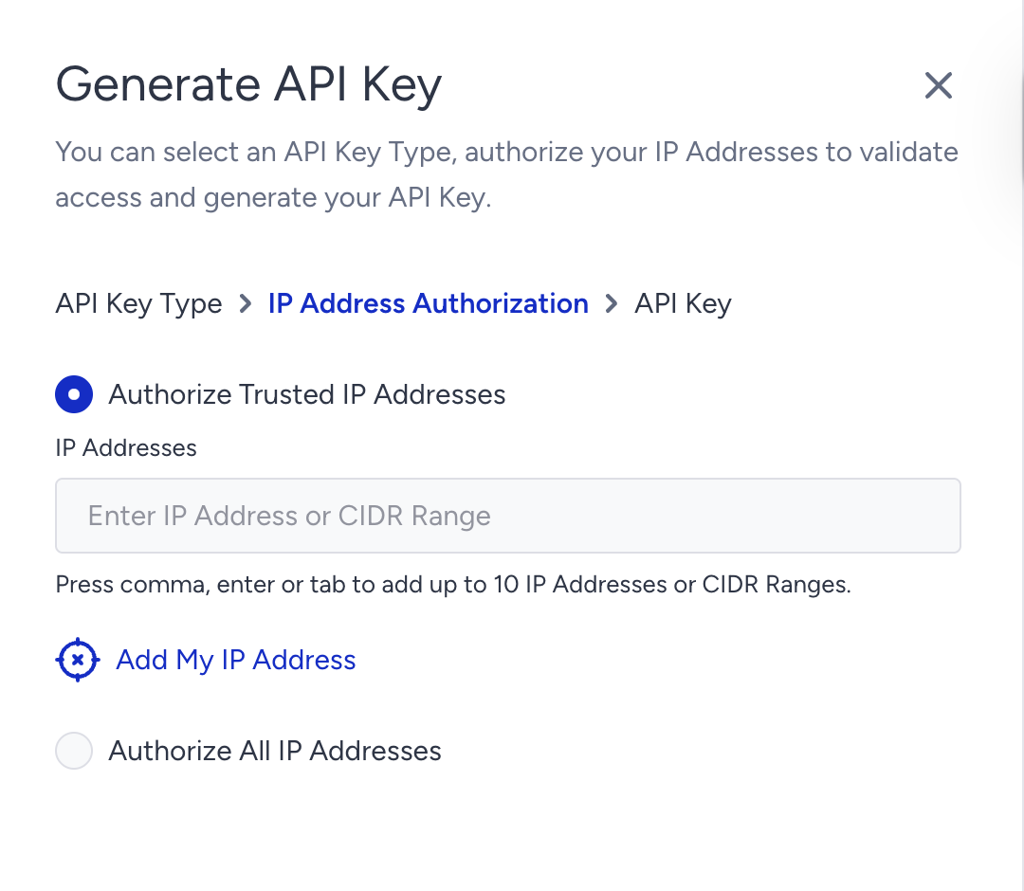
Enter the IP addresses that will be used for the catalog integration.
After completing these steps, retrieve your Catalog API endpoint and authentication key. These credentials are required to send product data to Insider One’s servers securely.
3. Enable Catalog API integration
Navigate to Components > Product Catalog Management > Catalog Settings.
Open the Integration Settings tab, select the Catalog API as the integration method, and click Save.
4. Use the Ingest API to Add Products
Use the Ingest API endpoint to add new products to your catalog. You can send multiple product records in a single request to support bulk ingestion.
Each product must be sent as a JSON object containing all required and relevant product attributes.
Refer to the Catalog API Reference for detailed request formats and examples.
5. Use the Update API to modify existing products
When product details change, such as price, description, or stock status, use the Update API. This allows you to update only the modified attributes without resending the entire product record.
This method is ideal for ongoing, real-time catalog synchronization.
6. Monitor synchronization and validate data
After sending API requests:
Review response codes to confirm successful processing
Log errors and implement retry logic for failed requests
Monitor API usage to avoid rate-limit issues
To validate your integration, navigate to Components > Product Catalog Management > Catalog Manager and verify that product data is updating as expected.
Out-of-Stock management
With the Catalog API, stock updates are processed instantly. When a product’s availability changes in your backend system, send an update request with the modified in_stock value.
Once received, Insider One automatically removes out-of-stock products from campaigns and recommendations, ensuring that only available items are displayed.
Key considerations and limitations
While the Catalog API is a powerful tool, you should be aware of a few essential things:
Request size limits
The entire request must not exceed 5 MB.
Each record in the request must not exceed 512 KB.
Each string field in the record can be up to 512 characters in length.
item_id field in the record can be as large as 128 characters.
locale field in the record can be as large as 64 characters.
description field in the record can be as large as 1024 characters.
category field in the record can be as large as 1024 characters.
A maximum of 10.000 products can be processed in a single request.
Request rate limits
You can make up to 60 API calls per minute.
Throttling due to rate and item limits results in API responses with a 429 status code.
Data constraints
The Catalog API only accepts new data. You can’t use it to retrieve or query existing product data.
If you send an attribute that’s not defined in the system, that attribute will be ignored. Make sure all product attributes are defined in the system before sending data.
Matching product information
The item_id and locale values sent via the Catalog API must exactly match those used on your website or mobile app. These values serve as the unique identifiers for product mapping and consistency across systems.
Best practices
Define all product attributes before starting the integration.
Use bulk ingestion for large product sets to improve efficiency.
Log API requests and errors to monitor performance and manage rate limits effectively.
Following these steps and guidelines ensures a stable, scalable, and real-time Product Catalog integration using the Catalog API.