Since groups and roles define what you are authorized to do within your account, they also affect campaign operations. In larger companies, different departments often have distinct goals and promotion criteria, and these departments may want to manage campaigns and their goals by region or team. For example, as a member of Group A, you will only have visibility for campaigns linked with Group A; if a member of Group B shares a campaign link that belongs to Group B with you, as a member of Group A, you will not be able to view the link, instead, you will be redirected to the listing page of Web Push.
Old campaigns will be visible to all users by default, regardless of their assigned user roles and groups. However, if you assign an existing campaign to a group, then it will be visible only to users associated with this group.
Account administrator actions
An account administrator can view, create, edit, and duplicate any Web Push campaign in Insider One's InOne panel.
While creating, editing, or duplicating a Web Push campaign, as an account administrator, you can select or remove groups to make the campaign visible to them during the launch step. When you launch it, it will be visible only to account administrators, users within the selected groups, and unassigned users.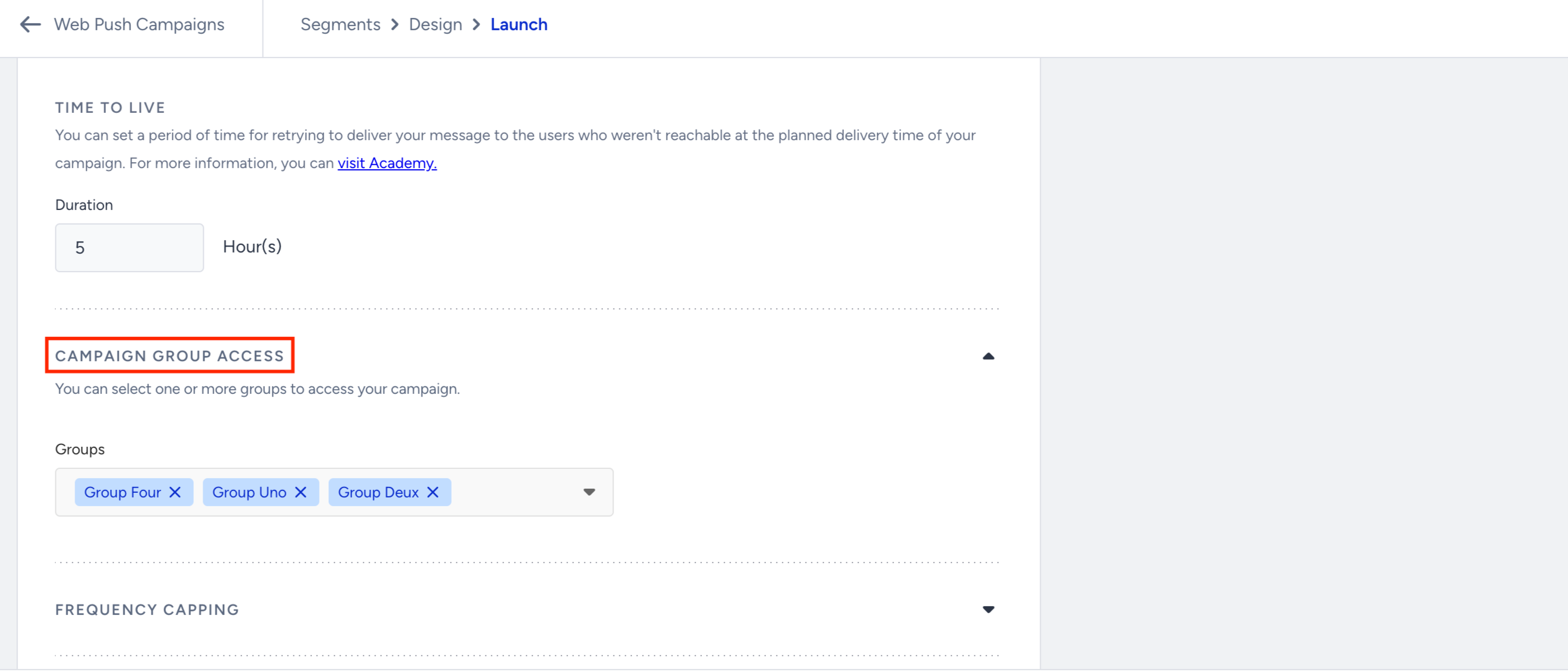
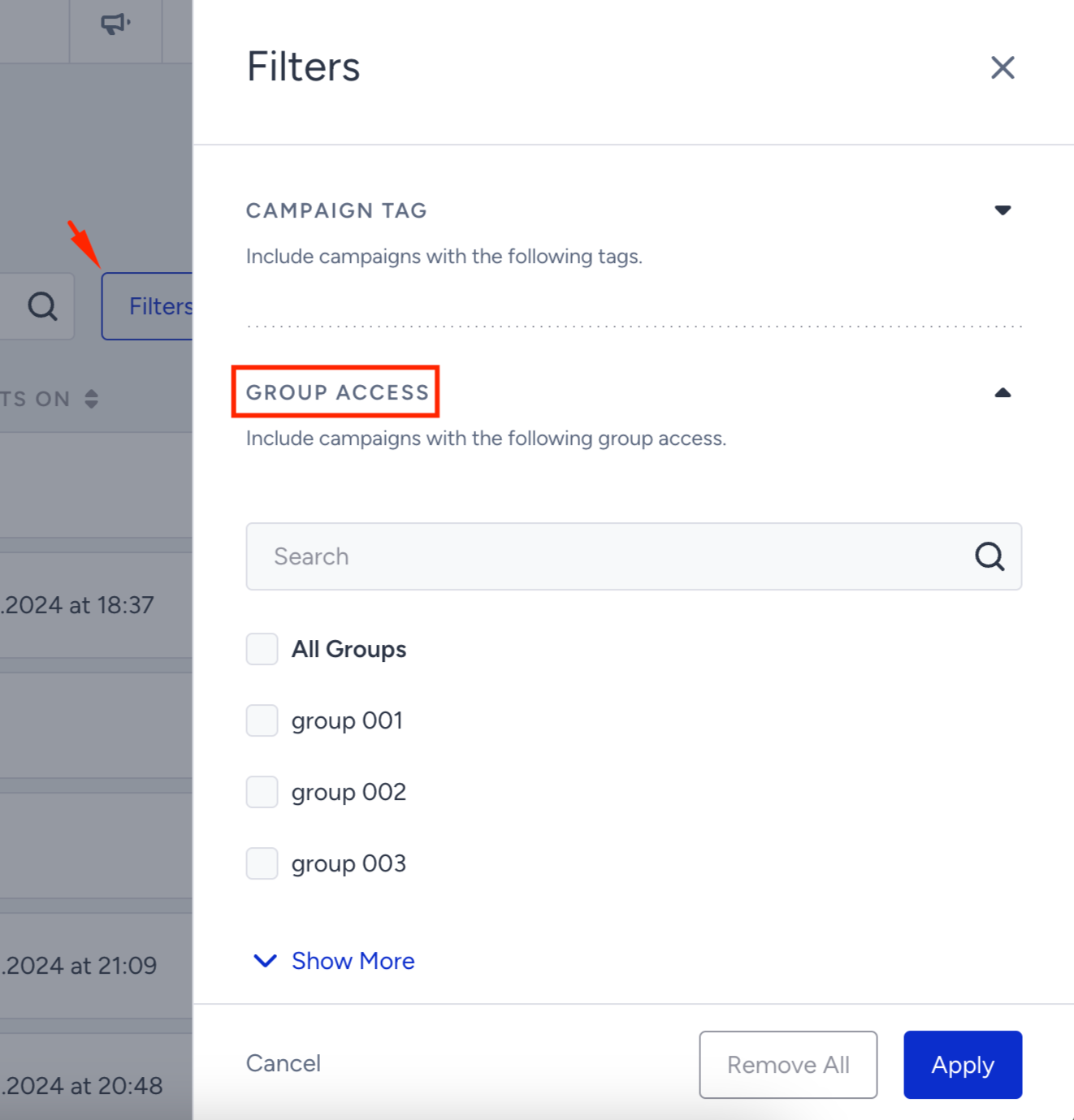
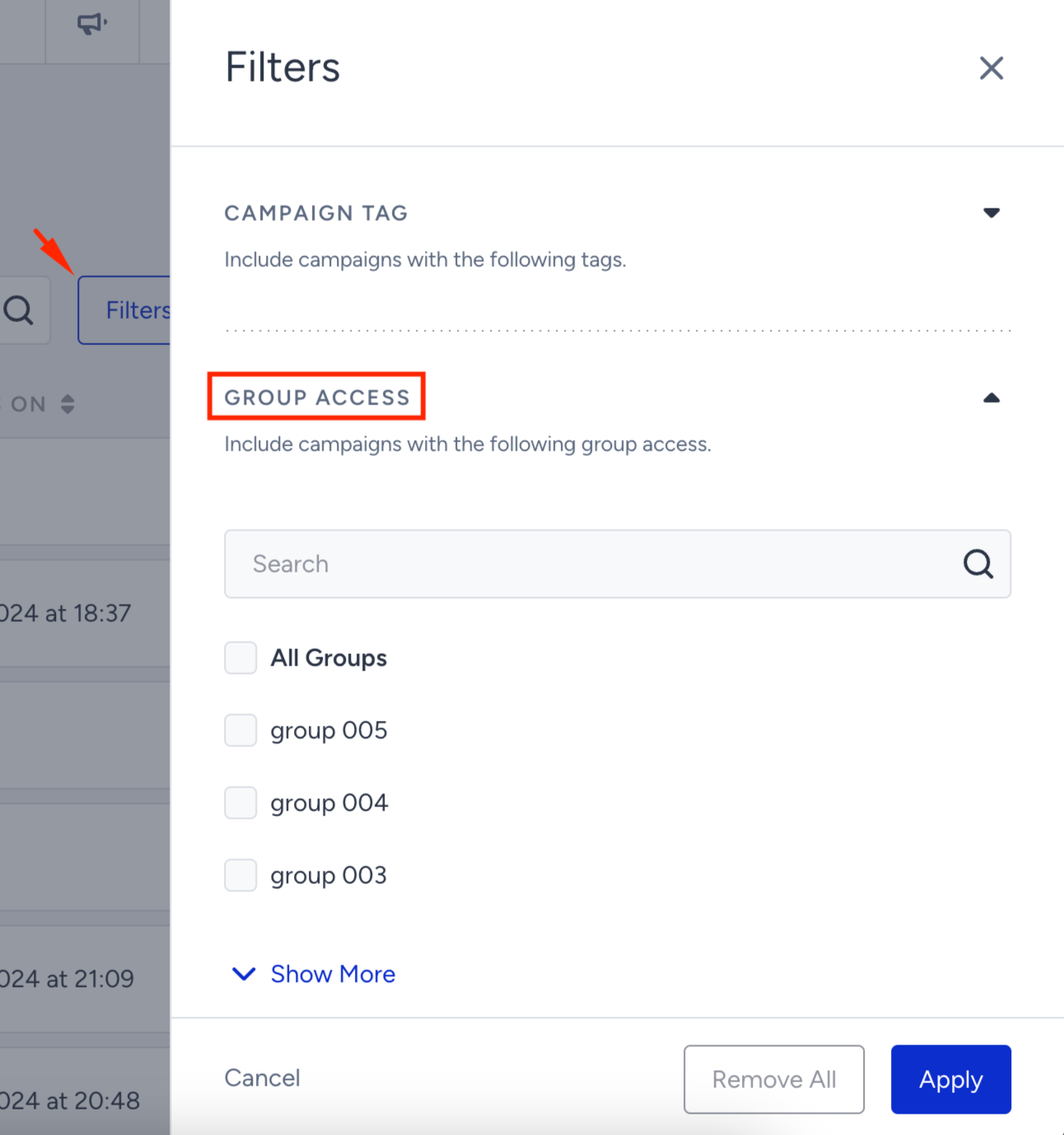
As an account administrator, you can see all the campaigns when you land on the listing page of Web Push. So you can also filter campaigns via the dropdown under Group Access. However, if you don't have any groups created, you will not see group-related filters on the listing page of Web Push.
Group administrator and member actions
A group administrator and group members can view, create, edit, and duplicate a Web Push campaign in Insider One's InOne panel only if the campaign is visible to them.
If you are associated with the group(s), while creating a campaign, you can only create a campaign for one of these groups.
While creating, editing, or duplicating a Web Push campaign, group administrators and group members can select or remove groups to make the campaign visible to them on the launch step. However, this visibility option is limited to the groups you belong to. For example, if you are a member of Groups A and B, then you will only see Groups A and B while launching the campaign. After you launch the campaign, it will be visible only to account administrators, users within the selected groups, and unassigned users.
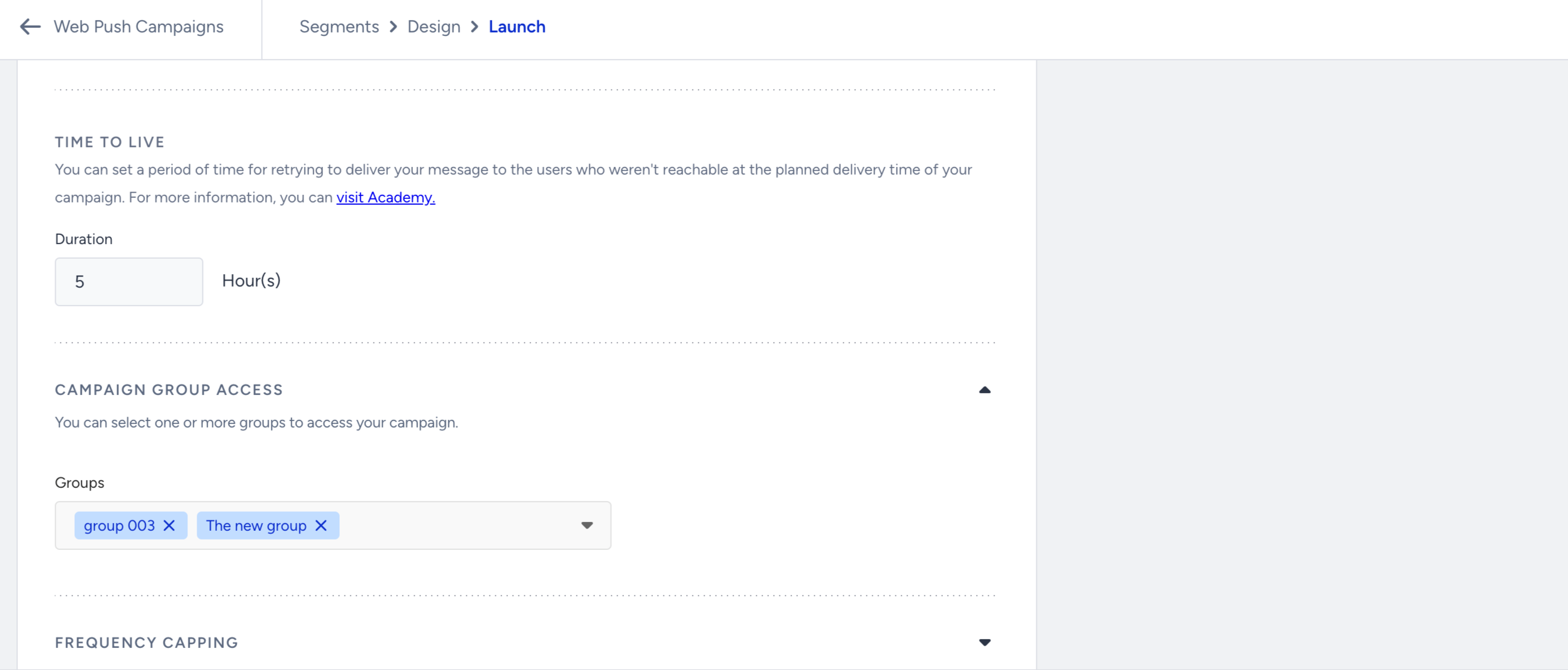
When editing or duplicating a campaign that is also visible to a group you are not part of, you cannot select or remove that group; it will appear disabled to you. You can only choose or remove groups that you have access to.
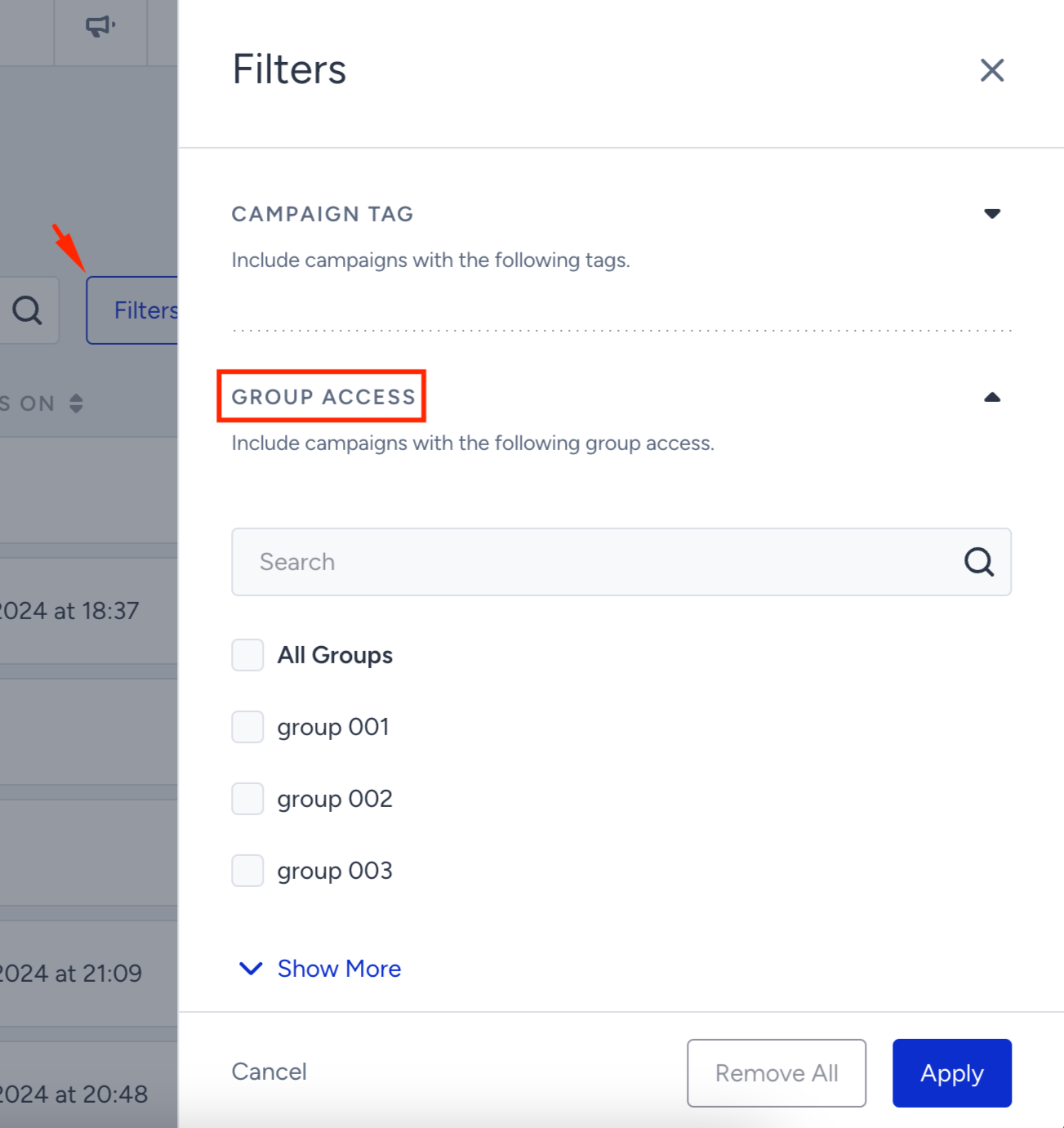
When you, as the group administrator or group member, land on the listing page of Web Push, you will only see the campaigns you have access to and the ones visible to every user. You can also filter the campaigns visible to you by group access by clicking the Filters button on the listing page. However, if you don't have any groups created, you will not see group-related filters on the listing page of Web Push.
Unassigned user actions
As an unassigned user, you can view all Web Push campaigns regardless of their groups. You can create a campaign, but you cannot select a group to give access to; the campaigns you create become visible to every user. In addition, you cannot edit a campaign's group access. When duplicating a campaign, as you can't edit its group access, it will also be visible to every user.
When you, as an unassigned user, land on the listing page of Web Push, you will see all the campaigns created by anyone. You will also see all the groups to filter them. However, if you don't have any groups created, you will not see group-related filters on the listing page of Web Push.