Filters, also known as sorting or narrowing your dashboard results, let you select/deselect OnSite campaigns based on your filter criteria and view the corresponding return on investment (ROI) metrics.
To filter the results:
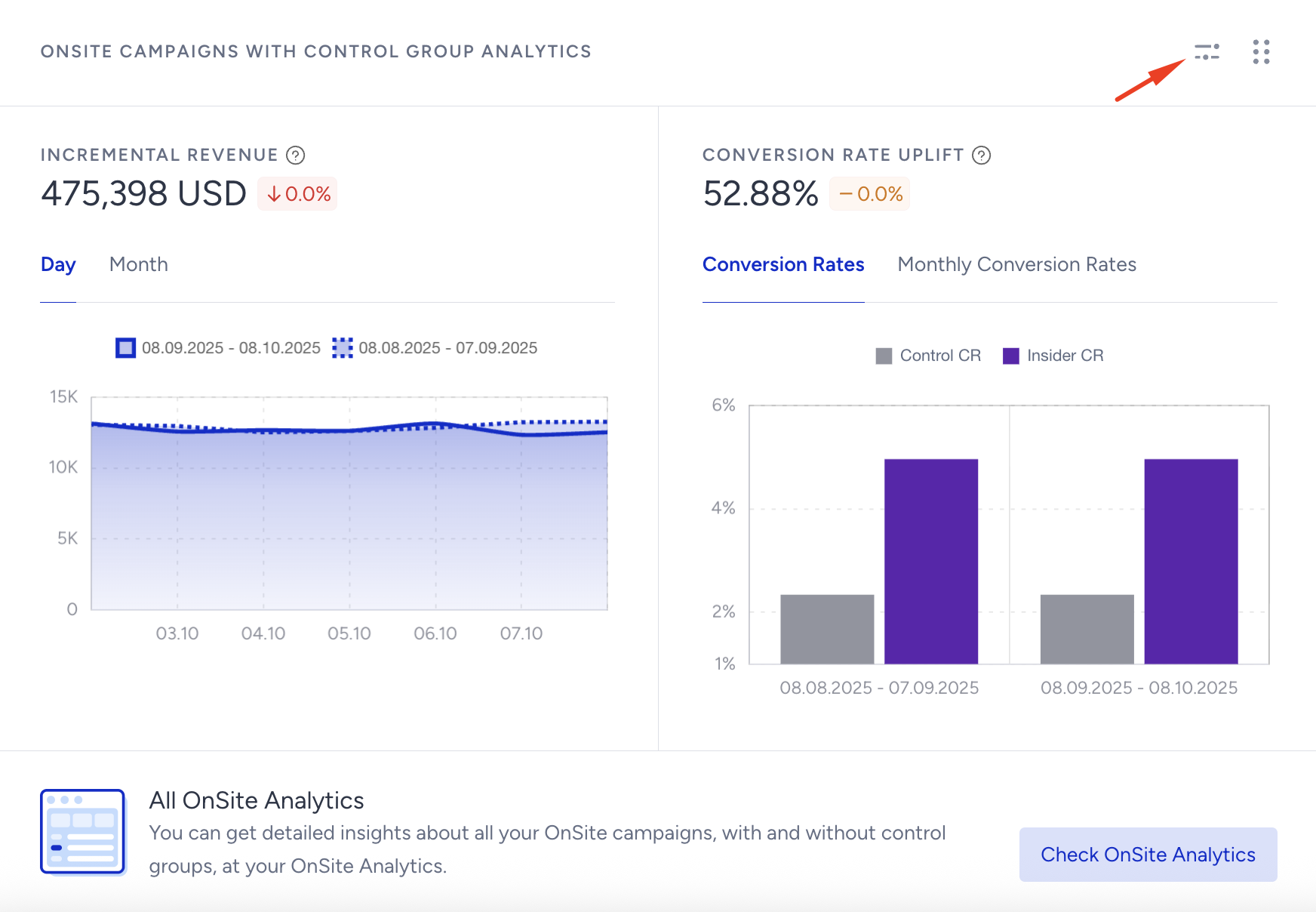
Click the Filter button next to the metrics on the Executive Summary Dashboard.
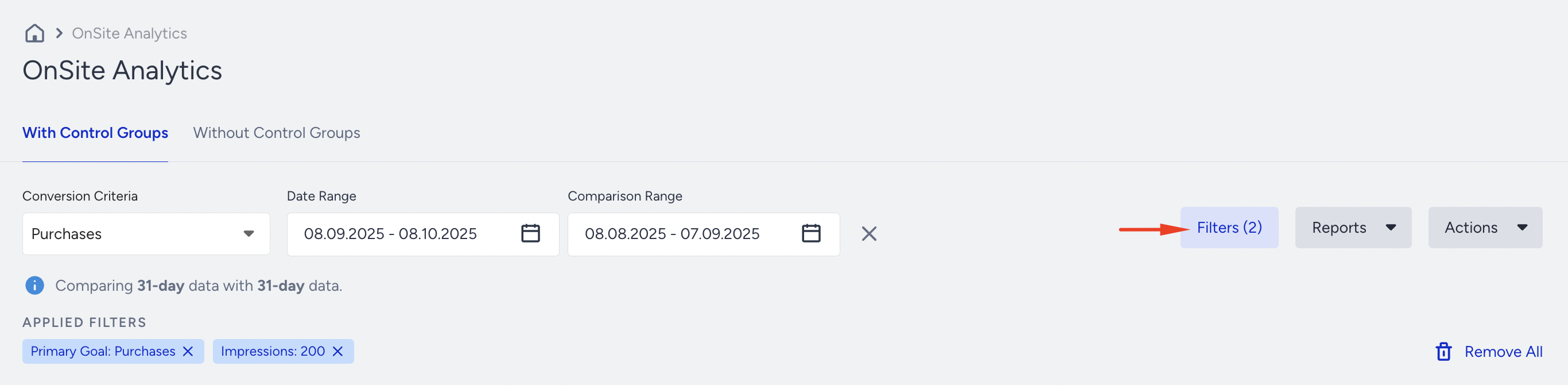
You can also access filters on the OnSite Analytics page.
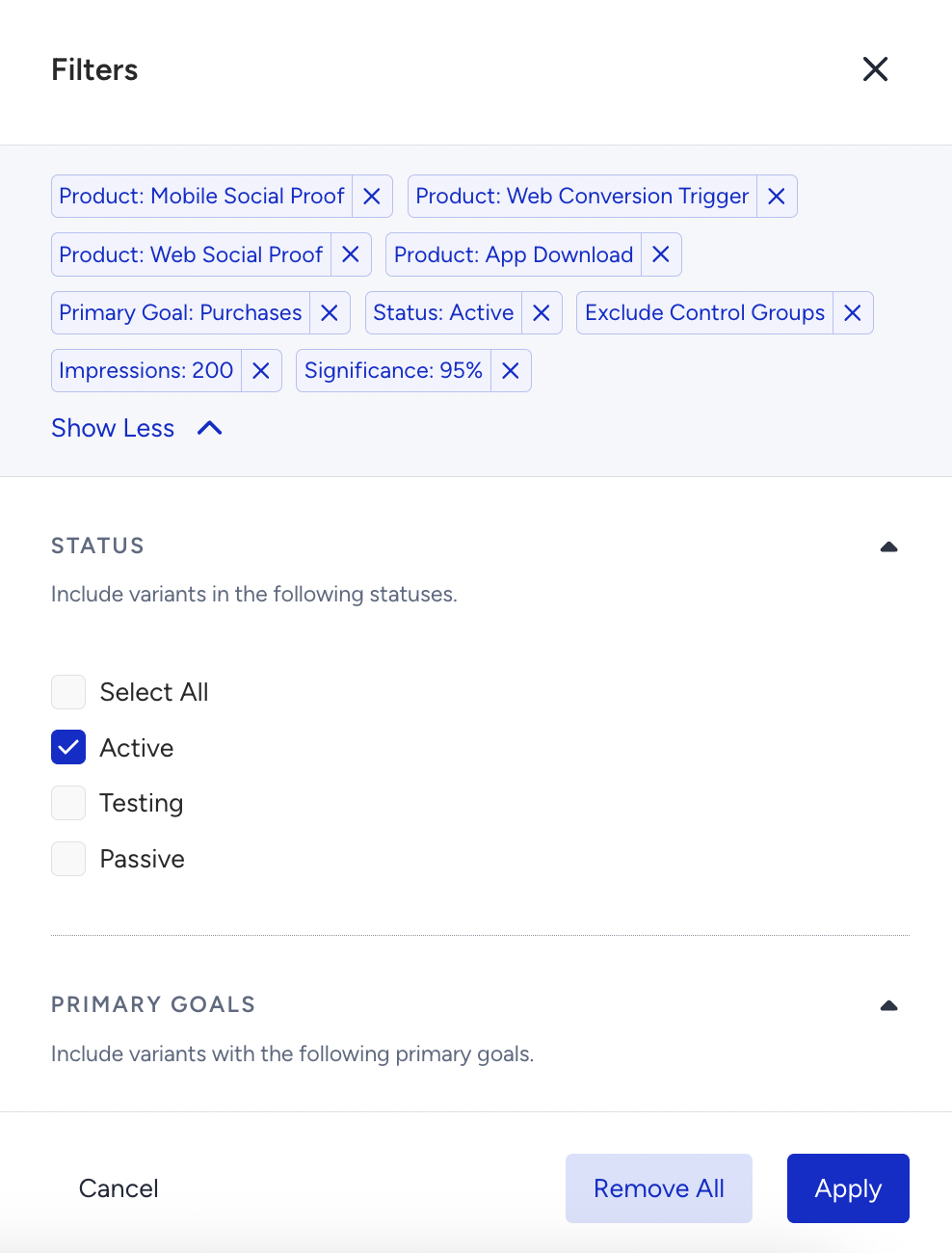
Select the filters that you would like to apply.
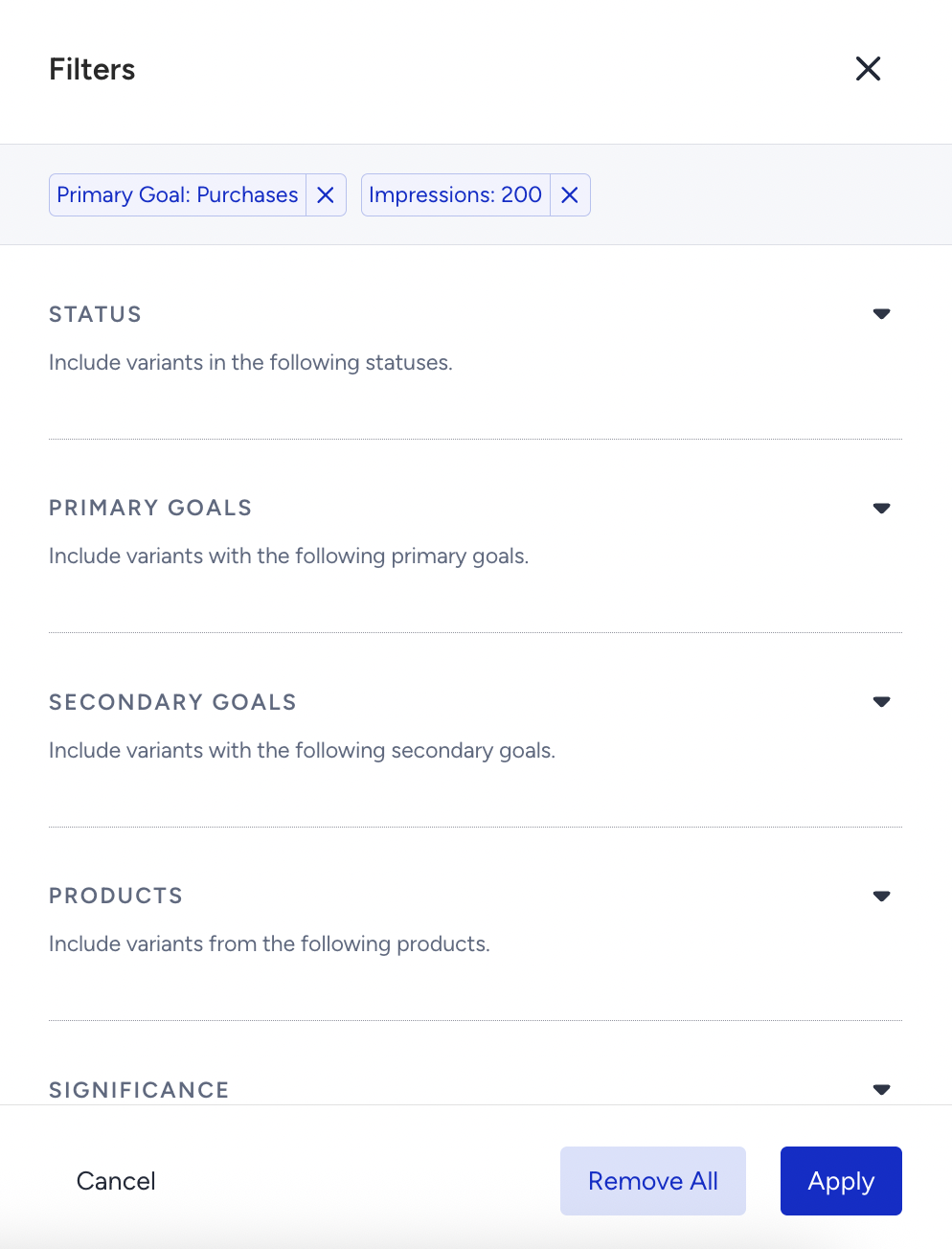
Below you can see the details of each filtering option:
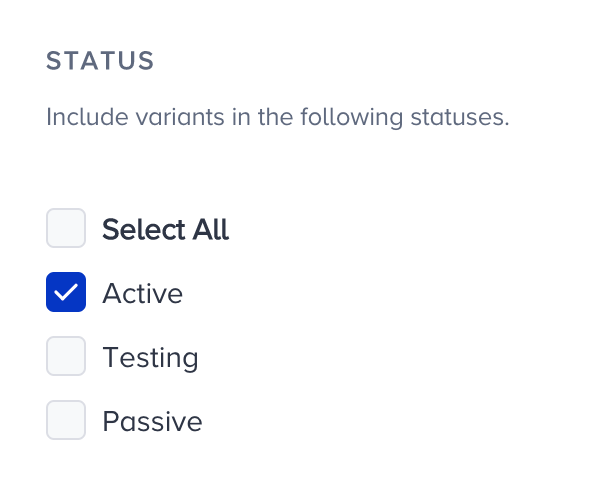
Status
Use this filter to find personalizations based on their activation status: Active, Test, or Passive. You can also display all campaigns.
Primary Goals
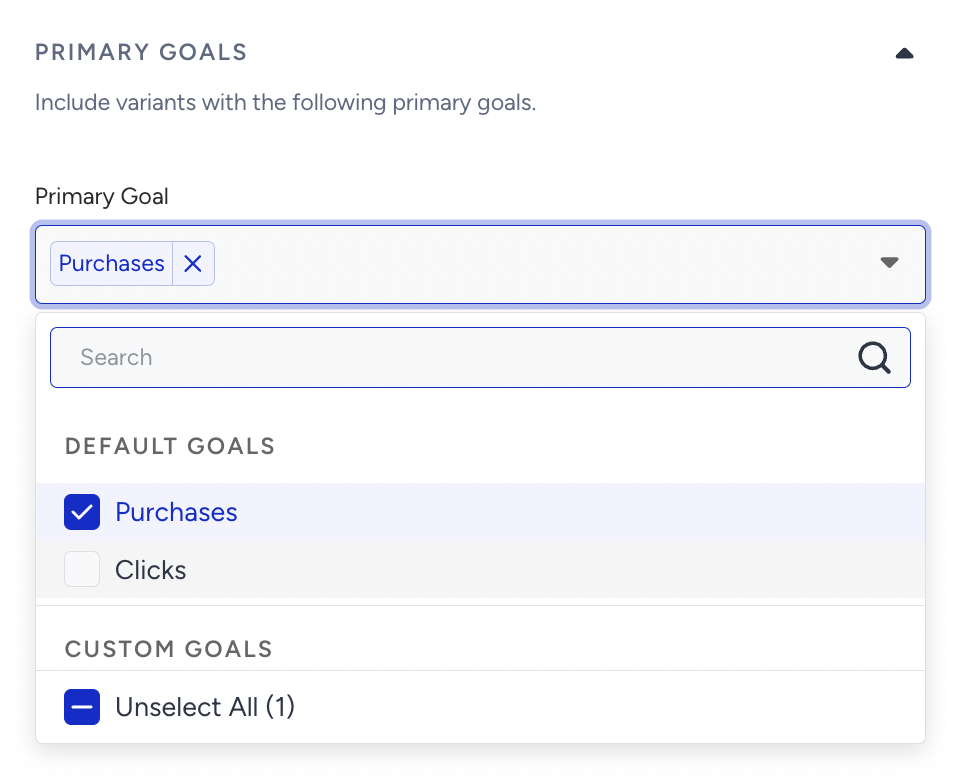
You can select a Primary Goal on the Goals step when creating a personalization. This filter allows you to find the personalization(s) with this specific primary goal.
Secondary Goals
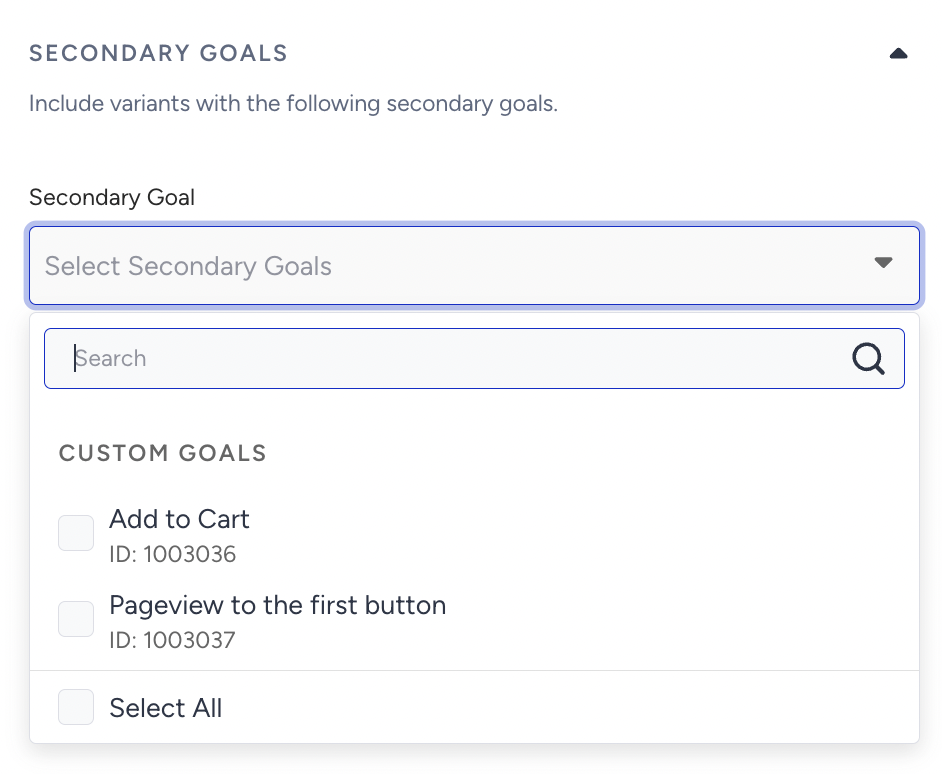
This filter lets you filter results by the other goals you have selected.
Products
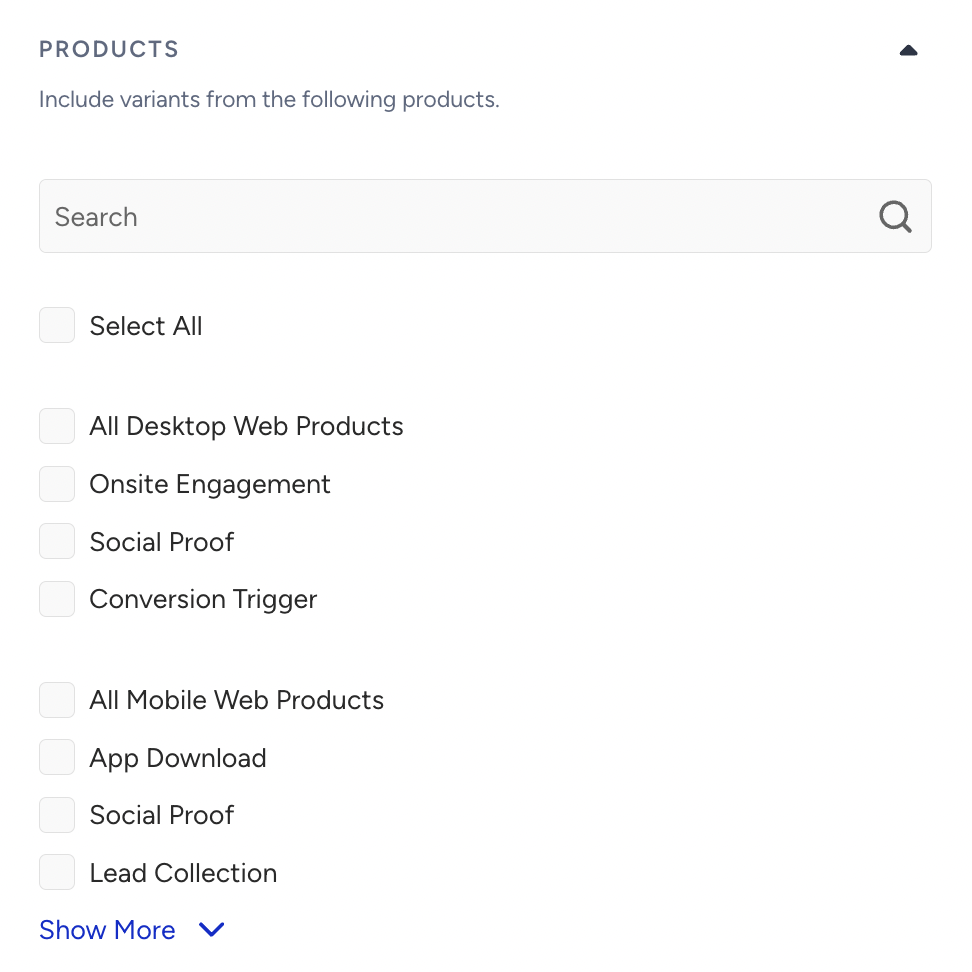
To view results for a specific product, use this filter to narrow the personalizations for both Desktop Web and Mobile Web.
Significance
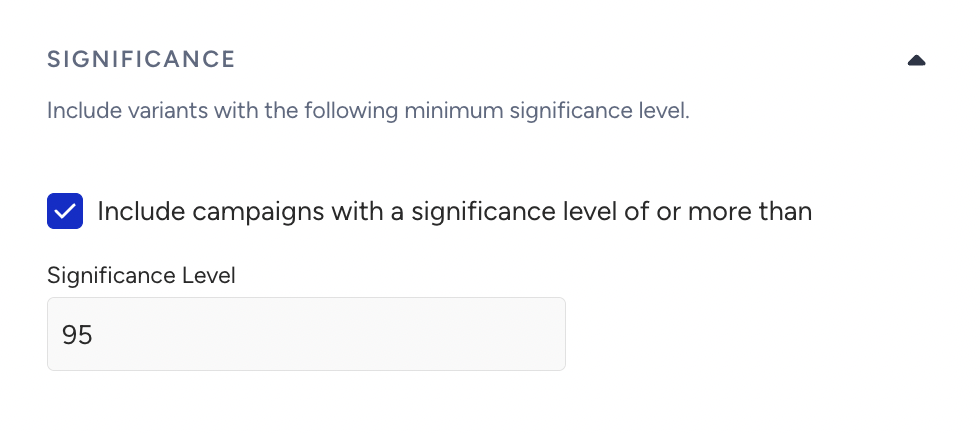
The significance option lets you filter results to view the relevant personalizations. We recommend targeting those with a significance level of 85% or higher.
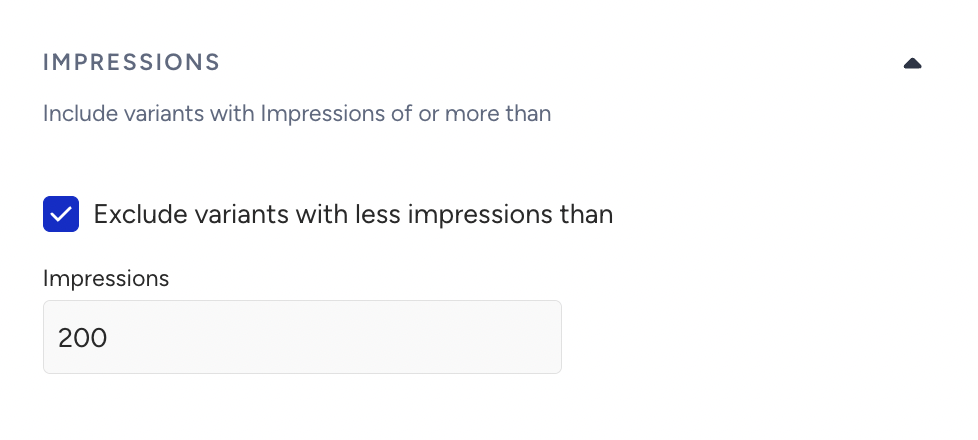
Impressions
This filter is set to a minimum of 200 impressions by default. Any personalization with fewer than 200 impressions will not be displayed on the dashboard.
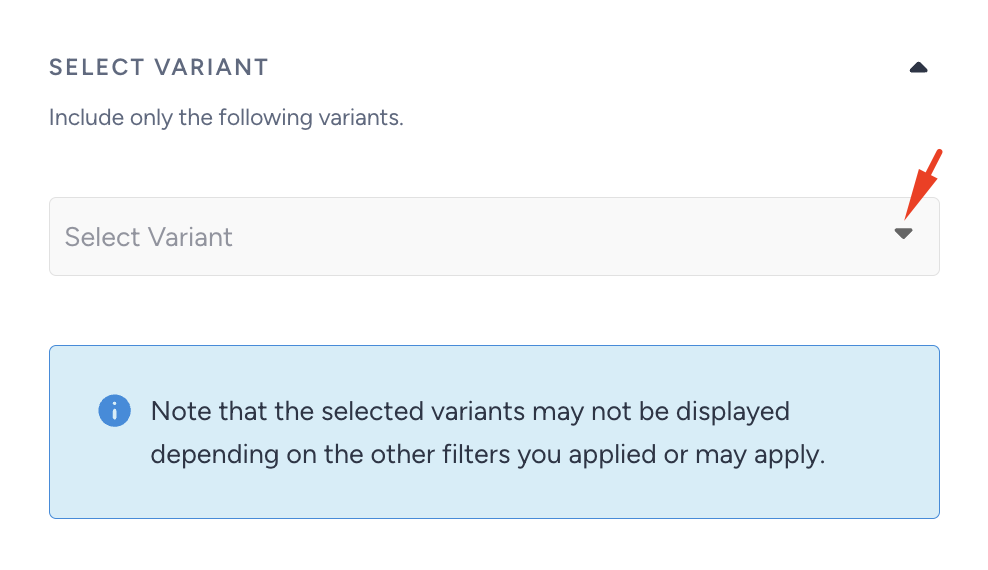
Variant
Variant includes all Variation and Control Groups, so any personalization without impressions will also be displayed. You can use this filter to target specific names.
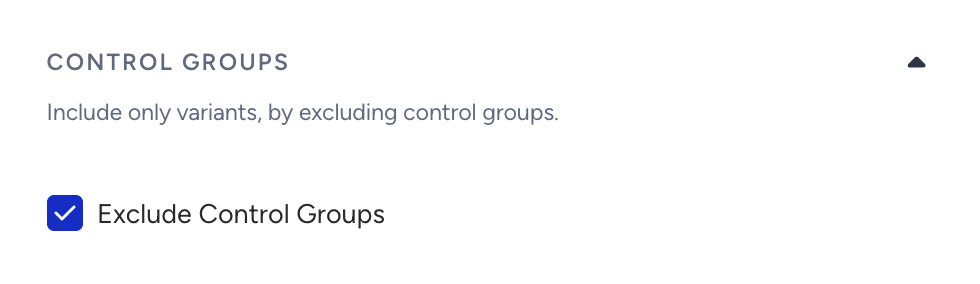
Control Groups
Use this option to include campaigns with or without a control group.
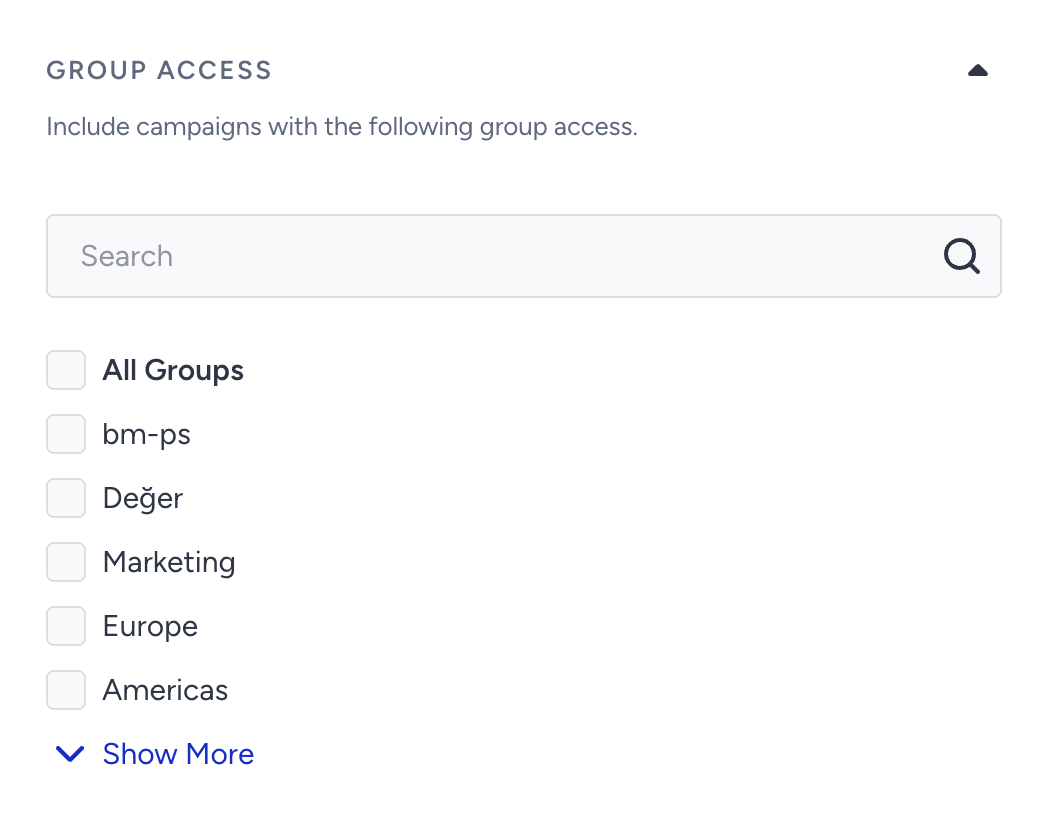
Group Access
When the Group Management feature is enabled for your account,
As an account administrator, you will see the analytics for all Web Templates campaigns in your InOne panel when you land on the OnSite Analytics page.
As a group administrator or member, you can view the analytics of campaigns that are visible to you and campaigns that are available to every user in the Insider One's InOne panel.
As an unassigned user, you can view all the OnSite Analytics regardless of your group.
To filter specific groups, click the Filter button and select the ones you want to include in your analytics view.
Apply Filters
Once you select your filters, they appear at the top of the page. Click the Apply button to filter the results based on these selections.
Filter Actions
On the OnSite Analytics page, click the Actions button to perform the following actions:
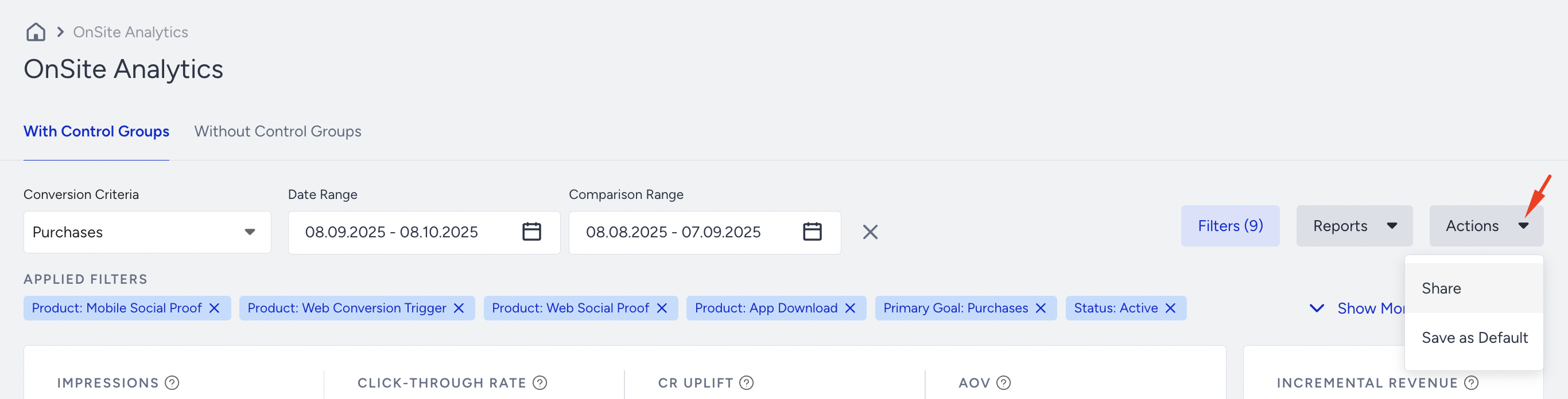
Share: This option provides the URL to copy and share your saved filters with your team members, or you can email them the link directly.
Save as Default: This option saves the desired filtering as the default filter on your analytics. The saved view is displayed by default when you return to the page.
You can save filters for A/B and 100% personalizations separately. Either will not affect any of the saved filters.