To create a notification for the Notification Center,
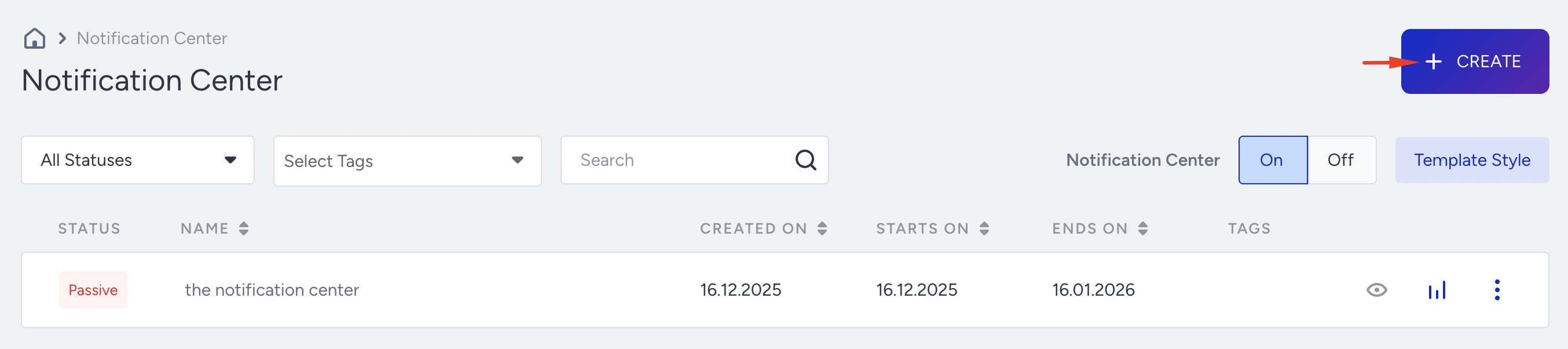
Navigate through Campaigns > Messaging > Notification Center and click the Create button.
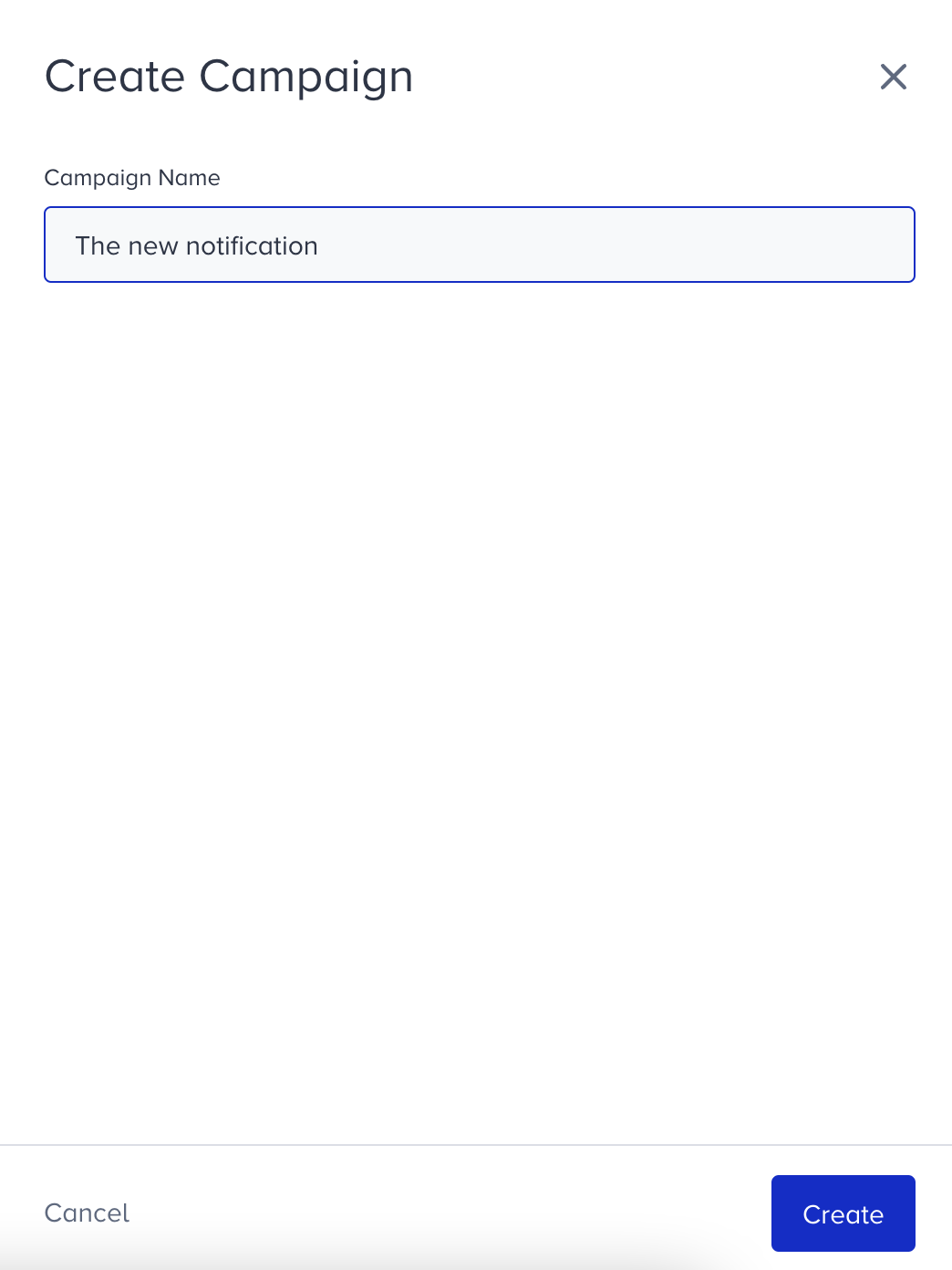
Name your campaign and click the Create button to proceed.
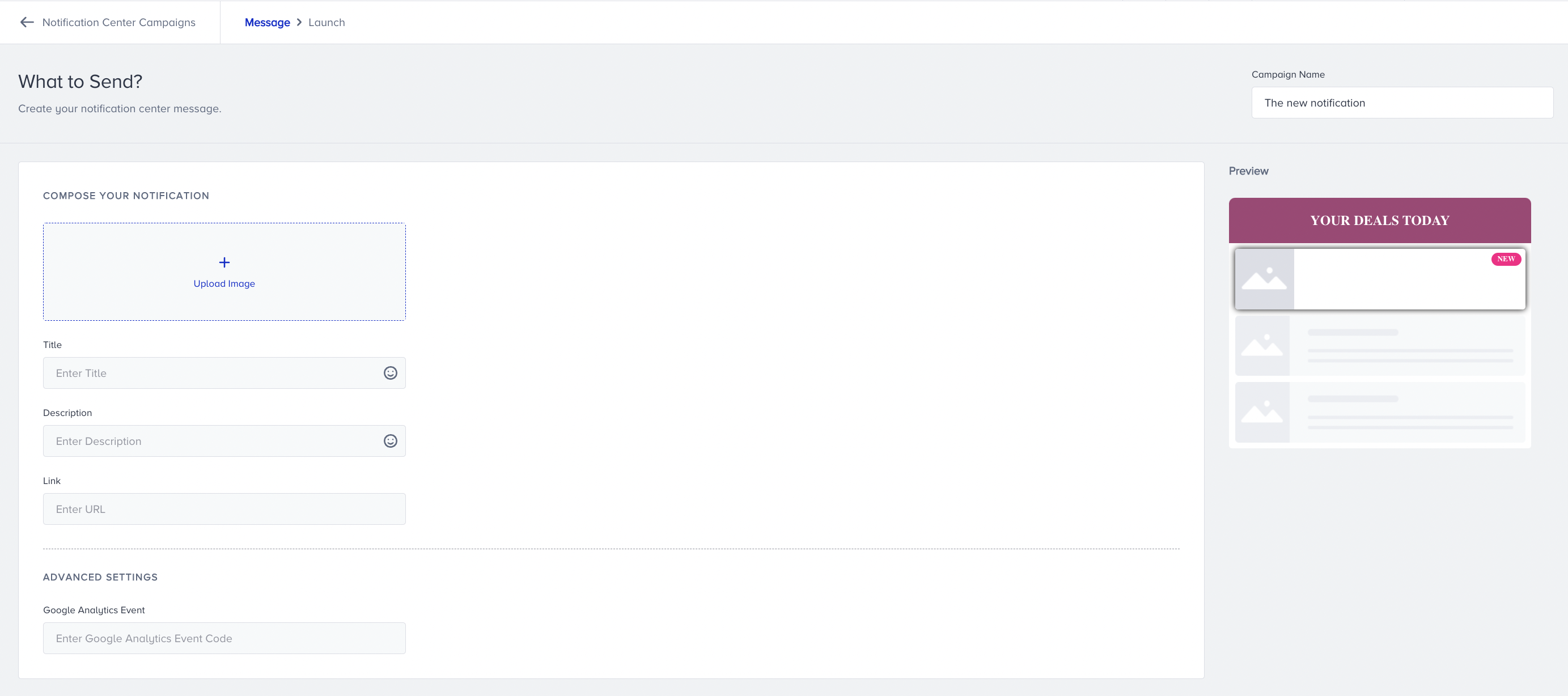
Design your notification
You can start by uploading an image, which you can modify after it's uploaded. The changes you make during this step will be displayed in the Notification Center on the right. The recommended image size is 90 x 80 px.
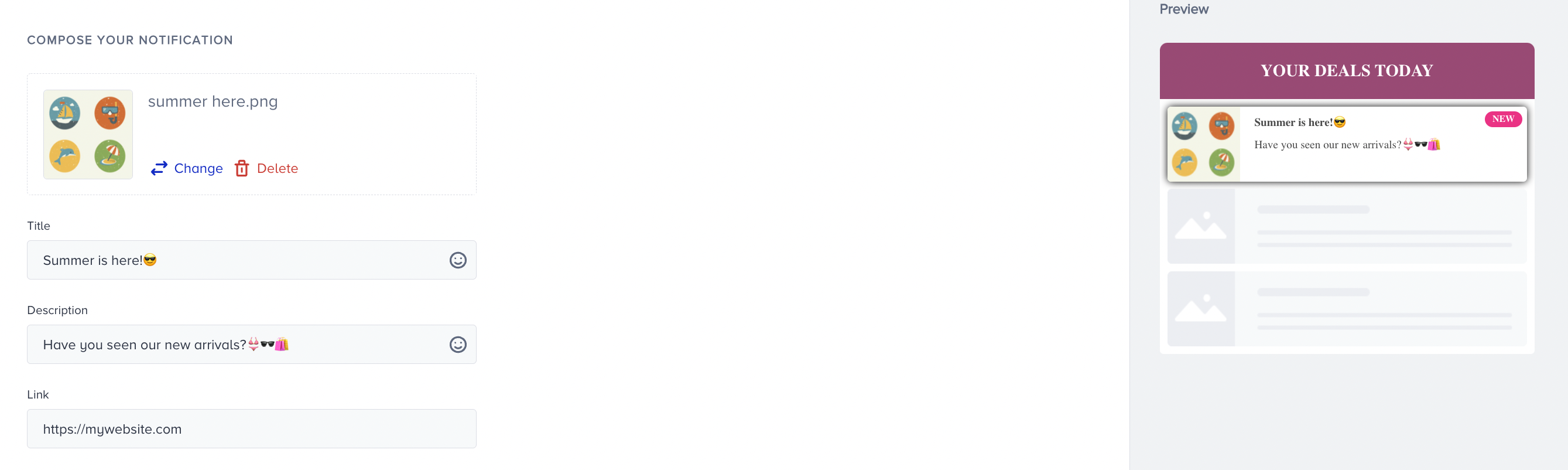
You can add your title and description here, which you can adjust on the Style step.
Link is the URL that redirects your user to a specific destination. It has to be a valid HTTPS URL.
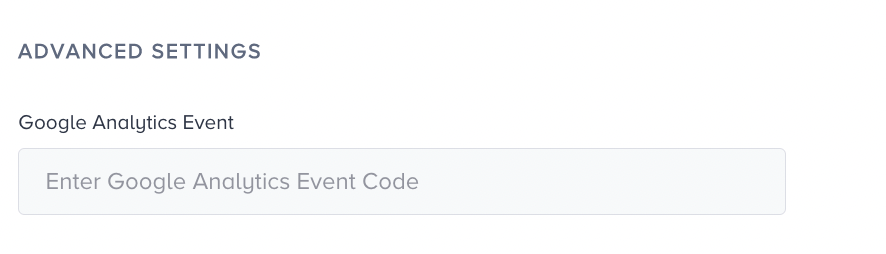
Under Advanced Settings, you can edit the Google Analytics Settings to track the actions taken on each notification.
When you finalize your design, click the Save and Continue button to proceed to the Launch step.
Launch your notification
In the Launch step, you set up:
Language Selection determines which language the notification will be shown in.
Activation Time determines the period during which the notification will be shown.
Activation Status helps you activate, deactivate, and test your message.
Notes provide space to save information about the campaigns.
You also see Information in the preview area if your campaign has missing content.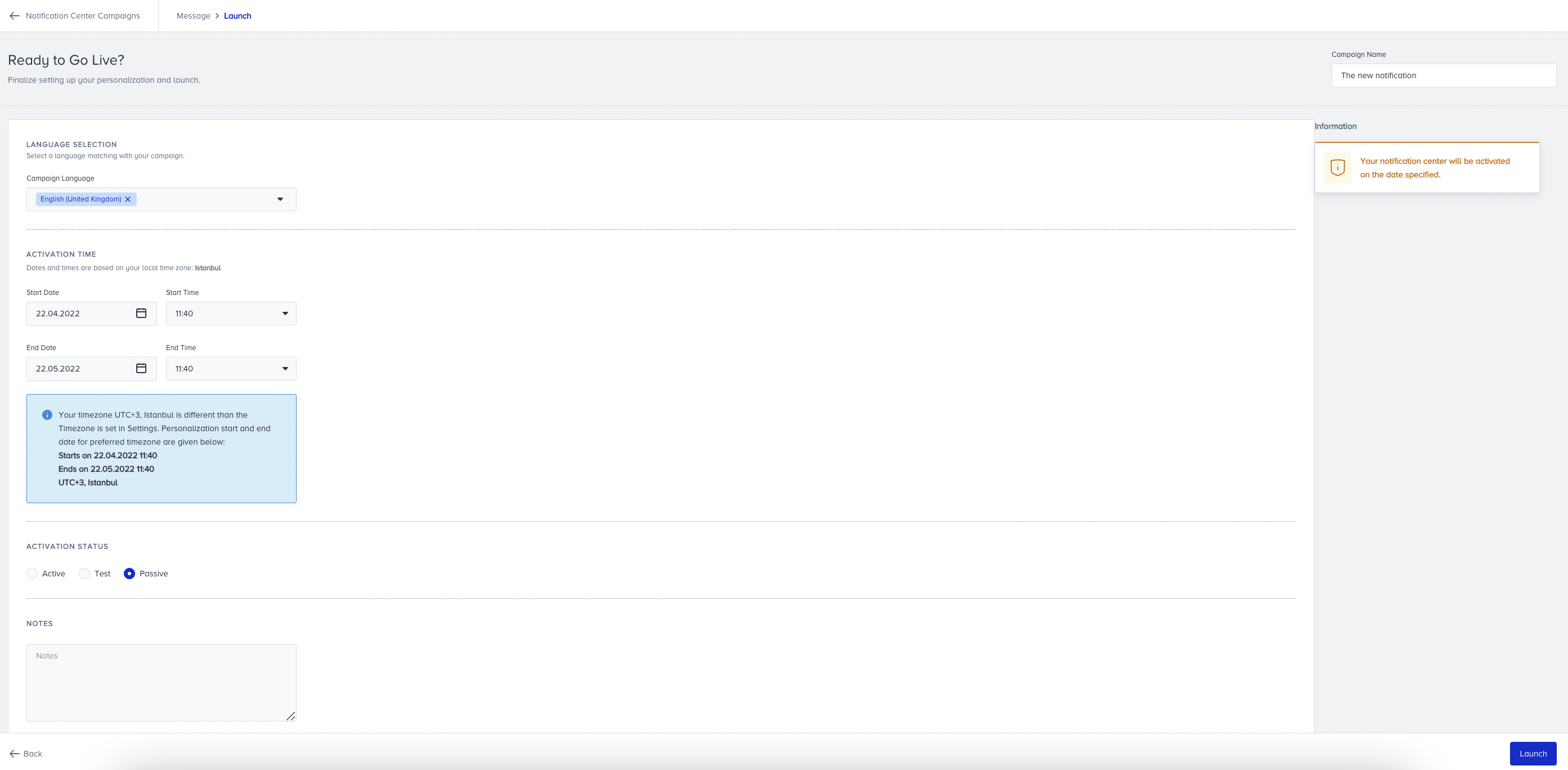
Once you are ready, click the Launch button.
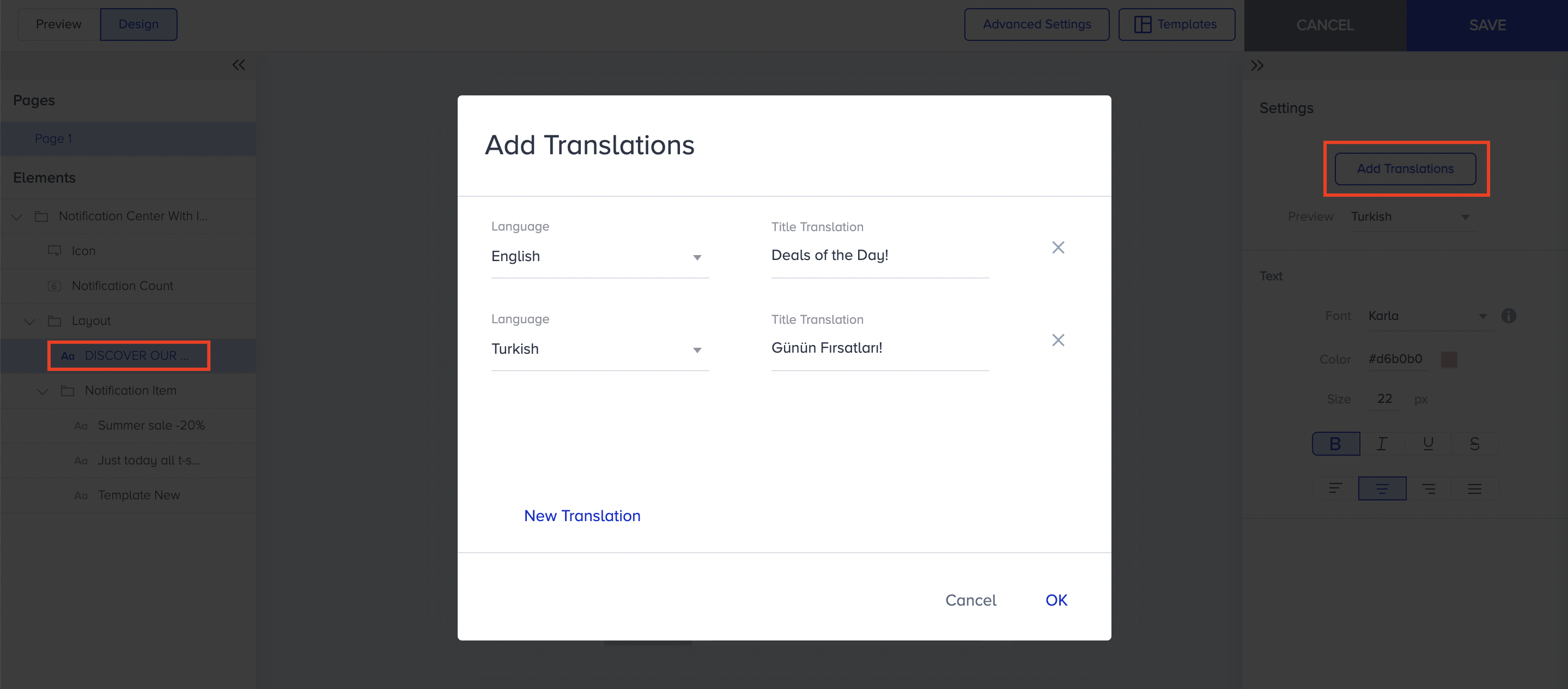
If you have not added a translation for any language, you will be prompted with an error message when you try to create a notification for that language while saving the notification.

You can configure it under Template Style on the listing page. When you select the relevant element in your template, click Add Translations under Settings, then click OK when you have finalized the creation.
Please remember to generate the InOne panel. Otherwise, no change will be visible when you release your campaign.
To create another notification message, apply the same steps.
To display Web Push content in the Notification Center, refer to Send Single Push Notifications to Notification Center.
Limitations
The Notification Center can display up to 20 notifications within a given time period. Messages can be scheduled for the future.
Only 20 Notifications (per language) can be shown at any given time.
If you have more than 20 active notifications, they will be listed from newest to oldest by creation date.