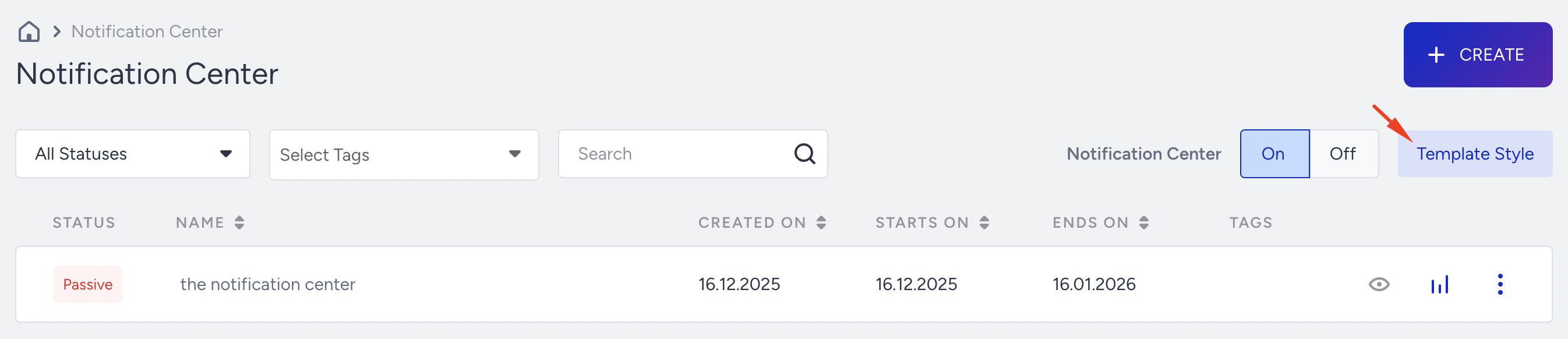
You can design your Notification Center under the Template Style on the listing page. To reach there,
Navigate through Campaigns > Messaging > Notification Center. Click on the Template Styles button.
Select the template you want to use. You can either position it on an element or display it on the page. Then, you can start editing its style by setting the placement.

The main element is the first element that you can add animations to. You can click each one to see what it looks like.

The icon is visible when the Notification Center is on or minimized. You can set another background image. You can upload an image or select one from the Image Library to display when the center is minimized. You can change the shadow color, its position, and add a blur effect.
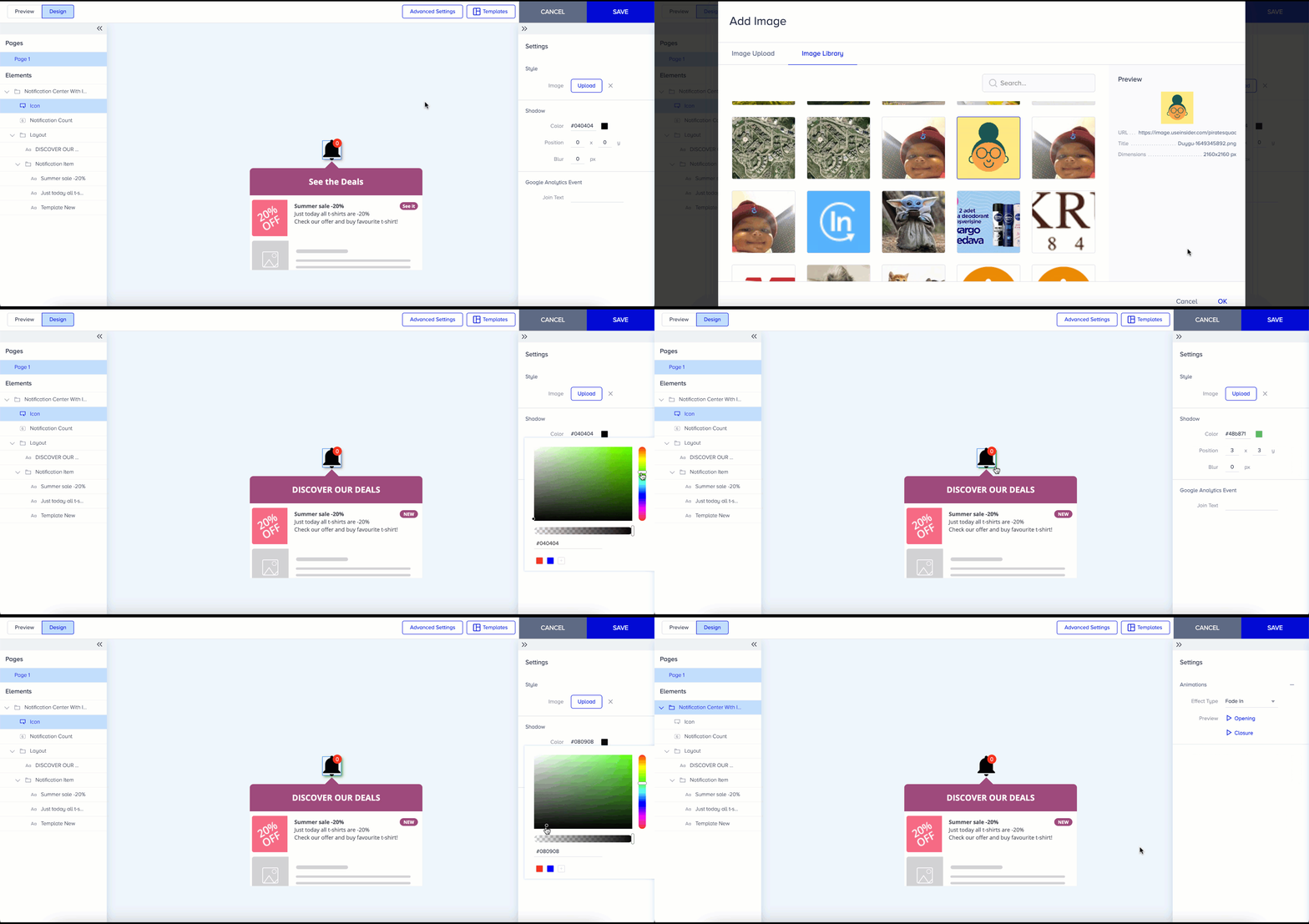
If you want to track the clicks by a different name, you can set a custom Google Analytics event name.

You can update the notification count's fill color and text color.
.gif)
For the layout, you can update the fill color of the top bar and its background color, and set the shadow following the same steps as the icon.

If you want to display the Notification Center in different languages, you can set the translations for each language. If you operate in different languages, you need to create separate notifications for each language. It is also crucial to add Translations to the following template elements:
Notification Center Title (Discover the Deals)
Unread Status Text (New message)

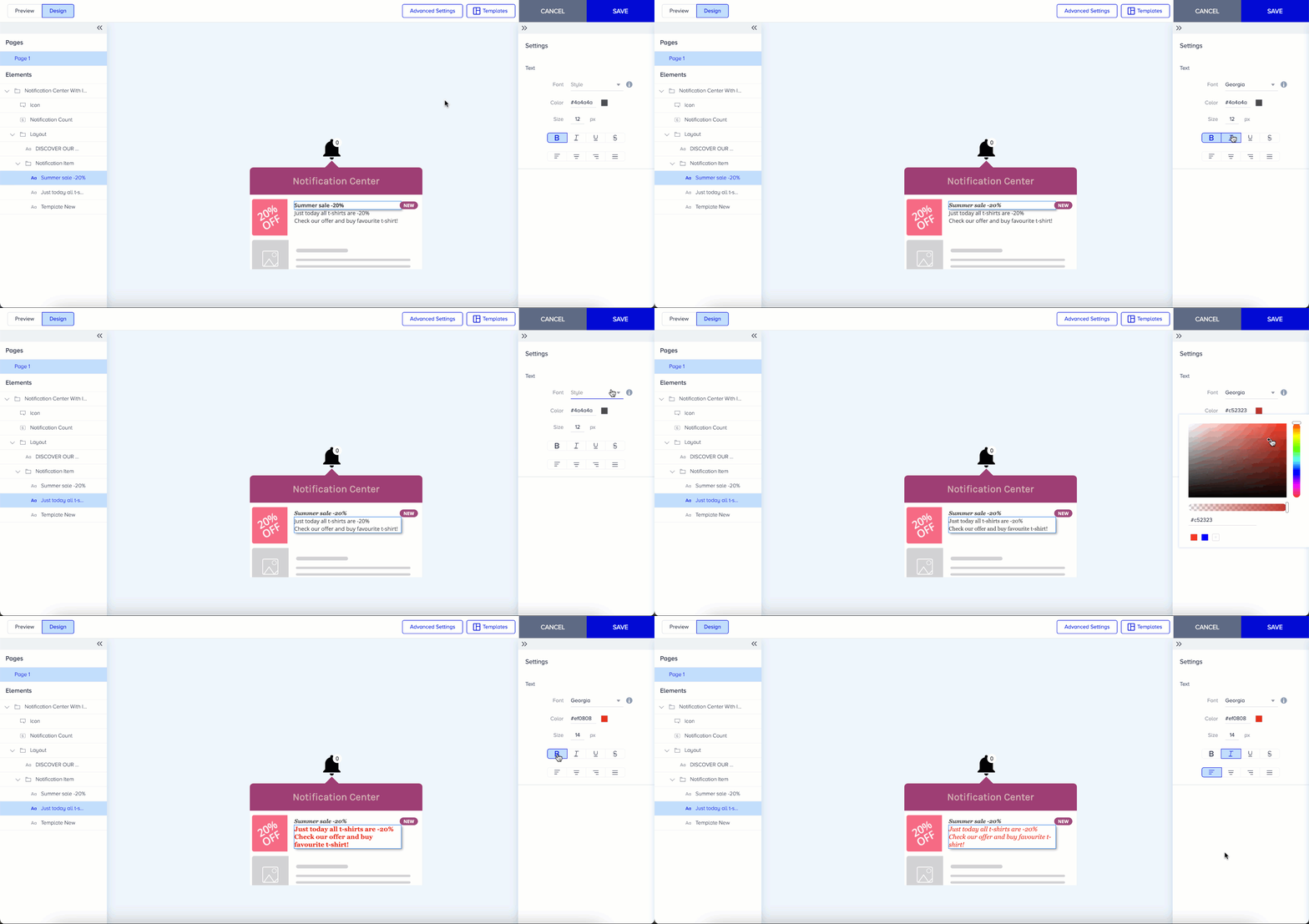
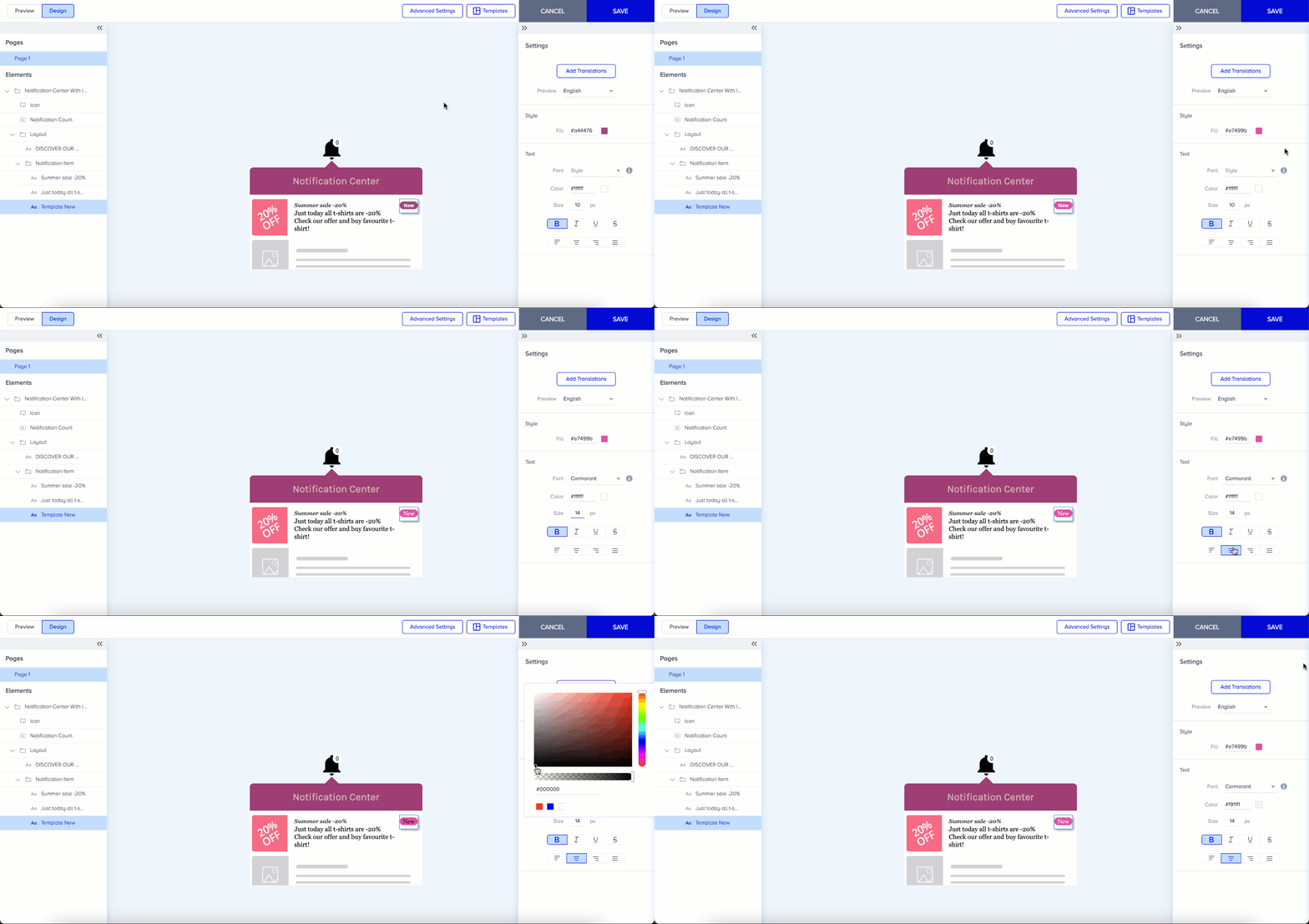
Text properties, including font family, text color, font size, font weight, text decoration, and alignment, can be updated.

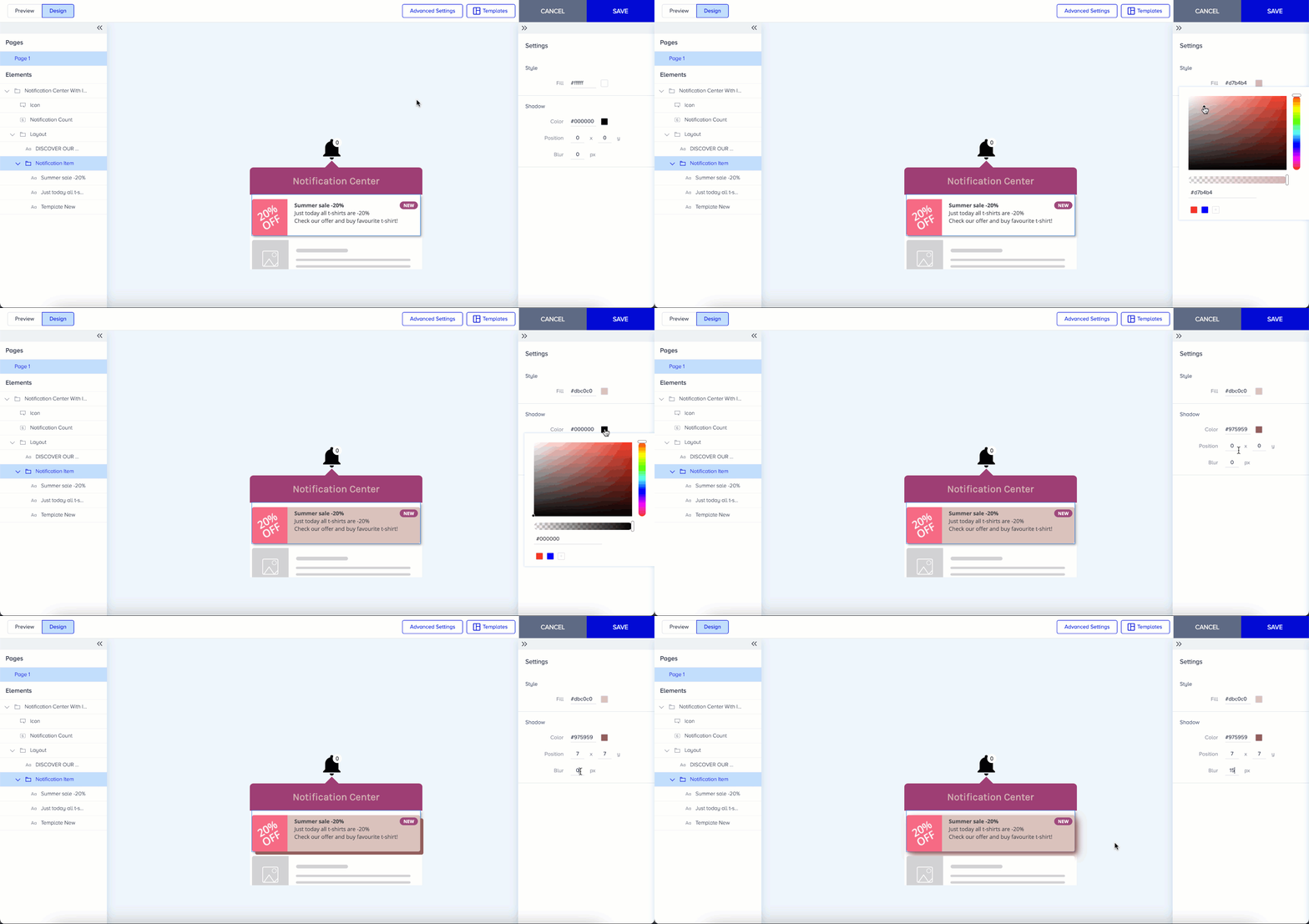
You can also update the look of the notification item by editing the fill color and shadow.
You can update the font family, text color, font size, font weight, text decoration, and alignment on the message title and description.
Lastly, you can add translations for the "New" badge, along with translations for the title.
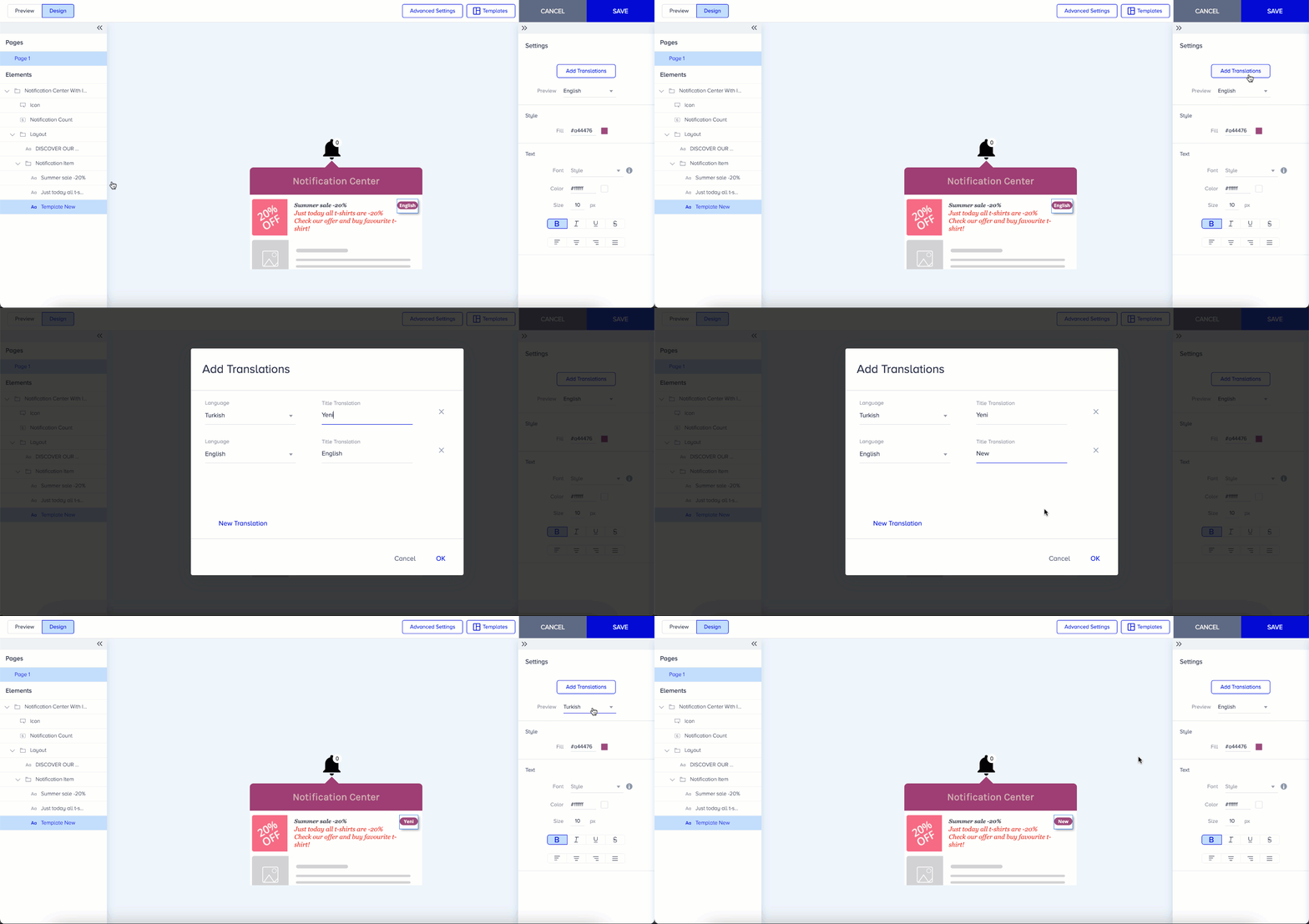
You can edit the fill color and text properties to finish editing your design.
Now, you can create your Notifications.
Please remember to generate the InOne panel. Otherwise, no change will be visible when you test or release your campaign.