The On Price Drop starter, also known as a price drop alert or price decrease notification, enrolls users in a journey automatically when a product's price decreases. The system detects the price decrease across all integrated sources, including the website, mobile app, and offline product catalog, regardless of where the update originates.
To qualify for the journey, a user must have interacted with that product through a specified event, such as a product view or a wishlist addition, within a defined timeframe before the price drop occurs. Only users who meet both conditions, prior engagement with the product and an active price decrease, are enrolled.
This article explains the following concepts:
The main starter condition is the product’s price drop. However, you can filter products and segment users to decide who enters the journey using optional event filters, optional product filters, and additional segmentation.
On Price Drop Starter takes users who visited a product on the journey immediately when that product’s price is dropped based on the given price drop ratio. The default event is Product Page View. If unchanged, On Price Drop Starter will automatically include users who visited a product when its price drops based on the given ratio. Choosing a different event requires users to perform that event with the product to enter the journey. For instance, if the selected event is Item Added to Wishlist, On Price Drop Starter will include users when the wishlist product's price drops according to the specified ratio.
Product Price drop is automatically tracked in the Product Feed system and the system triggers the journey immediately when the price drops.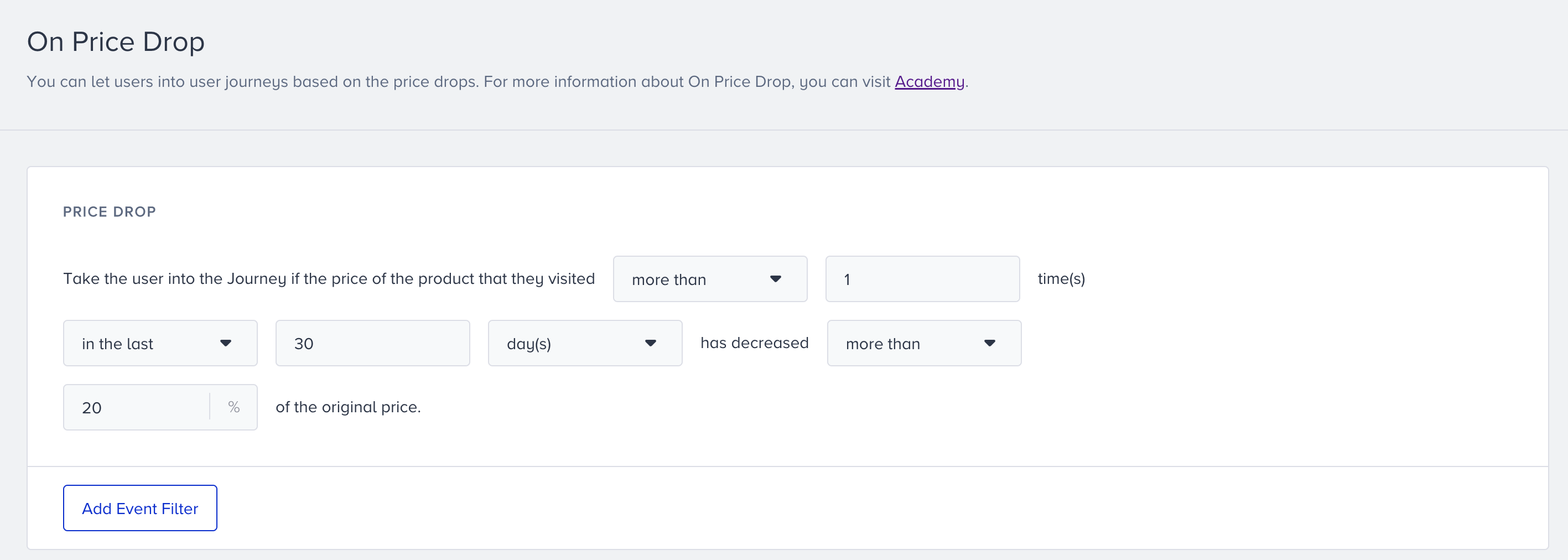
Optional Event Filters
The main starter condition is a drop in the product price. However, you can narrow the segment of users who will enter the journey with Optional Event Filters. You can select from default or custom events to create advanced conditions for journey entry. You can also add event parameters after selecting the event to narrow your filter.
To match the main price drop condition with user events, Product ID (pid) event parameter is used. Events without a Product ID parameter cannot be used with price drop condition. For example, if you have the Wishlist event, it should include the pid event parameter. You do not need to select the pid event parameter in the filter.
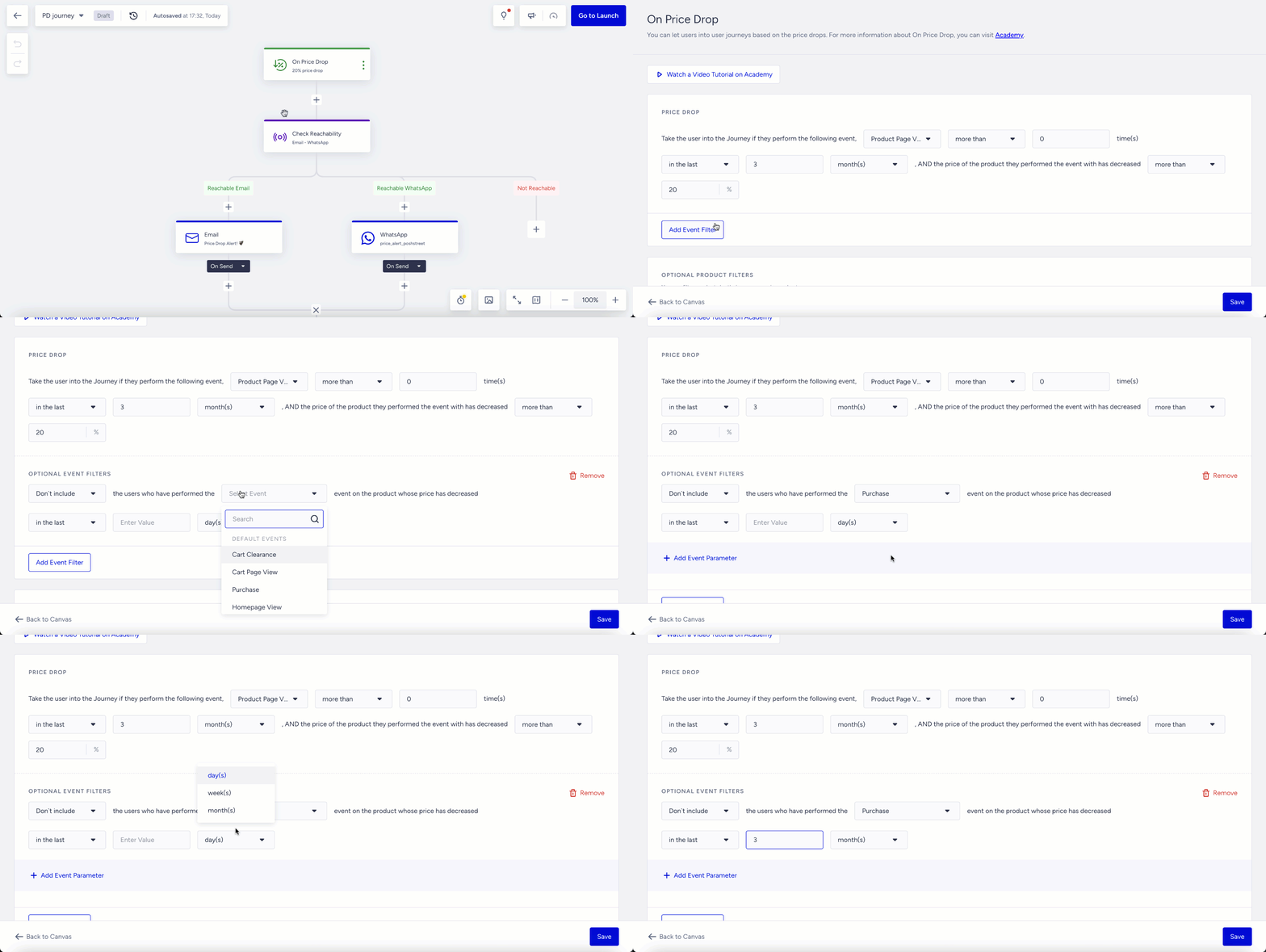
As events without Product ID (pid) event parameter cannot be used with price drop condition, you can view and select default events that have pid event parameter.
You can view and select all custom events under Optional Event Filter. However, you will see the onpage message and toaster below when you try to save the starter element. In this case, you may add pid event parameter to the event or select an event with pid event parameter.

Use Cases for Optional Event Filters
Exclude users who have already purchased the product that is on sale.

Only include users who have added the product that has a price drop to their cart.

Only include users who have added the product that has a price drop to their wishlist.

Only include users who have subscribed to the product to get notified when the price drops.

Optional Product Filters
You can use Product Filters to exclude product categories or specific products based on their price drop percentage or original price. See below for some examples:
You can exclude the “night dresses” category from price drop journeys.
You can include a 20% drop in price, but exclude the products whose discount is less than 10$ to not overwhelm your users with messages for low discount amounts. There may be cases where the original product price is 5$ and it drops to 4$. In this case, the price drop is 20%. So you may want to exclude such products that will bring little revenue.
You can consider a 20% drop in the price, but exclude the products whose original price is less than 10$ to not overwhelm your users with too many messages.

Additional Segmentation
You can add more segments to your starter condition to target your audience more precisely. For example, you can take users into the journey when they visit a product but do not purchase, have a high Likelihood to Purchase value, and the product’s price is dropped by 20%.
Users can enter the journey if they meet the main starter condition and meet the additional segment filter criteria.
You can select predefined segments, standard segments, predictive segments, RFM segments, and saved segments to filter your users to take into the journey.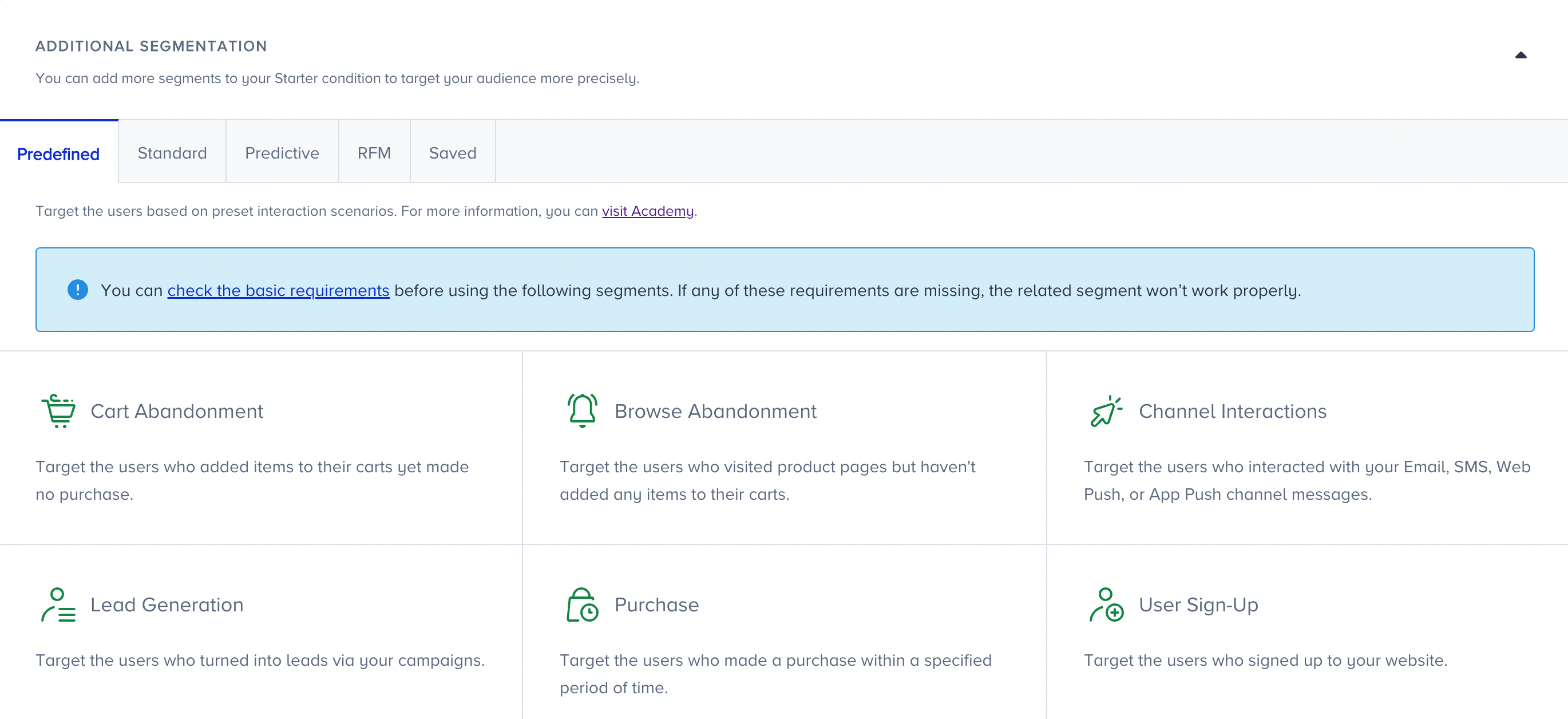
Tips & Tricks
Users may come from Upsert User Data API or any other source without their language information. That’s why we suggest selecting the "All Languages" option in the launch settings.
You can use the product filters to narrow the products that will trigger the journey for a better-targeted audience.
You can use additional segment filters to better segment your users.
You can use custom events for users who add an item to their wishlist/favorites or subscribe to a product to be notified when its price drops. You can use the event parameters to filter the products or categories for these events.
On Price Drop starter works in real time. We do not recommend using wait elements after this starter if you have a time-sensitive use case.
Hold the entry product constant
You can hold the product's catalog attributes that dropped in price constant (e.g., its product name or category) and check them in a Check Conditions element. This lets you confirm whether the same product was purchased before you send a price-drop message.
Use Cases
Price Drop: Target users who have visited a specific product but have not purchased the product when the product’s price dropped.
Price Drop with Cart Abandonment: Target users who have added the product to their cart when that product’s price dropped.
Price Drop with Wishlist: Target users who have added the product to their wishlist or favorites when that product’s price dropped.
Product Subscription: Target users who have subscribed to a product to get notified about the discount when the product’s price dropped.
Pay-back: Target users when a product’s price dropped after they purchased that product to offer them a coupon, wallet points, or a discount to increase their loyalty.
Requirements
On Price Drop starter has two types of requirements:
Product catalog data
User data collection
Product Catalog Data Collection
On Price Drop utilizes the same data collection methods as the Smart Recommender product, which has 3 types of product catalog database integration methods. You can use each method individually or combine them, depending on your platforms and use cases.
Product Catalog Integration through Clickstream Data
Your product catalog information is processed whenever any of your customers visits your website and the product detail pages. Refer to crowd-based product feed collection.
Product Catalog Integration through XML
With this integration type, you can provide your own XML product catalog as a source for your product feed. You can implement the integration through the InOne panel and send all product attributes in the XML file to the product catalog database through the InOne panel. Read more on Product Catalog Integration through XML.
Product Catalog Integration through API
With this method, you can send your product catalog information through insertions and updates through the Catalog API. Read more on Product Catalog Integration through API.
Once the product catalog system triggers the journey, the journey queries users whose language attribute matches the locale of the catalog that contains the Price Drop item. Then, it queries users who have performed the selected event in the selected duration to ensure the product is in stock. It also queries other filters added to the starter.
User Data Collection
You should complete the Insider Tag integration and the Insider Mobile SDK.
Your account manager should enable Events for your account.
You should send the respective events from your website, mobile app, and/or offline environment via Upsert User Data API.
For Optional Event Filters, send the Product ID (pid) event parameter with the respective event that will be used with the main starter condition.
FAQ
1. Should I integrate XML, Catalog API, or both to use the On Price Drop starter?
It depends on your business. Insider collects product data from the website and mobile app when users visit the website. This is called Clickstream and works automatically for price drops. For faster, more reliable price-drop messages, we recommend using the Catalog API or XML.
Do not integrate XML and the Catalog API as two separate sources.
2. How many times should users visit the product page for the system to track if there is a price drop on the website?
A one-time visit is enough to track price drops.
3. How frequently is product price data updated?
It depends on the product catalog integration type:
If Clickstream is the only source on your website or mobile app, it updates product information in 1-hour frequency when the user visits the respective pages.
If XML integration is utilized, the updates are synced in a minimum of 1 hour and a maximum of 5 days, based on the desired sync period.
Catalog API updates the product data in real time when you send the required product data.
4. There is a ‘subscribe to price alert’ button on my website or mobile app. How can I add this condition to the starter?
You need to create an event such as ‘subscribe to price alert’, and that event should have the Product ID (pid) event parameter. Then, you can select this event in the Optional Event Filters of the On Price Drop starter.
5. Can I run the price drop journey only for a specific category or product?
Yes, you can include or exclude product categories in the Optional Product Filters of the On Price Drop starter.
6. Can I target users when the price increases?
No, you cannot.
7. Can I show more than one product that has price drops in the email content?
No, you cannot.
8. What type of product information can I insert into the content?
You can see the price drop attributes here: Product Catalog Attributes.
9. If the user has not visited the product but the product price drops, can I send a price drop message to this user?
Yes, you can. However, it is not applicable with the Clickstream method; you must have Catalog API or XML integration.
You can set the price drop condition as "Take the user into the Journey if the price of the product that they visited less than 1 time in the last 30 days has decreased by more than 20%."
However, we do not recommend it. Because once you apply this, you will not be able to take users who visited the product on the same journey.
10. Can I check the product attributes in the Check Conditions rather than the starter?
No, you cannot.