The Insider Tag integration is required to track user behavior on your website and understand their actions, such as purchase and visit history, including the items or content they visit, purchase, or abandon. Once you integrate the Insider Tag into your platform, you can start leveraging Insider One's Growth Management Platform to personalize your users' experience with advanced segmentation and targeting.
You can integrate Insider Tag with three methods:
Shopify Integration
When you choose the Shopify integration, you will be redirected to Inone > External Integrations. The application simply inserts the Insider Object into the Shopify Liquid and collects data from the website. Shopify integration includes all use cases for web platform integration. The collected data can be used for all Insider One products.
Google Tag Manager
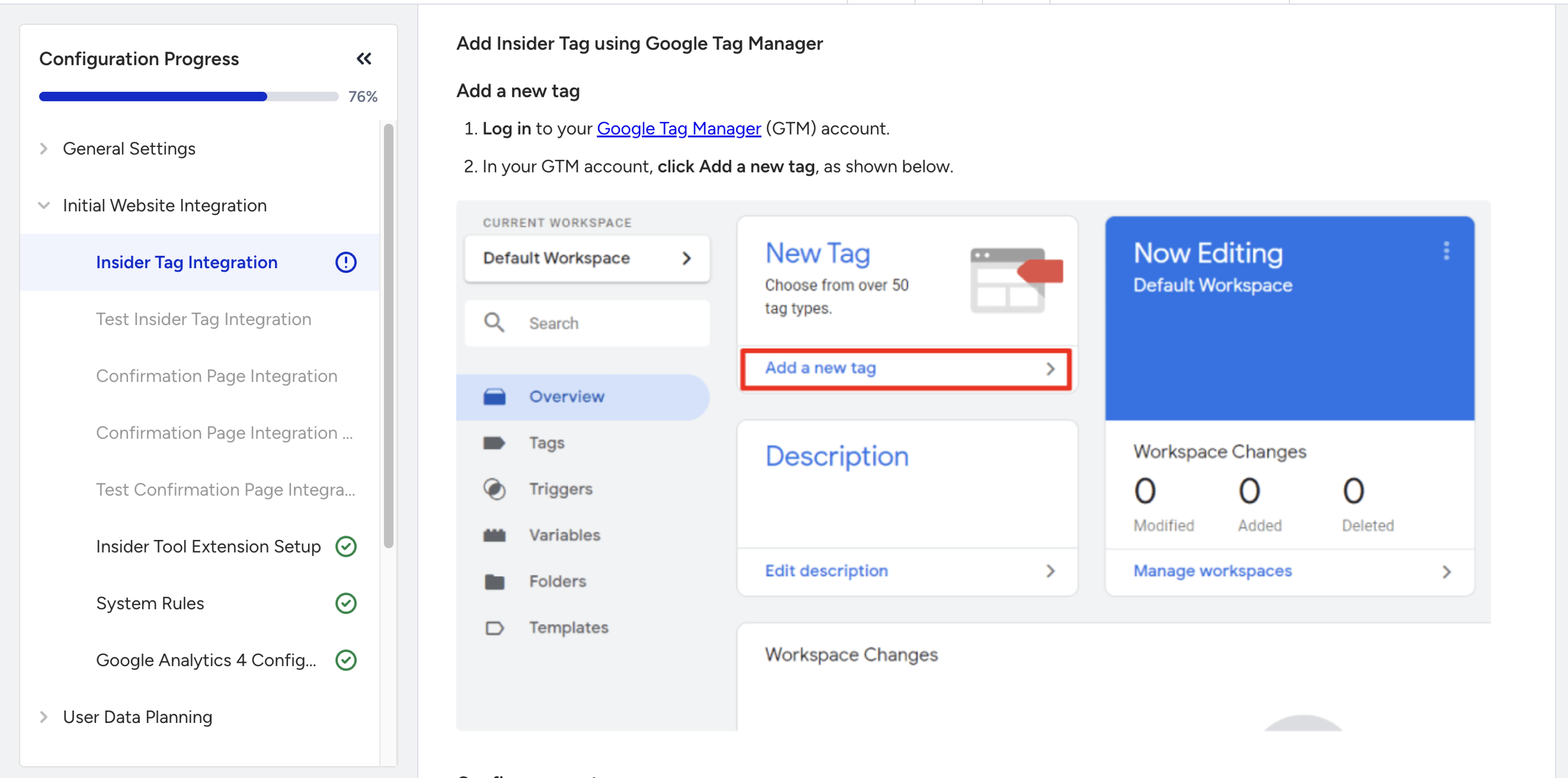
If you choose to use Google Tag Manager, consider your website's structure. It is required to choose Standard or Single Page Application (SPA) because the behavior of the website affects how tracking tags work.
For standard websites, a full page reload happens on every navigation, and the Insider Tag automatically fires on each new page load. However, for SPA websites, the Insider Tag doesn’t fire automatically; it loads on the first page load and doesn't reload on subsequent pages. The Insider Tag reinitializes itself every time a page URL changes. That’s why you might need to reinitialize the Insider Tag.
Based on your selection, you will see step-by-step instructions with visuals to integrate Insider One into your platform.
Source Code Integration
We recommend using Google Tag Manager if it's already integrated, as it streamlines tag installation by letting you manage tags without editing website code. This reduces the risk of errors and the workload for developers and ensures efficient, consistent tag management across your website.
If you choose to continue with the source code integration method, you need to integrate the JavaScript code into your website. Again, before doing that, identify your website's structure.
You can integrate the code as asynchronous or synchronous.
Asynchronous code loads the tag in parallel with the rest of the page, allowing the page to continue loading while the tag is being processed.
Synchronous code, on the other hand, loads the tag before anything else continues. It pauses the loading of the rest of the page until the tag is fully loaded.
We typically recommend using the asynchronous version of the tag. However, as per your use case, you can remove the async attribute from the script to switch to synchronous loading.
.png)
For SPA websites, the process is similar, but in some cases it may require Insider Tag reinitialization.
Test the Insider Tag Integration
You can test the Insider Tag in two methods:
An automatic scan that verifies the presence of the Insider Tag on the website
A manual test performed by the customer
For the Insider Tag to be successfully verified, cookies must be accepted on the website unless the customer subscribed to the Cookie-Free Insider Tag.
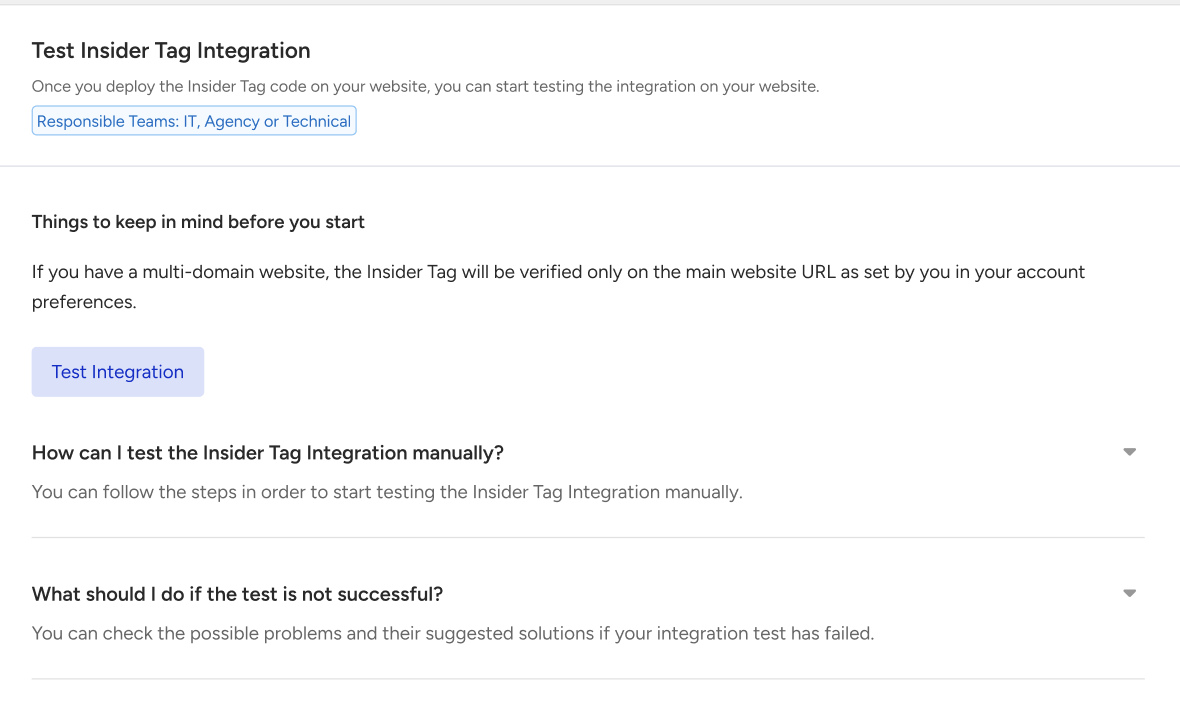
If you have a multi-domain website, the Insider Tag is verified only on the main website URL in the account settings.
If you prefer to test the integration manually, you can do it via a step-by-step process using browser inspection tools to ensure the tag is implemented correctly. If you choose to test the integration automatically, our system will perform an automatic scan.
If the integration is successful, you can proceed to the next step. If not, you will see an error message.
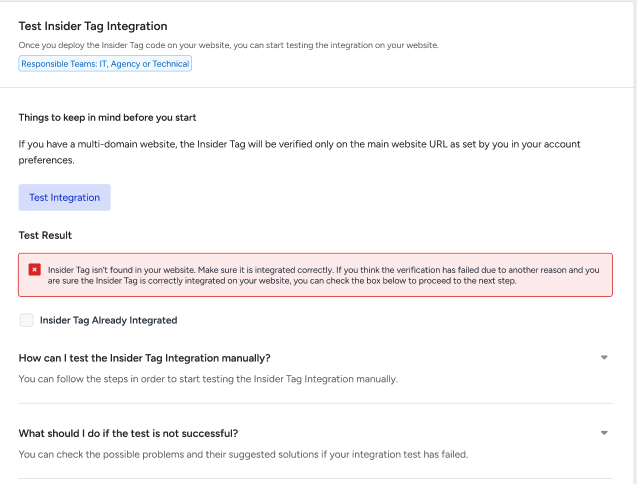
If there is an error, possible blockers include the website's cookie acceptance structure or errors in the cookie modal, which may prevent the system from verifying the Insider Tag.
If the Insider Tag runs on a domain that is not configured for the account’s multi-domain setup, user identification or storage continuity may not work as expected. Confirm that the affected domain is included in the account’s Multi-Domain configuration and that the required storage-support setting is enabled. Also verify that the Insider Tag and initialization push load correctly and that consent or browser storage restrictions are not preventing identification.
Next steps: