On Low In Stock starter takes users into the journey when a product's stock count drops below a threshold you define and the user has previously interacted with that product within a specified time period. The starter is triggered by a stock count update across all platforms, website, mobile app, and offline, and then segments the users who have interacted with that product.
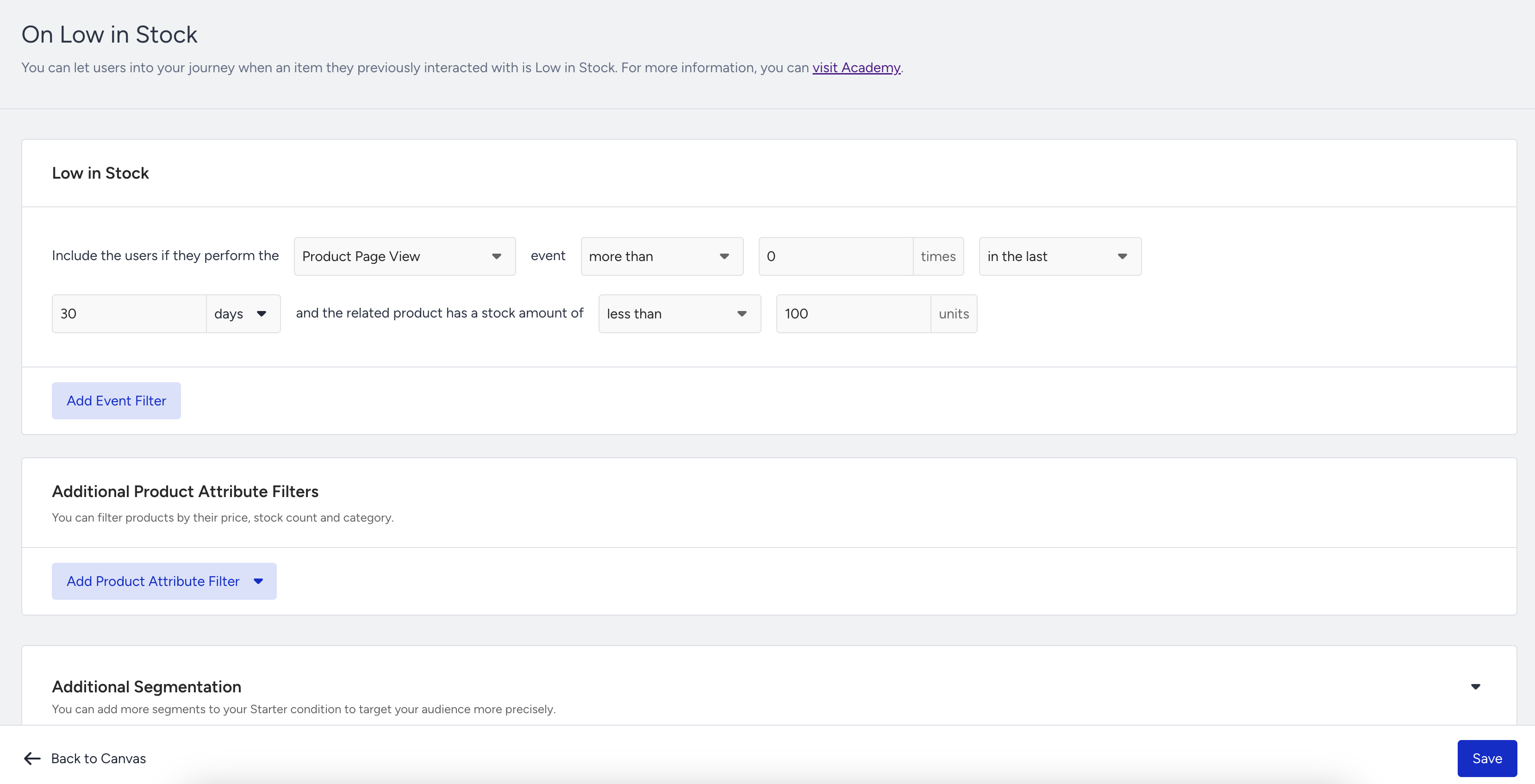
On Low In Stock starter takes users who performed a selected event with a product into the journey when that product's stock count crosses below your configured threshold. The default trigger event is Product Page View. If you do not change it, the starter will enter users who viewed the product page when that product's stock drops below the threshold. If you select a different event, the user must have performed that event with the product to be eligible for entry. For example, if you select the Item Added to Cart event, the starter will target users whose cart items have fallen below the stock threshold.
The stock threshold is configured with an operator and a value. You can choose Less Than or Equals and enter the stock amount. The trigger fires only when a product's stock count transitions from above the threshold to below it. If the stock is already below the threshold when the journey is live, a further drop does not re-trigger the entry.
A stock drop to zero does not trigger the starter. The trigger fires only on the transition, from above the threshold to below it. If the product's stock was already below the threshold before the journey launched, users will not enter the journey.
The main starter condition is the product's stock count crossing the threshold, but you can narrow the eligible users with Optional Event Filters. You can select from default or custom events to create advanced conditions for journey entry.
For example, you can use it in the following cases:
If you want to target users who added the product to their cart but it is now running low on stock, combine this with your cart abandonment use case.
If you want to notify users when a product on their wishlist is nearly sold out.
If you want to exclude users who have already purchased the product, and only reach those who are still considering it.
To match the main starter condition with user events, the Product ID (pid) event parameter is used. Events without a pid parameter cannot be used with the Low in Stock condition.
Default events that include the pid parameter are shown first in the trigger event dropdown. You can view and select all custom events under Optional Event Filters. However, if the selected custom event does not include pid, a warning will appear and the configuration cannot be saved. In this case, add the pid event parameter to the event, or select an event that already includes it.
You can use Additional Product Attribute Filters to include or exclude specific products based on their price, category, or stock count. For example, you can use them in the following cases:
If you want to exclude products that are on sale, so that low-stock alerts are only sent for full-price items.
If you want to exclude products priced below a certain threshold to avoid messaging users about low-value items.
If you want to restrict the journey to products in a specific category, such as "Outerwear" or "Footwear."
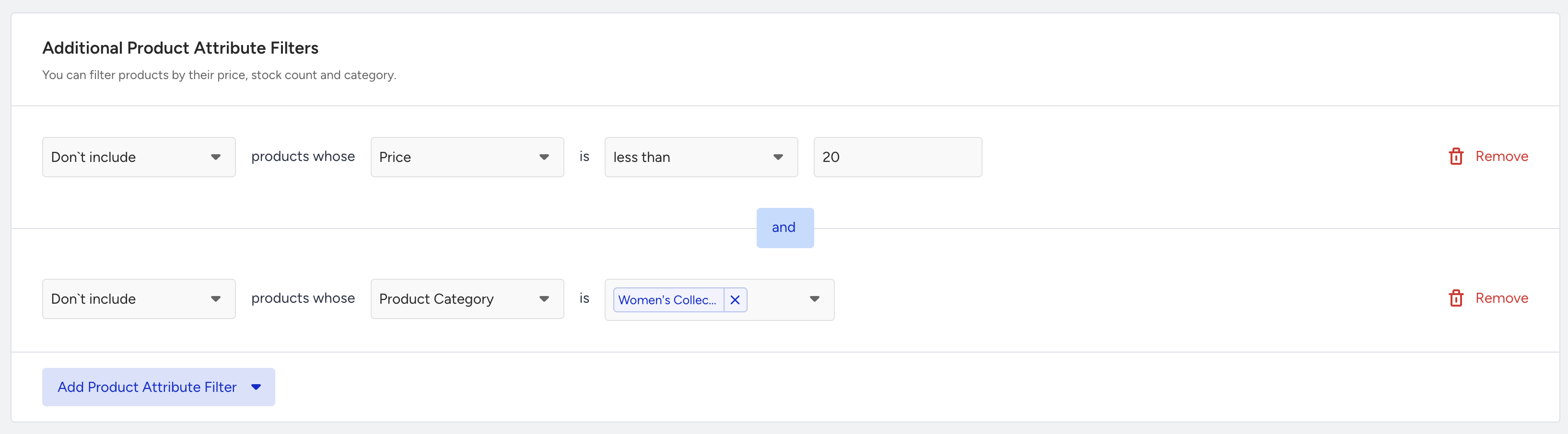
Product and Event filters are optional. Enable the filters that are relevant to your use case.
Additional Segmentation
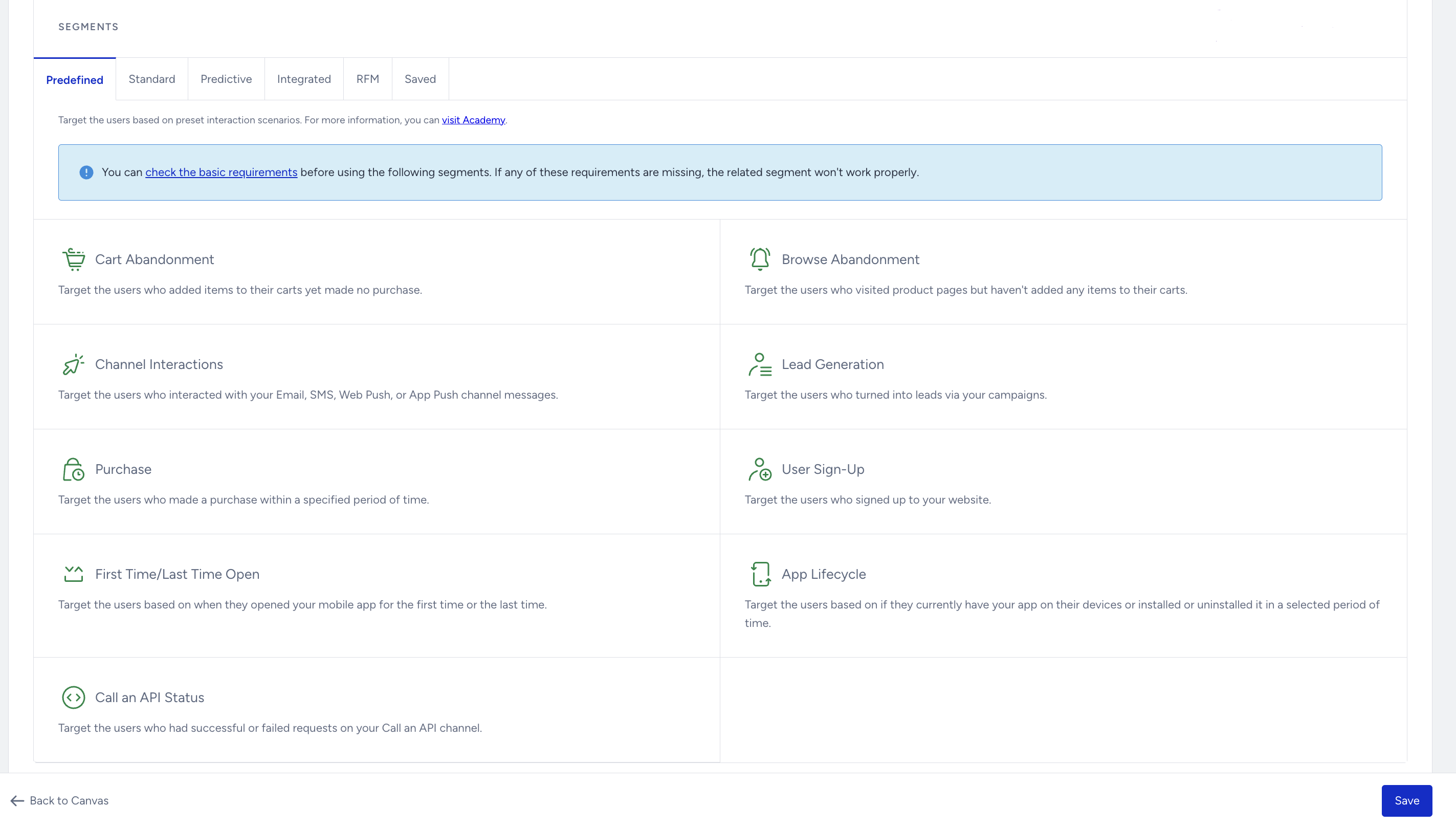
You can add more segments to your starter condition to target your audience more precisely.
For example, you can take users into a journey when they visited a product but did not purchase, and that product is back in stock and has a high Likelihood to Purchase value.
Users can enter the journey if they meet the main starter condition and additional segment filter criteria.
You can select predefined segments, standard segments, predictive segments, integrated segments, RFM segments, and saved segments to filter your users to take into the journey.
Tips and tricks
Users may come from Upsert User Data API or any other source without language information. Select the All Languages option in the launch settings to ensure all eligible users are covered.
Use product filters to narrow the set of products that trigger the journey for a more targeted audience.
Use additional segment filters to layer in behavioral or predictive signals. For example, combining low-stock alerts with a high Likelihood to Purchase segment increases message relevance.
Use custom events such as Item Added to Wishlist or Product Subscription to reach users who have explicitly expressed interest. You can use event parameters to filter for specific products or categories within these events.
On Low In Stock fires in real time when the stock threshold is crossed. If your use case is time-sensitive, avoid adding wait elements immediately after this starter.
Set a meaningful threshold value. A threshold that is too high may trigger the journey too early; a threshold that is too low may not leave enough time for users to act before the product sells out.
Hold the entry product constant
You can hold the catalog attributes of the product that ran low in stock constant, e.g., its product name or category, and check them in a Check Conditions element. This lets you check whether the shopper already acted on the same product or category before you send a reminder.
Use cases
You can use the On Low in Stock starter in various use cases as follows:
Low stock alert: Target users who viewed a product when its stock drops below a defined threshold. E.g., "Only 5 left."
Cart abandonment and stock urgency: Target users who added an item to their cart when that item's stock is running low, combining purchase intent with a sense of scarcity.
Wishlist urgency: Target users who added an item to their wishlist or favorites when that item's stock falls below your threshold.
Category-based stock campaigns: Restrict the journey to a specific product category and alert users when any product in that category crosses the stock threshold.
High-intent buyers: Combine with a predictive segment such as Likelihood to Purchase to prioritize messaging for users most likely to convert.
Requirements
Two items are required for the On Low in Stock starter: product catalog data collection and user data collection.
Product catalog data collection
On Low In Stock uses the same data collection methods as the Smart Recommender product. The stock_count field must be available as a product attribute in your catalog. You can use three integration methods individually or combine them.
Clickstream Data: Product catalog information is processed when users visit product detail pages. This requires system rules to be integrated; all product information is then collected and processed.
XML: Customers provide their XML product catalog as a source. Integration is done through the panel, and all attributes in the XML file can be sent to the product catalog database.
Catalog API: Customers send product catalog information via insertions and updates.
User data collection
Insider Tag integration must be completed.
SDK integration must be completed for mobile app data collection.
Insider One team must map out your website and enable events for your account for the customer to send them from website, mobile app, or via Upsert User Data API.
For Optional Event Filters, the Product ID (pid) event parameter must be sent alongside the event used with the main starter condition.