Support Agent and Shopping Agent can understand voice messages from customers. Instead of typing their request, customers can record and send a voice message through a supported channel.
Insider One processes the voice input so the AI Agent can understand the customer's request and respond with a text message. This creates a voice-in, text-out experience:
Customer sends a voice message → AI Agent processes the message → AI Agent responds in text
Voice messages can make conversations more convenient, particularly for customers using mobile devices or explaining detailed requests that might be difficult to type.
Supported channels
Voice messages are supported on the following channels:
Channel | Voice message support | How customers record |
|---|---|---|
Webchat | Supported | Microphone button in the message input field |
Supported | Native WhatsApp voice note | |
Supported | Native Instagram voice message |
Voice messages are currently unavailable on channels that are not listed in the table.
On WhatsApp, Insider One does not transcribe the voice message before sending it to the AI Agent. The original voice message is sent directly to the agent for processing.
How voice messages are processed
After voice message support is enabled, the processing flow is handled automatically. The flow differs slightly depending on the channel used by the customer.
Webchat voice message flow
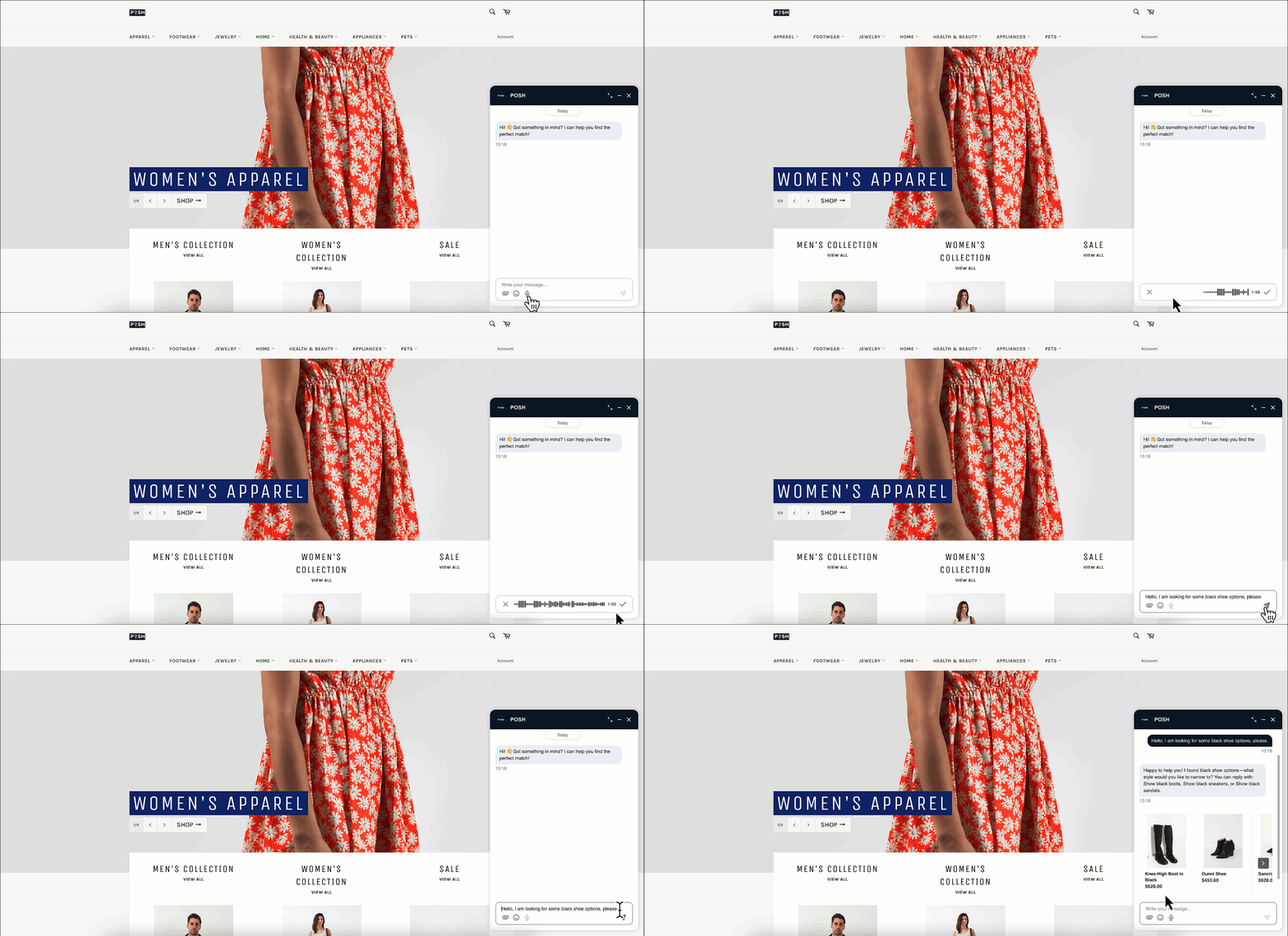
The customer selects the microphone button in the message input field and records a voice message. A live waveform indicates that the recording is active.
When the customer finishes recording, the audio file is securely uploaded and automatically transcribed into text.
The transcribed text is sent to the AI Agent as the customer's message.
The AI Agent processes the request and responds with a text message.
WhatsApp and Instagram voice message flow
The customer records and sends a voice message using the channel's native voice message feature.
The voice message is sent to the AI Agent for processing.
The AI Agent understands the customer's request and responds with a text message.
Voice messages use the same AI Agent configuration, routing logic, conversation flows, and knowledge base as typed messages. No changes to the existing agent setup are required.
Enable voice messages for Webchat
Voice recording is disabled by default for Webchat channels. You must enable it separately for each Webchat channel where customers should be able to send voice messages.
Go to the relevant Webchat channel settings in the MindBehind panel.
Enable the Voice Recording toggle.

Save your changes.
After the setting is enabled, a microphone button appears in the Webchat message input field, allowing visitors to record and send voice messages.
Voice message limits
Item | Limit or behavior |
|---|---|
Maximum Webchat recording duration | 2 minutes |
Maximum Webchat audio file size | 25 MB |
WhatsApp and Instagram audio | Standard voice messages recorded through the native channel experience |
AI Agent response format | Text only |
Language support
AI Agents can understand voice messages in any language, allowing customers to communicate in the language they are most comfortable using. They can also continue understanding the conversation if the customer switches languages during the same chat.
For the best recognition accuracy, encourage customers to speak clearly and minimize background noise.
Separate language configuration for individual channels is currently unavailable.
Troubleshooting
Issue | Recommended action |
|---|---|
The microphone button does not appear in Webchat | Confirm that the Voice Recording toggle is enabled for the relevant Webchat channel and that the voice message feature is enabled for your account. |
The microphone button does not start recording | Confirm that the customer's browser has permission to access the microphone. If microphone access was previously denied, the customer may need to enable it manually in their browser or device settings. |