Image Recognition enables the Support Agent to understand images uploaded by customers and use the extracted information throughout the conversation. Instead of asking customers to describe an issue in words, the agent can analyze uploaded content such as documents, screenshots, damaged items, or codes.
Based on the configured instructions, the agent can extract relevant information from an image and use it to respond to the customer, trigger an Action, or continue the support flow with the identified data.
Image Recognition capabilities
Read and extract structured information, such as text, numbers, fields, and codes, from uploaded images.
Interpret uploaded images based on the configured instructions for the use case.
Pass extracted information to an Action to look up, validate, or update records.
Continue the conversation using the information identified in the uploaded image.
Set up Image Recognition for Support Agent
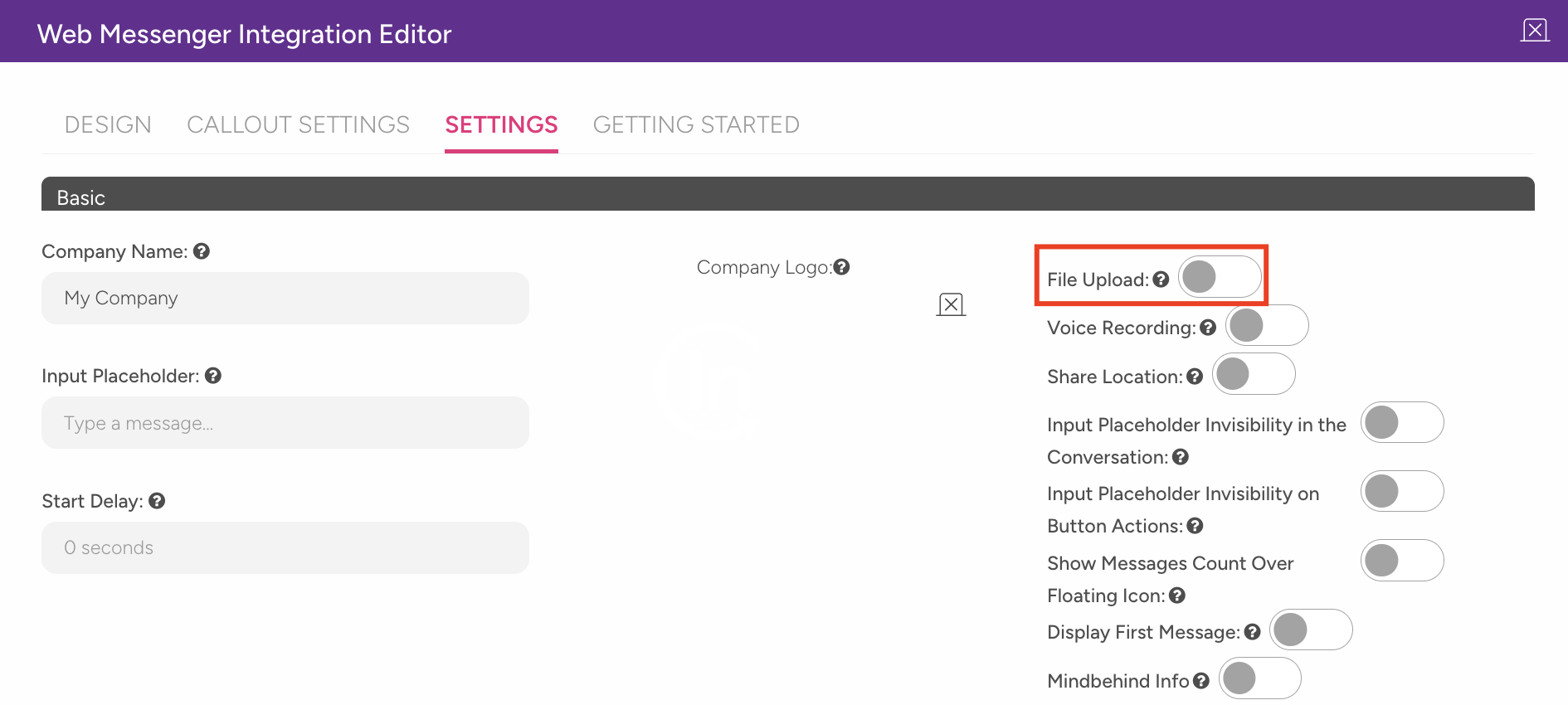
Image Recognition requires file uploads to be enabled for your webchat. Once enabled, Image Recognition behavior is configured through the Support Agent instructions.
Navigate to MindBehind Flow > Companies > Channels.
From the list of integrations, click the Update icon next to the Support Agent integration you want to configure.

Click the Settings tab.
Enable the File Upload toggle for the webchat in the MindBehind panel.
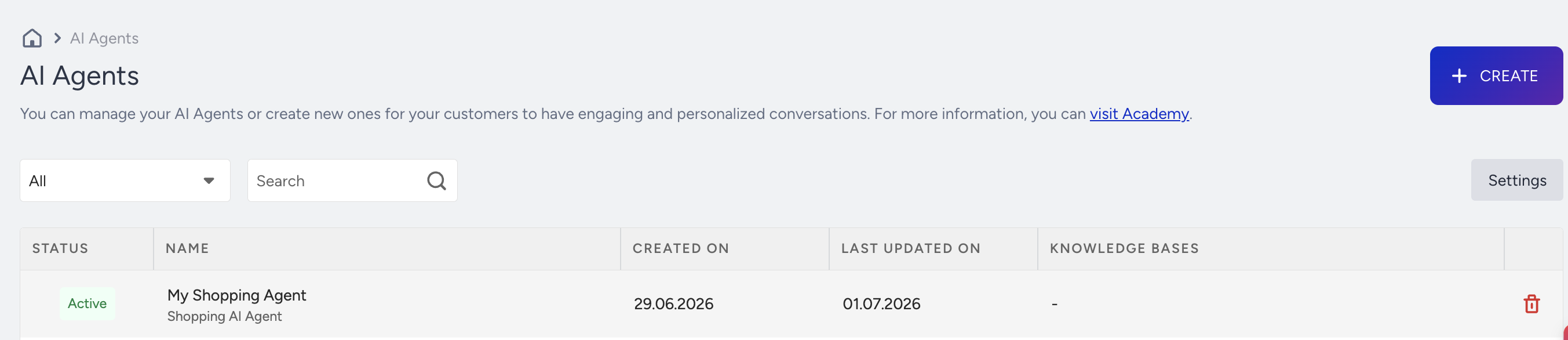
Navigate to InOne > Agent One > AI Agents and select the relevant Support Agent from the listing page.
In the Personality step, under the Instructions, define how the agent should interpret uploaded images. For example, you can instruct the agent to read the policy number from an uploaded document.
Use Cases
Use Case 1: Boarding Pass and Document Check (Airline)
Scenario
A traveler uploads a photo of their boarding pass or passport during a rebooking conversation instead of manually entering their flight and passenger details.
How it works
The customer uploads a photo of the boarding pass.
The agent extracts the PNR or booking reference, flight number, passenger name, and seat number.
The agent confirms the identified flight details with the customer.
The extracted information is used to retrieve the live booking and present available rebooking options.
How the Action is used
The extracted PNR and passenger name are passed to the Retrieve Booking Action, removing the need for customers to enter the information manually.
Benefits
Customers can be identified more quickly, reducing typing errors and providing a smoother rebooking experience during travel disruptions.
Use Case 2: Claim Damage Assessment (Insurance)
Scenario
A policyholder reports a claim by uploading a photo of a damaged item, such as a cracked phone screen or a dented vehicle panel.
How it works
The customer uploads a photo of the damaged item.
The agent analyzes the image and identifies the visible damage and affected area.
The agent asks any additional questions required by the configured instructions, such as the date or cause of the damage.
The damage summary is used to create a First Notice of Loss (FNOL) record together with the uploaded image.
How the Action is used
The damage summary and image reference are passed to the Create Claim Action, prepopulating the claim with the initial assessment.
Benefits
Customers do not need to describe the damage in detail, helping speed up the initial claims process.
Best practices
Confirm the information extracted from the uploaded image before triggering an irreversible Action.
Keep the agent instructions specific by defining exactly which information should be extracted and how the agent should proceed if required information is missing.