Wait Until a Time Slot allows you to put users on hold, much like a do-not-disturb (DND) rule, until a specific day and time slot. Users can proceed to the next step only during a specific time slot on a specific day.
You can select daily, weekly, and monthly frequency options to set different time slots for different days.
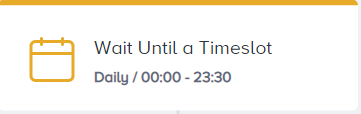
Take, for example, an airline company. They publish their discount and benefits campaign on their website only on Mondays. They want to notify users via SMS message between 5 and 6 pm since they know this is the best time for their users. In this case, you can add a Wait element before the SMS element and set it to run only on Monday. You can determine 5 pm-6 pm as a time slot.
That said, the user will proceed to the SMS element only if the day is Monday and the time is between 5 and 6 pm. When the user arrives in the Wait element at 6 pm on a Monday, they will be held in the Wait element until 5 pm next Monday.
Use cases
With Wait Until a Time Slot, you can:
Engage users in a specific, contextual scenario, such as a flash sale or a new-season campaign.
Send messages within each user's own local hours to comply with white hour and contactability regulations in the countries you operate in.
Engage users during the best time slot to boost conversion.
How does Wait Until a Time Slot work?
Wait Until a Time Slot element keeps users until specific time slots and days.
Under Time Zone, you choose which time zone the element applies your time slot in:
Custom Time Zone applies one fixed time zone to every user. Your own time zone is selected by default, and you can pick any other from the list.
User Time Zone applies the time slot in each user's own time zone, using their Time Zone attribute. A user in Bogota and a user in Istanbul both proceed during your configured hours as their local clocks read them.
Insider One reads the user's Time Zone attribute when the user arrives at the element, not when you launch the journey. It reads it again at every Wait Until a Time Slot element the user passes through. If a user's time zone changes partway through a journey, later wait elements use the new one. This matters for journeys that run over long trips or relocations.
The total wait time from the start to the end of each path in your journey must stay within six months.
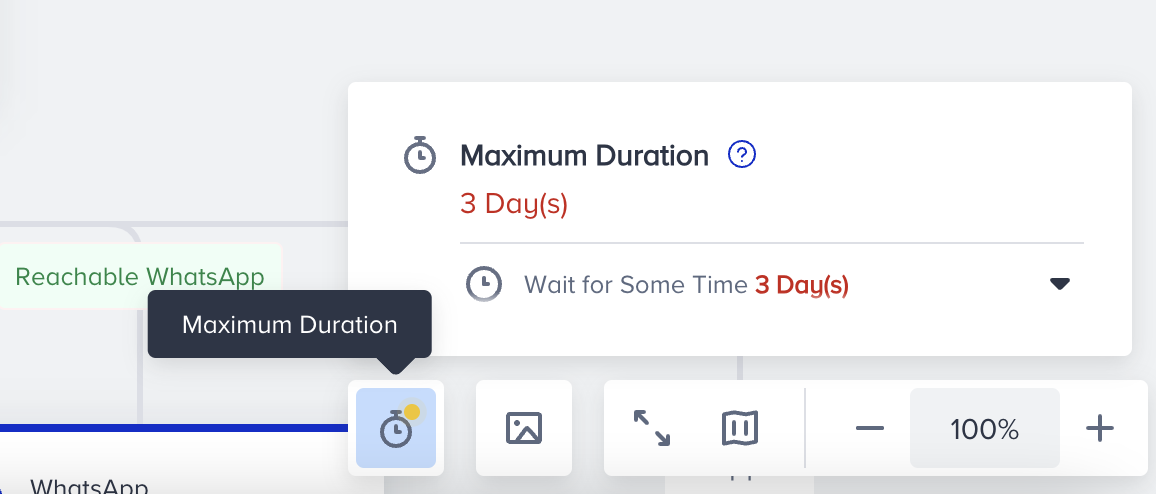
Place a different element between two Wait elements of the same type.
If a user reaches the element while the time slot is open, they proceed to the next element right away.
Users who arrive while the slot is open proceed right away.
Users who arrive outside the slot wait for it to open and are spread across it in arrival order.
The first 7,500 proceed as the slot opens, the next 7,500 one minute later, and so on. Most journeys never reach that volume.
The shortest slot is one hour, which spreads up to 450,000 users, and longer slots spread proportionally more.
If more users are waiting than that, they still proceed within the same slot.
Users are never carried over to the next slot occurrence.
You set Wait Until a Time Slot between 9 am and 9 pm with a daily frequency.
Janice enters the flow today and arrives at the Wait Until a Time Slot element at 10 am. Janice will proceed to the next element from this wait element right away.
If John enters the flow today and arrives at the Wait Until a Time Slot element at 11 pm, he will be on hold until tomorrow and proceed to the next element at 9 am, when the slot opens.
Fallback Time Zone
Some users do not have a Time Zone attribute set. When you select User Time Zone, you choose what happens to those users under Fallback Time Zone:
Set Custom Time Zone applies one fixed time zone to every user without a Time Zone attribute. Your own time zone is selected by default, and you can pick any other from the list. These users wait for your time slot as that time zone reads it.
Let the users proceed to the next element immediately sends those users to the next element with no wait at all.
The Fallback Time Zone section appears only when User Time Zone is selected. With Custom Time Zone, every user already shares one time zone, so no fallback is needed.
Choose the fallback deliberately. "Let the users proceed to the next element immediately" sends a user with no time zone to the next message at whatever hour they arrive. White hour rules exist to prevent this outcome. If the journey exists to respect local contact hours, "Set Custom Time Zone" is the safer option.
Time Slot Delay
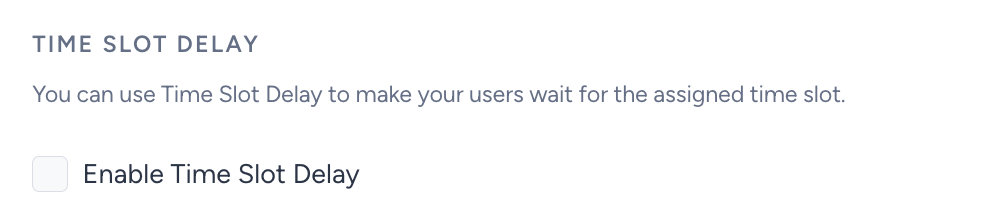
You can also enable the Time Slot Delay to make your users wait up to 90 days before waiting for the time slot. Once the users arrive at the Wait Until a Time Slot element, they wait for the number of days specified under the Time Slot Delay before they wait for the time slot you configured.
Get started with Architect Journey: Use Wait until a Time Slot element in your journeys.