Suggested readings: Transactional Journeys, On API Call Starter, Transactional Journeys Wait Elements
Wait for Some Time lets users wait a set period before proceeding to the next element in a transactional journey. Users can wait for a fixed duration (Wait for Some Time) or for a duration that you send in the API request (Wait for a Dynamic Duration).
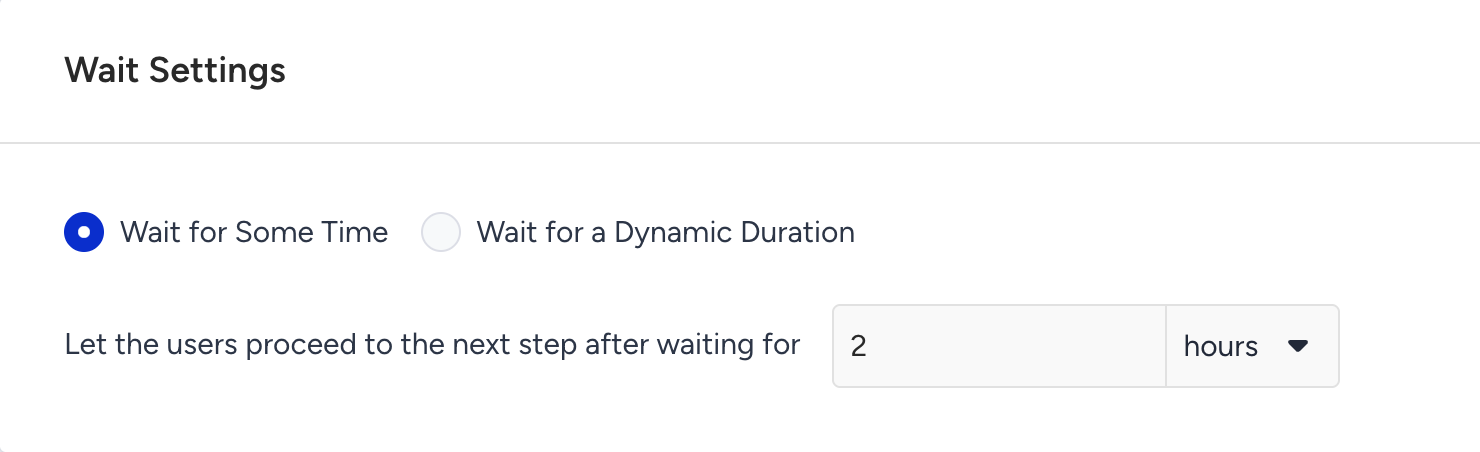
Take, for example, a food delivery company. The order confirmation must go out the moment the order is placed, and a "Your order is being prepared" message should follow two hours later. You can add an Email element for the confirmation, a Wait for Some Time element set to two hours, and then an SMS element for the update. One API call delivers both messages.
Use cases
With the Wait for Some Time element in Transactional Journeys, you can:
Send a follow-up a fixed time after the first message, such as a second notice 30 minutes after a failed payment.
Send a reminder at a time that differs for each user, such as an appointment reminder 24 hours before each booking, by sending the duration in the API request.
How does Wait for Some Time work?
The wait starts when the user arrives at the element. For example, your journey flow is On API Call > Email > Wait for Some Time > SMS, and the wait is two hours. A user enters the journey at 2:00 pm and receives the email right away. The user arrives at the wait element at 2:00 pm and proceeds to the SMS element at 4:00 pm.
With Wait for a Dynamic Duration, the duration comes from a number parameter in the API request that enters the user. Insider One calculates the wait time once, when the user arrives at the element. If the parameter is missing from the request, the Fallback Preferences you set decide what happens to the user.
Limits in Transactional Journeys
A single Wait for Some Time element can be set to a maximum of 30 days. The limit applies in every unit, so the maximum is also 720 hours, four weeks, or one month.
The fallback duration of a dynamic wait has the same 30-day maximum.
If a dynamic duration works out to more than 30 days, the user is dropped from the journey.
The total wait time from start to end of a transactional journey cannot exceed 60 days.
These limits are shorter than in promotional journeys (three months per element and six months per path), because transactional messages are time sensitive.
Placement rules
You can add a wait element after the On API Call starter or after any channel element.
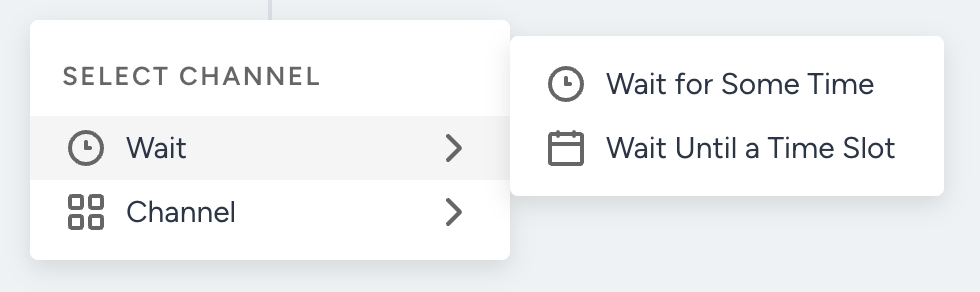
A wait element must be followed by a channel element. Right after a wait, the add menu offers only Channel.
.png)
A journey cannot end with a wait element. If it does, validation shows "Finalize your Journey with Channel element to continue."
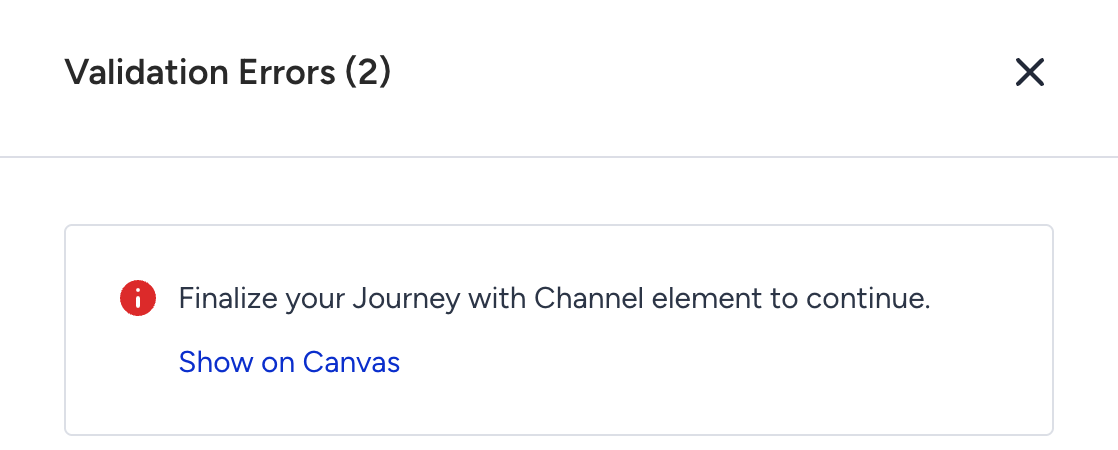
Test runs do not hold users at wait elements. During a test, the messages after a wait are sent right away.
Use Wait for Some Time
To use the Wait for Some Time element in your transactional journey, follow these steps:
Click the + (plus) button after the starter or a channel element, hover over Wait, and select Wait for Some Time.
Under Wait Settings, select Wait for Some Time for a fixed duration, or Wait for a Dynamic Duration to use a value from the API request.
Enter a number and select a unit: minutes, hours, days, weeks, or months. Users proceed to the next element after waiting for this duration.
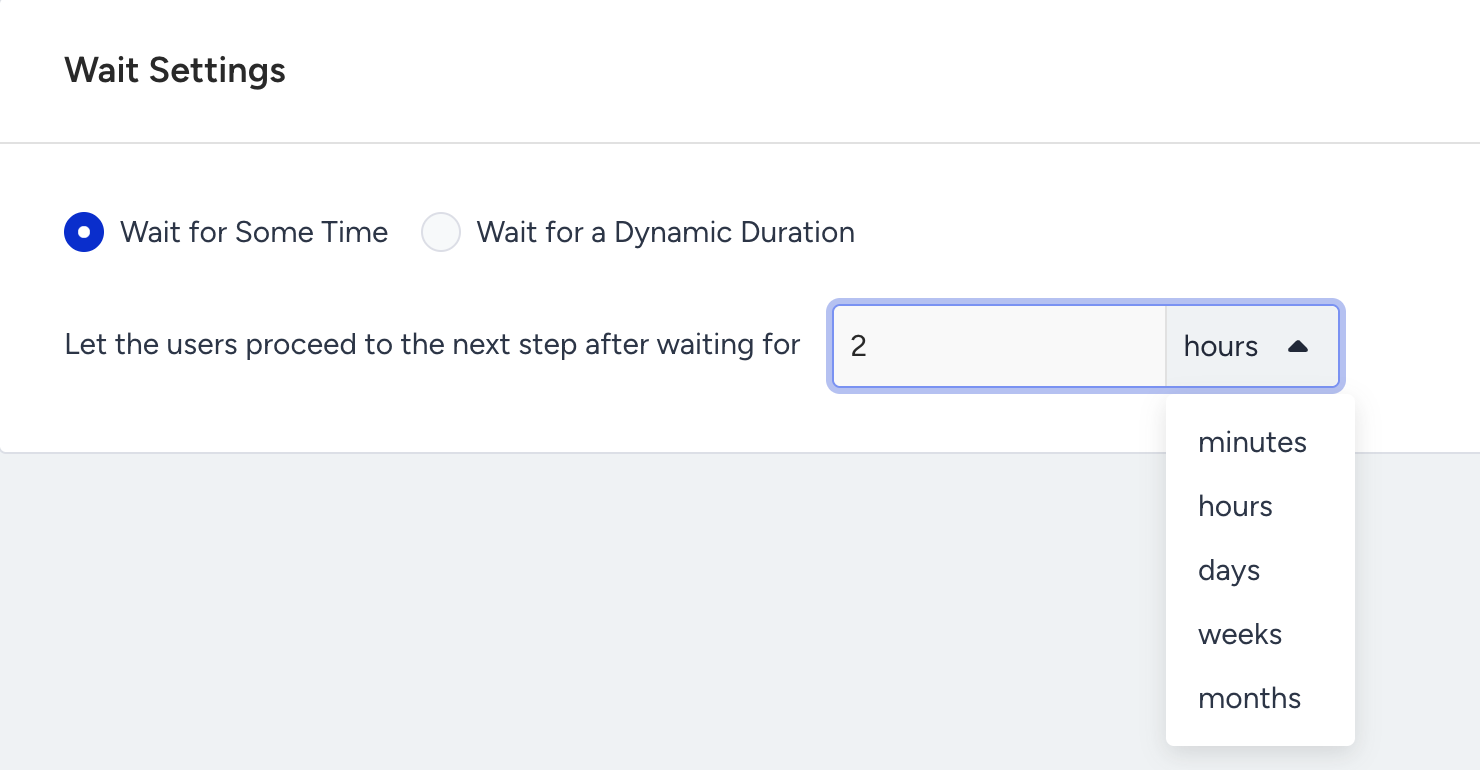
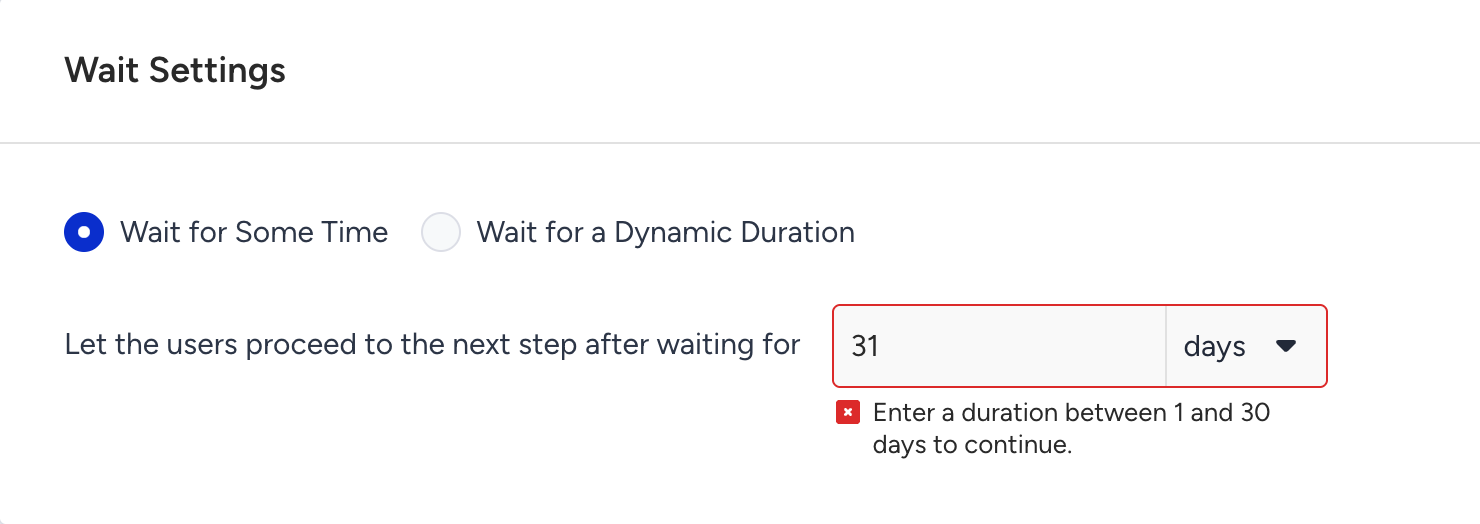
The duration can be up to 30 days. If you enter more, the field shows an error, such as "Enter a duration between 1 and 30 days to continue.", and you cannot save the element.
Wait for a Dynamic Duration uses a number parameter from the Sample API Request of the On API Call starter. The parameter must be a number, such as "reminder_in_hours": 24.
If the Sample API Request has no number parameter, the option is disabled.

Under Starter Parameter, open the list and select the parameter. The list shows only number parameters, including parameters inside an object (shown as order.prep_minutes). You can search the list.
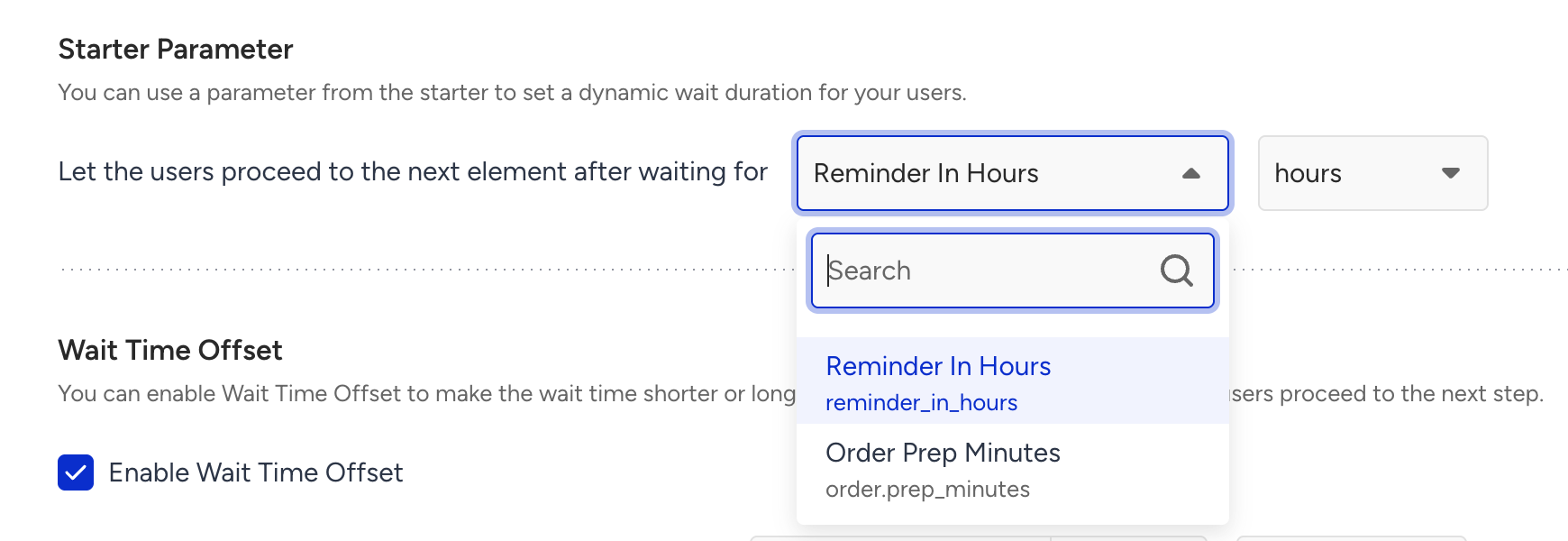
Select the unit the parameter is in, such as hours.
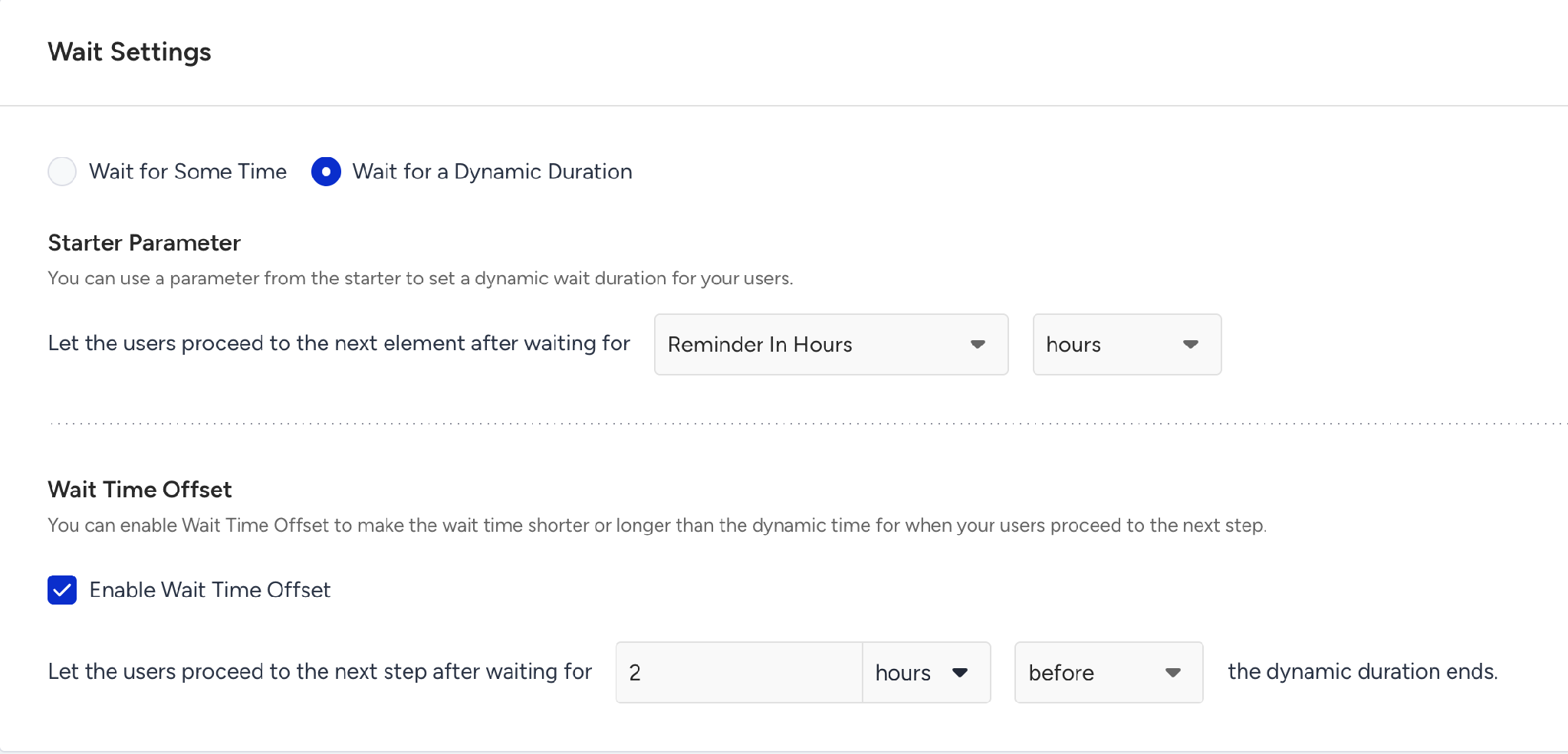
Optionally, select Enable Wait Time Offset to make the wait shorter or longer than the value in the request. E.g., "two hours before the dynamic duration ends" sends the next message two hours earlier than the parameter says.
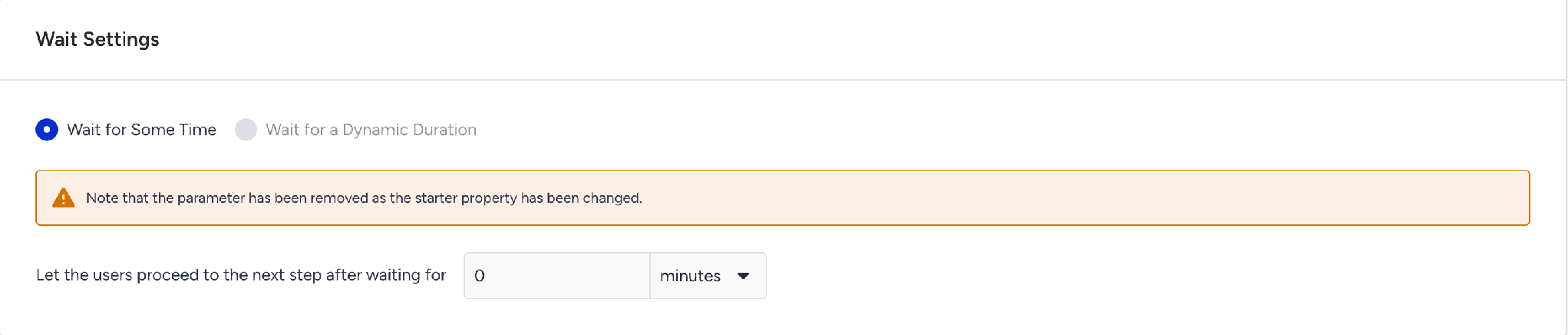
If you later change the Sample API Request and the selected parameter is no longer there, the element switches back to Wait for Some Time. Select a parameter again, or set a fixed duration.
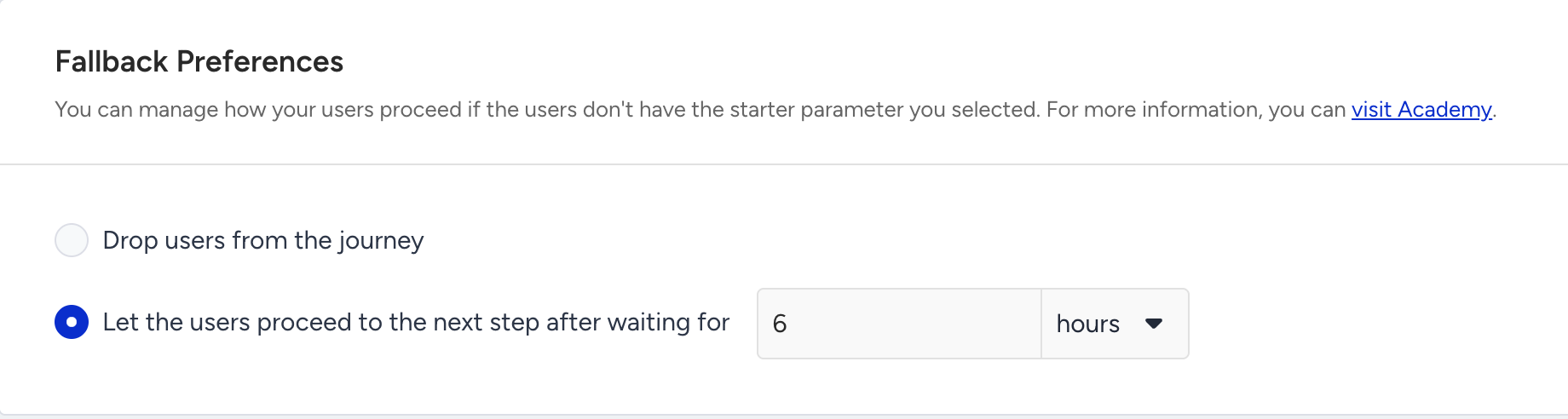
For a dynamic duration, decide under Fallback Preferences what happens if a user's request does not include the parameter:
Drop users from the journey.
Let the users proceed to the next step after waiting for a fixed duration, up to 30 days.
Click the Save button and return to the canvas to continue designing your journey. Remember that a wait element must be followed by a channel element.